Navigate Training in Learn Mode - Article
Summary
Participants should be able to find their place, move to the next available task and understand a locked destination. Learn mode presents navigation appropriate to the current Course or Learning Path and the participant’s available route.
Learn mode keeps the participant inside the active training while providing the controls needed for the current structure. Course pages commonly use a navigation sidebar and bottom navigation. Learning Path modules add a route back to the overview and navigation between available modules. The exact controls depend on configuration and participant status.
Use this article to:
- Identify the main Learn mode regions
- Move between Course pages and Learning Path modules
- Understand what previous, next, Back, and Close do
- Interpret restricted and adaptive navigation
- Troubleshoot a route that appears incomplete or unreachable
Understand the Learn mode layout
Learn mode keeps the current learning task central. The training header runs across the top, the Course outline opens on the left, and the main area displays the learning content. Previous and next navigation appears below the content where the structure provides another available destination.
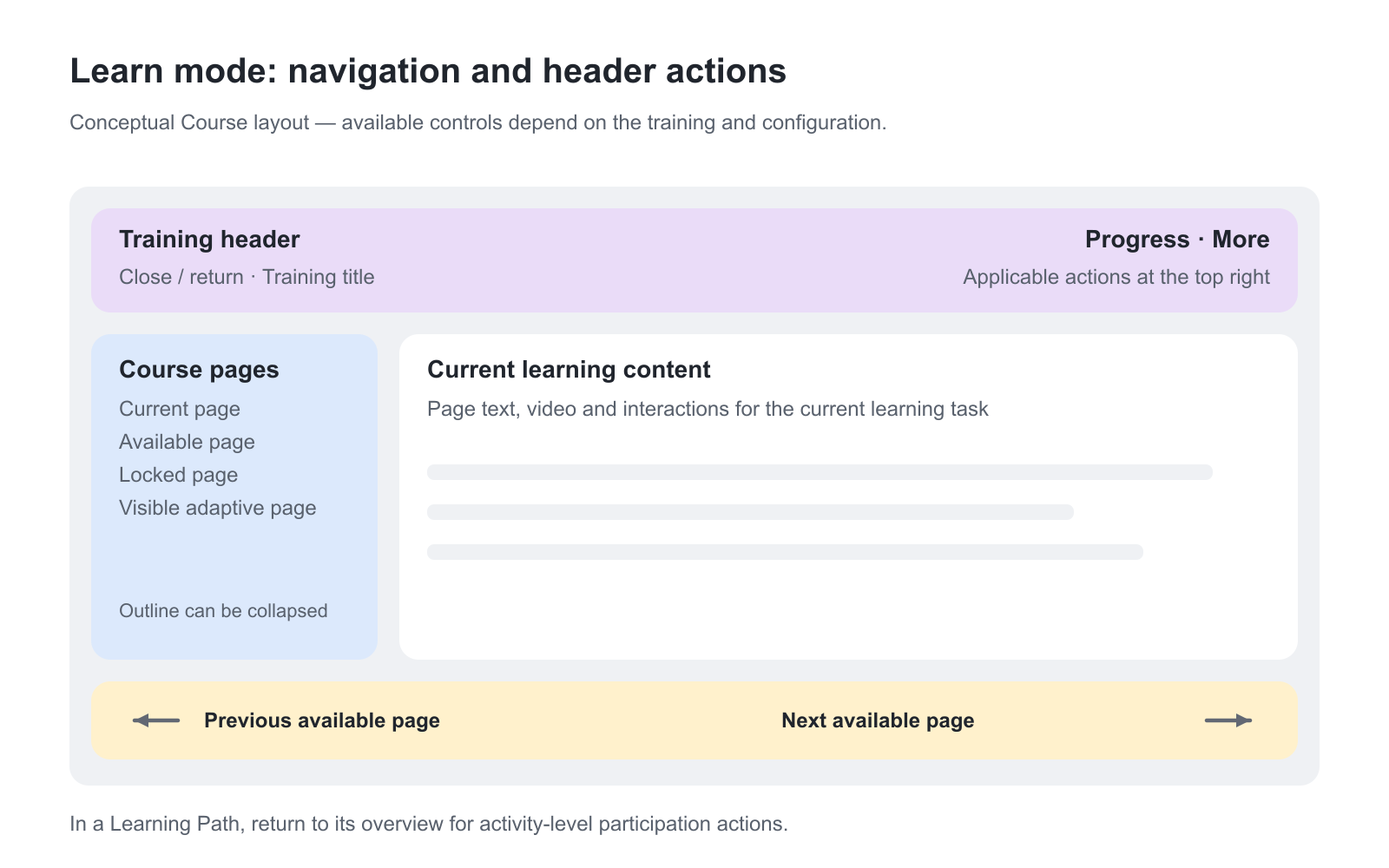
| Region or control | What participants use it for | Position and availability |
|---|---|---|
| Training header | Recognize the training, close or return, and view the available progress controls. | Across the top. The controls depend on whether you are in a single-module activity, a Learning Path overview or one of its modules. |
| Course navigation | See Course pages, the current position and the pages that can be opened. | On the left when expanded. The outline can be collapsed; hidden, restricted and adaptive pages affect the destinations shown. |
| Content area | Read, watch, interact, submit, attend or complete the current learning task. | The main page area. The module type determines its content, evidence and task-specific actions. |
| Bottom navigation | Move to the previous or next available page or module. | Below the content. The available route can skip items that are hidden, optional or restricted. |
| More | Open the participation actions offered for the current training, such as cancellation or a change of delivery where permitted. | In the top-right header. Activity-level actions for a Learning Path are accessed from its overview; availability depends on configuration and your enrollment. |
Find participation actions in the training header
Open More at the top right to see the actions currently available to you. For a Learning Path, return to its overview for activity-level participation actions such as Cancel participation. Do not expect every action to appear inside each individual module.
Options such as Change dates and Change language appear only when the relevant enrollment settings and suitable alternative deliveries or linked language versions are configured. Change dates lets you select another available delivery through re-enrollment; it is not a control for manually editing the activity schedule or extending a Mandatory deadline. If the action is missing, check the configuration and available alternatives with the training administrator.
There is no standard, permanently displayed right-hand learner-actions panel. A specific feature can open its own panel: for example, selecting Saga in the header opens the assistant beside the content when that feature is enabled. This is separate from the Course outline and the More menu.
Navigate within a Course
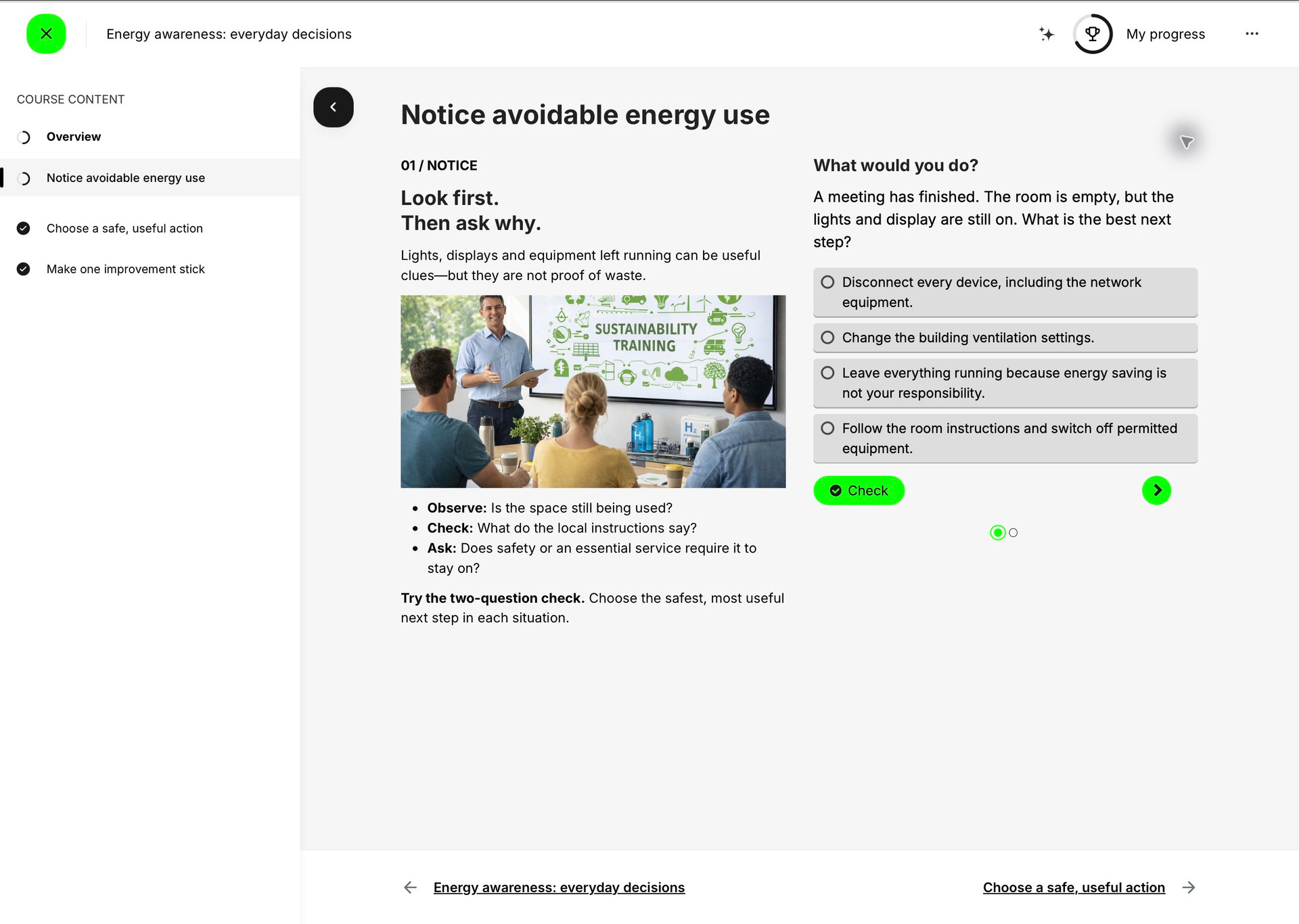
A native Course can contain a hierarchy of pages. The navigation sidebar represents that authored structure. Page titles are the participant-facing navigation labels, so a clear hierarchy helps the participant understand both location and sequence.
Select an available page in the sidebar to open it. Use the bottom navigation to move through the available route without returning to the sidebar. The navigation evaluates the participant’s current access and can move past pages that are not part of the required or available route.
- Current page identifies the participant’s present location.
- Available page can be opened directly when the Course structure permits it.
- Restricted page remains unavailable until its configured condition is met.
- Adaptive page can appear, disappear, or change requirement status after its criteria are evaluated.
- Hidden page is not presented as a participant destination.
Opening a page does not always complete it. The page can contain native video, H5P, SCORM, a test, or other objects with their own progress conditions.
Close the view without cancelling participation
Use Close and save progress when you want to leave the current learning view and return later. Recorded progress remains associated with the training. This is different from Cancel participation, which changes the enrollment record where that action is enabled.
Save or submit the current task when its own interface requires it. Closing Learn mode is not a substitute for submitting an Assignment, finishing a test or saving work inside an externally hosted object. On a narrower screen, the Course outline may be collapsed; open Course content to choose a page, and use the same available previous or next route.
Move between Learning Path modules
A Learning Path overview is the main map of a multi-module activity. Opening a module moves the participant into that module’s Learn mode experience. The participant can normally return to the overview with Back or the configured return control.
Bottom module navigation follows the participant’s available route rather than blindly following the administrative module order. A Supplemental Adaptive Module that has not been revealed is not a destination. A module that has become Optional can leave the required route, although the participant may still open it where it remains visible. A restricted module can remain unavailable until its prerequisite is satisfied.
Back, Close, previous, and next
| Control | Typical behavior | Important distinction |
|---|---|---|
| Back | Returns from the current module to the Learning Path overview or previous training context. | It does not cancel the participant’s signup or erase progress. |
| Close | Leaves the module or Learn mode where the configured interface provides a close action. | Closing the view does not mark unfinished learning as complete. |
| Previous | Moves to the previous available Course page or module. | It follows the current participant route, not necessarily every authored item. |
| Next | Moves to the next available page or module. | It cannot override an unmet Access Restriction. |
| Continue | Resumes the most relevant available point from a Learning Path overview. | If a previously visited page becomes restricted, the route can fall back to an available starting point. |
Understand restricted navigation
Restrictions explain why a participant can see the journey but cannot yet open a later destination. The visible lock explanation should state the relevant condition in participant language. If the wording is unclear, administrators can adjust platform text strings and labels so the instruction matches the organization’s terminology.
A restriction belongs to the configured page or module relationship. Elevated permissions or author preview can bypass or expose content differently, so test the restriction with an enrolled participant. See Control Course Page Access and Prerequisites for configuration patterns.
Understand adaptive navigation
Adaptive logic changes the participant’s route when defined criteria are met. Supplemental content begins hidden and can become visible and required or optional. Optional adaptive content begins in the path and can become optional for a qualified participant.
The participant may therefore see the required route become longer or shorter after a test, assignment, certificate, skill, profile, or other criterion is evaluated. Explain the learning purpose of the change in the surrounding Course content and feedback. See Design Adaptive and Recommended Course Pages for the administration model.
Breadcrumbs and tenant-specific navigation
Some platforms enable breadcrumbs or other navigation treatments. Treat these as configuration-dependent aids, not universal controls. The Course sidebar, Learning Path overview, and explicit previous or next actions remain the reliable participant navigation model described in this article.
Use the return control at the right level
Inside a module of a Learning Path, the return action can be labelled Back to modules. It returns to the program map, where the participant can review the other modules and their available actions. A separate Close control can leave the training context where the platform configuration provides it. Neither navigation action is a request to cancel participation.
A Course with only an introductory page may have no useful page sidebar to display. A Course with several pages can add its authored hierarchy and page navigation. The first Course page is reached through the activity’s access relationship; restrictions on later pages are a separate authoring mechanism. A participant who can open the introduction is therefore not necessarily entitled to every later page.
For example, a learner may read the introduction and then see a locked assessment page. Read the lock explanation, complete the stated prerequisite and return to the available route. Selecting Next or reopening the Course does not override the condition. If the stated prerequisite cannot be reached, the facilitator or administrator should investigate the design rather than repeatedly restarting the learner’s attempt.
Test a reachable route
Start with a newly enrolled participant and complete the activity in the intended order. Confirm that every required destination can be reached before it is needed, that the explanation for a lock is useful, and that optional or adaptive items do not create a dead end. Repeat the test after meeting each major condition, because the route can change when progress is recalculated.
Troubleshooting
| Problem | What to check |
|---|---|
| Next opens a different destination than the authored order suggests | Check hidden, optional, adaptive, and restricted pages or modules. Navigation follows the available participant route. |
| A page is visible but cannot be opened | Read the lock explanation and verify the page-level restriction, prerequisite evidence, date, and recalculation. |
| A module is missing from bottom navigation | Check whether it is Supplemental and not yet revealed, Optional and outside the required path, hidden, or unavailable by schedule or restriction. |
| Back or Close appears to lose progress | Reopen progress details. Leaving the view does not erase recorded evidence, but unsaved interactions inside an external object may behave according to that object. |
| An administrator can navigate where the participant cannot | Use an enrolled participant account or participant preview appropriate to the feature. Administrative visibility is not the participant route. |
| The participant reaches a dead end | Check that the next required module is available before it becomes necessary and that no circular restriction waits for evidence that cannot be reached. |
| A participation action is missing | Check More in the training header and, for Learning Path activity-level actions, return to the overview. Then check the relevant feature settings, enrollment status and eligible alternatives. Changing dates requires re-enrollment to be enabled and a suitable alternative delivery. |
FAQ
-
Why does Next skip a page or module?
Next follows the participant’s available route. It can move past hidden, unavailable Supplemental, optional, or restricted content rather than following every item in the administrative structure.
-
Does Back or Close cancel the training?
No. Back and Close leave the current view or return to the Learning Path overview. They do not cancel the signup or erase recorded progress.
-
Why can an administrator open a page that a participant cannot?
Administrative and responsible-user visibility can be broader than participant access. Verify the route from an enrolled participant relationship and check the page or module restriction.
-
Can the text explaining a locked page be changed?
Yes. Review the configured restriction and the participant-facing text. Platform labels and text strings can be adjusted to use terminology that is clear for the organization.
-
Are breadcrumbs always shown in Learn mode?
No. Breadcrumbs are configuration-dependent. Use the Course sidebar, Learning Path overview, and explicit previous, next, Back, or Close controls as the core navigation model.