Create a User and Support First Access - Article
Summary
Create an account manually when an authorized administrator needs to prepare access for a known person. Choose the correct identity, role, organizational relationships, and registration communication, then verify the outcome required by your process.
Use this article to:
- Create a user without accidentally creating a duplicate.
- Choose an appropriate first-access and communication route.
- Distinguish a local password problem from approval, SSO, or training-access issues.
When manual creation is appropriate
Manual creation suits a small number of known users, an individual support case, or a controlled administrative enrollment. For a large approved population, an import is usually more manageable. Where an identity or HR integration owns the population, use that process rather than creating a competing identity manually.
Search Users first. Compare email, Username where used, organization, and User ID. A person returning with a new employer or email address may already have valuable learning history in an existing account.
Creating an account from Users does not by itself enroll the person in a Training Activity. An activity-based creation route can combine those operations, but its participation outcome must be checked separately.
Create the account
- Open Users and select Create.
- Enter the identity and required profile information shown in the form.
- Choose the permitted role and intended organizational relationships.
- Review account status and any supported scheduled-blocking option.
- Choose how registration or password creation will be handled.
- Save using the form’s creation action, then open the resulting account and verify its information.
The form is configurable. Required fields and available roles can differ between platforms and between the administrative, organizational, and activity-enrollment routes.
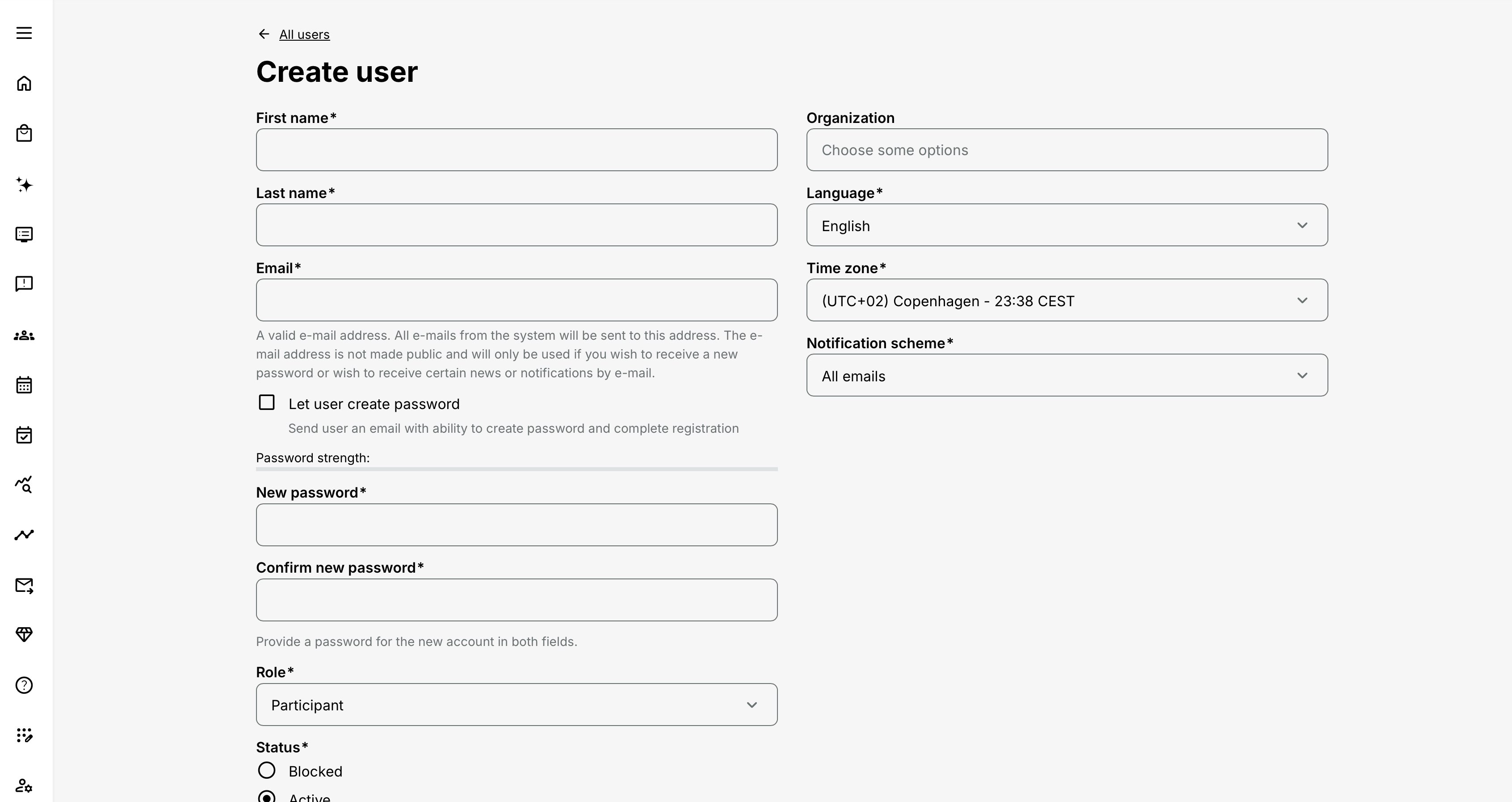
Configure the important information
| Information | How to decide | Why it matters |
|---|---|---|
| Name and email | Use the person's intended account identity and a usable contact address. | These values support recognition and communication, but email is not universally the unique identifier. |
| Username, where enabled | Follow the platform’s identity convention and check for an existing match. | Username is particularly important where non-unique emails are allowed or a connected identity uses it for matching. |
| Role | Assign the least responsibility needed for the person's work. Most learners do not need an administrative role. | The role affects available capabilities; it is not simply a descriptive job title. |
| Organization and suborganization | Select the actual managed relationship, not a convenient placeholder. | Membership can influence management scope, audience access, reporting, and other configured processes. |
| Language | Choose an enabled language appropriate to the person. | It influences the localized interface and communication where translations are available. |
| Time zone | Use the person's intended time zone where the field is enabled. | Schedules and communications should be interpreted in the correct local context. |
| Country and other profile fields | Enter accurate values required for the audience and business process. | Profile information can feed reporting, targeting, and the starting information used in commerce flows. |
| Notification scheme | Use the approved scheme for the audience. | Notification preferences are not a guarantee that essential account or security communication is suppressed. |
| Status | Decide whether the account should have access now. | A Blocked account cannot sign in; other approval or access conditions can still apply to an otherwise existing account. |
Do not use an elevated role to compensate for an incorrect organization or missing activity responsibility. Resolve the actual relationship instead.
Choose the first-access route
| Route | Appropriate use | Administrator responsibility |
|---|---|---|
| Let the user create their own password | A local-account user should complete registration through the platform’s message. | Verify the address, explain the expected message, and avoid sending a conflicting second set of instructions. |
| Administrator-supplied password, where available | A specifically approved process requires silent creation and separate credential handling. | Use the organization’s approved secure process. Do not use a shared password as a convenient production onboarding standard. |
| Connected sign-in | The person should use the configured SSO provider. | Confirm account matching and the correct login route with the identity owner; do not assume a local password is required. |
| Prepared account with access held back | An account is needed before the person should be allowed into the platform. | Choose the supported status and approved later activation process rather than relying on the person not knowing the URL. |
The available password controls are configurable. A silent creation option does not mean that registration communication, security policy, or later activation can be ignored.
If registration communication is missing, an authorized administrator can inspect Settings → Email Sending → Sent emails. This confirms platform processing, not delivery to the recipient’s inbox. Check provider records, bounce information, and spam or quarantine before sending repeated replacement messages.
Creating a user while arranging training
An authorized administrator can also create a new user from a supported enrollment or reservation workflow. That route carries an activity context in addition to the account details.
Review the resulting participation status and any confirmation options. A reservation, a waiting-list entry, an enrollment awaiting approval, and a Registered signup are different outcomes. Do not tell someone that training is ready solely because their new profile exists.
Administrative enrollment is also not proof that a card payment has been collected. Follow the approved financial arrangement for the activity. The complete process is documented in Enroll and register participants.
Help an existing user get in
For an eligible local account, the Users-list One time login action sends the Complete your registration message. The link is time-limited; the standard validity is 24 hours, but platform configuration can differ. Treat it as an access credential and do not distribute it to someone other than the intended user.
The normal Forgot password? route supports local password recovery. SSO credentials are normally managed by the identity provider. Some platforms also permit regular email-and-password login for SSO users, so establish the intended route rather than assuming all accounts behave identically.
Two-factor authentication, where enabled, is an additional sign-in step. A correct password alone does not resolve a missing authenticator. Use the approved recovery/support process; do not ask the user to send passwords or one-time codes through a support conversation.
Verify the outcome
| Scenario or check | Expected result or evidence |
|---|---|
| Account creation | Exactly the intended identity exists with the correct role, organization, language, and status. |
| First access | The person can follow the intended registration or SSO route, including required approval or authentication steps. |
| Training was promised | The correct delivery shows the expected signup and the learner can reach it when the configured conditions permit. |
| Communication | The person receives one coherent set of next steps, rather than conflicting password and enrollment instructions. |
Troubleshooting
| Problem | What to check |
|---|---|
| The person did not receive the registration message | Confirm the account email and selected creation option. Check spam/quarantine and the available email-sending evidence through an authorized administrator before repeatedly sending new messages. |
| The registration link no longer works | Check whether it has expired and use the supported new-link or password-recovery process for that account type. |
| The user is told approval is required | Check Pending-account approval. Resetting a password does not approve the account. |
| The user is blocked | Establish why access was blocked and obtain the required authorization before restoring it. |
| Company sign-in works but the expected training is missing | Compare the resulting User ID with the existing learning account, then inspect enrollment and access. Do not immediately create another account. |
| The user can sign in but cannot start a course | Check the activity signup, availability, prerequisites, and any access expiration separately. |
FAQ
-
Should an SSO user use the ordinary Forgot password route?
Usually, the external identity provider manages the credentials for the SSO route. Some platforms also allow local email-and-password login for connected users. Establish which method the person is trying to use and direct them to its recovery process.
-
Will resetting a password approve a Pending account?
No. Password recovery and account approval are separate processes. An authorized administrator must review the Pending account through the configured approval process.
-
Does creating a user automatically send a registration message?
It depends on the registration and notification options used for that account-creation route. Confirm that the intended message is selected, the contact email is correct, and the authentication method matches the person’s journey. A saved account alone does not prove that an invitation was delivered.