Find and Manage Users - Article
Summary
Use the Users list as the operational starting point for finding accounts, checking their context, and choosing the next administrative action. Search and filters help identify the intended population; profile, enrollment, and reporting views provide the detail needed to resolve a specific question.
Use this article to:
- Locate the correct person and distinguish similar accounts.
- Understand the difference between account information and learning participation.
- Carry out individual or bulk actions without confusing their consequences.
Open the Users list
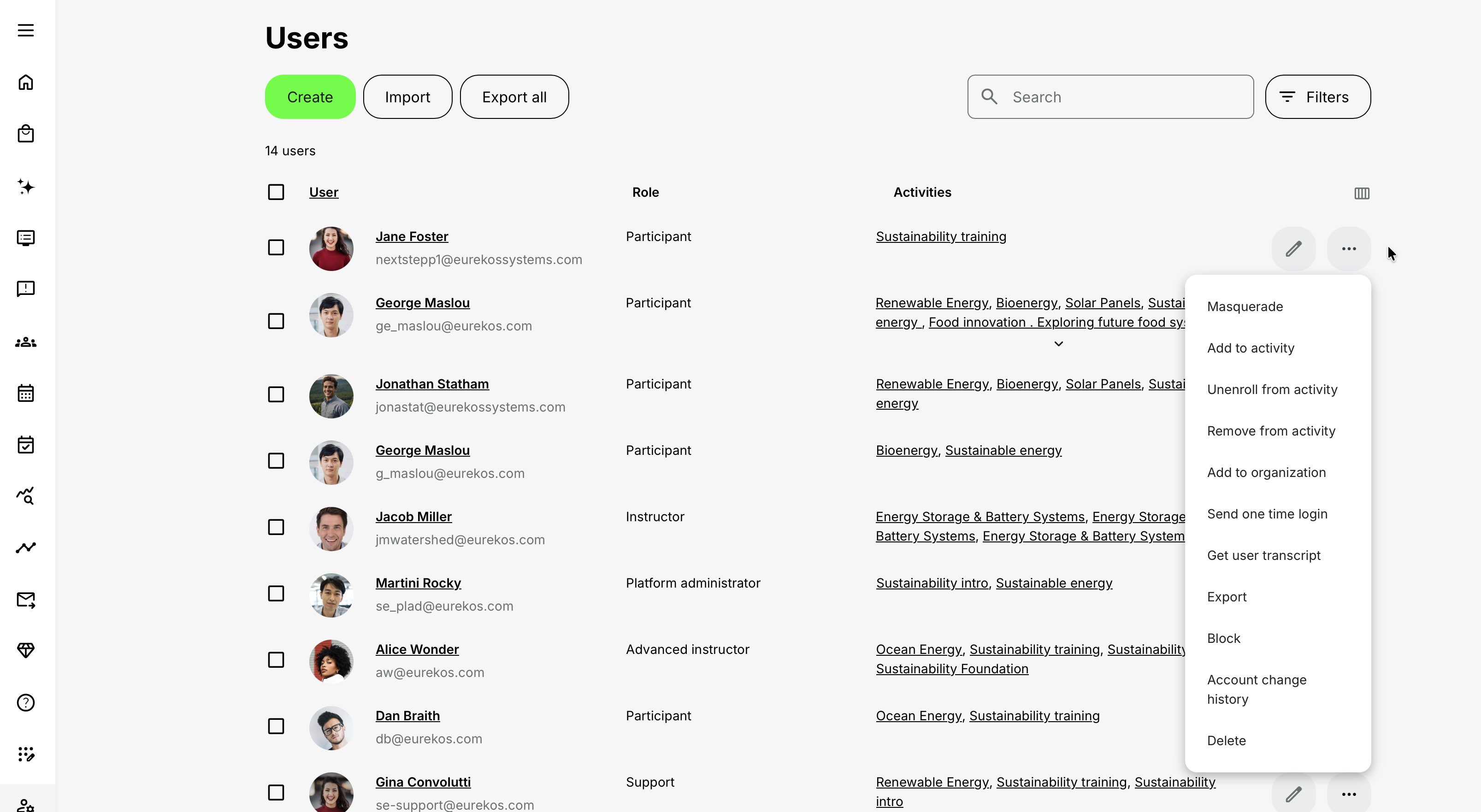
Open Users from the main navigation. The people, filters, and actions available to you depend on your role, organizational scope, and platform configuration.
A restricted list does not necessarily mean an account is missing. Before creating a replacement, check the active filters and whether another administrator has the necessary scope to find it.
Identify the account before acting
| Information | What it helps establish | Important distinction |
|---|---|---|
| Name and email | The likely person and their contact information. | Similar names, changed email addresses, and platforms allowing shared emails require additional checks. |
| User ID | The specific Eurekos account. | Use this stable reference in support investigations instead of relying only on a name. |
| External ID, where shown | A connection to an external identity system. | Its availability and meaning depend on the integration; it is not a second Eurekos User ID. |
| Role | The user's configured system role. | Effective access also depends on relationships, scope, and feature configuration. |
| Organization | The user's managed business relationships. | Membership and training enrollment are different records. |
| Registered and Last login | Account registration and sign-in context. | Neither field proves completion or measures all learning engagement. |
| Activities | Connected training context. | Open the relevant activity or learning record to establish the actual signup, progress, or certification state. |
Additional identifiers may be available in the detailed view. Use the information displayed by your platform rather than assuming every column is present in every layout.
Use filters to define the population
Filters can include role, account status, country, language, organization, and enabled profile tags or fields. Other filters, such as staff relationships or two-factor authentication, depend on permissions and enabled features.
Use Without organization when investigating accounts not connected to an organization. Where a hierarchy is available, a Without suborganizations filter answers a narrower question: who lacks membership in a branch beneath the selected parent. These are not interchangeable populations.
The My staff filter is based on an Immediate Manager relationship where enabled. It should not be interpreted as everyone who shares the same department or organization.
When Users becomes My staff
If an Immediate Manager already has access to Users, the Users list remains available and a My staff filter is added. If the person does not otherwise have Users access, the navigation presents My staff and lists only the people assigned to them.
Assigned staff remain in this scope regardless of the organization filter currently applied. The actions available for those staff members still depend on the Immediate Manager's underlying role, permissions, enabled features, and activity configuration. If a person is missing, verify the relationship on the staff member's profile and confirm that the intended manager's role is eligible for the add-on. Always review the resulting accounts before a bulk operation. A valid filter can still select the wrong business population if the underlying profile information is out of date.
Choose the appropriate action
| Action | When to use it | Consequence to understand |
|---|---|---|
| Create or Import | Establish accounts or maintain an approved population. | Registration, membership, and enrollment outcomes depend on the selected route and options. |
| Edit or open profile | Check or correct a particular user's information. | Integration-owned fields may be supplied again by their source system. |
| One time login | Help an eligible local-account user complete registration or regain the supported access route. | This is not the normal password-management route for SSO accounts. |
| Add to activity | Arrange participation in a specific Training Activity. | Activity eligibility, participation state, capacity, and financial handling remain separate considerations. |
| Unenroll from activity | End participation in a delivery under the approved process. | This does not block the person's platform account. Cancellation and complete removal of participation have different history consequences. |
| Add to organization | Establish the intended organizational relationship. | Do not assume this transfers the person out of every existing organization or enrolls them in training. |
| Get transcript | Obtain a person's learning-history document. | A transcript is not a complete commercial audit or a copy of every historical participation state. |
| Merge | Consolidate confirmed duplicate accounts. | Choose the surviving identity and understand record-transfer and deletion consequences first. |
| Block or Unblock | Stop or restore platform account access. | This is different from removing an individual activity signup. |
| Approve or Decline | Process a Pending account where account approval is enabled. | Account approval is separate from approval of an activity enrollment request. Declining a Pending account deletes it. |
| Delete | Remove an account under an authorized process. | Review permanence, record consequences, integrations, and retention requirements before confirming. |
Not every action is available to every role or for every selected account. The list is an action guide, not a universal permission matrix.
Work with multiple users
Filter first, select the intended users, then choose the available bulk action. Check the selected population and any confirmation or options before committing.
Treat bulk actions according to their effect. Exporting a controlled list is different from sending access emails, granting membership, enrolling users, or deleting accounts. A large population should have an identifiable owner and purpose.
Use the detailed user-list view when you need User ID or External ID to distinguish accounts. External ID is used for supported SAML identity matching and can be blank when the provider uses email instead; it is not a universal identifier for every account.
When bulk enrollment creates individual signups, expect the corresponding individual Transaction records rather than assuming one consolidated order. The detailed participation process is covered in Enroll and register participants.
Export for a defined purpose
Use Export all for the accessible population offered by that action, or the selection-based export for the users you have deliberately selected. Confirm the actual scope of the downloaded result rather than assuming that every export button applies the same filter or selection rules.
Keep exported personal information in an approved location and share only the fields required for the task. An export is useful for reconciliation, but is not a complete backup of every learning record or a guaranteed ready-to-import file. Download the current import template when preparing an import.
Use masquerade carefully
Where authorized, Masquerade can help investigate what a user experiences. It is not a read-only preview: actions can affect the user's learning experience and analytics.
Use it for a specific support purpose, avoid completing learning or changing consent on the person's behalf, and leave the masquerade session when finished. A masqueraded view does not replace representative permission testing of every role and audience.
Verify the outcome
| Scenario or check | Expected result or evidence |
|---|---|
| One account is changed | The intended User ID has the correct resulting information or status. |
| A population is processed | The affected accounts match the approved selection, and failures or exceptions are identified. |
| Membership or training is involved | The relationship or activity signup exists in its own view with the expected state. |
| Information is exported | The file contains only the required scope and is stored and shared through the approved process. |
Troubleshooting
| Problem | What to check |
|---|---|
| A known person is missing | Clear unintended filters, check account status and identifiers, and confirm your organizational scope before creating another account. |
| An action is unavailable | Check the selected account status, your permitted roles, organizational relationship, and whether the feature is configured. |
| Two similar accounts appear | Compare User IDs, sign-in method, organizations, and learning history. Do not merge solely because names match. |
| The user exists but cannot find training | Check the actual activity signup, audience, availability, and access requirements—not just the Users-list entry. |
| A bulk result differs from expectations | Reconcile the actual selected population, result messages, and affected records before rerunning the action. |
FAQ
-
Why can another administrator find a user that I cannot see?
Check your active filters, the account status, and your organizational scope. Visibility depends on the relevant permissions and relationships. A user missing from your current list is not evidence that the account must be created again.
-
Is Masquerade a read-only preview of the learner experience?
No. Actions performed while masquerading can affect the person's learning experience and analytics. Use it for an authorized support purpose and avoid completing learning or making changes on the person's behalf unless specifically authorized and appropriate.
-
What should I check before creating another account for someone I cannot find?
Clear active filters, include relevant account states, check your organization scope, and search using dependable identifiers such as the User ID or known email addresses. Another administrator with broader scope may be able to find the account. Reuse the correct identity where possible so learning records are not split across duplicates.