Enroll and register participants - Article
Summary
Enrollment connects a person to a specific Training Activity and creates the participant record used to manage their place, access, communications, progress, and completion. People may choose training for themselves or be added through an administrative or automated process. Depending on the process, they may be registered immediately or may first need approval, payment, acceptance of an invitation, or an available seat.
In this article you will learn:
- The difference between enrollment, invitations, reservations, approval requests, and waiting-list places
- Which enrollment route to use for different audiences and processes
- How to enroll existing users, create a user while enrolling, and import participants
- How self-enrollment, Storefront visibility, restrictions, approval, commerce, and questionnaires work together
- How managers can request or perform enrollment for other people
- How QR-code smart links, invitations, and promotions differ
- How onboarding rules, subscriptions, nested training, questionnaires, Microsoft Teams, and APIs can enroll users
- Which statuses occupy seats and what access each status provides
- How to cancel, move, expire, complete, or reactivate participants
- Which special cases to check before opening registration
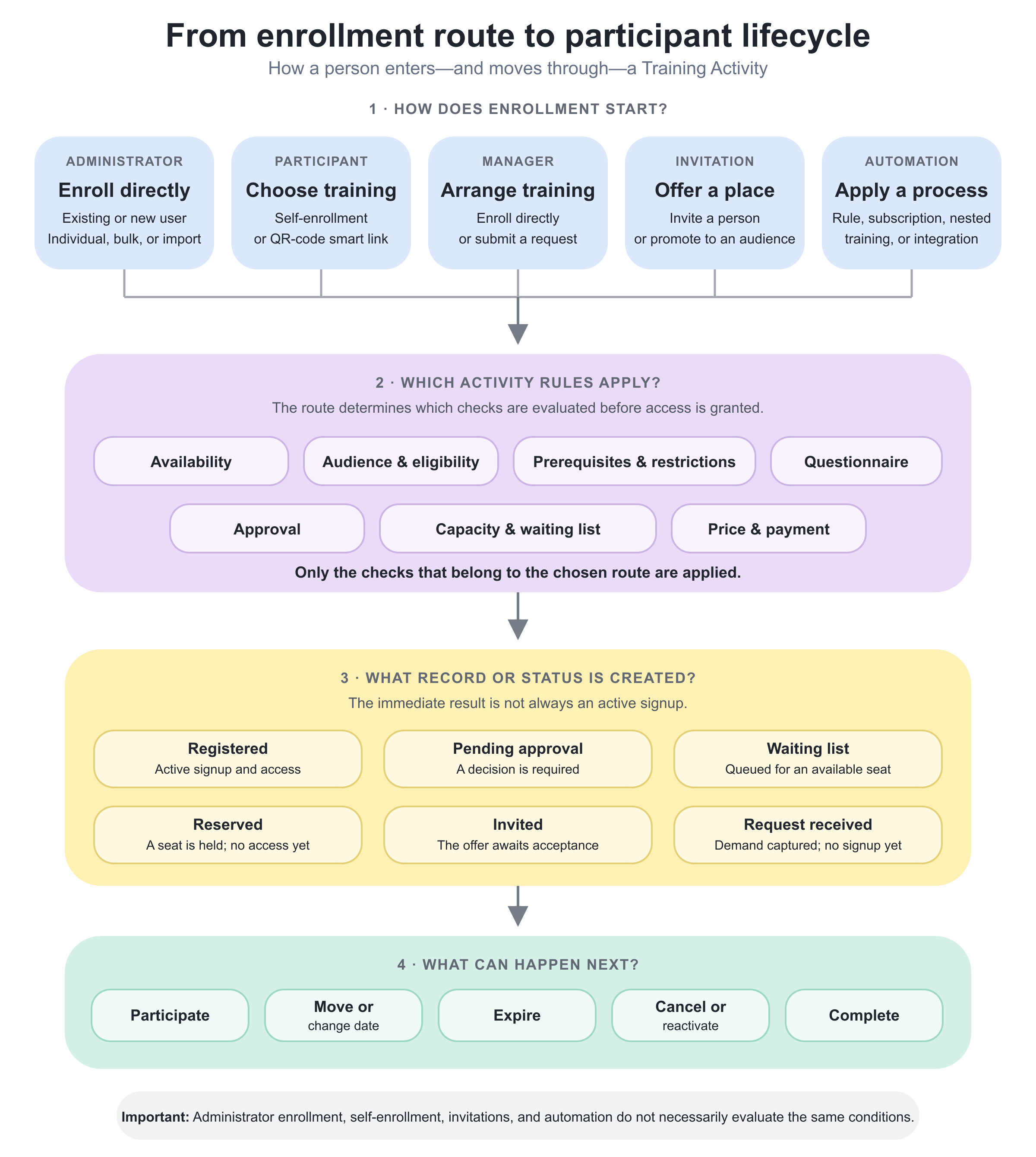
Enrollment creates a signup
In Eurekos, enrolling a person creates a signup for a particular Training Activity. The signup connects the user to that delivery of the training and stores information such as registration status, price, progress, completion, comments, and relevant transaction data.
This distinction is important:
| Record or action | What it means |
|---|---|
| User account | The person's identity and profile in Eurekos. Creating an account does not by itself enroll the person in training. |
| Signup or enrollment | The record connecting a user to a Training Activity. A successful enrollment normally appears as Registered. |
| Participant | A user represented on the activity's participant list. The list can also contain non-active statuses such as Reserved, Waiting list, Expired, or Cancelled. |
| Invitation | An offer to enroll. It is not a registered signup until the recipient accepts or an administrator converts it. |
| Reservation | A seat held for a named or not-yet-known participant. It does not give access to the training until converted to an enrollment. |
| Enrollment request | A request awaiting an approval decision. It does not reserve a seat unless another process explicitly does so. |
| Waiting-list place | A place in the queue when an activity or organization allocation is full. It does not give access or occupy a regular seat. |
| Progress and completion | Learning records created after enrollment. Cancelling a signup and deleting learning records are different actions. |
The interface uses both enroll and register. In this article, both mean creating an active signup unless a different status is stated.
Choose the right enrollment route
The best route depends on who initiates the enrollment, whether the participant should choose the training, and whether approval or payment is required.
| Route | Best used when | Result |
|---|---|---|
| Enroll from the activity | An administrator knows which existing users should attend | Creates registered signups directly |
| Create a new user while enrolling | The participant does not yet have an account | Creates the account and a registered signup |
| Filter-based bulk enrollment | A known group of existing users should attend | Creates a signup for each selected eligible user |
| Activity-specific spreadsheet import | A large prepared list must be enrolled in one activity | Creates users where permitted and enrolls them in the open activity |
| General user import | Users, profile data, and enrollment in one or more activities must be processed together | Creates or updates users and enrolls them through the Activity column |
| Self-enrollment | Participants should find and choose training themselves | Registers immediately, starts approval, opens a questionnaire, enters checkout, or joins a waiting list according to configuration |
| Manager enrollment or request | Managers should arrange training for their staff or other related users | Registers directly when authorized or creates an approval request |
| QR-code smart link | People should register from a poster, event, classroom, or controlled campaign | Authenticates the user and enrolls through the activity-specific link |
| Invitation | Selected recipients should be offered a place | Creates an invitation, optionally with a reserved seat |
| Promotion | Contact Managers should distribute available places to their audiences | Invites the Contact Managers to nominate or invite other people |
| On-demand request | The learner requests training that is not yet scheduled | Captures demand for later follow-up; it does not create an enrollment by itself |
| Reselling Gateway purchase | A buyer should configure and purchase a private group delivery | Creates a private cloned activity and transfers the buyer's signup and Transaction to it |
| Onboarding or organization rule | Assignment should follow repeatable organizational logic | Enrolls users when the configured rule applies |
| Subscription | Training is included in a purchased plan or seat allocation | Enrolls automatically or lets an eligible member use a subscription seat |
| Existing Training module | Enrollment in a parent activity should lead to another activity | Auto-enrolls in one nested activity or lets the participant choose among alternatives |
| Questionnaire action | A questionnaire response should assign follow-up training | Enrolls according to the questionnaire's configured action |
| Integration or API | Another system owns the triggering workflow | Creates the signup through the configured integration |
| Training-history import | Historical learning must be recorded rather than delivered | Adds a historical record; it is not the normal route for granting current training access |
These routes all affect the same underlying participant lifecycle, but they do not behave identically. For example, administrator enrollment can override the participant-facing price, whereas paid self-enrollment normally sends the participant through checkout.
Use this article to choose and operate the enrollment route. For the exact configuration behind a route, see:
- Self-enrollment Eligibility and Requirements for Storefront availability and eligibility criteria
- Participation Approval and Enrollment Requests for approval responsibility, request states, reminders, and outcomes
- Registration Details and Capacity for deadlines, seats, organization allocations, and waiting-list behavior
- On-demand Training Requests for unscheduled demand capture and conversion
- Reselling Gateway for buyer-configured private deliveries
Before you enroll participants
Review the complete activity before opening registration or adding a large group. Enrollment can succeed while the resulting participant experience is still incomplete or unintended.
| Area to check | What to review | Why it matters |
|---|---|---|
| Learning structure | Confirm that the intended Courses, Calendar Events, Assignments, and Existing Training modules are included and ordered correctly. Check whether any Existing Training module automatically enrolls participants in a nested activity. | A participant can gain access immediately after registration, subject to availability rules. Automatic nested enrollment can also create a signup in another Training Activity, so verify the capacity and eligibility of both the parent and nested activities. |
| Dates and availability | Review activity start and end dates, module schedules and deadlines, earliest and latest registration dates, Access Expiration, self-enrollment availability, and date-based enrollment restrictions. | The latest registration date can stop new self-enrollment and invitations while existing participants retain access. Automatic waiting-list enrollment also stops when registration is no longer available. |
| Capacity and organization allocations | Confirm the overall participant limit, waiting-list behavior, authorized administrator overrides, and any seats reserved for specific organizations. | Overall capacity and organization allocations can both determine availability. A participant can be unable to register even when the activity appears to have unused seats because their organization’s allocation is full. |
| Discovery and eligibility | Review activity publication and availability, Storefront sections and audiences, organization access, prerequisites, enrollment restrictions, required questionnaires, language or linked-activity choices, subscription access, and direct-link policy. | Allow self-enrollment is only one dependency. An Activity Description can open for an ineligible visitor while showing an unavailable message and hiding sensitive enrollment or pricing information. Seeing the page does not prove that the visitor can enroll. |
| Price, approval, and communication | Determine whether enrollment is free, paid through checkout, covered by a subscription, charged in Virtual Credits, recorded with an administrator-specified price, or subject to participation approval. Review the notifications and Automated Email Workflows that should follow registration. | Administrator enrollment is usually a direct administrative action and can be silent unless notification or automation is selected. Creating a signup does not automatically send every welcome message, account email, calendar invitation, or joining instruction required by the process. |
Enroll existing users from a Training Activity
Use direct administrator enrollment when the participants already exist in Eurekos and do not need to choose or request the training themselves.
- Open Course Administration → Activities.
- Open the Training Activity.
- Open Participants.
- Select Enroll and choose the option for existing users.
- Search for users or apply filters to find the intended audience.
- Select one or more eligible users.
- Review price and notification options when they are shown.
- Confirm the enrollment.
The precise buttons and filters depend on your permissions and platform configuration.
Who can enroll existing users
Administrators can enroll users within the organizations and activities they are permitted to manage. The highest administrative roles can work across all organizations; organization-scoped roles are limited by their assignments and platform configuration.
An instructor can also be allowed to manage participants in Training Activities for which the instructor is responsible. When enabled, the instructor can work with existing eligible users but does not receive unrestricted user-administration rights. An instructor cannot create accounts with a higher role or enroll users outside the permitted organization scope.
If a user cannot be found, check:
- Whether the user already exists under another email address
- Whether the user is active or blocked
- Whether your role can see the user's organization
- Whether the user is already represented by a signup or invitation
- Whether activity restrictions make the user ineligible
Enroll a filtered group
For a moderate group of existing users, filter the user selector and select the matching people. Eurekos creates a separate signup transaction for each user, so one failure does not necessarily mean every selected user failed.
Review the selected users before confirming. A broad organization or profile filter can include more people than the business request intended.
Set the enrollment price
When the activity uses a regular price or Virtual Credits, Specify price can be available during administrator enrollment. It can let you choose:
- One of the currencies enabled for the activity
- Virtual Credits, when the participant and organization are eligible
- Free
The activity price can be prefilled but remains editable for this enrollment. This is useful for complimentary seats, negotiated prices, internal allocations, or administratively invoiced attendance.
Manual enrollment does not send the participant through the learner checkout. Recording a price on the signup and collecting payment are separate business processes.
Virtual Credits require the user to belong to an organization or suborganization with enough credits. When enrolling several users together, the users must share an appropriate organization context; otherwise the Virtual Credits option can be unavailable or validation can fail.
If Specify price is not used, Eurekos determines the relevant currency from the activity, user profile, and platform configuration.
Decide whether to notify participants
Use the displayed notification option when participants should receive an immediate enrollment message. If you leave it clear, the signup can be created without that one-time message.
Separate email automations may still run when their triggers and conditions are met. Before a large enrollment, test with one user and verify:
- The sender and recipients
- Language and tokens
- Event dates and joining instructions
- Account activation requirements for new users
- Whether nested activities send additional messages
For more detail, see Automated Email Workflows.
Create a new user while enrolling
Use Create new user from the activity's participant area when a person needs both an account and immediate registration in this activity.
Enter the required identity, contact, language, organization, and profile information, then complete the enrollment options. The fields shown depend on your user configuration.
Consider these dependencies:
- Your role must be permitted to create the selected user type and assign the selected organization.
- A user with the same email may already exist. Email matching is not case-sensitive.
- If the person must sign in, make sure the appropriate account activation or password process is sent.
- Profile language can affect communication and which linked language version is presented.
- Creating the account and creating the signup are related but distinct operations; review any error messages before assuming both succeeded.
For a larger set of new users, use an import rather than creating them one by one.
Import participants into one activity
The activity-specific import is designed for a prepared spreadsheet of people who should all be added to the Training Activity currently open.
From Participants, choose Import users, download the current template, complete it without changing the required structure, upload it, map or validate the data when prompted, and review the result before processing the full audience.
How the activity-specific import differs
Compared with the general user import:
- The target Training Activity is already known, so the file does not need an Activity column.
- It can create new users when your role permits.
- It can enroll existing users.
- It does not update the profiles of existing users.
- It can record a specific price.
- It does not support Virtual Credits as the enrollment price.
Administrators and support roles can use the import within their permitted scope. Instructors with participant-management permission can assign existing eligible users, but they cannot use the import to create new users.
Organization filtering during import
When the platform's Organization Filter is enabled, most scoped administrative roles can create or enroll users only in organizations to which they belong. A row referencing another organization produces an error. Global roles with full organization access are not limited in the same way.
When Organization Filter is disabled, the roles permitted by the import configuration can specify organizations outside their own memberships. Treat this as a governance decision and validate imported organization values carefully.
Use the general user import for broader changes
Use the user-administration import instead when you need to:
- Enroll users in more than one Training Activity
- Update profile information for existing users
- Combine account creation, profile maintenance, and activity assignment
- Use an Activity column to drive enrollment
If Reactivate expired signups is enabled for the general import, importing an existing user with an Activity value can create a new signup when the former signup has expired. This option depends on the Activity column being enabled in the import configuration.
Eurekos skips the reactivation if the activity's expiration rule would make the new signup expire immediately. Always review the import result rather than assuming every expired record was renewed.
For more detail, see Users list.
Reserve seats before the participant is known
A reservation holds capacity without granting training access. Use it when a department, customer, or event organizer has committed to a place but the final participant is not yet confirmed.
A reservation can be created for:
- An existing user
- A newly created user
- An unknown participant represented by reservation details
Reservations appear on the participant list with Reserved status and occupy seats. Convert the reservation when the final participant should become registered.
Do not use a reservation when the person should already be able to open the learning content. Reserved users do not receive participant access merely because a seat is held.
An invitation can also reserve a seat. In that case, the person remains invited until accepting or being converted, but the reserved capacity is already consumed.
Let participants enroll themselves
Self-enrollment is appropriate when participants should discover or receive a link to training and decide to register themselves. The platform's Storefront must be enabled for self-enrollment to be available.
Enable self-enrollment on the Training Activity and configure the Storefront, dates, price, approval, restrictions, and capacity that should govern it. The final result of selecting Enroll can be different for different activities:
| Configuration | Participant result |
|---|---|
| Free and eligible | Registered immediately |
| Paid | Continues to checkout before registration is completed |
| Approval required | Creates an enrollment request |
| Seats full and waiting list enabled | Joins or is offered the waiting list |
| Restriction not met | Sees the unmet requirement and cannot complete enrollment |
| Enrollment questionnaire is the only unmet requirement | Completes the questionnaire, then registers or continues to checkout |
| Covered by an eligible subscription seat | Enrolls using the subscription entitlement |
If the activity is full and no waiting list is available, the participant cannot self-enroll. A full activity can also be omitted from the Storefront when waiting lists are disabled for the platform.
Storefront discovery and direct links
Storefront section audiences govern discovery in the Storefront, Global Search, and Catalog API. Place the activity in appropriate sections and test with each relevant organization and audience.
💡 By default, a direct Activity Description link can still work even when the activity is not included in a Storefront section visible to that user. Platforms that require stricter catalog control can enable Block enrollment by Storefront visibility so direct-link enrollment follows the same section visibility. Request Eurekos support for this configuration.
This distinction supports two legitimate designs:
- Catalog discovery: people browse or search for the activity in a Storefront section.
- Controlled direct access: people receive a link to a self-enrollable activity that is not broadly listed.
Do not rely on obscurity for confidential training. Use the visibility, organization, and enrollment restrictions appropriate to the audience.
Enrollment restrictions
Restrictions can require criteria such as another activity, course, event, assignment, test, video, certificate, date, organization, job function, signup, skill, or questionnaire. Multiple criteria can be combined with AND or OR logic.
The Activity Description shows the requirements and updates the enrollment action when they are met. If the participant is not eligible, the page can still open, but the activity is not enrollable and sensitive enrollment details can be hidden.
When a questionnaire is the only unmet restriction, selecting Enroll opens it in a full-screen flow. After a complete submission:
- An eligible participant in a free activity is enrolled.
- An eligible participant in a paid activity continues to checkout.
- The response is retained even if the participant later abandons checkout.
- Closing the questionnaire before submitting does not enroll the participant.
The activity must be published, self-enrollable, and available through the configured Storefront access for this flow. A questionnaire used in this way can be categorized for analytics as an enrollment restriction, and authenticated answers can update profile fields when profile-update rules are configured.
For more detail, see Self-enrollment Eligibility and Requirements, Introduction to Questionnaires and Common Use Cases.
Paid and subscription enrollment
For paid self-enrollment, the participant completes the configured order or checkout flow. The Enroll Form can collect billing and transaction context, including whether the buyer acts as an individual, company, government organization, or another configured customer type.
A subscription can change eligibility. A member with an available subscription seat can enroll in an included activity even when the same activity is not normally offered for standalone self-enrollment outside the subscription. Subscription rules, seat availability, and included content still apply.
For more detail, see Commerce In Eurekos, Introduction to Subscriptions.
Use enrollment approval
Enable participant approval when an authorized person must review a request before registration—for example, for limited budgets, regulated prerequisites, or manager authorization.
A request is not a registered signup and does not occupy a seat while pending. Approvers work from Course Administration → Activities → Requests or the activity's Enrollment requests area, depending on their access and whether requests exist.
Requests can use these review statuses:
| Request status | Meaning |
|---|---|
| Pending | Awaiting review |
| Potential Fit | Marked for further consideration without approving yet |
| Approved | Accepted for enrollment, subject to capacity and the configured flow |
| Declined | Rejected; the person is not enrolled |
Approvers can preview the request, review configured questionnaire answers, inspect other relevant requests, mark it as a potential fit, approve it, or decline it. Organization scope affects which activities, people, and requests an approver can see.
Administrative roles with general request access can see approval-enabled activities even when no requests are currently waiting. A person who is an approver only for particular users or activities may see the Requests navigation only when a relevant request exists. A Course Administrator responsible for an activity can see its requests even when an applicant would otherwise fall outside that administrator's usual organization filter.
Approval when the activity is full
If the activity has a finite capacity, uses a waiting list, and is full when approval occurs, Eurekos warns the approver that no regular seats remain. The approver can then, according to permission:
- Add the requester to the waiting list
- Enroll anyway, increasing the effective occupied capacity beyond the configured maximum
- Cancel and decide later
This is why approval should not be treated as a seat reservation. If seats must be protected while approval is pending, use a separate capacity or reservation process.
Use questionnaires in approval
An approval questionnaire can collect information the approver needs, such as motivation, prior experience, accessibility requirements, or cost justification. Its responses can appear as filters and columns in the administrative request view.
Keep approval questions proportionate and avoid collecting sensitive data that is not required for the decision.
For more detail, see Participation Approval and Enrollment Requests, Introduction to Questionnaires and Common Use Cases.
Let managers request enrollment for other people
Managers, Partners, and users assigned as immediate managers can be allowed to arrange training for people connected to them. Immediate manager is a relationship on the user's profile; it is not a separate system role.
From an eligible Activity Description, the manager selects Request enrollment, chooses one or more related users, and confirms the request. People who are already enrolled are excluded.
The result depends on the activity's approval configuration and the manager's authority:
- A manager configured as an approver for the relevant person can enroll the person directly.
- Another eligible manager creates a request for an approver to review.
- A person who does not meet the activity's restrictions cannot be selected for successful enrollment.
The manager can search and filter the available people by organization and configured profile fields. Ineligible people are disabled and the unmet requirements are shown. In a bulk request, Eurekos skips ineligible people and reports how many were not included.
If an approval questionnaire is required, the manager completes it on behalf of each selected participant. The answers are attributed in analytics to the person for whom enrollment is requested. Notification messages are created per requested participant and identify that participant according to the configured email flow.
If everyone connected to the manager is already enrolled, the page can show Go to Training instead of a request action.
For more detail, see Participation Approval and Enrollment Requests.
Enroll with QR-code smart links
Smart links are useful for classroom posters, conferences, physical onboarding packs, equipment labels, or campaigns where scanning a QR code should register the authenticated person in a specific Training Activity.
When the feature is enabled, an administrator can create multiple smart links for one activity. Each link can have:
- A descriptive title
- A usage limit, or no limit
- Active or inactive status
- A selected SAML or OpenID Connect sign-in handler, where configured
The code can be downloaded as JPG or PNG, and its URL can be copied for digital distribution.
What happens when the code is used
- A signed-in user is sent through the activity's smart-link enrollment.
- A signed-out user is sent to sign up or sign in, and enrollment continues after successful authentication.
- If public signup is disabled, the user must sign in with an existing account.
- If the code specifies an identity provider, that provider is used; otherwise the regular platform sign-in route applies.
- Capacity, waiting-list behavior, and other applicable activity rules are evaluated.
Use separate codes when campaigns need different usage limits, identity providers, or operational tracking. Deactivate a code immediately if it is distributed to the wrong audience or should no longer be accepted.
A smart link is not a substitute for access governance. Test the complete signed-out and signed-in journey before printing or publishing the code. As this has a license impact and anonymous user support, this is activated from Eurekos support.
Invite people to enroll
An activity invitation is appropriate when selected people should receive an offer but should not be registered immediately.
Invitations are managed separately from active enrollments in the activity's participant area. Depending on configuration, you can invite:
- An existing registered user
- A person who does not yet have a Eurekos account
- A recipient without reserving a seat
- A recipient with a seat reservation
An invitation without a reservation does not occupy capacity. An invitation with a reservation does.
Invitation records can show states such as Invited, Reserved, Enrolled, Cancelled, Expired, or Blocked, with registered or unregistered variants where relevant. An administrator can convert an eligible invitation to enrollment or cancel it. A signed-in recipient can review available invitations from My overview → My invites.
Invitations cannot be created after the activity's latest registration date. The invitation's destination must also provide a valid way to complete registration. If it depends on self-enrollment or direct-link access, test those rules for the intended recipient before sending a large batch.
Invitation, reservation, and promotion are different
| Method | Recipient | Occupies a seat immediately? | Who takes the next action? |
|---|---|---|---|
| Invitation | Intended participant | No | Recipient accepts, or administrator converts |
| Invitation with reservation | Intended participant | Yes | Recipient accepts, or administrator converts |
| Reservation | Known or unknown participant | Yes | Administrator assigns or converts it |
| Promotion | Contact Manager | No, unless a later invitation reserves one | Contact Manager invites or nominates participants |
Promote available places through Contact Managers
Promotion is an optional distribution workflow. Instead of inviting final participants directly, the administrator promotes an activity to Contact Managers, who can then invite people from their permitted audiences.
A promotion can be sent to all Contact Managers or selected contacts. Configure its subject, message, optional deadline, and whether reminders should be sent while seats remain available.
When a person becomes a Contact Manager, the person is added to active promotions and can receive their current messages and future reminders. Review active promotions when changing Contact Manager assignments so new contacts do not receive irrelevant campaigns.
Promotion and enrollment are separate stages. Neither a Contact Manager receiving a promotion nor an end recipient receiving an invitation means that the end recipient is Registered.
For more detail, see Introduction to Invitations and Promotions.
Enroll through rules and connected processes
Use automated or integrated routes when enrollment follows repeatable business logic rather than an administrator's one-time selection.
Onboarding rules
An onboarding rule can assign a Training Activity when a new or updated user matches its configured criteria. Use it for required induction, role-based programs, partner onboarding, or organization-specific training.
Before activating a rule, confirm:
- Which users and organizations it can match
- Whether it should apply only at onboarding or on later profile changes
- How existing signups and duplicates are handled
- Whether the target activity has capacity, expiry, or nested enrollment
- Which emails the resulting signup triggers
Test with representative users before applying a broad rule.
Organization-level activity assignment
Organization settings can associate activities with members of an organization. Use this when training entitlement or assignment belongs to organizational membership rather than an individual administrator decision.
Check whether suborganizations inherit the intended behavior and what happens when a user moves between organizations.
Subscription enrollment
A subscription purchase can enroll the buyer or allocate seats that members use for included Training Activities. This route has its own rules for membership, seat consumption, included activities, and renewal. Do not model it as ordinary free self-enrollment.
Existing Training modules
An Existing Training module can enroll a newly registered parent participant into another Training Activity.
Automatically enroll participants is available when exactly one nested target is selected. It affects new parent enrollments after the setting is enabled; it does not retroactively enroll existing parent participants. If the target is full, the new participant can be placed on its waiting list when configured.
When the module offers multiple linked or repeated activities, automatic enrollment is unavailable and the participant chooses an eligible option instead.
For more detail, see Existing Training (nesting).
Questionnaire assignment
A questionnaire can use an Assign activity action to enroll a respondent in follow-up training. Use it for assessment-driven recommendations or branching onboarding, and document the conditions clearly so administrators understand why the signup was created.
Microsoft Teams and other integrations
An existing Microsoft Team can be used as an enrollment source, and enrollment in a connected activity can add participants to its Team. These changes are event-driven; they should not be assumed to provide continuous two-way synchronization.
APIs can also create signups or initiate catalog enrollment. Use the supported API documentation, service credentials, validation, and retry behavior. Keep the external system's enrollment identifier or audit record so failed and duplicate operations can be reconciled.
Historical training
Import training history when the goal is to record prior learning or an externally completed activity. Do not use historical import merely to bypass the current activity's registration and learning process.
Understand participant and request statuses
The participant list and the enrollment-request list represent different stages. A request can become a participant record after approval, but Potential Fit and Declined are not participant signup statuses.
Participant signup statuses and capacity
| Signup status | Training access | Occupies a seat | Typical next action |
|---|---|---|---|
| Registered | Yes, within activity access rules | Yes | Participate, cancel, move, expire, or complete |
| Reserved | No | Yes | Convert or cancel the reservation |
| Waiting list | No | No | Wait for automatic or administrator enrollment |
| Expired | No | Yes | Review, reactivate where appropriate, or keep as history |
| Cancelled | No | No | Keep as history or reactivate where permitted |
| Invited without reservation | No | No | Accept, convert, cancel, or let expire |
| Invited with reservation | No | Yes | Accept, convert, or cancel |
| Pending approval | No | No | Approve, decline, or mark Potential Fit |
An administrator can register beyond the configured activity capacity in permitted workflows. This does not mean the maximum was ignored; it means the occupied count can exceed it. Review venue, instructor, license, and event-conference limits before overriding capacity.
Automatic waiting-list enrollment
When an occupied place becomes available, Eurekos can register the oldest eligible waiting-list entry. It evaluates both overall capacity and organization-specific limits.
The process skips users who are no longer eligible, blocked, or cancelled. It does not automatically enroll after the latest registration date or when self-enrollment is no longer available. If the first person cannot use the open organization allocation, a later eligible person can be selected.
Converting a waiting-list entry or non-reserved invitation manually while the activity is full can extend the occupied capacity. Check the warning and intended limit before confirming.
For more detail, see Registration Details and Capacity, Waiting list.
Manage participants after enrollment
Opening Participants gives authorized administrators and instructors a working list of signups. Available individual and bulk actions depend on status and permission.
| Action | What it does | Important considerations |
|---|---|---|
| Cancel | Changes the participant’s signup to Cancelled when the person should no longer have access or occupy a seat. A cancellation email can include the activity’s modules and Events. | Cancellation does not erase module progress, reporting data, or certificates. Use the appropriate user-data process if privacy or data correction requires information to be deleted. |
| Reactivate | Where available, returns an eligible cancelled or expired participant to active status. | Recheck registration dates, activity availability, capacity, payment, eligibility, and required communication before reactivating the signup. |
| Expire access | Ends the participant’s normal access to the training. Expiry can be applied manually or occur automatically through the activity’s Access Expiration rule. | An expired activity normally disappears from participant views such as Trainings I attend, My Trainings, and training statistics. The expired signup continues to occupy a seat. Use cancellation or another seat-management action when the objective is to release capacity. |
| Mark complete | Allows an authorized user to force-complete a participant when verified learning occurred outside the normal tracking process. | Completion can trigger certificates, Automated Email Workflows, reporting results, and progress in a parent activity. Apply it only when suitable evidence exists. |
| Revoke completion | Removes a completion that another user applied manually. | It is not intended to remove completion earned naturally by satisfying the activity’s learning requirements. |
| Start a new attempt | Where the activity and learning content support attempts, an administrator can stop the current attempt or begin a new one. | Review which progress, answers, assessment results, and completion data will be retained or reset. Do not use a new attempt as a troubleshooting shortcut without understanding the consequences. |
| Edit price | Changes the price recorded on an existing signup for supported order types, including Manual, Invoice, Cash, Online, and QR-code orders. | Changing the signup price does not settle payments, issue refunds, correct invoices, or move Virtual Credits. Complete any required commerce actions separately. |
| Edit signup details and comments | Authorized administrators and responsible instructors can add or edit comments associated with the signup. Participant comments collected during checkout can populate the same area when Enroll Form Comments is configured. | Everyone permitted to access the signup can see these comments. Do not record confidential or sensitive information that should not be visible to that administrative audience. |
| Use bulk actions | Depending on the selected statuses, administrators can cancel, expire, reactivate, or move participants; mark completion or revoke manual completion; and download certificates, badges, or nameplates. | Filter the list first, confirm the number of selected participants, and verify that the action is valid for every included status. Export or retain an appropriate record when the change is operationally significant. |
Move participants to another Training Activity
Use Move when a registered person should attend another compatible delivery—for example, a later date, another location, or a linked event.
The administrator can choose whether to:
- Cancel the current signup after the move
- Keep the current signup as well as the new one
- Notify the participant
- Send an administrative confirmation
Participant data is transferred by background processing. Progress, report data, status, and certificates may therefore take time to appear on the target activity.
Compatible move targets
Eurekos limits targets to activities that can represent the current learning structure:
- A single Course can move to another activity containing the same Course.
- A single Calendar Event or Assignment can move to a linked activity.
- Several Calendar Events require the same number of linked event modules.
- Several Assignments require the same number of linked assignments and an activity-level schedule.
- A multi-course activity can be a target when it contains all course modules from the current activity.
- A learning path requires the same Course-module structure.
Compatibility is directional. A target may contain additional modules and still be eligible in some cases, while moving in the opposite direction may not be.
Before moving, compare price, schedules, instructors, event capacity, questionnaires, certificates, expiration, email automations, and nested enrollment. Structural compatibility does not guarantee an identical participant experience.
Bulk move is available for eligible selections.
Let participants change their own activity
When re-enrollment is enabled for the platform, a participant can see Change dates in learn mode for eligible scheduled and self-enrollable alternatives.
Typical matching rules are:
- Same Course for a single-course activity
- A linked activity for a single Calendar Event or Assignment
- The same Course-module structure for a learning path
An activity-level schedule is required in relevant assignment and learning-path cases. Existing Training modules are not part of the Course-structure match used for this participant choice, so review their effect separately.
Related participant choices can include Change language for linked language versions and Change training for configured alternatives. Each choice creates or transfers the user to another Training Activity; it does not translate or reschedule the existing signup in place.
Administrator Move has broader compatibility rules and does not depend on the participant re-enrollment setting.
For more detail, see Existing Training (nesting), Recurring events and activities.
Verify the configuration
Use representative accounts and the routes enabled for your delivery. Check the relevant outcomes before launch and after a material change; an administrator preview alone does not verify the participant experience.
| Scenario or check | Expected result or evidence |
|---|---|
| End-to-end participant route | Take a representative user from discovery, invitation, or administrative enrollment through sign-in and access. New users receive the activation information they need. |
| Audience and availability | Storefront, direct links, organization rules, schedules, access dates, and module availability work for the intended participants rather than only administrators. |
| Capacity and decisions | Seats, allocations, reservations, approval questionnaires, and waiting-list outcomes match the operating process. Test nested automatic enrollment or participant choice where used. |
| Commercial route | Where used, test prices, currency, tax, Virtual Credits, subscription context, and checkout through the exact enrollment route. |
| Operational handoff | Responsible administrators, instructors, managers, and approvers have the necessary scope. Participant lists and reports expose the required information, and enrollment, cancellation, reminder, and Event messages agree. |
Common enrollment scenarios
| Scenario and objective | Recommended configuration | Result and considerations |
|---|---|---|
| Mandatory compliance training Assign required training to a defined population without relying on participants to find it. | Use an onboarding or organization rule to enroll the intended audience. Configure an appropriate access period, reminders, and escalation. | Avoid self-enrollment when participation must not depend on participant action. Test that new users receive account-activation information before the first training reminder. |
| Limited classroom with manager approval Control access to a delivery with limited seats. | Configure activity capacity, organization allocations where required, a waiting list, and participation approval. Allow managers to request places for eligible staff. | Approvers can review questionnaire answers and approve the request, place the participant on the waiting list, or exceptionally enroll beyond capacity. Define when an override is permitted. |
| Public paid workshop Sell an instructor-led workshop to public visitors. | Enable the public Storefront, self-enrollment, registration dates, price, checkout, and the Enroll Form. Place the activity in an appropriate public Storefront section and configure SEO separately when required. | Test anonymous and registered-user experiences, successful payment, enrollment creation, confirmation, and abandoned checkout. |
| Invitation-only partner session Invite selected partners without making the activity broadly discoverable. | Enable a valid invitation-completion route while keeping the activity out of broad catalog discovery. Send individual invitations and reserve seats only when recipients require protected capacity. | If strict Storefront-based direct-link blocking is enabled, confirm that invitees belong to the required audience. Test the complete invitation route with a representative partner account. |
| Conference QR registration Provide a quick enrollment route from printed or on-site material. | Create a named smart link with an appropriate usage limit and potentially a sign-in provider. Test it while signed out and signed in, generate the QR code, and keep it inactive until the campaign opens. | Monitor use during the campaign. Deactivate the link after the event or immediately if the code is distributed beyond the intended audience. |
| Program with several available dates Let participants or administrators select another delivery of the same training. | Create linked or structurally compatible activities for each delivery. Enable participant Change dates where self-service is appropriate, or move participants administratively. For Existing Training, configure one target for automatic enrollment or several targets as participant choices. | Verify eligibility, available seats, price, schedule, location, and communication for every option. Decide whether changing dates should preserve the participant’s existing progress and transaction history. |
FAQ
-
Is an invitation the same as enrollment?
No. An invitation is an offer to enroll and does not create a Registered signup until the recipient accepts it or an administrator converts it. An invitation without a reservation does not occupy a seat; an invitation with a reservation does.
-
Does a reservation give the participant access?
No. A reservation holds capacity but does not give access to the training. Convert it to a Registered signup when the final participant should attend.
-
Does administrator enrollment automatically notify the participant?
Not necessarily. Direct administrator enrollment can be silent unless the displayed notification option is selected. Separate email automations can still run when their triggers and conditions are met. Test one signup before enrolling a large audience.
-
Can an administrator enroll someone when the activity is full?
An authorized administrator can deliberately register beyond the configured activity capacity in supported workflows. This makes the occupied count exceed the stated maximum; it does not create physical venue space, instructor capacity, webinar licenses, or equipment. Review the operational limit before confirming.
-
Does a pending approval request reserve a seat?
No. Pending approval does not occupy capacity. If the activity fills before approval, the approver must add the requester to the waiting list or deliberately enroll beyond the configured limit.
-
Why can a participant open the Activity Description but not enroll?
Opening the page does not guarantee eligibility. Check registration dates, self-enrollment, Storefront audience, direct-link policy, organization, restrictions, questionnaire, approval, capacity, subscription, and price. Eurekos can keep the page visible while showing an unavailable message and hiding sensitive enrollment details.
-
Why does the activity not appear in search?
Check whether it is included in a Storefront section visible to the user. Storefront audiences also affect Storefront search, Global Search, and Catalog API discovery. Then check availability, language, organization, subscription, status, and capacity rules.
-
Why can I not find a user when enrolling from the activity?
Check the administrator's organization scope, the user's organization and account status, alternate email addresses, existing signups, and whether the person is already invited. Scoped administrators and instructors cannot necessarily see every platform user.
-
Do QR-code smart links bypass every enrollment rule?
No. The smart link must be active, remain within its usage limit, and complete authentication. Applicable capacity and waiting-list behavior can still affect the result.
However, a smart link is a separate enrollment route rather than normal Storefront self-enrollment, and the activity-level Organization restriction used for self-enrollment does not block QR enrollment. Distribute smart links only to the intended audience.
-
What happens when I cancel a participant?
Cancellation ends active access and releases the seat, but it does not erase existing module progress, reports, certificates, or the signup history. Correct or revoke a learning record separately when authorized.
-
Why does an expired participant still occupy a seat?
Expired status ends access but retains the occupied seat. Use the appropriate cancellation or capacity process if the seat must be released.
-
Why does a moved participant not appear complete immediately?
Move processing can continue in the background. Allow time for progress, status, reports, and certificates to appear, then compare the source and target activity structures if data remains missing.
-
Can a participant enroll in two linked dates?
Yes, when platform re-enrollment is disabled, enrolling in another linked option does not automatically cancel the first signup. When re-enrollment is enabled, Change dates or Re-enroll moves the participant by cancelling the current signup and registering the selected alternative.