Plan and Troubleshoot Platform Notifications - Article
Summary
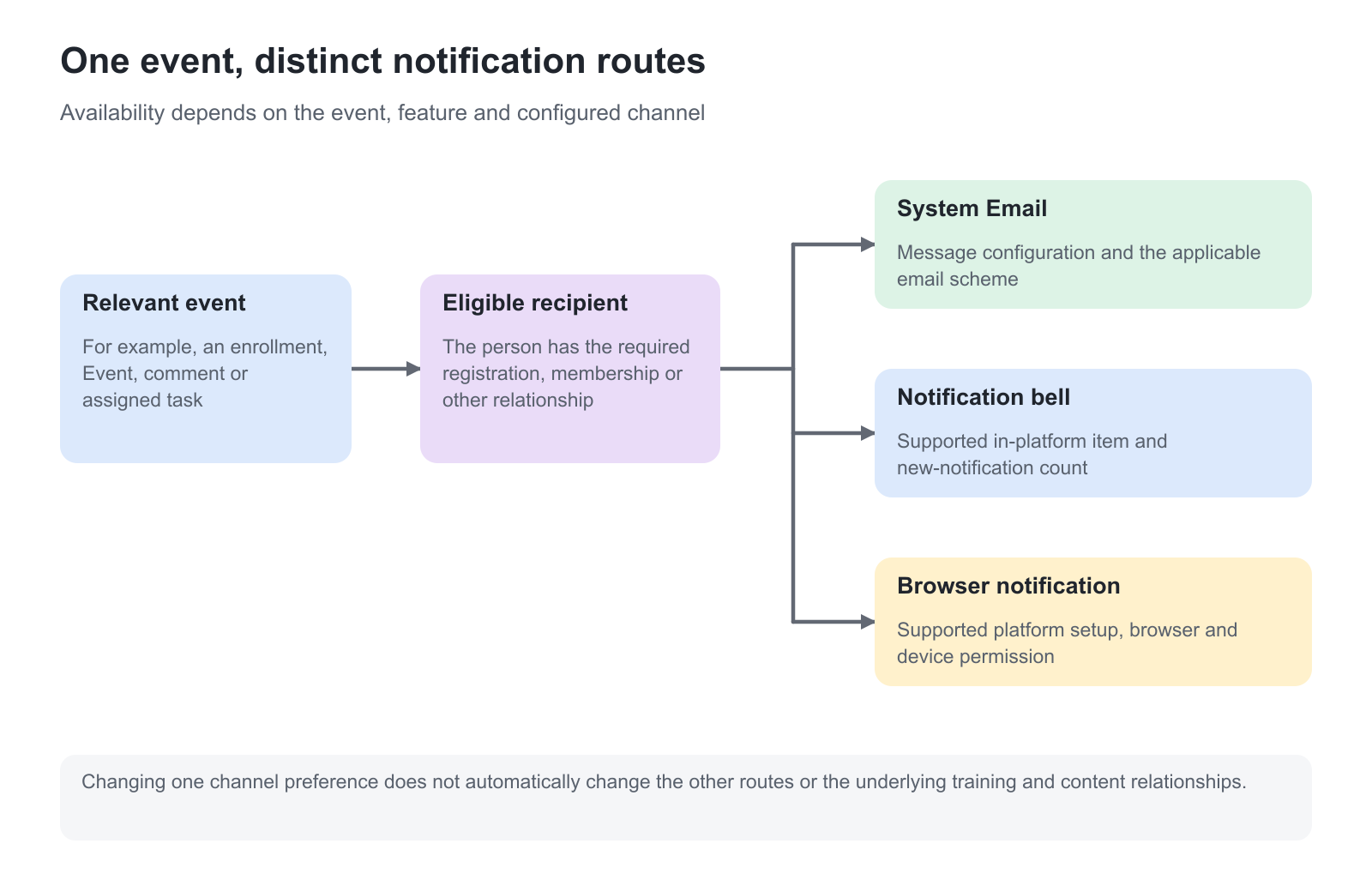
A dependable notification plan reaches the right person with a useful next action while avoiding unnecessary messages. Eurekos notifications depend on the triggering event, recipient relationships and the delivery channel. Diagnose those layers separately so an enrollment issue is not mistaken for a mail-server problem or a browser setting for a missing System Email.
Use this article to:
- Plan notifications around real responsibilities and actions
- Separate platform configuration from personal and device preferences
- Investigate event, recipient and channel evidence
- Verify representative notification journeys
Start with the action the recipient needs to take
An invitation should help someone enter the correct training. A scheduling change should help a participant act on the new date. A discussion mention should return someone to the relevant conversation. Name that outcome before choosing more messages or changing a platform-wide scheme.
For an illustrative partner workshop, the enrollment confirmation, the approaching Event reminder and the provider’s joining message serve different jobs. Coordinate the timing and wording so the participant understands what changed and where to go. Do not assume that enabling all three routes guarantees three identical messages.
Diagnose five layers
| Layer | What to establish | Useful evidence |
|---|---|---|
| Event | The action actually happened and the relevant feature supports a notification | The enrollment, Event, comment or task record |
| Recipient | The person has the required relationship | Registration, assignment, membership, following or mention |
| Platform configuration | The email or notification route is enabled for the intended case | The owning feature configuration and System Email settings |
| Personal/device preferences | The applicable scheme or browser/device permission permits the route | Profile preference and site/operating-system settings |
| Delivery and destination | Processing reached the intended channel and the destination can receive it | Sent emails, Error log, Retry queue or the external provider’s evidence |
Keep these layers close to the actual symptom. If a learner was not enrolled, investigate the enrollment route before investigating email transport. If the learner received email but no desktop prompt, inspect browser support and permission rather than changing the SMTP sender.
Own the System Email configuration in one place
Use Settings → Email sending for System Email templates, senders and delivery investigation. Email Sending owns the configuration and operational procedure. System Email Notification Overview owns the recipient and message catalogue.
For each important journey, check the actual email and its configured scheme assignments. Important and All emails are configured groupings, not definitions you can infer from a message title. A user-dependent email can have Preview unavailable because a generic preview cannot supply the required user context.
Operational notices from an API client or a Resource Library maintenance scheme can have their own configuration. Do not assume every notice is edited under the same System Email category simply because it arrives by email.
Keep bell and browser delivery distinct
The header bell provides access to supported notification items and a count of new items. The count is not the length of the retained list. Browser push requires the platform’s delivery setup, a supported browser/device, site permission and operating-system permission. Browser notification delivery also depends on the recipient being away from the active platform tab.
For a representative test, use a genuinely separate recipient session. Masquerading the sender as another person is not a reliable push-delivery test. Check the current supported mobile and desktop experience instead of assuming every browser behaves the same way.
Event reminders and community notifications also depend on their own relationships and configuration. Coordinate these with the facilitator who understands who needs to act. Notification configuration should support the facilitation model rather than compensate for unclear membership or responsibility.
Escalate with a complete case
Record the triggering action, record identifier, sender and intended recipient, approximate time with timezone, expected channel, relevant configuration and observed result. Include the useful delivery error or provider response without copying credentials or unnecessary personal information.
If a delivery retry is under consideration, first establish whether the recipient already received the message or the underlying business action already completed. A repeated notification is not a way to repeat an enrollment or repair a missing permission.
Verify the notification journey
| Scenario or check | Expected result or evidence |
|---|---|
| Intended recipient with the relevant scheme | The configured message is generated for the correct relationship |
| Person outside that relationship | No unintended notification or content access is created |
| User-dependent template | Preview limitations are understood and a representative test supplies the needed context |
| Browser push in a separate recipient session | Supported site/device settings and the requirement to be away from the active platform tab are satisfied |
| Changed or cancelled Event | Participants receive the appropriate current information without relying on an obsolete provider link |
| Failed email | Sent emails, Error log or Retry queue provides a channel-specific investigation route |
Related guidance: Understand and Manage Notifications.
Troubleshooting
| Problem | What to check |
|---|---|
| One person receives nothing | Start with their relationship, scheme and address rather than changing the entire platform |
| Email works but browser notification does not | Check push activation, supported browser/device, permissions and active-tab behavior |
| A template has no preview | User-dependent templates can be marked Preview unavailable |
| Multiple systems send similar invitations | Coordinate provider and Eurekos ownership, timing and wording |
| An operational notice is absent from System Emails | Check its owning feature configuration before assuming the catalogue is incomplete |
| A resend could duplicate a message | Inspect existing delivery evidence and the completed business action first |
FAQ
-
What should I check first when a notification is missing?
Establish that the triggering action occurred and the person has the required recipient relationship. Then check the channel’s configuration, preferences and delivery evidence.
-
Can I test browser push by masquerading as another user?
Use a genuinely separate recipient session. The push test excludes masqueraded sessions because they do not provide the required independent delivery context.