Announcements - Article
Summary
Use Announcements to give a relevant audience a clear update and an obvious next step. They can support a training cohort, inform a partner network, or communicate a change to selected organizations or user groups. Publish immediately or schedule the announcement, choose suitable notifications, and set an expiration when the information is time-limited.
Use this article to:
- Choose and combine audience criteria.
- Create a useful announcement with the right notification and comment settings.
- Understand where participants find it and how changing eligibility affects access.
- Maintain announcements without unnecessary repeat emails or outdated information.
When to use an Announcement
An Announcement is appropriate when people need a specific update that is not already handled by the normal training communication flow. Examples include a new preparation resource, an important correction, a regional product update, or a reminder about a temporary opportunity.
Use a Community topic when the main purpose is a continuing discussion. Use Automated Email Workflows for repeatable messages triggered by enrollment, schedules, deadlines, or completion. If the meeting time changes, update the event itself as well as communicating the change; an Announcement does not reschedule an event.
Access and availability
Announcements are enabled under Settings → General. The ability to create or manage them depends on the user's permissions and, for some roles, their activity responsibility, Community ownership, or organization-management context.
The available audiences are not identical for every user. Organization filtering can limit the people and content available for selection, and broad audiences can be restricted. Do not infer platform-wide reach merely because an account has an administrative role.
An administrator's permission to inspect an announcement is also different from being a recipient. Authors receive the announcement's notifications only when they belong to its audience.
Find and review announcements
Open Announcements from the main menu. Search by title or description and use the available audience-related filters to narrow the list.
The list shows announcement titles, content previews, authorship information, and comment information where applicable. Treat it as the working overview before creating another Announcement: search for an existing message with the same purpose and audience, open it to confirm the complete content and timing, and use its available actions where appropriate. Unviewed indicators help users identify an unread announcement or new comments.
On My overview, the Announcements widget provides a short list of relevant items. Closing an item there dismisses it from that widget; it does not delete the announcement. Users can revisit eligible announcements through the main Announcements page until expiration, deletion, or a relevant access change removes them.
Announcements are ordered by their original creation date. Editing an older announcement does not make it a newly created item at the top of the list.
Create an announcement
Create from the Announcements page after confirming that an existing item will not serve the same purpose. Decide the intended audience, required action, notification channels, and useful lifetime before opening the form.
- Open Announcements → Create announcement.
- Enter a specific Title and write the Description.
- Under Define audience, select the intended audience and complete its selectors.
- Add further criteria only when needed, and check the AND/OR relationship carefully.
- Choose email, comments, and push notifications as appropriate.
- Set an expiration for time-limited information. Enable Schedule if it should become available later.
- Review the audience, wording, links, and timing before selecting Create.
Creating an unscheduled announcement can make it available to its audience immediately and trigger the selected notifications. Complete the review before submitting the form.
Write for the recipient's action
| Element | Recommended approach | Example |
|---|---|---|
| Title | Make the subject and relevance recognizable without opening the message. | “Partner installation program: revised preparation guide” |
| Opening paragraph | State what changed, who it affects, and what the recipient should do. | “If you attend next month's workshop, use the revised guide before the session.” |
| Supporting content | Add only the background, approved material, or link needed to act. The editor supports rich content and attachments. | Link to the maintained resource and identify its revision. |
| Closing information | Give a deadline or support route when relevant. | “Review it before 15 October. Ask preparation questions in the workshop Community.” |
Keep confidential case details out of a broadly targeted update. If comments are enabled, recipients can see the comments of others who have access to the announcement.
Choose the audience
| Audience | Intended population | What to consider |
|---|---|---|
| Everyone | Active users within the reach permitted to the author | A broad announcement should have genuinely broad relevance. This criterion cannot be combined with others. |
| Administrators | The administrative-role audience defined by the platform | Do not use it as a substitute for checking which operational owners need the information. |
| Activity participants | Eligible signups in one or more selected Training Activities | The documented audience is signups in Registered status. Responsible instructors and Course administrators are not recipients merely because they are responsible. |
| Community members | Members of one or more selected Communities | Use for a shared operational update; use a topic when the conversation itself is the main purpose. |
| Users by language | Users with the selected profile language | Available when the platform has multiple active languages and applicable user languages. Targeting a language does not translate the text. |
| Users by country | Users with the selected profile country, optionally narrowed by state or region where supported | With no state/region selected, the country audience includes users across its states/regions. |
| Users by role | Users with the selected platform role | A role describes permissions, not necessarily a business department or job responsibility. |
| Users by interests | Users with selected interests recorded on their profiles | Do not assume that every user who once attended similar training has the intended current interest values. |
| Users by job functions | Users with the selected job functions and applicable hierarchy selections | Check parent and subordinate job-function choices when targeting a narrow professional audience. |
| Organization members | Users belonging to the selected organizations and applicable lower levels | Use the organization/suborganization selections deliberately; review organizational scope before sending. |
Some criteria appear only when the required activities, Communities, profile values, or organization records exist. The author's permissions and organization scope can further affect the selection. For a Community-members audience, verify the current membership route and scope in Community Membership and Access before publishing.
Combine criteria deliberately
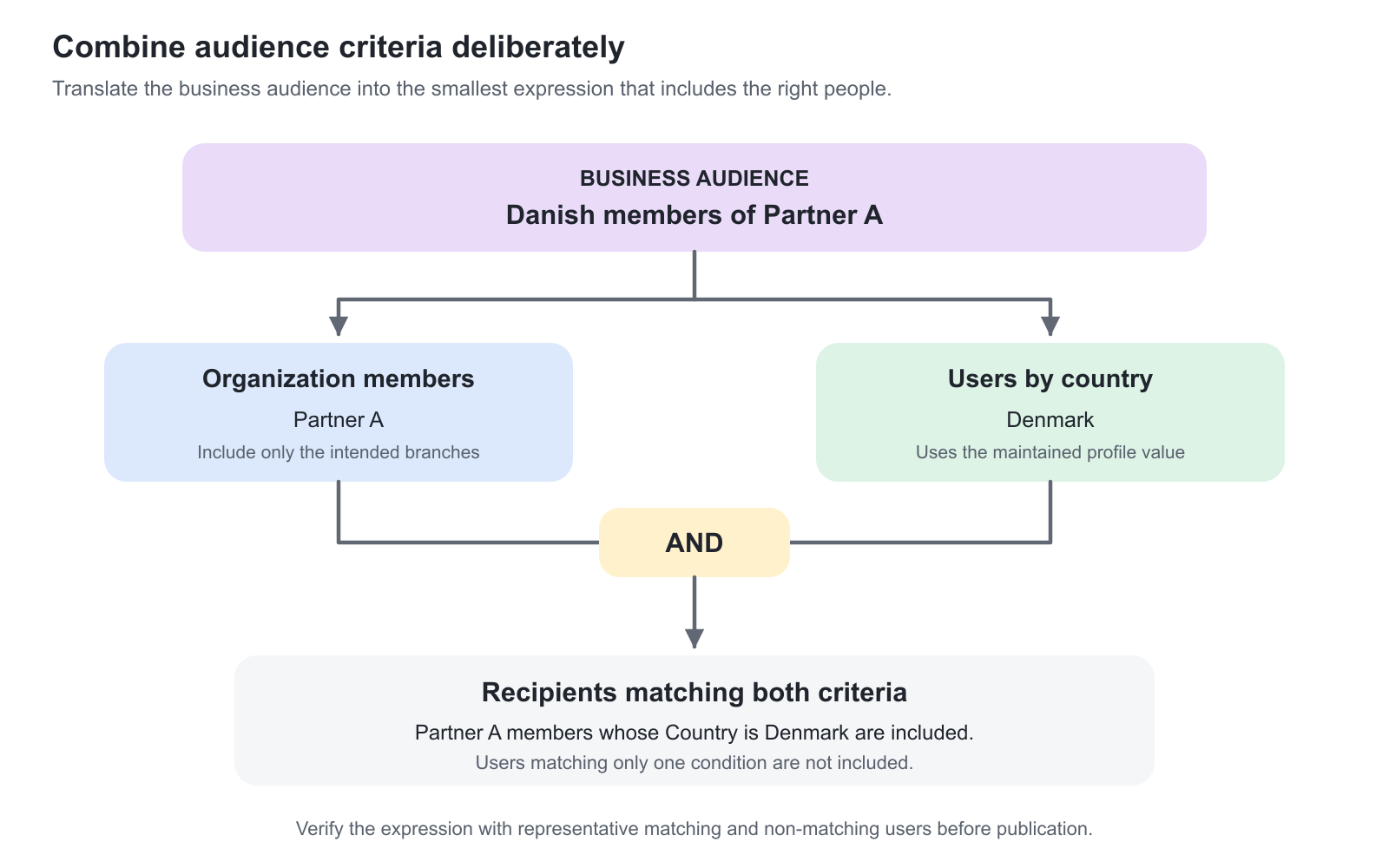
Up to ten criteria can be combined using AND/OR logic. Keep the expression as simple as the business requirement allows.
| Intended audience | Conceptual combination | Result to verify |
|---|---|---|
| Danish members of a selected partner organization | Organization members AND Users by country | Users must satisfy both conditions. |
| Participants in either of two relevant training audiences | Activity participants for the appropriate selected activities, or a suitable ORcombination | The update reaches the intended combined audience without requiring membership in both groups. |
| People with a selected role within a particular organization | Users by role AND Organization members | The role criterion does not accidentally broaden the announcement beyond that organization. |
An impossible combination can produce no recipients. For example, incompatible role requirements joined with AND do not become a useful audience merely because the author can still see the announcement as an administrator.
Configure delivery and lifecycle
| Setting | What it does | When to use it |
|---|---|---|
| Notify users by email | Uses the announcement system emails for creation and applicable updates, subject to email configuration and recipient eligibility. | When the update should reach people outside their next platform visit. |
| Allow comments | Allows the author and eligible audience to comment on the announcement. | For relevant clarification that can be shared with the same audience. |
| Notify users with push notification | Requests push notification through the supported notification setup. | For appropriate timely updates where push delivery is configured and available to recipients. |
| Set expiration | Removes the expired announcement from the audience's view and announcement listing. | Temporary instructions, campaigns, deadlines, or information that should not remain current indefinitely. |
| Schedule | Sets when the announcement becomes available and its selected notifications are sent. | Coordinated launches, planned updates, or communication outside the author's working hours. |
Before publication, a scheduled announcement is shown to its author as not published, with a scheduling indicator. Check the selected time in the interface; do not confuse the publication schedule with the date of an event described in the text.
Email notification is not a guarantee of inbox delivery. Blocked and deleted users do not receive announcement emails. System-email configuration, notification schemes, and sending/provider conditions also matter. See Email Sending.
Understand changes to the audience
An announcement is not simply a permanent copy sent to a fixed list of accounts. Its on-platform visibility can depend on current audience eligibility.
For an activity-participant audience, moving into Registered status can make the announcement available, while moving out of that status can remove access. Cancelling or deleting the associated activity can also remove participant visibility. Profile-based audiences can change when a user's language, country, role, interests, job function, or organization changes.
When the author edits the announcement's audience, users who no longer match can lose on-platform visibility. However, an email already delivered cannot be recalled by changing platform access. Treat recipient selection as a decision to review before sending, not something to repair afterwards.
Do not assume that every membership or configuration change retrospectively removes every notification or causes an email to be resent. For sensitive information, verify the precise audience and access behavior with the responsible administrator or Eurekos Support before relying on it.
Changing the author’s organization membership does not automatically retarget their existing announcements to the new organization. New announcements use the author’s current context. Review the audience of an existing announcement explicitly when responsibility or organizational scope changes.
Edit and maintain an announcement
Open the announcement's More menu and select Edit where permitted. Update the information and review the notification setting before saving.
If email notification remains enabled, an update can generate an announcement-update email. The platform applies a documented 15-minute restriction to repeated announcement-form submissions with email notification enabled. Consolidate corrections rather than sending several small changes in succession.
Use expiration to stop presenting information as current when it has a known end date. Delete only when removal is intended and permitted; it is different from an individual recipient dismissing the dashboard item.
Practical communication patterns
| Scenario and requirement | Recommended approach | Why and what to check |
|---|---|---|
| Preparation material has changed for an upcoming cohort | Target the relevant activity participants, explain the change, and link to the maintained resource. | The update is actionable. Check whether facilitators need a separate communication because responsibility alone does not put them in the participant audience. |
| A product update affects a regional partner population | Combine organization and country or job-function criteria as needed. | Relevant users receive the update without notifying unrelated customers or partners. Verify the combined audience. |
| A temporary opportunity should appear on a planned date | Use Schedule and a suitable expiration, with an explicit next step. | Publication and cleanup follow the communication plan. Check the dates before creating it. |
| A Community needs a concise operational notice | Target Community members and enable comments if shared clarification is useful. | The notice reaches the established group; longer discussion can continue in a clearly identified topic. |
Verify the announcement
| Verify | Expected outcome |
|---|---|
| Audience | A representative intended recipient qualifies, and an unintended recipient does not. |
| Content and attachments | Links open the correct maintained information; recipients have the necessary access. |
| Timing | Publication and expiration support the intended communication period. |
| Notifications | The selected channels work without duplicating an existing workflow or event reminder. |
Troubleshooting
| Problem | What to check |
|---|---|
| “Create announcement” is missing | Confirm Announcements is enabled and that the role and relevant activity, Community, or organization responsibilities permit creation. |
| An audience option or value is missing | Check platform configuration, available data, author permissions, and organization scope. Language targeting depends on the platform's active languages and user profiles. |
| An expected participant cannot see the announcement | Review the complete audience expression, signup status, profile values, relevant activity/Community state, publication schedule, and expiration. Do not test only with an administrator account. |
| A responsible instructor did not receive the participant announcement | Activity responsibility alone does not include the instructor in the Registered-signup audience. Use an appropriate communication route for facilitators. |
| The announcement is visible but no email arrived | Confirm email notification was enabled, the recipient qualifies, the account is active, and the system email and notification scheme permit delivery. Review Email Sending records and provider evidence where necessary. |
| A correction does not move the announcement to the top | Ordering is based on creation date, not the last edit. |
| An email-enabled update cannot be submitted again immediately | Check the restriction on repeated submissions within 15 minutes. Prepare one complete correction and avoid repeated notifications. |
| The audience changed but an earlier email remains accessible | Changing platform visibility does not recall an email already delivered. Review the content and recipient-selection process. |
FAQ
-
Can I schedule an Announcement for later publication?
Yes. Enable Schedule and set the intended publication date and time. Before publication, the author can see it as not published. Selected notifications are associated with its scheduled publication.
-
Can I combine Announcement audiences?
Yes. Up to ten criteria can be combined using AND/OR logic. Everyone cannot be combined with other criteria. Review the resulting audience carefully because an incompatible AND combination can produce no recipients.
-
Does an activity-participant Announcement include the responsible instructors?
Not merely because they are responsible for the activity. The participant audience uses eligible signups in Registered status. Choose an appropriate additional communication route when facilitators also need the update.
-
Does closing an Announcement on My overview delete it?
No. It dismisses the item from that user's widget. The user can revisit it through Announcements while it remains available to them.
-
Does editing an Announcement move it to the top?
No. Ordering is based on the original creation date, not the last update.
-
Can editing an Announcement send another email?
Yes. An update can use the announcement-update system email when email notification is enabled and the configured delivery rules permit it. Review the notification choice before saving a correction. Repeated email-enabled submissions are subject to a 15-minute restriction.
-
Does removing someone from the audience recall the email?
No. Audience changes can alter on-platform visibility, but they do not recall messages already delivered.