Create and Manage Communities - Article
Summary
Communities provide a shared space for people to ask questions, exchange experience, and work together around a common purpose. Use them for a training cohort, a partner network, a customer implementation group, or a continuing Community of practice. Choose the features and permissions that support that purpose, and give someone responsibility for keeping the space useful.
Use this article to:
- Decide whether to create a standalone or activity-connected Community.
- Configure its features, membership controls, and moderation settings.
- Understand the member experience and the role of external collaboration spaces.
- Maintain the Community throughout its useful life.
Decide what the Community is for
A Community should have a purpose that members can explain in one sentence: “This is where our onboarding cohort asks implementation questions,” or “This is where certified partners exchange installation experience.”
Define the audience and the expected duration before choosing the configuration. A temporary cohort, a continuing professional network, and an internal facilitator group need different membership and content-management decisions.
| Requirement | Suitable design | Important consequence |
|---|---|---|
| Collaboration should follow one Training Activity's enrollment | Create or select a Community through Community Connection on the activity. | Activity participation and membership are connected. Review the connection lifecycle before using a shared Community. |
| Membership should be independent of one activity | Create a standalone Community and manage membership directly or through an appropriate Onboarding Rule. | The membership process needs its own owner; training completion is not the automatic retirement rule. |
| Several cohorts should share a continuing professional space | Use a deliberately shared Community with a consistent structure and ownership. | Members from different cohorts can interact in the same space; review privacy and shared-connection dependencies. |
| Collaboration should take place in Microsoft Teams or Slack | Use the supported external connection where configured. | Membership, identity, and access also depend on the external service. Native Community features do not automatically apply there. |
See Community Connection for setup, synchronization, disconnection, and cloning behavior. Do not disable a connection simply to experiment: disconnecting a native Community can have deletion consequences. For profile-based membership, use Onboarding Rules.
Access and platform prerequisites
Native Communities are enabled under Settings → General. The platform can also control whether the Communities widget appears on My overview and user profiles.
The roles allowed to create Communities and Community events are configurable. Discover availability and some collaboration options can also depend on platform configuration. If a required capability is unavailable, ask the platform administrator or Eurekos Support to confirm the intended setup rather than granting broader permissions without review.
Community settings provide another layer of control within each space. Being allowed to create a Community does not mean that every member should be able to add people or restructure its discussions.
Find your Communities
Open Communities from the main menu.
| View | What it is for | What it does not mean |
|---|---|---|
| My communities | Native Communities to which the user belongs. | It is not a directory of every Community on the platform. |
| Discover, when enabled (standard) | Finding Communities within the applicable discovery scope and requesting membership. | Discovery is not permission to read private Community content. |
| External Communities, where applicable | Activity-connected Microsoft Teams and Slack spaces available to the user. | A listed external space does not override its external identity or membership requirements. |
| Communities widget | Convenient access from My overview or a user profile when applicable. | Hiding a widget is not the same as removing membership or disabling a connection. |
Use the Communities overview as a working list, not only as a route into the feature. Search before creating another space, use the title and description to distinguish cohort-specific and continuing Communities, and open the intended Community to review its current content, membership, and purpose. For the membership routes behind discovery and access, see Community Membership and Access.
Create a native Community
Create the Community only after deciding its purpose, audience, owner, and membership route. These decisions help you avoid duplicate spaces and make the feature and permission choices in the form meaningful.
- Open Communities → Create community.
- Enter a Title that identifies the purpose or group.
- Add a Description explaining who the Community is for, what belongs there, and who facilitates it.
- Select the required features.
- Choose the Members permission setting and any discussion/topic management restrictions.
- Select Create.
- Establish the intended membership and introduce the space before inviting substantial participation.
Use this manual route when the Community has its own membership process. If membership should follow activity enrollment, use the activity's Community Connection procedure instead of creating two unrelated spaces.
Choose the features
| Setting | What it provides | When to use it |
|---|---|---|
| Calendar | Community meetings and events for all or selected members, subject to event-creation permissions. | Live discussions, office hours, peer reviews, or working-group meetings. |
| Files | A shared area for working materials, folders, and file management. | Templates, examples, preparation material, or collaborative resources. |
| Tasks | Practical actions assigned to members with dates and completion tracking. | Preparing an example, reviewing a draft, or completing a follow-up action. |
| Recent updates in Discussions | A recent-activity view focused on new topics and comments, or comments only, according to the selected option. | Helping members return to current conversation without browsing every discussion. |
Enable features for a defined use, not merely because they are available. A smaller Community with one clear discussion area and maintained resources can be more useful than a larger space with empty tabs. For the practical operation of shared resources and follow-up actions, see Community Files and Tasks.
Tasks support collaboration; they are not a replacement for formally submitted and assessed learning work. Use Assignments when that evidence is required.
Configure member access and moderation
| Setting | Member experience | Appropriate use |
|---|---|---|
| Only owner can manage members | Ordinary members do not have the Members tab. Authorized platform administration remains subject to its permissions. | A tightly managed cohort or customer group. |
| Only owner can manage members, but everyone can see who's a member | Members can view the member list but cannot administer it. | A professional network where participants should recognize colleagues while access remains controlled. |
| Both owner and members can manage members | Members can participate in membership management. | A deliberately self-managed group where member administration is appropriate and understood. |
| Limit discussion management to the community owner | Discussion creation and management are restricted rather than freely available to all members. | A consistent top-level structure such as preparation, application, and questions. |
| Limit topic management to the community owner | Topic creation and management are restricted. | Facilitator-led prompts where participants should respond to defined topics. |
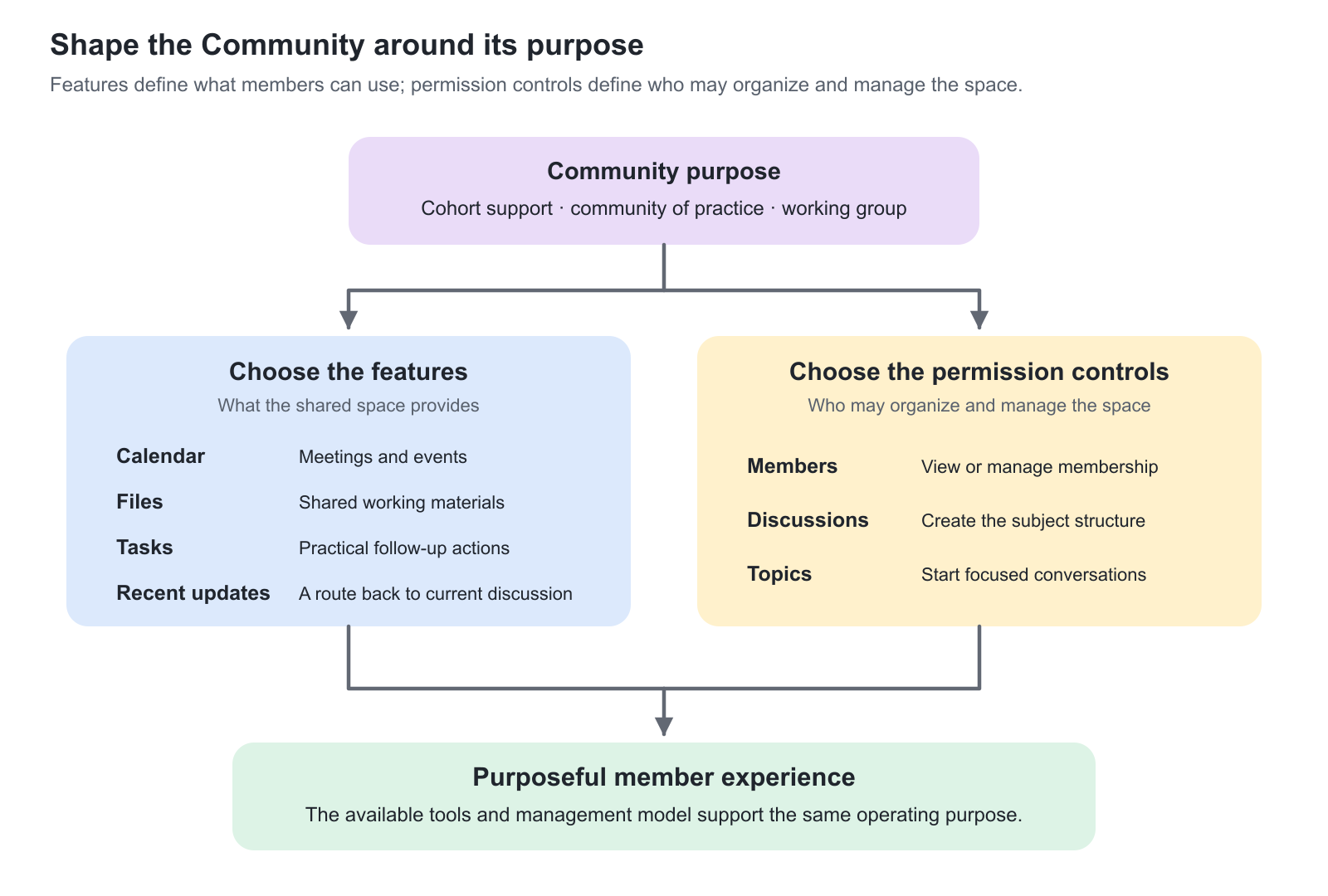
Discussion and topic restrictions are separate choices. You can maintain a controlled set of discussions while allowing members to create focused topics inside them. Administrative privileges and handling of existing member-owned content must still be understood; do not present these controls as a universal removal of all administrative access.
Prepare the member experience
Before opening a new space to its audience, establish a small amount of useful content:
- A welcome topic explaining the purpose, facilitator, and response expectations.
- A few understandable discussion areas rather than an extensive empty structure.
- The current resources required for the first activity or conversation.
- Meeting details or a first practical task where they support the purpose.
Explain where sensitive or individual support questions should go. A Community conversation is shared with its members; it is not a confidential support case simply because the Community is private to outsiders.
For multilingual or multinational groups, agree how members should post and whether separate language discussions are useful. Do not imply that Community text is automatically translated.
Run the Community deliberately
A Community rarely becomes valuable simply because it exists. Participants are busy and usually need a reason to return, visible facilitation, and confidence that questions and contributions will receive attention. Create a Community only when it has a clear purpose, a defined audience, and a named Community manager or facilitator with time to lead it.
For a program Community, plan the work across the complete learning journey:
- Before the program: welcome members, explain expectations, prepare the current materials, and provide an easy first reason to participate.
- During the program: use focused discussions and topics, respond to unanswered questions, connect contributions to the learning, and maintain a predictable rhythm.
- After the program: summarize useful insights, share approved resources or recordings, explain whether the Community will continue, and clarify what members can expect next.
For an ongoing professional Community, establish a sustainable cadence, named facilitation and subject-matter support, a simple content plan, and periodic reviews of membership and materials. Define the privacy boundary of the safe space: what members may share, where confidential or individual matters belong, and how personal or customer information must be handled. Use Calendar events only when live exchanges support the purpose, not merely to make the space appear active.
If the purpose, audience, ownership, or sustainable cadence no longer exists, refresh the operating model, move the useful work to a better-owned space, or retire the Community. An abandoned Community can reduce trust more than deciding not to create one.
Maintain and change a Community
Use the Community's More menu to access the management actions available to your account. Review the effect of feature or permission changes on the people already using the space.
| Change | What to review |
|---|---|
| Rename the Community or change its description | Make sure members can still recognize its purpose and distinguish it from other cohorts. Review important links when names or addresses change. |
| Change the enabled features | Explain where ongoing work belongs before altering access to a tab. Do not assume that hiding a feature deletes or preserves all content in a particular way. |
| Restrict discussion or topic management | Tell members who can now start or organize conversations and how to suggest a new topic. |
| Allow members to manage membership | Treat this as an access-governance decision, not a convenience toggle. |
| Transfer ownership | Assign an appropriate existing member through the permitted membership-management action, and hand over facilitation responsibilities. |
| Retire or delete the Community | Review retained discussions, files, tasks, events, membership routes, and activity connections first. |
A Community connected to several activities may have dependencies beyond the person currently managing it. Review Community Connection before changing or disabling any activity connection.
Realistic Community designs
| Scenario and requirement | Recommended configuration | Why and what to check |
|---|---|---|
| Customer onboarding cohort | Cohort-specific Community; owner-managed membership; discussions for preparation, questions, and application; Files enabled. | Participants have a relevant shared space. Decide whether access continues after onboarding. |
| Partner Community of practice | Continuing Community with maintained discussion categories, member-created topics where suitable, and named subject-matter facilitators. | Experience accumulates across deliveries. Keep resources current and review membership. |
| Facilitator-led reflection group | Owner-managed discussion structure and topics; members contribute comments; Calendar enabled for review meetings. | The facilitator provides a coherent sequence without turning every contribution into an assessed submission. |
| Self-managed improvement group | Member administration only if appropriate; Tasks, Files, and Calendar enabled; a clearly assigned owner. | The group can coordinate its work locally. Confirm that every member should have the granted access-management powers. |
Verify the setup
| Verify | Expected outcome |
|---|---|
| Purpose and entry point | A member can identify the correct Community and understand how to use it. |
| Features | The enabled tabs support actual work and are available to the intended roles. |
| Permissions | A representative ordinary member sees and can manage only the intended membership and content controls. |
| Ownership and lifecycle | A facilitator is responsible for the space and knows its membership source and post-program plan. |
Troubleshooting
| Problem | What to check |
|---|---|
| Communities is missing | Confirm native Communities is enabled and distinguish a hidden widget from the main feature. |
| “Create community” is missing | Check which roles may create Communities on this platform. Administrative titles do not necessarily override a restricted creation configuration. |
| A tab is missing inside one Community | Review that Community's enabled features and Members permission setting. |
| Members cannot create discussions or topics | Check the two separate owner-only management controls before treating this as an error. |
| An external Team or Slack link is still displayed after hiding the widget | External activity-connected links have special visibility behavior. Review Community Connection instead of assuming the native widget setting removes them. |
| The Community is inactive | Review its purpose, audience, first useful content, facilitator availability, and competing communication channels before adding more features. |
FAQ
-
Why can I not see Create community?
Check whether Communities is enabled and which roles are allowed to create Communities on the platform. Creation permission is configurable; an administrative title does not necessarily override that configuration.
-
Can I enable only the Community features we need?
Yes. The Community settings include Calendar, Files, Tasks, and Recent updates options. Enable them according to the collaboration purpose rather than creating unused areas.
-
Can members create topics while the owner controls discussions?
Yes, the discussion-management and topic-management restrictions are separate. This supports a controlled set of subject areas with member-created topics, subject to applicable permissions.
-
Is hiding the Communities widget the same as removing access?
No. Widget visibility is not membership. External activity-connected Teams and Slack links also have special visibility behavior, so review the underlying Community Connection before changing access.