Community Membership and Access - Article
Summary
Community membership determines who belongs to a shared collaboration space. Use a clear membership process so the right participants, facilitators, and experts can work together without exposing the group to unintended audiences. Distinguish discovering a Community from joining it, and ordinary membership from permission to manage other members.
Use this article to:
- Choose between manual membership, membership requests, and automated assignment.
- Control who can see or manage the member list.
- Understand organization scope and shared membership.
- Manage ownership, departures, and overlapping membership routes.
Choose what governs membership
| Membership route | When to use it | Who should maintain the relationship |
|---|---|---|
| Manual addition | A defined working group or individually approved expert needs access. | The Community owner or another authorized membership manager. |
| Request through Discover | People should find a relevant Community and ask to join. | The Community owner reviews requests and determines suitability. |
| Training Activity Community Connection | Collaboration membership should follow a training population. | Activity administrators manage the connection and participation; the Community owner manages the collaboration itself. |
| Onboarding Rule | Membership should follow organization, role, job function, or another approved profile-based audience. | The owner of the onboarding rule and the administrator responsible for the profile data. |
Use one primary membership route where practical. A user can be connected through more than one process, so removing one relationship should not be treated as proof that all reasons for access have disappeared.
For activity synchronization, disconnection, and differences between native Communities, Microsoft Teams, and Slack, use Community Connection. For profile-based assignment, use Onboarding Rules.
Distinguish discovery from access
My communities lists native Communities to which the user belongs. Discover, when enabled, allows users to find Communities within the applicable organization scope and request membership.
Being able to find a Community does not make a person a member or allow them to read its private content. Conversely, a person intentionally added to a Community can participate in the shared space even when other members belong to different organizations.
Do not use Discover filtering as a substitute for membership governance. Before allowing cross-customer or cross-partner membership, decide whether those people should share conversations, materials, and practical work.
Understand the permission layers
| Layer | What it controls | Administrative implication |
|---|---|---|
| Platform configuration and role | Whether the user can create Communities or perform administrative operations. | A role name alone does not describe every enabled action. |
| Organization scope | Which Communities or people are available in relevant discovery and management contexts. | Use the intended scoped account when verifying an audience. |
| Community membership | Whether the user belongs to the shared space. | Membership is a meaningful access decision. |
| Community ownership and Members setting | Whether members can view or manage the member list. | Visibility of names and authority to add people are separate choices. |
A Community is not automatically subdivided into private areas for each organization. Within a shared Community, plan content for its members as a group. Use separate Communities when the working materials or conversations must remain separate.
Choose the Members setting
Open the Community's settings through its permitted edit action and review Permissions → Members.
| Option | Ordinary member experience | Typical design |
|---|---|---|
| Only owner can manage members | Members do not have the Members tab. | A managed cohort where access decisions remain with the owner. |
| Only owner can manage members, but everyone can see who's a member | Members can view the member list without administering it. | A professional group in which knowing the other members supports collaboration. |
| Both owner and members can manage members | Members can manage membership under the configured permissions. | An intentionally self-managed group with trusted membership administrators. |
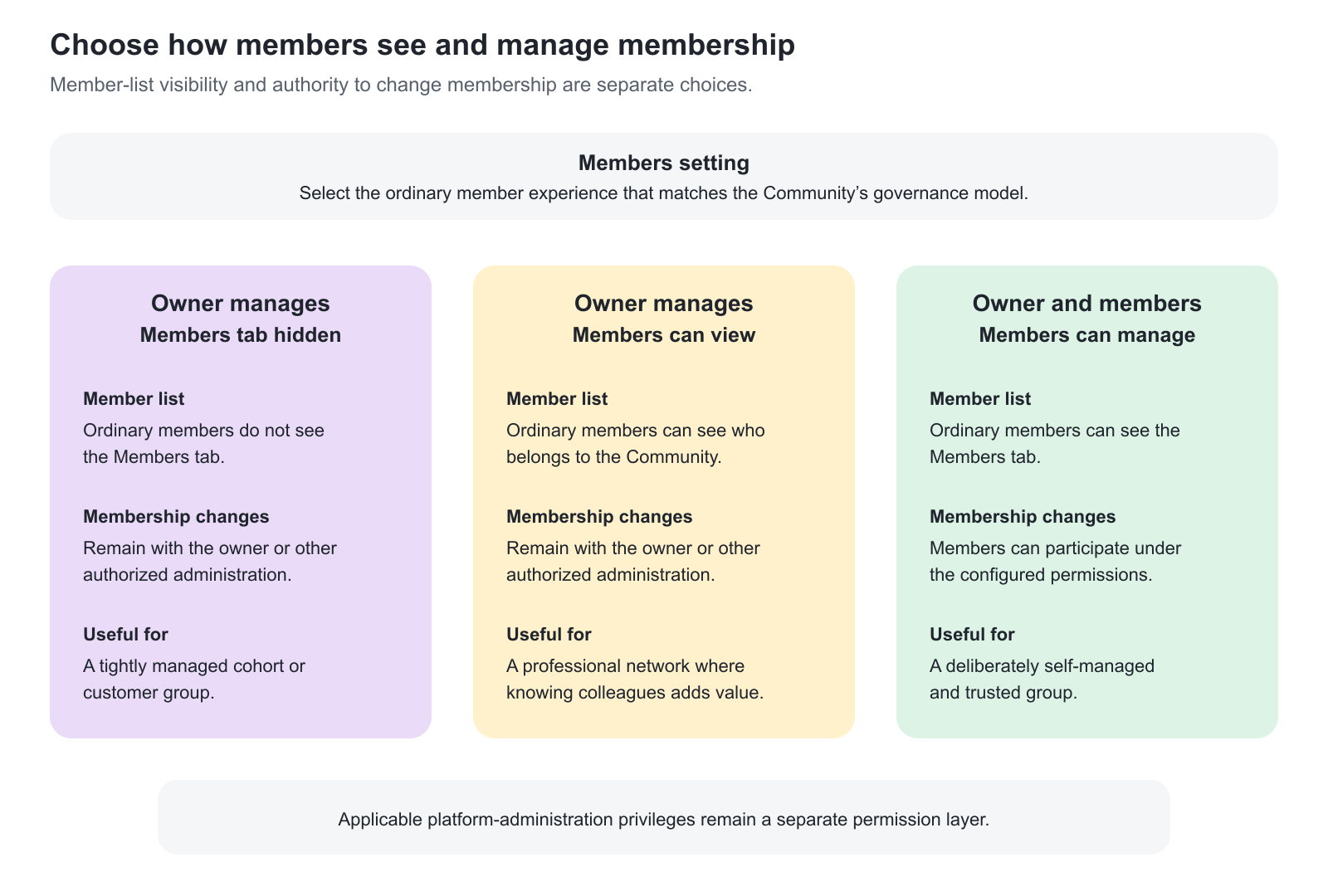
These options describe the ordinary member experience; applicable platform-administration privileges remain a separate layer. Hiding the Members tab is also not a promise of anonymity. People can identify one another through authorship, comments, tasks, and shared activities.
Add members manually
- Open the intended Community and select Members.
- Select Add members.
- Use the available search and filters to locate eligible existing users.
- Review the selected people and complete the addition through the available action.
- Verify membership and, when relevant, the user's ability to enter the Community.
The documented member view supports searching and filtering by Organization, Role, and Language. Available users and management actions depend on the acting user's access and scope.
Manual Community membership is not the same as creating a user account or enrolling someone in a Training Activity. Use Create a User and Support First Access or the appropriate enrollment process when those records are also needed.
System emails can notify users about Community membership changes. Review the relevant Email Sending configuration under System emails → Communities and the applicable notification schemes when planning the introduction to the group. Do not add and remove people repeatedly as a way to test messages on a live audience.
Handle membership requests
Where Discover is enabled, a user can request to join a Community. The owner reviews and approves or rejects the request through the available Community controls.
Agree what makes someone eligible before requests arrive. For example, a continuing professional Community may require an existing qualification, while an internal facilitator group may require an operational role. These are business decisions; do not imply that a membership request automatically evaluates certification or eligibility unless a separately configured process does so.
Tell users what to expect when approval is not immediate and identify who covers requests during the owner's absence.
Transfer ownership
An authorized membership manager can make an existing member the Community owner through the available member-management action. Confirm that the person is appropriate for both access management and facilitation.
Transfer the practical responsibilities as well as the setting: pending requests, moderation expectations, active tasks and events, important resources, and any connected Training Activities or Onboarding Rules. Ownership should not depend on a departing employee's continued availability.
Remove members or leave a Community
Use the relevant member-management action to remove a person when their access should end. Members can have a Leave community action where available.
Before removing someone, identify how they joined. If an activity connection or onboarding process still governs membership, coordinate the change with that process. Do not assume a local membership action cancels training enrollment, removes an external Microsoft or Slack account, or ends every other relationship.
Removing a member is not a data-erasure procedure. Do not promise that it deletes their historical contributions or recalls previously delivered messages. Handle retention or personal-data requests through the approved process.
Plan Community event audiences
A Community event can target all members or selected members. In the event form, Participants identifies that choice.
A newly added Community member can be included in an existing future event that was created for all members. Do not assume that joining the Community adds the user to every historic event or every meeting with individually selected participants.
When changing membership near a meeting, verify the event's participant list and joining information as well as Community membership. Use Calendar Events for Activities and Communities to check the related audience and joining details.
Practical membership patterns
| Scenario and requirement | Recommended approach | Why and what to check |
|---|---|---|
| One customer implementation group | Owner-managed membership; add the approved customer team and facilitators. | Provides a defined collaboration audience. Check that other customer groups cannot enter. |
| Continuing partner network | Govern eligibility independently of a single delivery, with approved membership or a suitable onboarding process. | The Community can remain useful after training. Review departed or ineligible members periodically. |
| Cohort with one visiting expert | Retain the cohort's primary membership process and add the expert deliberately. | The exception has an owner and an end-of-access decision. Do not assume the expert has formal instructor responsibilities. |
| Self-managed local group | Allow member administration only where policy supports it. | Local coordination reduces central administration, but members must understand whom they may add. |
Verify membership and access
| Verify | Expected outcome |
|---|---|
| Member access | An intended member can open the Community and its enabled content. |
| Non-member access | A user outside the intended population cannot read the private Community content. |
| Member administration | An ordinary member sees only the selected Members capability. |
| Ownership | The correct owner can handle requests and maintain the group. |
| Membership lifecycle | Manual and automated routes are understood, and departures have a defined process. |
Troubleshooting
| Problem | What to check |
|---|---|
| Discover is missing | Confirm Discover is enabled for the platform. It is separate from the core Communities feature. |
| A Community is absent from Discover | Check the user's organization/discovery scope. If they are already a member, check My communities instead. |
| The Members tab is missing | Review the Community's Members setting and the user's ownership or administrative permissions. |
| A member sees names but cannot add people | The Community may intentionally allow member-list visibility without membership administration. |
| A user cannot be selected for addition | Verify the account exists, the intended scope, search/filter values, and the acting user's membership-management permission. |
| An expected member did not appear after enrollment | Verify the activity connection, signup state, and synchronization using the Community Connection guide. Do not assume a pending invitation or waitlist entry is an enrollment. |
| A removed user appears again or access remains unclear | Identify every activity connection, onboarding rule, and manual membership route before making further changes. |
| A new member is not on a Community meeting's list | Check whether the event is future and was created for all members or a selected participant list. |
| Hiding the member list did not make participants anonymous | The setting controls the Members tab, not attribution of contributions throughout the Community. |
FAQ
-
Does finding a Community in Discover give me access to its content?
No. Discover supports finding a relevant Community and requesting membership. Discovery and membership are separate.
-
Can members see the member list without being able to add people?
Yes. Select Only owner can manage members, but everyone can see who's a member. This permits ordinary members to view the list without administering membership.
-
Can ordinary members manage Community membership?
The Community has a Both owner and members can manage members option. Use it only when member administration fits the group's access policy. Platform configuration and administrative permissions remain relevant.
-
Does hiding the Members tab make the group anonymous?
No. People can still be identified through authorship, comments, tasks, and other shared activity. The setting controls the Members tab, not anonymity.
-
Can people from different organizations participate in one Community?
An intentionally shared Community can include members from different organizations under the permitted membership process. Do not assume the Community's content is then separated by organization. Use separate Communities when working spaces must remain separate.
-
Does manually adding a Community member enroll them in training?
Manual Community membership is not itself a Training Activity enrollment. Activity-connected native and external membership workflows have their own behavior; review Community Connection if those processes are involved.