Automated Email Workflows - Article
Summary
Use Automated Email Workflows to keep participants and administrators informed throughout a Training Activity. A workflow brings related messages and reminders together so communication is sent automatically at the appropriate point in the participant journey. Attach it to the relevant activity or supported module, then review its timeline to confirm what will be sent, to whom, and when.
In this article you will learn:
- How Automated Email Workflows differ from System Emails, calendar invitations, feature-specific reminders, and manual messages
- How workflows, rules, connections, and notification timelines relate to one another
- How to create, reuse, clone, and govern a workflow
- What every Who audience means and which data or feature it depends on
- Which When combinations are available and how their timing is calculated
- How activity-level and module-level workflows use different context
- How to select and validate dynamic tokens
- How schedules, Mandatory deadlines, completion, feedback, waiting lists, responsible people, and manager relationships affect execution
- How approval and decline workflows behave when an enrollment-request status changes
- What happens to existing enrollments when a workflow rule or trigger is changed
- How Course Administrator reminders become actionable dashboard tasks
- How to monitor scheduled, sent, skipped, and manually sent notifications
- How to troubleshoot missing recipients, unresolved tokens, skipped rules, duplicate communication, and delivery problems
What an Automated Email Workflow is
An Automated Email Workflow is a reusable collection of communication rules for Training Activities. Each rule combines three decisions:
- Who should receive the communication.
- When it should be triggered.
- What the subject and message should say.
For example:
- Send registered participants practical information seven days before the activity starts.
- Remind only participants who have not completed the training two days before their deadline.
- Ask only participants who have not submitted feedback to evaluate the activity one day after it ends.
- Alert an Immediate Manager when a participant has missed a mandatory deadline.
- Remind the responsible Course Administrator to confirm catering three days before an Event.
- Tell a participant that an enrollment request has been approved or declined.
A workflow can contain as many rules as the process requires. The rules do not form a required sequence in which one email waits for the previous email. Each rule is evaluated from its own audience, trigger, timing, and connected activity or module context.
Automation cannot create missing business events
A rule can react only to information that exists. A “two days before Start date” rule needs a usable Start date. “Participants missed deadline” needs a Mandatory deadline. “Participants not sent feedback” needs connected Training Feedback. A rule without its required context is skipped; creating the rule does not create the missing schedule, deadline, completion, feedback, responsible person, or manager relationship.
Automated workflows are particularly valuable when the same communication pattern is used for many deliveries, cohorts, customers, or recurring activities. They reduce manual work, but their main benefit is consistency: the same audience receives the same operational information at a predictable point in the learning journey.
Understand the four layers
It helps to treat email automation as four connected layers.
| Layer | What it contains | Why it matters |
|---|---|---|
| Workflow template | A named, reusable collection of rules | One workflow can support several similar Training Activities |
| Rule | Who, When, subject, message, and dynamic tokens | Each communication has its own audience and trigger |
| Connection | The workflow selected in the Automated email workflow feature at activity or module level | The connection supplies the actual training, schedule, responsible people, participants, and other context |
| Notification instance and timeline | The result for a particular participant, recipient, and rule: scheduled, sent, skipped, or manually initiated | This is where administrators verify what happened |
Changing one layer can affect the layers below it. For example, changing a shared workflow rule can re-evaluate enrollments in every connected activity. Changing an activity's Start date can change the effective timing of rules relative to that date. Replacing the responsible Course Administrator changes who receives the related reminders and transfers the administrator's open tasks.
Choose the correct communication mechanism
Eurekos sends several kinds of operational communication. Use the tool that owns the trigger you need.
| Need | Use | What you control |
|---|---|---|
| A configurable message before or after an activity date, deadline, enrollment, or completion | Automated Email Workflow | Audience, relative trigger, subject, message, tokens, and activity/module connection |
| A standard transactional email when a defined platform event occurs—for example an enrollment confirmation, request received, request approval, certificate issuance, or calendar update | System Emailunder Settings → Email Sending | Wording, sender, language version, and notification-scheme mapping; the system event and recipient logic remain predefined |
| A calendar invitation or update for a scheduled Event | Event and calendar configuration | Event schedule, calendar behavior, attendance and conferencing details; the related System Email template controls its wording |
| A simple reminder before one Event | Remind participants on the Event module | A feature-specific reminder from the Event schedule; it is sent only to users whose preference is All emails and is not sent if the Training Activity is cancelled |
| An Assignment due-date reminder | Remind participants on the Assignment | A feature-specific reminder based on the Assignment due date; it is unavailable when there is no due date |
| A certificate-expiration or re-certification notification | Certificate and re-certification configuration | The certificate's expiration and attempt logic; add a workflow only when an additional training-context reminder is needed |
| One-off information, an exception, or a message for a historical trigger | Manual email/message option | The exact current audience and message at the time it is sent |
Do not rebuild essential transactional communication unnecessarily. For example, participation approval already has System Emails for request received, administrator approval tasks, approval, decline, confirmation, and waiting-list outcomes. Use an Automated Email Workflow when you need an additional rule-driven message, audience, or timing—not merely a second version of the same confirmation.
For more detail, see System Email Notification Overview, Email Sending.
Plan the workflow before creating it
Write the intended communication journey in plain language first. For every proposed rule, answer:
- What must have happened before this message is useful?
- Who needs the information or action?
- Which exact date or personal event controls the timing?
- Does that date exist at activity level, module level, or per participant?
- Which feature supplies the recipient or status?
- What should the recipient do next?
- Which dynamic values make the message accurate?
- What should happen when the required date, recipient, or status does not exist?
- Could another workflow or System Email send substantially the same message?
A simple design table prevents most configuration errors.
| Purpose | Who | When | Required context | Call to action |
|---|---|---|---|---|
| Joining instructions | Participants | 7 days before Start date | Schedule and correct connection level | Review location, time, and preparation |
| Incomplete reminder | Participants not completed | 2 days before Deadline | Mandatory deadline and completion tracking | Continue training |
| Feedback request | Participants not sent feedback | 1 day after End date | Training Feedback, End date, feedback button | Leave feedback |
| Deadline escalation | Immediate manager | 1 day after Deadline | Deadline and manager relationship | Follow up with participant |
| Room readiness task | Course administrators | 2 days before Start date | Responsible Course Administrator and Schedule | Complete operational task |
Create and manage a workflow
Creating an Automated Email Workflow has two stages:
- Create the reusable workflow template.
- Add the individual communication rules that belong to it.
Creating the workflow does not activate it. After configuring and testing its rules, connect the workflow to the relevant Training Activity or supported module.
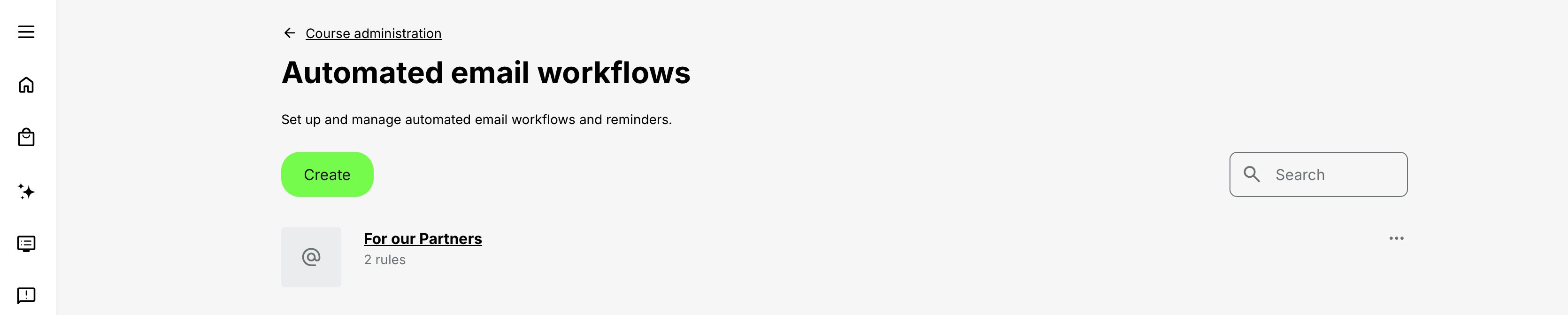
Use the workflow list
Open Course Administration → Automated Email Workflows.
The list contains the workflow templates available to the administrator. Each entry displays:
- The workflow title
- The number of rules currently contained in the workflow
The newest workflows appear first. Use Search to find a workflow by title. Select the workflow title to open its Rules list.
Use the actions menu to:
- Edit the workflow title or description
- Clone the workflow when a separate version is required
- Delete a workflow that is no longer required
Before editing or deleting a workflow, confirm where it is connected. A workflow can be shared by several activities or modules, and changes to its rules can affect those connected uses.
Create the workflow template
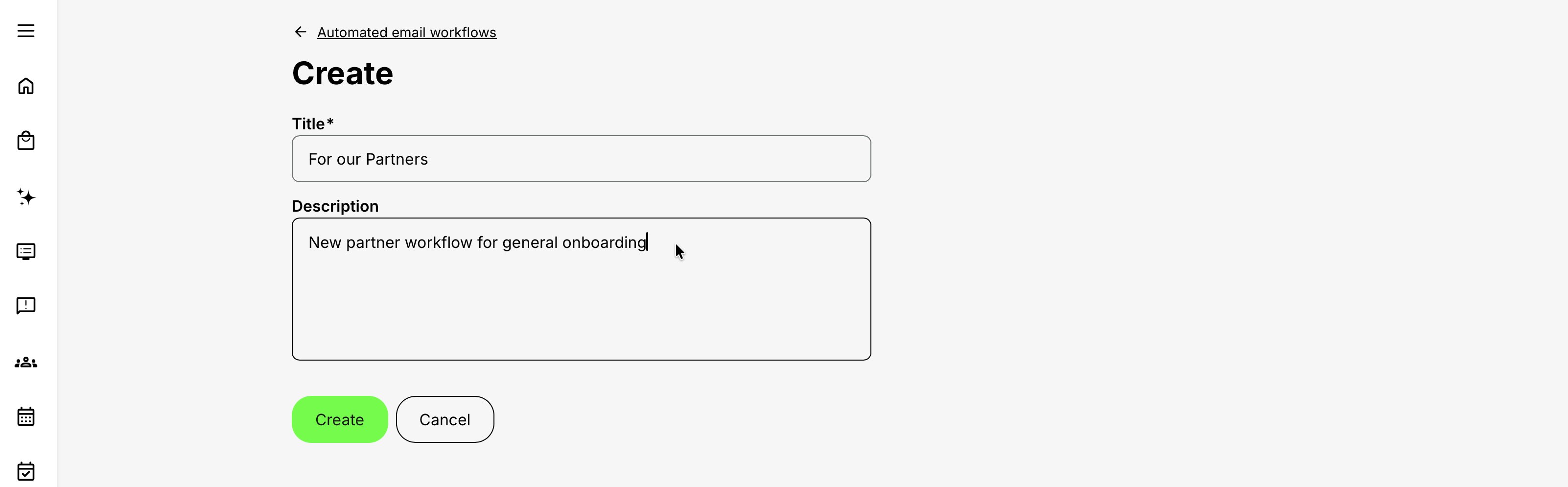
- Select Create from the workflow list.
- Enter a Title that makes the workflow’s purpose and intended scope recognizable.
- Add a Description explaining where the workflow should be used, its intended audience or delivery model, and any relevant ownership or governance information.
- Select Create.
The workflow template is created and its Rules list opens. A newly created workflow does not send anything until rules have been added and the workflow has been connected to a Training Activity or supported module.
Add and manage rules
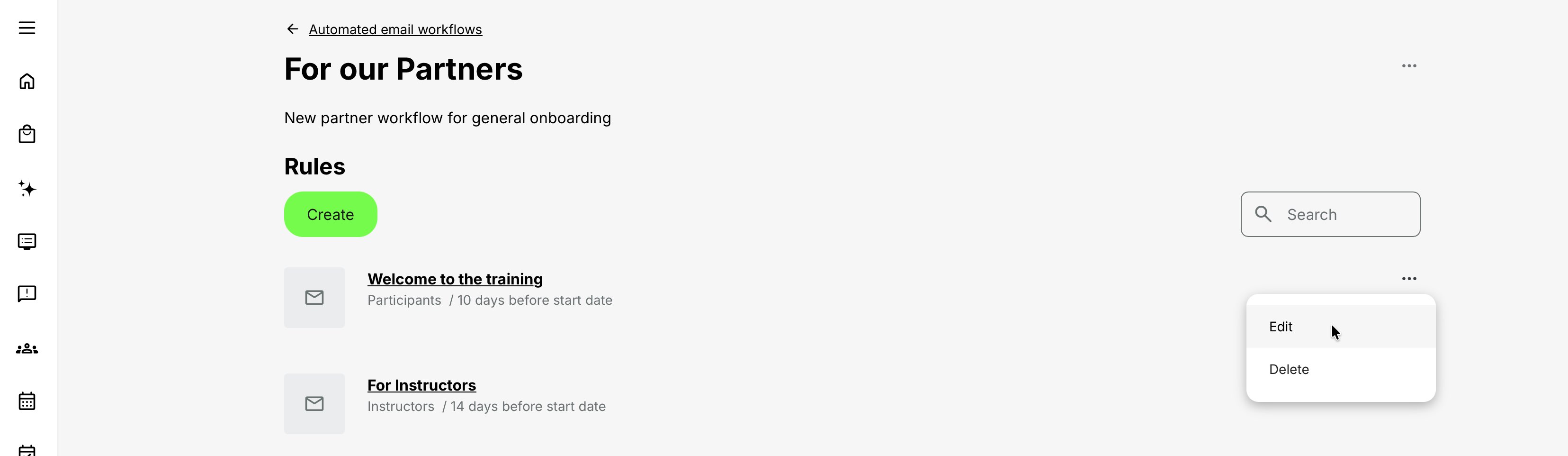
Open a workflow to see its Rules list. Each entry shows:
- The rule’s administrative title
- The audience selected under Who to notify
- A summary of when the rule is scheduled to run
Select Create to add a rule. Use Search to find an existing rule by title. Select a rule title to open it, or use its actions menu to Edit or Delete it.
A workflow can contain as many rules as the communication process requires. The rules are independent: they do not run as a required sequence in which one rule waits for another. Each rule is evaluated from its own audience, timing, and connected activity or module context.
Configure a rule
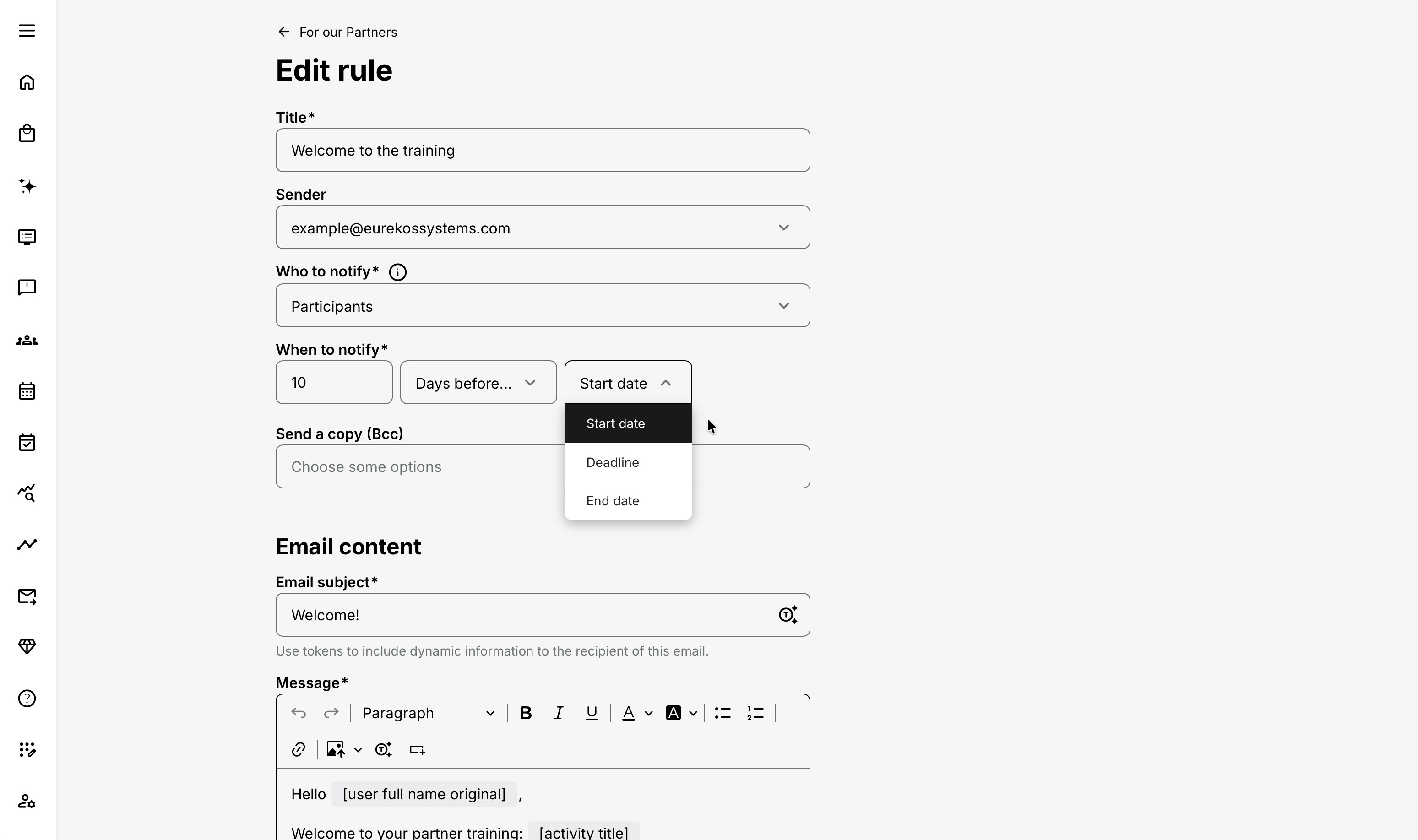
Select Create from the Rules list, or open an existing rule for editing.
| Field | What to configure | Why it matters |
|---|---|---|
| Title | Enter a recognizable administrative name for the rule. | The title identifies the rule in the Rules list. It is separate from the email subject received by the recipient. |
| Sender | Select the configured sending identity that should appear as the sender. | The available identities depend on the platform’s email configuration. |
| Who to notify | Select the participant, manager, instructor, administrator, request-status audience, or other supported recipient. | The selected audience determines who is evaluated when the rule runs. Some audiences require additional activity, profile, or signup data. |
| When to notify | Select the number where applicable, the timing direction or unit, and the reference event—for example, 10 days before Start date. | All parts of the timing must form a supported combination and the referenced date or event must exist in the connected context. |
| Send a copy (Bcc) | Optionally select additional recipients who should receive a blind copy. | Use Bcc only where the additional distribution has a defined operational purpose and appropriate access to the information. |
| Email subject | Write the recipient-facing subject and insert relevant tokens where needed. | The subject should make the Training Activity, event, or required action immediately recognizable. |
| Message | Write the email content and insert activity-, module-, user-, or signup-level tokens from the editor. | Tokens keep reusable messages accurate for the activity, module, recipient, and participant represented by the rule. |
Select Save when the rule is complete. Return to the Rules list and repeat the process for each additional communication required by the workflow.
The following sections explain the available Who audiences, When combinations, message design, and dynamic tokens in detail.
Reuse or clone
Reuse one workflow when the complete communication pattern, tone, and timing are genuinely shared. This is useful for a standard instructor-led delivery model or a common compliance journey.
Clone and customize when:
- A customer or audience needs different wording.
- A delivery model has different timing or responsible roles.
- A workflow is already connected to live activities and a material change should not affect them.
- A new version needs controlled testing before rollout.
Treat a reused workflow as shared configuration. Before changing it, identify the activities and modules that rely on it and consider the effect on both future and existing enrollments.
Configure Who receives the rule
The Who field defines the audience. Some audiences are direct; others depend on a participant's status, feedback, deadline, activity responsibility, organization, or profile relationship.
| Who option | What it targets | Main dependency or special case |
|---|---|---|
| Participants | Participants registered in the connected training context | A valid participant signup |
| Participants not completed | Participants who have not reached completion at the relevant level | Completion must be tracked consistently at the connected level |
| Participants not sent feedback | Participants who have not submitted the connected Training Feedback | Questionnaires/Training Feedback must be attached at the corresponding level |
| Participants missed deadline | Participants who remain incomplete after their personal or fixed deadline | Mandatory must provide a valid Deadline |
| People in waiting list | People whose activity signup is currently Waiting list | Activity-level capacity and waiting-list behavior |
| Course administrators | The responsible Course Administrator for the connected training context | Responsible assignment; dashboard tasks apply only to the system Course Administrator role |
| Instructors | The responsible instructor for the activity or module | Responsible instructor assignment at the relevant level |
| Organization Managers | The applicable manager recipient connected through the participant's organization | Participant organization and valid manager responsibility |
| Immediate manager | The participant's Immediate Manager | A current Immediate Manager relationship in the user's profile/data |
| Email (custom) | A fixed email address entered in the rule | Does not make that address the participant; select recipient versus signup tokens carefully |
| Participants with approved enrollment request | Requesting participants whose participation request reached Approved | Participation approval and a compatible request status |
| Participants with declined enrollment request | Requesting participants whose participation request reached Declined | Participation approval and a compatible request status |
The approved and declined request audiences are relevant only where the participation-approval workflow is enabled. Availability can depend on platform configuration and the rule context.
Participants
Use Participants for information every registered participant needs, regardless of current completion or feedback status.
Examples:
- Preparation instructions after enrollment
- Venue or virtual-delivery information before the start
- A general follow-up after the activity ends
This broad audience can include people who have already completed or submitted feedback. Use one of the conditional participant audiences when the purpose is to prompt an outstanding action.
Participants not completed
Use Participants not completed when the message is relevant only while the connected Course, Event, or activity remains incomplete for that person.
The definition of completion depends on the learning design. Course progress, Event attendance, schedules, certificate criteria, manual completion, and completion behavior can all contribute. Attach the workflow at the same level whose completion you intend to evaluate.
Example: a module-level reminder should use the Course or Event module's workflow connection when the learner only needs to finish that module. An activity-level rule concerns completion of the complete learning path.
Participants not sent feedback
Use Participants not sent feedback for targeted Training Feedback reminders. The feedback questionnaire and workflow should be connected at the same relevant activity or supported module level.
Include the Activity leave feedback button token when the participant should go directly to the feedback action. Test the resulting button with a real enrolled participant; Participant Preview is not a complete submission test.
Submitting the same questionnaire through another distribution route, such as an anonymous URL or a Button widget in Course content, is not necessarily the same connected Training Feedback instance.
Participants missed deadline
Use Participants missed deadline for overdue mandatory training. It depends on the activity's Mandatory feature and a calculated Deadline.
The deadline can be:
- A number of days after the activity starts
- A number of days or months after the participant enrolls
- A specific date and time for all active signups
Relative-to-enrollment deadlines can differ by participant. If a deadline is updated, Eurekos recalculates it for active signups and for a signup that later returns to Registered from states such as Expired, Cancelled, Waiting list, or Reserved.
The participant-facing Overdue label is informational; the workflow rule supplies the escalation communication. Choose a trigger after Deadline when the message is intended for people who have actually missed it.
People in waiting list
Use People in waiting list for activity-capacity communication—for example, confirming that interest is recorded or explaining what to expect if a seat opens.
A Waiting list signup is not registered and does not receive access from that status. If the person is promoted to Registered, future communication should be designed around the registered-participant journey. Coordinate workflow wording with the platform's waiting-list and enrollment System Emails so the participant does not receive contradictory messages.
Course administrators and instructors
These audiences use the people assigned as responsible in the activity or module features.
- An activity-level rule uses activity-level responsibility and context.
- A module-level instructor rule should use the instructor responsible for that module.
- If nobody is assigned at the relevant level, there is no valid responsible recipient for that rule.
Course Administrator rules also support operational task reminders; these are described later in this article.
Organization Managers and Immediate manager
Manager audiences are evaluated from the participant's current organization or profile relationships. Use them for escalation, approval support, or reinforcement when the manager has a legitimate role in the process.
Before rollout, test participants who have:
- One valid manager relationship
- No manager relationship
- Recently changed organization or manager
- A manager who is blocked or otherwise unable to receive communication
- Multiple organizational relationships, if your data model permits them
Do not put sensitive participant information in a manager email unless the recipient scope and business purpose have been approved.
Email (custom)
Use Email (custom) for a fixed operational mailbox or external recipient not derived from a responsible-person or manager relationship.
The custom address is the notification recipient; it is not the participant represented by the signup. This changes which name token is appropriate:
- Signup user full name returns the participant connected to the signup.
- User full name original, User first name, and User last name describe the user selected through Who. With a custom email recipient, this can render as anonymous instead of the participant's name.
Custom-recipient rules can generate substantial volume when the rule is evaluated in many participant contexts. Use a shared mailbox with a clear operational owner, keep personal data to the minimum required, and test with more than one signup.
Approved and declined enrollment requests
Use the request-status audiences for additional participant communication after a participation request is approved or declined.
- A Pending or Potential fit request is not appropriate for either audience, so both rules are skipped.
- For an Approved request, the approved rule can be scheduled or sent; the declined rule is skipped.
- For a Declined request, the declined rule can be scheduled or sent; the approved rule is skipped.
- If a decision changes after a notification was sent, the sent email cannot be withdrawn. The opposite rule may remain not applicable rather than automatically correcting the earlier message. Use Send notification where the timeline offers it and send a clear correction if needed.
- A Questionnaire after approval or participant-confirmation process can extend the request journey. Review the final status and timeline instead of assuming the first approval action completed enrollment.
If the request-status rule is timed from a Start or End date and the activity has no usable Schedule, the notification is skipped. The timeline can offer Send notification manually when the request has the matching Approved or Declined status.
Configure When the rule runs
The When field combines a unit/direction with a reference event.
| Timing | Available reference events |
|---|---|
| Days before | Start date, Deadline, End date |
| Hours before | Start date, Deadline, End date |
| At the time of | Participant enrolled, Start date, Deadline, End date, Participant completed |
| Hours after | Participant enrolled, Start date, Deadline, End date, Participant completed |
| Days after | Participant enrolled, Start date, Deadline, End date, Participant completed |
The rule is not based on the day it was created. It is calculated from the selected reference for each connected context and, where applicable, each participant.
Start date
Use Start date for preparation, joining information, manager briefings, and operational readiness.
At activity level, the rule needs a usable activity schedule. A single-module activity can derive its effective schedule from its module when the activity Schedule feature is enabled. For a multi-module activity with Schedule enabled, the effective activity period is based on the earliest module start and latest module end, within any configured activity boundaries.
At module level, use the module's own Start date. Event modules require Starts and Ends. A Course module can have an optional Schedule.
End date
Use End date for follow-up communication that should occur at the end of a scheduled delivery, such as feedback requests, next-step instructions, or administrator close-out tasks.
End date is a schedule value, not proof that a person completed the learning. Use Participant completed when the message should follow the participant's individual completion event, or use a conditional audience such as Participants not completed when status matters.
Deadline
Use Deadline for mandatory-training reminders and escalations. The selected rule timing is calculated from the signup's effective Deadline, which may be the same for everyone or participant-specific.
Examples:
- Participants not completed, 7 days before Deadline
- Participants not completed, 1 day before Deadline
- Participants missed deadline, 1 day after Deadline
- Immediate manager, 3 days after Deadline
Do not use Participants missed deadline before Deadline; the audience condition and timing would describe different states. Use Participants not completed for pre-deadline reminders.
Participant enrolled
Use Participant enrolled for onboarding and preparation relative to a person's enrollment.
Examples:
- At the time of Participant enrolled: welcome and next steps
- 2 days after Participant enrolled: prompt the participant to begin
- 14 days after Participant enrolled: progress reminder for self-paced learning
This is an individual event. It is usually more suitable than Start date for continuously available self-paced training.
Do not duplicate the platform's essential registration confirmation without a distinct purpose. The System Email communicates the transaction; the workflow can provide learning-specific guidance.
Participant completed
Use Participant completed for individualized congratulations, follow-up resources, transfer-to-work prompts, or next-step guidance.
The trigger occurs from completion at the connected level. If a participant completes a Course module before the overall learning path, a module-level completion rule and an activity-level completion rule represent different moments.
Certificate issuance and re-certification have their own system communication. Use a workflow only when the participant needs additional contextual guidance.
Hours or days
Use hours for time-sensitive operational communication, such as a virtual-session reminder. Use days for preparation, learning nudges, feedback, deadlines, and follow-up.
Avoid multiple rules that resolve to nearly the same time unless each has a distinct purpose. “24 hours before” and “1 day before” can create an unnecessary pair of reminders rather than a useful sequence.
Map every trigger to its dependency
| Reference or audience | Required source | If it is missing or incompatible |
|---|---|---|
| Activity Start/End | Activity Schedule and an effective date at activity level | Rule is skipped |
| Module Start/End | Course module Schedule or Event Starts/Ends | Rule is skipped |
| Deadline | Mandatory feature with a valid deadline value | Rule is skipped |
| Participant enrolled | An applicable participant enrollment/signup event | Historical trigger can be skipped when added later |
| Participant completed | Completion recorded at the workflow's connected level | Rule waits for or never receives that event |
| Participants not completed | Completion state at the connected level | Wrong-level connection can target the wrong state |
| Participants not sent feedback | Connected Training Feedback at the corresponding level | Rule cannot identify the intended outstanding feedback |
| Participants missed deadline | Deadline passed while completion remains outstanding | No valid deadline means no usable audience/trigger |
| People in waiting list | Activity Waiting list signup | No matching waitlisted signup means no recipient |
| Course administrators | Responsible Course Administrator | Missing assignment means no responsible recipient/task owner |
| Instructors | Responsible instructor at the relevant level | Missing assignment means no responsible recipient |
| Organization Managers | Participant organization and applicable manager | Missing relationship means no derived recipient |
| Immediate manager | Participant's Immediate Manager relationship | Missing relationship means no derived recipient |
| Approved/declined request | Participation approval and matching request status | Inappropriate status is shown as skipped |
The notification timeline is the authoritative operational view for an individual activity and signup. Use it to distinguish a rule that was logically skipped from an email that was sent but not delivered to the inbox.
Write the subject and message
The email should explain:
- Why the recipient is receiving it
- Which Training Activity or module it concerns
- The relevant date, deadline, status, or event
- What the recipient needs to do
- Where to complete the action or find more information
- Who to contact when the standard process does not apply
Keep each rule focused on one primary action. Long newsletters make operational instructions harder to find and increase maintenance when the same workflow is connected to many activities.
Use dynamic tokens for values that differ by activity, module, recipient, or participant. Avoid typing a fixed date, venue, instructor, or activity title into a reusable workflow unless the workflow is intentionally dedicated to one delivery.
Use dynamic tokens correctly
Tokens insert current contextual information into the subject or body. The available token list includes the following groups.
Activity tokens
| Token shown in the editor | Intended context |
|---|---|
| Activity title | The connected Training Activity title |
| Activity start date | The activity-level effective Start date |
| Activity end date | The activity-level effective End date |
| Activity cancellation date | The configured or recorded activity cancellation context |
| Activity instructor | The responsible activity-level instructor |
| Activity location | The activity-level Location summary derived from its Course and Event modules. It returns the shared Location when only one distinct Location entry is used and Multi-site when two or more distinct Location entries are used. Modules without a Location are ignored. |
| Activity certificate | The certificate-related activity value or action supplied by the token |
| Activity leave feedback button | A participant action for the connected Training Feedback |
| Activity allocated time | The activity's configured allocated time |
| Activity course ids | IDs of the applicable connected Course modules |
| Activity course titles | Titles of the applicable connected Course modules |
| Activity description title | The title used for the activity description context |
Module tokens
| Token shown in the editor | Intended context |
|---|---|
| Module title | The Course or Event module title |
| Module start date | The module's Start date |
| Module end date | The module's End date |
| Module instructor | The instructor responsible for the module |
| Module location | The Location configured on the Course or Event module connected to the workflow |
Choose between Activity location and Module location
Use Activity location when the message concerns the complete Training Activity:
- One distinct module Location produces that Location.
- Two or more distinct module Locations produce Multi-site.
- Modules without a Location do not affect the value.
An Activity location value of Multi-site is useful as a general description, but it does not provide the venue for a particular session.
Use a module-level workflow with Module location when participants need a specific address, room, or venue link. This is particularly important in learning paths containing several in-person sessions at different Locations.
User and signup tokens
| Token shown in the editor | Intended context |
|---|---|
| User full name original | Full name of the user resolved by the Who audience |
| User first name | First name of the user resolved by Who |
| User last name | Last name of the user resolved by Who |
| Signup user full name | Full name of the participant represented by the signup |
| Signup created | Date/time or value for the participant's signup creation |
| Signup deadline date | The participant's effective mandatory deadline |
Use Signup user full name when an email to a manager, administrator, instructor, or custom address must identify the participant concerned. Use the ordinary User tokens when the message should greet or identify the actual user selected as the recipient.
Alert title
Alert title supports the Course Administrator reminder/task function. Use a short, action-oriented title such as “Confirm room setup” or “Send material to instructor.” It is not a replacement for a meaningful participant email subject.
Token safety
Before rollout:
- Insert tokens from the editor rather than typing or altering their underlying syntax.
- Match activity tokens to activity connections and module tokens to module connections.
- Confirm that the source field—Schedule, Location, Responsible, Deadline, Certificate, or Questionnaire—contains a value.
- Test different recipient types, especially custom emails and managers.
- Check date, time, time-zone, and language presentation in the delivered message.
- Test action tokens such as feedback and certificate actions with an eligible participant.
A token cannot display data that is absent from the connected context. If a module has no Location, inserting Module location does not create one.
Connect the workflow to a Training Activity
Creating a workflow does not activate it. Connect it through the Training Activity's Automated email workflow feature.
Activity-level connection
Use activity level when the rule concerns the complete Training Activity or learning path.
- Open Course Administration → Activities.
- Edit the Training Activity.
- Open activity-level Features.
- Enable Automated email workflow.
- Select the workflow.
- Save the activity.
Good activity-level examples include:
- Overall learning-path preparation
- A reminder based on the full program's Start or End date
- Completion or feedback for the complete learning path
- Mandatory deadlines set on the activity
- Responsible Course Administrator tasks for the overall delivery
Module-level connection
Use module level when the rule concerns a particular supported Course or Event module.
- Edit the Training Activity.
- Open the Course or Event module's Gear or Features menu.
- Enable Automated email workflow.
- Select the workflow.
- Save the module and activity.
Good module-level examples include:
- Joining instructions for one Event in a learning path
- A reminder based on one Course module's Schedule
- Instructor or Location information that differs by module
- Completion follow-up for one module rather than the full learning path
- Module-specific Training Feedback
An Assignment has its own due-date reminder behavior. Existing Training connects an independent child activity with its own configuration. Use the workflow at the level that owns the relevant schedule, completion, feedback, and participants.
Single-module activity
For one Course or Event module, module-level configuration usually provides the clearest context. If an activity-level rule uses the activity schedule, ensure the activity Schedule feature is enabled and resolves the module's dates as intended.
Learning path
A learning path can use:
- One activity-level workflow for the overall journey
- Different module-level workflows for individual Courses or Events
- Both activity- and module-level workflows
- Multiple workflows where the feature and design permit them
This flexibility also creates overlap risk. Before saving, compare all connected rules by audience, trigger, and message. The platform cannot decide that two differently configured reminders are semantically duplicates.
Understand schedule and time-zone context
Schedule-based rules use the dates and time zones configured at the connected level.
- Activity and module schedules each have their own time-zone field.
- Event Starts and Ends are required.
- Course module Schedule is optional.
- Activity Starts and Ends can be optional.
- If activity-level Schedule is disabled, the activity is treated as self-paced even when modules have dates.
- In a single-module activity with activity Schedule enabled but blank, the effective activity schedule can be based on the module.
- In a multi-module activity with activity Schedule enabled, the effective period can use the earliest module start and latest module end, subject to activity/module schedule validation.
When a workflow is attached at activity level, use activity date tokens and verify the effective activity period. When it is attached to one Event, use module date tokens and the Event's time zone.
If participants, instructors, and administrators work across time zones, test the delivered value with accounts using representative regional settings. The rule timing and the date displayed in the message must both make sense to the recipient.
For more detail, see Calendar Events and Video Conferencing, Creating a Training Activity.
Change a workflow used by live activities
Workflow rule updates apply to existing enrollments going forward. This includes adding a new email rule and changing the trigger on an existing rule.
When the workflow is saved, Eurekos re-evaluates existing enrollments:
| Effective trigger time for an existing enrollment | Result |
|---|---|
| In the future | Notification is scheduled normally |
| Within approximately the last 30 minutes | Notification is sent immediately under the short grace-window behavior |
| More than approximately 30 minutes in the past | Notification is skipped rather than replayed historically |
This prevents a workflow edit from generating a large wave of old reminders while still including existing participants in future communication.
Examples
Add a seven-day pre-start reminder 20 days before the activity starts: existing registered participants are included because the trigger remains in the future.
Add an “at enrollment” welcome rule after participants enrolled last week: the historical enrollment trigger is too old and is skipped. Use a manual message for the current cohort.
Save a rule a few minutes after its calculated trigger: the grace window can send it immediately. This is useful operationally, but it also means saving near a live trigger can produce immediate emails.
Safe live-change process
- Identify every activity and module using the workflow.
- Calculate each changed rule's effective time for current enrollments.
- Check for a trigger within the short grace window.
- Review the size and sensitivity of the affected audience.
- Clone the workflow first if the change should apply only to new activities.
- Save during a controlled period.
- Review notification timelines and email logs after the change.
- Use a manual message for historical cases the automated rule correctly skipped.
Changing the wording of a shared workflow should receive the same governance review even when timing is unchanged. Future messages across every connected use may inherit that wording.
Monitor the notification timeline
Open the Training Activity's participant administration and use the Notification timeline for the relevant signup or request. It brings together the statements created from the connected workflow rules.
Typical outcomes include:
- Notification scheduled: the rule is applicable and its send time is in the future.
- Notification sent: the rule was processed and the message was sent from Eurekos.
- Notification skipped: the rule was not applicable or required context was missing. The reason can identify an inappropriate request status or missing Start/End date feature.
- Rule is not applicable: the participant or request no longer matches the rule's state.
- Send notification: a manual option is available for a valid edge case.
The notification timeline answers “Did this rule execute for this signup?” It does not prove that an external mailbox placed the email in the inbox. If the timeline says Sent but the recipient did not receive it, continue with Settings → Email Sending → Logs, recipient-address validation, sending limits, sender configuration, spam filtering, and delivery-provider investigation.
Enrollment-request timeline behavior
For approval/decline rules, the timeline reflects both the request status and the rule audience.
| Request status | Approved-request rule | Declined-request rule |
|---|---|---|
| Pending or Potential fit | Skipped: status is inappropriate | Skipped: status is inappropriate |
| Approved | Scheduled or sent when timing is reached | Skipped: status is inappropriate |
| Declined | Skipped: status is inappropriate | Scheduled or sent when timing is reached |
| Decision reversed after the opposite notification was sent | Earlier sent notification remains part of the history; current rule can be not applicable or require manual handling | Earlier sent notification remains part of the history; current rule can be not applicable or require manual handling |
| Missing required Schedule | Skipped; manual Send notification can be offered when current status is Approved | Skipped; manual Send notification can be offered when current status is Declined |
This audit trail is important when a participant reports conflicting communication. Review the sequence of request status changes as well as the email timeline.
Create Course Administrator reminders and tasks
When Who is Course administrators, the rule supports an additional reminder/task field represented by Alert title.
This function applies specifically to the system role Course Administrator.
Requirements:
- A responsible Course Administrator must be assigned to the Training Activity.
- The workflow must be connected at the appropriate level.
- The rule needs a valid trigger, such as a Schedule date.
- The task title should describe one concrete action.
The reminder appears on the Course Administrator's Home screen above the calendar. It remains associated with the Training Activity and can be marked complete or incomplete.
Examples:
- Confirm the instructor and venue
- Order catering
- Send pre-reading material
- Check minimum attendance
- Export nameplates
- Record attendance
- Review feedback and close the delivery
If the responsible Course Administrator is replaced on the activity, the related tasks are transferred automatically to the replacement.
An email reminder and a dashboard task should not be treated as proof that the underlying operational action was completed. The Course Administrator must mark the task complete after performing it.
Common use cases
| Use case | Recommended configuration | Operational guidance |
|---|---|---|
| Instructor-led Event communication | Attach a module-level workflow to the Event. Send preparation information seven days before the Module start date, a concise virtual or venue reminder two hours before, and a feedback request one day after the Module end date. | Use Module instructor, Module location, and the module-date tokens so each message describes the Event rather than the complete learning path. |
| Self-paced onboarding journey | Use Participant enrolled rather than Schedule. Send a welcome message at enrollment, a getting-started prompt after two days, and an incomplete-training reminder after two weeks. | Evaluate participant completion at Course or activity level according to what “finished” means within the onboarding journey. |
| Mandatory compliance training | Enable Mandatory and configure the Deadline. Remind Participants not completed seven days and one day before the deadline. Contact Participants missed deadline one day afterwards and escalate to the Immediate manager after three days. | Use Signup deadline date in manager communication because individual participants may have different deadlines. |
| Blended learning path | Use an activity-level workflow for the program launch, overall completion, and final feedback. Attach separate module-level workflows to live Events for joining information and to scheduled Courses for milestone prompts. | Review the complete notification timeline for overlaps. Participants should not receive activity- and module-level reminders describing the same moment. |
| Training Feedback follow-up | Connect Training Feedback and its workflow at the same level. After the relevant end date or completion, target Participants not sent feedback and include the Activity leave feedback button. | If feedback submission is required before certificate delivery, explain that dependency clearly in the message. |
| Waiting-list communication | Target People in waiting list with information about capacity, promotion, and the expected next steps. When someone is promoted, use the registered-participant workflow to send the actual joining information. | Coordinate the workflow with System Emails and never promise that a place will become available. |
| Participation approval | Use System Emails for the standard approval request and decision. Add approved- or declined-request workflow rules only when organization-specific next steps, preparation, alternative dates, or additional context are required. | Review the notification timeline carefully when an approval decision is reversed. |
| Administrator delivery checklist | Create Course Administrator rules before and after the relevant start or end dates. Use action-based alert titles and assign the responsible Course Administrator. | The resulting tasks appear on the administrator’s dashboard and transfer if responsibility for the training changes. |
| Shared academy template | Create one governed workflow for a standard delivery type and use tokens for activity-specific information. Clone it when customers require different wording or processes. | Assign an owner and maintain a version convention, test activity, and change log so changes to a shared workflow do not unexpectedly affect live cohorts. |
Design and governance practices
| Practice | How to apply it | Checks and examples |
|---|---|---|
| Give every workflow an owner and scope | Use a naming convention that clearly identifies the delivery type, recipients, customer where relevant, and version. Document which activities should use the workflow and who approves changes. | Examples:
Record any overlapping System Emails. |
| Write for the recipient’s action | Make the event and required action recognizable from the subject. Use the first paragraph to explain why the message was sent, then present the main action before background information. | Confirm that recipients can understand what happened, what they must do, and when they must do it without reading the complete message. |
| Minimize communication volume | Review the participant’s complete communication journey rather than assessing one workflow in isolation. Remove repeated messages and establish one authoritative source for each fact. | Include all potential communication:
|
| Separate operational and participant communication | Create separate rules for participants, instructors, managers, and administrators. Write each message for the responsibilities of its intended audience. | Do not include internal operational notes in participant templates or distribute participant information more widely than necessary. |
| Avoid fixed facts in reusable templates | Use tokens for activity and module titles, dates, instructors, locations, deadlines, and participant names. | If a message requires fixed customer- or delivery-specific information, clone the workflow and document its narrower scope. |
| Test state, not just wording | Validate recipient selection, timing, tokens, and actions using the verification section below. | Choose the cases used by this workflow and repeat them after changes to audiences, triggers, or shared templates. |
| Monitor after rollout | After the first production run, review the activity’s notification timelines and the platform’s Email Sending logs. Continue monitoring the workflow as delivery volume grows. | Watch for daily sending volume, delivery failures, unresolved or incorrect tokens, duplicate messages, and participant support questions. Update the workflow only through a controlled change process. |
Verify the configuration
Use representative accounts and the routes enabled for your delivery. Check the relevant outcomes before launch and after a material change; an administrator preview alone does not verify the participant experience.
| Scenario or check | Expected result or evidence |
|---|---|
| Recipient state | Test incomplete and completed participants, feedback submitted and missing, waiting-list and promoted users, and request decisions relevant to the workflow. The rule includes and excludes the intended people. |
| Timing and level | Activity or module dates, enrollment, completion, and effective signup deadlines supply real trigger events. Check time zones and scheduled versus self-paced delivery. |
| Manager and custom recipients | Test with and without the relevant manager relationship. Custom recipients use a governed mailbox and the correct user or signup tokens for the person being described. |
| Message and action | A real enrolled test user receives the intended subject and resolved tokens and can use the action. Feedback is connected at the matching level; waitlisted users are not promised registration. |
| Operational tasks | The responsible Course Administrator or instructor receives the correct reminder or task, with an actionable title and usable information. |
| Existing enrollments and shared edits | Follow the live-change process above: identify all connected activities, inspect trigger times and the grace window, and arrange separate communication for skipped past triggers. |
| Volume and monitoring | The combined System Email, Event, Assignment, and workflow journey avoids duplicates. Expected peaks fit platform and provider capacity; use notification timelines and Email Sending records to investigate processing, with provider evidence for later delivery issues. |
Troubleshooting
| Problem | What to check or do |
|---|---|
| Automated Email Workflows is missing from Course Administration | Confirm the user's role and permissions. Course Administrator and higher relevant administrative roles can administer workflows; platform-specific opt-in roles and organization scope can affect access. |
| The workflow is not available in the activity dropdown | Confirm the workflow was saved, the administrator can access it, and the correct activity or supported module feature is open. Refresh the edit form after creating the workflow. |
| No emails are generated after creating the workflow | Creating a workflow does not activate it. Connect it through the activity or module's Automated email workflow feature, save the Training Activity, and verify each rule's recipient and trigger dependencies. |
| A notification was skipped because Start/End date is not configured | The rule is tied to a schedule value that does not exist at the connected level. Enable and configure the correct activity or Course-module Schedule, confirm the Event dates, or change the rule to an enrollment/completion trigger suitable for the design. |
| An activity-level schedule rule was skipped even though an Event has dates | Check whether the activity-level Schedule feature is enabled and whether the effective activity period resolves from the modules. If the communication concerns the Event, connect the workflow to the Event module and use module dates instead. |
| The email contains the learning-path date instead of the Event date | The rule uses activity-level tokens or an activity-level connection. Use a module-level workflow and Module start/end tokens for the individual Event. |
| The email contains an empty module Location | Confirm that the workflow is connected to a supported Course or Event module, that the module has a Location, and that the message uses Module location. |
| The email displays Multi-site instead of a venue address | The message uses Activity location, and two or more distinct Location entries are used by the activity’s modules. This is the expected activity-level summary. Connect the workflow to the relevant module and use Module location when the recipient needs session-specific joining information. |
| The wrong person was greeted in a manager or administrator email | Ordinary User tokens describe the user selected through Who. Use User tokens to greet the recipient and Signup user full name to identify the participant concerned. |
| A custom-recipient email says “anonymous” | Replace the ordinary full-name token with Signup user full name([signup:user_full_name]) when the message should identify the participant. The fixed email address is the recipient, not the signup user. |
| A participant who completed still received a general reminder | Check whether the rule uses Participants instead of Participants not completed. Also verify completion at the workflow's connected level and whether the message had already been scheduled or sent before completion was recorded. |
| A participant who has not completed did not receive the reminder | Check signup status, connection level, completion status, trigger date, and notification timeline. A historical trigger added after enrollment may correctly be skipped. Also check whether the participant was Cancelled, Waiting list, or otherwise outside the intended audience. |
| A feedback reminder was sent to someone who already answered | Confirm the rule uses Participants not sent feedback, and that the workflow and Training Feedback are connected at the same level. A response submitted through a separate questionnaire URL or Course Button widget may not satisfy the connected Training Feedback instance. |
| The feedback button is missing or opens the wrong context | Insert Activity leave feedback button, verify the questionnaire connection and availability, and test with a registered participant at the same level as the workflow. Do not rely only on Participant Preview. |
| A missed-deadline rule never runs | Confirm Mandatory is enabled, the deadline value was valid and saved, the participant remains incomplete, and the rule occurs after Deadline. Use Participants not completed for reminders before Deadline. |
| The email shows the wrong participant deadline | Use Signup deadline date rather than a fixed date or a generic activity date. Review whether the deadline is relative to enrollment, activity start, or a specific date and whether it was recalculated after a signup/status change. |
| Immediate Managers receive nothing | Check the participant's current Immediate Manager relationship and the manager user's status and email. Test a participant with a known relationship, then inspect the notification timeline and Email Sending logs. |
| The responsible Course Administrator receives no reminder or task | Confirm the user is assigned as responsible on the Training Activity, has the system Course Administrator role required by the task feature, and that the workflow and trigger are valid. Check the Home-screen reminder area and notification timeline. |
| The Course Administrator task belongs to the wrong person | Review the activity's current responsible Course Administrator. When responsibility is replaced, related tasks transfer to the replacement. |
| Participants received two very similar reminders | Inspect every workflow connected at activity and module level, along with System Emails and feature-specific reminders. Remove or consolidate overlapping rules; separate connections do not establish that two messages mean the same thing. |
| Editing a live workflow sent emails immediately | One or more recalculated triggers were probably within the approximately 30-minute grace window. Review current notification timelines and the rule's effective date. Use a cloned workflow and controlled rollout for future material changes. |
| Existing participants did not receive a newly added rule | Check its calculated trigger. Existing enrollments receive future triggers, but a trigger more than approximately 30 minutes in the past is skipped. Use a manual message for the historical cohort. |
| A changed workflow affected more activities than expected | The workflow was reused as a shared template. Identify all connected activities/modules, correct the shared template if appropriate, or clone it and reconnect only the activities that need the variation. |
| Both approval and decline rules are shown as skipped | The enrollment request may still be Pending or Potential fit. Those statuses are inappropriate for both decision audiences. Process the request and review the timeline again. |
| The approval rule was skipped after a decision reversal | If the opposite notification was already sent, the new rule may be marked not applicable and the original email remains in history. Use Send notification when available or send a manual correction. |
| An approval/decline notification was skipped on an unscheduled activity | The rule uses Start or End date without a configured Schedule. Use the manual Send notification option when offered for the matching current request status, or redesign the rule around an available event. |
| The timeline says Sent, but the recipient did not receive the email | Verify the stored recipient address in Settings → Email Sending → Logs, then check sending limits, sender/SMTP status, delivery-provider logs, junk filtering, quarantine, and organizational mail rules. Sent workflow status and inbox delivery are separate stages. |
| Many emails stopped sending during a large rollout | Review platform Email Sending quotas and the delivery provider's limits. Count System Emails, workflow rules, calendar messages, and other automation together. Coordinate sender and quota changes with the platform owner and mail administrator. |
| A token appears as text or does not resolve | Reinsert it from the editor without altering its syntax. Confirm it is available for that context and that the underlying activity, module, recipient, or signup field contains a value. |
FAQ
-
Does creating a workflow activate it?
No. The workflow is a reusable template. It runs only after it is connected to a Training Activity or supported module and its rules have valid recipients and trigger context.
-
Can one workflow contain several emails?
Yes. Add as many independent rules as the process needs. Each rule has its own Who audience, When trigger, subject, and message.
-
Do rules run in the order shown?
Treat every rule as independent. Its execution is controlled by its own calculated trigger and eligibility, not by its position in the list or completion of the previous email.
-
Can I use the same workflow on several activities?
Yes. That is a central purpose of workflow templates. Use tokens for changing context, and remember that editing a shared workflow can affect current and future communication across its connected activities.
-
Should I reuse or clone a workflow?
Reuse when timing, audience, tone, and purpose are shared. Clone when a customer, training format, or rollout version requires different logic or when you need to protect live uses from a material change.
-
What is the difference between an Automated Email Workflow and a System Email?
A System Email is tied to a predefined platform event and recipient flow; administrators customize its content, sender, language, and notification classification. An Automated Email Workflow lets a Course Administrator design the audience, relative trigger, message, and activity/module connection.
-
Can a workflow send calendar invitations?
Use the Event's calendar and conferencing configuration for formal calendar invitations and updates. A workflow can remind participants and include relevant date/location context, but it does not replace the calendar event lifecycle.
-
Should a workflow replace the registration confirmation?
Usually no. Keep the System Email as the transactional confirmation. Use an enrollment-triggered workflow for additional learning-specific preparation or next steps.
-
What happens if the rule needs a Start date but the activity has no Schedule?
The rule is skipped. Add the appropriate Schedule at the level that owns the workflow, or use an enrollment/completion trigger suitable for self-paced training.
-
What happens if a Course Administrator or instructor is not assigned?
The rule has no responsible recipient at that level. Assign the responsible person and check the notification timeline after saving.
-
Can I send a reminder only to participants who have not completed?
Yes. Select Participants not completed and connect the workflow at the level whose completion should be checked.
-
Can I remind only participants who have not left feedback?
Yes. Select Participants not sent feedback, connect the workflow at the same level as Training Feedback, and include the Activity leave feedback buttontoken.
-
Which audience should I use before and after a mandatory deadline?
Before the deadline, use Participants not completed with a timing before Deadline. After the deadline, use Participants missed deadline. Managers can receive a separate escalation rule.
-
Can deadlines be different for each participant?
Yes. A Mandatory deadline can be calculated from each participant's enrollment. Use Signup deadline date when the message must show that participant-specific value.
-
Can I email people on the waiting list?
Yes. Select People in waiting list. Keep the wording consistent with waiting-list System Emails and do not imply that a waiting-list place guarantees registration.
-
Can I notify a participant's manager?
Yes. Select Immediate manager or Organization Managers as appropriate. The participant's profile and organization relationships must identify a valid recipient.
-
Can I send to a fixed shared mailbox?
Yes. Select Email (custom). Review volume and personal-data content, and use Signup user full name when the fixed recipient needs the participant's name.
-
Why does a custom-recipient email show “anonymous” instead of the participant's name?
The ordinary User name tokens refer to the user selected in Who. With Email (custom) there may be no participant user in that position. Use Signup user full name—represented by [signup:user_full_name] in the message—for the participant.
-
Can activity- and module-level workflows be used together?
Yes. Use activity level for the complete journey and module level for individual Courses or Events. Review all rules together to prevent duplicated or conflicting communication.
-
Can I attach a workflow to an Assignment?
Assignments have a feature-specific Remind participants option based on the Assignment due date. Use that for submission reminders; use an activity-level workflow when the communication concerns the complete journey.
-
Can I attach a workflow to an Existing Training module?
An Existing Training module connects another independent Training Activity. Configure communication on the parent when it concerns the parent journey and on the child activity when it concerns that child's schedule, participants, or completion.
-
What happens when I add a new rule after people have enrolled?
Existing enrollments are re-evaluated when the workflow is saved. Future triggers are scheduled, triggers within roughly the last 30 minutes can send immediately, and older past triggers are skipped.
-
Are old triggers sent retroactively after a workflow update?
No. Triggers more than approximately 30 minutes in the past are not replayed. Use a manual message when the historical cohort still needs the information.
-
What happens if an enrollment request changes from Approved to Declined after an email was sent?
The sent approval email cannot be withdrawn. The notification timeline preserves the result, and the opposite rule may be not applicable rather than automatically correcting it. Send a manual clarification where necessary.
-
Can Course Administrator rules create tasks without a separate task system?
Yes. A Course Administrator rule can use Alert title to create an activity-related reminder on the responsible Course Administrator's Home screen. It can be marked complete or incomplete.
-
What happens to administrator tasks when responsibility changes?
They transfer automatically to the replacement responsible Course Administrator on the Training Activity.
-
Does “Notification sent” guarantee inbox delivery?
No. It confirms that Eurekos processed and sent the notification. Check Email Sending logs, the recipient address, sending limits, sender/SMTP configuration, spam filtering, and the recipient's mail environment for delivery issues.