Community Connection - Article
Summary
Community Connection extends a Training Activity into a shared space where participants and facilitators can ask questions, exchange resources, and continue learning between sessions. The collaboration space can be provided through a native Community, Microsoft Teams, or Slack, allowing activity participation and group membership to be coordinated. This supports cohort communication and longer-term communities of practice while reducing the need to maintain the same audience separately.
In this article you will learn:
- What Community Connection does and when to use it
- How it differs from a Microsoft Teams meeting, direct Community assignment, and an enrollment email workflow
- Which platform and integration prerequisites make each connection type available
- How to connect a new or existing native Eurekos Community
- How participants and responsible users are synchronized with a native Community
- How Microsoft Teams initializes and synchronizes differently from a native Community
- How Slack-channel creation, selection, membership synchronization, disconnection, and reconnection work
- Why the selected connection cannot be replaced directly
- What happens when Community Connection is disabled and re-enabled
- How external Teams and Slack links appear to participants
- What happens during account merging, cloning, and recurring delivery
- How to govern, test, and troubleshoot an activity-connected collaboration space
What Community Connection helps you achieve
Community Connection gives the people involved in a Training Activity a shared collaboration space alongside the formal learning journey.
It is useful when participants should be able to:
- Ask questions before, during, or after training.
- Share files, examples, experiences, and follow-up resources.
- Continue a cohort discussion between scheduled sessions.
- Work with instructors or responsible administrators outside the course content itself.
- Participate through a collaboration tool already used by the organization.
- Join a Community of practice that spans several deliveries of related training.
The Training Activity remains the controlled learning record. It holds enrollment, schedules, modules, progress, completion, certificates, and reporting. The connected Community, Team, or channel provides the collaborative environment around that record.
A connection is an operating model—not merely a shortcut
Connecting an activity can add people to another space and, for Microsoft Teams, can also create activity signups from Team membership. Disabling the connection can remove members and can delete the connected platform Community. Decide which system governs membership before enabling the feature.
Decide whether an activity connection is the correct design
Use Community Connection when membership in the collaboration space should follow participation in a particular Training Activity.
Use another mechanism when the collaboration group has an independent audience or lifecycle.
| Business requirement | Recommended approach | Why |
|---|---|---|
| Every participant in one training cohort should join the same discussion space | Community Connection | Activity participation and collaboration membership stay connected |
| Several cohorts should continue in one long-lived native Community of practice | Connect each relevant activity to the intended existing Community | The Community can continue beyond one delivery |
| People should join a Community because of organization, role, or job function—even if they are not enrolled in one activity | Onboarding Rule with direct Community assignment | Membership follows profile criteria rather than one activity signup |
| Participants need a virtual session link | Configure Microsoft Teams or another video-conference tool on an Event | A meeting link delivers a scheduled session; it is not an ongoing collaboration membership |
| Participants need joining instructions or reminders | Automated Email Workflow | Community membership does not replace activity communication |
| Participants only need to see who else is attending | Participant visibility feature, where approved | A participant list is not a discussion or collaboration space |
| A project Team should be the source of the training population | Microsoft Team connection, after reviewing its enrollment behavior | Team members can become activity signups |
Avoid connecting a Community simply because the feature is available. A collaboration space without an owner, facilitation plan, purpose, or retirement decision often becomes confusing or inactive.
Understand the available connection types
Community Connection is an activity-level feature. It becomes available when at least one supported Community capability is enabled for the platform.
| Connection type | Collaboration location | Typical purpose | Important membership characteristic |
|---|---|---|---|
| Native Eurekos Community | Inside Eurekos | Cohort discussion, Community of practice, shared resources, and platform-based facilitation | Current and future activity participants are added; responsible users follow their activity responsibility |
| Microsoft Teams | Microsoft Teams | Collaboration in an established Microsoft 365 environment and enrollment from an existing Team | Initial and ongoing synchronization is asymmetric; current Team members and current activity signups are not treated in the same way |
| Slack | Slack | Cohort collaboration in a Slack workspace, using a new or existing channel | Connecting a channel imports its current members as activity signups but does not add existing activity signups to the channel; subsequent activity enrollments, reactivations, and cancellations drive queued channel-membership changes |
The connection types share a purpose but not an identical lifecycle. Read the section for the selected type before connecting an activity that already has participants or an established external membership.
Confirm platform prerequisites
Community Connection is shown when one or more of the following is enabled:
- Native Eurekos Communities
- Microsoft Teams integration
- Slack integration
Native Communities are activated at platform level. Microsoft Teams and Slack also require their corresponding third-party integration to be configured.
For an external service, platform activation alone may not be sufficient. The connected account, application permissions, tenant or workspace policies, and the administrator's rights in the external system determine which Teams or channels can be selected and what Eurekos can do with their membership.
Before configuring a connection, confirm:
- The intended Community capability is enabled.
- The third-party integration is healthy where applicable.
- The administrator can see and select the intended external resource.
- Participant identities can be matched across Eurekos and the external service.
- External guests are permitted where the training serves customers or partners.
- Membership changes initiated by synchronization comply with the organization's privacy and access policies.
For platform activation, see General Settings. For the Microsoft integration, see Microsoft.
Permissions and ownership
The administrator configuring Community Connection must be able to edit the Training Activity. Managing the resulting collaboration space can require additional permissions:
- A native Community needs a defined owner and suitable moderation permissions.
- A Microsoft Team remains subject to Microsoft Entra, Microsoft Graph, tenant, Team, and account permissions.
- A Slack channel remains subject to the workspace's channel and application permissions.
- Activity responsibility does not automatically grant every administrative permission in the external service.
Define ownership before launch:
- Learning owner—decides why collaboration is part of the training design.
- Activity administrator—configures the connection and manages activity participation.
- Community owner or facilitator—moderates the collaborative space and responds to participants.
- Integration owner—maintains Microsoft or Slack credentials, permissions, and service health.
- Data and security owner—approves membership, retention, external access, and offboarding rules.
Do not rely on one person being implicitly responsible for all five areas.
Plan the membership lifecycle before connecting
Answer these questions before selecting a Community, Team, or channel:
- Should collaboration membership be governed by activity enrollment or by another audience rule?
- Does the activity already contain participants?
- Does the intended Team or channel already contain members?
- Should one collaboration space serve one cohort or several cohorts?
- Who owns moderation and participant support?
- What should happen when a participant is cancelled or an activity ends?
- Will the space remain useful after training completion?
- Who may approve disconnection or replacement?
- What information and files will remain in the collaboration space?
- How will account changes, external guests, and departed users be handled?
These questions are especially important for Microsoft Teams and Slack because connecting an existing external population does not produce a symmetrical initial synchronization.
Configure Community Connection
- Open Course Administration → Activities.
- Open the intended Training Activity and edit it.
- Go to the activity-level Features.
- Add or enable Community connection.
- Select the available connection type.
- Create or select the intended native Community, select the intended Microsoft Team, or create or select the intended Slack channel.
- Complete the displayed ownership or connection information.
- Save the Training Activity.
- Verify membership on both sides with representative test users.
The exact fields depend on the enabled Community type and integration configuration.
The selected connection becomes locked
After a Community, Team, or channel has been assigned through Community Connection, its selection fields are disabled. You cannot simply replace it with another space. Changing the connection requires disabling the feature first, which can remove participants and delete a connected native platform Community.
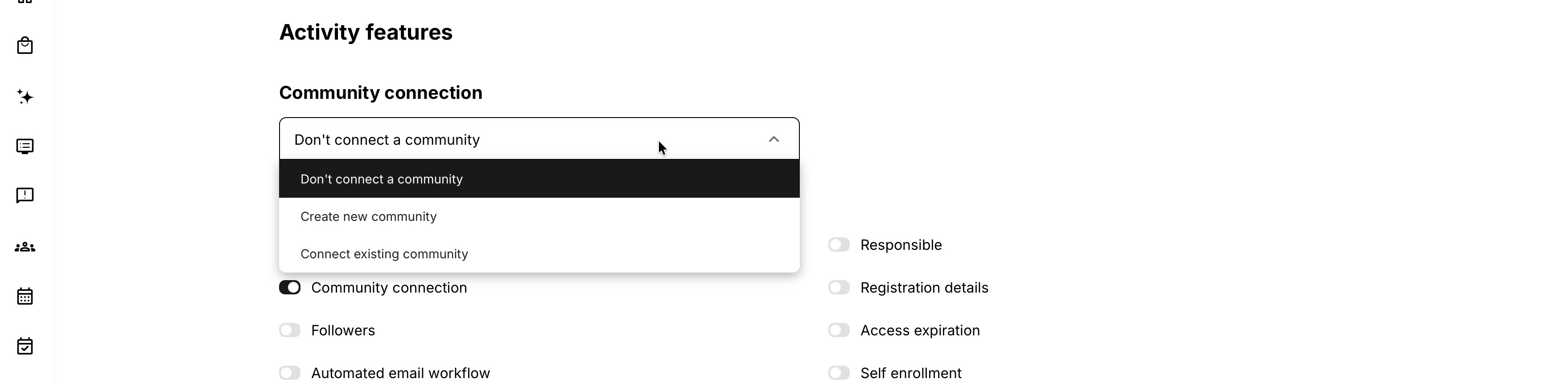
Do not use disable and re-enable as an exploratory way to compare available spaces.
Connect a native Eurekos Community
For a native Community, the activity can:
- Create a new Community for the Training Activity.
- Connect an existing Community.
Create a new Community when the collaboration space belongs specifically to this cohort or learning journey. Select an existing Community when several activities should contribute members to a longer-lived Community of practice.
When creating a native Community, complete the available Community information and assign an appropriate Community owner. The owner should understand both the learning purpose and the expected moderation work.
What happens when the native connection is saved
When a native Community is connected:
- Existing activity signups are added to the Community.
- New participants are added as they enroll in or are registered for the activity.
- Users added to the activity as Responsible are added to the Community.
- Users removed from the activity as Responsible are removed from the Community.
The Community provides collaboration, but it does not change the participant's Course, Event, Assignment, certificate, or activity completion rules.
Use an existing Community across several cohorts
Connecting several Training Activities to one existing native Community can support:
- An alumni or professional Community that continues between deliveries.
- Product training cohorts that share implementation experience.
- A certification Community serving current and previously certified participants.
- A partner Community supported by several regional activities.
This model also creates shared membership ownership. Before using it, decide:
- Whether cancelling a participant from one activity should affect continued Community membership.
- Whether a participant enrolled through another connected activity should remain.
- Which activity administrators may disconnect from the shared Community.
- Whether the Community should survive the retirement of any one activity.
Because disabling Community Connection can delete the platform Community used by the activity, review every connected cohort and Community dependency before disconnecting a shared space.
Understand Microsoft Teams synchronization
A Microsoft Team connection can serve two related purposes:
- Add future activity participants to the connected Team.
- Create activity signups for members of the connected Team.
These directions do not initialize in the same way.
Initial connection behavior
When an activity is connected to a Microsoft Team for the first time:
| Population that already exists | Initial result |
|---|---|
| Existing members of the Microsoft Team | They become signups in the Training Activity through background synchronization |
| Existing signups in the Training Activity | They are not added to the Microsoft Team merely because the connection was created |
This distinction is critical. If an activity already has 100 participants and is then connected to a new or empty Team, those 100 participants are not backfilled into the Team by the initial connection.
Do not promise existing participants immediate Team access until the actual Team membership has been verified.
Ongoing behavior after connection
While the connection is active:
- New activity signups are queued to be added as Microsoft Team members.
- New and existing Microsoft Team members can be processed into activity signups.
- Team-to-activity processing uses Microsoft notifications and background processing.
- Synchronization can take time; it should not be treated as an immediate transaction.
Use Eurekos participant management for an intentional cancellation and verify both systems after any exceptional cleanup.
A Microsoft Team collaboration connection is not a Teams meeting
Connecting a Team gives participants a shared collaboration space. Configuring Microsoft Teams as an Event's video-conference tool creates or supplies a meeting used at a scheduled time. An activity can need either capability or both, but they are configured and governed separately.
Microsoft identity and invitation considerations
External and newly matched users may require Microsoft invitation or account-connection steps before they can participate fully in the Team. Microsoft tenant policy, guest access, consent, and Graph permissions can affect the outcome even when the Eurekos activity signup exists.
Verify the participant's:
- Eurekos account and activity signup
- Email or other matched identity
- Microsoft invitation status
- Microsoft account or guest access
- Team membership
- Ability to open the Team
Do not treat a successful activity enrollment as proof that the external identity can already access Microsoft Teams.
Understand Slack-channel synchronization
When the Slack integration is configured, Community Connection can connect a Training Activity to a new or existing Slack channel. Use this when Slack is the organization's established collaboration environment and the channel has a defined training purpose, owner, moderation plan, and post-training lifecycle.
The Slack connection supports a specific initial import followed by one-way, activity-driven membership synchronization. Plan the order of connection and enrollment carefully because people who already belong to the activity are not treated in the same way as people enrolled after the connection is active.
Confirm the Slack integration and workspace prerequisites
A platform or integration administrator must first create and install the Slack app and save its Bot User OAuth Token under Settings → Third-party integrations → Slack.
Before connecting an activity, confirm that:
- The Slack app is installed in the intended workspace.
- The Bot User OAuth Token is current.
- The app has been added to an existing channel before that channel is selected in Eurekos.
- Participants have real email addresses that can be matched with their Slack identities.
- The users already belong to the configured Slack workspace or app. The integration does not automatically add an unknown user to Slack before adding them to a channel.
- Workspace permissions allow the Slack app to remove members when activity participation is cancelled or the connection is disabled.
Create or select the Slack channel
- Edit the Training Activity and enable Community connection.
- Select Connect new Slack channel or Connect existing Slack channel.
- For a new channel, enter the required channel name. It can contain lowercase letters, numbers, hyphens, and underscores, with a maximum of 80 characters.
- For an existing channel, select it from the available channels and confirm that the Slack app has already been added to it.
- Save the Training Activity.
- Verify the resulting activity signups and Slack membership with representative users.
After the channel is connected, the selection fields are disabled. To use another channel, Community Connection must first be disabled, which removes the relationship and starts the participant-removal process described later in this article.
Understand the initial connection behavior
When a Slack channel is connected for the first time:
| Population that already exists | Initial result |
|---|---|
| Existing members of the selected Slack channel | They become signups in the Training Activity |
| Existing signups in the Training Activity | They are not added to the Slack channel merely because the connection was created |
This means connecting a new or empty Slack channel after enrolling a complete cohort does not backfill that cohort into the channel. Connect Slack before creating the activity signups when all new participants should enter the channel through the normal synchronization flow.
Channel members becoming activity signups can also affect capacity, pricing, participation approval, organization targeting, Mandatory deadlines, and other activity processes. Review whether everyone already in the channel should become a participant before connecting it.
Understand ongoing synchronization
After the connection is active:
- A new activity signup is queued for addition to the Slack channel.
- Reactivating an activity signup queues the user for addition to the channel.
- Cancelling an activity signup queues the user for removal from the channel.
- The synchronization is asynchronous, so the activity and Slack can differ temporarily while the job is processed.
- A user who has not already been added to the configured Slack workspace or app is not automatically added to a new or existing channel.
Ongoing changes made directly in Slack do not update the Training Activity. Adding someone directly to the channel is not the normal enrollment process, and removing someone directly from Slack does not cancel their activity signup. Manage intended participation changes in the Training Activity and verify the resulting channel membership after processing.
The initial import of existing channel members is the exception: it occurs when the channel connection is established or re-established.
Understand what participants see
Participants connected to Microsoft Teams and Slack channels can see those external spaces in the Communities widget on My Overview and in their Profile.
| Collaboration space | What happens when selected |
|---|---|
| Native Eurekos Community | Opens inside Eurekos |
| Microsoft Team | Opens the external Team in a new browser tab |
| Slack channel | Opens the external channel in a new browser tab |
The external service still determines whether the user can enter after opening the link. A visible Team or channel link does not override Microsoft or Slack identity, guest, workspace, or membership requirements.
External-widget visibility is a special case
Activity-connected Microsoft Teams and Slack channels can remain displayed in the Communities widget even when:
- The platform Community configuration is disabled.
- Hide widget on My Overview and Profile is selected.
Do not use the general widget-visibility setting as the only control for hiding an external activity-connected link. Test the actual participant view and remove or disconnect the underlying relationship only through an approved lifecycle process.
Disable Community Connection safely
Disabling Community Connection is a consequential action. Eurekos displays a warning explaining that participants will be removed from connected communities and that the platform Community used in the activity will be deleted.
Before confirming:
- Identify the exact native Community, Microsoft Team, or Slack channel.
- Review its members and all activities or processes that depend on it.
- Confirm whether the collaboration content must be retained or exported.
- Notify the Community owner, facilitators, and integration owner.
- Decide whether participants need another communication space.
- Record the business reason and approver.
- Test the impact in a non-production activity where practical.
Disabling a native Community connection
When the feature is disabled for a native Community:
- Participants are removed from the connected Community.
- The platform Community used for the activity is deleted.
- The activity no longer has a Community connection.
- New activity signups are no longer added.
Treat this as deletion, not merely unlinking. If the Community contains discussions, files, tasks, events, or historical collaboration that must be retained, resolve retention before confirming the action.
Disabling a Microsoft Team connection
When the feature is disabled for Microsoft Teams:
- The Team is no longer connected to the Training Activity.
- Synchronization stops.
- Users are queued for removal from the Team.
- Removal is asynchronous and is handled by a background process that runs approximately every five minutes.
Membership can therefore remain visible briefly after the connection is disabled. Wait for background processing and verify the Team before treating removal as failed.
The source documentation describes removing users from the Team. It does not state that disabling the connection cancels their Eurekos activity signups. Treat Team membership and activity participation as separate records when verifying the result.
Disabling a Slack channel connection
When Community Connection is disabled for Slack:
- The Slack channel is no longer connected to the Training Activity.
- Synchronization stops.
- Users are queued for removal from the channel.
- Member removal is asynchronous and is handled by a background process that runs approximately every five minutes.
- The external Slack channel is not described as being deleted; the deletion warning applies to a native platform Community created for the activity.
Allow the removal process to run, then verify both the Slack channel and the activity. Disabling the connection removes channel membership and stops synchronization; it does not cancel the activity signups.
Re-enable or replace a connection
After Community Connection has been disabled:
- The connection field is empty.
- The same or another available Community, Team, or channel can be selected.
- The new connection establishes a new synchronization relationship.
Re-enabling the feature does not restore every connection type in the same way.
Reconnect a native Community
When a native Community is connected after re-enabling:
- All current activity signups are added to the selected Community.
- Future activity participants are added automatically.
- The deleted Community from the earlier connection is not implicitly restored; select or create the intended current Community.
Reconnect Microsoft Teams
When a Microsoft Team is connected after re-enabling:
| Population at reconnection | Result |
|---|---|
| Current members of the selected Team | They become activity signups |
| Existing activity signups | They are not added to the Team as part of reconnection |
| Activity signups created after reconnection | They are queued for addition to the Team |
This is the same important asymmetry as the initial connection. Reconnecting a Team is not a method for backfilling all existing activity participants into it.
Reconnect Slack
When Slack is connected after re-enabling Community Connection:
| Population at reconnection | Result |
|---|---|
| Current members of the selected Slack channel | They become activity signups |
| Existing activity signups | They are not added to the channel as part of reconnection |
| Activity signups created or reactivated after reconnection | They are queued for addition to the channel |
The connection field is empty after the feature is disabled, so the same or another available Slack channel can be selected. Reconnection is not a method for backfilling all existing activity participants into Slack.
Account merging with a Microsoft Team connection
When two Eurekos user accounts are merged, one account is the source being absorbed and the other is the target that remains.
For an activity connected to Microsoft Teams, the documented behavior is:
In Eurekos
- The source user is removed from the Training Activity.
- The target user appears in the activity.
In Microsoft Teams
- The source user remains in the Team.
- An invitation is sent to the target user.
- The target user appears in the Team after accepting the invitation.
The merge can therefore leave the source identity in Microsoft Teams even though Eurekos now uses the target account. Include external-Team cleanup in the account-merging procedure; do not assume the Eurekos merge removes the old Microsoft identity.
Coordinate Community Connection with enrollment
For a native Community, activity participation normally drives Community membership. For Microsoft Teams and Slack, existing external members can also become activity signups when the connection is established.
Review every relevant route that can add people to the activity:
- Administrator enrollment
- Self-enrollment
- Import
- Onboarding Rules
- Invitations and approval
- Waiting-list promotion
- Existing Training enrollment
- Subscription or commerce workflows
- API or integration processes
- Microsoft Team membership
- Slack channel membership when a channel connection is established
After testing a route, confirm both the activity signup and the expected collaboration membership. A signup can exist before an external membership is processed, and an external identity problem can prevent practical access to the collaboration space.
Direct Community assignment can overlap
An Onboarding Rule can add a user directly to a native Community. A Training Activity connection can add the same user because of activity participation.
Avoid using both routes for the same population unless the overlap is intentional. Otherwise, administrators may not know whether cancelling the activity, changing the onboarding audience, or disabling the connection should own the membership lifecycle.
Define one governing rule wherever possible:
- Activity participation governs a cohort Community.
- Profile criteria govern a role-, region-, or customer-based Community.
- Manual Community membership governs individually approved exceptions.
Coordinate Community Connection with responsible users
For a native Eurekos Community, users added to the Training Activity as Responsible are added to the Community, and users removed as Responsible are removed.
This supports instructors and administrators who need to facilitate the cohort. It does not by itself define:
- Community ownership
- Moderation responsibilities
- Response-time expectations
- External Microsoft or Slack permissions
- Event-host or video-conference roles
When changing the Responsible field, verify the resulting Community membership and ensure that at least one approved facilitator or owner remains available.
Clone and repeat activities
Community Connection is an exception to the usual copying of enabled activity features.
Clone
When a Training Activity is cloned:
- The Community, Team, or Slack channel connection is not copied.
- Community Connection is disabled in the cloned activity.
- Other supported feature information can still be copied.
This prevents a copied activity from silently enrolling its new participants into the source cohort's collaboration space.
Repeat
The recurring-delivery workflow likewise does not carry the Community, Team, or Slack channel connection into the repeated activity. After repeating the activity, decide deliberately whether the new delivery should:
- Receive its own new Community.
- Connect to a new external Team or channel.
- Join an existing cross-cohort Community.
- Have no connected collaboration space.
Configure and test the selected connection before enrolling the new cohort. Do not assume synchronization is active because the source delivery had it.
Change or retire a live collaboration design
Changing a connection affects people, access, and potentially retained collaboration content. Treat it as a controlled change.
Before changing a live activity:
- Identify current participants, responsible users, Community members, and external members.
- Determine which system currently governs each person's membership.
- Preserve required discussions, files, decisions, and records.
- Review data-retention and external guest-removal obligations.
- Choose the replacement collaboration space, if any.
- Explain expected interruption and access changes to participants.
- Disable only after the deletion and removal effects are approved.
- Wait for external background synchronization where applicable.
- Configure the replacement connection.
- Verify both old and new memberships with named owners.
Do not make this change immediately before a scheduled session or deadline unless the risk and communication have been deliberately managed.
Verify the connection
Save the connection, then use representative accounts rather than relying only on the administrator view. Use the rows relevant to your native Community, Microsoft Teams, or Slack connection; you do not need to test integrations that the activity does not use.
| Test | What to verify |
|---|---|
| Existing participant before native connection | Participant is added when the Community is connected |
| New participant after native connection | Participant is added automatically |
| Add native activity Responsible | Responsible user joins the Community |
| Remove native activity Responsible | Responsible user leaves the Community |
| Cancel native participant | Resulting Community membership is verified; any required removal has a defined owner |
| Existing activity participant before Teams connection | Participant is not incorrectly assumed to have joined the Team |
| Existing Team member before connection | Activity signup is created through synchronization |
| New activity signup after Teams connection | User is queued and becomes a Team member |
| New Team member after connection | Activity signup is created through the configured processing |
| External guest | Invitation, identity matching, Team/channel access, and policy work as intended |
| Communities widget | Correct internal or external link appears and opens in the expected location |
| Disable Teams connection | Removal completes after asynchronous processing and activity signups remain correctly understood |
| Reconnect Teams | Team members become signups while earlier activity signups are not assumed to be backfilled |
| Account merge | Target account and external invitation work; source Team identity is reviewed manually |
| Existing activity participant before Slack connection | Participant is not incorrectly assumed to have joined the channel |
| Existing Slack channel member before connection | Activity signup is created when the connection is established |
| New or reactivated activity signup after Slack connection | Existing Slack user is queued and becomes a channel member |
| Cancel Slack-connected participant | User is removed from the channel after asynchronous processing while the activity record reflects the cancellation |
| Slack user not known to the configured workspace or app | Activity signup remains understandable and the failed channel addition is handled without assuming Slack created the external user |
| Disable Slack connection | Channel membership removals complete after asynchronous processing and the external channel remains available |
| Reconnect Slack | Channel members become signups while earlier activity signups are not assumed to be backfilled |
| Clone or Repeat | New activity contains no inherited Community connection |
| Enrollment policy | Integration-created signups follow the intended capacity, approval, pricing, Mandatory, and waiting-list design; unexpected results have a named owner. |
| Communication | Activity emails and Community or external-service notifications provide a coherent journey without duplicate or contradictory instructions. |
Practical configuration patterns
| Scenario and requirement | Recommended configuration | Why and what to check |
|---|---|---|
| One Community for one cohort Participants in a six-week leadership program should discuss exercises and ask instructors questions between sessions. | Create a native Community from the Training Activity, assign a facilitator as owner, and connect it before enrollment begins. | Existing and future participants enter one cohort-specific space, while responsible users can participate in facilitation. Check: Define what happens to the Community after the program and preserve any material required beyond the cohort lifecycle. |
| Community of practice across several cohorts Everyone completing a product-certification program should join a continuing expert network. | Connect each relevant activity to the same existing native Community. | New cohorts contribute to one continuing professional group. Check: Understand the shared-membership and deletion risks before any connected activity is disabled or retired. |
| Microsoft Team as the training population Members of an established implementation Team should receive a related Training Activity. | Connect the existing Microsoft Team to the activity after verifying identities and Microsoft permissions. | Existing and new Team members can become activity signups without maintaining the population twice. Check: Confirm that every Team member should be enrolled and that pricing, approval, capacity, Mandatory, and other activity requirements support automatic signup. |
| New cohort collaborating in Microsoft Teams People enrolled in a new customer cohort should collaborate in Teams. | Connect the Team before enrolling the cohort, then create the activity signups. | New signups created after connection are queued for Team membership. Check: Do not enroll the complete cohort first and expect a later connection to add those existing participants to the Team. |
| New cohort collaborating in Slack People enrolled in a new customer cohort should use one Slack channel for questions, peer discussion, and shared resources. | Configure the Slack integration, then create or select and connect the channel before enrolling the cohort. When selecting an existing channel, first add the Slack app and review its current members because they become activity signups when the connection is established. | New or reactivated activity signups created after connection are queued for channel membership. Check: Verify identity matching, Slack workspace membership, removal permissions, and asynchronous processing. Do not expect a later connection to add existing activity participants to Slack. |
| Role-based Community independent of training All regional facilitators should join a Community whether or not they attend a particular activity. | Use an Onboarding Rule based on role, job function, or organization to assign Community membership directly. | Membership follows the business audience rather than one activity’s participant list. Check: Do not also use an activity connection as an unexplained second source of membership. |
| Repeated training with separate cohort spaces Each monthly onboarding cohort must have a private collaboration space. | Repeat the Training Activity, then create or connect a separate Community, Team, or channel for each new delivery. | Community Connection is not copied, allowing each cohort’s membership and discussion to remain separate. Check: Include connection setup in the recurring-delivery checklist before enrollment opens. |
Troubleshooting
| Problem | What to check |
|---|---|
| Community Connection is missing | Confirm native Communities, Microsoft Teams, or Slack is enabled. Check third-party configuration where applicable and verify permission to edit the Training Activity. |
| The intended Microsoft Team is not listed | Check the connected Microsoft account, Azure application and Graph permissions, tenant policy, Team visibility, and whether the administrator has access to the Team. |
| The intended Slack channel is not listed | Confirm the Slack integration is enabled, the Bot User OAuth Token is current, the app has the required scopes, and the channel is visible to the app. For an existing channel, add the Slack app to that channel before selecting and saving it. |
| A new Slack channel cannot be created | Confirm a channel name was entered. Use only lowercase letters, numbers, hyphens, and underscores, with no more than 80 characters. If the name is valid, review integration health, token permissions, and the logged Failed to create Slack channelerror. |
| The selected connection fields cannot be edited | This is expected after assignment. Do not disable casually to change the selection; first review removal, deletion, retention, and communication consequences. |
| Existing participants did not join the native Community | Confirm the connection was saved, the participants have applicable activity signups, the Community still exists, and background processing completed. Compare a current participant with a new post-connection signup. |
| A new native participant did not join the Community | Check signup status, connection state, activity identity, Community existence, and processing time. Verify the person was enrolled in this activity rather than only invited, reserved, waitlisted, or enrolled in a related activity. |
| A responsible user is missing from the native Community | Confirm the person is saved as Responsible on the correct activity and the connection remains active. Review Community membership and permissions after processing. |
| A former responsible user remains in the native Community | Confirm responsibility was removed and saved on the correct activity. Check whether another activity or direct membership route also adds the user before removing them manually. |
| A participant who should leave remains in the native Community | Confirm the participant's exact activity status and whether another connected activity, Onboarding Rule, or manual membership independently keeps the person in the Community. The source documentation does not define every status transition as an automatic removal; use the approved Community-membership process where removal is required. |
| Existing activity participants were not added to Microsoft Teams | This is expected when the Team was connected after those signups already existed. Initial connection and reconnection do not backfill existing activity signups into the Team. |
| Existing Team members have not appeared in the activity | Allow for asynchronous processing. Check webhook delivery, background processing, identity matching, tenant permissions, user invitation requirements, and whether the correct Team was connected. |
| A new activity participant has not appeared in Teams | Confirm the signup was created after the connection became active, then check queue processing, identity matching, Microsoft invitation status, guest policy, Graph permissions, and Team membership. |
| A participant appears in Teams but cannot open it | Verify Microsoft identity, invitation acceptance, guest access, connected account, tenant policy, Team permissions, and whether the link opens under the correct Microsoft account. |
| A Team member became enrolled unexpectedly | Team membership can create activity signups. Review who added the member, whether the Team is the intended enrollment source, and whether capacity, approval, pricing, or mandatory rules make this connection unsuitable. |
| Removing a member from Teams did not cancel the activity signup | Do not use Team removal as the Eurekos cancellation process. Manage the participant from the activity and verify both systems separately. |
| Users remain in Teams immediately after disabling the connection | Removal is asynchronous and the documented background process runs approximately every five minutes. Wait for processing, then check queue/integration health and Team permissions. |
| The Team was reconnected but earlier activity participants are still absent | This is expected. Reconnection imports Team members into the activity but does not push existing activity signups into the Team. Only new post-connection signups follow the documented addition flow. |
| A duplicate or obsolete identity remains after an account merge | Eurekos removes the source signup and uses the target, but the source Microsoft identity remains in the Team. Confirm the target invitation was accepted and perform approved external cleanup. |
| Existing activity participants were not added to Slack when the channel was connected | This is expected. Initial connection and reconnection import current channel members into the activity but do not backfill existing activity signups into Slack. Connect the channel before creating signups when the cohort should be synchronized. |
| An existing Slack channel member became enrolled unexpectedly | Current channel members become activity signups when the connection is established. Review who belongs to the channel and whether capacity, price, approval, organization, or Mandatory settings make the channel unsuitable as an enrollment source. |
| A new or reactivated activity participant was not added to Slack | Confirm the connection was already active when the signup was created or reactivated, then allow the background job to run. Verify the participant's real email can be matched and that the person already belongs to the configured Slack workspace or app; the integration does not create that external Slack user automatically. |
| A cancelled participant remains in the Slack channel | Allow for asynchronous removal, then confirm the app can remove channel members. Review the Slack workspace's channel-management permissions and check for a restricted_actionintegration error. |
| Users remain in Slack immediately after disabling the connection | Removal is asynchronous and the documented background process runs approximately every five minutes. Wait for processing, then check integration health, identity matching, and the app's permission to remove members. |
| Direct Slack membership changes did not update the activity | This is expected during ongoing use. Add, reactivate, or cancel participants in Eurekos and verify the resulting Slack membership. The import of channel members occurs when the connection is established or re-established. |
| The external Team or Slack link remains visible after hiding the widget | This is documented for activity-connected external channels. Verify the participant experience and manage the underlying connection rather than relying solely on the general widget-visibility option. |
| An external link opens but access is denied | The widget link does not override external permissions. Check Microsoft or Slack account, tenant/workspace, guest status, invitation, channel or Team membership, and which account is active in the browser. |
| A native Community disappeared after Community Connection was disabled | Disabling deletes the platform Community used by the activity. Review backups or approved recovery options with Support; do not recreate it until ownership, content retention, and participant communication are resolved. |
| Participants were removed from a shared Community unexpectedly | Identify every activity and automation contributing membership. Review which connection was disabled and whether users still qualify through another route. Restore only through an approved governing process. |
| The cloned or repeated activity has no Community connection | This is expected. Clone and Repeat do not copy the connection. Configure the intended collaboration space for the new activity before enrollment. |
| A participant was added twice through the design | Check whether activity participation and an Onboarding Rule both add the person to the same Community, or whether multiple activities share it. Choose and document one governing membership route. |
| Community membership changed but no activity email was sent | Community synchronization and activity email automation are separate. Configure and inspect the appropriate Automated Email Workflow, notification timeline, and email logs. |
| Support needs evidence for a synchronization problem | Collect activity ID, connection type, Community/Team/channel ID, user ID and matched email, signup status and creation time, membership state on both sides, connection/disconnection time, invitation state, responsible-user changes, integration permissions, relevant screenshots, and expected versus actual results. Exclude unnecessary personal or collaboration content. |
FAQ
-
What is Community Connection?
It is an activity-level feature that connects a Training Activity to a native Eurekos Community, Microsoft Team, or Slack channel and coordinates membership according to the selected connection type.
-
Is Community Connection configured on a module?
No. It belongs to the complete Training Activity rather than an individual Course, Event, Assignment, or Existing Training module.
-
Why is Community Connection missing?
At least one supported Community capability must be enabled. Confirm native Communities or the relevant Microsoft Teams or Slack integration is configured, then check activity-edit permissions.
-
Can several Training Activities use the same native Community?
Yes. This can create a continuing Community across cohorts, but membership ownership and the consequences of disabling a connection must be governed carefully.
-
Are existing activity participants added to a native Community?
Yes. When the native connection is established, current activity signups are added, and future participants are added automatically.
-
Are responsible users added to the native Community?
Yes. Users added as Responsible are added to the Community, and users removed from that responsibility are removed.
-
Is a Microsoft Team connection the same as a Teams video-conference meeting?
No. The Community connection manages an ongoing collaboration space and membership. The Event video-conference setting manages a scheduled meeting link.
-
Are existing activity participants added when I first connect Microsoft Teams?
No. Existing activity signups are not added to the Team by the initial connection.
-
What happens to existing MS Team members when I connect the Team?
They become activity signups through background synchronization.
-
What happens to new activity signups after Teams is connected?
They are queued for addition to the Microsoft Team.
-
What happens when somebody is added to the connected Microsoft Team?
Team membership can be processed into an activity signup through the Microsoft notification and background-processing flow.
-
Is Microsoft Teams synchronization immediate?
No. It uses asynchronous processing, so allow time and verify both systems before escalating or repeating an action.
-
Does removing someone directly from Teams cancel the activity signup?
Do not use external Team removal as the cancellation process. The documented behavior confirms member-to-signup additions but does not define direct Team removal as an activity cancellation. Manage the signup in Eurekos and verify the Team separately.
-
Can I connect Slack?
Yes. When the Slack integration is configured, the activity can create a new Slack channel or connect an existing one.
-
Does Slack behave exactly like Microsoft Teams?
No. Slack and Microsoft Teams share an important initial pattern: existing external members become activity signups when the connection is established, while existing activity signups are not backfilled into the external space. Slack has its own app configuration, scopes, channel-access requirements, email matching, workspace-membership dependency, and removal permissions. Do not apply Microsoft-specific invitation or account-merge behavior to Slack.
-
Where do participants find the connected space?
Connected Communities can appear in the Communities widget on My Overview and in Profile. A native Community opens in Eurekos; a Microsoft Team or Slack channel opens in a new browser tab.
-
Can I replace the selected Community directly?
No. Once assigned, the connection fields are disabled. You must disable Community Connection before selecting another space, and disabling has membership-removal and native-Community deletion consequences.
-
What happens when I disable a native Community connection?
Participants are removed, the platform Community used by the activity is deleted, and future signups are no longer added.
-
What happens when I disable a Microsoft Team connection?
Synchronization stops and users are queued for removal from the Team. The removal process runs approximately every five minutes, so the result may not be immediate.
-
What happens when I reconnect Microsoft Teams?
Current Team members become activity signups. Existing activity signups are not backfilled into the Team as part of reconnection. New signups after reconnection are queued for Team membership.
-
What happens when Eurekos user accounts are merged?
The source user is removed from the activity and the target appears. In Microsoft Teams, the source remains, while the target receives an invitation and appears after accepting it. Review and remove the obsolete Team identity where approved.
-
Does Clone copy Community Connection?
No. The cloned activity has Community Connection disabled and does not inherit the source Community, Microsoft Team, or Slack channel.
-
Does Repeat copy Community Connection?
No. Configure the collaboration space deliberately for the new delivery.
-
Are existing activity participants added when I first connect Slack?
No. Existing activity signups are not added to the Slack channel by the initial connection. Connect the channel before creating the signups when the cohort should enter Slack through synchronization.
-
What happens to existing Slack channel members when I connect the channel?
They become signups in the Training Activity when the connection is established. Review the channel population before connecting it.
-
What happens to new or reactivated activity signups after Slack is connected?
They are queued for addition to the Slack channel, provided the users can be matched and already belong to the configured Slack workspace or app.
-
What happens when I cancel a Slack-connected participant?
The user is queued for removal from the Slack channel. Processing is asynchronous, so allow time before treating the removal as failed.
-
Do changes made directly in Slack update the Training Activity?
No. Ongoing synchronization is one way from activity participation to Slack membership. Adding or removing someone directly in Slack does not enroll or cancel that person in the activity. Importing current channel members when a connection is established is a specific initialization behavior.
-
Does disabling the Slack connection delete the Slack channel?
No deletion of the external Slack channel is described. The relationship is removed, synchronization stops, and users are queued for removal from the channel. The warning about deleting the platform Community applies to a native Eurekos Community created for the activity.
-
What happens when I reconnect Slack?
Current members of the selected channel become activity signups. Existing activity signups are not added to the channel as part of reconnection, while new or reactivated signups created afterward follow the normal queued addition process.