Assignments - Article
Summary
Assignments add instructor-reviewed work to a Training Activity. Participants can prepare and publish an individual or group submission, while responsible instructors review the evidence, provide feedback, record a grade, and assess it as passed or failed. The result can contribute to progress, access, certification, automation, and reporting.
In this article you will learn:
- When to use an Assignment module instead of an automated test or questionnaire
- How to configure the assignment, deadline, reminder, and submission lock
- How drafts, published submissions, comments, assessment, grades, and notifications work
- How an assessment changes participant progress and access
- How to create and administer Group Assignments
- How group membership affects submissions, progress, certification, and re-certification
- Where instructors review work and download assignment reports
What an Assignment module does
An Assignment module asks participants to create and submit evidence that a person must review. Add it to a Training Activity as a standalone practical assessment or as one step in a larger learning path.
Typical assignment evidence includes:
- A written response or reflection
- A case analysis or implementation plan
- A document, presentation, image, or other uploaded file
- Evidence of a practical task completed outside Eurekos
- A project submitted by a group
Assignments are useful for both formative and summative assessment:
- Use a formative assignment during a learning journey to give feedback, identify misunderstandings, and help the participant improve.
- Use a summative assignment when the instructor's decision should determine final completion, certification, or access to the next stage.
An Assignment module differs from several related features:
| Feature | Best used when | How the result is produced |
|---|---|---|
| Assignment | A person must review participant-created evidence | Responsible instructor assesses the submission |
| H5P or course test | Questions can be scored automatically | The assessment object calculates the result |
| Questionnaire | You need answers, feedback, consent, or application information rather than pass/fail work | The participant submits a response form |
| Event attendance | Presence at a scheduled session is the evidence | An instructor or supported integration records attendance |
Use the feature whose evidence matches the learning outcome. A multiple-choice test is efficient for knowledge recall; an assignment is more appropriate when judgment, demonstration, or applied work matters.
Before you create the assignment
Define the assessment process before opening the module settings:
- What exactly must the participant produce?
- Is this an individual or group submission?
- What evidence will distinguish Passed from Failed?
- Will the instructor use the optional Grade as well as the assessment status?
- Is the work developmental, final, or both?
- Is a deadline required, and should late submission be blocked?
- Should participants be able to revise work before assessment?
- Who is responsible for reviewing and assessing submissions?
- Will passing unlock another module or contribute to a certificate?
- How quickly should the instructor respond?
- Should comments be used for feedback, or should feedback be placed in the assessment and email?
Write the criteria in the assignment description. Eurekos records the result, but the quality and consistency of the assessment still depend on clear instructions and an agreed review standard.
Add an Assignment module
Go to Course Administration → Activities, create or edit a Training Activity, and add the module type Assignment.
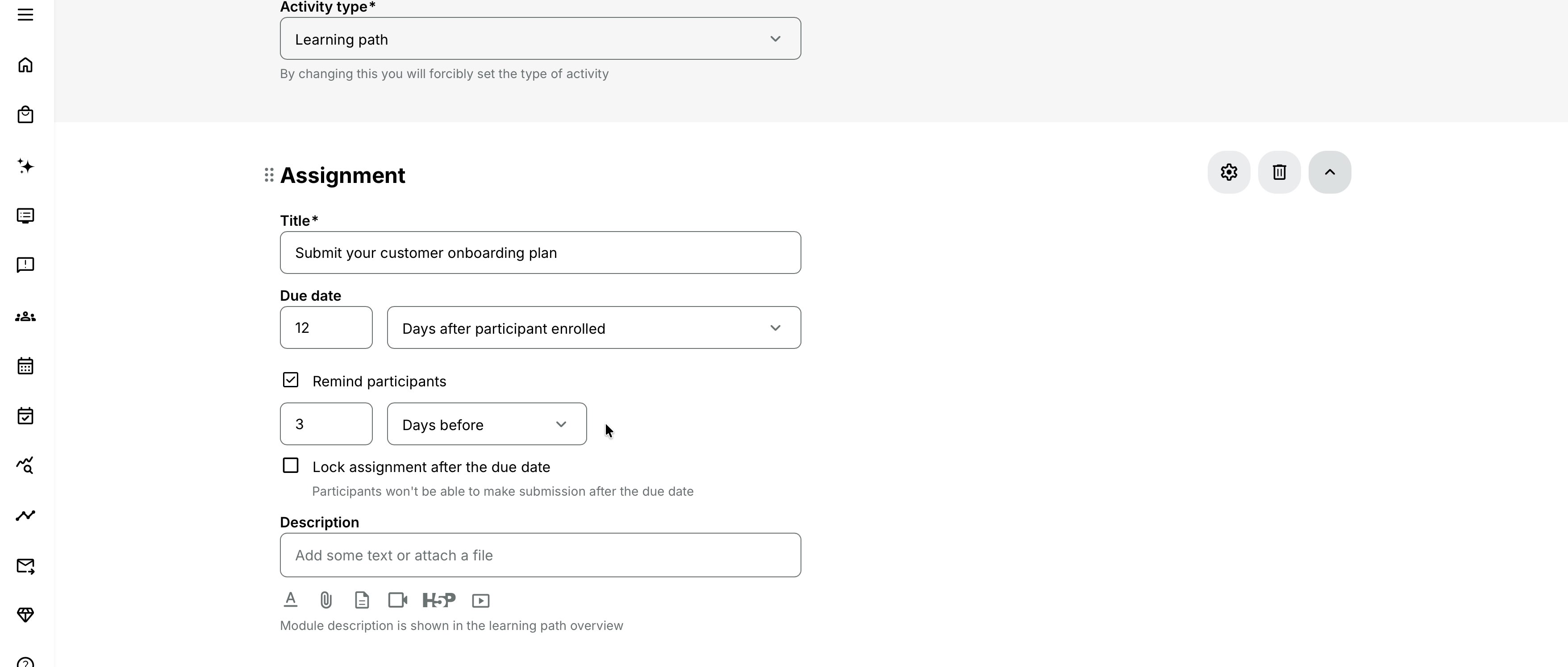
Complete the core fields in the module. Use the gear icon to open the Assignment module's additional features.
Title
Use a title that states the expected work. For example:
- Submit your customer onboarding plan
- Practical assessment: configure the device
- Group project: implementation proposal
In a learning path with several assignments, make each title distinct enough to identify in Learn mode, instructor views, emails, progress, and reports.
Due date
Choose the appropriate due-date option for the assessment. You can configure No due date, a Specific date and time, or a relative/variable deadline when that option is available in the selector.
Use No due date when the activity is genuinely self-paced and the participant may submit at any time while access remains available. Use a specific date when a complete cohort shares one deadline. Use a relative/variable deadline when the available option is designed to calculate an appropriate deadline for participants who do not all follow the same calendar. Confirm the resulting date in the participant experience before launch.
The assignment due date is not the same as the Training Activity schedule:
- The due date controls the submission deadline and its related reminder or lock.
- The activity-level Schedule controls how the overall Training Activity is presented and bounded.
A Training Activity containing one Assignment module can use the activity-level Schedule feature. Configure both deliberately when the activity should be presented as scheduled and the submission has its own deadline.
Remind participants
When a due date exists, enable Remind participants and choose the number of hours or days before the deadline.
The reminder is not available when No due date is selected. It is also not sent to a participant who has already published the assignment before the reminder trigger.
The built-in reminder is separate from activity emails and Automated Email Workflows. Review the complete communication plan so the participant does not receive several messages saying the same thing.
Lock assignment after the due date
Enable Lock assignment after the due date when submissions and changes must stop at the deadline. After the due date passes, the assignment is locked and no new submission is accepted.
Leave it disabled when the due date should communicate an expectation but late submissions must remain possible.
When deadline locking is enabled, a responsible instructor or administrator can manage a participant individually:
- Lock prevents that participant from submitting before the general deadline.
- Unlock allows that participant to submit after the deadline.
These actions appear in the submissions view only when Lock assignment after the due date is enabled.
Use individual locking for controlled exceptions such as an extension, an approved late submission, or a participant whose access must close early. Record the reason outside the assignment if your governance process requires an audit trail.
Deadline lock and assessment state are different controls
Manual Lock or Unlock controls whether a participant can submit around the deadline. A submission assessed as Passed or Failed is protected from participant editing or deletion. Unlocking the deadline does not by itself change the recorded assessment.
Description
Write the assignment as an actionable brief. Include:
- The task and intended outcome
- Required evidence and allowed format
- Assessment or pass criteria
- Expected length or level of detail
- Any template, example, reference material, or attachment
- The due date policy and whether late submissions are accepted
- Whether the participant may revise before assessment
- Who to contact with questions
The description editor can include files and resources from the platform archives. Attach the approved template or rubric directly so every participant works from the same version.
Avoid placing essential criteria only in an email. Participants and instructors should be able to return to the Assignment module and see the authoritative brief.
Configure the Assignment module features
The Assignment module exposes fewer module-level features than Course and Event modules. Its relevant features are Responsible instructor, Completion behavior, Adaptive module, and—when enabled for the activity—Group assignment.
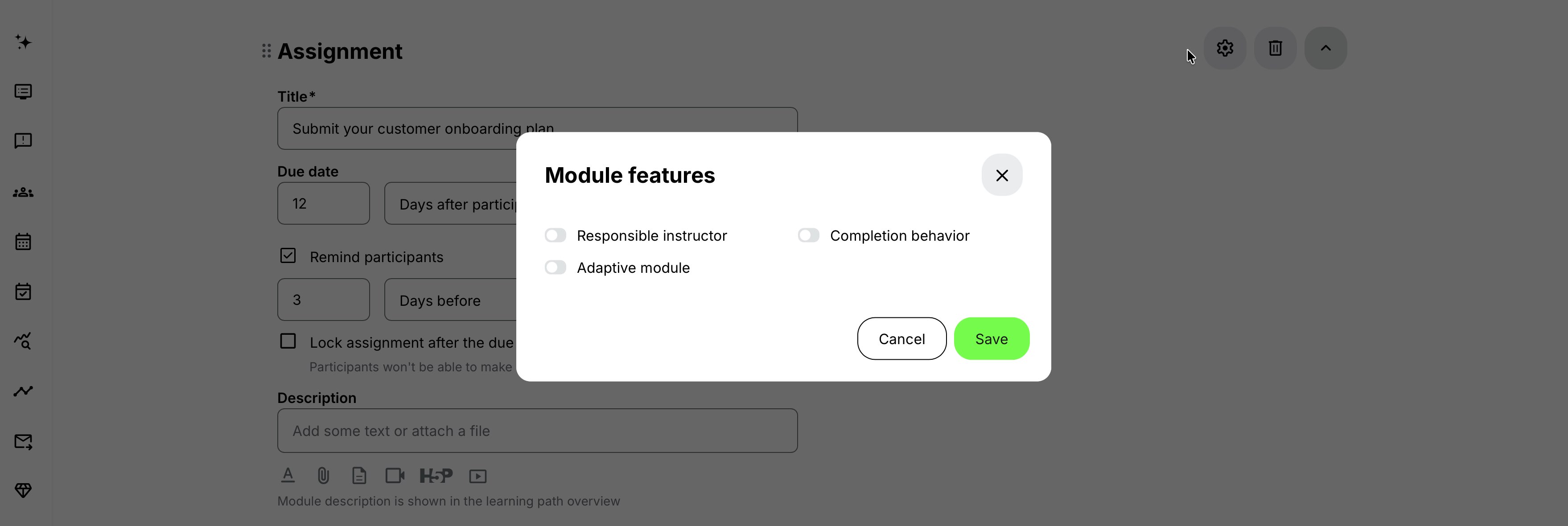
Activity-level settings such as enrollment, registration, certificates, automation, visibility, and commerce can still apply to the Training Activity containing the assignment.
Responsible instructor
Assign the person or people who should review and assess the work. A module-level Responsible instructor is the clearest choice in a learning path where different specialists assess different assignments.
When a participant publishes a submission, Eurekos emails the responsible instructor. Responsibility follows this priority:
- In a learning path, the module-level Responsible instructor receives the assignment notification.
- In a single-module activity with responsibility configured at both levels, the module-level Responsible instructor receives it.
- In a single-module activity without a module-level instructor, the activity-level responsible instructor can receive it.
Check this before launch. Assigning an activity-level Course administrator does not necessarily replace the specialist who must be responsible for this Assignment module.
Responsible instructors and appropriate administrators can open the assignment, review submissions, comment where enabled, assess the work, and access assignment progress according to their permissions.
For more detail, see Administrators, Instructors, and Followers.
Completion behavior
The standard assignment outcome is straightforward: Passed completes the Assignment module. Not assessed and Failed do not complete it.
Enable Completion behavior only when you need to change the participant experience after the normal completion criterion is met:
- Don't show congratulations message retains normal completion but suppresses the completion message.
- User confirmation is required waits for the participant to select Complete after the normal criterion has been fulfilled.
Participant confirmation should not replace the instructor's assessment. If passing the practical work is required, the responsible instructor must still assess it as Passed.
Adaptive module
Use Adaptive module when the assignment should be recommended, optional, or shown conditionally to particular participants.
An assignment marked Always optional remains available but is excluded from progress tracking. This is useful for an optional coaching exercise or additional practice. Do not make an assignment optional if passing it is intended to be a universal completion or certification requirement.
Review any access restrictions, certificate criteria, or automation that references the assignment. An optional module can still be selected in another rule, creating an unintended requirement if the designs are not aligned.
For more detail, see Adaptive Modules.
Group assignment
The Group assignment option appears on the Assignment module after the activity-level Group assignments feature has been enabled. It changes the module from one submission per participant to one shared submission per activity group.
Configure the activity groups and membership before asking participants to begin. The full group workflow is covered later in this article.
Understand the individual submission lifecycle
The assignment follows a controlled lifecycle:
No submission → Draft → Published / Not assessed → Passed or Failed
The due-date lock can stop the participant from creating or changing work, but it does not replace the assessment status.
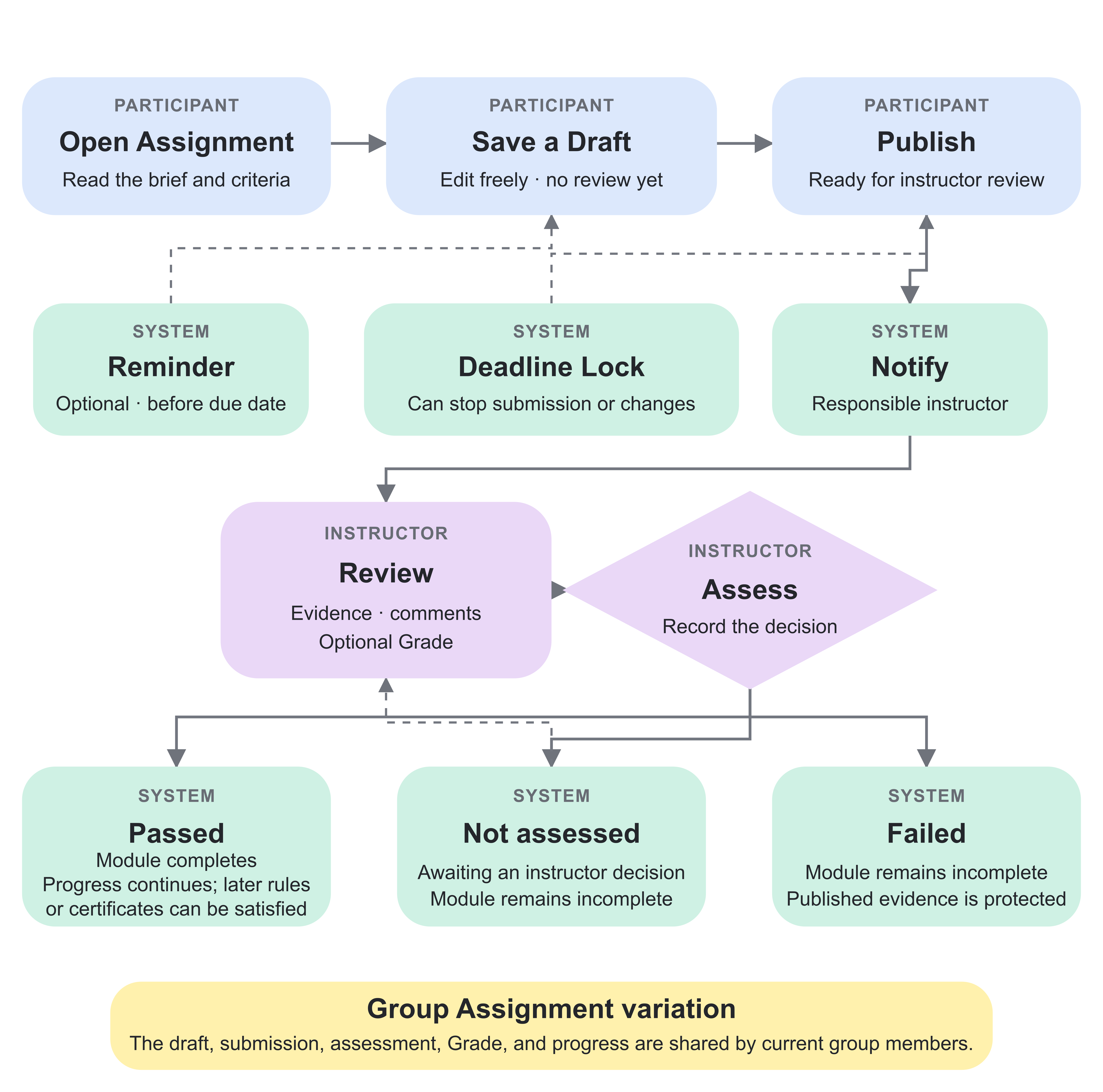
For a Group Assignment: the same general flow applies, but the draft, published submission, assessment, Grade, and progress are shared by the group’s current members.
No submission
An enrolled participant can open the Assignment module and read the brief. Until they create and publish work, there is no formal submission for the instructor to assess.
Draft
The participant can create a response and choose Save as draft.
An individual draft:
- Is visible only to its owner
- Is not visible to the instructor
- Does not count as a published submission
- Does not create assignment progress
- Can be edited, deleted, or published later
- Cannot be commented on
Use drafts for work in progress. Participants should understand that saving a draft is not the same as submitting before the deadline.
Published and Not assessed
The participant can publish a new response directly or publish a saved draft. Publishing makes the submission visible to the responsible instructor and sends the instructor notification.
While its assessment remains Not assessed, the participant can update or delete the published submission and can return it to draft status. An update to a published submission can generate the corresponding instructor notification.
If revisions should stop immediately upon first publication, establish that policy in the assignment brief and use the available locking process. By default, the protected state begins when the submission is assessed as Passed or Failed.
Passed or Failed
The responsible instructor assesses the submission as:
- Not assessed when no final decision has been made
- Passed when the evidence meets the requirement
- Failed when it does not
The instructor can also add an optional Grade. Use the Grade to capture a score, level, or other value relevant to the assessment design; use the Passed/Failed status to control module completion.
After a submission is assessed as Passed or Failed, the participant cannot edit or delete it. This protects the relationship between the evidence and the recorded decision.
When assessing, the instructor can choose to notify the participant. This sends the standard Assignment assessed email.
Understand progress and deadlines
Assignment progress is driven by submission and assessment:
| Participant state | Module result |
|---|---|
| No published submission | Not started |
| Published but Not assessed | In progress / awaiting assessment |
| Failed | Not complete |
| Passed | Completed |
When the assignment has no due date, Not assessed and Failed submissions remain in progress while Passed completes the module. When a due date exists, Eurekos also presents the deadline or due state. Passing remains the completion requirement; reaching the deadline does not complete the module.
In a learning path, an unpassed assignment can therefore hold the participant's overall progress open. If other modules are restricted by Pass assignment, they remain locked until the relevant assignment has been passed.
Assignment status appears in participant progress and the training transcript. Grades received through the Assignment module are also included when the participant downloads the PDF training transcript.
Comments and feedback
Comments can provide a private discussion around an individual submission between the participant and responsible instructor.
For an individual assignment:
- A participant cannot comment while the submission is only a draft.
- Comments become available around the published submission.
- The participant and instructor can use the thread for clarification and feedback.
Comments are governed by a platform-wide configuration. If assignment submission comments have been disabled for your platform, the Comments section is not shown to participants, responsible users, or administrators. This configuration requires platform-level support or administration rather than a choice on each Assignment module.
Do not rely on comments for the only record of the final decision. Record the assessment as Passed or Failed and use the optional Grade where required.
Review and assess submissions as an instructor
Responsible instructors and administrators can access the assignment through the Training Activity and its progress view.
For activities containing an Assignment module, the operational section is presented as Submissions rather than a general participant list. From there, the instructor can:
- Review who has submitted
- See the current assessment state
- Open an individual submission
- Lock or unlock a participant when deadline locking is enabled
- Comment when the platform permits assignment comments
- Assess the submission
- Add an optional Grade
- Notify the participant about the assessment
- Open the assignment brief using Go to Assignment
- Download the submissions report
Set an internal review expectation, especially when passing controls access to another module or certificate issuance. A published but unassessed submission remains incomplete even if the participant submitted on time.
Download the submissions report
Use Download All from the Assignment details or Assignment statistics to export the report. Applied filters are reflected in the report.
The report includes:
- Participant
- Activity name
- Assignment title
- Assessment status
- Submitted date
- Assessed by
- Assessed date
- Grade
- Submission URL
The Submission URL lets an authorized reviewer return to the evidence. Access still follows Eurekos permissions; exporting the URL does not make a private submission public.
Create a Group Assignment
A Group Assignment lets an activity-level group prepare one shared submission, receive one assessment, and share the resulting progress.
Use it when collaboration is part of the learning outcome—for example, a team implementation plan, group case analysis, project proposal, or facilitated cohort task.
Do not use it merely to reduce instructor marking. Every member receives the shared outcome, so the design must justify group-level evidence and assessment.
Enable Group assignments on the activity
Edit the Training Activity and enable the activity-level Group assignments feature. This adds Groups to the activity administration.

Then open the Assignment module and enable Group assignment. The module is identified as a Group assignment in activity administration and requires a group submission rather than an individual submission.

The feature appears only when group functionality has been enabled for the platform and activity.
Create the activity groups
Open Groups from the Training Activity.
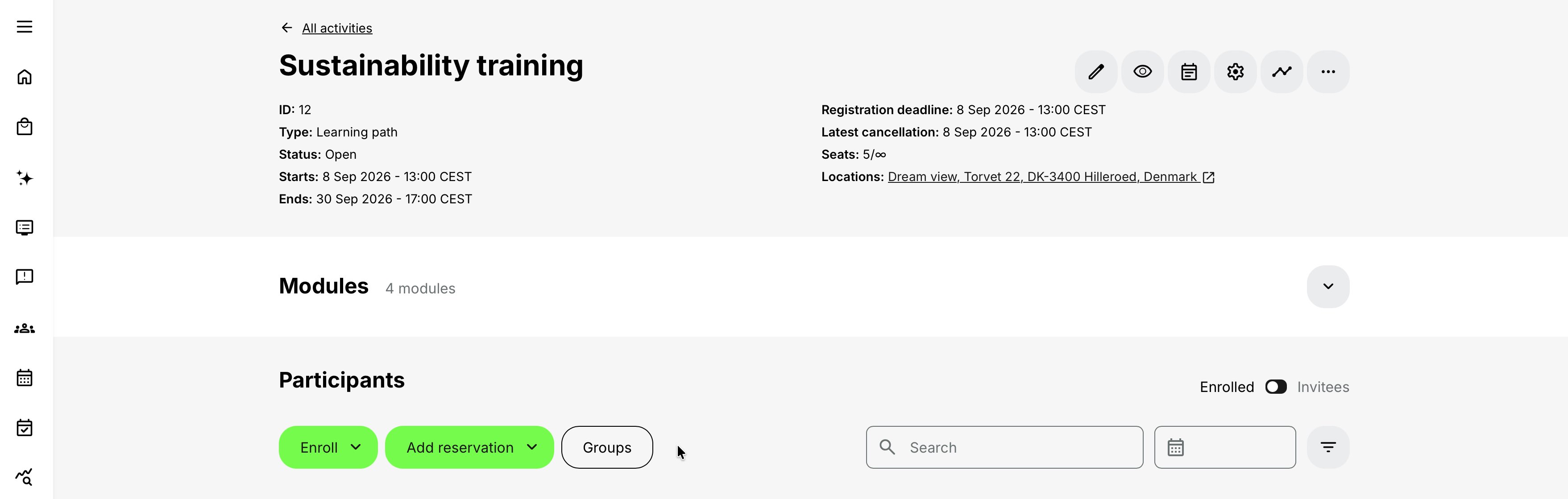
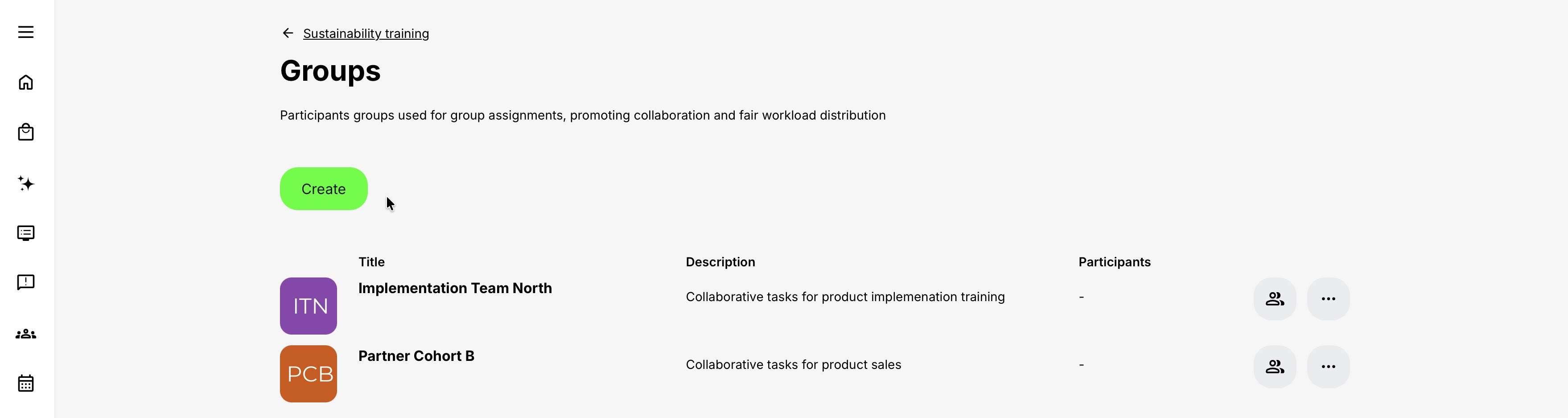
Each group has:
- A required Title
- An optional banner
- An optional Description
Groups belong to the activity. Design names that help administrators and participants distinguish them—for example, Copenhagen Group 1, Partner Cohort B, or Implementation Team North.
Assign participants to groups
Assign active, registered activity participants to the groups. A participant can belong to only one group in the activity.
Administrators can:
- Assign one or several participants
- Unassign a participant
- Move a participant to another group
- Use search and participant-profile filters
- Use bulk Assign or Unassign actions
When Participation approval used a questionnaire, the group-member view can also expose selected application answers, additional request information, and related filters. This can help administrators build groups based on experience, location, needs, or another approved criterion without returning to a separate report.
A participant receives the standard notification when added to a Group Assignment group.
Complete group membership before work begins
Moving or removing participants after a submission exists changes their access and progress. Treat group membership as assessment data, not merely as a display preference.
Understand the Group Assignment lifecycle
Participant without a group
An enrolled participant who is not yet a member of a group can open the module and read its description, but cannot create a submission. The Create submission action is disabled and their module status remains Not started.
Shared group draft
Once assigned, any group member can:
- Create the group's draft
- Edit a draft created by another member
- Delete the shared draft
- Publish the final submission on behalf of the group
The draft is visible only to members of that group. A member can choose to notify the others when the draft is created or updated, which sends the New draft in your group assignment email.
Unlike an individual draft, group members can comment while the shared submission is still a draft when assignment comments are enabled. This supports collaboration inside the module.
Published group submission
When any member publishes the submission:
- The submission becomes the group's formal response.
- All group members are notified that it has been submitted.
- The responsible instructor receives the standard submission notification.
- The instructor can open and assess it for the complete group.
The instructor can comment after the group submission has been published. Group members can edit or delete their own comments and like comments. An instructor can manage their own comments and, where permitted, moderate participant comments.
Shared assessment and progress
The instructor assesses the group submission as Not assessed, Passed, or Failed and may add a Grade. The assessment and module progress are shared by the current group members; they are not owned only by the person who published the work.
This has important consequences:
- Removing a participant from the group removes access to the group's submission and returns their current module status to Not started.
- Moving a participant into a group that already has a submission gives them that group's current submission, assessment, and module status.
- Restrictions, certificate criteria, and automation connected to the Group Assignment operate using current group membership.
Review group membership before assessing and again before certificates or downstream automation are processed.
Group Assignments and re-certification
When an activity with a Group Assignment uses re-certification, the Group Assignment's progress is carried into the next attempt automatically, following behavior similar to Keep progress.
Historical attempt data remains available in progress administration. Current changes to the shared submission, assessment, Grade, or group membership can affect participants according to the attempt they are currently completing. Participants in the same group can be on different attempts, so changing the shared assessment requires particular care.
If a participant is later removed from the group, their previous-attempt status remains in historical administration, but they no longer have access to the group submission or member list.
Test this process before using Group Assignments in a high-stakes recurring certification program.
For more detail, see Re-certification, Certificates.
Use assignment results elsewhere
An assignment's Passed result can become evidence for other Training Activity processes.
Access restrictions
Use Pass assignment as an access criterion when a later Course or Event module should remain locked until the participant passes the practical work.
When several assignments are selected, decide whether the participant must pass all selected assignments or any one of them. Review optional assignments carefully so an optional exercise does not accidentally become mandatory through the restriction.
Assignment modules do not expose their own module-level Access restrictions feature. Apply the restriction to the supported later module or activity that should be locked.
For more detail, see Access restrictions.
Enrollment restrictions
Passing an assignment can also be used as a prerequisite for self-enrollment in another Training Activity. Use this when a practical assessment must be passed before a participant can register for an advanced offering.
For more detail, see Enroll and register participants.
Certificates
Use assignment completion or pass behavior in the certificate design when the submitted work is required evidence for the credential. In a learning path, configure the certificate at activity level and align its criteria with the assignment outcome.
A certificate should not be issued merely because the participant published a submission. The instructor must assess the required work as Passed.
Automated communication
Automated Email Workflows can coordinate reminders, escalation, instructor follow-up, or communication after assessment. Keep those workflows distinct from the built-in due-date reminder, instructor submission notification, group emails, and optional assessment email.
For Group Assignments, current membership affects the participants to whom group-related progress and connected automation apply.
For more detail, see System Email Notification Overview, Automated Email Workflows.
Common assignment designs
| Assignment design | Configuration | Important consideration |
|---|---|---|
| Formative reflection | Add an Assignment module after a Course module and ask participants to apply the concept to their own work. Leave the due date open for self-paced learning and use comments for instructor feedback. | Assess the submission as Passed when the participant demonstrates the required reflection. |
| Practical certification assessment | Provide a clear evidence checklist, use a fixed due date and deadline lock, and assign a qualified Responsible instructor. | Require Passed for activity completion and certificate issuance. Use Grade only when an additional score or achievement level is meaningful. |
| Assignment as a learning-path gate | Place the Assignment before an advanced Course or Event module. Apply a Pass assignment access restriction to the later module. | Explain that the next step becomes available only after an instructor assesses the Assignment as Passed. |
| Group implementation project | Enable Group assignments, create and populate the activity groups, and require a shared plan. Use draft comments to support collaboration. | Verify group membership before assessment because every current member receives the shared result. |
| Evidence portfolio | Use separate Assignment modules for different competencies. Give each Assignment its own criteria and specialist instructor. | Issue the certificate at activity level when all required evidence has passed. Avoid combining unrelated evidence in one submission. |
Verify the configuration
Use representative accounts and the routes enabled for your delivery. Check the relevant outcomes before launch and after a material change; an administrator preview alone does not verify the participant experience.
| Scenario or check | Expected result or evidence |
|---|---|
| Submission and deadline | A participant understands the task and evidence required, can save a draft and publish it, and sees the intended due date, reminders, late-submission, and Lock/Unlock behavior. |
| Assessment and feedback | The module’s Responsible instructor can find Submissions, assess the work, use the intended grade and Passed/Failed state, provide feedback, and access the report. |
| Completion dependencies | Test the effect of submission and assessment separately on module completion, access restrictions, enrollment prerequisites, and certificates. Adaptive behavior does not bypass required assessment. |
| Group work | Where Group Assignment is used, each active participant belongs to exactly one appropriate group. Verify membership changes and the intended re-certification behavior. |
| Participant communication | The participant can understand the assessed result and any next action. Comments, standard emails, and workflows support the agreed feedback process without duplication. |
FAQ
-
Does saving a draft count as submitting?
No. An individual draft is visible only to the participant, is not visible to the instructor, and does not create assignment progress. The participant must publish it before the deadline.
-
Can a participant edit a published submission?
Yes, while its status remains Not assessed and the assignment is not locked. After the instructor assesses it as Passed or Failed, the participant cannot edit or delete it.
-
Can an instructor accept a late submission?
Yes. When Lock assignment after the due date is enabled, an authorized instructor or administrator can unlock the individual participant after the deadline. If deadline locking is disabled, the assignment continues accepting submissions after the due date.
-
Why did the participant not receive the assignment reminder?
Check that the assignment has a due date, Remind participants is enabled with a future trigger, and the participant had not already published a submission before that trigger.
-
Why did the instructor not receive a submission email?
Check the assignment's Responsible instructor. Module-level responsibility takes priority for Assignment notifications. Also confirm that the participant published the submission rather than only saving a draft and that the standard email is enabled and correctly configured.
-
Does Failed complete the Assignment module?
No. Passed completes the module. Failed and Not assessed do not.
-
Is the optional Grade used for completion?
The Passed/Failed assessment controls standard Assignment completion. The Grade records additional assessment information and is included in progress reporting and the participant's downloaded training transcript.
-
Why can a Group Assignment participant not submit?
The participant must be actively registered in the Training Activity and assigned to one of its groups. A participant without a group can read the module but the submission action remains disabled.
-
Who owns a Group Assignment submission?
The group owns it. Any current group member can work with the shared draft and publish it. The assessment, Grade, and progress apply to the current group members rather than only to the person who selected Publish.
-
What happens when a participant is moved to another group?
They lose access to the previous group's current submission and inherit the new group's existing submission, assessment, and module status. Review membership changes carefully after work has begun.
-
Can assignments unlock other learning?
Yes. Configure Pass assignment as an access restriction on a supported later Course or Event module, or as a prerequisite for self-enrollment in another Training Activity.
-
Where can I export assignment results?
Use Download All from the Assignment details or Assignment statistics. The report includes participant, assessment, submission and assessment dates, assessor, Grade, and a link to the submission.