Introduction to My Overview - Article
Summary
A useful home page helps each person recognize what needs attention and return to work quickly. My Overview combines personal learning with the operational responsibilities that apply to that person, while leaving unused training groups out of the way.
My Overview is the adaptive home page for signed-in users. It brings together the training, deadlines, Events, recommendations, and responsibilities that apply to the person currently signed in. The page remains simple by showing only relevant sections: a participant sees their learning, while an instructor, manager, or administrator receives additional tools for the people, activities, or platform areas they are permitted to support.
Use this article to:
- Understand why My Overview differs between users
- Distinguish personal learning from role-specific oversight
- Understand when sections appear or remain hidden
- Choose the correct article for the task you need to complete
What My Overview helps you do
My Overview is the central entry point after a registered user signs in. It is designed to answer a practical question immediately: What is relevant for me now?
For a participant, this can include required training, approaching deadlines, recertification, active learning, invitations, waiting-list records, completed training, bookmarks, Events, and Communities. For a user with additional responsibilities, the same page can also provide access to activities they instruct or administer, people they manage, operational reminders, and permitted analytics.
The result is one consistent starting point rather than a separate application for every responsibility.
Understand the adaptive dashboard model
My Overview is not a fixed page containing every possible section. It is assembled from the user's current data, relationships, permissions, and the features enabled on the platform.
| Input | How it can affect My Overview | Example |
|---|---|---|
| Training participation | Adds participant-facing training and status sections | A mandatory activity appears with its Deadline |
| Current learning state | Changes priority, labels, and available actions | An incomplete activity becomes Overdue after its Deadline |
| Certificate lifecycle | Adds certification and recertification information | Renewal training appears when a new attempt becomes available |
| Activity responsibility | Adds instructor or operational views | A responsible instructor sees the activity under Trainings I instruct |
| User relationships | Defines whose information a manager can see | An Immediate Manager sees data for direct reports |
| Role and permissions | Adds permitted administrative widgets and actions | A Support user sees enabled platform analytics |
| Platform configuration | Enables or suppresses optional sections | Communities appear only when the feature and widget are enabled |
| Applicable content | Determines whether a section has anything to display | Waiting list is absent when the user has no waiting-list records |
This adaptive disclosure is an important part of the design. A platform can support complex compliance, commercial, and learning processes without presenting every possible control to every user.
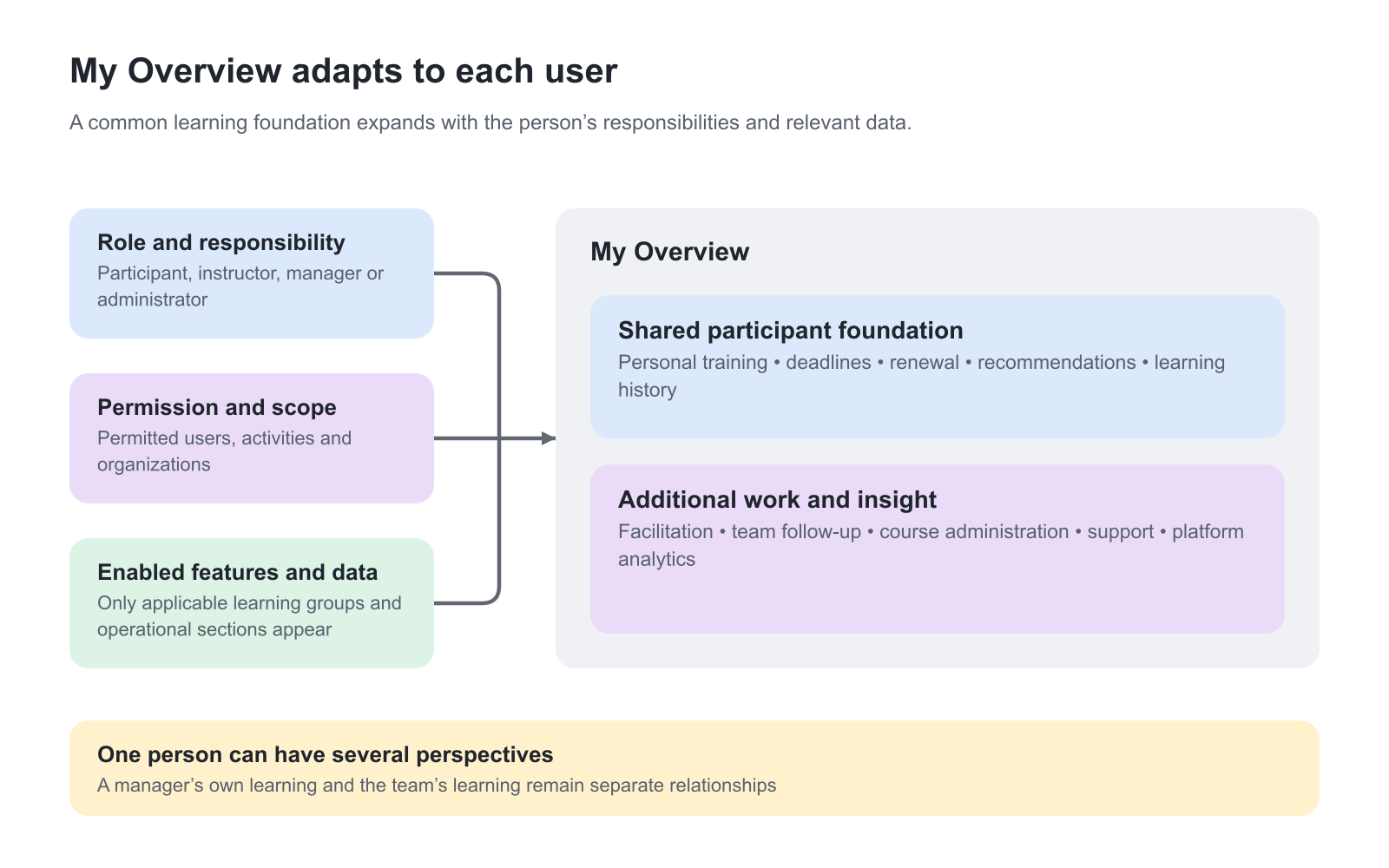
One person can have several perspectives
A manager, instructor, Course Administrator, Support user, or administrator can also participate in training. Their personal learning does not disappear when another responsibility is added.
Think of My Overview as a layered experience:
- Personal learning foundation—training the user attends, progress, deadlines, certificates, recommendations, Events, and Communities
- Responsibility layer—activities instructed or administered, direct reports, organizational users, or platform information
- Configured services—optional capabilities such as Storefront discovery, recommendation slides, Communities, and analytics widgets
The visible result is the combination that applies to that person. If a user has more than one oversight relationship, a widget can provide different views or a switcher rather than forcing the user into separate dashboards.
Understand the main destinations
My Overview brings information together, but it is not the detailed administration or evidence page for every process.
| Destination | Main purpose | Typical route from My Overview |
|---|---|---|
| My Overview | Priorities, relevant learning, and quick operational insight | Sign in or select the platform home destination |
| Learn mode | Complete or facilitate the actual learning experience | Open an enrolled or instructed activity |
| My Progress | Review the participant's own progress and results | Select the available progress or statistics action |
| Analytics | Investigate detailed learning, engagement, and participant data | Select Full analytics or another widget action when permitted |
| Storefront | Discover and enroll in available training | Select Explore Storefront or a relevant recommendation |
| User profile and transcript | Review account information and learning history | Open the profile or download the available transcript |
| Course Administration | Configure and operate Training Activities | Open an activity from an administrative list or the main navigation |
An overview card or counter is a route into the underlying process. Use the detailed activity, participant record, report, or Analytics view when a decision requires complete evidence.
Connect assigned learning and learning discovery
My Overview connects two related but different experiences:
- Assigned or enrolled learning shows what the user already participates in, including obligations, progress, and lifecycle states
- Learning discovery introduces activities the user may choose through Recommendations and the Storefront
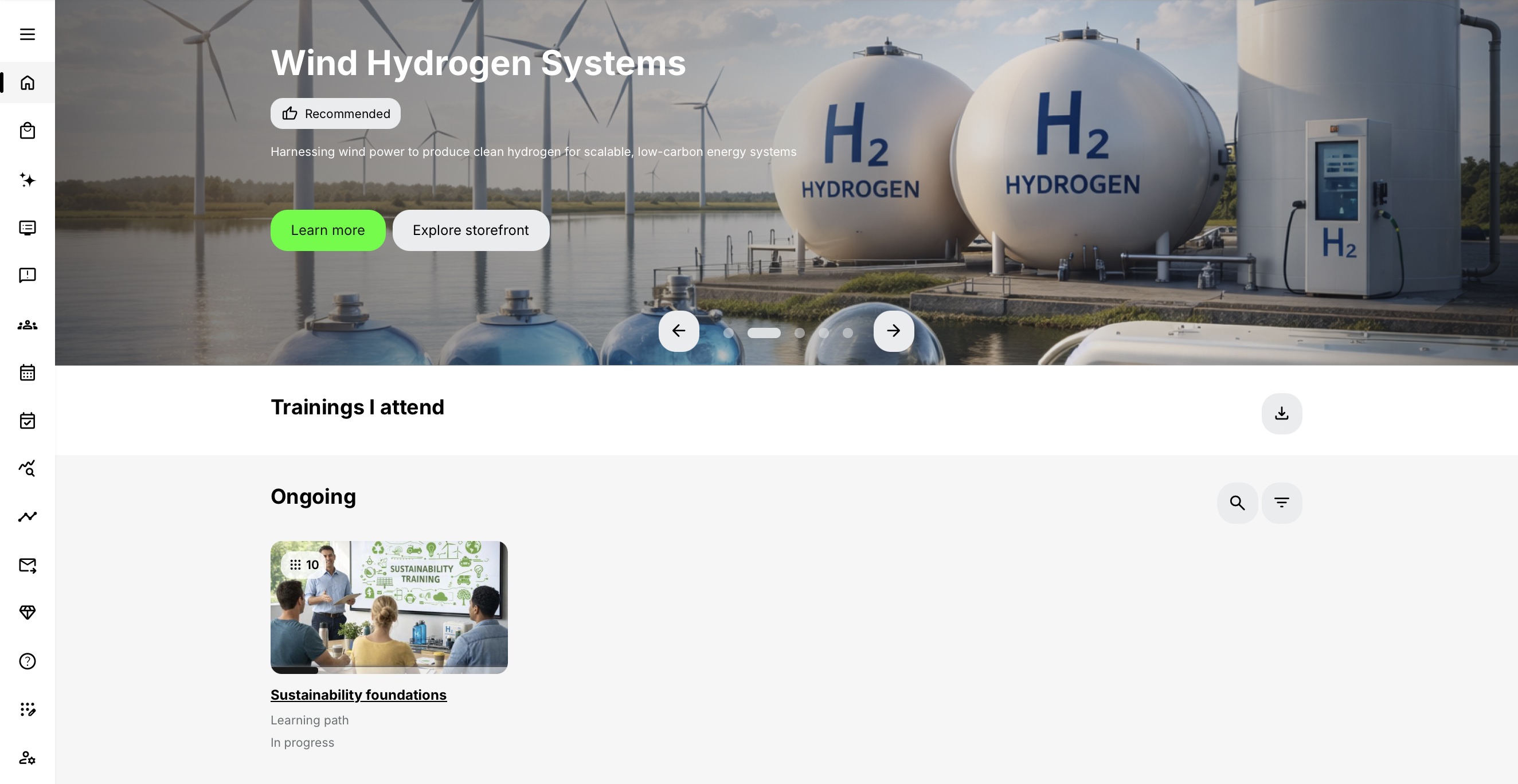
The Recommendations section can combine recently visited learning, activities in progress, bookmarks, personalized suggestions, and administrator-selected Storefront activities. This allows an organization to place required learning and optional development in one coherent experience without treating a recommendation as an enrollment.
Selecting a recommendation can open the Activity Description or Storefront route. The user must still be eligible for the activity and complete its supported enrollment or purchasing process.
In the example below, Wind Hydrogen Systems is offered through Recommendations, while Sustainability foundations is already enrolled and appears under Ongoing. The sections answer different questions: what might be relevant to explore, and what learning can I continue now?
Understand why sections appear only when relevant
Do not expect every heading described in the Help Center to appear for every user.
- Recertification appears only when a renewal is relevant
- Waiting list appears only when the user has a waiting-list or applicable enrollment-request record
- Trainings I instruct appears only when the user is responsible for applicable activities
- Communities appears only when the feature is available, the widget is enabled, and the user belongs to a Community
- Manager information requires the applicable Organization or Immediate Manager relationship
- Administrative charts require the relevant role, permission, and data scope
- A recommendation slide appears only when its type produces an applicable result for the user
The absence of a section can therefore be correct. Investigate the data and dependency that should create it before treating the missing section as a display problem.
How the same dashboard supports different working days
My Overview supports learning across a value chain: customers, their customers, partners and employees can all be participants. A new learner may initially see required onboarding training and a Custom recommendation for an optional introduction. As the learner begins training, the dashboard can add a route back to work in progress. When a qualification later enters its renewal lifecycle, the relevant certificate or recertification information becomes useful. The organization does not need to maintain a different static dashboard for each stage of that person’s learning history.
The same person can also be an instructor or a manager. Their own introductory training, deadlines and certificates still belong to their participant relationship. The additional instructor activities or group results support their other responsibility. A manager completing their own annual training therefore uses the participant route for that task and the management view when following up with people in their scope.
Choose the correct article
| If you want to understand | Continue with |
|---|---|
| Personal training, deadlines, invitations, waiting lists, completion, and bookmarks | Use My Overview as a Participant |
| The recommendation carousel and why its contents differ | Understand Recommendations on My Overview |
| Charts, counters, date filters, reports, and data scope | Understand Analytics on My Overview |
| Activities, Events, and participants you facilitate | Use My Overview as an Instructor or Responsible User |
| Organizational, partner, or direct-report oversight | Use My Overview as a Manager or Immediate Manager |
| Activities, operational reminders, and delivery administration | Use My Overview as a Course Administrator |
| User and platform investigation for operational support | Use My Overview as a Support User |
| Platform-wide or organization-scoped administration | Use My Overview as a Platform or Global Administrator |
For the underlying configuration and lifecycle rules, continue to the relevant Course Administration, Users, Organizations, Analytics, Storefront, or Settings article.
Verify from the correct perspective
An administrator's ability to see an activity or module does not prove that an ordinary participant can see it. Administrative, responsible-user, and participant access are evaluated differently.
When validating My Overview:
- Use representative accounts for each intended role and relationship
- Include a participant with no training history
- Include users with one role and users with combined responsibilities
- Test populated and empty sections
- Verify Organization scope, Immediate Manager relationships, and activity responsibility
- Open the destination behind each card or action
- Recheck after relevant background processing when the source data was just changed
Troubleshooting
| Problem | What to check |
|---|---|
| My Overview is nearly empty | Confirm the user has applicable training, recommendations, Events, Communities or role relationships; a minimal page can be correct for a new user |
| A role-specific section is missing | Confirm the exact role or relationship, required permissions and data scope; for activity-based sections, check the Responsible relationship where required |
| Personal training appears but management data is missing | Verify the Manager role or Immediate Manager relationship, the people included in that scope and the applicable Analytics permissions |
| A recent change is not reflected on the dashboard | Verify the source record and allow relevant background processing; use the available Reset or refresh action for cached analytics |
| An administrator sees content that a participant cannot | Retest with an ordinary participant; administrative visibility, activity responsibility, Storefront visibility and participant access are separate |
| The Storefront route is missing | Confirm Storefront is enabled and available to registered users, then check the visibility and target audience of the relevant Storefront sections |
FAQ
-
Why does My Overview look different for different users?
My Overview adapts to the signed-in user's training, roles, relationships, permissions and enabled platform features. It shows only sections that have relevant information for that person, so two valid users can see different dashboards.
-
Can one user have participant and administrative sections at the same time?
Yes. Personal learning remains available when the user also has instructor, manager, Course Administrator, Support or administrator responsibilities. My Overview adds the applicable responsibility layer instead of replacing the participant experience.
-
Is My Overview the source for complete audit evidence?
No. My Overview provides orientation and quick indicators. Use the relevant participant record, activity Progress, certificate, report or Analytics view when a decision requires complete evidence.
-
Does a recommendation mean I am already enrolled?
No. A recommendation can introduce an available Storefront activity, but enrollment, approval, capacity, pricing and purchasing rules still apply. The Activity Description and enrollment flow show the authoritative status.
-
Why is a section described in the Help Center missing from My Overview?
Sections appear only when the user has the required data, relationship, permission and enabled feature. Confirm the dependency that should create the section before treating its absence as an error.
-
Why can an administrator see content that a participant cannot?
Administrative visibility supports configuration and support and is evaluated differently from participant access. Verify the journey with a representative participant account and review enrollment, audience, restrictions, adaptive rules and schedule.
-
How quickly do changes appear on My Overview?
Some enrollment, completion, certificate and analytics changes require background processing or cache refresh. Confirm the source record, allow the relevant process to finish and refresh the view before creating duplicate records or changing evidence.