Understand Analytics on My Overview - Article
Summary
A dashboard is useful when a summary leads to a well-informed next action. My Overview brings selected measures close to everyday work, but the period, population and counting method must be understood before a figure is used to judge adoption or learning outcomes.
Analytics on My Overview provides concise, role-aware insight into users, participation, activity status, engagement and learning results. The visible widgets and their data scope depend on the user's role, permissions and relationships. Dashboard figures are designed for orientation and follow-up; use full Analytics, reports and source records when complete evidence is required.
Use this article to:
- Understand the purpose of each analytics widget
- Distinguish users, participants and signups
- Determine whose data a widget includes
- Apply periods, filters and available view switchers correctly
- Continue from a summary into detailed Analytics
- Troubleshoot figures that appear delayed or incomplete
What dashboard analytics helps you do
My Overview places selected operational indicators beside the user's learning and responsibilities. A manager can identify overdue or expiring learning, an instructor can review the activities they support, and an administrator can monitor broader adoption without beginning every task in a report builder.
The widgets answer questions such as:
- How many users or participants are active in my scope?
- Which activities attract the most participation?
- How many activity signups are Not started, In progress or Completed?
- Are qualifications approaching recertification or already expired?
- How much learning activity occurred during the selected period?
- Which result needs a detailed follow-up in Analytics?
The dashboard is a starting point. It does not replace participant records, activity Progress, certificates, financial records or governed reports.
Understand the available widgets
The exact selection depends on platform configuration and the user's permitted scope. Learning performance, Time and engagement and Ratings are areas within the Analytics widget, rather than three additional top-level dashboard widgets.
| Widget or area | What it summarizes | Use it to |
|---|---|---|
| Users and participants | User population, registered participants and selected certification outcomes | Distinguish the size of the audience from the number of learning relationships |
| Users and activities | Activity signups by status, including Completed, In progress and Not started, with lifecycle indicators such as Overdue or certification state where applicable | Identify the population that needs attention |
| Popular activities | The ten activities with the most registrations in the selected period and permitted scope | Identify high-use content and investigate unusual demand |
| Active users | Unique users who signed in during the selected period | Monitor adoption and recurring platform use |
| Learning performance | Selected completion, pass or learning-result indicators | Review whether participants are reaching the intended outcomes |
| Time and engagement | Selected learning-time or engagement indicators | Identify changes in activity levels and investigate outliers |
| Ratings | Available participant ratings for learning content | Identify content that deserves recognition or review |
| Activities overview | The total activity portfolio and its breakdown by activity type within the permitted scope | Understand the current delivery portfolio |
Some widgets provide a direct route to Full analytics or another detailed view. The destination can retain the selected period and supported filters so the investigation continues in context.
Read the three Analytics panels
Where enabled for your role, Analytics contains three side-by-side panels: Learning performance, Time and engagement, and Ratings. These are not three interchangeable scores. Use the panel that fits the question you need to answer, then select its own Full analytics link to continue into that subject.
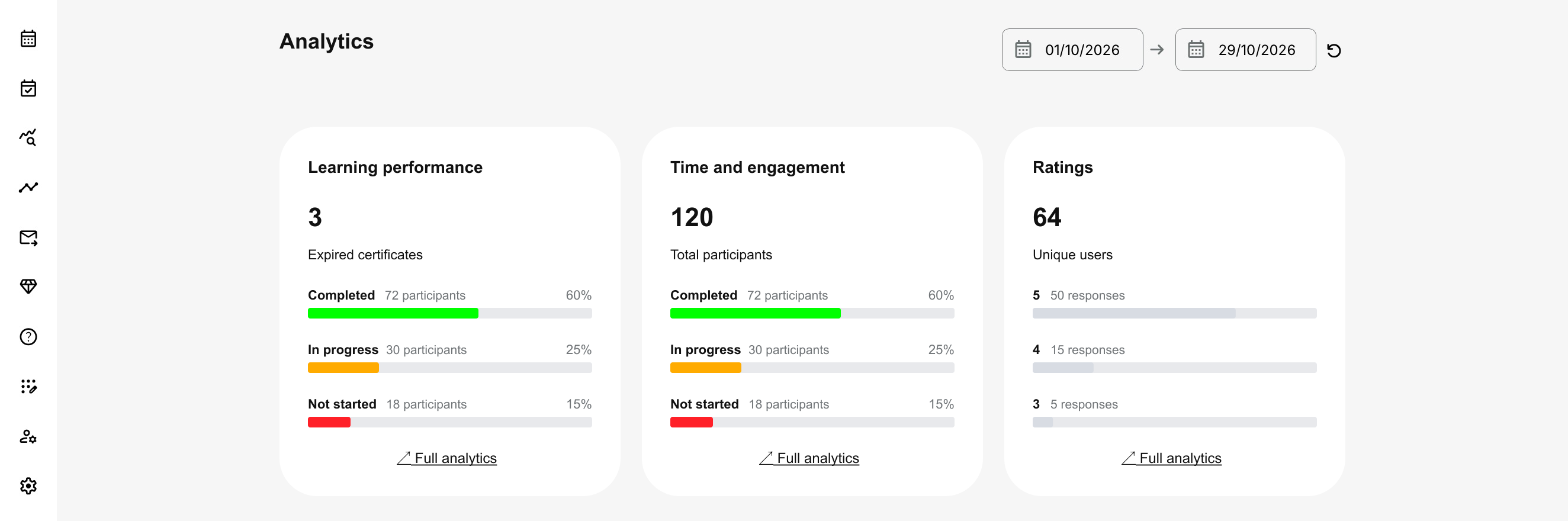
| Panel | Question it helps answer | Next useful check |
|---|---|---|
| Learning performance | Are assigned participants progressing and completing, and do qualification conditions need attention? | Open Full analytics to identify the affected activities and participation records |
| Time and engagement | How much recorded learning activity occurred, and which participation records were engaged? | Open Full analytics for Total time spent, Average time spent and the population behind those measures |
| Ratings | How do participants who submitted a rating evaluate the learning? | Compare the response population and distribution, then review the relevant content and delivery |
The Time and engagement dashboard panel is a shortcut to a fuller view, not a promise that every time measure appears on the home screen. Open its Full analytics destination to inspect Unique users, Total participants, Engaged participants, Total time spent and Average time spent. Recorded time is evidence of captured activity; a long duration alone does not establish understanding or learning quality.
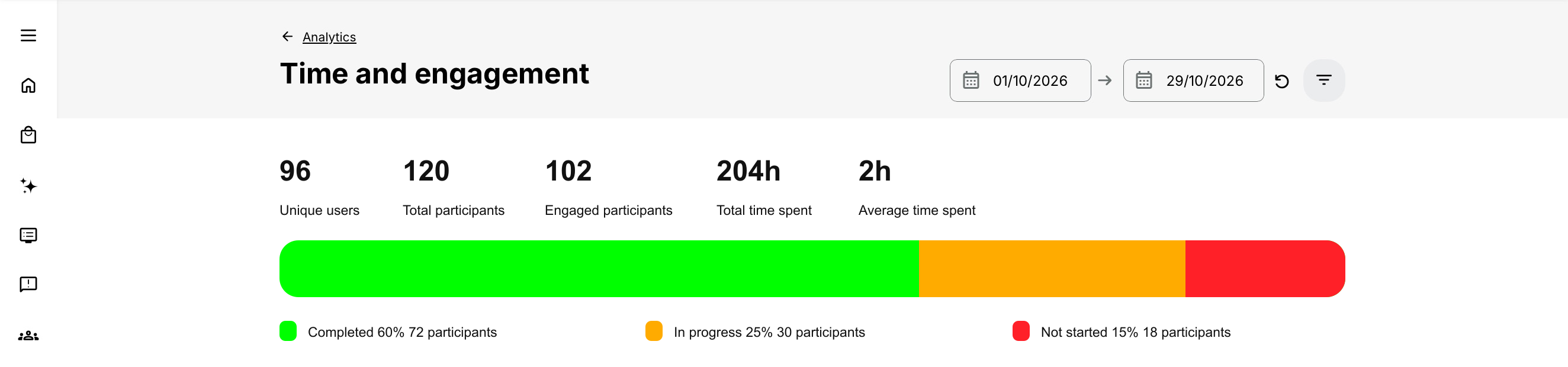
In this illustrative period, 96 different users account for 120 activity signups. Of those participation records, 102 are engaged; 204 recorded hours divided by 102 gives the two-hour average. The average is not calculated by dividing by all accounts or by the 96 distinct users. Real totals can differ from a simple addition of the visible status groups because time measures and status counts apply their own period and inclusion rules, including how earlier completions are handled.
Ratings counts the people and responses that actually contributed a rating. It is not a satisfaction score for everyone enrolled, and no responses does not mean dissatisfaction. Activity ratings are also different from a Like/Dislike object placed on an individual Course page. Use the response volume and the relevant content or delivery context before deciding to revise an activity.
Distinguish users, participants and signups
These measures are related but not interchangeable.
- A user is an account within the applicable scope.
- A participant is a user with a learning relationship or signup.
- A signup is one participation record in an activity.
One user can have several signups and can therefore contribute to participant or activity totals more than once. A user population of 500 does not imply 500 total activity signups, and a count of 800 signups does not imply 800 distinct people.
Use the metric label and detailed destination before comparing figures or communicating a result.
In the example below, 127 Total users and 32 Registered participants describe different measures. Do not divide the participant count by the user count and report the result as the percentage of people taking training: the registered-participant measure counts activity signups, and one person can have several. Likewise, certification outcomes must be interpreted using their own criteria, period and scope, not as a simple breakdown of every account.
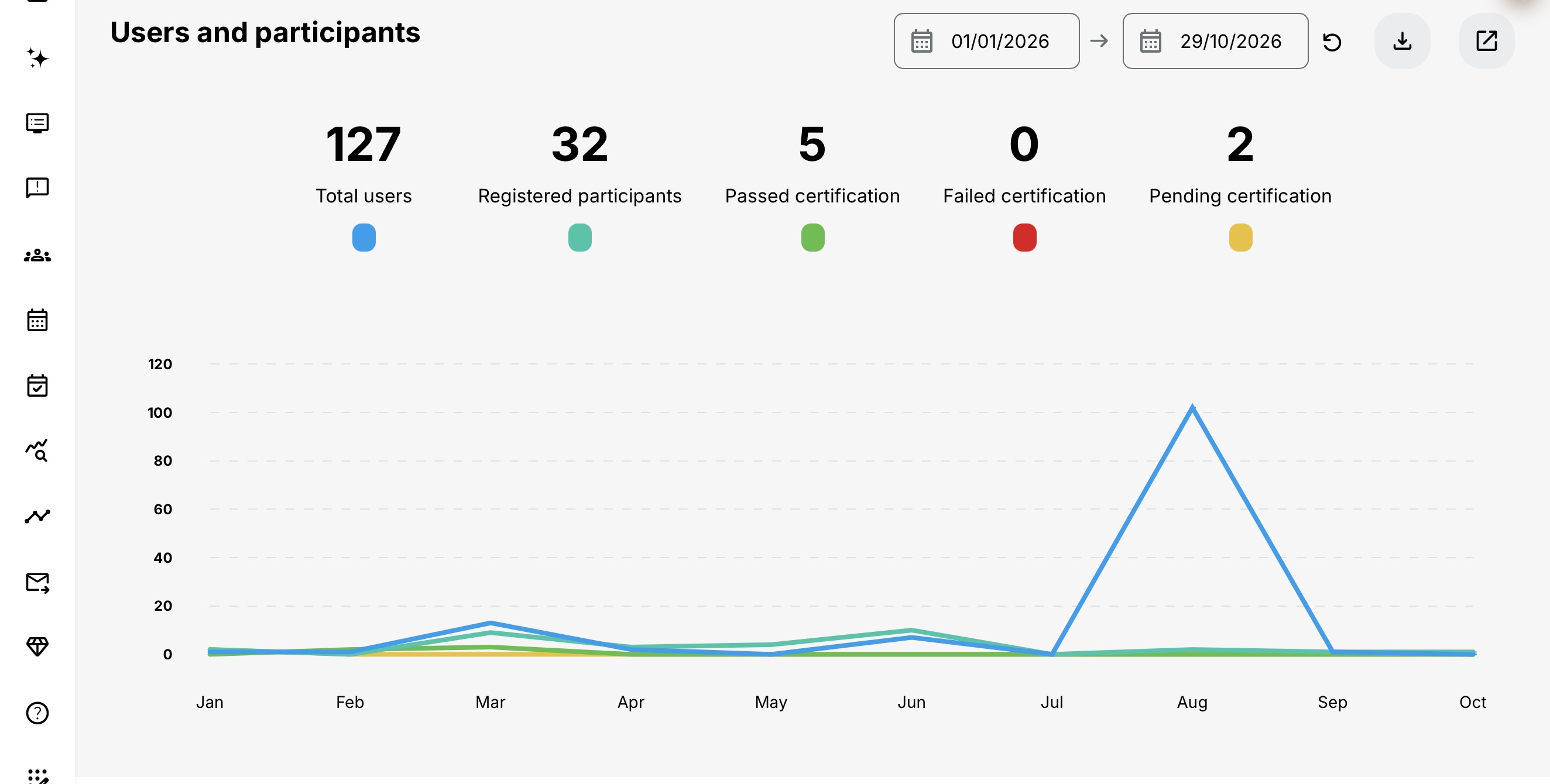
Before communicating a result, note the selected period and applicable user or Organization scope, then use the available report or detailed Analytics destination to establish which records the number represents. A chart is a starting point for that investigation, not a substitute for the underlying evidence.
Read the measure before interpreting the number
Total users in Users and participants counts accounts created during the selected period, within the applicable scope. Registered participants counts activity signups registered during that period. It is not necessarily the number of distinct people currently registered: one person can have several signups, and a registration can remain part of that historical count even if it was later cancelled.
For example, 20 people who each register for three activities can produce 60 participation records. This does not mean there are 60 different people. Equally, selecting this month for an account-creation measure does not count every existing user who happened to log in this month.
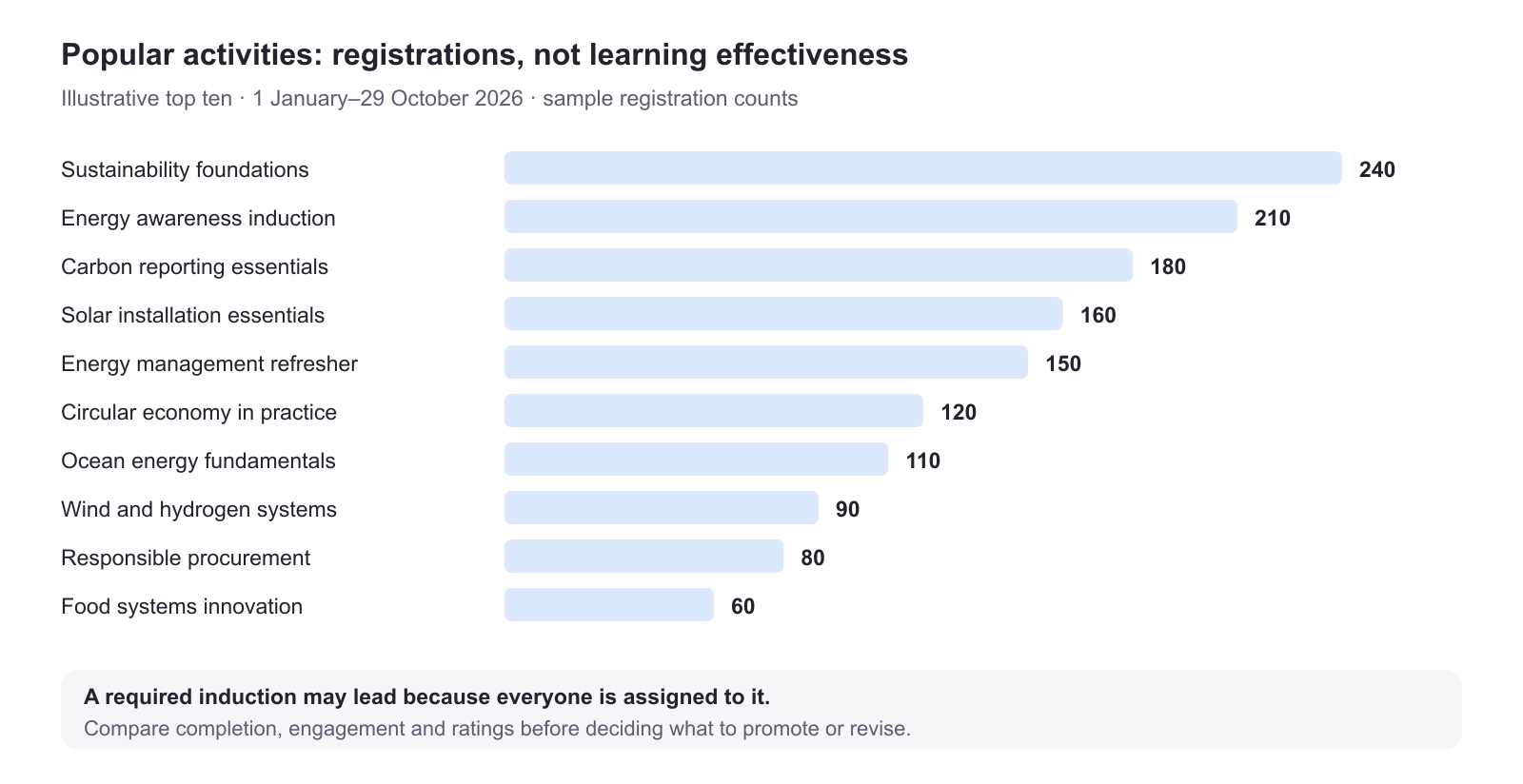
Active users is the relevant login measure. Its chart can distinguish regular and QR-code logins and offer monthly or quarterly views for a selected year. A login is evidence of platform use, not proof of learning completion. Popular activities shows the ten activities with the most registrations in the selected period; high assignment volume can make an activity popular without proving that it is the highest rated or most effective.
Certification counters also have a specific meaning. In particular, Failed certification can reflect a failed attendance or practical-assessment outcome for a certificate with Practical assessment criteria. Do not read it as a universal count of every incorrect quiz answer. Open the detailed record to establish the assessment and certificate relationship.
For example, a required partner onboarding Course can lead the registration ranking because it is assigned to every participant in the partner program. That makes it operationally important, but does not prove that learners chose it voluntarily or that it produces the strongest outcomes. Use the ranking to select an activity for investigation, then compare its completion, recorded engagement and ratings.
Understand learning and certification statuses
The Users and activities view can include statuses such as:
| Status | Meaning in the dashboard | What to investigate next |
|---|---|---|
| Not started | The signup exists, but required learning progress has not begun | Assignment, communication and access |
| In progress | The participant has started but has not completed the activity | Remaining modules, assessment, attendance or confirmation |
| Completed | The activity completion requirements have been satisfied | Certificate, recertification or evidence where relevant |
| Overdue | Mandatory training remains incomplete after its Deadline | Access, reminders, escalation and grace-period handling |
| Upcoming recertification | A qualification is approaching renewal or a renewal route is relevant | Certificate dates and the new attempt |
| Expired certification | The recorded qualification is no longer valid | Renewal availability, access and compliance follow-up |
Completion, a Mandatory Deadline, certificate expiration and Access Expiration are separate controls. A participant can be Completed while a certificate later expires, or be Overdue while access remains available.
Determine whose data you are viewing
The same measure can cover a different population for different users. The table below explains data-scope perspectives in Analytics; it does not mean that every listed role receives analytics widgets on My Overview.
| User perspective | Typical data scope |
|---|---|
| Manager | Users in the permitted Organization and Suborganizations |
| Partner, where enabled | Users in the assigned partner Organization and permitted Suborganizations |
| Immediate Manager | Direct reports established through the Immediate Manager relationship |
| Instructor or other Responsible user | Activities for which the user is Responsible, when the role and permissions provide analytics |
| Course Administrator | Activities and participants available through the permitted Analytics pages and activity reports |
| Support user | The audience and activity data permitted for operational support |
| Platform Administrator | Organization-scoped when the Organization layer is enabled; otherwise broader platform rights can apply, subject to permissions |
| Global Administrator | Platform-wide data, subject to the available filters and permissions |
Analytics access is not the same as a dashboard widget. A Course Administrator can have access to Analytics from the main navigation while My Overview provides an Activities List and Timeline and operational Reminders. The Course Administrator role alone does not provide the administrator dashboard charts or the three-panel Analytics widget. Additional responsibilities, including an Immediate Manager relationship, must be considered separately. See Use My Overview as a Course Administrator.
A user with combined responsibilities can receive a view switcher such as Available users and My staff. Select the correct perspective before interpreting the numbers.
Organization filtering, activity responsibility and Immediate Manager relationships are not equivalent. Always confirm which relationship supplies the widget's audience.
Example: investigate a shared activity from different perspectives
A workshop contains participants from Customer A and Customer B. Its Responsible instructor can review the participants in that activity, while Customer A’s Manager follows the people in their permitted Organization scope. An Immediate Manager uses the named direct-report relationship instead. The same workshop can appear in all three views without those views containing the same people.
When continuing from a dashboard into Learning performance, confirm the selected perspective and the detailed page’s population rules before comparing totals or exporting records. Activity-based access can include participants from other Organizations in an accessible activity; it is not automatically a people-only boundary. Auditor reporting is an important example: view-only access does not mean access is restricted to that Auditor’s own Organization’s participants. See Roles: Purpose and Feature Access for that role’s specific reporting scope.
A filter can narrow the investigation, but it should not be treated as proof of the underlying permission boundary. Compare the same measure, period, activity and population, then check an individual participation record when a discrepancy remains.
Apply periods and filters
Widgets can provide a date period and filters such as Organization, Country, activity metadata or other permitted attributes.
When comparing results:
- Use the same date period.
- Confirm whether the measure is based on account activity, signup state, completion date or another event.
- Apply the same Organization and metadata scope.
- Confirm whether the figure counts users, participants, signups or activities.
- Open Full analytics before drawing conclusions from a small summary chart.
A dashboard period does not alter the underlying records. It changes the events or population included in that view.
Understand data refresh
Dashboard analytics uses processed and cached data so My Overview remains responsive. The analytics cache is normally refreshed on an hourly cycle rather than after every individual action.
Where available, Reset requests fresh widget data. It does not change any user, activity, completion or certificate record.
Recent enrollment, progress, completion or profile changes can also require background processing before they appear in their final dashboard state. Confirm the source record and allow the relevant refresh before reporting a discrepancy.
Continue into detailed evidence
Use the dashboard to identify what deserves attention, then continue to the most authoritative source:
| Question | Continue to |
|---|---|
| Which users are overdue? | Full Analytics or the relevant activity Progress view |
| Why is one participant incomplete? | The participant's activity and module statistics |
| Is a certificate valid? | The certificate or participant certification record |
| Who attended an Event? | Event participant and attendance records |
| Which activity produced a financial result? | The governed commerce or financial record |
| Why is a user outside the count? | User profile, Organization membership, role and relationship records |
| How should this result be distributed? | The supported report or export rather than a screenshot of a dashboard card |
Do not use a rounded chart or top-ten list as the complete evidence set for an audit or compliance decision.
Troubleshooting
| Problem | What to check |
|---|---|
| A widget is missing | Confirm the widget is enabled and the user has the required role, permission, relationship and applicable data; access to an Analytics page does not itself provide a dashboard widget |
| A manager sees no data for people in scope | Verify Organization membership for Manager scope or the Immediate Manager relationship for direct reports. Confirm the correct view is selected. |
| The figures differ from a report | Align the period, filters, scope and metric definition. Confirm whether each source counts users, signups, activities or events. |
| A recent change is absent | Verify the source record, allow background processing and the hourly cache refresh, then use Reset where available. |
| Full analytics opens a different population | Check the retained filters and the user's analytics permissions. Confirm whether the dashboard was showing Available users or My staff. |
| A participant is counted more than once | Determine whether the measure counts activity signups. One user can legitimately contribute several participation records. |
| Certification figures appear inconsistent with completion | Review certificate issuance and expiration separately from activity completion and Mandatory status. |
FAQ
-
Why does a My Overview total differ from a report?
Align the date period, filters, Organization scope and metric definition. One source may count users while another counts activity signups, completions or events. Open Full analytics before treating the difference as an error.
-
Can one user be counted more than once?
Yes, when the measure counts participation records or activity signups. One user can join several activities and legitimately contribute several records. Check the metric label before comparing it with a distinct-user count.
-
How current is dashboard analytics?
Dashboard analytics uses processed and cached data and normally refreshes on an hourly cycle. Recent enrollment, progress, completion or profile changes can also require background processing before they appear.
-
What does Reset change?
Reset requests refreshed widget data where the action is available. It does not change users, signups, progress, completion, certificates or activity configuration.
-
Why is an analytics widget missing?
Confirm the widget is enabled and the user has the required role, permission, relationship and data scope. A widget can also be omitted when no applicable data exists.
-
Which users are included in a manager's analytics?
That depends on the selected perspective. Available users normally follows the permitted Organization scope, while My staff follows Immediate Manager relationships. Select the intended view before interpreting the figures.
-
Can I use a dashboard chart as an audit record?
Use the dashboard to identify what needs attention, then continue to the relevant report, participant record, activity Progress or certificate. A summary chart, rounded figure or top-results list is not the complete evidence set for an audit decision.