Use My Overview as a Platform or Global Administrator - Article
Summary
Platform oversight requires a quick view of adoption, delivery and learning outcomes without losing the organizational boundaries behind each result. My Overview provides that orientation alongside the administrator’s personal learning.
Platform and Global Administrators retain their personal participant experience and receive broad operational and analytics views according to their Organization layer and permissions. My Overview helps identify platform adoption, activity status, certification conditions and areas requiring attention. It does not replace the detailed administrative records behind those figures.
Use this article to:
- Distinguish Platform and Global Administrator scope
- Interpret platform-level dashboard widgets
- Keep personal recommendations separate from administrative insight
- Move from a summary into the appropriate source record
- Verify the experience of users with less access
Begin with personal learning
An administrator can also be a participant. Personal assignments, Mandatory training, recertification, recommendations, Events, Communities and completed learning remain available through the participant sections.
The administrative layer is added to that foundation. It does not make an administrator's preview activity equivalent to participant progress.
See Use My Overview as a Participant for the shared learning sections.
Distinguish Platform and Global Administrator scope
| Role | Typical scope | Important boundary |
|---|---|---|
| Platform Administrator | The delegated Organization and included Suborganizations when the Organization layer is enabled; broader platform rights when it is disabled | Broad administration within the delegated organizational area is not necessarily platform-wide |
| Global Administrator | The complete platform, subject to the available feature and permission model | Global visibility should still be filtered deliberately when investigating a specific population |
The exact capabilities also depend on permissions and platform configuration. Use Roles: Purpose and Feature Access to understand the role model, then verify the administrator's actual Organization and permission setup.
Understand the administrative dashboard
Available widgets can include:
| Widget | Administrative use |
|---|---|
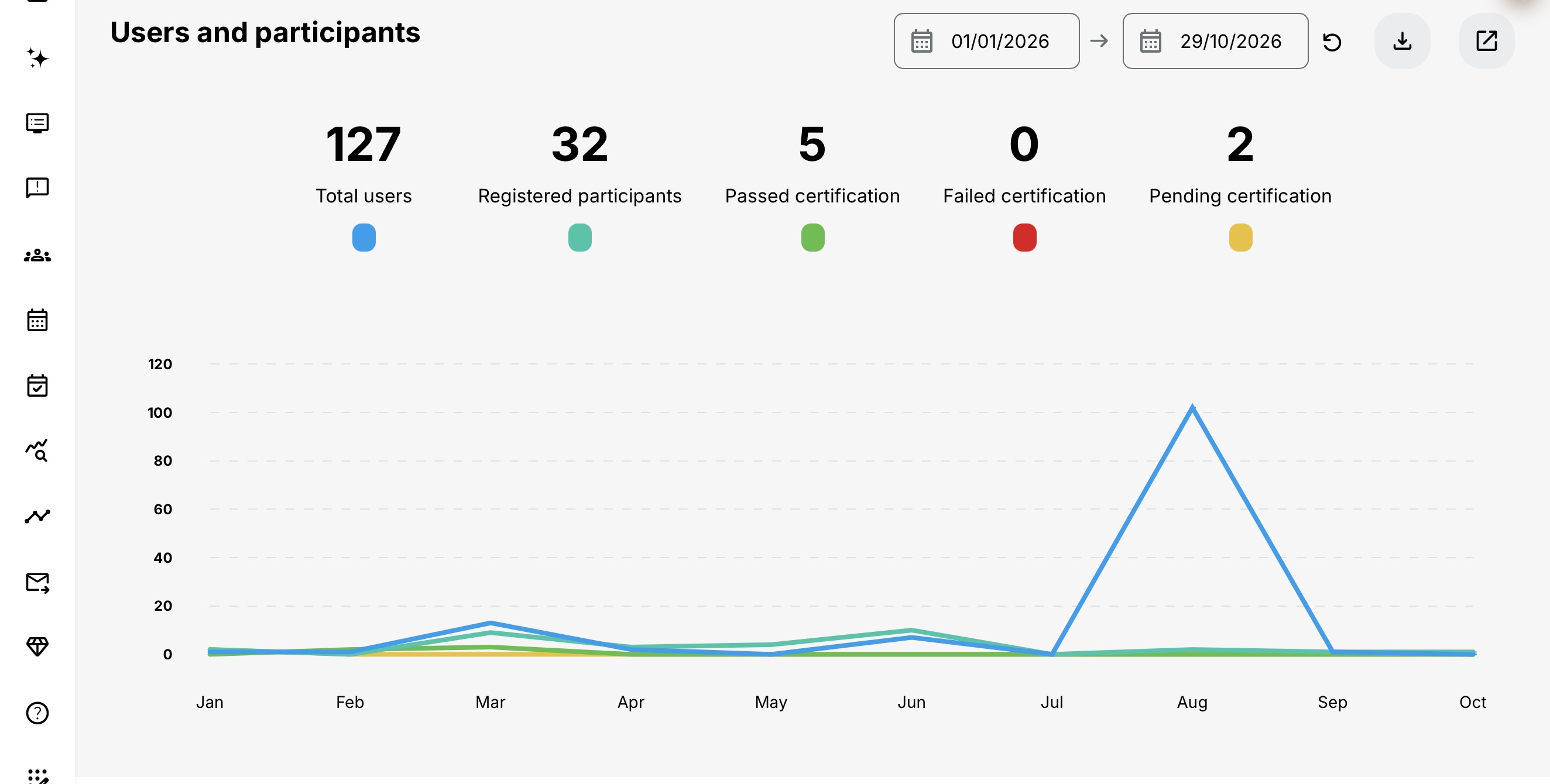
| Users and participants | Monitor the relationship between account population, learning participation and selected certification outcomes |
| Popular activities | Find the ten activities with the most registrations in the selected period and investigate demand or assignment patterns |
| Active users | Review unique platform use during the selected period |
| Learning performance | Monitor broad result and completion tendencies |
| Time and engagement | Identify changes in learning activity and engagement |
| Ratings | Locate content that participants value or that may require review |
| Activities overview | Review the total activity portfolio and its breakdown by activity type |
The dashboard is designed for orientation. Use Full analytics, reports, participant records and activity records for complete evidence.
Where enabled, Analytics groups three panels together: Learning performance, Time and engagement, and Ratings. These provide different starting points for oversight. They do not merge into one platform health score, and their figures must be read within your permitted scope and the selected period.
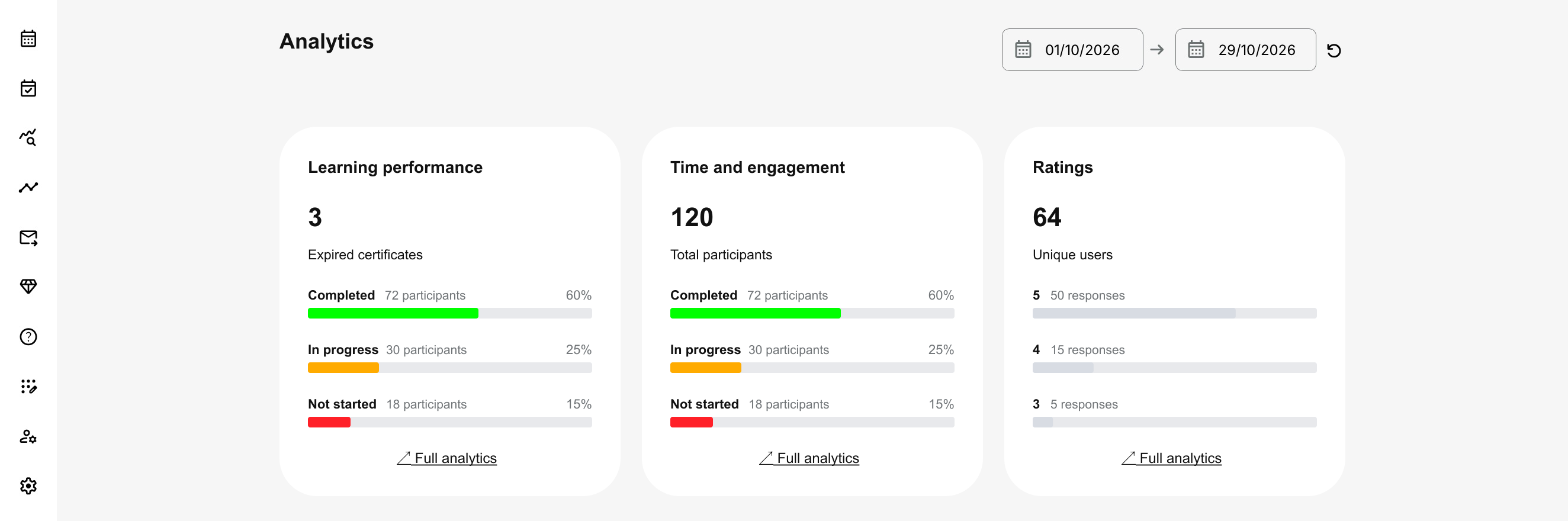
Use Learning performance to investigate progress, completion and relevant qualification conditions. Use Time and engagement → Full analytics for recorded time, engaged participation and the total and average time measures—not just the status summary visible on the dashboard. Use Ratings → Full analytics to examine the submitted ratings and the size of the responding audience. A high time figure or high registration total is not, by itself, proof of effective learning.
Each panel has its own Full analytics destination. For the counting rules and a worked time example, use Understand Analytics on My Overview. Apply your Organization and other supported filters before drawing conclusions or sharing an export.
Interpret scope before interpreting results
Before comparing a number or acting on it, confirm:
- Whether the signed-in user is a Platform or Global Administrator.
- Which Organization and Suborganizations are included.
- Whether additional filters are active.
- Which date period is selected.
- Whether the measure counts users, participants, signups or activities.
- Whether processed data has completed its latest refresh.
Two administrators can legitimately see different totals because their Organization layers and permissions differ.
Example: separate an investigation filter from delegated access
A Global Administrator filters a platform-wide review to Customer A to discuss that customer’s rollout. The filtered result helps answer the immediate question, but it does not turn the administrator’s role into Customer A-only access. Nor should the same broad role be assigned to an external contact on the assumption that leaving a filter selected will enforce the intended boundary.
Define whether the contact needs to review selected activities or only particular people, then verify the supported role and reporting scope. Shared activities can include participants from several Organizations. Use Roles: Purpose and Feature Access to choose the role, and check the actual visible records before sharing an export or delegating access.
Separate platform adoption from delivery performance
An increase in account creation, a rise in logins and a rise in completed activities answer different questions. A new customer rollout can produce many accounts before learners begin, while a Mandatory campaign can produce many registrations for one activity. Use the appropriate period and detailed metric to distinguish those stages.
For example, a highly ranked Popular activity may be required for all participants in a customer training program. Investigate its completion and ratings before treating registrations as evidence of voluntary demand. If engagement falls, compare the period, audience, assignments and access conditions before changing the training offer.
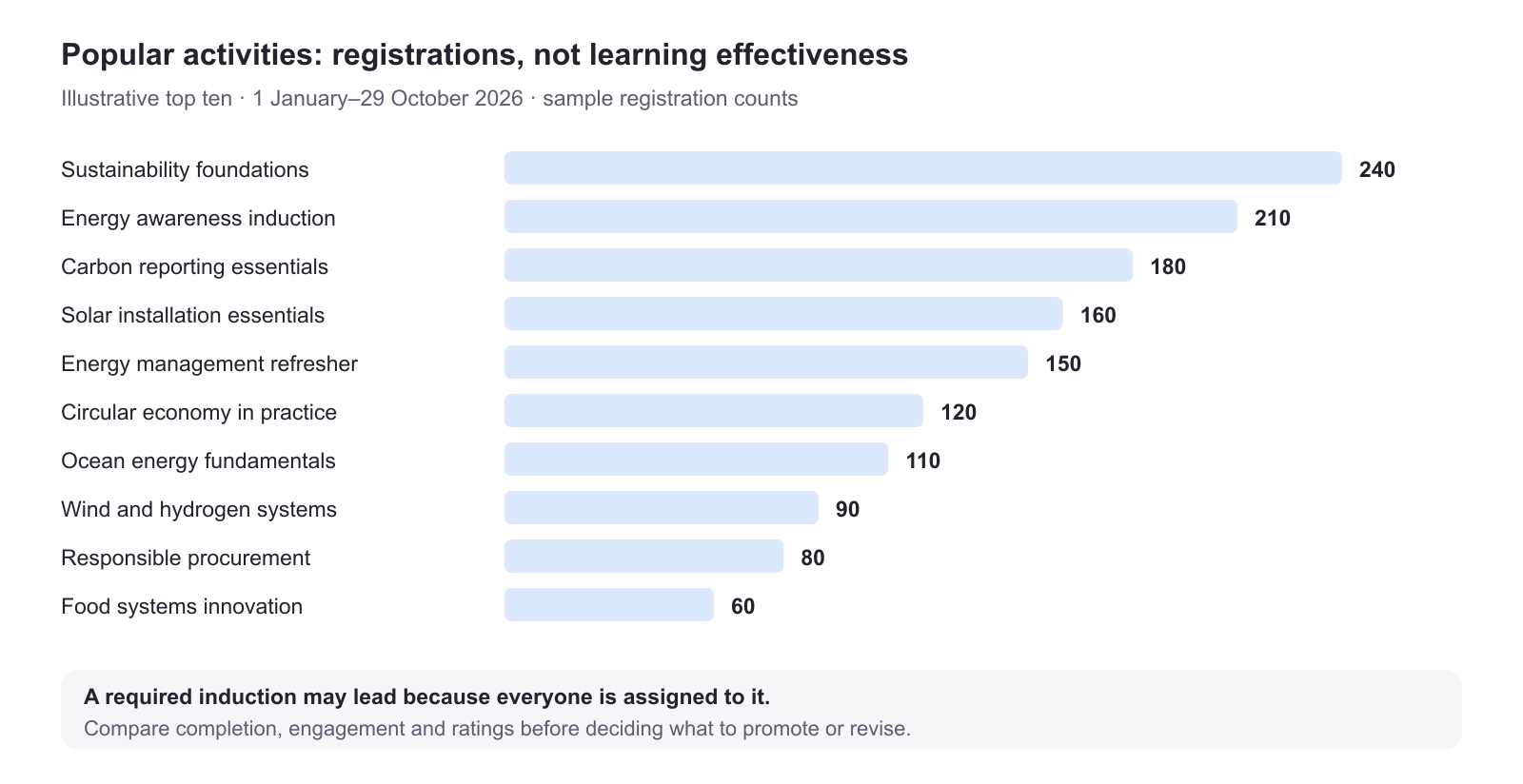
A top-ten position identifies registration volume, not the highest quality or satisfaction. In this example, Sustainability foundations leads a coherent training portfolio; it still needs to be investigated through completion, engagement, ratings and the assignment context.
With an active organizational layer, a Platform Administrator’s authority belongs to the delegated organization scope. Without that layer, the role can align with Global Administrator rights. Confirm the actual setup when comparing dashboards; the role name alone does not explain every access difference.
The widget below illustrates why these distinctions matter. The sample Total users count describes accounts; Registered participants describes activity signups; the certification figures describe certification outcomes. They are not successive stages of one universal funnel. Decide whether you are investigating account adoption, participation or qualification, then check the period, scope and detailed records for that question.
Use dashboard insight to select the next action
| Observation | Appropriate next destination |
|---|---|
| User population differs from expectation | Users and Organizations administration |
| Participation is lower than expected | Enrollment sources, Onboarding Rules, Storefront and activity signups |
| Mandatory training is overdue | Full Analytics, activity Progress and workflow configuration |
| Qualifications are approaching expiration | Certificates and re-certification configuration |
| One activity is unusually popular | Activity audience, assignment source, Storefront placement and capacity |
| Active use has changed | Full Analytics, access conditions and communication history |
| Ratings have declined | Course content, delivery, accessibility and participant feedback |
Do not correct a summary by manually changing completion or certificate evidence. Correct the source configuration or record that produced the condition.
Understand data processing and Reset
Dashboard Analytics uses processed and cached data and normally refreshes on an hourly cycle. Enrollment, completion and certificate changes can also require background processing.
Where available, Reset requests refreshed widget data. It does not change users, signups, progress, certificates or activity configuration.
For a recent discrepancy:
- Confirm the source record.
- Allow processing to complete.
- Refresh or reset the widget.
- Compare like-for-like periods, filters and metric definitions.
Keep recommendations personal
The Recommendations carousel on an administrator's My Overview is based on that signed-in user's learning history, bookmarks and applicable Storefront content. It is not a platform-level recommendation report.
Administrative configuration determines which recommendation slide types are available to users, but the end result is personalized. A Custom recommendation also appears only when the activity is available to the user through the Storefront.
See Understand Recommendations on My Overview for the participant behavior.
Verify lower-access perspectives
Administrators can see Courses, modules, users and operational records that an ordinary participant, instructor or manager cannot. Always verify high-impact journeys from the intended perspective.
Use representative test accounts for:
- A new participant with no history
- A participant with Mandatory and overdue learning
- A manager with Organization scope
- An Immediate Manager with direct reports
- An instructor Responsible for selected activities
- A Course Administrator with limited activity scope
If the platform provides impersonation or masquerade, follow the organization's security and privacy procedure. Actions performed as the user can create real progress and statistics; a controlled test account is safer for repeated end-to-end validation.
Use administrative insight responsibly
Broad visibility can expose personal, learning and qualification data. Apply the platform's privacy, retention and least-privilege policies when filtering, exporting or sharing results.
- Share governed reports rather than screenshots containing unnecessary personal data.
- Use the smallest population that answers the question.
- Confirm role and Organization scope after responsibility changes.
- Remove temporary elevated access when the task is complete.
- Preserve learning and certification evidence according to policy.
Troubleshooting
| Problem | What to check |
|---|---|
| An expected widget is missing | Confirm platform configuration, role permissions and whether applicable data exists in the administrator's scope. |
| Totals differ between administrators | Compare Organization layer, Suborganizations, permissions, filters, periods and metric definitions. |
| A recent platform change is absent | Verify the source record, allow background processing and hourly cache refresh, then use Reset where available. |
| Full analytics shows a different population | Review retained filters and the administrator's Analytics scope. Confirm the dashboard metric being followed. |
| A participant reports different access | Reproduce with a representative participant and check signup, target audience, restrictions, adaptive logic and schedule. |
| Recommendations are empty for the administrator | Confirm configured slide types, personal learning history and Storefront availability. Administrative access alone does not create a result. |
| An export contains more data than needed | Narrow the scope and filters before export and follow privacy and retention procedures. |
FAQ
-
What is the difference between Platform Administrator and Global Administrator scope?
With the Organization layer enabled, a Platform Administrator works within the assigned Organization scope and included Suborganizations, while a Global Administrator has platform-wide scope. If the Organization layer is disabled, Platform Administrator rights can align with Global Administrator rights. Confirm the platform’s actual configuration and enabled features before comparing access or dashboard totals.
-
Why can two administrators see different totals?
Compare their Organization layer, included Suborganizations, permissions, filters, date period and metric definition. Different valid scopes can produce different results.
-
Does Reset change platform records?
No. Reset requests refreshed dashboard data. It does not change users, signups, progress, certificates or activity configuration.
-
Are an administrator's recommendations platform-wide?
No. Recommendations are personalized to the signed-in administrator's own learning history, bookmarks and eligible Storefront content. Administrative access does not create a platform-level recommendation result.
-
Why can an administrator see content that a participant cannot?
Administrative visibility supports configuration and oversight. Verify the participant journey with a representative account and review signup, target audience, restrictions, adaptive logic and schedule.
-
Can dashboard summaries be used as complete compliance evidence?
No. Use the dashboard to identify areas requiring attention, then continue to the relevant governed report, participant record, activity Progress or certificate evidence.
-
How should administrators handle dashboard exports?
Apply the smallest population and filters that answer the question, follow privacy and retention policies, and share governed reports instead of screenshots containing unnecessary personal data.