Use My Overview as a Manager or Immediate Manager - Article
Summary
Managers need to identify the people who require support and act before deadlines or qualification dates become a problem. My Overview brings the relevant team results together while keeping the manager’s own learning separate.
Managers and Immediate Managers retain their personal participant experience and receive oversight for an applicable group of users. The Manager role normally uses Organization scope, while the Immediate Manager relationship focuses on direct reports. A Partner role can use the same organization-based analytics pattern where that role is enabled. Dashboard widgets help identify incomplete, overdue and certification-related learning before the user continues into detailed Analytics or participant records.
Use this article to:
- Distinguish Manager and Immediate Manager scope
- Understand the learning information available for people you supervise
- Interpret status, Deadline and certification indicators
- Switch between Organization users and direct reports where applicable
- Continue into detailed Analytics and participant evidence
Begin with personal learning
A manager can also be a participant. Required training, active learning, recommendations, recertification, Events, Communities and completed training remain available through the shared participant sections.
The management layer adds oversight for other users. It does not replace the manager's own participant record or mix personal completion with completion recorded for the people they supervise.
See Use My Overview as a Participant for the shared learning sections.
Distinguish the two management models
| Perspective | How the audience is normally defined | Best suited to |
|---|---|---|
| Manager | Permitted Organization and included Suborganizations | Business units, customers, partners or other governed organizational populations |
| Partner, where enabled | The assigned partner Organization and permitted Suborganizations | External partner populations that require delegated learning oversight |
| Immediate Manager | The Immediate Manager relationship on individual user accounts | Direct reports and line-management follow-up |
The same person can have organization-based and direct-report perspectives. When this occurs, a widget can provide a switcher such as Available users and My staff.
- Available users represents the population made available through the applicable Manager or organizational scope.
- My staff represents users linked to the signed-in person through the Immediate Manager relationship.
Select the intended view before interpreting a figure or following up with a user.
Understand the management dashboard
The Users and activities summary brings the learning status of your permitted people into one place. Depending on your management relationship, this means users in your Organization scope or people who report directly to you. It is a team follow-up view, separate from your own Trainings I attend.
| Information | What it helps the manager identify | Typical follow-up |
|---|---|---|
| Not started | Assigned learning that has not begun | Confirm awareness, access and time to complete |
| In progress | Learning that has begun but remains incomplete | Review remaining requirements and approaching dates |
| Completed | Activity completion within the selected scope | Confirm certificate or evidence when required |
| Overdue | Incomplete Mandatory training after its Deadline | Follow the organization's escalation or grace-period process |
| Upcoming recertification | Qualifications approaching renewal | Confirm that a new attempt and delivery window are available |
| Expired certification | Qualifications that are no longer valid | Apply the governed qualification and access response |
| Popular or active learning | High-use activities or current platform engagement | Identify useful content and investigate unusual patterns |
The dashboard highlights a condition. It does not explain every cause. Open the activity, participant record or detailed Analytics before deciding whether the user failed to act, lacked access or was waiting for attendance, assessment or another administrator.
The status bar summarizes Completed, In progress and Not started participation. The additional Upcoming re-certification, Expired certificates and Overdue indicators highlight different follow-up risks; do not add them together as if they were mutually exclusive groups of people. One person can have several activity signups, and an incomplete renewal can require attention for more than one reason.
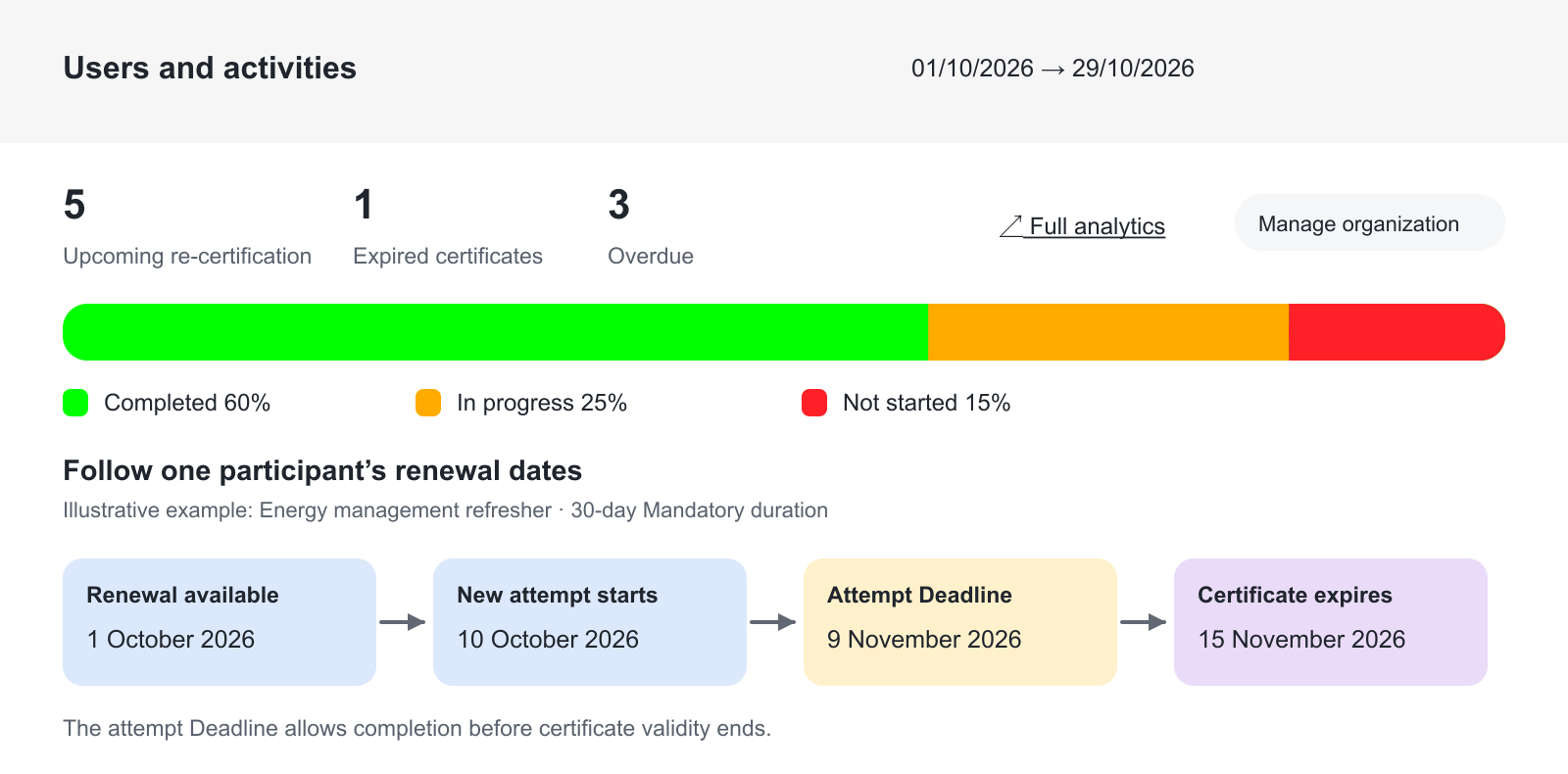
In the renewal example, the existing certificate is valid until 15 November. Renewal is available from 1 October, and a new attempt started on 10 October receives a 30-day Mandatory Deadline of 9 November. That leaves time before validity ends. If a required Event or assessor decision cannot happen before those dates, the manager should coordinate the delivery or escalation rather than assume the summary itself will prevent a qualification gap. The dates below the summary are an illustrative follow-up, not additional dashboard controls.
Use date periods and filters
Apply the same date period and scope when comparing teams or reporting a change. Available filters can include Organization, Country and configured user or activity metadata.
Before communicating a result, confirm:
- Whether the view is Available users or My staff.
- Which Organizations and Suborganizations are included.
- Whether the number counts users, participants or activity signups.
- Which date period and status are selected.
- Whether the dashboard has completed its latest refresh.
See Understand Analytics on My Overview for metric definitions and cache behavior.
Continue from a total to the people behind it
Select Full analytics in Users and activities to continue into the detailed learning-performance view, where available. The selected period and supported filters carry the investigation forward; check the resulting scope before interpreting individual records or exporting a report. Use the detailed view and its available filters to identify the people and activity signups behind the summary. Do not assume every number on the dashboard is an independent clickable filter.
Use the detailed destination to answer questions such as:
- Which users are overdue?
- Which activity is blocking completion?
- Is an Event waiting for attendance to be recorded?
- Is an Assignment waiting for assessment?
- Does the user have a valid certificate?
- Has recertification opened early enough?
- Is the user in the expected Organization or direct-report relationship?
For an individual case, confirm the source record. A dashboard total is not a substitute for participant statistics or a certificate record.
Use the scope to make the right follow-up decision
A Manager’s organization population and the people linked to an Immediate Manager can overlap without being identical. For example, a department manager may have 12 users in their Organization but only four direct reports. A person who reports to them can also belong to a different Organization. Select the applicable view and confirm the relationship before comparing totals or exporting learning history.
Use the dashboard to identify the issue, then open the people and activities behind it. An overdue count might contain someone who has not started, someone awaiting an instructor assessment and someone who finished the content but has not selected a required Complete action. Those cases need different follow-up even though the headline status is the same.
For a certificate nearing expiration, check both the validity date and whether the renewal attempt is available. A fresh 30-day completion period is useful only when the participant can realistically complete any required Event and assessment before qualification lapses. The manager’s own Mandatory training remains part of their personal participant view throughout this work.
Follow up without changing evidence
A manager can use dashboard insight to support a conversation, communication or permitted enrollment action. The appropriate response depends on the condition:
| Condition | Appropriate manager response |
|---|---|
| Not started | Confirm the assignment, priority, access and expected completion period |
| In progress | Ask whether a locked module, schedule or assessment is preventing progress |
| Overdue | Apply the organization's overdue and escalation process; do not alter completion to remove the label |
| Waiting for assessment | Coordinate with the responsible assessor rather than blaming the participant |
| Expired qualification | Follow the policy for qualification gaps and renewal access |
| No assignment | Use the permitted enrollment or request route instead of treating absence as non-compliance |
Managers should not manually complete training or change certificate evidence merely to align the dashboard with an expected target.
Manage Organization information where permitted
A Manager can receive access to permitted Organization users and organizational administration in addition to learning analytics. This depends on role configuration and Organization scope.
The Immediate Manager relationship alone does not provide the same Organization-management capabilities. It establishes a direct-report perspective for supported learning oversight.
Use the Users and Organizations articles for account, membership and organizational changes. My Overview should remain the orientation and follow-up point.
Use Storefront and recommendations personally
Recommendations on the manager's own My Overview are personal to the signed-in user. They do not automatically recommend the same activity to the manager's team.
If managers can enroll or nominate other users, use the supported Storefront, invitation or Course Administration process. Confirm the target population, approval, capacity and financial conditions before acting for several users.
Troubleshooting
| Problem | What to check |
|---|---|
| No information appears for people in scope | Confirm the Manager role and Organization scope or the Immediate Manager relationship. Verify the relevant analytics permission. |
| One direct report is missing | Check the user's active account and Immediate Manager field. Confirm the correct My staff view and date/filter scope. |
| An Organization user is missing | Confirm membership in the included Organization or Suborganization and the manager's permitted Organization scope. |
| The same person appears in several activity totals | Determine whether the metric counts signups. One user can participate in several activities. |
| An overdue total seems too high | Check the period, Mandatory Deadlines, activity completion recalculation and whether the view counts signup records. |
| A recent team change is not reflected | Confirm the source relationship, allow background processing and analytics cache refresh, then use Reset where available. |
| The manager cannot open Full analytics | Confirm the role's analytics permissions and the data scope supplied by Organization or Immediate Manager relationships. |
FAQ
-
What is the difference between Manager and Immediate Manager on My Overview?
Manager scope normally follows the permitted Organization and included Suborganizations. Immediate Manager scope follows direct-report relationships on individual user accounts. They are separate ways of defining the population.
-
Why can I switch between Available users and My staff?
The signed-in user has more than one oversight relationship. Available users follows the applicable organizational scope, while My staff follows Immediate Manager relationships. Select the intended perspective before interpreting totals.
-
Why is one direct report missing from My staff?
Check that the user account is active and that the signed-in manager is recorded in the Immediate Manager field. Also confirm the My staff view, date period, filters and any recent background processing.
-
Why can the same person contribute to several team totals?
A widget may count activity signups rather than distinct users. One person can participate in several activities and legitimately contribute several records. Open Full analytics to confirm the metric and records.
-
Can a manager complete training for a participant to remove an overdue status?
No. Follow up through the organization's support or escalation process. Completion, attendance, assessment and certificate evidence should change only when valid source evidence supports the change.
-
Are a manager's personal recommendations also shown to the team?
No. The Recommendations carousel is personal to the signed-in user. To invite, nominate or enroll team members, use the supported Storefront, invitation or Course Administration process and confirm approval, capacity and financial conditions.
-
Why is a recent team or Organization change not visible yet?
Confirm the source relationship or membership was saved, then allow background processing and the analytics cache to refresh. Use Reset where available before changing the relationship again.