Use My Overview as an Instructor or Responsible User - Article
Summary
Facilitators need quick access to the deliveries they support without mixing that work with their own training. The instructor perspective adds a working view of relevant activities to the shared participant foundation.
Instructors and other Responsible users retain the shared participant experience and receive additional access to the activities they support. Trainings I instruct provides a direct route to the applicable learning experience, while permissions and activity responsibility determine the available participants, actions and analytics.
Use this article to:
- Understand how activity responsibility affects My Overview
- Find and filter Trainings I instruct
- Preview the participant journey without creating progress
- Continue into attendance, assessment, communication and Analytics
- Distinguish instructor access from participant access
Begin with the participant foundation
An instructor can also be a participant. Personal assignments, Mandatory training, recertification, recommendations, Events, Communities and completed learning remain available through the shared participant sections.
The instructor layer adds information for activities the user is permitted to facilitate. It does not convert every activity the user can see into an instructional responsibility.
See Use My Overview as a Participant for the shared learning sections.
Understand the Responsible relationship
Trainings I instruct is based on applicable activity responsibility. The user must be assigned as Responsible for the Training Activity, and their role and permissions must support the required access.
This relationship can support:
- Opening the activity from an instructor perspective
- Reviewing its learning path and delivery information
- Accessing permitted participant progress
- Managing Event attendance or Assignment assessment where applicable
- Receiving operational communication or tasks connected to responsibility
- Viewing analytics for activities in the instructor's scope
Role and responsibility work together. A role can provide the capability, while the Responsible assignment identifies the activity to which it applies.
Use Trainings I instruct
Trainings I instruct can contain Course, Event, Assignment, Existing Training and other supported module designs.
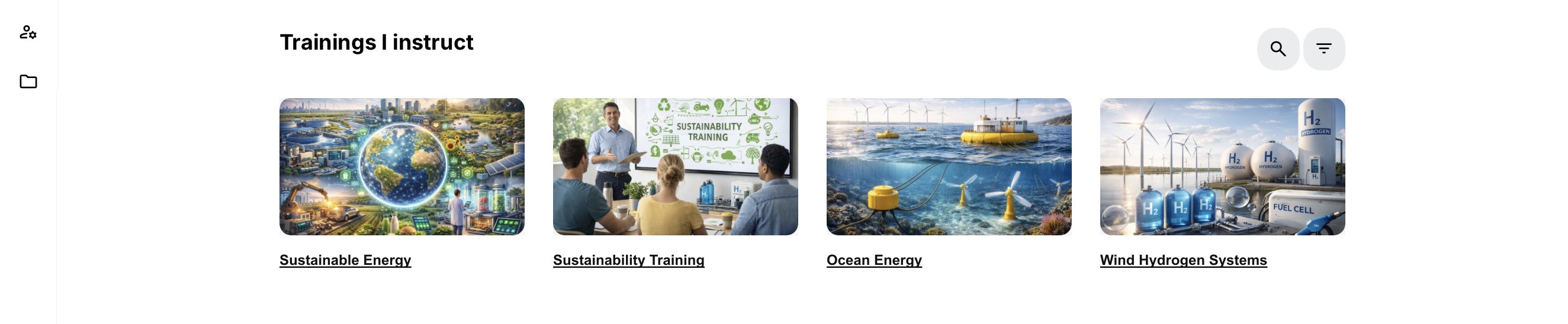
For example, a facilitator supporting energy-awareness training can return directly to the four deliveries shown here without searching their own completed or ongoing learning. The section is a working view of instructional responsibility, not a record of that facilitator’s personal completion. A familiar Course can therefore appear here and in Trainings I attend for different reasons.
Each card can include the activity banner, title, schedule, module information and a route to the instructor view. When more than four activities apply, use View all to open the complete list.
Search and filter
Use Search and available filters when the instructor supports many activities. Filters can use activity status, dates and configured metadata such as Training type, Category, Language or other tags.
Search and filters narrow the visible list. They do not change activity responsibility or participant access.
Hide and restore an activity
Where enabled, an instructor can hide an activity from the normal section to reduce clutter. Hiding does not remove the Responsible assignment or change the activity.
Use the Hidden filter or corresponding action to locate and restore it.
Open an instructor preview
Opening an activity from Trainings I instruct provides the applicable preview or instructional route. Use it to inspect the learning path, Course pages and participant-facing experience before or during delivery.
Instructor preview does not create ordinary participant progress. This protects the activity from being marked complete merely because an instructor reviewed it.
If the instructor must complete the training as a learner, confirm that they also have the intended participant signup and open it from the participant perspective.
Understand Existing Training modules
An Existing Training module can include another Training Activity inside a larger learning path.
- If the module contains one simple included activity, the instructor route can open the applicable activity directly or in a focused view.
- If it represents a learning path or several included activities, use the available See trainings or equivalent action to review the included delivery.
The parent activity's responsibility does not automatically prove responsibility for every independently administered child activity. Verify the Responsible users and participant scope at the level where the operational work is performed.
Continue to operational work
My Overview is the entry point; the activity and its modules provide the operational records.
| Responsibility | Continue to |
|---|---|
| Review participant progress | Activity Progress or the permitted participant statistics |
| Record Event attendance | The Event participant and attendance view |
| Assess submitted work | The Assignment assessment view |
| Review a Test or Question Set result | The participant's learning statistics or supported result view |
| Communicate with participants | The activity's supported communication or workflow route |
| Facilitate a Community discussion | The connected Community or discussion topic |
| Investigate trends across activities | Full Analytics with the responsible-activity scope |
The available actions depend on module type, role, permission and configuration. Do not expect an instructor action on My Overview when the evidence is maintained inside the Event, Assignment or activity.
Use Activity List and Timeline where available
Advanced Instructor, Trainer, Assistant or other permitted delivery roles can receive an activity list or timeline in addition to Trainings I instruct.
- List provides a compact set of activities and can load additional results.
- Timeline places scheduled delivery in a date-based view and can group activities by Responsible user.
The timeline emphasizes scheduled activity. A self-paced activity or an activity with no scheduled module can remain available in the list even when it does not create a meaningful timeline entry.
Use My or the permitted scope selector carefully. A broader All view depends on the role and permissions and should not be interpreted as ownership of every displayed activity.
Review instructor analytics
Where analytics access is enabled, the instructor's dashboard and Full analytics normally use activities for which the user is Responsible.
This can support questions such as:
- Which participants have not started?
- Who is approaching or has missed a Deadline?
- Which participants are waiting for attendance or assessment?
- Are participants progressing through the intended learning path?
- Which activities require facilitation attention?
The dashboard is processed and cached. Confirm an individual case in the activity's source records before making a participant-level decision.
See Understand Analytics on My Overview for metric definitions, scope and refresh behavior.
Distinguish visibility from participant access
An instructor can see a Course page, Supplemental Adaptive Module or operational record that a participant cannot currently access. This is necessary for preparation and facilitation.
Always validate the intended participant route with a representative participant account. Check:
- Activity and module access
- Access Restrictions
- Adaptive Modules
- Schedule and Event availability
- Enrollment and approval state
- Organization and target audience
- Participant-facing labels and instructions
Instructor visibility is not proof that the participant experience is reachable.
Work across repeated cohorts without confusing perspectives
The same Course can be delivered through several Training Activities. Use the activity title, schedule and participant list to identify the cohort before reviewing attendance, assessing work or following up on incomplete learning. Reusing the Course does not turn the cohorts into one participation record.
For example, an instructor can prepare the same material for a morning and an afternoon delivery. Opening it through Trainings I instruct is an instructor preview and does not record that instructor’s participant progress. If the instructor must also complete the material as a learner, they need their own enrollment and should open that participant relationship through Trainings I attend.
Hiding an old activity is a way to organize the instructor’s working view. It does not cancel the delivery, remove participants or revoke the Responsible relationship. Use the hidden-training filter to recover the activity when historical follow-up is needed.
Practical facilitation workflow
| Stage | Use My Overview to | Continue with |
|---|---|---|
| Before delivery | Find the activity and inspect its path | Preview, schedule, participant list and communications |
| During delivery | Return quickly to the current activity | Attendance, facilitation, Community and participant support |
| During assessment | Identify the activity requiring follow-up | Assignment, Test result or participant Progress |
| After delivery | Review the remaining incomplete population | Analytics, completion evidence and supported follow-up |
| Between cohorts | Keep relevant activities visible and hide inactive clutter where enabled | Course Administration for configuration and new cohort setup |
Troubleshooting
| Problem | What to check |
|---|---|
| Trainings I instruct is missing | Confirm at least one applicable Responsible assignment, the user's delivery role and the required permissions. |
| One responsible activity is missing | Check responsibility at the correct activity level, activity status, user scope and recent background processing. |
| Instructor preview shows no progress | This is expected. Preview is designed not to create participant progress. |
| The instructor cannot record attendance or assess work | Confirm the module type, activity responsibility, role and the specific attendance or assessment permission. |
| A participant is absent from the instructor's data | Verify the participant's signup, the activity used, and whether the instructor is Responsible for that same activity. |
| Timeline and List show different results | Check schedule data and view scope. Unscheduled or self-paced activities can appear in List without a meaningful Timeline entry. |
| An instructor sees content that participants report as locked | Validate with a representative participant and review Access Restrictions, Adaptive Modules, schedule and signup state. |
FAQ
-
Why is Trainings I instruct missing from My Overview?
Confirm the user is assigned as Responsible for at least one applicable Training Activity and has the delivery role and permissions required for that view. Activity status and recent background processing can also affect visibility.
-
Does instructor preview create participant progress?
No. Instructor preview is designed so reviewing the learning path does not create ordinary participant progress. If the instructor must complete the training, give them the intended participant signup and use the participant route.
-
Why can the instructor not record attendance or assess work?
Confirm the activity and module type, the user's Responsible assignment, delivery role and the specific attendance or assessment permission. The operational action is maintained inside the Event or Assignment rather than on My Overview.
-
Why do the instructor List and Timeline show different activities?
Timeline emphasizes scheduled delivery. A self-paced activity or an activity without a meaningful schedule can appear in List without producing a Timeline entry. Also confirm the selected Mine or broader permitted scope.
-
Does responsibility for a parent activity include every Existing Training child?
Not automatically. Responsibility for the parent does not prove responsibility for each independently administered child activity. Verify the Responsible users and participant scope where the operational work is performed.
-
Why can an instructor see content that a participant reports as locked?
Instructor visibility supports preparation and facilitation and can be broader than participant access. Test with a representative participant and review signup, Access Restrictions, Adaptive Modules, schedule and audience.
-
Can an instructor hide an activity without removing responsibility?
Yes. Hiding an activity from Trainings I instruct organizes the instructor’s own working view. It does not remove the Responsible assignment, cancel the activity or change participant records. Use the hidden-training filter to find and unhide it.