Use My Overview as a Support User - Article
Summary
Support investigations begin with a reported experience, then follow the evidence to its cause. My Overview helps narrow the affected population and identify the appropriate user, activity or analytics record.
Support users retain the shared participant experience and can receive additional user, activity and analytics access for operational assistance. My Overview helps identify the affected population and move into the relevant source record. The exact view depends on permissions and scope; the Support role should not be interpreted as unrestricted platform administration.
Use this article to:
- Understand the Support layer on My Overview
- Distinguish personal training from support access
- Use dashboard indicators to begin an investigation
- Verify issues from the affected user's perspective
- Continue to the correct user, activity or Analytics record
Begin with the participant foundation
A Support user can also be a participant. Personal assignments, Mandatory training, recommendations, recertification, Events, Communities and learning history remain available through the shared participant sections.
Operational access is an additional layer. It should not create or alter the Support user's own participant progress.
See Use My Overview as a Participant for the shared learning sections.
Understand the Support perspective
Support access is designed for investigation and assistance within an approved scope. Depending on permissions, My Overview can provide platform indicators, activity information and routes to users or Analytics.
Typical support questions include:
- Why is an assigned activity missing?
- Why is a user shown as Not started, In progress or Overdue?
- Why can an administrator see content that a participant cannot?
- Why has a certificate not been issued?
- Is an Event waiting for attendance or an Assignment waiting for assessment?
- Is a dashboard figure delayed by processing or cache refresh?
- Does the user's Organization, role or relationship provide the expected access?
My Overview helps locate the issue. The user, activity, signup, module, Event, Assignment or certificate record provides the evidence.
Use dashboard information as a starting point
Where enabled, Support users can receive widgets such as Users and participants, Active users or other permitted analytics summaries.
| Indicator | Useful support question | Confirm in |
|---|---|---|
| Not started | Does the user have a valid signup and reachable first step? | Signup, activity access and learning path |
| In progress | Which requirement remains incomplete? | Module and participant statistics |
| Overdue | Was the Deadline valid, and does access remain? | Mandatory, Access Expiration and signup records |
| Upcoming recertification | Is the new attempt available and realistically scheduled? | Certificate and recertification configuration |
| Expired certification | Did validity end before renewal was completed? | Certificate history and renewal attempt |
| Active users | Is the question about login activity or learning participation? | Analytics definition and selected period |
Do not infer a root cause from the status label alone.
Follow a repeatable investigation path
- Confirm the affected user and the exact activity or dashboard section.
- Establish the expected role, Organization, Immediate Manager or Responsible relationship.
- Check the user's signup and activity status.
- Review module-level progress, access, attendance, assessment and confirmation.
- Review Mandatory, certificate, recertification and Access Expiration separately.
- Confirm the participant-facing experience with an appropriate test account where possible.
- Allow background processing and analytics cache refresh when the source record was just changed.
- Escalate with the user, activity, signup and observed-versus-expected behavior clearly identified.
This sequence helps distinguish a configuration issue from a delayed display or a correct adaptive outcome.
Respect permissions and data scope
The Support role does not by itself guarantee access to every user, activity, Community or analytics record. Scope can depend on Organization, role configuration and individual permissions.
If another support user sees more information, compare:
- Organization layer and included Suborganizations
- User and activity permissions
- Analytics permissions
- Activity responsibility
- Community moderation or membership
- Platform features enabled for the tenant
Do not widen access only to make one dashboard result appear. Use the minimum scope required for the support function.
Verify the participant perspective safely
An elevated user can see content that an ordinary participant cannot. This makes direct visual comparison unreliable unless the correct perspective is used.
Prefer a representative test account for end-to-end verification. If the platform provides a supported impersonation or masquerade capability, follow the organization's security and privacy procedure and remember that actions taken as the user can create real progress, statistics or other records.
Do not open or complete learning casually while acting as another user.
Understand processing and cache behavior
Some signup, completion, certificate and grouping changes are processed in the background. Dashboard Analytics is also cached and normally refreshed on an hourly cycle.
When a recent change is missing:
- Confirm the source record was saved.
- Determine whether recalculation or background processing is expected.
- Allow the process to finish.
- Use an available Reset or refresh action for cached Analytics.
- Recheck before creating duplicate assignments or changing evidence.
Distinguish common support cases
If a participant has an Overdue card but can still open training, compare the Mandatory Deadline with Access Expiration. This can be an intentional grace period rather than an access fault. If an Event remains incomplete after its date, inspect attendance; the calendar date alone does not prove that a participant was marked Attended.
If an activity is Completed but its certificate is unavailable, check the certificate’s own criteria, required feedback and the issuance state. Do not change completion simply to make the certificate appear. Conversely, an administrative completion override can explain why the top-level status is Completed while detailed learning evidence remains unfinished.
Record the expected result, the observed result, the affected signup and the evidence that distinguishes the case. That makes escalation actionable and helps the next person avoid repeating the investigation.
Example: a recommendation disappears after enrollment
A user reports that an introductory activity has vanished from the top of My Overview after they selected its enrollment action. First identify whether the missing item was a Custom, Bookmarked or Personalized recommendation, rather than an enrolled-training card. Then check the signup. A Registered signup excludes that activity from these discovery slides, so the disappearance can indicate that the user has successfully moved from discovery to participation.
Look for the activity in the appropriate Trainings I attend group. A Mandatory activity need not appear under Ongoing, and a pending enrollment process is not the same as Registered access. Check that state before diagnosing a missing card. Do not create a duplicate enrollment, change completion, or broaden the user’s permissions merely to restore the former recommendation.
If the user has a valid signup but cannot open the learning, continue with the activity’s requirements, restrictions, adaptive state and access dates. Those are access questions, not a reason to make a discovery slide reappear.
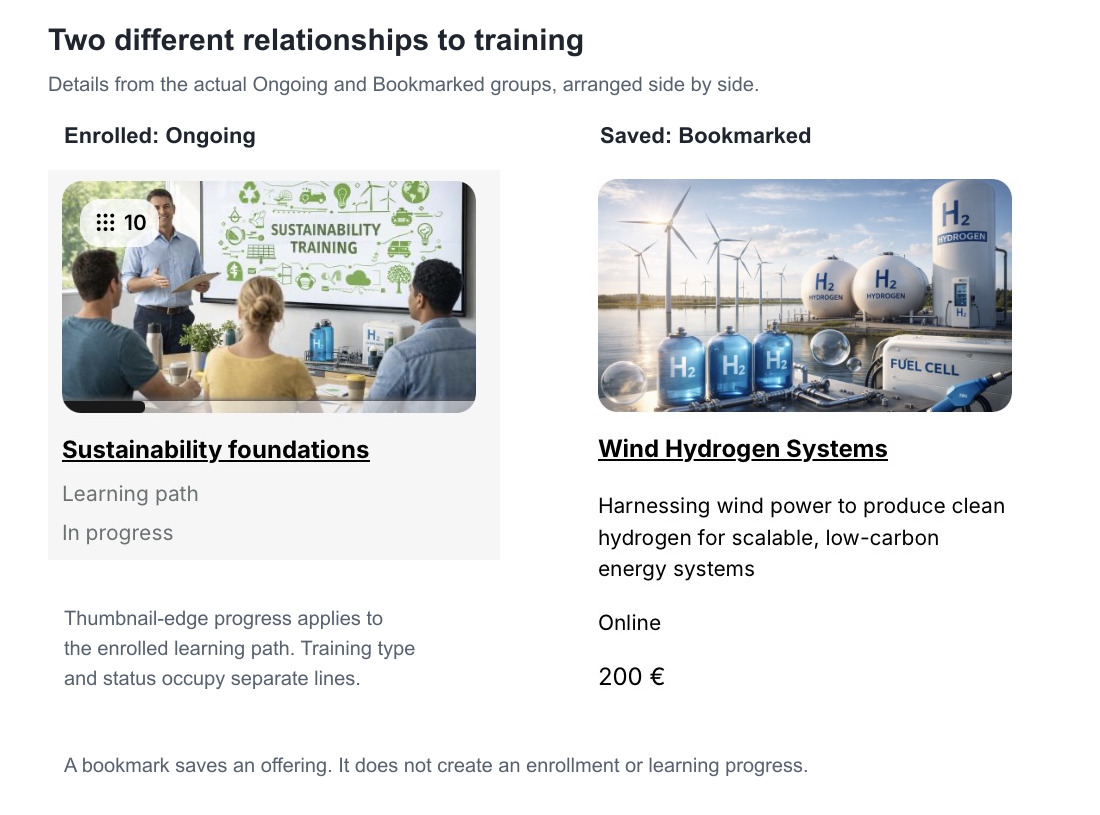
The comparison below shows the visible distinction to look for during this investigation. It contains two different sample activities, not a before-and-after sequence: the enrolled card carries progress and participant status, while the saved offering does not.
Keep support and content ownership separate
A Support user may have permission to view or edit content, activities or Communities, but the operational need should determine whether that action is appropriate.
- Correct user data in the governed user process.
- Correct activity delivery in Course Administration.
- Correct Course content through the authoring and review process.
- Correct Community content through its moderation process.
- Correct completion or certification only from valid evidence.
Support should restore the intended process, not bypass it.
Troubleshooting
| Problem | What to check |
|---|---|
| A support widget is missing | Confirm the feature, role permission, Organization scope and applicable data. |
| A user cannot be found | Verify account status, Organization membership, data scope and search filters. |
| A user's dashboard differs from the Support view | Reproduce with a representative participant perspective and compare role, signup, restrictions and adaptive conditions. |
| A recent correction is not visible | Confirm the source record, allow background processing and cache refresh, then use Reset where available. |
| A certificate appears inconsistent | Review activity completion, certificate criteria, issuance, expiration and recertification as separate states. |
| An activity appears to be missing | Check signup status, target audience, activity status, schedule, Access Expiration, Supplemental Adaptive Modules and recent processing. |
| Support access is broader than expected | Review Organization layer, permissions and role configuration. Apply least-privilege access rather than relying on dashboard filters. |
FAQ
-
Does the Support role provide unrestricted platform access?
No. Support access depends on role permissions, Organization scope, activity responsibility and enabled features. Apply the smallest scope required for the support function rather than relying on dashboard filters.
-
Why does the Support user's view differ from the participant's view?
Elevated visibility can expose content and records that an ordinary participant cannot access. Reproduce the issue with a representative participant perspective and compare signup, audience, restrictions, adaptive conditions and schedule.
-
Can Support change completion or certificate evidence to fix the dashboard?
Only when valid source evidence supports the correction and the organization's governed process permits it. Support should restore the intended process, not change learning evidence merely to align a dashboard indicator.
-
When should Support wait instead of changing a record?
Wait when the source record is correct and background processing or the analytics cache has not refreshed. Confirm the save, allow processing to finish and use Reset where available before creating duplicate assignments or changing evidence.
-
Is it safe to verify an issue by acting as the affected user?
Use a representative test account where possible. If an approved impersonation or masquerade feature is used, follow security and privacy procedures because opening or completing learning can create real progress and statistics.
-
Why can a Support user not find a user or activity?
Check account and activity status, Organization membership, permissions, responsibility, search filters and data scope. A valid record can remain outside that Support user's approved population.
-
What information should Support include when escalating a My Overview issue?
Identify the affected user, activity and signup; the expected and observed section or status; relevant role, Organization or responsibility; the source records checked; and whether background processing and cache refresh were allowed.