Deliver Webex Meetings, Webinars and Recordings - Article
Summary
Webex integration connects live delivery and recording access with the Eurekos training journey. It can support interactive meetings or larger webinars, with configuration for hosting, access and recording. Define which experience the cohort needs and how attendance will be interpreted before creating the Event.
Use this article to:
- Configure the Webex connection and available conference types
- Prepare responsible hosts and learner access
- Understand secure webinar and recording options
- Verify attendance and provider relationships
Choose meeting, webinar and recording outcomes
An interactive partner workshop and a large product briefing have different delivery needs. Meeting supports interactive sessions with small or medium groups. Webinar supports a presentation-led event with a smaller set of presenters. A recording can provide an additional route for participants who could not attend live.
Decide whether the event is open to link holders or restricted to the registered audience, and whether later recording access should affect attendance. These are operational choices, not merely provider settings to copy from another event.
Configure the provider relationship
Ask Eurekos to confirm activation and configuration access. Open Settings → Third party integrations → Webex. The setup uses Client ID, Client secret, Refresh token and Access token from the approved Webex Service App configuration.
The provider administrator must configure the application and required scheduling, participant and recording access. Coordinate the provider’s current application and account requirements with that administrator rather than granting broad permissions without reviewing the purpose.
Where an existing connection offers Replace token, use that action before entering replacement credentials, then complete Save. Keep tokens private and maintain an operating owner for replacement and authorization failures.
Choose the conference types and options
The Conference types section controls which types can be created. Disabling a type prevents new creation; existing meetings and webinars remain unchanged.
| Choice | Effect | What to decide |
|---|---|---|
| Meeting | Makes interactive meeting delivery available | Host account and expected participant interaction |
| Webinar | Makes presentation-led webinar delivery available | Presenter/co-host model and intended audience size |
| Video recording under the selected type | Makes the processed recording available after the event and supports recording-based attendance updates | Whether later recording use belongs in the attendance model |
| Co-hosts for Webinar, where configured | Uses responsible Activity administrators as co-hosts | Correct provider identity and facilitation responsibilities |
| Secure access for Webinar | Restricts provider access to the configured registered-participant model | Required enrollment and Webex account relationship |
With Secure access enabled, the webinar flow requires the registered participant and their Webex account relationship. Without it, a link can support a broader provider audience. A forwarded link and a valid Eurekos enrollment are not the same thing; verify the intended boundary with a representative learner.
Prepare the responsible host and Event
The responsible Course administrator must have an appropriate Webex account with the matching email. The person needs the provider relationship required to start the session, not just an administrative role in Eurekos.
In a Training Activity, add an Event module, add Video conference and select the relevant Webex meeting or webinar. Assign the responsible Course administrator at Activity level and save the intended configuration. The Calendar creation route can also connect a Webex Event to an Activity with the appropriate responsible relationship.
Use a coherent schedule and verify provider validation. The Webex setup requires a conference of at least ten minutes. Check the actual scheduled session on both sides before communicating it to participants.
Explain joining and hosting
Participants use the Event’s Join route and follow the Webex instructions. The responsible host signs in to the matching provider account and starts the session. A participant arriving before the host and a person who lacks the secure-access prerequisite can experience different states; prepare the facilitator to distinguish them.
Provider invitations and Eurekos System Emails have separate ownership. Review the joining instructions and expected messages without assuming that configuring one delivery route configures the other.
Understand attendance and recordings
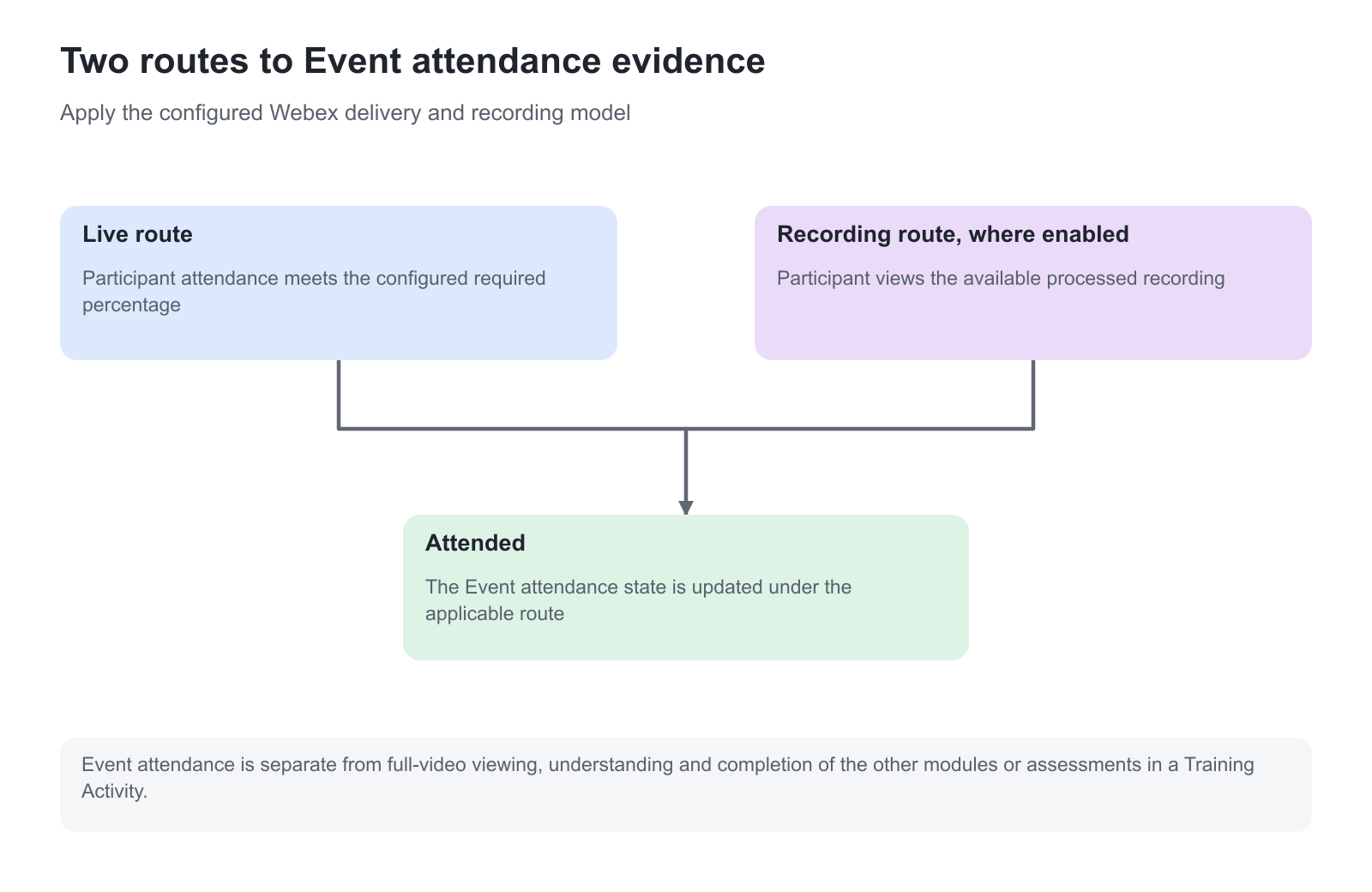
Live attendance is synchronized after the Event according to the configured attendance threshold. The service-level Partial pass score determines the required attendance percentage; ask Eurekos to confirm the applicable threshold for your setup rather than assuming the same value on every platform.
Where Video recording is enabled, the recording becomes available after Webex processing and the platform’s synchronization. It is not necessarily ready at the instant the live session ends. The recording flow can update the participant’s attendance to Attended when the recording is viewed.
Keep this evidence precise. A recording-based attendance update is not a statement that every minute was watched, nor does it mean every other module or assessment in the Activity is complete. Decide whether that route fits the purpose of the training before enabling it.
Verify the configuration
| Scenario or check | Expected result or evidence |
|---|---|
| Provider setup | Correct Service App, tokens and responsible operating owner |
| Responsible host | Matching provider account can start the intended session |
| Secure webinar participant | Registered learner with the required provider relationship can join |
| Person outside the intended secure audience | The configured access boundary is enforced |
| Live attendance | The synchronized result follows the agreed threshold |
| Recording access | Processed recording becomes available and its attendance consequence is understood |
| A conference type is disabled | New creation is affected while existing sessions remain accounted for |
Troubleshooting
| Problem | What to check |
|---|---|
| The host cannot start | Matching responsible Course administrator email, provider account and host entitlement |
| A learner cannot join a secure webinar | Registration, Webex account relationship and the intended provider identity |
| The recording is absent immediately after the Event | Allow provider processing and background synchronization; inspect recording configuration |
| Attendance differs from a facilitator’s expectation | Configured live threshold, identity matching and recording-based updates |
| Replacing credentials appears ineffective | Use Replace token where available before entering and saving the replacement |
| A large cohort is only partly synchronized | Provider limits, participant batches and rate-limit evidence need investigation with Eurekos |
FAQ
-
Does disabling Webex Meeting remove existing meetings?
Disabling the conference type prevents creation of new meetings or webinars; existing meetings and webinars remain unaffected.
-
Can watching a Webex recording affect attendance?
Yes, where the recording flow is enabled. The behavior can mark the participant Attended when the recording is viewed; that is separate from proof of full viewing or completion of other modules.