Calendar Events and Video Conferencing - Article
Summary
Calendar Events bring participants and instructors together at a defined time, either at a physical location or through a connected video-conferencing service. They allow live webinars, classroom sessions, workshops, and coaching to sit alongside self-paced Courses and Assignments in one managed learning journey. The Event becomes the shared source for the schedule, joining details, communication, attendance, and follow-up.
In this article you will learn:
- How an Event module differs from an event created directly in Calendar
- How to add and schedule an Event module in a Training Activity
- What each event setting and module-level feature controls
- How locations, instructors, equipment, reminders, attendance, recordings, and completion work together
- How native video-conferencing integrations differ from a conference URL
- Which dependencies and special cases to check before enrolling participants
This article focuses on Event modules within Training Activities. For appointments created directly in Calendar, see Calendar events; the two routes have different placement and cancellation controls.
Understand the event model
Eurekos brings several related concepts together when you schedule live learning:
| Concept | What it controls | Example |
|---|---|---|
| Training Activity | The complete delivery and enrollment process | A blended onboarding program |
| Event module | A scheduled learning component in that activity | The live welcome webinar in module 2 |
| Calendar event | The scheduled occurrence administrators, instructors, and participants see in Calendar or Learn mode | 14 September, 10:00–11:30 Europe/Copenhagen |
| Video conference | The external service or URL used to deliver a virtual session | A Zoom webinar or Microsoft Teams meeting |
| Recording | The post-event video made available through the event | The webinar recording uploaded after delivery |
These are connected, but they are not interchangeable. The video conference does not replace the Eurekos event, and the event does not replace the Training Activity that controls enrollment, access, progress, and the wider learning journey.
For most scheduled learning, add an Event module to a Training Activity. This places the session in the participant's learning path and allows it to work with activity enrollment, access restrictions, completion, certificates, feedback, and communication.
Eurekos can also create an event directly from Calendar and connect it to an activity without adding it to the module sequence. Use this route when the appointment is being managed operationally through Calendar rather than as a defined step in the learning path.
Calendar-only behavior
Events created directly in Calendar can allow participants to cancel their participation or report that they will not attend. Administrators can set deadlines for cancellation and attendance reactivation. These Calendar-only controls do not apply to Event modules created through a Training Activity. Cancellation of registration for a Training Activity is instead governed by the activity's enrollment and Registration details settings.
This article concentrates on the Event module because that is the standard route for scheduled learning. Calendar-specific differences are called out where relevant.
Before you create the event
Decide what the event is expected to achieve and how it should be delivered:
- Is this a module in a learning path or an operational Calendar event?
- Is the delivery virtual, in person, on site, or hybrid?
- Should participants interact in a meeting, or mainly watch a webinar?
- Who owns the activity, and who will facilitate the session?
- Is participant attendance required for completion or certification?
- Will the event need a room, equipment, or an instructor with particular availability?
- Should participants receive an event reminder in addition to activity emails and calendar invitations?
- Will a recording be made available afterward?
- Are seats, registration deadlines, approval, a waiting list, or payment involved?
Some event options appear only when the corresponding platform feature or third-party integration has been configured. The available video-conference types can therefore differ between platforms.
Add an Event module
Go to Course Administration → Activities, create or edit a Training Activity, and add the module type Event.
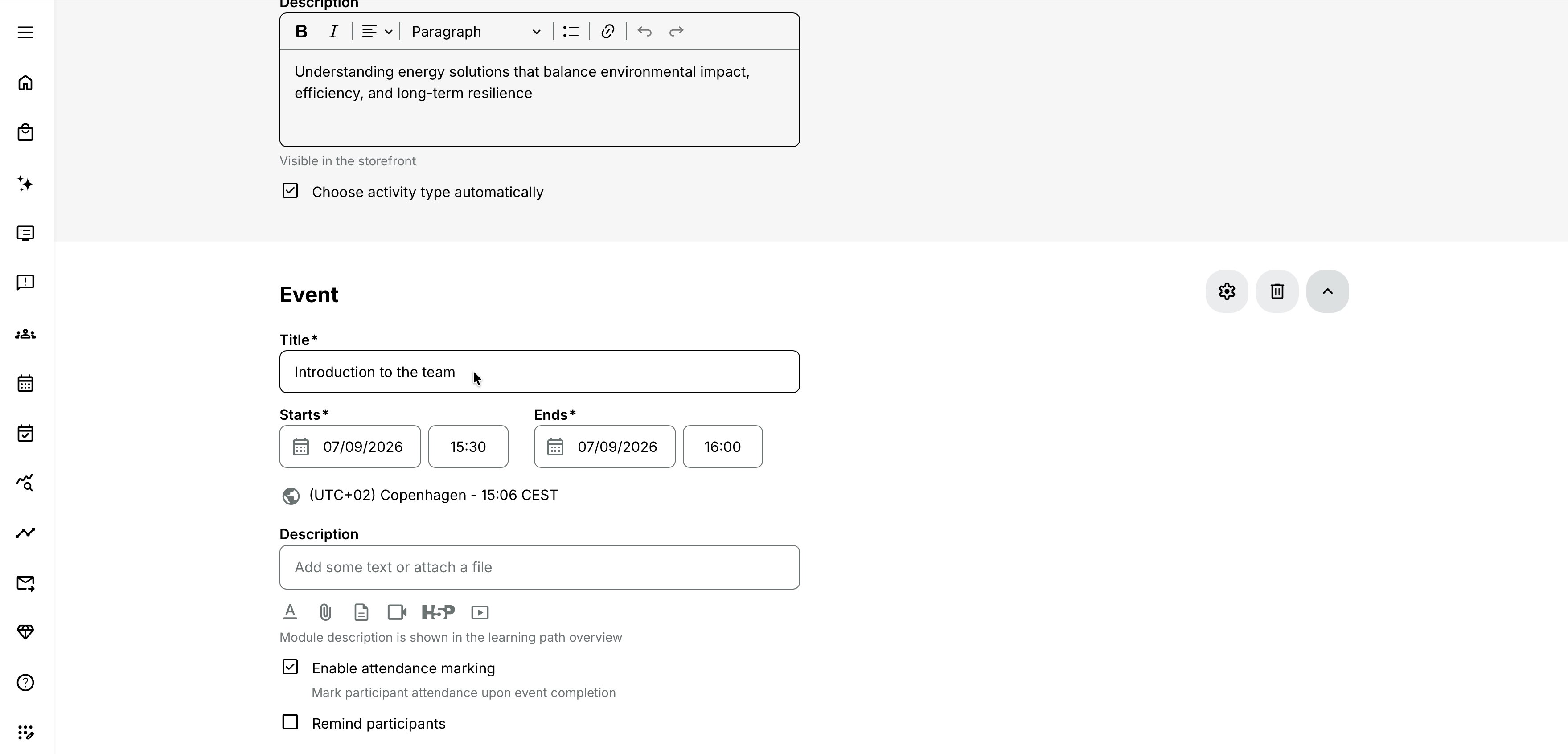
Complete the event's core fields first. Open the module's Features using the gear icon to add facilitation, access, communication, and completion settings.
Title
Use a title that tells the participant what will happen, not merely that an event exists. For example:
- Product onboarding: live demonstration
- Certification assessment workshop
- Customer implementation Q&A
In a multi-session program, include the session number or subject so the events remain distinct in the learning path, Calendar, emails, reports, and external invitations.
Description
Explain the purpose of the session and anything participants must do before joining. Include practical information such as preparation, agenda, arrival instructions, contact details, or required materials.
The editor can include files and resources available from the platform archives, including documents and videos. Avoid placing a manually copied meeting link in the description when a configured video-conference field is available. Using the event's video-conference setting produces a consistent Join experience and allows supported integrations to manage the session.
Starts and Ends
Start and end are required for every Event module.
When a new event is created, Eurekos preselects a start shortly after the current time and an end based on the platform's configured default duration. The selectable time intervals and the default difference between start and end can be configured at platform level.
Review both values before saving. In particular:
- The end must be later than the start.
- If the Training Activity has an end date, the event cannot end after it.
- If the activity has both start and end boundaries, all of its modules must fit inside them.
- When you move a start date during editing, Eurekos keeps the existing end where possible. If the new start would pass the end, the end is recalculated.
For a program with several sessions, create a separate Event module for each scheduled component. Do not represent a six-week series as one continuous event unless participants are genuinely expected to attend for that complete interval.
Time zone
The platform time zone is selected by default, but each event can use another time zone. Select the time zone in which the event is being organized rather than manually converting the time for different audiences.
Eurekos displays the event in the time zone appropriate to the user. This is especially important when the administrator, instructor, and participants are in different regions.
For example, create a webinar as 10:00 Europe/Copenhagen if that is the organizer's intended local time. Participants elsewhere will see their corresponding local time.
The date presentation adapts to the interval. A same-day event shows one date and a time range, while multi-day, cross-month, and cross-year events show the additional dates needed to remove ambiguity.
Why does my scheduled activity still say Self-paced?
An Event module always has dates, but the Training Activity's displayed schedule depends on the activity-level Schedule feature. If that feature is disabled, the activity can still be presented as self-paced. Enable the activity Schedule feature when the overall offering should be treated and displayed as scheduled. You may leave its dates blank: a single-module activity can derive them from its module, while a multi-module activity derives its range from the earliest module start and latest module end.
Attendance marking
Enable attendance marking when the facilitator or administrator must record who attended the session. Attendance can be marked after the event's end date and time.
Attendance is distinct from simply being enrolled, opening the module, or receiving a calendar invitation. It is also visible separately from the participant's general activity status and, where applicable, from whether a recording was viewed.
Use attendance when it matters operationally—for example, for classroom compliance, instructor-led certification, paid delivery, or follow-up with absentees. If attendance has no consequence and does not need to be reported, leaving it disabled reduces administrative work.
Some conferencing integrations can supply attendance-related information. They can update a participant to attended after a live session or after the participant watches the recording. Confirm the expected result in the dedicated integration guidance and test it before relying on automatic attendance for certification or compliance.
For more detail, see Attendance marking, Progress.
Remind participants
Enable Remind participants to send the built-in event reminder at the selected interval before the event.
The reminder is event-specific. In a learning path containing several events, each Event module can send its own reminder when its trigger is reached. This differs from:
- An enrollment or activity email
- An automated email workflow
- An Outlook invitation or an .ics calendar entry
- A reminder sent by Zoom or another external service
The participant receives the built-in reminder only when their email preference is All emails. A cancelled Training Activity does not send the event reminder.
When a conferencing service can also email participants, decide which system owns reminders. Duplicate reminders from Eurekos and the external service can confuse participants, particularly when wording or times differ.
Configure the Event module features
Open the module's gear icon to configure the features available for the event. The exact list depends on platform configuration.
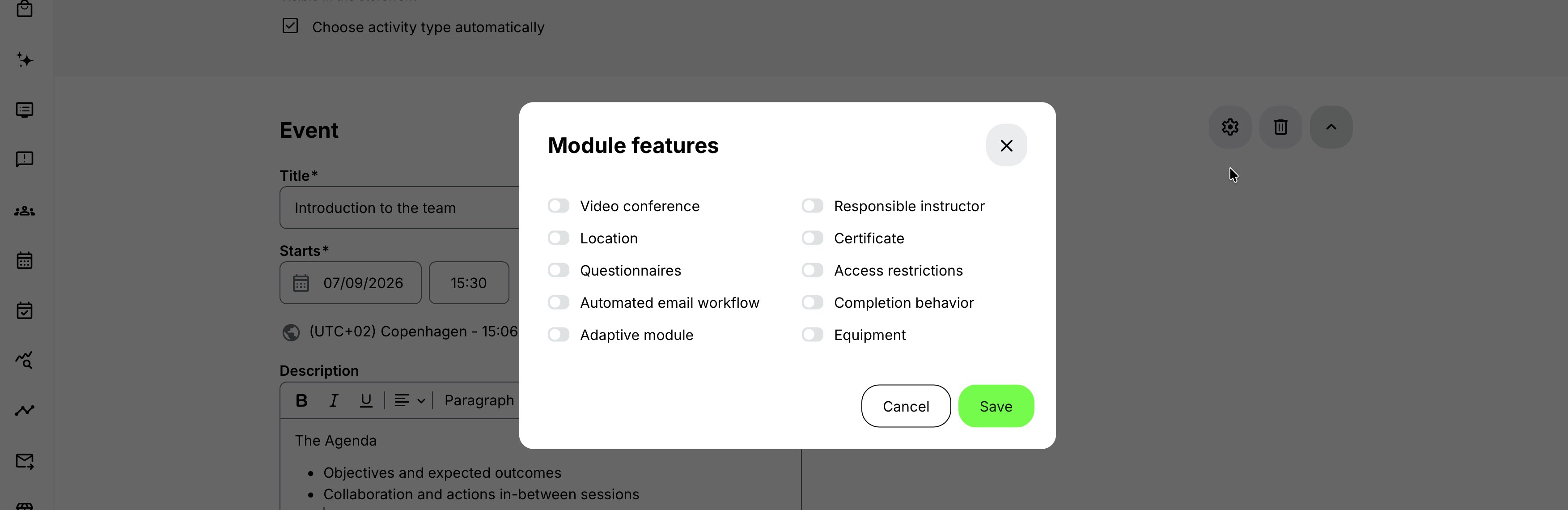
Responsible instructor
Assign the person responsible for facilitating the module. Module-level responsibility differs from the activity-level Course administrator and Instructor roles:
- The responsible instructor is associated with this specific module.
- Activity-level responsible users oversee the complete Training Activity.
- Both can influence where the activity appears for instructors and who can access participant progress and facilitation tasks, according to role permissions.
Use See availability before confirming the schedule. The availability view can combine the instructor, location, and equipment bookings for the week containing the event.
If My Availability is enabled, instructors can block time for leave, travel, preparation, or other commitments. Administrators can review and manage availability from Course Administration → Availability. Availability blocks can also synchronize to Outlook when the Microsoft integration is configured.
Eurekos warns about—or, depending on the resource and platform configuration, prevents—conflicting bookings. Resolve the conflict deliberately rather than assuming that a saved event guarantees every resource is free.
For more detail, see Availability.
Location
Select a pre-created location for classroom or venue-based delivery. Location details can appear on the activity description, confirmation of enrollment, event details, calendar exports, and participant-facing views.
Before assigning a room:
- Check its availability for the complete event interval.
- Compare its capacity with the Training Activity's seat restriction. A room with lower capacity cannot support a higher activity seat limit.
- Confirm the address, room, contact details, and arrival instructions.
- Remember that location availability and capacity are different checks: an available room may still be too small.
Use On-site location when the instructor will deliver the training at the participant's or customer's site and a pre-created venue is not the appropriate model.
A physical Location remains a module-level configuration. For a learning path, assign the appropriate Location entry to every Course or Event module that requires a physical venue.
The Activity Description creates an activity-level summary from those module assignments. It shows the shared Location when all modules that have a Location use the same entry. It shows Multi-site when two or more distinct Location entries are used. Modules without a Location—including virtual calls—do not affect the result.
Participants can use Modules in this path to see the actual Location and venue link for each applicable session.
For more detail, see Locations.
Equipment
Assign equipment when the event depends on a bookable resource such as a training kit, simulator, vehicle, device set, or specialist hardware.
Event modules always have the Equipment feature available when equipment management is enabled because events have a required schedule. Use See availability to review competing bookings together with the instructor and location.
Depending on platform configuration, a conflicting equipment booking can produce a warning or prevent the event from being saved. If equipment is essential, validate the final booking after saving and before participants are invited.
For more detail, see Equipment.
Video conference
Choose how participants will join a virtual session. The available types can include:
- GoToTraining
- GoToWebinar
- Google Meet
- Microsoft Teams
- Webex meeting
- Webex webinar
- Zoom meeting
- Zoom webinar
- YouTube
- A generic video-conference URL
The list reflects the services configured for your platform. Seeing a service in Eurekos does not guarantee that every account, host, meeting type, or license is available.
Use a native integration
A native integration can create or manage the external session from the Eurekos event. Depending on the service and configuration, it may also generate the join link, register participants, synchronize updates, support calendar invitations, return attendance information, or expose a recording.
Use a native integration when:
- Eurekos should remain the scheduling and enrollment system of record.
- Participants should be registered automatically in the external service.
- Meeting links should be generated rather than copied manually.
- The organization needs consistent update, attendance, or recording behavior.
Native integrations have dependencies outside Eurekos. The connected account must have the necessary permissions and licenses, and the person creating or hosting the event may need a connected user account in Eurekos.
Use a video-conference URL
Select the generic URL option when the meeting is created outside Eurekos, the service does not have a configured native integration, or an existing session must be reused.
Paste the participant join URL—not an organizer, host, edit, or administration URL. Eurekos can present the link through the participant's Join button, but it cannot automatically manage a meeting represented only by a URL.
With a generic URL, administrators are responsible for:
- Creating and updating the external session
- Controlling host and participant permissions
- Ensuring the link remains valid
- Aligning external registration and email behavior
- Uploading and attaching a recording afterward, if required
Choose meeting or webinar
Use a meeting for collaborative training where participants speak, share, work in groups, or interact throughout the session.
Use a webinar for a controlled, broadcast-style experience with presenters or panelists and a larger audience. Webinar availability typically depends on a separate service license and may impose host, panelist, or capacity limits.
The choice changes behavior in the external service; it is not merely a label in Eurekos.
Microsoft Teams and Outlook
When Microsoft is configured, Eurekos can create a Teams meeting link while an Event is created. The Event creator needs a connected Microsoft account and the required Microsoft permissions. The Outlook invitation behavior described below additionally depends on the service-account configuration.
Outlook synchronization is a separate part of the Microsoft integration. When the service account is enabled, Eurekos can send standard Outlook invitations with RSVP options. The recipient does not need to connect a personal Microsoft account. Users can opt in or out through their notification settings, and a configured default calendar can receive the invitation automatically.
When a Training Activity contains several Event modules, each Event is sent as an individual calendar invitation. The invitation can include the webinar URL, location, current schedule, and cancellation information available at the time it is sent.
Synchronization is one way—from Eurekos to Outlook. Declining, deleting, or editing the appointment in Outlook does not update the Eurekos Event. Make operational changes in Eurekos so the learning record and subsequent messages remain correct.
For more detail, see Microsoft, User Profile.
Zoom meetings and webinars
When Zoom is configured, selecting Zoom can create the meeting or webinar, generate the join link, and register enrolled participants. Eurekos controls the schedule and participation; Zoom delivers the session.
Assign a responsible Course administrator who exists in the connected Zoom account and has the appropriate license. This user becomes the host. Webinar creation additionally requires webinar functionality on the Zoom account.
The Zoom session and join link are created asynchronously and can take a few minutes to appear. Participants should join from Eurekos. Changes made directly in Zoom do not update Eurekos and can leave the systems inconsistent.
Zoom may send its own registration and reminder emails. Coordinate those with Eurekos email settings to avoid duplication. Valid, unique participant email addresses are important for registration and identity handling.
For more detail, see Zoom.
Webex, Google Meet, and GoTo
The meeting and webinar options shown for these services depend on the corresponding integration and account configuration. Webex can support automatic recording and attendance behavior when enabled. Google and GoTo services have their own authorization, organizer, and license requirements.
Use the dedicated integration articles to configure each service and verify its meeting creation, participant registration, update, attendance, and recording behavior. Do not assume that all conferencing services exchange the same data with Eurekos.
Recording
A recording extends access beyond the live session and keeps the participant experience inside Eurekos.
For the standard recording workflow:
- Wait until the recording is available.
- Upload it to the Eurekos video archive.
- Edit the event and attach the recording.
- Enable the notification if participants should be emailed when it becomes available.
When the event is upcoming, participants use Join to enter the live session. After the event has ended, the live-session actions are removed. If a recording has been attached, participants can use Open recording from the event.
Recording engagement and live attendance are separate data points. Decide whether viewing a recording should satisfy the same learning or certification requirement as live attendance. Some integrations, including configured Webex scenarios, can apply service-specific attendance behavior to recording viewers.
When Webex automatic recording is enabled, its recording setting replaces the standard manual recording field during event creation. Once generated, the recording can become available through the Eurekos event.
For long-term learning value, review the recording before publishing it, remove sensitive material where necessary, and add an accurate title, subtitles, or transcript in the video archive.
For more detail, see Video archive.
Reselling Gateway private events
When an activity uses Reselling Gateway, the buyer can select the dates and times of connected Calendar Events during checkout. Eurekos then creates a private cloned Training Activity for that purchase.
The cloned Event keeps the selected schedule, but webinar and conference links from the original template are cleared. This prevents separate customer deliveries from sharing the template's live-session link. An administrator or authorized buyer must therefore create or add the correct meeting link for the private delivery. This approach simpler to manage with in-person meetings.
Manage attendance, participants, updates, and the commercial record on the clone rather than on the original Storefront template.
For more detail, see Reselling Gateway, Transactions.
Certificate
Attach a certificate to the Event module when this specific event represents the certifying achievement—for example, attendance at a mandatory practical workshop.
In a multi-module learning path, use an activity-level certificate when the credential should represent completion of the complete journey. Configure the certificate and its issuance criteria before assigning it.
Do not assume that enrollment in the event is sufficient for issuance. Test the relationship between attendance, completion behavior, questionnaire requirements, and certificate criteria.
For more detail, see Re-certification, Certificates.
Questionnaires and feedback
Connect a questionnaire when participants or instructors should provide structured information around the event. Common uses include:
- Pre-event needs or accessibility questions
- Post-event participant feedback
- Instructor observations
- Practical assessment or confirmation
- Consent or compliance evidence
Define who responds, when it becomes available, and whether submission is required for completion or certification. Keep the questionnaire design and reporting logic in the dedicated feature rather than placing all questions in the event description.
For more detail, see Training Feedback, Introduction to Questionnaires and Common Use Cases.
Access restrictions
Use module-level access restrictions when enrolled participants may see the learning path but must meet criteria before they can join this event.
Examples include:
- Complete a preparation course before entering a live workshop.
- Pass an assignment before attending an assessment session.
- Acquire a required Skill before accessing an advanced event.
- Match an approved profile or organization rule.
When restrictions are active, the participant can see See requirements instead of Join until the criteria are met. With supported integration configuration, registration in the external service can also be delayed until access is granted.
Use activity-level enrollment restrictions when the participant should not enroll in the Training Activity at all before meeting the criteria. Use module-level access restrictions when enrollment is allowed but this event must remain locked.
For more detail, see Access restrictions.
Automated email workflow
Connect an automated email workflow when communication must be more sophisticated than the built-in event reminder.
Typical scenarios include:
- Send preparation instructions several days before the event.
- Notify an instructor when minimum seats are reached.
- Follow up differently with attendees and absentees.
- Send feedback or certificate instructions after completion.
- Escalate an incomplete prerequisite shortly before the event.
The workflow is created in the dedicated automation area; the module setting connects it to this Event module. Review the complete communication journey together with system emails, the built-in reminder, Outlook invitations, and conferencing-service emails.
For more detail, see Automated Email Workflows.
Completion behavior
The standard behavior completes the module when its configured completion criteria are fulfilled. Enable Completion behavior when the participant experience must differ:
- Don't show congratulations message keeps normal progress and completion but suppresses the completion message.
- User confirmation is required waits for the participant to select Complete after the normal criteria have been met.
Use participant confirmation only when it adds meaningful evidence. It should not replace attendance marking when the organization needs an instructor-confirmed attendance record.
Adaptive module
Use Adaptive module to make an event recommended, optional, or conditionally presented for particular participants. An event marked Always optional remains visible but is excluded from progress tracking.
This is useful for optional office hours, alternate regional sessions, or an advanced live clinic that only applies to part of the audience. For participant choice between complete date or location alternatives, an Existing Training module or recurring-activity structure is often more appropriate.
For more detail, see Recurring events and activities, Existing Training (nesting), Adaptive Modules.
Understand the participant experience
An enrolled participant encounters the event as part of the Training Activity in Learn mode. Depending on its configuration, they can see:
- The event title, description, date, and locally adjusted time
- The instructor and physical location
- A Join button for a configured virtual session
- See requirements when access restrictions are not yet met
- Add to calendar or synchronized Outlook invitation behavior
- An Open recording button after the event when a recording is available
- Questionnaire, certificate, or completion actions connected to the module
The participant must be enrolled in the Training Activity and have access to the Event module. Knowing the conferencing URL is not a substitute for Eurekos enrollment or for meeting configured access criteria.
For events created directly in Calendar, optional Calendar-specific settings can let the participant cancel or report that they will not attend before the configured deadline. These actions are separate from cancelling registration in a Training Activity.
Edit or reschedule an event
Edit the event in Eurekos, especially when a native conferencing or calendar integration is in use. Eurekos is the operational source of truth; changes made only in Zoom, Outlook, or another external service may not return to Eurekos.
When you change the schedule or location of an activity or Event module, Eurekos can prompt you to notify enrolled participants. The prompt appears when there is at least one active signup and the Training Activity is Open, Closed, or In progress. Select the notification option when the change affects attendance or preparation.
After saving, verify:
- The new time is correct in the intended time zone.
- The event remains inside the activity schedule boundaries.
- The instructor, room, and equipment are still available.
- The external meeting or webinar has been updated.
- The participant Join action still points to the correct session.
- Connected calendar invitations reflect the change where synchronization is enabled.
- Any reminder or automated workflow now uses the intended timing.
Do not create a second event merely to correct an existing one unless you deliberately need a new occurrence and new reporting record.
Work with schedules and resource limits
Several Event modules in one activity
A learning path can contain any number of Event modules. Each event retains its own schedule, time zone, reminder, facilitator, location, conferencing, attendance, and recording behavior.
If the activity-level Schedule feature is enabled and its dates are blank, the activity range is derived from the earliest scheduled module start and latest scheduled module end. If explicit activity dates are entered, all modules must remain within them.
Allocated time
Some platforms use the activity-level Allocated time feature to define the number of event minutes available for an activity.
When the corresponding validation is enabled:
- Events in the same activity cannot overlap. Adjacent events are allowed.
- Time zones are considered when checking overlap.
- Event creation can be prevented when the remaining allocated time would be exceeded.
- The allocated amount cannot be reduced below time already used.
On configurations that use Ready for invoicing, event duration can be counted when the event reaches that status. The exact workflow is platform-specific.
Event operations limit
Some customer configurations impose a last date and time for event operations. This can prevent an Advanced Instructor from creating or updating an event that overlaps or occurs after the configured cutoff. The limitation is role- and configuration-specific and does not apply universally.
If a user can see an activity but cannot schedule the expected event, check role permissions and platform-specific event restrictions before changing the activity design.
Calendar navigation disabled
Event availability can be governed at platform level. On a platform where Calendar navigation is disabled while activity events already exist, administrators can still reach those events through the Training Activity and learners can access them in Learn mode.
Common event designs
| Event design | Configuration | Important consideration |
|---|---|---|
| One virtual webinar | Create one Training Activity with one Event module. Add the schedule, webinar integration, responsible Course administrator, reminder, attendance behavior, and recording plan. | Use self-enrollment and Registration Details at activity level when seats or registration deadlines apply. |
| Blended onboarding program | Create a learning path with a preparation Course module, a live Event module, and a follow-up Assignment or Questionnaire. Restrict access to the Event until the preparation module is complete. | Issue the certificate at activity level when it should require completion of all mandatory modules. |
| Multi-session instructor-led program | Create one Event module per session. Assign the appropriate instructor, location, equipment, and conferencing method to each module. Enable the activity Schedule feature so the complete program is presented as scheduled. | Use Automated Email Workflows for preparation and follow-up communication across the series. |
| Classroom workshop with limited equipment | Enable Registration Details and set a seat limit. Add the Event module, assign a pre-created location and equipment, and review their combined availability. | Ensure the room capacity supports the activity seat limit. Mark attendance after the Event and use it for certification where required. |
| Participant choice between dates | Create separate scheduled Training Activities for the available dates and present them through an Existing Training module or recurring-activity structure. | This keeps each cohort operationally separate while giving participants a controlled choice of dates. |
| Live Event followed by on-demand access | Create the Event with its live conference configuration. After delivery, upload and attach the recording and notify participants. | Decide whether watching the recording counts as learning evidence, and retain live attendance as a separate measure where required. |
Verify the configuration
Use representative accounts and the routes enabled for your delivery. Check the relevant outcomes before launch and after a material change; an administrator preview alone does not verify the participant experience.
| Scenario or check | Expected result or evidence |
|---|---|
| Event model and dates | Confirm whether this is an Event module or an event created directly in Calendar. Starts, Ends, time zone, and activity boundaries represent the intended session. |
| People, venue, and resources | The responsible administrator and instructor are correct. Instructor, Location, and Equipment availability is checked, and room capacity agrees with activity Seats. |
| Online joining | For virtual or hybrid delivery, test the chosen meeting type, host account, permissions, and license. A non-administrator participant can join through the intended route. |
| Learning evidence | Attendance, completion, certificates, feedback, recording, and access restrictions work together. Test an eligible and an ineligible participant. |
| Registration and communication | The relevant activity or Calendar-level rules govern registration, cancellation, waiting list, approval, and payment. Invitations, reminders, workflows, and conferencing messages do not contradict or duplicate one another. |
| Rescheduling | The delivery team knows who updates dates and external meetings and how affected participants will be notified. |
FAQ
-
What is the difference between an Event module and a Calendar event?
An Event module is a scheduled component in a Training Activity's learning structure. A Calendar event is the scheduled occurrence represented in Calendar. Events can also be created directly from Calendar without becoming modules in the learning path; those events have some Calendar-specific participation controls.
-
Should I create the meeting in Eurekos or in the conferencing service?
With a native integration, create and manage the event in Eurekos. Eurekos controls scheduling and participation while the external service delivers the session. With a generic conference URL, create the meeting externally and paste the participant join URL into Eurekos.
-
Why is the Join button missing?
Check that the participant is enrolled and has access to the module, the event has a valid conferencing configuration, and any access restrictions have been met. For an ended event, the live Join action is removed; Open recording appears instead when a recording is available. With Zoom or Microsoft Teams, also check integration permissions, the responsible or connected account, and any synchronization delay.
-
Why did the event reminder not arrive?
Confirm that Remind participants is enabled with a future trigger, the participant has an active enrollment, their email preference is All emails, and the Training Activity has not been cancelled. Also distinguish the Eurekos event reminder from an automated workflow, calendar invitation, or conferencing-service email.
-
Why does the activity appear as Self-paced even though the Event module has dates?
The Event module schedule does not by itself enable the activity-level Schedule feature. Enable Schedule on the Training Activity so the offering is presented as scheduled. Its dates can be derived from the module or modules.
-
Can a participant cancel one event in a Training Activity?
The Calendar-specific cancellation and attendance-reactivation settings apply only to events created directly through Calendar, not Event modules created through Training Activities. Training Activity cancellation and deadlines are governed through the activity's enrollment and Registration details configuration.
-
Can participants attend the recording instead of the live event?
They can view an attached recording after the event, but recording view and live attendance are normally separate data points. Whether a recording satisfies completion or certification depends on your configuration and, for some native services such as Webex, integration-specific behavior.
-
Why can I not select Zoom webinar or another conferencing option?
The service may not be enabled for the platform, the connected account may lack permissions, or the external account may not have the necessary license. Webinar functionality often requires a different license from standard meetings.
-
Can two events in the same activity overlap?
They cannot overlap when activity-level Allocated time validation is enabled. Without that feature, other conflicts can still be reported through instructor, location, or equipment availability.
To create simultaneous events within the same activity, use the module type Existing Training and connect multiple individual enrollment options.
-
What should I do when the event time or location changes?
Edit the existing event in Eurekos, choose to notify active participants when prompted, and verify the external conferencing session and calendar synchronization after saving. Avoid making the change only in the external service.