Connect Training, Purchases and Certificates with HubSpot - Article
Summary
HubSpot integration can place learning and commercial evidence beside the customer relationship. Account teams can see who is learning, what was purchased and which qualifications were earned, rather than consulting disconnected lists. Configure the supported entities, directions, properties and associations deliberately so the CRM evidence remains meaningful.
Use this article to:
- Plan the customer and learning evidence to synchronize
- Configure entities, mappings, credentials and incoming events
- Distinguish transaction types and link records to their contact
- Verify synchronization and historical associations
Design the customer conversation the data should support
An illustrative training provider offers a partner a subscription, a specialist workshop and an additional product. The commercial team needs to distinguish those purchases, while the partner manager also needs qualification evidence. Keeping all of them under an undifferentiated “activity purchase” would lose the useful business story.
The supported Transactions mapping includes Product title, Product type and Transaction date. These allow a HubSpot report to distinguish activity, subscription and product purchases and filter by purchase date. A certificate is a separate learning-evidence record, not another name for a transaction.
Establish activation and object design
Ask Eurekos to confirm HubSpot activation and the intended configuration access. Open Settings → Third party integrations → HubSpot when available. You also need an appropriate HubSpot account and an owner who can create properties, configure the integration application and inspect its logs.
Agree the CRM object design before entering property names. Users normally map to the Contact object. The setup also supports mapping transactions and certificates to the configured CRM objects, including a Company-object workaround where custom objects are not available. That workaround stores learning/commercial records in Company records; it must fit your CRM reporting model rather than being mistaken for an automatic customer-company relationship.
Configure the application in meaningful steps
Select Add app. On General, give the connection a recognizable Name and choose the Entities to synchronize: User, Transactions and Certificate. Continue to Data mapping.
| Entity | Supported direction | Information to plan |
|---|---|---|
| User | Eurekos to HubSpot, HubSpot to Eurekos, or two-way | Matching identity, email, names and the supported profile fields |
| Transactions | Eurekos to HubSpot | Transaction identity, user relationship, purchased item, type, date, totals and currency |
| Certificate | Eurekos to HubSpot | User relationship, score, passing/expiry information, type and activity title |
For each selected entity, enter the HubSpot object name and map the relevant fields to HubSpot’s internal property names. Display labels and internal names can differ. In HubSpot Settings → Properties, select the object and inspect the property’s Internal name.
Create the target properties before completing the mapping. For example, use appropriate properties for product title, product type and transaction date; the date is synchronized in YYYY-MM-DD format. The names in your mapping must match the actual configured HubSpot properties. Do not copy a sample internal name unless that property exists in your account.
Choose How to synchronize? for the entity, then continue to Credentials. The connection displays the required OAuth scopes. Incoming HubSpot synchronization also displays the Webhook URL.
Connect HubSpot and incoming events
Use the appropriate HubSpot integration-app administration for your account. Configure the scopes shown by Eurekos, then supply the application’s access token in the Eurekos Access token field. Keep the token private and complete the connection’s Save action.
For HubSpot-to-Eurekos or two-way user synchronization, configure the HubSpot app’s Webhooks with the URL supplied by Eurekos and the required object/event subscriptions. An outgoing connection does not by itself establish that incoming events are configured.
Plan one authoritative direction for any field that could otherwise be edited in both systems. A two-way option is useful only when the business owners understand which changes should be accepted and how conflicts will be investigated.
Make associations useful
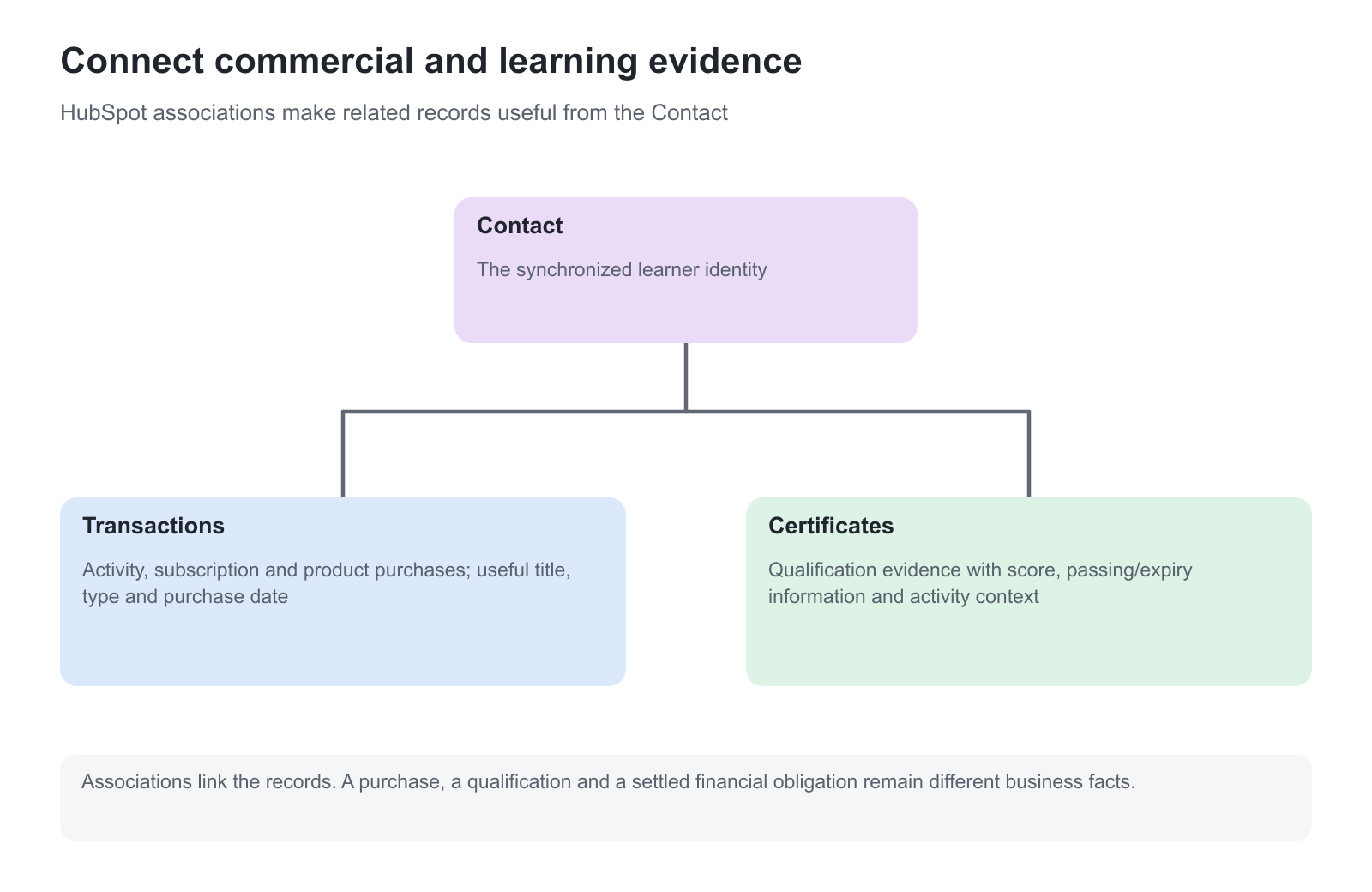
An association links the learner’s Contact with the synchronized transaction or certificate record. Once configured, opening a contact can show the related purchases and qualifications, while opening one of those records can identify its contact.
Associations are established with the supported record-creation flow. For historical records that lack the relationship, Sync associations beside Add app queues the supported association work in the background. It does not mean the complete synchronization has finished at the moment the button is selected. Inspect the resulting records after processing.
This gives account teams useful context for renewal, progression and relevant follow-up. A subscription purchase can signal a continuing relationship; a qualification can identify a trained partner. Neither guarantees a sale, replaces training access rules or proves that a separate financial obligation has been settled.
Operate and investigate the connection
Use the HubSpot app’s Logs to inspect provider-side activity. Eurekos Support can inspect the platform’s relevant integration logs where needed. Record the entity, direction, time and expected record rather than reporting only that “HubSpot is missing data.”
Check properties as well as record existence. A transaction can appear with a missing product type because a target property was not created or mapped correctly. A correct transaction can still be difficult to use if its contact association is absent.
Verify the configuration
| Scenario or check | Expected result or evidence |
|---|---|
| A representative user is created or updated | The intended Contact and mapped values follow the configured direction |
| Each applicable purchase type is tested | Activity, subscription and additional-product transactions remain distinguishable |
| A purchase record is inspected | Correct product title, type, transaction date, currency and user relationship |
| A certificate is earned | A separate certificate record links to the correct Contact |
| Historical associations are queued | Missing supported relationships appear after background processing |
| Incoming user updates are required | Webhook events and the resulting Eurekos record demonstrate the incoming flow |
Troubleshooting
| Problem | What to check |
|---|---|
| HubSpot is absent from Settings | Confirm optional activation and delegated access with Eurekos |
| A mapped value is empty | Check the target object, property existence, internal name and source value |
| Purchases cannot be distinguished in reports | Map Product type, Product title and Transaction date to suitable properties |
| A transaction or certificate has no contact relationship | Check identity mapping and supported associations; use Sync associations for the applicable historical case |
| Outgoing synchronization works but incoming changes do not | Check direction, webhook URL, event subscriptions and provider logs |
| Save succeeds but records are absent | Inspect credentials, scopes, mappings and background-processing evidence |
FAQ
-
Can HubSpot distinguish subscription purchases from activity purchases?
Yes. The supported transaction mapping includes Product type, Product title and Transaction date, covering activity, subscription and additional-product purchases.
-
Does Sync associations finish immediately?
It queues supported association work for background processing. Verify the resulting contact relationships after that work has completed.