Automated Email Workflows - Article
Automate your course administration and increase engagement with pre-defined email notifications
One of the continuous tasks as a course administrator is to ensure a constant flow of information prior start, during and potentially after registration to the training activity. Avoid having long lists of things to do, and manually send out additional information at the right intervals.
- Automate to minimize administration to follow-up or send out information, that has been pre-created, based on rules and trigger events.
- Provide a better user experience and quality over time, as you improve the communication and consistency.
Creating an email workflow
Automated email workflows are related to a training activity by sending a series of predefined emails activated by events such as “time before”, “time after”, “upon event”, “missed deadline” and so on. At the very least, this minimizes the time and effort for course management and makes it possible to potentially fully automate processes across thousands of participants.
- You can create an automated email workflow, as a template and use it across any similar training activities.
- You can create a workflow designed for each of your training activities, clone them and customize them even for specific clients though this method.
- Personalize emails using dynamic tokens and information, as part of your messaging.
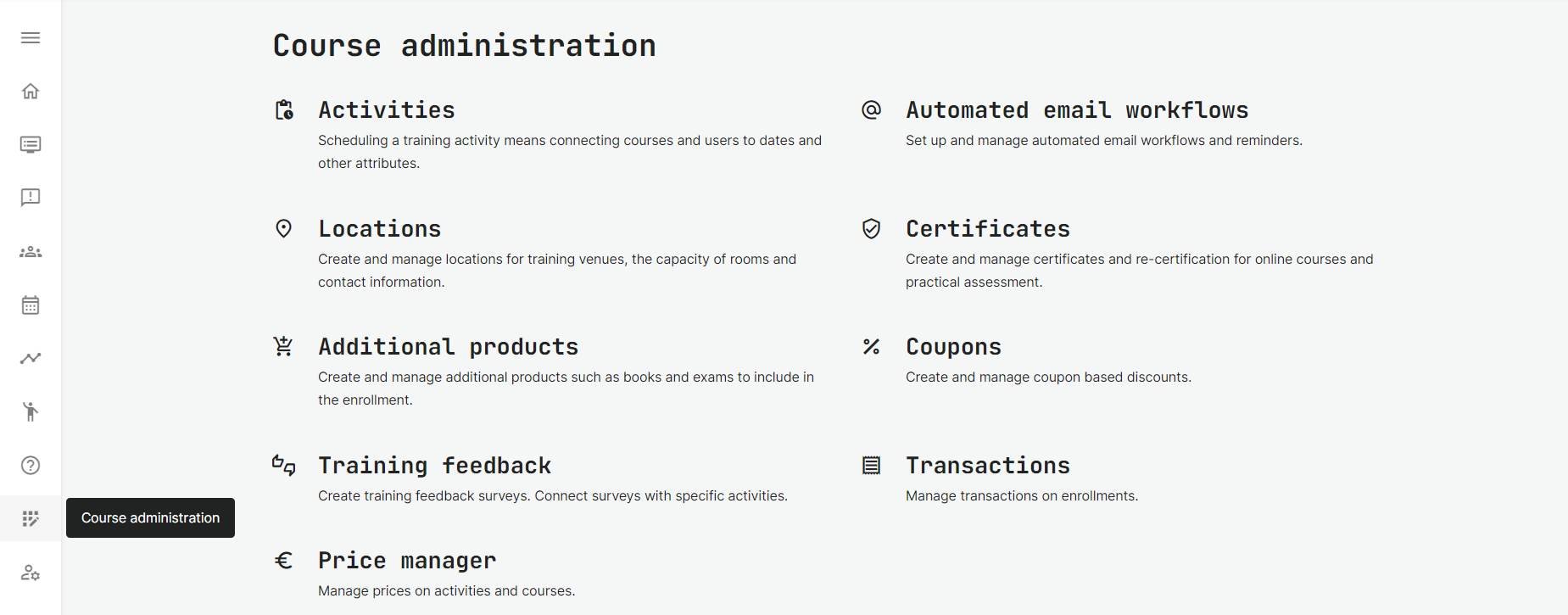
To create a new automation, Go to the Course Administration → Automated Email Workflows. Each workflows can include as many email notifications (rules) as desired.
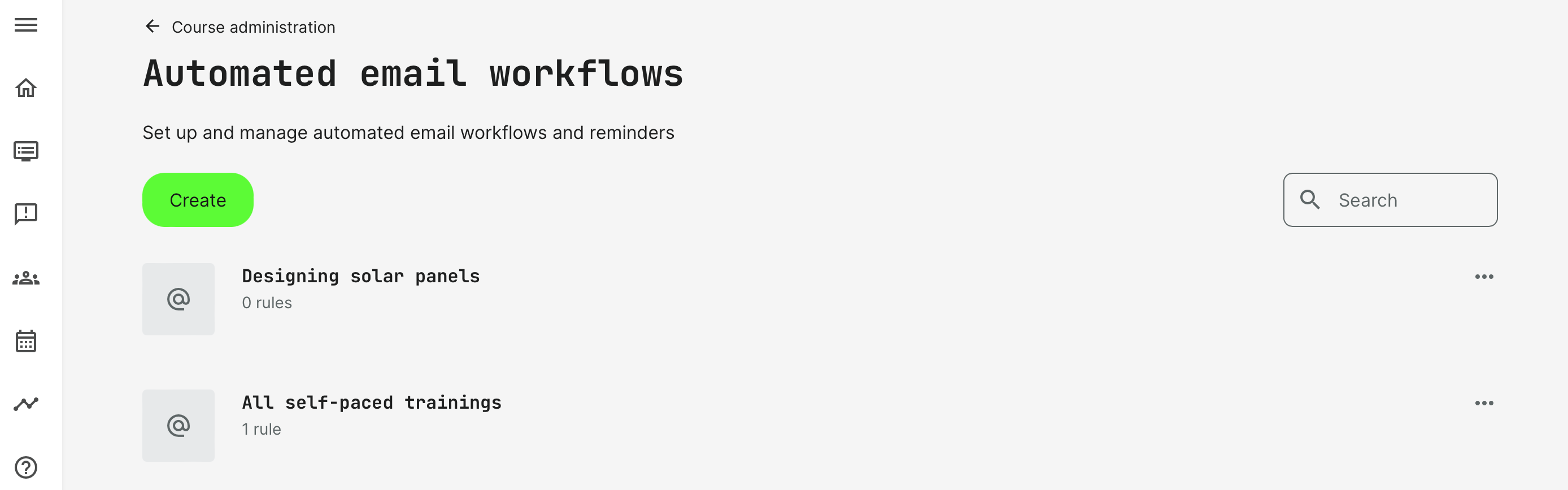
Within each of your automated email workflows, you can add the rules you need to support a particular training activity.
Creating rules
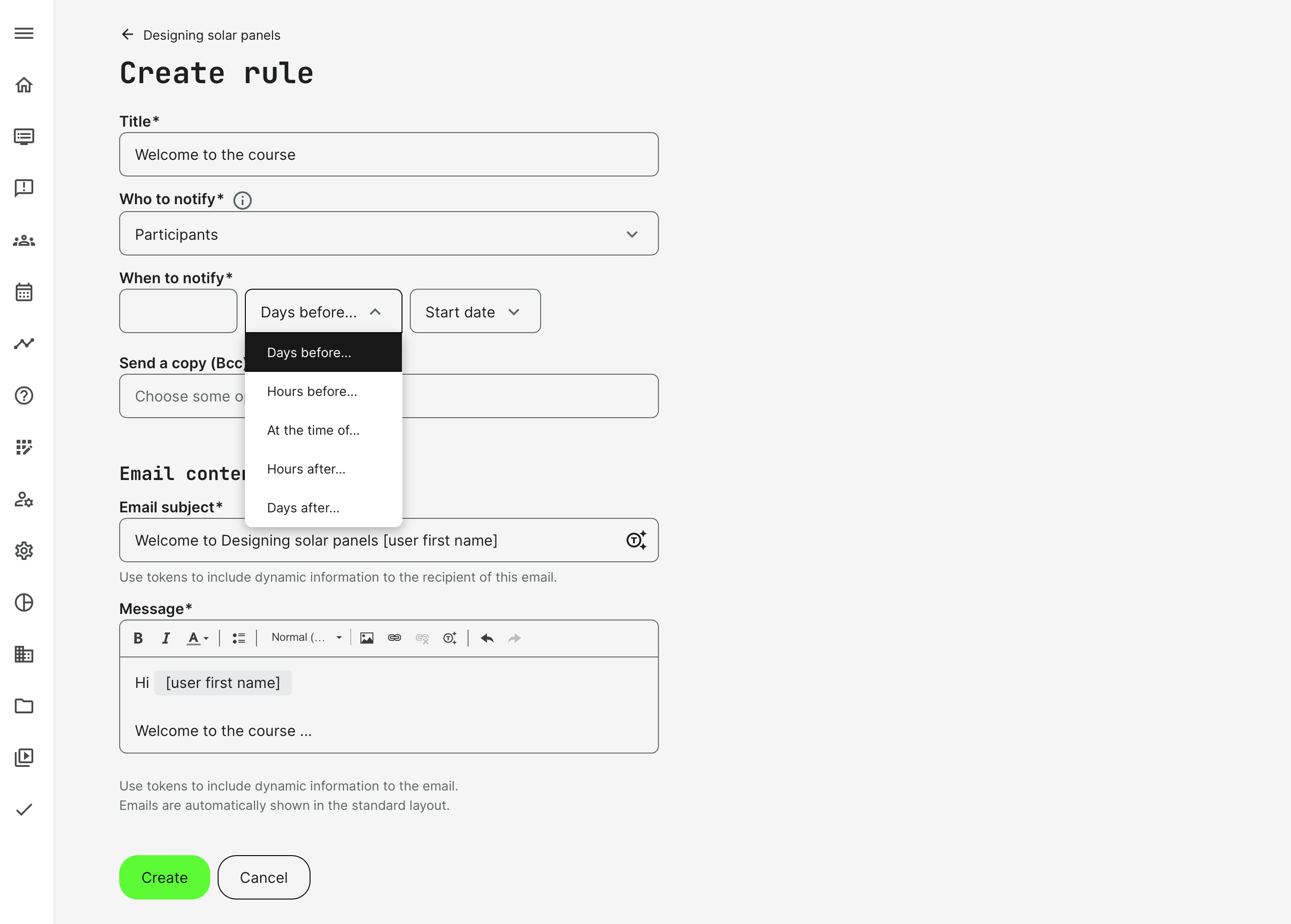
Designing rules lets you create a very broad range of combinations, based on logic, audience and what we chose to call triggers or events. The combination of these can be used creatively to achieve notifications for many scenarios.
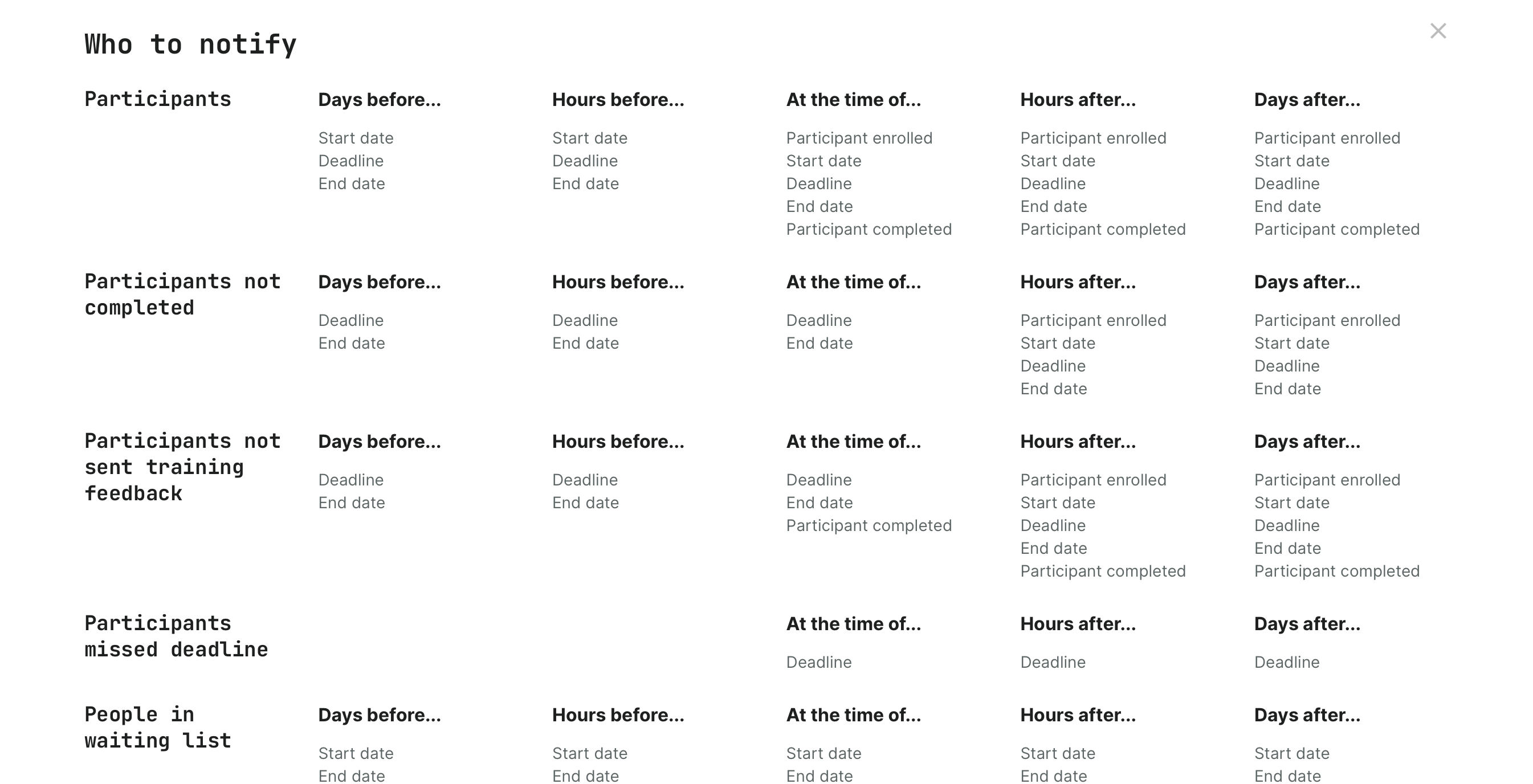
Make sure you design possible outcomes. The system allows you to create these in any order that you want and create any type of scenario and we cannot check if you have designed or even subsequently edited a training activity, which makes a previously created email rule non-executatable.
You are solely responsible for creating email rules, that are possible to execute. E.g., if you execute upon a schedule, but the training activity has no schedule, we cannot send out an email. Thus, the rule will be ignored. The information that the rule was ignored, can be supervised in the training actiivty.
- Who: choose from the list of options, representing your audience and includes:
- Participants.
- Participants not completed.
- Participants not sent feedback.
- Participants missed deadline.
- People in waiting list.
- Course administrators (set as responsible in features).
- Instructors (set as responsible in features).
- Organization Managers.
- Immediate manager.
- Email (custom).
- When: which this information is triggered and includes:
- Days before...
- Start date.
- Deadline.
- End date.
- Hours before...
- Start date.
- Deadline.
- End date.
- At the time of...
- Participant enrolled.
- Start date.
- Deadline.
- End date.
- Participant completed.
- Hours after...
- Participant enrolled.
- Start date.
- Deadline.
- End date.
- Participant completed.
- Days after...
- Participant enrolled.
- Start date.
- Deadline.
- End date.
- Participant completed.
- Days before...
- Email using the tokens for including dynamic information to the subject field and the body. Tokens include:
- Alert title (course admin reminder function).
- Activity title.
- Activity start date.
- Activity end date.
- Activity cancellation date.
- Activity instructor.
- Activity location.
- Activity certificate.
- Activity leave feedback button.
- Activity allocated time.
- Activity course ids.
- Activity course titles.
- Activity description title.
- Module title.
- Module start date.
- Module end date.
- Module instructor.
- Module location.
- User full name original.
- User first name.
- User last name.
- Signup user full name.
- Signup created.
- Signup deadline date.
Take care and use the right tokens for activity and module level information, to provide the right information in your rules. Consider where they are used and which token to apply.
For example, if a learning path has a schedule across 3 weeks, but each event module has a 4 hour schedule, different instructors and an individual start date, then use the module level tokens for that automation rule.
Connect the email workflow to an activity
Email workflows exist as pre-defined templates, you can connect to your training activities through features → Automated email workflow. Then pick the one you require.
It is possible to choose it on both module and/or activity level. It means that multiple email workflows can be used in one training activity.
- Connect on module level, if you only have one course module or event in the training activity. Do this via the gear icon on each module that supports automated email workflows.
- You can have an automated email workflow set for each of your modules, if you are designing a learning path. This is great for having different types of processes for complex training needs, which need different reminders to flow through each part of your journey, as required.
- Connect on activity level if you have a program/learning path, but don't need individual workflows on granular level for each connected training module.
Reminders for Course Administrators
When the Who is a set to be Course Administrator, this adds a an additional field in the creation of automation rules, which represents a reminder/task list.
This applies only to the system role of Course Administrator.
- The system role of Course Administrator has a special feature to receive email reminders and complete these on their home screen. This helps manage and facilitate training activities.
- The Course Administrator need to be set to be responsible in the training activity, and rules can be defined up as part of the automated email reminders.
- The reminder is shown on the home screen of the Course Administrator just above the calendar showing scheduled training and the actions to be executed.
- The tasks can be ticked completed/uncompleted and are related to each training activity , to help the Course Administrator to keep track of the actions to complete either prior, during or after scheduled training.
- If the responsible Course Administrator is replaced with another one in the training activity, the tasks are automatically transferred to the replacement.
FAQ
-
Why does the automated email show “anonymous” instead of the user’s name?
Please check the “Who to notify” field in your automation rule. If you select Email in the “Who to notify” drop-down, use the token [signup:user_full_name] in the Message * field. This token returns the full name of the participant.
For reference, the token [user:full_name_original] displays the name of the user selected in “Who to notify.”