Progress - Article
Summary
Progress Analytics provides a unified, role-based view of learner progress across activities, modules, events, and certifications. It enables participants, instructors, and administrators to monitor completion, time spent, certification status, and re-certification readiness.
In this article you will learn:
- How Progress analytics tracks completion and progress across learning activities
- How administrators and instructors monitor learner status and outcomes
- How progress data includes time spent, certification status, and re-certification readiness
- How progress analytics supports operational oversight and compliance monitoring
Purpose and Scope
Progress is designed to answer one of the most fundamental questions in learning operations:
“Where do learners stand—right now—and what does that mean?”
This view combines progress status, time spent, completion logic, certification lifecycle data, and organizational context into a single navigable experience. Unlike isolated course views, it reflects the authoritative state of learning progress across native content, instructor-led activities, SCORM packages, xAPI content, events, and administrative actions.
It is particularly valuable for:
- Participants monitoring their own learning journey
- Instructors supervising activities they are responsible for
- Course administrators managing delivery, attendance, and exceptions
- Compliance owners and managers overseeing readiness and re-certification
Progress is attempt-aware, ensuring that progress, completion, and certificates always reflect the learner’s current enrollment or re-certification cycle, not historical attempts.
Role-Based Perspectives and Access
Progress visibility and available actions depend on role and responsibility:
- Participants: See their own progress, time spent, completion status, certificates, and upcoming re-certifications
- Instructors: See progress and attendance for activities they are responsible for, including participant-level drilldowns and attendance marking where enabled
- Course Administrators: Access operational controls such as attendance marking, force completion, administrative comments, and participant oversight
- Platform / Global Administrators: Have cross-organization visibility and full audit access, subject to organization-layer configuration
This role-based design ensures transparency without overexposure, and aligns with governance and data-access requirements.
How Progress Is Calculated
Progress & Statistics aggregates learning signals from multiple content and delivery types into a consistent progress model:
- Native content (pages, videos, audio, H5P): Progress is based on learner interaction and completion logic defined in the activity
- Instructor-led events: Progress and completion are driven by attendance marking
- SCORM content: Completion, score, and time are reported via the SCORM runtime and reflected at activity and module level
- xAPI content: Statements are recorded in the Learning Record Store (LRS) and surfaced at page, module, and activity level
- Time spent: Accumulated across interactions but does not alone imply completion
This ensures that progress reflects actual learner behavior, regardless of content format or technical implementation.
Progress Views and Drilldowns (Activity-Centric Navigation)
Progress & Statistics is always anchored to a specific training activity. The view does not start from a global learner or program overview—instead, it answers the question:
“What is the progress status for this activity, and how does it look from my role’s perspective?”
From that shared entry point, the same activity data is presented differently depending on who is viewing it:
- Learners see their own progress for the activity, including completion status, time spent, module-level breakdown, and certificates earned
- Instructors see aggregated progress across participants they are responsible for, allowing them to assess learning momentum, identify learners who are falling behind, and manage delivery-related actions such as attendance marking
- Administrators and managers see supervisory metrics across all authorized participants for the activity, including distributions of progress, deadlines, certifications, and time investment
Within an activity, navigation follows a consistent drilldown pattern:
- Activity overview shows aggregated KPIs such as progress distribution, time spent, deadlines, and certification status (or individual status for learners)
- Module-level views break the activity into its components—courses, events, assignments, existing training, H5P, SCORM, or other modules—showing how progress and time are accumulated
- Participant-level views (where permitted) allow supervisors to drill into an individual’s progress within the activity, without losing the activity context
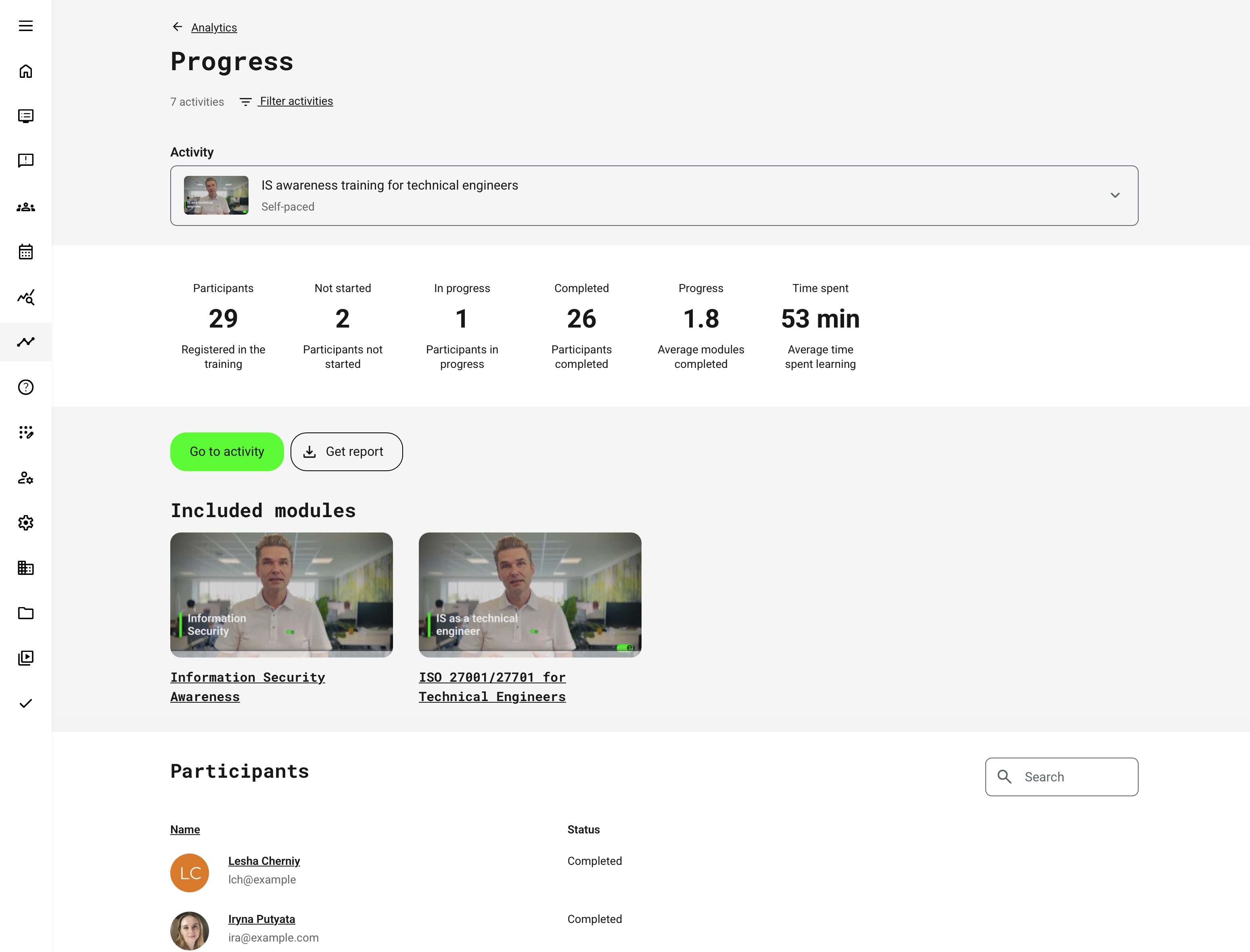
Throughout this navigation, filters can be applied—such as date range, status, or module type—to refine what is shown. These filters adjust the metrics within the same activity rather than changing the scope to unrelated content.
This design ensures that all users—learners, instructors, and administrators—are always looking at the same activity, but through a role-appropriate lens that supports self-tracking, supervision, or operational oversight without fragmenting the experience.
Main Statistics Page Rubrics by Module Type and Role
The following is a quick-reference of what the main Progress page shows (“top rubrics”) by module type, split by Participant vs Administrator / Instructor, etc. (supervision).
| Module type (activity structure) | Participant view – what the top rubrics show | Admin / Instructor view – what the top rubrics show |
|---|---|---|
| Single Course module (native course) | Personal progress through the course content. Rubrics summarize your engagement across the course objects, typically: Pages, Videos, Audios, Tests (shown when used), plus your overall status/progress for the activity | Aggregated course engagement and progress across participants. Rubrics focus on how the cohort interacts with the course objects: Pages, Videos, Audios, Tests (when used), plus cohort-level progress context (e.g., participation/progress distribution and totals, depending on configuration) |
| Single Event module (ILT/webinar) | Your completion context for the scheduled session: your activity status (Not started / In progress / Completed), and attendance-related status when applicable (e.g., marked attended) | Operational delivery overview across participants: cohort status distribution, and (where configured) attendance and webinar recording visibility to support delivery follow-up and compliance checks |
| Single Assignment module (Submissions view) | Your submission lifecycle: whether you have submitted, and the outcome/feedback signals that apply to the assignment setup | Assessment throughput overview: rubric-style visibility into the submissions state across learners and the administrative “work queue” nature of marking/review (with drilldown into submissions) |
| Existing Training module (ET) | Your progress in the referenced/linked training. The main activity behaves like a learning-path style overview if the activity contains multiple modules | Two-layer visibility: (1) the main activity shows the learning-path style overview when relevant, and (2) when opening the ET module statistics, admins see the statistics of the referenced activity, including signups that exist in that referenced activity (not only the “main” activity). The exact rubrics mirror the referenced module type (course/event/assignment/etc.) |
| Learning Path style (2+ modules) | A single consolidated snapshot of your journey across modules: Not started / In progress / Completed plus overall Progress (designed to summarize a multi-module path rather than object-level detail) | The same consolidated snapshot, but interpreted as a cohort-level dashboard: Participants plus Not started / In progress / Completed and overall Progress—used to quickly identify friction points and where learners are stalling across the path |
| SCORM course module (external package) | The main page emphasizes SCORM completion signals rather than native object rubrics: high-level completion/progress for you, and SCORM outcome indicators (e.g., completion/pass state and score when reported by the package) | A cohort-level summary of the SCORM package outcomes (completion/pass/score/time where reported). Because SCORM data depends on what the package reports, the visible “rubrics” skew toward attempt/outcome indicators rather than pages/videos/tests |
Intent of This Behavior
The same Progress and Statistics page is designed to answer different questions depending on who is viewing it and how the activity is structured.
- Participants use the page to understand their own status: “How am I progressing in this activity, and what do I need to do next?”
- Administrators and Instructors use it for supervision and insight: “How are participants progressing overall, where are they getting stuck, and which parts of the activity require attention?”
What appears at the top level is determined by the module types included in the activity, including whether adaptive logic is used. Each module type exposes the rubrics that best reflect learning intent and progress:
- Course modules surface object-level engagement (Pages, Videos, Audios, Tests) alongside overall progress and completion
- Event modules emphasize attendance, webinar recording engagement (if enabled), and completion status
- Assignment modules focus on submissions, assessment status, and review actions
- Learning Path–type activities present a consolidated progress view across multiple modules and stages
- Existing Training modules mirror the progress and statistics of the referenced activity or module
- Adaptive modules dynamically reflect only the content paths that were actually triggered for each participant. This means:
- Optional or conditional modules appear in progress views only when activated
- Progress and completion reflect relevance, not a fixed curriculum
- Supervisors see aggregate outcomes shaped by adaptive decisions, not artificial “missing” steps
As a result, the page always reflects the real learning journey, not just the theoretical structure. Progress, completion, and time spent are shown in the context of what learners were expected to do, based on role, configuration, and adaptive design.
This ensures the same interface remains meaningful for personal orientation, instructional follow-up, and administrative oversight—while accurately representing adaptive learning behavior.
Participants Section — Columns and Actions by Module Type
The Participants section is always scoped to a single activity. Columns and available actions adapt dynamically based on the module type(s) used in that activity and the viewer’s role.
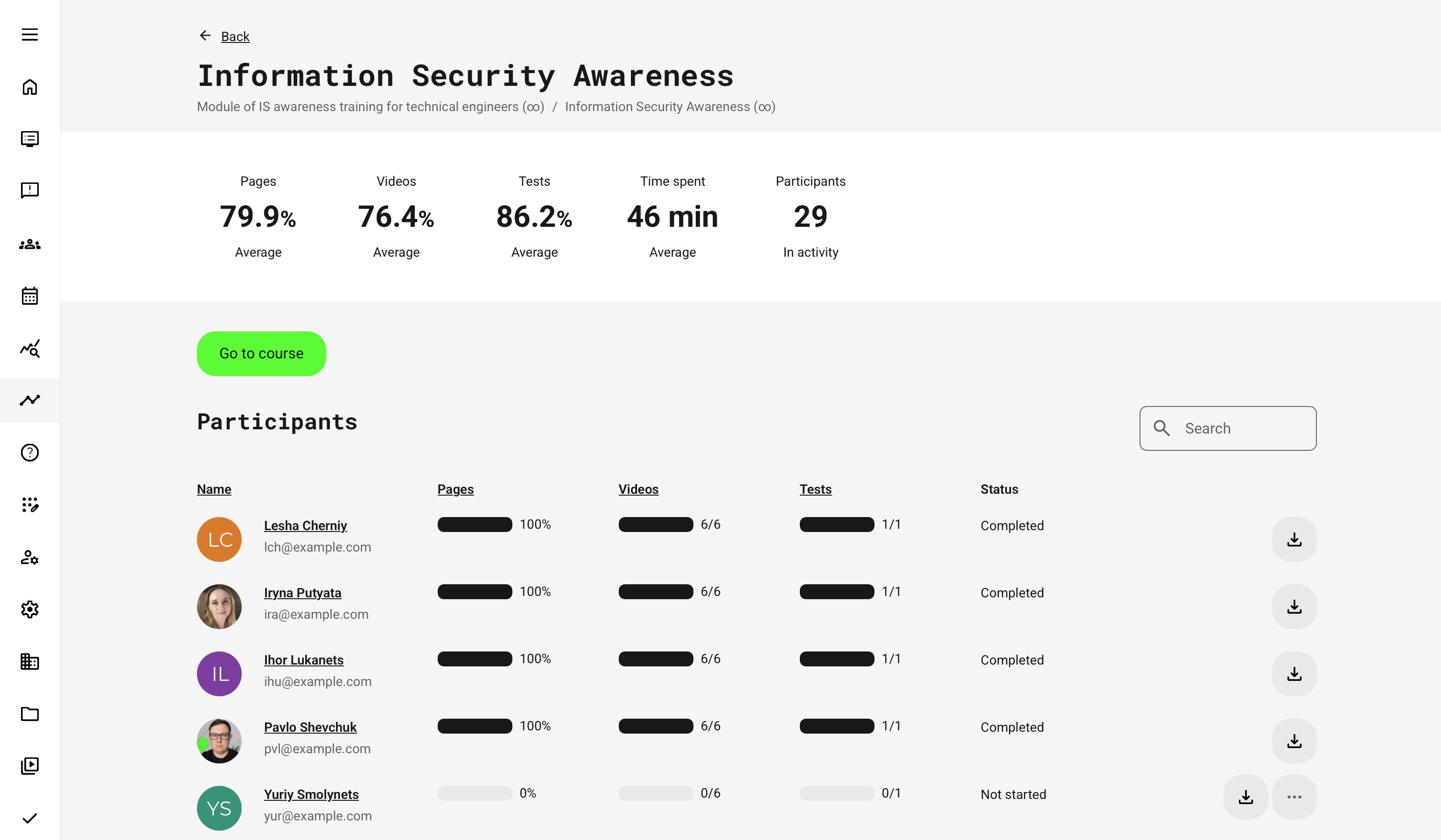
| Module Type | Columns Shown | Actions & Special Indicators |
|---|---|---|
| Single Course Module |
|
|
| Single SCORM Course Module |
|
|
| Single Event Module |
|
|
| Assignment Module (Section labeled Submissions) |
|
|
| Existing Training Module |
|
|
| Learning Path (Multiple modules) |
|
|
| Event Module — Webinar Recording (When added) |
This status is visible both:
|
Notes and Interpretation
- Columns appear only if the corresponding module exists
- Assignment modules intentionally replace Participants with Submissions
- Webinar recording status is tracked separately from attendance
- Certificate and attendance actions are consistently available where configured
Individual Progress View - Details
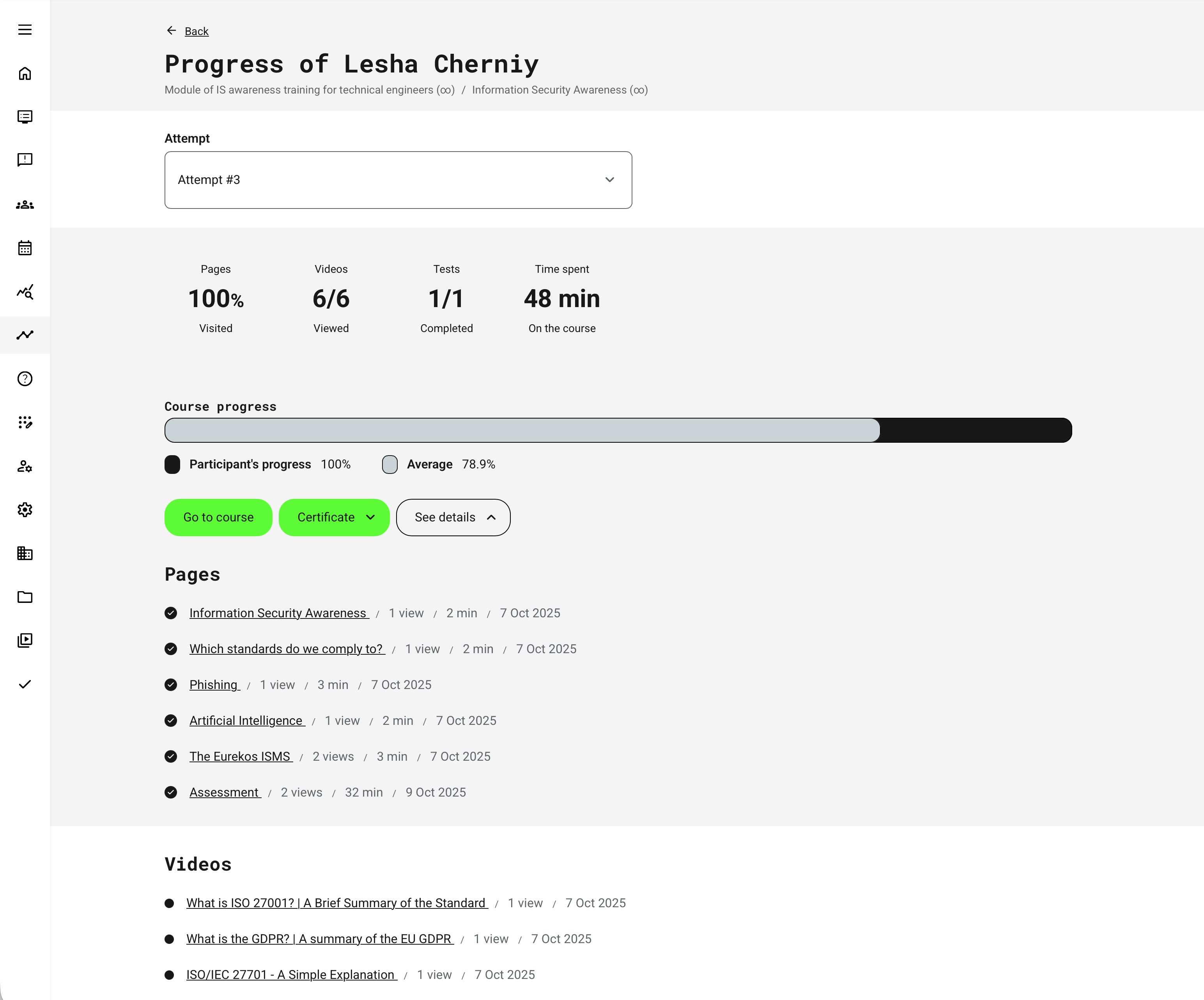
When individual progress is viewed by supervisory roles, each participant can be reviewed in detail—providing context behind aggregated results and enabling deeper assessment of learning behavior and outcomes. The available insights vary by module type, as different content elements generate different metrics.
For natively authored course modules, this view offers especially rich insight, including detailed engagement data such as page and video views, assessment attempts and answers, and document downloads within the course.
How Progress and Completion Are Calculated
Progress and completion are rule-driven, not cosmetic. An activity is only marked Completed when its configured completion conditions are met. These conditions depend on three key factors:
- Module composition (course, event, assignment, learning path, etc.)
- Scheduling (whether an end date exists)
- Certification and/or attendance requirements
This ensures that completion reflects real learning and compliance intent, not just content access. Core completion principles at high level:
- Progress reflects how much of the required learning journey has been completed
- Completion reflects whether all mandatory conditions have been satisfied
- Certificates, schedules, and attendance rules always take precedence over simple content consumption
Completion Logic by Activity Configuration
Activities with Multiple Modules (Learning Paths) at the Activity Level.
| Configuration | When the Activity Is Marked Completed |
|---|---|
| No schedule, no certificate | When all required modules/content are 100% completed |
| Schedule, no certificate | Only after the end date has passed, and required modules are completed |
| No schedule, certificate | When the certificate is issued |
| Schedule and certificate | Only when both conditions are met: certificate is issued and end date has passed |
Single-Module Activity Completion Logic
This is a single course module (standalone or within a Learning Path).
| Configuration | Completion Trigger |
|---|---|
| Certificate enabled | Certificate issued |
| No certificate, scheduled | End date has passed |
| No certificate, no schedule | 100% content consumed |
| Certificate and schedule | Certificate issued and end date has passed |
Event Module (standalone or within a Learning Path)
| Configuration | Completion Trigger |
|---|---|
| Certificate enabled | Certificate issued |
| Attendance marking enabled | Attendance marked |
| No certificate, no attendance | End date has passed |
| Certificate and schedule | Certificate issued and end date has passed |
If an event:
- Has no certificate
- Has attendance marking disabled
- Has an end date
Then the activity is marked Completed after the end date passes, provided any other modules in the activity are completed. This follows the same logic as other scheduled, non-certified activities.
Administrative Overrides: Force Completion and Governance
In certain operational scenarios, instructors and administrators may need to intervene manually to resolve progress or completion states that cannot be handled automatically.
Force completion allows authorized users to mark an activity—or a specific module within an activity—as completed when normal tracking is insufficient or inappropriate. This provides necessary operational flexibility while maintaining governance, traceability, and compliance.
Where Force Completion Can Be Performed
Force completion can be initiated from several places in the platform:
- Progress (Statistics) page
- Activity details page → Participants (Activity signup list)
- Participants (Activity signup list) as a single or bulk operation
The action can be applied to:
- The entire activity, or
- A specific module within the activity
This allows administrators to resolve issues at the correct level of granularity.
Force Completion — Governance and Behavior Overview
| Area | Description |
|---|---|
| When Force Completion Is Typically Used | Force completion is intended for exceptional cases, such as:
|
| How the Force Completion Process Works | When selecting Mark as completed, the administrator is presented with a modal dialog where they can:
Once confirmed:
|
| Audit Trail and Reporting | Every force completion action creates a permanent audit trail:
This information appears in:
Comments are not editable after submission, ensuring integrity of audit data. |
| Option Availability and Governance Rules | The availability of Mark as completed and Revoke completion depends on participant status: Allowed for:
Not allowed for:
For unsupported statuses:
Additional rules:
|
| Notifications and Emails | When force completion is applied, participants receive an automated notification:
These templates are managed under Settings → Translations → Emails. |
| Progress, Percentage, and Data Integrity | Force completion affects status visibility—but preserves learning data:
If force completion is applied to modules used as access restrictions, it immediately unlocks restricted content. |
| Re-certification and Attempts | Force completion applies only to the current attempt:
|
How Time Spent Is Tracked
Time spent represents the actual, active time a learner spends engaging with a course while it is in focus. The platform is deliberately strict in how time is counted to ensure accuracy and avoid inflating engagement metrics.
| Scenario | How Time is Counted |
|---|---|
| Core Tracking Logic | Time is counted only while the course page is actively in focus and the learner is interacting with it. This means:
If the browser is open but the learner interacts with other desktop elements (e.g. clicking outside the browser), time tracking is suspended until the learner clicks back into the course page. |
| Video, Audio, and Assessments |
On mobile devices:
|
| System States and Connectivity | Time tracking responds intelligently to system and network changes:
abc |
| Multiple Devices and Tabs | Time spent is not cumulative across parallel sessions:
|
| External Navigation |
|
| Known Limitations |
|
H5P in Progress, Analytics, and Reporting — Overview
H5P objects in Eurekos are treated as interactive learning and assessment components that can drive progress, restrict access, generate attempts, and produce detailed analytics and reports. How an H5P object behaves depends on its type, configuration, and placement within a course or activity.
- H5P objects contribute to page and activity progress once their completion trigger is met (for example clicking Finish, Check, or completing required interactions)
- Completion triggers vary by H5P type (e.g. viewing all pages, answering questions, clicking a button)
- Progress events are also sent to any connected Learning Record Store (LRS), ensuring consistency across statistics and reporting.
- Different H5P configurations affect tracking behavior, completion logic, and attempts
H5P Progress, Attempts, and Reporting — Quick Reference
| Area | What It Covers | Key Details |
|---|---|---|
| H5P Objects Shown as “Tests” | Which H5P objects appear under Tests on the Statistics page | Includes assessment and interactive types such as: Multiple Choice, Single Choice Set, True/False, Drag and Drop, Drag the Words, Fill in the Blanks, Mark the Words, Question Set, Summary, Arithmetic Quiz, Memory Game, Flashcards, Interactive Video, Course Presentation, and SCORM / xAPI. Only specific technical H5P types contribute to test-level analytics and attempts. |
| H5P Attempts in Analytics | How multiple attempts are tracked and reviewed |
Supported attempt-based H5P types include: Question Set, Multiple Choice, Drag & Drop, Fill in the Blanks, Mark the Words, Single Choice Set, True/False. |
| Save State for H5P | Resume unfinished H5P interactions | When enabled (via Eurekos Service Desk), Save Content State automatically remembers a learner’s progress inside H5P objects:
Resetting state does not remove previous attempts—new attempts are recorded separately. |
| H5P Answers Reports | Detailed reporting on user responses | For supported H5P types, administrators and instructors can generate Answers Reports, showing:
Reports are available for types such as Question Set, Multiple Choice, Single Choice Set, Fill in the Blanks, Mark the Words, True/False, Essay, and Drag Text. |
| Course Presentation & Interactive Video | Special completion behavior |
|
| “Give User Another Try” | Administrative remediation option | When an H5P object has an attempt limit enabled and the learner fails all attempts:
Supported roles include Administrators, Course Administrators, Instructors, Support, Assistants, and Partners. |
SCORM Progress Tracking and Administration
SCORM remains a widely used industry standard for packaged learning content, particularly for legacy courses, externally authored content, and compliance-driven training. In Eurekos, SCORM, xAPI packages, and H5P-based SCORM objects (embedded SCORM objects on a page versus full page) are treated similar to SCORM object for progress tracking, statistics, and reporting—while still respecting their technical differences.
This section explains how SCORM progress is tracked, how it appears in Analytics, and which administrative controls are available to ensure reliable outcomes, governance, and auditability.
How SCORM Progress Is Tracked
SCORM progress tracking depends on signals sent by the package itself and on platform-level configurations.
- SCORM objects track progress after completion or interaction, depending on how the package is authored
- Completion may be triggered by:
- Navigating through all pages
- Passing an embedded assessment
- Reaching an internal “completed” or “passed” state
- Progress data is tracked:
- On the Eurekos platform (for Analytics and Progress views)
- In a connected LRS (where applicable)
Unlike native course modules, SCORM progress is not tracked page-by-page. Instead, progress appears only once the package signals completion or pass/fail.
SCORM Objects in Analytics
| SCORM Type | How It Appears in Statistics | Key Notes |
|---|---|---|
| SCORM Course | Shown as a single module with status, score, time | Uses SCORM and platform statuses |
| H5P SCORM | Shown under Tests | Requires completion or test pass |
| H5P SCORM Bubble | Shown under Tests (if used this way) | Full-page SCORM experience |
| xAPI Course / H5P xAPI | Progress returned from LRS | Limited platform-side tracking |
Definitions
- A SCORM course can be imported as a standalone course module, containing all pages, quizzes, videos, and assessments within the SCORM package itself
- A SCORM package can also be imported into the media library as an H5P SCORM object, which provides two embedding options:
- The H5P SCORM object can be embedded within a course page using the native authoring tools
- The H5P SCORM object can be embedded as a full-page experience using the native authoring tools. This is visualized as a SCORM Bubble. Completion logic is tracked identically to standard SCORM objects
SCORM Status Model
SCORM-based activities expose three parallel status dimensions:
| Status Type | Possible Values | Purpose |
|---|---|---|
| Completion Status (Eurekos) | Unknown, Completed | Content completion |
| SCORM Status | Unknown, Passed | Assessment success |
| Platform Status | Not started, In progress, Completed | Learner progress in Eurekos |
Certificates upon SCORM completion depend on receiving the Passed state for SCORM. However, some packages do not send the Passed state, so Eurekos can force Passed state when SCORM packages doesn't send it. This ensures appropriate analytics and actions
Key Standard SCORM Behaviors
| Behavior and options | What It Affects |
|---|---|
| Update score | Latest score always overwrites previous scores, even if it is lower. |
| Resume Behavior (Suspend Data) | SCORM packages often support “resume where you left off” functionality. This is supported by default.
These standard configurations prevent mismatched resume states. |
| Reset Progress (Administrative Control) | Reset SCORM progress for individual users:
Authorized roles: Administrators, Course Administrators, Instructors responsible for the activity and Support role. |
| SCORM and Certificates |
This ensures certificate integrity, even when progress data is administratively corrected. This is the standard configuration. |
Common SCORM Pitfalls — and How to Avoid Them
SCORM content is powerful but highly dependent on how packages are authored and configured. The following pitfalls are among the most common causes of inconsistent progress, failed certifications, and administrative confusion—and can usually be prevented with the right platform settings and governance practices.
Reach out to Eurekos Service Desk if your use case requires a different approach or you have specific preferences. These include:
- SCORM Course completes but never passes—may require a forced state configuration (if not enabled)
- After a SCORM package is updated, learners resume on an incorrect slide—clear suspend data after re-uploading must be enabled (default configuration)
- Scores appear lower than expected—avoid it by having Update score configuration option not to update with latest score. This will record the highest score obtained
- Progress seems to “disappear” after enrollment expires for an enrolled user—review expired signup settings based on whether learners are expected to to resume content after reactivation
How to Validate SCORM and xAPI Tracking
When troubleshooting SCORM or xAPI progress, always validate the content outside the LMS first.
For SCORM packages, upload the file to SCORM Cloud to confirm that the package itself reports completion and/or passed statuses correctly. This helps identify corrupted packages or incorrect completion logic before adjusting platform settings.
For xAPI content, verify that the package is truly xAPI-based and then check tracking directly in the Learning Record Store (LRS). Since xAPI progress is not tracked natively in the platform, the LRS is the source of truth for completion and score data.
Testing content in this way isolates package behavior from platform configuration—saving time and preventing misdiagnosis.
Permissions, Data Access, and Organization Layer
Progress Analytics and the Report is governed by role-based permissions and the organization layer. Users can only see data they are authorized to access based on their role, organizational affiliation, and scope of responsibility.
In practice:
- Data visibility is limited to permitted organizations, activities, and entities
- Parent organizations can see aggregated sub-organization data; sub-organizations cannot see upward or sideways
- Blocked users remain visible for historical accuracy; deleted users are excluded for privacy compliance; Cancelled and expired enrollments remain visible for audit and traceability
- The same rules apply consistently to both on-screen analytics and exported reports
This ensures secure, consistent, and audit-ready access to data across the platform.
Progress Report
The Progress Report provides a comprehensive, exportable view of learner progress and completion across activities and modules, designed for operational oversight, compliance documentation, and downstream analysis. While the Progress Analytics views focus on real-time visibility and drill-down navigation, the Progress Report is optimized for structured evidence, audits, and cross-system use.
It consolidates enrollment, progress, completion, certification, and organizational context into a single dataset—making it a core reporting tool for administrators, managers, and auditors.
The Progress Report is designed to answer questions such as:
- Who is enrolled, in progress, completed, or overdue?
- When did learners enroll and complete training?
- Which activities, modules, and certifications are involved?
- Can we document progress and completion for audits or compliance?
- How does progress differ across organizations, instructors, or programs?
Report Configuration Overview
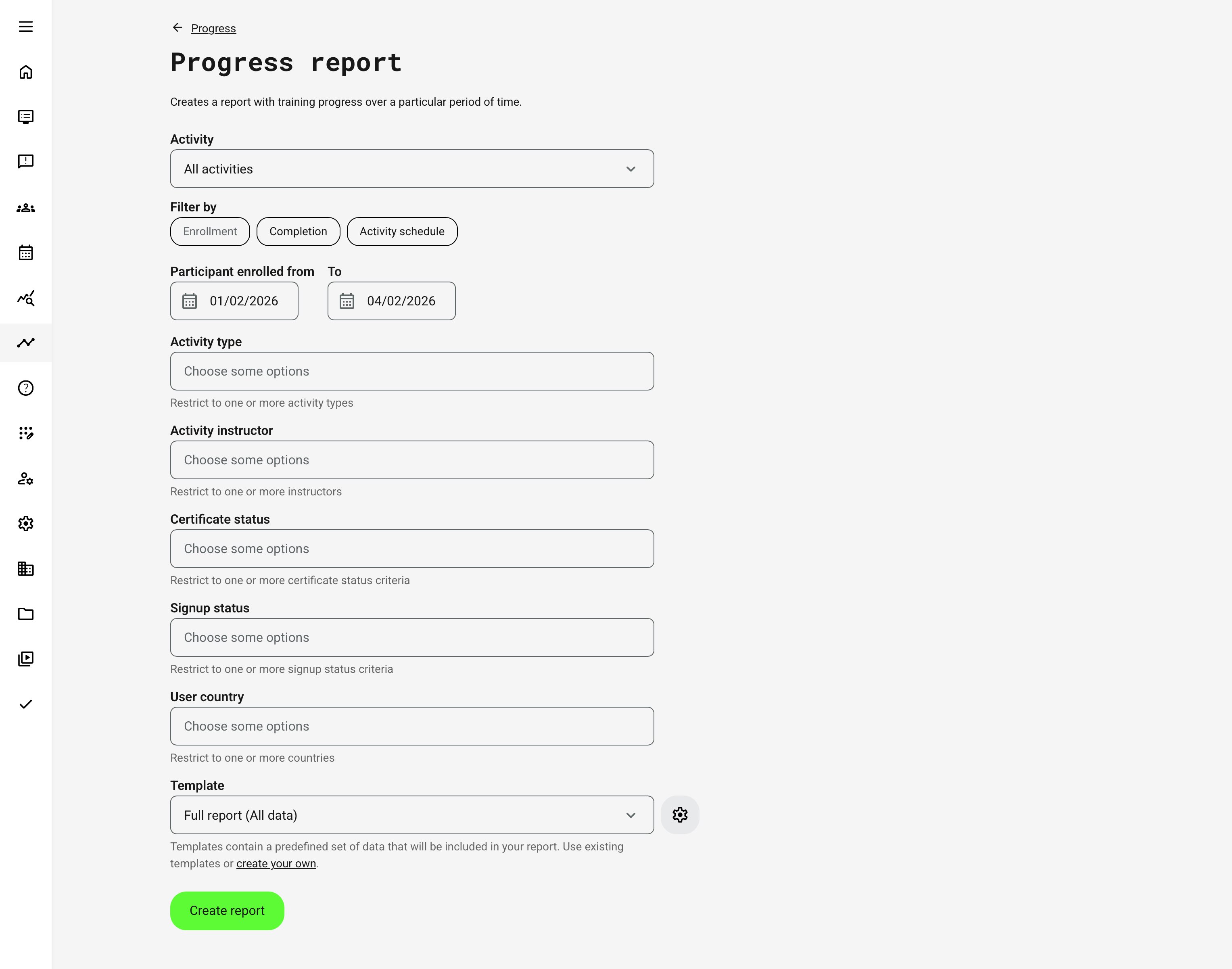
When generating a Progress Report, administrators configure how progress data is selected and interpreted. The report is context-aware and supports multiple filtering strategies depending on the operational question being answered.
Users can generate the report for:
- All activities
- One or multiple specific activities
Scheduled activities display their dates directly in the selector. A configuration option controls whether cancelled activities are available for selection .
Report Filtering Logic
The report supports three mutually exclusive filtering perspectives. Each determines how time relevance is applied:
| Filter Mode | What It Represents | Typical Use Case |
|---|---|---|
| Enrollment | Users enrolled during the selected period | Intake analysis, onboarding volume, admissions audits |
| Completion | Users who received Completed status during the period | Certification evidence, compliance reporting, and can distinguish between all completions, certified completions and completions without certification |
| Activity Schedule | Activities whose scheduled dates fall within the period | Instructor-led training, events, calendar-based reporting |
For scheduled activities, the report includes activities whose start and end dates intersect the selected window. Self-paced activities can be included in the report using the Activity schedule filter. When Include activities without schedule is enabled, the report includes:
- Activities that start and end within the selected date range
- Activities without any schedule
- Activities with only a start date or only an end date
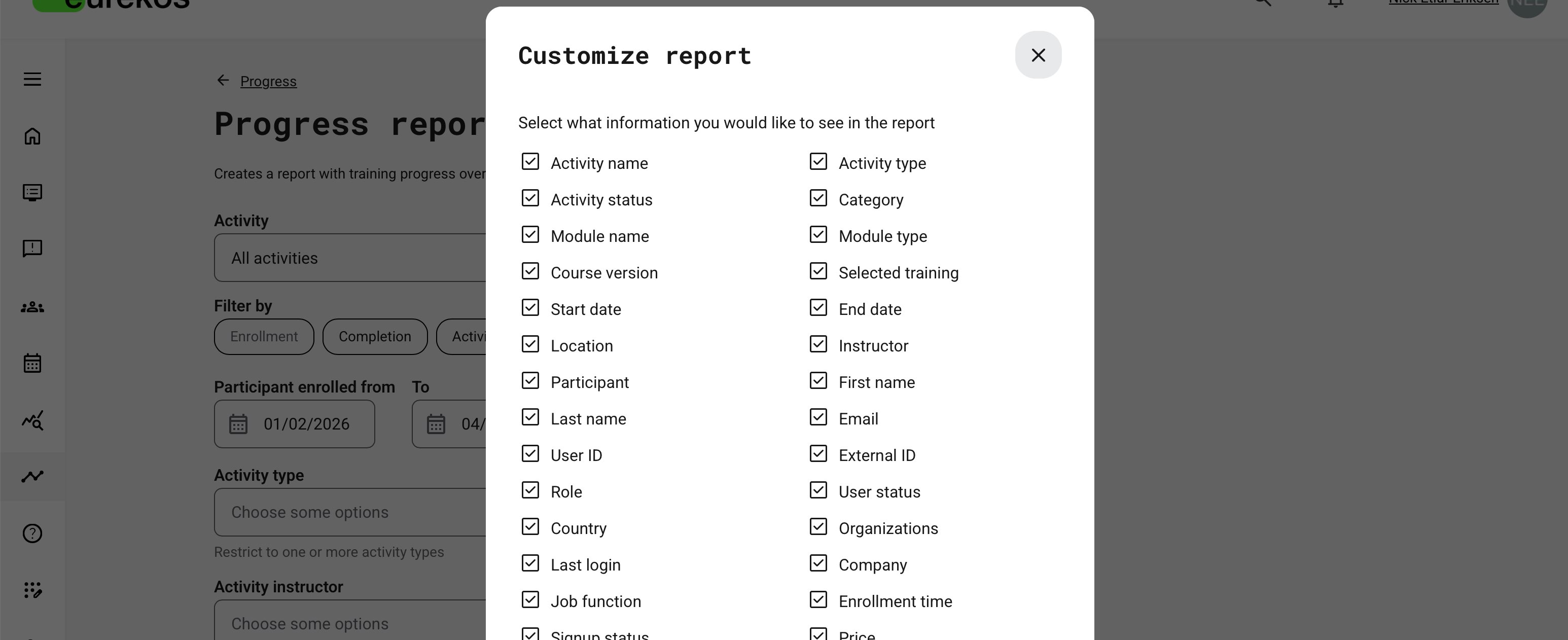
Progress Report – Data Fields (Contextual Reference)
The Progress Report returns one row per user × activity × module relationship. Assignment modules are intentionally excluded.
- Activity-level progress and module-level progress are stored separately
- Module order in the report matches the module order in the activity
It contains a comprehensive set of fields that combine learner identity, organizational context, activity structure, progress logic, and certification lifecycle data. The exact columns available depend on platform configuration, module types, and platform governance settings. Below is an overview of commonly included fields and their meaning.
| Data Category | Example Fields Included | What This Category Represents |
|---|---|---|
| Participant Identity | Full name, Email, User ID, External ID | Identifies the learner associated with the progress record. External IDs may reflect HR, CRM, or partner systems where configured. |
| Organizational Context | Organization, Sub-organization, Company, Country, Department, Job function | The organizational structure and profile metadata associated with the learner at the time of enrollment or progress tracking. Visibility depends on organization-layer configuration. |
| Activity Context | Activity title, Activity type, Activity ID, Activity status | Identifies the training activity (course, event, learning path, etc.) the progress record belongs to. |
| Module Context | Module type, Module title, Module status | Describes which module within the activity the progress relates to (e.g. course module, event, assignment, SCORM, existing training). |
| Enrollment & Signup Data | Enrollment date, Signup status, Registered by, Order type | Captures how and when the participant was enrolled, including manual or automated enrollment paths. |
| Progress & Completion | Progress %, Status (Not started / In progress / Completed), Completion date | Represents the learner’s current or final completion state, calculated according to activity and module rules. |
| Time & Engagement | Total time spent, Time spent during period | Indicates the amount of active learning time recorded for the participant within the selected reporting scope. |
| Assessment & Performance | Score, Pass/Fail, Test attempts | Assessment outcomes where applicable, including results from tests, SCORM packages, or H5P objects. |
| Attendance & Events | Attendance status, Webinar recording viewed | Tracks attendance-based modules such as events or webinars, including recording engagement where enabled. |
| Certification & Credentials | Certificate issued, Certificate expiration, Re-certification date | Captures credential outcomes linked to the activity or module, including expiration and re-certification logic. |
| Administrative Actions | Marked completed by, Completion comment, Forced completion flag | Records manual administrative interventions such as force completion, including audit-relevant metadata. |
| Scheduling & Validity | Activity start date, Activity end date, Deadline | Provides scheduling context that affects progress calculation, completion timing, and compliance interpretation. |
| Commercial Context | Price, Transaction ID, Order reference | Included when progress reporting intersects with paid enrollments or commercial tracking. |
| Reporting Metadata | Report scope, Date range, Worksheet context | Describes how the report was generated, including filtering scope and worksheet separation logic. |
Data Relevance and Freshness
The Progress Report is backed by a dedicated aggregation table optimized for performance. Data updates automatically when:
- User profile data changes
- Enrollment status changes
- Progress or completion updates occur
- Activity or module configuration changes
For exceptional cases, Eurekos Service Desk can trigger a manual recalculation to fully rebuild progress data upon your request.
Localization and Delivery
- Column headers are translated into the report generator’s language
- All timestamps respect the user’s configured timezone
- Date formats follow Excel locale settings
- Large reports are queued and delivered by email to prevent system overload
Handling Blocked, Deleted, and Cancelled Data
Progress reporting respects platform governance settings:
- Blocked users can be included or excluded based on configuration
- Deleted users can be included or excluded based on configuration
- Registered and Expired signups are always included
- Cancelled signups are included only if the corresponding config allows it
This ensures flexibility between historical accuracy and privacy or compliance requirements. Contact Eurekos Service Desk for changes to standard behaviors on platform
Permissions, Data Access, and Organization Layer
Progress Analytics and Report is governed by role-based permissions and the organization layer. Users can only see data they are authorized to access based on their role, organizational affiliation, and scope of responsibility.
In practice:
- Data visibility is limited to permitted organizations, activities, and entities
- Parent organizations can see aggregated sub-organization data; sub-organizations cannot see upward or sideways
- Blocked users remain visible for historical accuracy; deleted users are excluded for privacy compliance; Cancelled and expired enrollments remain visible for audit and traceability
- The same rules apply consistently to both on-screen analytics and exported reports
This ensures secure, consistent, and audit-ready access to data across the platform.
When to Use Progress Analytics vs Progress Report
| Use Case | Recommended Tool |
|---|---|
| Daily supervision and prioritization | Progress Analytics |
| Individual learner follow-up | Progress Analytics |
| Compliance documentation | Progress Report |
| External audits | Progress Report |
| BI or data warehouse integration | Progress Report |
Used together, they provide situational awareness and formal accountability—without duplication or ambiguity.
FAQ
-
Why does the status change when a module’s schedule is updated?
Status is always recalculated against the current configuration.
For example, if a user completed a course and later the module dates are changed, the status may revert to Not started or In progress until the new conditions are met.
-
What happens if a user is cancelled and then re-enrolled?
The system always displays the latest enrollment attempt. Previous statuses are superseded by the most recent activation or enrollment.
-
What happens if a user is blocked and later unblocked?
Only the latest user status is shown. Blocking does not preserve a historical status snapshot in progress views.
-
Why does an event show “In progress” even though the event date has passed?
For event modules with attendance marking enabled, progress remains In progress until attendance is explicitly marked — even if the event date has passed.
-
What happens when a certificate earned through event attendance expires?
When a certificate expires — or enters its re-certification window — a new attempt is created.
In the new attempt:
- The certificate is no longer shown
- Progress is recalculated
- The user must meet the criteria again to complete the activity
-
Why is a certificate issued, but the activity still shows “In progress”?
If an activity has both a certificate and an end date, the certificate can be issued immediately once criteria are met, but the activity only shifts to Completed after the end date has passed.
-
What if the end date has passed, but the certificate is not earned yet?
The user remains In progress until the certificate requirements are fulfilled.
-
If a certificate requires “course completion,” when is it issued?
The certificate is issued only after:
- Course content is completed
- Any required end date has passed
Both conditions must be satisfied.
-
If a user has already earned a certificate and the course is later changed, what happens?
The certificate remains valid for the user, but:
- Progress status may revert to Not started or show a different progress percentage.
- Completion is recalculated based on the updated course configuration
-
Why are some reports generated instantly while others are sent by email?
Reports are generated instantly when they include a smaller number of records. Larger reports are processed in the background and sent to you by email.
The total number of records depends on the selected time range and the number of users, activities, and modules included.