Certificates - Article
Summary
Use Certificates to turn a defined learning outcome into a reusable, verifiable credential. Create the certificate design and issuance rules first, then connect it at the level it represents: a Course or Event module, or the complete multi-module Training Activity. Criteria can use course completion, passed tests, watched videos, SCORM/xAPI outcomes, Event attendance, Existing Training, practical assessment, and AND/OR combinations. Certificates can also expire, grant Skills, initiate re-certification, support public QR verification, and provide auditable completion evidence.
In this article you will learn:
- How certificate design, issuance criteria, placement, and the issued record differ
- When to use a module-level certificate and when to use an activity-level certificate
- How to create an internal certificate or connect a Certopus certificate
- How PDF backgrounds, fonts, margins, text, tokens, and QR verification work
- How every supported issuance criterion is evaluated
- How to build valid AND/OR rules for alternative certification routes
- How schedules, attendance, completion behavior, feedback, Assignments, Existing Training, and SCORM affect issuance
- Why certificate status, attendance, progress, and Training Activity completion can differ
- How forced completion, revocation, certificate replacement, and module removal affect records
- How to prepare internal certificates for offline delivery before they are issued
- How expiration, re-certification, and carried progress relate to a certificate
- How certificates grant Skills and where earned credentials appear
- How to monitor certificates in Progress, Analytics, reports, profiles, and transcripts
- How to troubleshoot a certificate that was not issued, was issued unexpectedly, or cannot be downloaded
What a certificate is
A certificate is a governed credential awarded to a participant when defined evidence has been recorded. That evidence may be simple—complete one self-paced Course—or it may combine several outcomes, such as:
- Complete two Courses
- Pass an H5P Question Set
- Attend at least two of three Events
- Pass a practical assessment performed by the responsible instructor
- Submit required Training Feedback
The certificate is created independently under Course Administration → Certificates. It is then selected through the Certificate feature on a Training Activity or supported module.
This separation lets one certificate definition be reused, but it also makes governance important. The certificate contains both participant-facing presentation and operational issuance logic. Changing a shared certificate can therefore affect more than one connected Training Activity.
A certificate is not merely a decorative completion PDF
The certificate can determine when a Course, Event, or complete learning path becomes Completed. It may grant Skills, expire, trigger re-certification, send notifications, and appear in compliance reporting. Treat its criteria and lifecycle as controlled learning configuration.
Understand the four certificate layers
| Layer | What it controls | Example |
|---|---|---|
| Certificate definition | Name, description, layout, visual design, text, tokens, verification, validity, Skills, and issuance rules | “Authorized Installer – Level 1” |
| Connection | The Activity or Course/Event module to which the certificate is attached | Overall learning path or one classroom Event |
| Evidence | Participant results that satisfy the rules | Course completed, test passed, Event attended |
| Issued record | The participant-specific credential with issue/completion date, expiry, status, and downloadable output | Issued to Alex Rivera on 15 May |
Keeping these layers separate explains several behaviors:
- Creating a certificate does not issue it; it must be connected to training and its criteria must be met.
- Completing content does not necessarily issue a certificate; the certificate's remaining criteria may still be unmet.
- Issuing a certificate does not always make a scheduled Training Activity complete immediately; its end date may also have to pass.
- Editing the visual template does not change the participant's historical completion date.
- Removing a connected certificate after issuance is not a visual-only change; it removes the associated issued certificates after confirmation.
Certificate, completion, attendance, and access are different
These concepts often appear together but answer different questions.
| Concept | Question it answers | Important distinction |
|---|---|---|
| Progress | How much of the expected learning has the participant completed? | Percentage alone does not prove attendance or certification |
| Completion | Has the Course, module, or Training Activity met its completion logic? | Schedules and certificates can delay completion after content reaches 100% |
| Attendance | Was the participant recorded as attending an Event? | Attendance may be one certificate criterion, but it is not automatically a credential |
| Certificate | Has the participant met the defined achievement or recognition rules? | It can be issued at module or activity level and can have its own validity lifecycle |
| Access expiration | How long may the participant open the training? | It does not set certificate validity |
| Mandatory deadline | By when should the participant complete assigned training? | It does not set certificate expiration or re-certification dates |
For example, a participant can attend a live Event but remain uncertified until the instructor passes a practical assessment. Another participant can earn a certificate before a scheduled learning path displays Completed because the activity end date has not yet passed.
Plan the credential before creating it
Answer these questions with the learning owner, compliance owner, or accrediting body:
- What does this credential prove: participation, completion, competence, authorization, or accreditation?
- Is it earned for one Course or Event, or for the complete learning path?
- Which evidence is mandatory, and which alternative routes are acceptable?
- Must the participant pass an assessment rather than merely complete content?
- Must live attendance be recorded?
- Is practical approval required?
- Is feedback a genuine condition of issuance?
- Does the credential expire on one common date or a rolling period after completion?
- Should re-certification begin before the current credential expires?
- Does the certificate grant one or more Skills or Skill levels?
- Is public verification through a QR code required?
- Should Eurekos generate the PDF, or is Certopus responsible for the external credential?
- Who owns the design, criteria, renewal policy, and audit evidence?
A short decision table helps turn the business rule into configuration.
| Business requirement | Recommended design |
|---|---|
| Proof that one online Course was completed | Module-level certificate on the Course |
| Proof that one live session was attended | Module-level certificate on the Event with attendance criterion |
| Credential for a blended program | Activity-level certificate with criteria across its modules |
| Separate badges for stages plus one final credential | Module-level certificates plus an activity-level certificate |
| Either webinar attendance or self-paced equivalency is accepted | Activity-level OR logic between the approved routes |
| Annual compliance for one cohort | Fixed expiration date and governed re-certification |
| Rolling product authorization | Expiration a defined number of months after completion |
| Externally shareable credential managed in Certopus | Certopus layout, with issuance criteria still defined in Eurekos |
Permissions and governance
Certificate administration is available to authorized administrative roles. The exact certificate definitions and records a user can access depend on their role, organization scope, and platform configuration. Instructors and managers can see or act on certificate information only where their responsibilities and permissions allow it.
Because a certificate definition can be reused across several training contexts, always review where it is used before changing its design, criteria, validity, Skills, or re-certification configuration.
Understand the certificate list
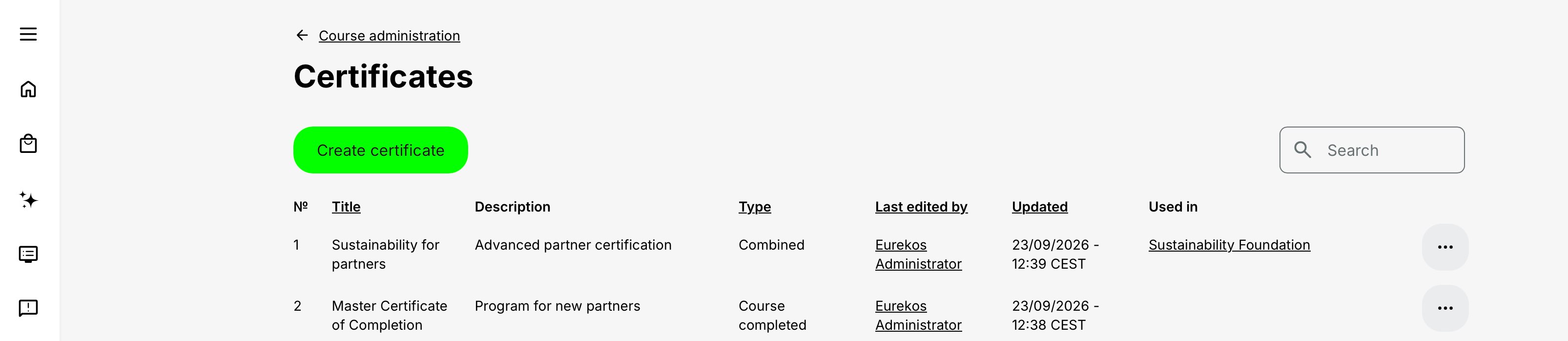
Open Course Administration → Certificates to access the administrative library of reusable certificate definitions.
Each definition contains the certificate’s identity, presentation, issuance criteria, validity rules, Skills, and re-certification configuration. Creating or maintaining a definition here does not issue a certificate to a participant.
The certificate list provides information such as the definition’s name, description, author, latest update, and where it is used. Use this information to identify the appropriate definition and assess the effect of a change before opening it.
| Administrator task | How to use the certificate list | Important consideration |
|---|---|---|
| Understand what an entry represents | Treat each entry as a reusable certificate definition containing the design and rules for a credential. | The list does not contain the individual certificates already issued to participants. |
| Find the correct definition | Use the certificate name, description, author, and other available information to distinguish between credentials. | Use specific names that describe the qualification or achievement. Generic names such as Certificate or Completion certificate make selection and maintenance difficult. |
| Review where it is used | Check Used in before opening or changing a definition. | A shared definition may be connected to several Courses, Events, or Training Activities. A change can therefore affect more than one delivery. |
| Review the complete definition | Open the certificate to inspect its layout, text, issuance criteria, expiration, Skills, and re-certification settings. | The list overview does not expose every dependency. Review the complete definition before connecting or changing it. |
| Decide whether to reuse it | Reuse an existing definition when the credential has the same purpose, governance, design, criteria, and validity model. | Reuse supports consistent naming, participant recognition, reporting, and governance across approved training contexts. |
| Decide when to create a new definition | Create a separate definition when the credential represents a different qualification, requires another layout, uses materially different criteria, or follows a different validity or governance model. | Do not create a new definition only because another delivery date has been scheduled, unless each delivery genuinely requires a separate credential. |
| Connect it to training | Select the definition from the relevant Course, Event, or activity-level Certificate configuration. | Creating the definition does not automatically connect it to training or issue it to participants. |
| Change an existing definition | Review the effect on connected training and future issuance before editing certificate text, criteria, expiration, Skills, or renewal settings. | Changes can affect pending participants and future re-certification attempts. Determine whether governance requires a new definition instead. |
| Change the layout | Select and test the layout before the first certificate is issued. | After any participant receives the certificate, the Layout field is locked. Create a new definition if another layout is required. |
| Review issued certificates | Leave the certificate list and use participant Progress, profiles, Certificate Analytics, or the relevant reports. | The definition list manages certificate designs and rules; it is not the authoritative participant-level issuance history. |
Before selecting Create certificate, check whether an approved definition already represents the same credential. Reuse the existing definition only when its meaning, rules, validity, and governance genuinely match the new training context.
Create a certificate
- Open Course Administration → Certificates.
- Review the existing definitions and confirm that a suitable certificate does not already exist.
- Select Create or Create certificate.
- Enter a clear certificate name and description.
- Select the appropriate Layout: an internal Eurekos certificate or Certopus when that integration is configured.
- For an internal certificate, upload and position the PDF background if required.
- Select the font and configure the dynamic certificate text.
- Add a QR code when public verification is required.
- Build the issuance criteria.
- Configure expiration and re-certification only when the credential has a defined validity period.
- Add Skills or Skill levels when Skills are enabled and the credential should grant them.
- Save the certificate.
- Connect it to a test Course module, Event module, or multi-module Training Activity.
- Test every valid and invalid route with representative participants before production use.
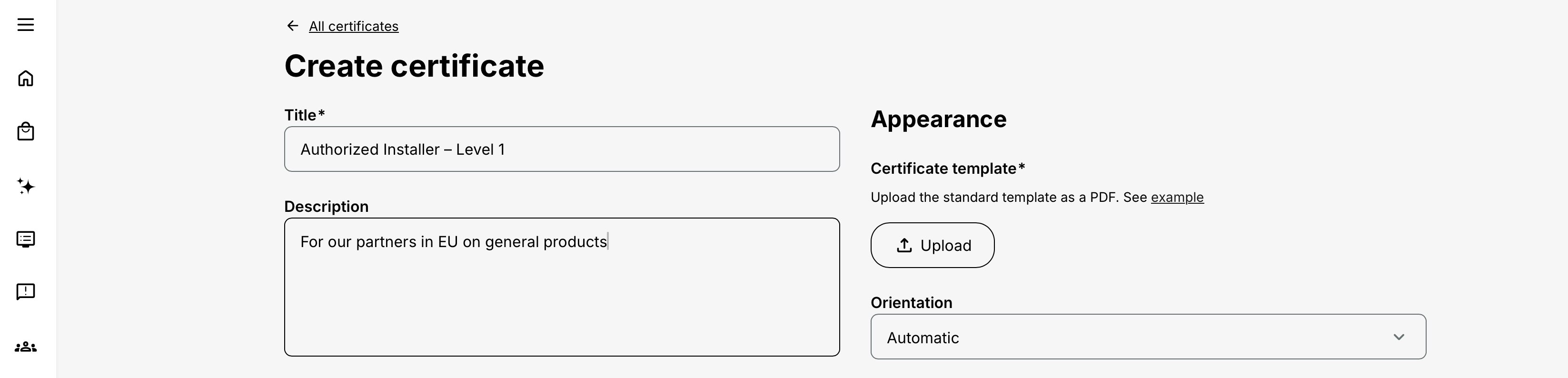
The fields shown after selecting Layout can differ between an internal certificate and Certopus. Optional sections can also depend on the platform configuration. Complete every field marked as required on your platform.
Configure the certificate identity
| Setting | What it is | When to use it | What happens |
|---|---|---|---|
| Name or title | The administrative and participant-facing name of the credential. | Always. Name the qualification or achievement—not the delivery date—unless each delivery genuinely requires a separate credential definition. | The name identifies the certificate in the administration list, selection fields, participant profile, Progress, Analytics, reports, and other certificate contexts. |
| Description | Administrative context explaining the certificate’s purpose and intended use. | Use it to clarify the audience, owner, validity model, approved activities, or other governance information that is not evident from the name. | The description helps administrators select and maintain the correct definition. It is not the wording printed on the certificate; that is controlled by the certificate text. |
| Layout | The system responsible for producing and managing the certificate output. | Choose the internal layout when Eurekos should generate the PDF. Choose Certopus only when the integration is enabled and the external credential has already been prepared there. | The selected layout determines the available presentation fields and issuance or download behavior. Eurekos owns the issuance criteria for Certopus certificates, while Certopus sends the certificate email and provides the externally managed credential. The Layout field is locked after the certificate is first issued. |
Naming guidance
Good examples include:
- Authorized Installer – Level 1
- Annual Data Protection Certification
- Advanced Facilitation Program
- Product Service Accreditation
Avoid generic names such as Certificate or Completion certificate when administrators need to distinguish between multiple credentials.
Layout dependency
After any participant has received the certificate, the Layout field is permanently locked for that certificate definition. Issuance includes:
- Normal participant completion
- Administrator force completion
- Imported training history
The following actions do not unlock the field:
- Deleting the connected activity
- Removing the participant
- Allowing the certificate to expire
- Revoking the certificate
- Removing the participant’s access
Test the layout before live issuance. If a different layout is subsequently required, create a new certificate definition.
Design an internal certificate
PDF background
| Aspect | Guidance |
|---|---|
| What it is | A fixed PDF containing the visual design behind dynamic participant and training information. |
| When to use it | Use a background for logos, borders, signatures, accreditation marks, colors, and other approved design elements that do not change by participant. |
| What happens | Eurekos detects the PDF page size and orientation and places the configured certificate text over the background. |
| Preparation guidance | Prepare the background outside Eurekos and leave sufficient clear space for the dynamic text. Do not include a sample participant name, completion date, training title, or other participant-specific information in the PDF. |
Before approval, test:
- Portrait and landscape orientation
- Long participant and organization names
- Long activity and module titles
- Every required language and character set
- Printed output as well as screen output
- The QR code's contrast and clear space
- Legal or accreditation logos at actual output size
Margins and text area
| Aspect | Guidance |
|---|---|
| What they are | Positioning controls that define the area in which dynamic text is rendered over the PDF background. |
| When to use them | Adjust the margins so participant-specific text remains inside the intended design area and does not overlap fixed artwork. |
| What happens | The same text area is used whenever the certificate is generated. A layout that works with a short test value may still overflow when populated with real data. |
| Testing guidance | Test edge cases such as long participant and organization names, lengthy activity or module titles, different languages, and larger date or location values. |
Fonts
Fonts are administered separately in the certificate area. Upload the font styles needed by the certificate—such as regular, italic, bold, and bold italic—and select the approved font in the certificate design.
Use a font that:
- Is licensed for the intended use
- Contains every character required by the certificate languages
- Has the styles used in the text editor
- Remains readable in the generated and printed PDF
If a bold or italic style is missing, the generated result may not match the approved design. Test names containing accents and non-Latin characters when your audience requires them. If the optional experimental right-to-left certificate-text setting is enabled, also validate the approved font, tokens, punctuation, line wrapping, PDF generation, and printed output in every required right-to-left language before production use.
Certificate text
| Aspect | Guidance |
|---|---|
| What it is | The dynamic text rendered over the certificate background. |
| When to use it | Build the sentence or structured credential wording that changes according to the participant, activity, module, dates, and other certificate data. |
| What happens | Tokens are resolved when the PDF is generated. The tokens available in the certificate editor are the authoritative list for the current platform configuration. |
| Example structure | [participant name] has successfully completed [activity title] on [certificate completion date]. |
For certificates attached to a module in a learning path, the editor also supports module-specific values such as:
- [module title]
- [module instructor]
- [module start date]
- [module end date]
- [module location]
Use activity tokens for the complete Training Activity and module tokens for the Course or Event that awarded the module-level certificate. Insert tokens from the editor rather than typing their syntax from memory.
Completion-date behavior in advance printing
For an issued certificate, [certificate completion date] uses the stored original completion/issue date. For an unissued internal certificate generated in advance, it uses the date on which the PDF is generated. The bulk print action does not let you substitute a custom past or future completion date.
QR verification
| Aspect | Guidance |
|---|---|
| What it is | A QR code placed on the certificate that opens the public certificate-verification result. |
| When to use it | Use it when employers, partners, customers, regulators, or other recipients must verify authenticity without signing in to Eurekos. |
| What happens | A person can scan the QR code and validate the issued certificate through the public verification experience. |
The QR code proves the record represented by the platform; it does not make an unissued advance-print PDF an issued credential. Test the code from the final PDF and from a printed copy. Keep it away from the page edge, complex patterns, and low-contrast background artwork.
Configure issuance criteria
Issuance criteria define the evidence Eurekos must receive before it awards the certificate. The exact options available depend on the connected content and platform configuration.
Course completed
Use Course completed when the participant must complete a selected Course. For a native Eurekos Course, completion is based on its content and completion logic. This can include pages, videos, H5P interactions, and other tracked objects.
For imported SCORM content, completion is governed by signals from the package rather than by Eurekos page-by-page progress. Test the package's reported completion and success states before using it for certification.
When a scheduled Course is part of the design, both the required learning outcome and the applicable end date can affect completion and certificate timing. Do not assume that reaching 100% before the scheduled end always produces the final activity state immediately.
Test passed
Use Test passed when certification requires a passed H5P Question Set. The passing percentage is configured in the H5P content itself.
Where several eligible Question Sets are involved, configure whether the participant must pass all, any, a particular selection, or the required number offered by the rule builder. Test both passing and failing paths, including any attempt limits.
Do not use Course completion as a substitute when the business requirement is specifically to pass an assessment. A participant may complete or consume a Course without achieving the required score unless the course and certificate rules explicitly make the pass condition necessary.
Video watched
Use Video watched when one or more selected videos are required evidence. A video becomes Watched when it reaches the platform's configured watched-percentage threshold.
Where several videos are available, configure the required selection or number. Examples include:
- Watch all safety demonstrations
- Watch any one product introduction appropriate to the participant's market
- Watch three of five optional expert sessions
The criterion measures the tracked watched state, not whether the participant merely opened the page containing the video.
SCORM/xAPI outcome
Use the applicable SCORM/xAPI criterion when an imported package supplies the certification evidence.
SCORM commonly reports parallel values for completion, success/pass, score, time, and attempt data. Certificate issuance may depend on the package reaching Passed. Some packages report Completed but never send Passed, which can leave the participant complete in one dimension but uncertified. A platform configuration can be used where Eurekos must treat completion as Passed for packages that do not provide the success signal; this should be validated with the package owner.
xAPI outcomes depend on the statements and result data sent to the connected Learning Record Store and surfaced in Eurekos. Test the exact package rather than assuming that every SCORM/xAPI export reports equivalent data.
Attended Events
Use Attended events when physical or virtual presence is required. Attendance must be recorded for the relevant Event; the scheduled date passing by itself is not attendance evidence.
For several Events, the rule can support designs such as:
- All events — every required session must be attended
- Any event — one approved alternative session is sufficient
- Specific number — for example, attend two of three workshops
- A selected set of Events — only named Events count
Enable Include calendar events when ad hoc Calendar Events outside the visible learning-path modules are intended to count toward the rule. Use this deliberately; otherwise an unrelated calendar occurrence could be mistaken for part of the certification design.
Attendance imported or suggested by a video-conferencing integration must still reach the authoritative attendance state required by the Event workflow. Verify it in Progress rather than relying only on the conferencing provider's attendee list.
Existing Training
An Existing Training module can contribute to certificate issuance at module or activity level, even when Enable tracking progress is disabled for the parent learning path. This means certification and the parent progress percentage can intentionally behave differently.
The selected child Training Activity remains independent and keeps its own enrollment, progress, schedules, and certificates. Do not assume its certificate automatically becomes the parent certificate; configure the parent credential and its criteria explicitly.
For more detail, see Existing Training (nesting).
Practical assessment
Use Practical assessment when a qualified person must verify competence that cannot be proven by digital tracking alone—for example, demonstrating a procedure, installing equipment, or performing a supervised skill.
The responsible instructor receives the operational assessment task and evaluates participants individually or in bulk. The result moves through assessment states such as Pending, Passed, or Failed. Passed satisfies the criterion; Pending and Failed do not.
Practical assessment is a certificate criterion, while an Assignment module is a separate submission-and-assessment workflow. Use an Assignment when the participant must upload or enter evidence for review. Use practical assessment when the instructor records the competence outcome directly in the certification process. A learning design can use both when both kinds of evidence are required.
Training Feedback required for the certificate
Training Feedback is configured through the Questionnaire feature rather than inside the certificate rule builder. When Sending feedback is required to receive the certificate is enabled, the participant must submit the connected feedback before the certificate is issued.
The availability of the questionnaire determines when the feedback action appears. A participant can submit the connected feedback only once. Test the participant journey so the feedback action becomes available at a sensible point and does not create a hidden final requirement.
Administrative force completion bypasses this feedback requirement and issues the connected certificate. Use that exception only with a documented reason.
For more detail, see Training Feedback.
Assignments and other module completion
An Assignment is complete when its submission is assessed as Passed. Not assessed and Failed remain incomplete. An Assignment does not have the same direct module-level Certificate feature as a Course or Event, but its completion can contribute to an activity-level certification design where that level is available. Where the certificate uses an Assignment grade criterion, Eurekos evaluates the grade value against a greater-than-or-equal-to, less-than-or-equal-to, or equal-to threshold; the Passed or Failed label is not the comparison itself. If several Assignment modules are included, the highest recorded submission grade is evaluated. A group submission can grant the certificate to group members who satisfy the configured condition, so test multiple submissions, the grading scale, and group membership before production use.
For a multi-module learning path, make the required Assignment part of the path and use the complete activity outcome or other supported criterion structure. Test the exact configuration; do not assume that submission alone is equivalent to passing.
Combine criteria with AND and OR logic
The certificate rule builder can combine several criteria and groups using AND and OR logic.
- AND means every connected requirement must be satisfied.
- OR means any one of the approved alternatives can satisfy that part of the rule.
Example: blended certification with an alternative knowledge route:
(Course A completed AND Practical assessment passed) AND (Question Set B passed OR Approved equivalency Course completed) AND (2 of 3 Events attended)
Write the rule first in plain language, then reproduce the same grouping in Eurekos. Parentheses matter: “A AND (B OR C)” is not the same as “(A AND B) OR C.”
Before publishing, test at least:
- A participant who satisfies every mandatory requirement
- Every valid alternative route
- A participant missing one condition from each AND group
- A participant who satisfies an unintended partial combination
- A participant with prior progress or an Existing Training completion
- A re-certification attempt when renewal criteria differ
Referenced evidence must exist in the training context
A logically valid rule can still be operationally impossible. If the certificate requires a Course, test, video, or Event that is not available to the participant through the connected training, the certificate cannot be earned normally. Review the actual module path, adaptive rules, access restrictions, and alternative routes together.
Connect the certificate at the correct level
Certificate placement defines what the credential represents and which completion context it influences.
Module-level certificate
The Certificate feature is available directly on supported Course and Event modules.
Use module level when the certificate represents:
- Completion of one Course
- Attendance or achievement in one Event
- A stage or micro-credential inside a larger learning path
- A module that must maintain its own certificate and re-certification cycle
To connect it:
- Edit the Training Activity.
- Open the Course or Event module.
- Open the module's Gear or Features menu.
- Enable Certificate.
- Select the pre-created certificate.
- Review its criteria against the exact module content and schedule.
- Save the module and Training Activity.
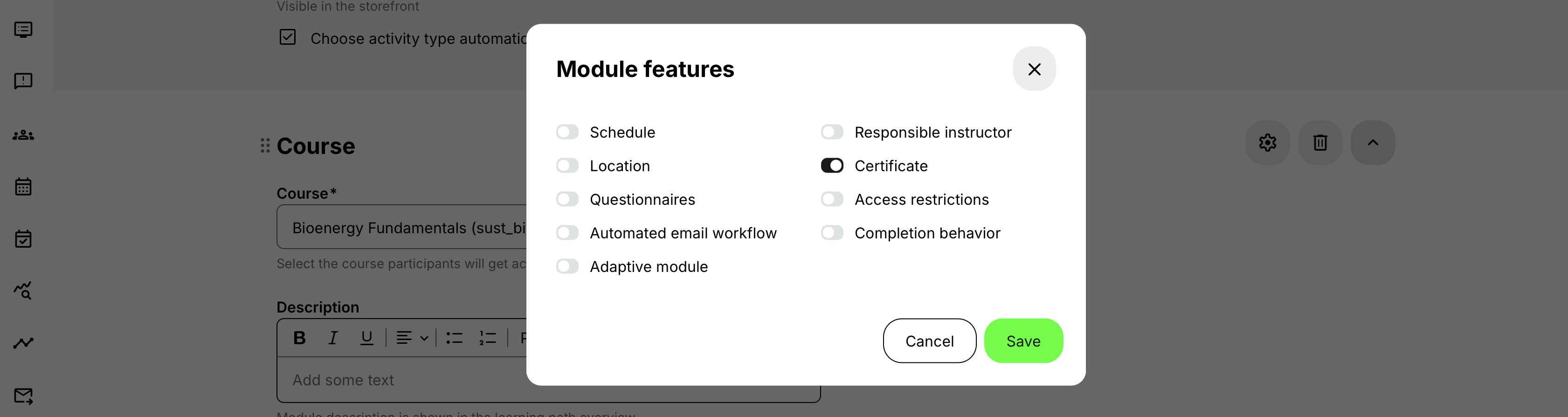
For a single Course- or Event-module Training Activity, the Certificate option is not shown at activity level. Configure it from the module's Gear menu.
Activity-level certificate
Use activity level when the certificate represents the complete multi-module Training Activity or learning path.
Typical examples:
- A program containing online preparation, a live workshop, and an assessment
- Certification requiring outcomes from several Courses
- An academy path with several Events and an overall practical assessment
- A parent journey that uses Existing Training as qualifying evidence
To connect it:
- Edit the Training Activity.
- Add and configure the required modules.
- Open the activity-level Features area.
- Enable Certificate.
- Select the pre-created certificate.
- Verify every referenced criterion can be satisfied within the learning path.
- Save and test the full participant journey.
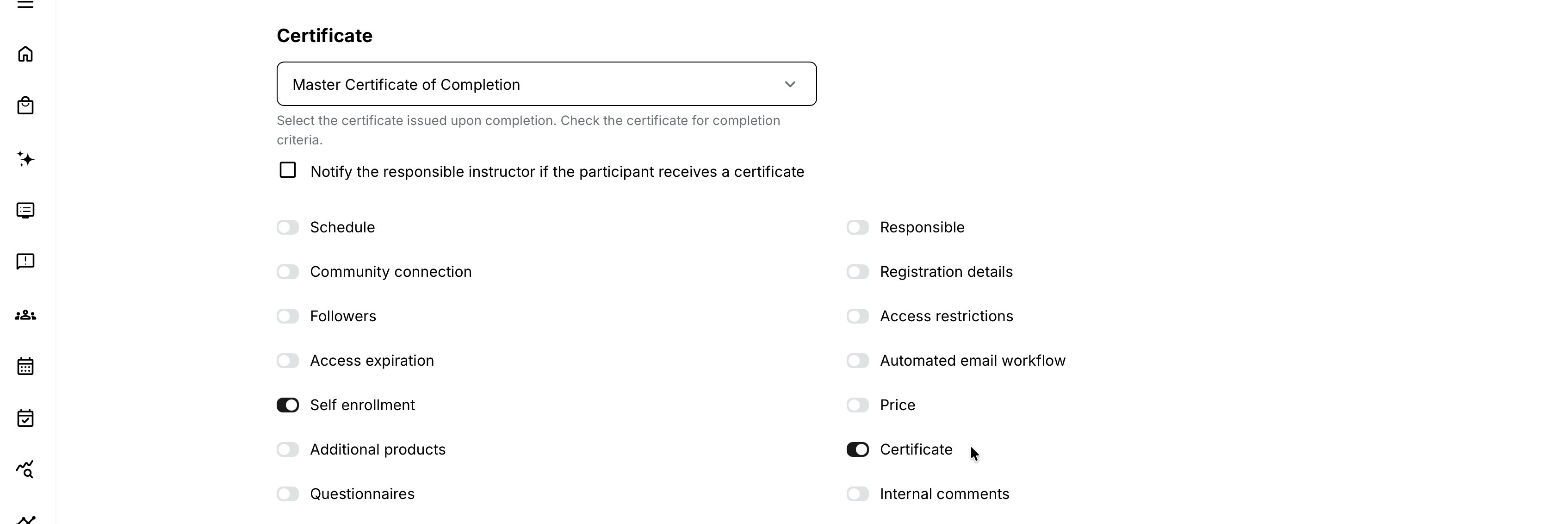
The activity-level Certificate feature becomes available when the activity structure supports an overall credential—for example, after a second module creates a learning path. The exact feature set can also depend on the activity's module types and platform configuration.
Use both levels
A learning path can use module-level certificates and an overall activity-level certificate at the same time.
Use a module-level certificate when completing a particular Course or Event represents a meaningful achievement in its own right. Use an activity-level certificate when the credential represents successful completion of the complete learning path and its combined requirements.
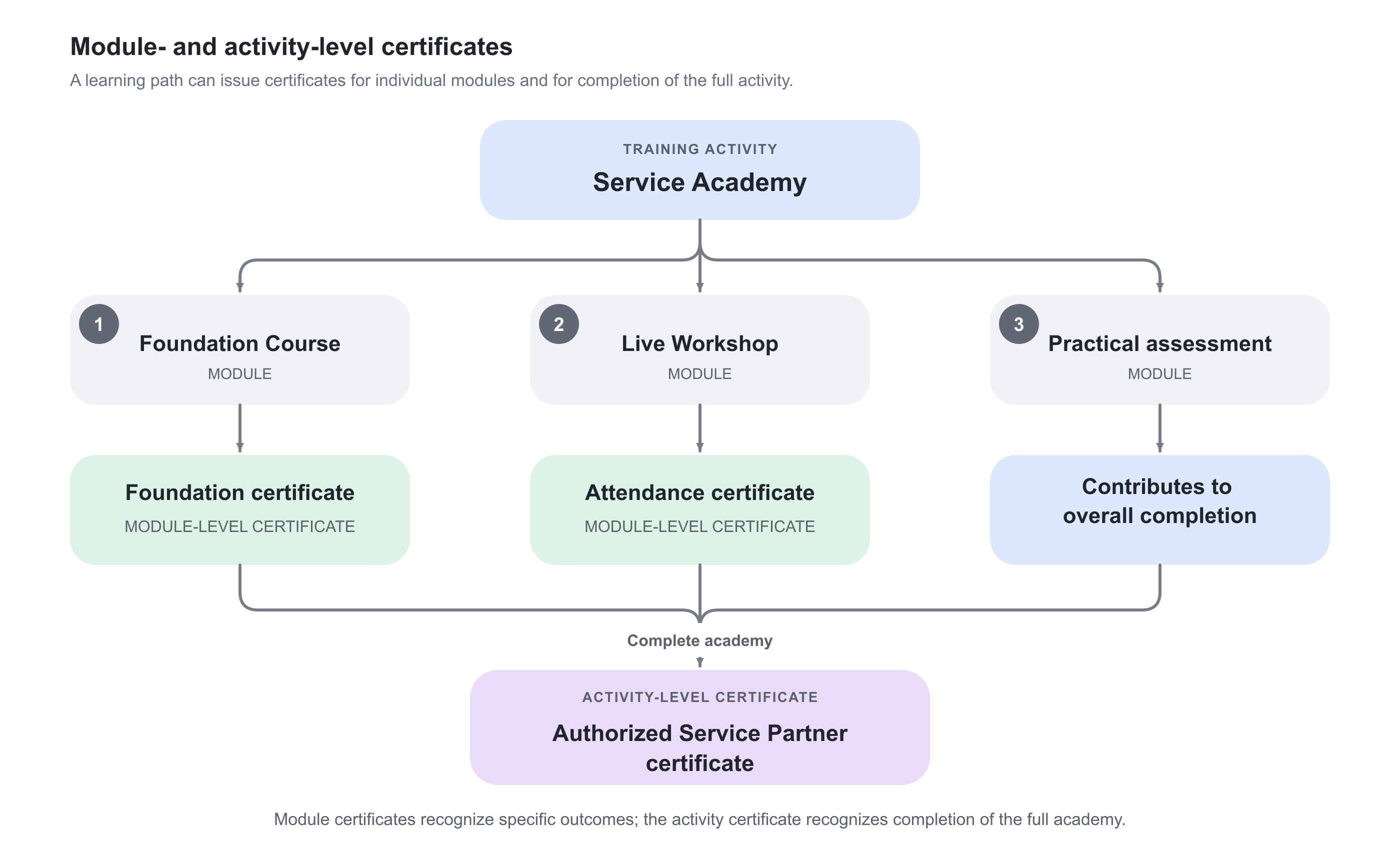
In this example:
- Completing the Foundation Course awards a module-level Foundation certificate.
- Completing the Live Workshop awards a module-level Attendance certificate.
- Passing the Practical assessment contributes evidence toward completion of the academy but does not issue a separate certificate.
- Completing the full Service Academy awards the activity-level Authorized Service Partner certificate.
Each certificate definition has its own criteria, presentation, validity, expiration, and—where configured—re-certification lifecycle. Earning a module-level certificate does not automatically award the activity-level certificate. The participant must satisfy the complete activity-level criteria before the overall credential is issued.
How issuance affects completion
Certificate issuance is part of the completion model, not an isolated after-effect.
Typical completion behavior
| Training configuration | When completion is normally reached |
|---|---|
| No schedule and no certificate | Required content/modules are complete |
| Schedule and no certificate | Required content is complete and the applicable end date has passed |
| Certificate and no schedule | The certificate is issued |
| Certificate and schedule | The certificate is issued and the applicable end date has passed |
| Event with attendance requirement | Attendance is recorded, plus any other configured conditions |
This is why two apparently contradictory states can both be correct:
- Certificate issued, activity In progress: the participant met the certificate criteria, but the scheduled end date has not passed.
- Activity end date passed, certificate not issued: one or more certificate criteria are still unmet, so the activity remains In progress.
For a scheduled Course whose certificate depends on Course completion, the content requirement and applicable end date must both be considered. Review the detailed participant state in Progress rather than using one percentage or date alone.
Completion behavior feature
The module-level Completion behavior feature can modify the participant experience:
- Don't show congratulations message hides the completion popup but does not change status or certificate issuance.
- User confirmation is required displays a Complete button after the normal criteria are met. The participant is not recorded as complete, and the connected certificate is not issued, until the participant selects the button.
In re-certification, the Complete button appears for each new attempt. Adding or changing Completion behavior after a participant already has a certificate does not rewrite that participant's training status.
Training Feedback dependency
When feedback is required to receive the certificate, fulfilling the learning criteria is not the last step. The certificate waits until the connected feedback is submitted.
Make the dependency visible in the participant journey. A certificate that appears “stuck” is often waiting for feedback, user confirmation, attendance, practical assessment, or a schedule—not for more content progress.
Issue a certificate through normal completion
The standard flow is automatic:
- The participant is Registered for the Training Activity.
- The participant completes the required learning and assessment actions.
- Instructors or integrations record any required attendance or practical assessment.
- The participant submits required Training Feedback or user confirmation.
- Eurekos evaluates every certificate criterion in the relevant attempt.
- When the rule is satisfied, the participant-specific certificate record is issued.
- The internal Certificate achieved System Email is sent where applicable, or Certopus sends its own credential email.
- The certificate becomes available in the participant's profile and authorized progress/reporting views.
- Training completion is calculated using both certificate status and any remaining schedule or module conditions.
The certificate connection and relevant changes are included in the Training Activity's change history. Use Progress and reporting for participant-specific issuance evidence.
Force completion and administrative exceptions
Authorized administrators and responsible instructors can use Mark as completed from Progress or the Activity's Participants list, for one participant or as a bulk operation. The action can apply to the whole activity or a supported module.
Use it only when the ordinary evidence cannot or should not be captured—for example:
- Attendance was verified on an approved paper register
- A technical problem prevented valid digital tracking
- Historical or grandfathered achievement has been approved
- A governed exception has been documented
When completion is forced:
- The relevant status is updated immediately.
- Progress is presented as 100% at the forced level.
- A connected certificate is generated automatically.
- Required Training Feedback is bypassed.
- The underlying page, video, H5P, SCORM, Event, and test records are not changed to pretend those interactions occurred.
- The actor, timestamp, and optional completion comment are retained for reporting and audit.
If no certificate is connected, the administrator can choose whether to notify the participant by email. If a certificate is connected, the certificate-achieved notification flow applies.
The action is available for eligible Registered, Cancelled, and Expired signups, but not for states such as Reserved, Waiting list, Blocked, or Pending. Bulk operations ignore unsupported signups and fail when only unsupported signups are selected.
Revoke completion becomes available for an administratively forced completion. It is not available as a general way to erase progress that the participant completed normally.
Do not use force completion to repair certificate design
If many participants need the override, investigate the criteria, schedule, attendance process, SCORM signals, feedback dependency, and participant instructions. A repeated exception is usually evidence that the configured process does not match the intended one.
For more detail, see Progress.
Download and prepare certificates for offline training
Certificates can be downloaded from:
- The Training Activities list
- The Activity details page
- A bulk action on the Activity's Participants list
The combined action is named Download nameplates, badges and certificates. It is available for activities with one, several, or no modules once there is at least one active Registered signup. Authorized administrators, Support users, and instructors with access to their own activities can use it according to permissions.
Advance printing for internal certificates
The action supports offline delivery where certificates must be printed before the Event. For selected Registered participants, it can generate both issued and not-yet-issued internal certificates connected at module and activity level.
Important behavior:
- If the activity has no certificate, the platform reports that no certificates are applied.
- Only Registered signups are processed; Cancelled and Expired signups are skipped.
- If several certificates are connected, all applicable internal certificates are generated, including unissued ones.
- Tokens are resolved for both issued and unissued internal certificates.
- An issued certificate keeps its stored original completion date.
- An unissued certificate using [certificate completion date] displays the generation date.
- The action does not let an administrator choose a custom historical or future completion date.
An advance-generated PDF is useful for ceremony or classroom printing, but it does not by itself create the issued certificate record. Complete attendance, assessment, and issuance in the platform according to the governed process.
Certopus downloads
An unissued Certopus certificate cannot be generated in advance. Only a Certopus credential that has already been issued can be downloaded.
If a selection contains an unissued Certopus certificate and an internal certificate, Eurekos skips the unavailable Certopus item and generates the internal one. The result identifies how many Certopus certificates were skipped.
Configure Certopus certificates
Certopus is an optional third-party certificate service. Use it when the organization wants an externally managed credential and participant sharing through services such as LinkedIn.
Prerequisites:
- The Certopus integration is configured for the platform.
- The relevant Organization, Event, and Category exist in Certopus.
- The external certificate design and result categories are governed there.
To create the connection in Eurekos:
- Open Course Administration → Certificates → Create certificate.
- Select Certopus in Layout.
- Select the Organization for which the external event is created.
- Select the Event that owns the certificate and its result categories.
- Select the Category representing the intended result, such as pass or distinction.
- Define and test the certificate issuance criteria in Eurekos.
- Save and connect the certificate to the correct activity or module.
After issuance, the Certopus PDF and expiration date are saved in Eurekos. The participant's certificate email is sent by Certopus rather than by Eurekos, and the participant can use the external credential experience to share it.
The division of responsibility is important:
| Responsibility | System |
|---|---|
| Certificate issuance criteria | Eurekos |
| Learning, completion, attendance, and assessment evidence | Eurekos and connected delivery tools |
| External certificate design, Event, and Category | Certopus |
| Certificate email for the Certopus credential | Certopus |
| Issued PDF and expiration record visible in Eurekos | Synchronized back to Eurekos |
Expiration and validity
Configure expiration when the credential is valid only for a defined period. Do not add expiration merely because a Training Activity has a date.
The certificate can expire:
- On a specific date shared by the governed cohort
- A defined number of months after completing the training, producing rolling validity for each participant
Specific date
Use a fixed date when everyone must align to one regulatory, product, season, or contract cycle.
Example: every 2027 safety authorization expires on 31 December 2027, regardless of when a participant completed the training.
Late completers receive a shorter validity period, so ensure that outcome is intended.
Months after completion
Use rolling validity when each participant should remain certified for the same period after earning the credential.
Example: a service accreditation remains valid for 24 months from the participant's completion date.
This model suits ongoing enrollment but produces expirations throughout the year and normally benefits from automated re-certification.
Expiration alert
Configure the alert interval when participants and relevant managers should be warned before validity ends. The certificate-expiration notification is part of the certificate lifecycle, while additional intermediate communication can be built with Automated Email Workflows where appropriate.
Extend expiration
Authorized administrators or instructors can extend the expiration of an individual's current certificate from the relevant participant/statistics view. The extension applies at the level where the certificate was issued.
An already expired certificate cannot be extended through this action. Use a governed re-certification or other approved correction process instead.
Re-certification boundary
Re-certification creates a new attempt before or when the current certificate expires. It is more than another reminder and deserves its own design and article.
At certificate level, the administrator defines:
- Whether re-certification is enabled
- When the new attempt becomes available before expiration
- The appropriate renewal criteria, which can differ from the original criteria
- The expiration and alert model that drives the lifecycle
When a new attempt begins, the current valid certificate and earlier attempts remain historical evidence while the new attempt has its own progress and pending certification state. Blocked users do not receive new attempts or related emails. If a Cancelled or Expired signup is reactivated while the certificate's re-certification period is active, Eurekos can create the new attempt at reactivation even before the scheduled attempt date. Displayed re-certification dates remain based on the configured schedule, and stopping scheduled attempts does not prevent this reactivation-triggered attempt; include reactivation in the renewal process and audit review.
Where the platform option Configure rules for module attempts is enabled, a re-certification design can additionally:
- Override module access restrictions after the first activity attempt
- Keep progress for selected Course modules and carry their previous progress, including certificates, into the next activity attempt
Keep progress can allow an activity-level certificate to be satisfied in a new attempt when that Course contributes to the overall certification. It is ignored for module-level re-certification because a new module attempt is created. The activation of Configure rules for module attempts requires intervention from Eurekos support, as use cases are quite specific.
For more detail, see Re-certification.
Grant Skills through certificates
When Skills are enabled on the platform, a certificate can grant one or more Skills and, where configured, Skill levels.
Use this when the credential represents a capability that should:
- Appear on the participant's profile
- Contribute to a cumulative Skill level
- Support qualification and workforce analysis
- Be used in access or self-enrollment restrictions
- Expire with the underlying certification where applicable
If Skill levels are used, contributions from several certificates can be added together. When a certificate expires, its associated level contribution is deducted from the participant's current total. A manually assigned Skill follows its own lifecycle and is not the same as a Skill earned from a certificate.
Design the Skill and certificate models together. Avoid granting the same level through overlapping credentials unless accumulation is intentional. CEU points are a separate optional platform capability; where enabled, use them only with a governed continuing-education model and agree the unit, value, evidence, and reporting interpretation before assigning points to a certificate.
Participant experience
After issuance, the certificate can appear in:
- The participant's profile and Certificates section
- The participant's training or Progress view
- The User Transcript
- Authorized manager, instructor, and administrator views
- Certificate Analytics and reports
- Public verification when a QR code is used
The profile can show the certificate name, completion date, expiration date, re-certification date, and download action as applicable. Expiration changes whether the credential is currently valid; it does not erase the historical fact that it was earned.
Internal certificate PDFs are generated from the current template and the stored participant-specific certificate data. This lets approved design refinements appear in later downloads while preserving historical completion and validity information. Review the impact before changing a shared live template.
The Certificate achieved System Email controls the standard internal notification. Review its language versions, sender, subject, content, and links under Settings → Email Sending. Certopus credentials use the Certopus email instead.
Manage issued certificates and later changes
Change the presentation
Changing the internal background, text, fonts, margins, or tokens affects later PDF generation from the certificate definition. The participant's stored issue/completion date remains historical data.
Before changing a shared template:
- Review Used in.
- Confirm whether the change is a harmless visual correction or a new credential version.
- Test existing and new issued records.
- Confirm required legal, accreditation, and language approvals.
- Decide whether a new certificate definition is safer than editing the shared one.
Create a new definition when the meaning, qualification, criteria, accrediting body, validity, or required legal wording changes materially.
Change the criteria
Changing criteria changes the route by which future or currently pending participants can earn the certificate. It should not be treated as a content-editing convenience.
Before saving a live criteria change:
- Identify every connected activity.
- Determine which active and historical cohorts are affected.
- Test whether new combinations can issue unexpectedly.
- Check adaptive and restricted modules.
- Review re-certification attempts separately.
- Export baseline data where governance requires it.
An already earned certificate is not automatically invalid merely because course content or future criteria change. If the credential should be withdrawn, use the approved revocation or correction process and verify the result in reporting.
Remove a connected certificate
Removing a Certificate feature from an activity or module after certificates have been issued is destructive. On save, Eurekos displays a confirmation explaining that all previously issued certificates associated with that connection will be removed.
Confirm only when the issued records are genuinely intended to be removed. Capture required audit evidence first and notify affected owners where policy requires it.
Delete a module with certification data
Deleting a training module erases its related training statistics. If the module and its associated certificate are removed together, related data and statistics are removed. Eurekos displays confirmation prompts because this can affect issued credentials and participant evidence.
If the learning design is being retired rather than corrected, prefer preserving governed historical records and closing or replacing the delivery where appropriate.
Reset SCORM progress
Resetting a participant's SCORM progress clears the package's completion status, score, time, and attempts and recalculates progress. A previously issued certificate remains valid, and the training status does not revert in the same way when the certificate remains issued.
Use certificate revocation or the governed correction process if the credential itself is invalid. Resetting SCORM is not a certificate-revocation method.
Move or cancel a participant
Moving a participant between eligible activities carries operational records including progress, reporting context, status, and certificate information according to the move process. Review the target activity's certificate and criteria before confirming.
Cancelling a signup does not by itself erase its recorded training or certificate status from Progress. Enrollment state and certification history are separate. Reporting visibility remains governed by role, organization scope, and lifecycle rules.
Monitor certificates in Progress, Analytics, and reports
Use Progress for participant- and activity-level diagnosis. It shows the certificate alongside the underlying Course, Event, Assignment, SCORM, attendance, and completion information. This is the best place to answer “What is this participant still missing?”
Use Certificates Analytics for portfolio-level questions such as:
- How many eligible participants were issued the credential?
- Which activities and organizations certify most effectively?
- What is the average time to certification?
- Where is the gap between eligible and issued certificates growing?
- Which credentials are expiring or require renewal attention?
Analytics can be viewed by Activity, Certificate, Organization, and comparative “Most Certified” perspectives, with filters such as activity, certificate, organization, country, language, and category. If the same participant earns the same certificate again within the selected period, the latest issuance is used in the analytical count to avoid inflation.
Use the Certificates Report when individual, exportable evidence is required. Available fields can include:
- Participant identity and external/user ID
- Organization and suborganization
- Certificate name and type
- Source activity, ID, and activity type
- Issue, completion, and expiration dates
- Certificate status such as issued, expired, or revoked
- Issued-by information
- Language, country, created, and updated timestamps
Expired certificates remain available for historical accuracy. Blocked users remain in authorized historical views, while deleted users are excluded. Cancelled and Expired enrollments can remain reportable for audit and traceability. Re-certification analytics emphasizes the latest relevant issuance while reports preserve the underlying history according to the report design.
Revocation and lifecycle changes can affect analytical totals differently from detailed reports. Use the report when the audit question concerns who held which status at a particular time.
For more detail, see Certificates Analytics & Reporting, Progress.
For renewal windows, different renewal criteria, and new attempts, see Re-certification.
Common certificate designs
| Certificate design and requirement | Recommended configuration | Why it works |
|---|---|---|
| Compliance learning path Staff must complete policy training, pass a knowledge test, attend a live briefing, and submit feedback. |
| The certificate represents the complete compliance outcome rather than one individual component. |
| Product installer authorization A partner may qualify through classroom instruction or an approved online equivalency, but everyone must pass a practical assessment. |
| OR logic accepts the two approved knowledge routes, while demonstrated practical competence remains mandatory. |
| Multi-stage academy Learners should receive recognition after each stage and one final accreditation. |
| Each credential has a clearly defined scope and can be issued, managed, and reported independently. |
| Annual seminar attendance Participants must attend any two of three seminars in the annual program. |
| The credential recognizes the defined participation requirement without forcing participants to attend every available session. |
| Offline course with printed certificates Certificates must be handed out immediately after an in-person course. |
| Printing can be prepared operationally without treating the advance-generated PDF as proof that the certificate has been issued. |
| Externally shareable partner credential A partner should receive a digital credential and be able to share it on LinkedIn. |
| Learning and completion evidence remain governed in Eurekos, while Certopus manages the external credential and sharing experience. |
Verify the configuration
Use representative accounts and the routes enabled for your delivery. Check the relevant outcomes before launch and after a material change; an administrator preview alone does not verify the participant experience.
| Scenario or check | Expected result or evidence |
|---|---|
| Credential scope and presentation | The module- or activity-level certificate represents the intended achievement. Test the chosen internal or Certopus layout before issuance, using long names, titles, locations, translations, required fonts, and the correct token context. |
| PDF and verification | Background, text area, and fixed artwork do not overlap. Where used, the QR code works from PDF and print and opens the intended public verification result. |
| Issuance evidence | Test each valid route and important invalid route through the actual H5P, video, SCORM/xAPI, Event, practical assessment, Assignment, or Existing Training criteria. AND/OR grouping reflects the business rule; submission or registration is not substituted for required passing or attendance. |
| Completion dependencies | Adaptive paths, restrictions, feedback, participant confirmation, and schedules form a reachable sequence. Feedback and certificates are connected at the correct level, with responsible assessors available. |
| Delivery and validity | Internal emails or Certopus mappings and notifications work in required languages. Fixed or rolling validity, Skills and levels, and the separately configured renewal process have the intended result. |
| Records and change scope | Check Progress, Analytics, and required report filters. Review Used in before changing a shared definition; protect existing records and distinguish advance printed PDFs from issued certificates. A named owner monitors issuance gaps and exceptions. |
Troubleshooting
| Problem | What to check or do |
|---|---|
| Certificates is missing from Course Administration | Confirm the user's administrative role, certificate permissions, organization scope, and any platform-specific role configuration. |
| The certificate does not appear in the activity dropdown | Confirm it was saved, the administrator can access it, and the correct Certificate feature is open. Refresh the Training Activity edit page after creating the definition. |
| The Certificate feature is missing at activity level | Check the Training Activity structure. A single Course or Event module uses its module-level Gear menu. Add and configure an overall certificate only when the activity structure supports activity-level certification. |
| The Certificate feature is missing on a module | Direct module-level Certificate configuration is supported on Course and Event modules. For Assignments and other structures, design the credential at the appropriate activity or supported module level. |
| A participant completed the content but received no certificate | Open the participant in Progress and check every required criterion: test pass, video watched threshold, Course/SCORM outcome, Event attendance, practical assessment, Existing Training, feedback, user confirmation, schedule, and current attempt. |
| The participant shows 100% but remains In progress | Look for a certificate criterion, scheduled end date, Event attendance, required feedback, practical assessment, or user confirmation. Percentage is not the only completion condition. |
| The certificate was issued but the activity remains In progress | Check the Training Activity or module Schedule. When certificate and schedule both apply, the end date must also pass before the relevant training status becomes Completed. |
| The end date passed but the certificate was not issued | The schedule condition is satisfied, but certification evidence is still missing. Inspect each criterion in Progress rather than forcing completion immediately. |
| A Course certificate waits until the end date even though content is complete | This is expected for a scheduled certified Course where both the learning outcome and date condition govern completion. Verify the schedule rather than changing the certificate unnecessarily. |
| The test looks complete but Test passed is not satisfied | Confirm the required H5P object is a compatible Question Set, the participant reached the passing score, and the intended attempt was recorded. Completion of the page or test attempt is not always the same as passing. |
| A watched video does not satisfy the criterion | Check that the correct archived video is referenced and that the participant reached the platform's configured watched threshold. Opening the page or briefly playing the video is insufficient. |
| A SCORM participant is Completed but not Passed | The package may report completion without a success state. Review SCORM diagnostics and package authoring. If the governed outcome allows it, validate the platform configuration that treats completion as Passed when the package omits that signal. |
| A SCORM certificate remains after progress was reset | This is expected. Resetting SCORM clears package learning data but preserves an issued certificate. Use the governed certificate correction or revocation process if the credential itself is invalid. |
| Event attendance did not issue the certificate | Confirm attendance was saved for the correct Event, participant, and current attempt. Then check for additional AND criteria, the required number of Events, feedback, practical assessment, and schedule conditions. |
| Video-conference attendance appears in the provider but not in certification | Verify that the participant was matched correctly and that the provider result reached the authoritative Eurekos attendance state. Resolve unmatched records and complete any required instructor approval. |
| An ad hoc Calendar Event is not counted | Review the certificate's attended-event rule and enable Include calendar eventsonly when those Events are intended certification evidence. Confirm the relevant participant was marked attended. |
| The wrong Event satisfied the rule | Review whether the criterion uses Any event, a numeric threshold, a named selection, or includes Calendar Events. Narrow the rule to the approved sessions and retest every alternative. |
| Practical assessment remains Pending | Confirm a responsible instructor is assigned and has access to the activity. The instructor must record Passed or Failed; course completion alone cannot resolve a pending practical assessment. |
| The Assignment was submitted but the certificate did not issue | Submission is not completion. The responsible instructor or administrator must assess the Assignment as Passed, and every remaining activity-level criterion must also be met. |
| Existing Training is complete but the parent certificate is missing | Confirm the participant is enrolled in the selected child activity, the parent criterion references the intended Existing Training, and other requirements are satisfied. Parent progress tracking and certification are evaluated separately. |
| The feedback button is unavailable although feedback is required | Check the Questionnaire connection and its Availability setting. If feedback is allowed only after completion, verify that the design does not create an impossible loop with certificate-dependent completion. Test the full participant flow. |
| Feedback was submitted through another link but the certificate is still blocked | Confirm the response belongs to the Questionnaire instance connected as Training Feedback at the same activity or module level. An anonymous link or a separate Course button can represent a different submission route. |
| The Complete button appears, but no certificate has been issued | User confirmation is required is enabled. The participant must select Complete after the other criteria are met. The certificate waits for that acknowledgement. |
| The participant did not see a congratulations message but received the certificate | Don't show congratulations message hides only the popup. It does not stop completion, certificate generation, or other connected features. |
| The certificate was issued unexpectedly after an administrator action | Check whether the participant or module was marked complete manually. Force completion automatically generates a connected certificate and bypasses required feedback. Review the forced-completion actor, timestamp, and comment in the report. |
| A forced-completion comment is incorrect | The completion comment is retained as an immutable audit value. Follow the organization's correction procedure and add supporting evidence elsewhere rather than assuming the original record can be edited. |
| Revoke completion is unavailable | It is available after an authorized user forced the completion. It is not offered for progress the participant completed normally, and participant signup status and permissions can also restrict the action. |
| The internal certificate PDF has overlapping text | Adjust the certificate margins/text area, shorten fixed wording where appropriate, and test long participant names, activity titles, module titles, dates, and translations against the background. |
| Bold or non-Latin characters render incorrectly | Confirm the selected font includes those characters and that the required regular, bold, italic, and bold-italic styles were uploaded. Generate a new test PDF after correcting the font setup. |
| A token appears literally in the PDF | Remove and reinsert it from the certificate editor's token list. Confirm the token is supported for that certificate level and that its syntax was not altered. |
| A module token is empty or shows the wrong information | Confirm the certificate is connected at the intended module level and that the source field—module title, instructor, schedule, or Location—is configured on that module. Activity and module context are not interchangeable. |
| The completion date is today's date on an advance-printed certificate | The certificate had not yet been issued. For an unissued internal certificate, [certificate completion date] uses the generation date. The bulk action does not support a custom date. |
| A re-downloaded issued certificate shows the wrong historical date | Verify the participant's stored certificate issue/completion record and current attempt in Progress. An issued certificate should use that stored original date; do not diagnose it from an unissued advance-print copy. |
| The QR code does not scan | Generate the final PDF, increase usable size and contrast, keep clear space around the code, and test both screen and printed copies with more than one device. Avoid placing it over patterned artwork. |
| The QR code opens no valid certificate record | Confirm the participant's certificate was actually issued. An unissued PDF prepared in advance is not an issued public credential. Also verify that the correct QR token/element was used in the internal layout. |
| The combined download says the activity has no certificates | No certificate is connected at activity or supported module level. Edit the Training Activity, attach the intended definition, save, and retry. |
| Some selected participants were skipped in the download | The combined generation action processes Registered signups. Review Cancelled and Expired signups and any other unsupported states in the selection. |
| All participants are rejected by the download action | Confirm at least one selected participant has an active Registered signup. The action is unavailable or returns an error when no eligible registered signup exists. |
| Only some of several certificates were downloaded | Check whether the missing item is an unissued Certopus certificate. Eurekos can still generate internal certificates while skipping external credentials that Certopus has not issued. |
| The Certopus certificate was not issued | Verify the integration, mapped Organization, Event, and Category; then inspect the Eurekos issuance criteria and participant evidence. Certopus owns the external output, while Eurekos owns the criteria. |
| The participant did not receive the Certopus email | Check the participant email and the Certopus delivery/configuration. The Eurekos Certificate achieved System Email does not send the Certopus credential email. |
| The participant did not receive an internal certificate email | Confirm that the certificate was issued, then review the Certificate achievedSystem Email, language/notification scheme, sender configuration, Email Sending logs, provider delivery, and spam/quarantine handling. |
| Changing the certificate affected several activities | The same certificate definition is reused. Review Used in, decide whether the edit should remain shared, and create a separate definition for activity-specific criteria or presentation where necessary. |
| Removing the certificate threatens existing records | Cancel the confirmation unless deletion is intended. Removing the feature deletes the associated issued certificates. Export required evidence and follow the approved governance process before confirming. |
| Deleting a module warns that statistics will be erased | The module contains participant learning records. Do not proceed merely to hide or retire the module. Assess the impact on progress, issued certificates, reporting, and audits, and use a non-destructive lifecycle option where appropriate. |
| A Skill remains higher or lower than expected | Review every valid certificate and manual Skill assignment contributing to the Skill. With levels enabled, contributions accumulate; an expired certificate deducts its contribution. Also confirm that overlapping credentials are not granting the same level unintentionally. |
| An access restriction does not recognize the new Skill | Confirm the certificate was issued, the intended Skill and level were connected, and the restriction uses the same Skill definition and threshold. Review expiration because an expired certificate can reduce current Skill level. |
| A certificate cannot be extended | Confirm it has an expiration date and is the current, not-yet-expired certificate attempt. The extension action is not available after expiration. |
| No re-certification attempt was created | Check that re-certification is enabled, the certificate has a valid expiration model, the availability window has been reached, and the user is not Blocked. Review the current attempt and email timeline. |
| Carried progress issued the activity certificate immediately in a new attempt | Review Keep progress on Course modules used by the activity-level certificate. Carried module progress, including certificates, can satisfy the new activity attempt when configured this way. |
| A module-level renewal did not keep progress | This is expected. Keep progress is ignored when re-certification is configured at module level because a new module attempt is created. |
| Certificate Analytics and the detailed report show different totals | Check the selected period, filters, permissions, re-certification attempts, revoked records, deleted users, and eligible-versus-issued definitions. Analytics can use the latest issuance to avoid double counting, while reports preserve detailed lifecycle evidence. |
FAQ
-
Can I change the certificate layout after the certificate has been issued?
No. After any participant has received the certificate, the Layout field is locked. This also applies when issuance resulted from administrator force completion or imported training history. Deleting the activity, removing the user, allowing the certificate to expire, revoking it, or removing access does not unlock the layout. Test the design before live issuance and create a new certificate definition when a different layout is required.
-
Can certificate text be displayed from right to left?
Yes, when the optional experimental right-to-left certificate-text setting is enabled for the platform. It is disabled by default. Before production use, validate the approved font, tokens, punctuation, line wrapping, PDF generation, and printed output in every required right-to-left language.
-
How does the Assignment grade criterion evaluate a result?
Eurekos compares the recorded grade value with the configured threshold: greater than or equal to, less than or equal to, or equal to. The Assignment's Passed or Failed label is not the comparison itself. Test the grading scale and representative results before using the criterion in production.
-
Which grade is used when several Assignment modules are included?
The highest recorded submission grade across the included Assignment modules is evaluated. If the certification policy requires several separate Assignment outcomes, design and test the complete criterion structure so one high grade cannot satisfy an unintended route.
-
Can a Group Assignment grant a certificate to every group member?
A group submission can grant the certificate to group members who satisfy the configured condition. Verify the group membership, recorded assessment, grading scale, and certificate criteria before production use; do not assume that every current or former group member qualifies automatically.
-
Does printing a certificate in advance issue the certificate?
No. An advance-printed PDF for an unissued internal certificate is not an issued credential. Its completion-date token uses the date on which the PDF is generated, and the bulk print action does not accept a custom past or future completion date. Adding a QR code does not change the issuance state.
-
What happens to certificate-granted Skills when the certificate expires?
The Skill-level contribution associated with the certificate is deducted from the participant's current total when the certificate expires. Contributions from several certificates can accumulate, while a manually assigned Skill follows its own lifecycle. Review access rules that depend on the affected Skill before expiration.
-
Can a certificate award CEU points?
Yes, when the optional CEU capability is enabled for the platform. Use CEU points only within a governed continuing-education model, and agree the unit, value, supporting evidence, and reporting interpretation before assigning points to a certificate.
-
Who sends the certificate email when Certopus is used?
Certopus sends the email for the externally managed credential. Eurekos continues to evaluate the learning and issuance criteria, while the issued PDF and expiration record are synchronized back to Eurekos. Test the complete external email and credential journey before launch.