Transactions - Article
Summary
A Transaction records the commercial side of an enrollment or supported purchase, including free enrollments. Use it to see what was ordered, by whom, for which amount and currency, and how the payment or enrollment process progressed. It is not the participant’s learning status, and a completed Eurekos Transaction does not by itself prove that an external invoice was paid or that a card payment was settled correctly.
In this article you will learn:
- Why Eurekos creates a Transaction even when an enrollment is free
- How a Transaction differs from a signup, payment-provider payment, invoice, and learning record
- Which enrollment and purchase routes create Transactions
- How to search, filter, and investigate the Transactions overview
- What the Transaction ID, Hashed/Invoice ID, and payment-provider Reference ID mean
- How to interpret Transaction statuses without confusing payment and enrollment states
- How prices, currencies, tax, discounts, Additional Products, and Virtual Credits appear in the process
- What is special about invoice, waiting-list, subscription, bulk-enrollment, and Reselling Gateway flows
- When to use the on-screen overview, the Transactions Report, or the Open API
- How to reconcile Eurekos with payment providers, invoices, ERP systems, and participant records
- How to handle cancellation, refund, and correction requests safely
- How to troubleshoot missing, duplicated, pending, refused, or apparently inconsistent Transactions
What a Transaction is
A Transaction is the traceable record of an enrollment or supported purchase process in Eurekos. It connects the person, commercial context, purchased item, amount, currency, payment method, status, and relevant identifiers.
Every enrollment in a Training Activity creates a Transaction, even when:
- The activity price is zero
- A simple free-enrollment flow lets the learner enroll without a full checkout form
- An administrator enrolls the participant
- Several participants are enrolled through a bulk operation
- A discount reduces the payable activity price to zero
- Payment is deferred through Invoice
- The participant pays with Virtual Credits
This gives administrators a complete record of how access was created, rather than recording only revenue-generating purchases.
Transactions can also represent supported purchases outside a single activity signup, including:
- An Additional Product bought separately after enrollment
- A subscription purchase or recurring subscription payment
- Other subscription changes that create their own commercial event
Open the operational overview from Course Administration → Transactions.
Transactions are historical records and cannot be deleted through the user interface.
A Transaction is evidence—not the complete financial system
Eurekos records the enrollment and commercial context. An external payment provider owns card authorization, capture, refusal, settlement, and card data. An external accounting or ERP system may own invoice issuance, payment receipt, credit notes, and financial posting.
Reconcile the relevant systems before making a financial conclusion.
Keep the related records separate
Several records may describe different parts of the same participant journey.
| Record | What it answers | What it does not prove |
|---|---|---|
| Transaction | What enrollment or purchase process occurred, for whom, at what amount, by which method, and with what Transaction status? | That the learner completed the training or that an external invoice was paid |
| Activity signup | Is the person Registered, Reserved, on the Waiting list, Expired, or Cancelled in the activity? | The complete payment-provider history |
| Learning progress | Has the person started, completed, passed, or earned a certificate? | How the enrollment was purchased |
| Payment-provider record | Was an online payment authorized, captured, refused, refunded, or disputed by the provider? | The learner’s complete training state |
| Invoice or ERP record | Was an invoice issued, posted, paid, credited, or written off in the organization’s financial process? | The participant’s current access unless the systems are deliberately integrated |
| Order confirmation | What did the buyer receive as confirmation of the order or enrollment? | The current status after later changes |
| Participant change history | How did the participant’s signup status change over time? | The full price, tax, or payment-provider record |
| Market Value | What estimated business value was assigned to the training delivered? | The amount charged or received |
Use the Transaction as the joining point, then verify the record that owns the specific question.
What the Transactions overview is for
The on-screen overview is an operational investigation tool. Use it when you need to:
- Find one participant’s enrollment or purchase
- Follow up on a failed or interrupted checkout
- Explain why a participant is on a waiting list
- Confirm which payment method and currency were used
- Match a Eurekos record with a payment-provider reference
- Verify whether a Coupon or another discount affected the amount
- Review a purchase containing Additional Products
- Resend an enrollment confirmation
- Give Support or Finance the correct internal and external identifiers
- Inspect the status before cancelling, refunding, re-enrolling, or issuing a replacement Coupon
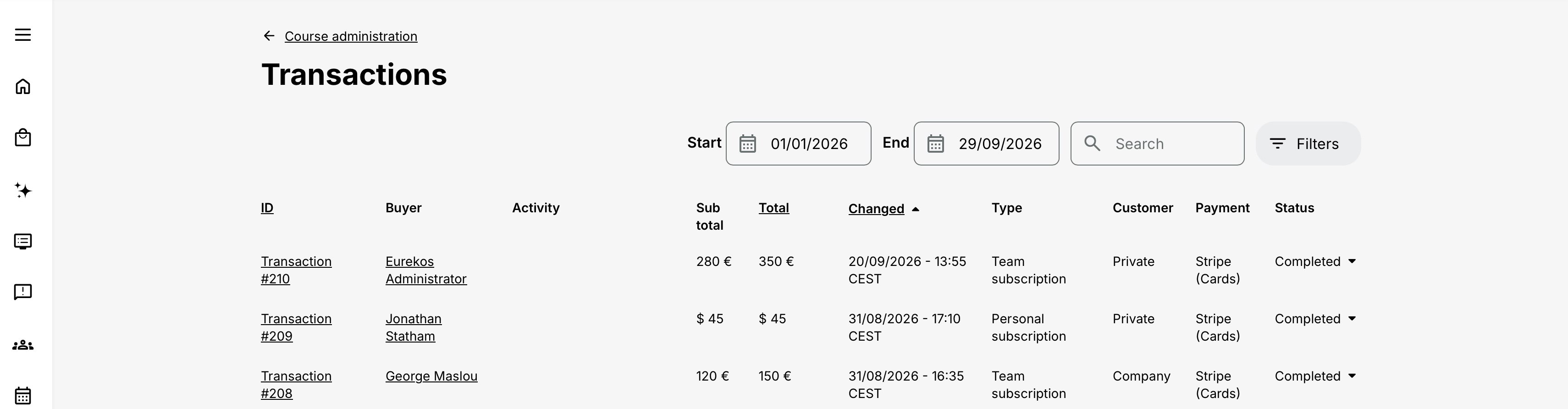
The overview displays:
- ID
- Buyer
- Activity
- Sub total
- Total
- Changed
- Type
- Customer
- Payment
- Status
- Invoice status where that functionality is configured
The overview can be searched, filtered, and restricted by date. The exact available fields can depend on platform configuration, enabled Commerce features, organization scope, and Transaction type.
Use the overview for individual investigation. Use Analytics → Transactions for a controlled export or reconciliation across many records.
Permissions and data scope
Access to Transactions is role- and scope-dependent. Course Administrator, Support, Platform Administrator, and Global Administrator roles normally use Course Administration for transactional follow-up, subject to the permissions and organization layer configured on the platform. Some optional or customer-specific roles deliberately exclude Transactions.
Access to the operational overview and the Analytics report is controlled separately. Access to Analytics → Transactions is configured under Settings → Analytics permissions.
The organization layer can restrict which activities, users, organizations, and records an administrator may see. When two administrators receive different results, compare their permissions and organization scope before treating a record as missing.
For exported reporting:
- Parent-level access can include permitted sub-organizations.
- A sub-organization does not automatically see upward or sideways into other branches.
- Blocked users can remain visible for historical accuracy.
- Transactions connected with deleted activities remain available as historical evidence.
- Transactions for deleted users are excluded from the Transactions Report.
- Organization columns preserve the organization context recorded when the Transaction was created.
Limit access and exports to people who need the commercial and personal information for a defined operational purpose.
Configure the upstream process before relying on Transactions
Transactions reflect configuration made elsewhere. They do not correct incomplete prices, payment methods, tax rules, customer details, or enrollment design.
Assign commercial and Finance owners before offering paid enrollment. Confirm that customer forms collect the required billing information, checkout agreements and documents are approved, and any Virtual Credit funding is ready. The Invoice model must also allow access at the point intended by your financial policy.
Platform Commerce settings
Platform Administrators configure the overall purchasing model under Settings → Commerce, including:
- Enabled currencies
- Payment methods
- Payment-method availability at activity level
- Customer types
- Tax rules
- Seller registration details
- Checkout agreements
- Order-confirmation and Invoice PDF behavior
- Price-display formatting
- Administrative notification behavior
External payment methods also require a working provider integration under Settings → Third party integrations.
Training Activity price and payment methods
The pricing configuration on a Training Activity controls its available regular-currency and Virtual Credit prices. Where payment methods can be managed at activity level, the activity also determines which enabled methods the buyer may choose.
Before publishing a paid activity, test:
- Every intended currency
- Every permitted customer type
- Each enabled payment method
- Tax behavior for the seller, buyer, location, and online or onsite context
- Organization and Coupon discounts
- Included and Optional Additional Products
- Order confirmation and invoice output
- Successful and unsuccessful payment-provider outcomes
Administrative enrollment
An administrator can specify a price during supported manual enrollment flows when the activity has a price configured. Depending on the available configuration, the administrator may select:
- A regular currency configured for the activity
- Virtual Credits
- Free
The price is initially populated from the activity and can be adjusted in the supported form. If a price is not specified, the regular price and currency can be determined from the activity configuration and the user’s profile context.
Use administrative overrides only under a documented policy. The resulting Transaction preserves what was applied to that signup and should be explainable to Finance, the activity owner, and the participant.
How Transactions are created
The same Transactions overview can contain records created through different routes.
| Route | Typical Transaction result | Important consideration |
|---|---|---|
| Free self-enrollment | A zero-value Sign-up Transaction | A simplified learner flow may bypass the full checkout form, but the enrollment remains traceable |
| Paid self-enrollment | A Sign-up Transaction with price, currency, tax, payment method, and provider context where applicable | Successful payment and successful signup are related stages |
| Invoice enrollment | A Sign-up Transaction using Invoice without immediate online settlement | Access may be granted before the external invoice is paid |
| Manual administrator enrollment | One Transaction for the enrolled user | A supported price override, Free, or Virtual Credits may be selected |
| Bulk enrollment | One Transaction per user | A bulk action is not represented by one combined Transaction |
| Waiting-list request | A Transaction with Pending status | Pending means that no seat was available and the person was added to the waiting list |
| Coupon checkout | A Sign-up Transaction containing Coupon and discount information | The Coupon affects the activity price, not Additional Product prices |
| Organization discount | A reduced activity-price result | If a Coupon is also used, the percentages can be combined for the activity price |
| Virtual Credits | A Sign-up Transaction charged to an eligible organization balance | The user must be connected to an organization with sufficient credits |
| Additional Product with enrollment | Product information included in the enrollment purchase context | Product prices are separate from Coupon and organization activity discounts |
| Optional Additional Product bought later | A separate Product Transaction | It is not a revision of the original enrollment Transaction |
| Subscription purchase or renewal | A Personal, Team, or Managed subscription Transaction, depending on the subscription model | Recurring payments and certain billing or seat changes create individual records |
| Reselling Gateway purchase | The purchase creates a private cloned activity and transfers the initiator’s signup and Transaction to it | Investigate the clone rather than expecting the final record only on the original Storefront activity |
In the current Transactions Report, the Type filter distinguishes:
- Product
- Sign-up
- Personal subscription
- Team subscription
- Managed subscription
Search and filter Transactions
The Transactions overview combines date restrictions, identifier search and operational filters so you can narrow the records before opening an individual Transaction.
- Open Course Administration → Transactions.
- Choose a date range that includes when the checkout or enrollment was initiated—not only the activity delivery date.
- Search by Transaction ID, Hashed/Invoice ID, or buyer email.
- Use the Activity or Course filter when you know the training rather than the Transaction identifier.
- Apply the relevant Type, Customer, Payment method, or Status filters.
- Open the individual Transaction to inspect its details.
- Compare it with the activity signup and, for online payments, the payment-provider record.
- Record the identifiers used when handing the case to Finance, Support, or the payment provider.
Do not rely on buyer names or activity titles as general search keys in the Transactions overview.
The available filters include:
- Type
- Customer
- Payment method
- Status
- Activity
- Course
Choose the correct date
The Transaction creation date answers when the commercial or enrollment process was created. It is not necessarily:
- The activity start date
- The date the learner began the course
- The invoice payment date
- The card settlement date
- The date of a later cancellation or refund
- The next subscription billing date
Expand the date range when a known enrollment does not appear. A participant may buy a scheduled activity weeks or months before it starts.
Search and reconcile with stable identifiers
Names, email addresses, and activity titles can change. The search field accepts buyer email, but stable identifiers are preferable for investigation and external reconciliation:
- Transaction ID
- Hashed/Invoice ID or order reference
- Payment-provider Reference ID
- User ID or external user ID
- Activity ID
- Subscription reference where relevant
Not every identifier is a searchable field in the operational overview. Use the Transaction ID or Hashed/Invoice ID to locate the platform record, then use the remaining identifiers to compare related systems and reports.
Understand the Transaction identifiers
Transaction ID
The Transaction ID is the unique internal Eurekos identifier. It is a running number and is the best starting point when Support or another administrator must locate the same platform record.
Do not confuse it with the participant ID, activity ID, payment-provider ID, invoice number, or order reference.
Hashed/Invoice ID
The Hashed/Invoice ID is the reference used on invoice or order-confirmation material. Its documented format contains two groups of five uppercase letters or numbers, for example:
A765F-KE4G3
Use this identifier when the participant sends an invoice, confirmation, or order reference and you need to locate the related Transaction.
Payment-provider Reference ID
An online payment can include a Reference ID generated by the external payment provider. Its structure depends on that provider.
Use it to match the Eurekos Transaction with the provider’s dashboard or support process. A Transaction without an online payment will normally not have this provider reference.
No card data is stored in Eurekos
The platform does not expose card numbers or other credit-card details in Transactions. Use the payment-provider system and its Reference ID for payment authorization, capture, refund, settlement, and dispute investigation.
Read the Transaction details
The live Transaction page is organized into Summary, Order, and Logs.
Summary
The Summary can show:
- Transaction ID
- Type
- Payment method
- Hashed/Invoice ID
- Customer type
- User or buyer
- Training Activity
- Total
- Status
- Created date and time
- Changed date and time
Additional customer, billing, provider, or invoice information can be available depending on the Transaction type and platform configuration.
Order
The Order table shows:
- Product
- Quantity
- Sub-total
- Discount
- Total
Logs
The Logs table records status events with:
- Date
- Status
- Data
Additional report information
The Transactions Report can expose additional information that is not necessarily displayed directly on every Transaction page, including:
- Email, user ID, and external ID
- Country and billing address
- Company information
- Company registration or VAT number
- Purchase-order or EAN reference
- Additional Product and subscription information
- Activity schedule and signup expiration
- List price, discount, net price, tax, total, and currency
- Invoice PDF and invoice status where configured
- External payment-provider Reference ID where applicable
The exact fields shown on screen and available in the report vary by Transaction type, platform features, and report template.
Understand Transaction statuses
Transaction status describes the state of the enrollment or payment process. It does not describe course progress.
| Status | What it means | What to check next |
|---|---|---|
| Created | The Transaction has been initiated and stored | Determine whether the learner continued to payment and whether a signup was completed |
| Pending | No seat was available and the user was added to the waiting list | Check the activity’s signup list, seat limits, organization limits, and waiting-list process |
| Refused | The user’s signup was cancelled by an administrator | Review participant change history and the operational reason; do not interpret this as a card refusal |
| Authorizing | Payment authorization has started at the provider, which may place a hold on the card | Check the provider Reference ID and provider status |
| Authorized | The provider authorized the payment | Determine whether capture and enrollment completion followed |
| Authorize refused | The provider refused authorization | Check the provider reason, currency, amount, and integration configuration |
| Cancelled by buyer | The buyer cancelled payment at the provider or left the activity during the applicable process | Compare provider history, signup status, and participant change history |
| Capture pending | Authorization succeeded and capture has started but is not complete | Check the provider; some providers or currency conditions can require merchant action |
| Captured | The provider successfully captured the payment | Confirm that the Eurekos workflow reached Completed and that the signup exists |
| Capture refused | Payment capture failed or was refused | Investigate the provider record before retrying or re-enrolling |
| Completed | The Transaction completed successfully and the signup was created or promoted to Registered | Verify the signup and confirmation; for Invoice, follow the separate financial collection process |
| Executed | Legacy or obsolete status | Treat it as historical and consult Support if it affects an active case |
| Execute refused | Legacy or obsolete status | Treat it as historical and consult Support if it affects an active case |
A Transaction can also become Completed when a signup changes from Waiting list or Reserved to Registered.
Not every Transaction uses every status
A free or manually administered enrollment does not pass through card authorization and capture. Payment-gateway stages depend on the provider. A waiting-list record follows capacity logic rather than a normal successful-payment sequence.
Do not design monitoring around one assumed linear chain for every payment method.
Pending does not mean “awaiting payment”
In Course Administration Transactions, Pending is assigned when no seat is available and the user is added to the waiting list.
If Finance is waiting for an invoice to be paid, track that receivable in the system that owns invoice settlement. Do not use the Transaction’s Pending status as an accounts-receivable state.
Refused and Authorize refused are different
- Refused concerns a signup cancelled by an administrator.
- Authorize refused concerns payment authorization refused by an external provider.
- Capture refused concerns a later failure to capture an authorized payment.
Choose the matching investigation. Participant administration will not explain a provider decline, and the provider dashboard will not explain why an administrator cancelled a signup.
Completed has important limits
Completed means the Transaction workflow succeeded and the signup was created or promoted to Registered. It does not mean:
- The participant completed the Training Activity
- An invoice managed outside Eurekos was paid
- An online payment can no longer be refunded or disputed
- The participant’s signup was never later cancelled, expired, or moved
Open the record that owns the later event.
Compare Transaction and signup status
The activity participant list uses signup statuses such as:
- Registered
- Reserved
- Waiting list
- Expired
- Cancelled
These describe access or participation. Transaction status describes how the enrollment or purchase process progressed.
Examples:
- A Transaction can be Completed while the participant is now Expired because access ended later.
- A Transaction can be Completed while the participant is now Cancelled because they withdrew after enrollment.
- A Transaction can be Pending while the signup is on the Waiting list.
- A Transaction can change to Completed when the participant moves from Waiting list or Reserved to Registered.
- A captured payment can require investigation if the final signup was not created.
For disputes or audits, preserve both perspectives rather than overwriting one with the other.
Free enrollments
A free Training Activity still creates a Transaction. The record provides evidence of when and how access was granted even though no money changed hands.
If Simple Enrollment Flow for Free Courses is enabled, a registered user may be enrolled immediately without completing the full checkout form. This removes unnecessary billing fields from the learner experience; it does not remove the underlying Transaction.
Free Transactions are useful for:
- Measuring adoption
- Reconciling manual and automatic enrollment routes
- Demonstrating a complete training-access history
- Connecting enrollments with Market Value
- Investigating unexpected access
- Distinguishing free access from missing revenue data
Platform Commerce settings can suppress certain administrative notifications for free enrollments. A missing notification therefore does not prove that no Transaction exists.
Market Value and a free Transaction answer different questions
A zero-value Transaction records how access was granted. Market Value records an administrator-defined estimate of the value delivered. It is not copied into the Transaction as revenue and does not change the Transaction amount.
Use Analytics → Transactions to analyze commercial and enrollment events. Use Analytics → Market value to analyze estimated value.
Do not add the two measures together or treat Market Value as money received.
Online payment gateways
Eurekos can pass payment processing to configured external providers. The available providers and payment methods depend on the platform configuration.
| Eurekos | Payment provider |
|---|---|
| Activity, buyer, order, price, tax, currency, discount, signup, and Transaction context | Card or wallet credentials, authorization, capture, provider refusal reason, settlement, refund, dispute, and provider logs |
| Internal Transaction ID and Hashed/Invoice ID | Provider Reference ID |
| Enrollment confirmation and configured documents | Provider-specific payment receipt where supplied |
When an online payment fails:
- Find the Eurekos Transaction.
- Record its ID, amount, currency, status, creation time, and provider Reference ID.
- Verify whether a signup exists and its current status.
- Open the matching provider record.
- Compare authorization and capture events.
- Check the provider’s stated failure reason.
- Confirm the provider integration and activity currency and payment configuration.
- Avoid creating another paid enrollment until you know whether money was captured.
Invoice Transactions
Invoice allows a participant to enroll without immediate online payment. Eurekos records the Transaction and can produce configured invoice or confirmation material, while the organization handles collection through its financial process.
In the standard invoice flow:
- The signup can be created immediately.
- The participant can receive access immediately, subject to the activity’s schedule and access restrictions.
- No card authorization or capture occurs.
- Eurekos does not automatically make the external invoice paid.
- An external ERP integration or manual export can support invoicing and reconciliation.
This model is generally suited to trusted B2B, partner, or public-sector relationships. If non-payment should prevent access, the organization’s enrollment and financial design must address that requirement deliberately.
Invoice is a payment method, not a settlement status
Do not treat Completed as “invoice paid.” The Course Administration Transaction confirms the enrollment flow. The accounting system must answer whether the receivable was issued, paid, credited, or overdue.
Reconcile Invoice Transactions
Use Analytics → Transactions and filter by the relevant period, customer type, payment method, and status. Export the required billing and commercial fields, then:
- Match each Transaction ID or Hashed/Invoice ID to the ERP record.
- Validate buyer, company, PO or EAN, seller, currency, price, discount, tax, and total.
- Confirm whether the invoice was issued and paid in the financial system.
- Record exceptions in the system designated by the organization.
- Avoid changing participant access solely from an assumption about Transaction status.
Prices, discounts, currency, and tax
The Transaction records the calculation produced by the configuration and checkout context at that time.
Regular price and administrative price
Regular-currency prices come from the Training Activity and enabled platform currencies. In supported administrative enrollment flows, an authorized administrator can specify another amount or choose Free.
For maintaining future activity and Product prices, see Price Manager.
Interpret the historical Transaction from the amount actually recorded—not from the activity’s current price, which may have changed later.
Coupon and organization discounts
A Coupon created under Course Administration → Discount campaigns can reduce the regular Training Activity price by a percentage. An eligible organization discount can also apply.
Where both apply, their percentages are combined for the Training Activity price. The used Coupon and percentage appear in the Transaction details and applicable confirmation or invoice information.
Additional Products
Coupon and organization discounts affect the Training Activity price, not the Additional Product price.
| Order component | Calculation | Amount |
|---|---|---|
| Training Activity | Regular price | EUR 200 |
| Activity discount | 25% of EUR 200 | -EUR 50 |
| Optional workbook | Separate Product price | EUR 40 |
| Subtotal before applicable tax | EUR 190 |
An optional Product bought later from Learn mode creates a separate Product Transaction.
Currency
Use the currency stored on the Transaction when reconciling. Do not convert a historical total using today’s exchange rate or assume that the buyer used the platform’s default currency.
Available activity currencies and the user’s profile context influence the enrollment flow.
Tax
Tax can depend on platform tax rules, seller entity, buyer information, activity format, and activity location. The Transactions Report can expose list price, discount, net price, tax, and total as separate numeric fields.
If tax appears incorrect, investigate the configuration and buyer context that applied when the Transaction was created. Do not infer the correct legal treatment from the activity title alone.
Virtual Credit Transactions
Virtual Credits are an organizational payment mechanism rather than a regular currency.
During a supported enrollment flow:
- The activity must have a Virtual Credit price.
- The participant must belong to an eligible organization or sub-organization.
- The paying organization must be selected where required.
- The organization must have enough Virtual Credits.
- Bulk enrollment applies the same validation to every user.
- Users from different organization contexts may prevent one combined bulk payment selection.
A Coupon cannot be combined with Virtual Credits.
For code models, scope, and usage limits, see Discount campaigns and Coupons.
When reconciling, compare the Transaction with the organization’s Virtual Credit balance and history rather than an external card provider.
Waiting-list Transactions
When the activity has no eligible seat and the user enters the waiting-list flow, the Transaction receives Pending status.
Capacity can be affected by:
- Overall activity Seats
- Seats per organization
- Existing registrations and reservations
- Pending approval processes
- Registration deadlines
- Waiting-list configuration
The Transaction does not reserve a paid seat or override capacity. If a seat becomes available, the waiting-list process determines whether the person is promoted. When the signup is promoted from Waiting list or Reserved to Registered, the Transaction can become Completed.
Before collecting or retrying payment for a Pending Transaction, confirm the current signup and capacity state. Do not assume that a remaining Coupon use, payment authorization, or invoice arrangement creates a seat.
Additional Product Transactions
Additional Products can be Included or offered as Optional purchases alongside Training Activities. Two purchase patterns matter.
| Purchase scenario | Order, Transaction, and confirmation behavior |
|---|---|
| Product selected during enrollment | The Order and Transaction context include the Training Activity and Product information. Included Products cannot be removed by the buyer; Optional Products can be selected. |
| Optional Product purchased later | An Optional Product bought from the Training page after enrollment creates a separate Product Transaction and uses the dedicated Additional Product confirmation process. |
Subscription Transactions
Subscriptions extend Transactions beyond one-time Training Activity enrollment. The central Course Administration → Transactions overview can include subscription-related records.
To inspect the payment history for one subscription owner, open Subscriptions, select the subscription owner record, and open Transactions. Do not confuse this with Course Administration → Subscriptions, which manages subscription definitions.
Individual Transaction records can be created for:
- Initial subscription purchase
- Recurring payments
- Seat-quantity changes
- Billing-period updates
- Other supported subscription billing events
Auto-enrollments arising from a subscription can also reference the included Training Activities. Activity start and end fields can be empty where a Transaction spans several activities.
Use the subscription record for entitlement, seats, plan, cancellation, and next billing context. Use the Transaction and provider for the individual payment event.
Reselling Gateway Transactions
In a Reselling Gateway flow, the Storefront activity is a reusable offer from which private deliveries can be initiated.
Once the flow starts, Eurekos creates a temporary clone while the private delivery and signup are being configured. When the initiator completes enrollment, they become the clone’s first signup. The signup and Transaction are connected to the private clone, Self enrollment is disabled on that clone, and the initiator becomes its Contact Manager.
The original offer remains available for later initiations. Each completed initiation can therefore produce a separate private delivery. Look for the final participant and commercial records on the clone, not only on the original Storefront activity.
Where calendar events have been created in Calendar and connected to the original Training Activity, the initiator’s selected dates are retained for the private delivery. These are Calendar events, not Event modules. Webinar links inherited from the template are cleared so the private delivery can receive its own meeting information.
If the initiation is abandoned and the temporary clone has no signups, the scheduled cleanup can remove it after the configured period. A clone containing a valid signup or Transaction must not be treated as orphaned. Cancelling a participant must not by itself delete a clone that still represents a valid private delivery.
Learn more in Reselling Gateway for configuration, invitation matching, Calendar behavior, permissions, and cleanup safeguards.
Resend an enrollment confirmation
Open the individual Transaction and select More → Resend confirmation of enrollment.
Before resending:
- Verify the recipient and email address.
- Confirm that the Transaction and signup belong to the same intended activity.
- Check that the current status still supports the message.
- Review whether dates, location, price, Product, or cancellation information changed after the original confirmation.
- Avoid presenting an old order confirmation as proof of a later refund, move, or invoice payment.
Resending helps when the original message was lost or filtered. It does not retry payment, create another signup, repair an incorrect email address, or change the Transaction.
Use Course Administration, Analytics, and integrations for different jobs
| Need | Best starting point |
|---|---|
| Investigate one participant or checkout | Course Administration → Transactions |
| Reconcile a period or many Transactions | Analytics → Transactions |
| Review one activity’s signup price and Transaction ID | Course Administration → Activities → open the activity → More → Signup details |
| Prove changes to signup status | Analytics → Participant change history |
| Verify card or wallet processing | Payment-provider dashboard using the Reference ID |
| Verify invoice settlement | ERP or accounting system |
| Automate downstream financial processing | Eurekos Open API or configured integration |
| Review subscription billing for one owner | Subscriptions → open the subscription owner record → Transactions |
| Measure estimated value rather than revenue | Analytics → Market value |
| Review platform email processing | Settings → Email sending → Sent emails |
| Investigate failed or queued emails | Settings → Email sending → Error log and Retry queue |
Transactions Report filters
The report can be narrowed by:
- Transaction creation period
- One or more Training Activities
- Type: Product, Sign-up, Personal subscription, Team subscription, or Managed subscription
- Customer type
- Payment method
- Status
Only activities that generated Transactions appear in the Activity selector. Available filter values depend on the enabled platform features and the records in scope.
Transactions Report fields
The complete or customized report can include:
- Core IDs, Type, Status, Created, and Changed
- User, email, user ID, and external ID
- Customer type, country, address, and company
- Company registration, VAT, PO, and EAN information
- Activity, Additional Product, and subscription references
- List price, discount, net price, tax, total, and currency
- Activity schedule and signup expiration
- Subscription next billing date
- Invoice PDF and invoice status where enabled
Numeric commercial fields are exported in a finance-friendly numeric format. Confirm decimal and currency handling when importing the report into another system.
Routine reconciliation
Use a consistent reporting period, date definition, organization scope, and documented filters. Decide explicitly whether to include free enrollments, Product purchases, and subscription events; apply the report’s deleted-user and deleted-activity rules when comparing totals. Match records through stable Eurekos and external references, confirm numeric and currency handling, and assign an owner to exceptions such as duplicates, failed payments, refunds, or missing signups. Share and retain exports through the approved process.
Data snapshot behavior
Report fields that describe organization context preserve the context recorded at the time of the Transaction. This matters when a user later changes organization, country, address, or profile information.
Use the historical value to explain the original calculation. Use current profile data only when the question concerns the user’s present state.
API and integrations
The Open API can expose Transactions for ERP, finance, reporting, or other owned systems. A configured CRM integration can also synchronize selected Transaction fields one way from Eurekos.
Define:
- Which system is authoritative for each status
- Which identifier is the cross-system key
- Whether data is pushed, pulled, or scheduled
- How retries and duplicates are handled
- How currency, tax, and numeric fields are mapped
- Which organizational and personal data may leave Eurekos
- How refunds, cancellations, and late changes are reconciled
API availability does not make an integration self-designing. Establish ownership, mapping, monitoring, and exception handling before relying on it for financial operations.
A reliable investigation workflow
| Verification step | What to check and confirm |
|---|---|
| 1. Establish the question | Identify whether the issue concerns enrollment or access; card authorization or capture; invoice issuance or payment; price, discount, currency, or tax; waiting-list capacity; Additional Products; subscription billing or entitlement; confirmation communication; or cancellation and refund. |
| 2. Identify the exact record | Collect the buyer email and user ID; activity or subscription title and ID; approximate checkout date and time; Transaction ID or order reference; payment method and currency; and Provider Reference ID where applicable. Search the operational overview by Transaction ID, Hashed/Invoice ID, or buyer email. Use the Activity or Course filter rather than searching by the training title. |
| 3. Confirm what the status means | Interpret Pending, Refused, and Completed using the status definitions in this article. Do not assume that a Transaction status alone confirms payment, access, or settlement. |
| 4. Verify the signup or entitlement | For a Training Activity, open the activity and check the participant list or More → Signup details. For a subscription, open Subscriptions, select the owner record, and open Transactions. Confirm whether access exists now and how it changed. |
| 5. Verify the financial record | For online payment, check the payment-provider record. For Invoice, check the accounting or ERP record. For Virtual Credits, check the organization balance and credit history. |
| 6. Verify the calculation | Compare the list price, individual price overrides, discounts, Product prices, tax, total, and currency. Use the values recorded in the historical Transaction, not today’s configured prices. |
| 7. Choose the approved resolution | Based on the evidence and applicable policy, determine whether to resend confirmation, correct participant data, re-enroll or reactivate, move the participant, issue a replacement Coupon, refund through the payment provider, request an invoice correction or credit note from Finance, or escalate an integration mismatch. Confirm the operational and financial consequences before taking action. |
| 8. Preserve the evidence | Record the Transaction ID, external references, decision, responsible owner, and related financial action in the organization’s designated case or accounting system. |
Cancellations, refunds, and corrections
Cancellation, access, and payment are separate dimensions. A user leaving an activity does not automatically explain what happened financially, and a provider refund does not by itself describe the participant’s current access.
Use the investigation workflow above to establish the current financial and access states before applying the approved cancellation or refund policy. Check any effects on Additional Products, subscriptions, Coupons, and Virtual Credits. Complete each action in the system that owns it, then verify the final state in both systems.
Do not assume that:
- Cancelling a signup automatically refunds a card payment
- Refunding a provider payment automatically cancels training access
- Cancelling an invoice automatically changes the Eurekos Transaction
- Cancelling an enrollment restores a Coupon use
- Moving a participant creates the same price or payment outcome as a new checkout
- Editing the current activity price rewrites a historical Transaction
Where the configured integration does not automate both sides, these are coordinated administrative actions.
Data protection and audit practice
Transaction records can contain personal, organizational, and financial-context data. Apply the platform’s role and organization controls and the organization’s data-retention policy.
Good practice includes:
- Never asking a participant to send complete card details
- Never storing card details in comments, exports, support tickets, or email
- Sharing provider Reference IDs rather than payment credentials
- Sending exports only through approved secure channels
- Restricting Finance exports to necessary fields and date ranges
- Documenting manual price overrides and Free enrollments
- Keeping a clear cross-system identifier
- Preserving original records rather than silently recreating history
- Verifying user identity before resending order documents
Common operating models
| Operating model | What happens | How to verify and manage it |
|---|---|---|
| Free internal compliance training | Employees self-enroll through the simple free flow or are added through an onboarding rule. Every enrollment still creates a zero-value Transaction. | Use Transactions to trace access creation and Progress and Certificates to prove completion. Market Value can express the estimated value delivered without changing the zero amount paid. |
| Direct-to-consumer card purchase | A learner buys an online certification with a card. Eurekos creates the Transaction, while the payment provider authorizes and captures the payment. The successful Transaction creates the signup. | Reconcile the Transaction ID, Hashed/Invoice ID, provider Reference ID, Captured or Completed state, and participant signup before offering another payment attempt. |
| Company enrollment by Invoice | A company participant selects Invoice and provides company and purchase-order information. The Transaction completes and access is granted, while Finance issues or handles the invoice separately. | Use the Transactions Report to export invoice records to the ERP. Treat the ERP payment status as the authority for settlement. |
| Partner campaign with a Coupon | A partner uses a Coupon from a Discount campaign. The Transaction contains the activity-price discount and Coupon context. | If an organization discount also applies, validate the combined percentage. Additional Products remain at their own prices. Reconcile campaign usage against the Discount campaigns overview and Transactions Report. |
| Classroom activity with waiting list | A participant attempts to enroll after capacity is reached. The Transaction becomes Pending, and the participant appears on the waiting list. | Manage capacity and promotion through the participant workflow. When the participant becomes Registered, the Transaction can become Completed. Do not interpret Pendingas an unpaid invoice. |
| Optional workbook purchased later | A learner enrolls first and later buys a workbook from the Training page. The later purchase creates a separate Product Transaction. | Expect two records: one for the Sign-up and one for the later Product purchase. Do not treat them as a duplicate charge solely because they concern the same learner and activity. |
| Subscription academy | A customer buys a subscription providing access to several activities. The initial purchase, recurring payments, and supported billing changes appear as individual Transactions. | Use the subscription record for current entitlement and included content. Use Transactions and the payment provider to investigate each financial event. |
| Bulk partner enrollment | A Course Administrator enrolls 150 users through a filtered bulk action. Eurekos generates one Transaction for every user. | Expect 150 individual Transaction records, not one order row. Use a controlled export and an external batch or reference convention when Finance needs to reconcile them as one business initiative. |
| Private delivery through the Reselling Gateway | A customer initiates a private delivery and selects its dates. Eurekos creates a temporary clone during configuration. Once enrollment is completed, the initiator becomes the first signup, and the Transaction is connected to the private clone. | Search the cloned activity if the Transaction does not appear under the original Storefront offer. An abandoned temporary clone is eligible for cleanup only when it has no signups and the configured period has passed. |
Troubleshooting
| Problem | What to check or do |
|---|---|
| Transactions is missing from Course Administration | Confirm the user’s role, operational Transaction permission, organization scope, and platform configuration. Access to Analytics → Transactions is controlled separately under Settings → Analytics permissions. |
| I cannot find a known Transaction | Expand the creation-date range, clear restrictive filters, and search by Transaction ID, Hashed/Invoice ID, or buyer email. Use the Activity or Course filter for training. Also check whether the record is a subscription or Product Transaction or was transferred to a Reselling Gateway clone. |
| The participant is enrolled but no Transaction appears in my search | Every enrollment should create a Transaction. Open the activity and use More → Signup details to find the Transaction ID, widen the date range, confirm scope, and search using the ID. Escalate with the activity ID, user ID, enrollment time, and enrollment route if the record remains unavailable. |
| One bulk enrollment produced many Transactions | This is expected. Eurekos creates one Transaction per enrolled user, preserving individual signup and price evidence. |
| The Transaction is Created and never progressed | The checkout may have been abandoned or interrupted. Verify whether a signup exists, inspect provider records when a Reference ID exists, and confirm whether the participant attempted another checkout. Do not mark the case paid without provider evidence. |
| The Transaction is Pending but Finance says no payment is due | Pending indicates the waiting list, not an unpaid balance. Check seats, organization limits, signup status, and waiting-list configuration. |
| The waiting-list participant is now Registered but the Transaction changed to Completed | This is expected. A Transaction can become Completed when a signup moves from Waiting list or Reserved to Registered. |
| The Transaction is Refused but the card provider approved payment | Refused describes an administrator-cancelled signup. Review Analytics → Participant change history and compare it with the provider’s Authorized or Captured payment. Coordinate any refund and access resolution. |
| The status is Authorize refused | Open the payment-provider record using the Reference ID. Check the provider reason, currency support, amount rules, card or wallet response, and integration configuration. |
| The status is Authorized but not Captured | Authorization and capture are separate. Inspect the provider record for capture progress, merchant action, expiry, cancellation, or failure. Avoid creating another charge until the first payment’s state is known. |
| The status is Capture pending for a long time | Use the provider Reference ID to check whether merchant action, currency handling, or another provider condition is holding capture. Escalate with both identifiers and timestamps. |
| The status is Capture refused | Review the provider’s refusal reason and whether the authorization remains valid. Follow the provider and organizational retry or refund procedure rather than assuming that payment succeeded. |
| The provider shows Captured but Eurekos is not Completed | Confirm whether a signup was created, preserve both records, and contact Support with the Transaction ID, Reference ID, amount, currency, provider timestamps, user ID, and activity ID. Do not ask the buyer to pay again until the captured amount is resolved. |
| Eurekos shows Completed but the participant cannot access training | Completed confirms signup creation or registration. Check the participant list for Cancelled or Expired status, activity start and access dates, restrictions, nested activity rules, user status, and organization visibility. |
| Eurekos shows Completed but the invoice is unpaid | This can be correct. Completed does not represent external invoice settlement. Follow up in the ERP or accounting process. |
| A free enrollment is missing from the administrator email flow | Commerce configuration can exclude free enrollments from administrative notifications. Search Transactions and the participant list directly. |
| A free activity still has a Transaction | This is expected. Every enrollment is recorded, including zero-value enrollments. |
| The amount does not match the activity’s current price | The activity price may have changed after purchase, or an administrative override, organization discount, Coupon, currency, tax rule, or subscription context may have applied. Use the historical Transaction calculation. |
| The discount is larger than the Coupon percentage | Check whether an organization discount also applied. Organization and Coupon percentages can be combined for the Training Activity price. |
| The Coupon appears but the Additional Product was not discounted | This is expected. Coupon and organization discounts do not reduce Additional Product prices. |
| A 100% Coupon Transaction still has a payable amount | Review Additional Products and tax or other order components. The Coupon reduces the Training Activity price only. |
| The Transaction has no card details | This is expected and intentional. Card data belongs to the payment provider. Use the Reference ID. |
| The provider Reference ID is missing | Confirm the payment method. Free, Invoice, manual, Virtual Credit, and other non-gateway Transactions do not normally have a provider Reference ID. If the method was online, inspect the provider record and escalate with the Transaction ID. |
| The Hashed/Invoice ID does not match the Transaction ID | They are different identifiers by design. Use the Transaction ID internally and the Hashed/Invoice ID as the order- or invoice-facing reference. |
| The participant did not receive confirmation | Verify the email address, Transaction status, and signup status. Check Settings → Email sending → Sent emails. For failed or queued messages, also check Error log and Retry queue. Verify the sender configuration and spam filtering, then use More → Resend confirmation of enrollment only after confirming that the message remains accurate. Sent emails confirms platform processing; provider evidence may still be needed to investigate delivery after the message left Eurekos. |
| Resending confirmation did not create access | Resending is a communication action, not an enrollment action. Resolve the signup or payment problem separately. |
| Two Transactions look like a duplicate charge | Compare Type, timestamp, amount, provider Reference ID, signup, Products, subscription event, and re-enrollment history. If both provider records were captured, follow the financial duplicate-payment process. |
| The later Additional Product is not on the enrollment Transaction | This is expected when it was bought separately from Learn mode. Find the separate Product Transaction. |
| The subscription Transaction has no activity dates | A subscription can span several activities. Activity start and end fields may therefore be empty. Use the subscription record for plan and entitlement context. |
| A subscription owner sees different Transactions from the central overview | The owner view is scoped to that subscription. The Course Administration overview is broader and subject to administrator scope. Align subscription, date, Type, and Status filters. |
| The Transaction appears under a cloned activity | This can occur in a Reselling Gateway flow. The initiator’s signup and Transaction are connected to the private clone created for that delivery. |
| An abandoned Reselling Gateway initiation left an empty clone | A temporary clone is created after the flow starts. If the process is abandoned and the clone has no signups, the scheduled cleanup can remove it after the configured period. A clone with a valid signup or Transaction must not be treated as orphaned. |
| The report does not include a deleted user | Transactions belonging to deleted users are excluded from the Transactions Report. Use approved external accounting and retention records where required. |
| The report still includes a deleted activity | This preserves historical financial accuracy. The activity does not need to remain operational for its Transactions to remain reportable. |
| The organization in the report differs from the user’s current profile | The report preserves the organization context recorded at the time of the Transaction. The user may have moved later. Use participant or profile history for the current relationship. |
| Report totals differ from the Transactions overview | Align creation date, Type, Status, Activity, Payment method, Customer type, organization scope, and user-deletion rules. Confirm whether the report template omitted fields or records and whether subscription or Product Transactions are included. |
| Report totals differ from the payment provider | The provider may group settlement dates, fees, refunds, disputes, or currencies differently. Match individual Reference IDs and gross Transaction amounts before comparing aggregated totals. |
| Report totals differ from the ERP | Check whether the ERP uses invoice date, posting date, payment date, or settlement date rather than Transaction creation date. Also compare tax, credit notes, cancellations, currency, and import failures. |
| Numeric amounts import as text or use the wrong decimal separator | Transaction numeric fields are exported as numbers, but the destination locale or import method can reinterpret them. Set currency and decimal parsing explicitly rather than editing source values manually. |
| Virtual Credit payment is unavailable | Confirm that the activity has a Virtual Credit price, the participant belongs to an eligible organization, the organization is selectable, and it has enough credits. For bulk actions, users may need a compatible shared organization context. |
| The Coupon cannot be used with Virtual Credits | This is expected. Select a regular currency with the Coupon or use Virtual Credits without it. |
| Cancelling the participant did not refund payment | Participant cancellation and payment refund are separate. Use the provider or financial system to complete the approved refund, then verify both the financial and access states. |
| A refund does not change the Eurekos Transaction as expected | Confirm whether the integration synchronizes refunds. Preserve the provider refund evidence and follow the organization’s reconciliation process; do not recreate the enrollment merely to force matching statuses. |
| A cancelled enrollment did not restore the Coupon | Do not assume that Coupon use is automatically restored. Reconcile the Discount campaign and Transaction and issue a controlled replacement only when policy permits. |
| A historical Transaction has an obsolete status | Executed and Execute refused can remain in historical records. If the status affects an active financial or access decision, provide the complete record and identifiers to Eurekos Support. |
| An Incentives reward Transaction has different fields and statuses | You are viewing a separate process under Settings → Incentives → Transactions. Use the Incentives documentation for reward fulfillment, shipping, and its editable operational statuses. |
FAQ
-
Does every enrollment create a Transaction?
Yes. Free, paid, and administratively created enrollments generate Transactions. A bulk enrollment generates one Transaction per user.
-
Why create a Transaction for a free activity?
It preserves a complete record of how and when access was created, supports audit and integration, and avoids making the enrollment history depend on whether money changed hands.
-
Is a Transaction the same as an enrollment?
No. The Transaction records the process and commercial context. The activity signup records the participant's access status.
-
What is the difference between Refused and Authorize refused?
Refused means an administrator cancelled the signup. Authorize refused means the payment provider refused authorization.
-
Does Created mean the buyer paid?
No. It means the Transaction was initiated and stored. Check later status, signup, and provider evidence.
-
Does Captured mean the learner is enrolled?
Captured confirms provider capture. Confirm that the Transaction reached Completed and that the signup exists.
-
What is the Transaction ID?
It is the unique internal running identifier for the Eurekos Transaction.
-
What is the Hashed/Invoice ID?
It is the order or invoice-facing reference, formatted as two groups of five uppercase letters or numbers.
-
What is the Reference ID?
For online payment, it is the external identifier generated by the payment provider. Use it to find the corresponding provider record.
-
Why is there no payment-provider Reference ID?
The Transaction may not involve an online provider—for example, Free, Invoice, manual enrollment, or another platform-managed method.
-
Can I see the participant's card information?
No. Card information is managed by the external payment provider and is not available in Eurekos Transactions.
-
Can I resend the enrollment confirmation?
Yes, from the Transaction details. Verify the recipient, activity, signup, and current status before resending.
-
Why does a known activity not appear in a Transactions Report activity filter?
Only activities that generated Transactions are shown. Also check date range, access scope, and whether the record belongs to a subscription or Additional Product type.
-
Where do I export Transactions?
Use Analytics → Transactions. Choose filters and a full, saved, or one-time custom field selection as available.
-
Does the report include Additional Products?
Yes. It can identify Additional Product Transactions and products included with a purchase.
-
Why are there two Transactions for one learner and activity?
One can be the activity signup and the other a later optional Additional Product purchase. Also check re-enrollment, subscription billing, or repeated checkout before concluding that it is a duplicate.
-
Are subscription Transactions included?
Yes. The central Transactions data includes subscription-related records. Subscription details also provide a focused Transactions tab.
-
Can a Transaction cover several activities?
A subscription Transaction can relate to access covering multiple activities, so activity schedule fields may be empty.
-
Can I change a historical amount by changing the activity price?
No. Interpret the Transaction from its recorded historical amount. Updating the current activity price changes future purchasing behavior, not the original record.
-
Can an administrator enroll somebody for a different price?
Supported manual enrollment flows can allow an administrator to specify a regular-currency price, Virtual Credits, or Free when activity Price is configured. Use this under an approved policy.
-
Does cancelling a participant automatically refund payment?
Do not assume so. Check the Transaction and perform or verify the refund in the payment provider or financial system according to policy.
-
Why is a deleted activity still present in the report?
Transactions for deleted activities remain for historical accuracy.
-
Why is a deleted user absent from the report?
Transactions for deleted users are excluded from the Transactions Report. Use the organization's approved audit and retention process for any required external evidence.
-
Does the report use the user's current organization and country?
Transaction reporting preserves relevant context from the time of the Transaction. Later profile changes do not necessarily rewrite that history.
-
Can Eurekos send Transactions to another system?
Yes. The Open API supports Transaction access, and configured integrations can transfer selected fields. Integration design and ownership are customer responsibilities.
-
Are Incentives Shop Transactions the same thing?
No. Reward-fulfillment Transactions are managed under Settings → Incentives → Transactions and have their own fulfillment statuses. This article covers Course Administration Transactions for training, products, and subscriptions.
-
Should Finance use Price Manager to verify revenue?
No. Price Manager shows reusable configuration. Use Transactions and the financial system to verify what was actually charged, invoiced, or paid.