Mandatory Activities and Deadlines - Article
Summary
Use Mandatory when participants are required to complete a Training Activity by a deadline. You can give everyone the same date or calculate an individual deadline from the activity start or the participant's enrollment. Eurekos makes the deadline visible, prioritizes the required training, and labels incomplete training Overdue after the date passes. The deadline does not lock the activity or remove access, so participants can continue learning unless another access rule prevents it. Add Automated Email Workflows when participants, managers, or administrators should receive reminders and escalations.
In this article you will learn:
- What the Mandatory feature controls and when to use it
- How Mandatory differs from Access Expiration, Access Restrictions, registration deadlines, Event dates, Assignment due dates, certificate expiration, and mandatory onboarding content
- Why Mandatory is configured at activity level
- How to set a deadline after the activity starts, after enrollment, or at a specific date and time
- Which deadline options depend on an activity Schedule or participant signup
- Why a missing number prevents the feature from being enabled
- Where participants and administrators see the deadline
- What the Overdue label means—and what it does not do
- Why participants cannot cancel their own registration in mandatory training
- How deadline changes are recalculated for active and reactivated signups
- How deadlines are reapplied to re-certification attempts
- How to build pre-deadline reminders and post-deadline escalations
- How to test, govern, report, and troubleshoot mandatory learning
What Mandatory helps you achieve
The Mandatory feature turns a Training Activity into a required learning commitment with a completion deadline.
Typical uses include:
- Give every new employee 30 days from enrollment to complete induction.
- Require a scheduled compliance cohort to finish within 14 days of the program starting.
- Set one annual policy deadline for everyone.
- Prioritize required product or safety training in the participant experience.
- Remind incomplete participants before their deadline.
- Escalate missed deadlines to an Immediate Manager, Organization Manager, or responsible Course Administrator.
- Apply a fresh completion period when a re-certification attempt begins.
Mandatory combines three ideas:
- The Training Activity is required.
- Every applicable Registered signup receives a deadline.
- An incomplete signup becomes visibly Overdue after that deadline passes.
Mandatory creates accountability, not enforcement by itself
The deadline and Overdue label communicate urgency and support reporting and automation. They do not automatically remove access, complete the activity, cancel the participant, notify a manager, or apply a penalty.
Choose the correct date or control
Many Eurekos features use dates. Select the control that matches the business objective.
| Business requirement | Use | What happens |
|---|---|---|
| Require completion by a date | Mandatory | A participant deadline is calculated and incomplete training becomes Overdue after it passes |
| End access after a date or time period | Access Expiration | The complete activity signup becomes Expired and learner access ends |
| Keep an enrolled participant from opening content until prerequisites are met | Access Restrictions | The activity or supported Course/Event module remains locked |
| Stop new registrations after a date | Registration details → Latest registration | New registration closes; existing participant access is separate |
| Define when scheduled training takes place | Schedule or Event Starts/Ends | Dates describe delivery and can supply automation or deadline reference points |
| Require an Assignment submission by a date | Assignment due date | The due date applies to that Assignment rather than the whole activity |
| Give an approved applicant time to confirm participation | After-approval questionnaire deadline | The participation-request process progresses or expires; this is not the training completion deadline |
| End credential validity | Certificate expiration | The certificate follows its own validity lifecycle |
| Require the qualification to be earned again | Re-certification | A new attempt is created according to certificate-renewal rules |
| Force a user to acknowledge content before continuing after login | Mandatory content in an Onboarding Rule | The login-presented item cannot be skipped; no Training Activity completion deadline is created automatically |
| Indicate business importance without a completion deadline | Priority or participant-facing description | Importance can be communicated without treating the activity as mandatory |
Understand how deadlines, access, and certificate validity work together
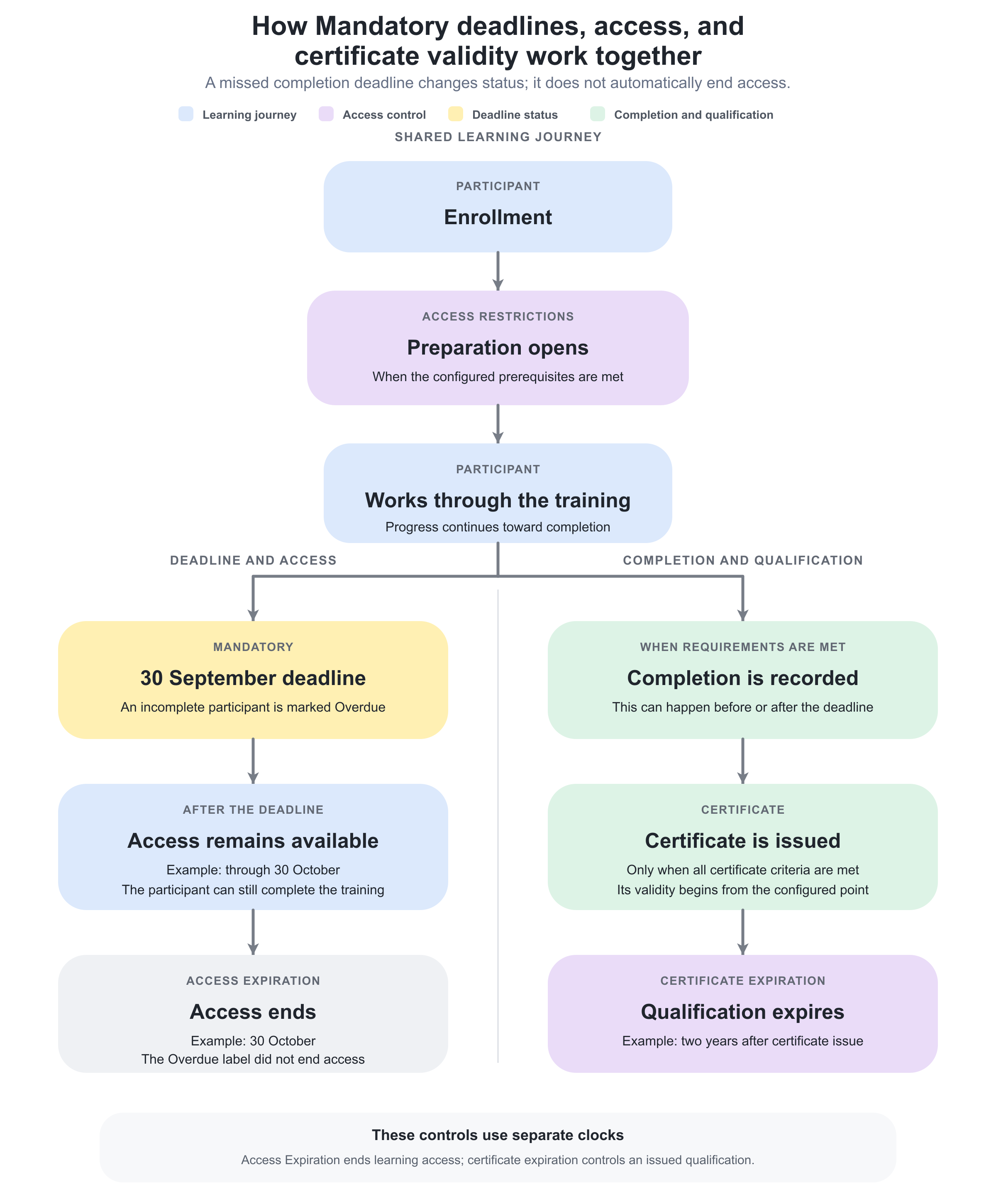
Access Restrictions, Mandatory, Access Expiration, and certificate expiration control different parts of the participant lifecycle. They should not be treated as one uninterrupted sequence.
For example:
- The participant enrolls in the Training Activity.
- Access Restrictions open the preparation when its prerequisites are met.
- The participant must complete the training by the Mandatory deadline of 30 September.
- If the participant is incomplete on 30 September, the training displays Overdue. This status does not automatically remove access.
- Access Expiration is configured for 30 October, allowing the participant an additional month to complete the training.
- When completion is recorded and the certificate criteria are met, the certificate is issued.
- The issued certificate remains valid until its configured expiration—for example, two years after issuance.
A participant can therefore become Overdue and subsequently complete the training while access remains available. Access Expiration ends access to the learning; it does not by itself expire an issued certificate. Certificate expiration applies to the qualification after the certificate has been issued.
Document every date in plain language so administrators and participants understand which setting controls enrollment, completion, access, or qualification.
Understand the configuration level
Mandatory is configured in the activity-level Features of a Training Activity.
The deadline applies to the participant's complete activity signup rather than one individual module. This means:
- A learning path has one activity-level deadline for the whole journey.
- A single-Course or single-Event activity also receives an activity-level deadline.
- Individual Assignments can still have separate due dates.
- Events retain their own Starts and Ends values.
- Courses and Events can have their own access restrictions.
For activity types other than a learning path, Eurekos can also display the activity deadline at module level. This extra display does not create a second independent deadline.
If different parts of a program need genuinely independent completion deadlines, consider whether they should be separate Training Activities or use the module-specific controls that match the requirement.
Permissions and ownership
Configuring Mandatory requires permission to edit the Training Activity and its activity-level Features. Course Administrator, Support, Platform Administrator, and Global Administrator roles normally have access, subject to platform configuration and organization scope.
The people who receive deadline reminders do not need permission to configure the feature. Their relationship must exist in the data used by the workflow—for example, the participant's Immediate Manager or the activity's responsible Course Administrator.
Establish ownership for:
- Policy owner—decides who must complete the training and by when.
- Course Administrator—configures the deadline and validates participant behavior.
- Content owner—keeps the required learning completable throughout the deadline period.
- Instructor or assessor—records attendance and assessment in time.
- Manager—follows up when a participant is approaching or has missed the deadline.
- Compliance or reporting owner—monitors completion and Overdue records.
- Platform or email owner—governs workflows, sender configuration, templates, and delivery evidence.
Mandatory training can affect employment, licensing, customer obligations, and audit evidence. Define exceptions, extensions, and escalation responsibility before participants receive the assignment.
Configure a Mandatory deadline
To enable the feature:
- Open Course Administration.
- Open the Training Activity.
- Choose Edit activity.
- Open the activity-level Features.
- Add or enable Mandatory.
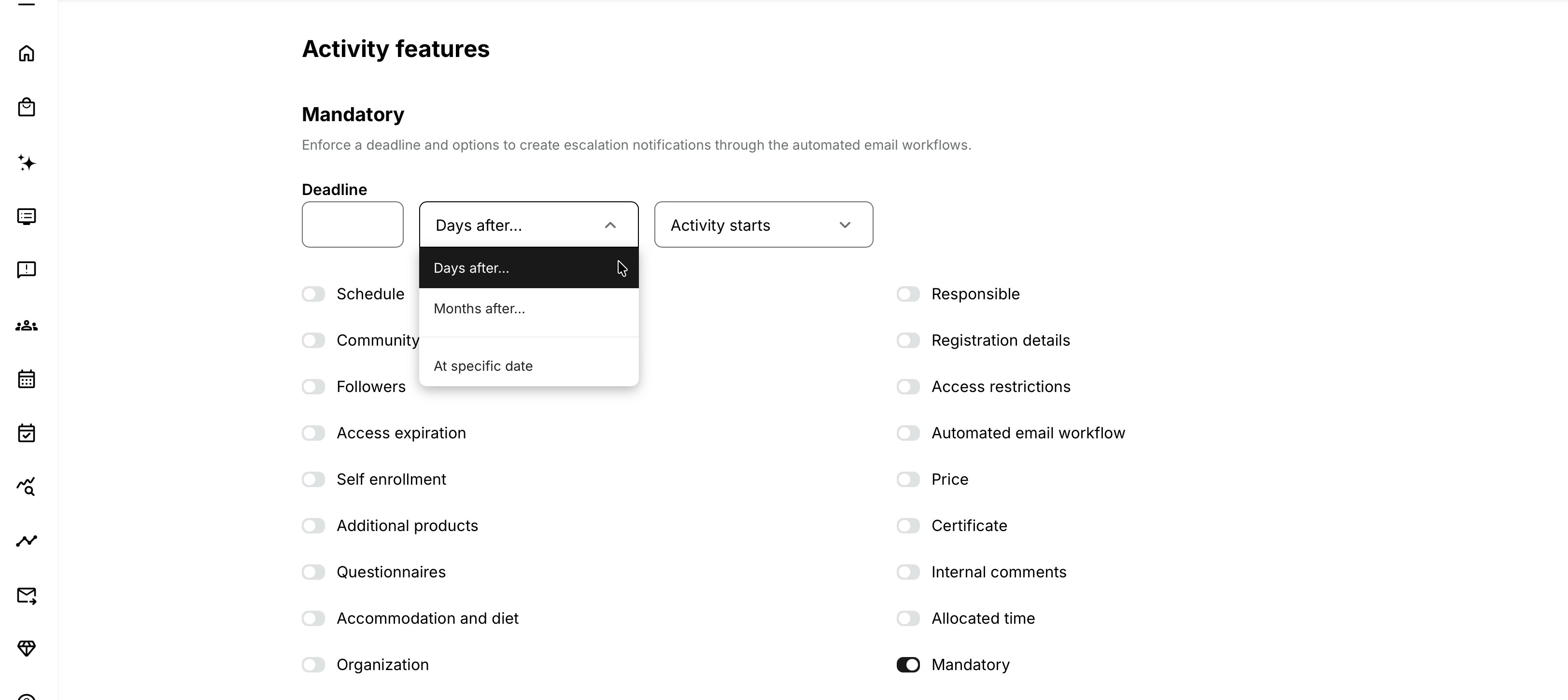
- Select the deadline calculation.
- Enter the required number, date, and time.
- Save the activity.
- Register a controlled test participant.
- Verify the participant's calculated deadline before assigning the activity more widely.
The deadline models are:
| Deadline model | Reference point | Result |
|---|---|---|
| Days after Activity starts | Activity-level Start | Participants receive a deadline calculated from the scheduled activity start |
| Days after User enrollment | Each signup's enrollment | Each participant receives an individual deadline calculated from registration |
| Months after User enrollment | Each signup's enrollment | Each participant receives an individual calendar-month deadline |
| At specific date | Date and time entered by the administrator | Applicable participants share one deadline moment |
The interface groups these through Days after, Months after, and At specific date choices. The available reference field depends on the chosen unit.
A duration is required
If a Days after or Months after option is selected but the number is left empty, saving the activity does not enable Mandatory.
After saving, reopen the activity and verify that:
- Mandatory remains enabled.
- The selected rule is still present.
- The number is stored.
- A new Registered test signup receives a Deadline.
Do not mistake an incomplete configuration form for an active policy.
Choose the correct deadline model
Days after Activity starts
Use this when the completion period should follow a scheduled cohort.
Example:
Everyone enrolled in the September compliance cohort must complete the full activity within 14 days after the program starts.
This model requires an applicable activity-level Start date. It is most appropriate when:
- Participants belong to the same scheduled delivery.
- The activity opens or begins as a shared cohort.
- Late enrollees should still inherit the same cohort deadline.
- The completion period is measured in days rather than calendar months.
Before using it, check:
- Activity-level Schedule is enabled.
- Starts contains the correct date, time, and time zone.
- Module dates do not extend beyond the calculated completion deadline.
- Late enrollment remains operationally possible.
- Automated Email Workflow rules use the participant's effective Deadline rather than a copied fixed date.
A participant enrolled after the activity starts can receive a much shorter remaining period. If every participant should receive the same amount of time, use a deadline relative to User enrollment instead.
Days after User enrollment
Use this when each participant should receive the same number of days from registration.
Example:
Every newly enrolled employee has 30 days to complete onboarding.
This model is suitable for:
- Rolling onboarding
- Evergreen compliance learning
- Individually assigned product training
- Self-paced customer or partner education
- Onboarding Rules that enroll users at different times
The deadline varies by signup.
| Participant | Enrollment date | Rule | Deadline basis |
|---|---|---|---|
| Participant A | 4 January | 30 days after enrollment | 30 days from 4 January |
| Participant B | 19 February | 30 days after enrollment | 30 days from 19 February |
Confirm when each enrollment route creates the Registered signup. Manual enrollment, import, onboarding, nested training, self-enrollment, Storefront purchase, manager enrollment, and approved participation requests can represent different operational journeys.
Months after User enrollment
Use this when the policy is naturally expressed in calendar months.
Examples:
- Complete annual induction within three months of enrollment.
- Finish a partner-accreditation program within six months of receiving access.
Calendar-month calculations are not the same as a fixed number of days. Test participants enrolled:
- On the first day of a month
- Near the end of a month
- On 29 February in a leap year
- Before a daylight-saving change when a time is displayed
Use Days after when the policy requires an exact day count. Use Months after when stakeholders genuinely mean calendar months.
At specific date and time
Use this when everyone should work toward one shared deadline.
Typical uses include:
- Annual compliance due by year-end
- A policy update due before a regulatory date
- A cohort that must complete before a shared assessment
- A customer group with a single contractual milestone
Enter both date and time. Confirm the time-zone context presented by your platform and communicate the moment clearly to global audiences.
Fixed deadlines need extra care for late assignments. Someone enrolled the day before the deadline receives far less time than someone enrolled months earlier.
Before assigning new participants, check:
- Whether the deadline is still in the future.
- Whether the content can realistically be completed in the remaining time.
- Whether required Events or instructor assessments occur before it.
- Whether Access Expiration ends later than the deadline.
- Whether the notification workflow still has time to run.
Understand participant visibility
The effective Deadline is displayed for mandatory activities in Trainings I attend.
Mandatory training is also prioritized in the participant's training experience so required work is easier to find. Current participant overviews can group or order Mandatory and Overdue training prominently among active learning.
For activity types that are not learning paths, the deadline can additionally appear at module level. Treat it as another presentation of the activity's deadline, not a separate module rule.
The participant should be able to answer:
- Which activity is mandatory?
- What is my deadline?
- Is the deadline shown in my local time?
- What remains incomplete?
- Can I still continue after the date?
- Who should I contact for an exception?
Use the Activity Description and email communication when the reason, consequence, or exception policy needs more explanation than the platform label provides.
Understand Overdue
If the participant has not completed the Training Activity when the deadline passes, Eurekos displays Overdue.
Overdue is a label
It identifies that the deadline has passed. It does not perform another action by itself.
Overdue does not automatically:
- Remove access
- Change the signup to Expired or Cancelled
- Lock a Course or Event
- Mark the participant complete or failed
- Revoke a certificate
- Create a new re-certification attempt
- Notify a manager
- Send an email
- Apply a financial or HR consequence
- Free or consume an additional seat
If access remains available, the participant can continue working after the deadline and can still reach completion when the activity's normal criteria are met.
Use an Automated Email Workflow to send reminders or escalations. Use Access Expiration only when the business requirement also says access must end.
Do not use Overdue as a failure grade
Overdue describes timing, not learning performance.
A participant can be:
- Overdue and not started
- Overdue and in progress
- Overdue while awaiting Event attendance recording
- Overdue while waiting for Assignment assessment
- Overdue because a required certificate criterion has not been met
Investigate the underlying completion state before treating Overdue as participant inaction.
Prevent participant self-cancellation
A Registered participant should not be able to use Cancel participation on a Mandatory activity.
This helps preserve administrator-assigned obligations. It prevents the participant from removing required training simply because they do not wish to complete it.
It does not mean the signup can never be changed. An authorized administrator can still use the appropriate participant-management process when:
- The assignment was made in error.
- The participant is exempt.
- Employment or contractual status changed.
- The user should move to another delivery.
- Duplicate enrollment must be corrected.
- The activity is being retired or replaced.
Define who approves cancellation or exemption and how the reason is documented. Do not disable Mandatory merely to let one participant cancel, because that changes the policy for the activity population.
Understand deadline recalculation
Mandatory deadline changes apply differently from Access Expiration changes.
When the activity's Deadline configuration is updated, Eurekos recalculates the Deadline for all active signups.
This means a live change can immediately:
- Move participant deadlines earlier or later
- Make incomplete participants Overdue
- Remove an Overdue condition when the deadline moves later
- Reschedule deadline-based workflow notifications
- Change the date displayed to participants, managers, and administrators
Before changing a live deadline:
- Export or review current participants and their completion state.
- Identify people already near or beyond the existing date.
- Compare the old and new deadline for each enrollment cohort.
- Review scheduled, sent, and skipped workflow notifications.
- Check certificate and re-certification timelines.
- Verify Access Expiration remains later than the new deadline where required.
- Plan participant and manager communication.
- Save the change deliberately.
- Review the activity Change log.
- Recheck representative participant signups.
Do not change a deadline silently after participants have been told another date.
Recalculate a deadline when a signup becomes Registered
When a signup changes to Registered after the Deadline configuration was updated, the participant's deadline is recalculated.
This applies when Registered status is restored or created from another state such as:
- Expired
- Cancelled
- Waiting list
- Reserved
The resulting deadline follows the activity's current Mandatory configuration.
Examples:
- A waiting-list participant receives a seat and becomes Registered.
- A reservation is converted into an active enrollment.
- An expired participant is reactivated.
- A cancelled signup is reactivated.
After the status change, check the new deadline. Do not assume the participant retains the date from an earlier signup state.
Coordinate with waiting lists and reservations
A person on the Waiting list or holding a reservation may have been aware of the activity for some time without having an active Registered signup.
When they become Registered:
- An enrollment-relative deadline is calculated from the relevant registration event.
- A fixed date may leave little time.
- An activity-start-relative deadline may already be close or overdue.
- Deadline-based workflow messages may have little time to run.
Check the participant journey when promoting or converting people late in a scheduled program.
Reapply the deadline during re-certification
For a duration-based Mandatory rule, a new re-certification attempt receives a fresh Deadline. The original duration is calculated again from the date the new attempt starts.
Example:
The activity gives participants 30 days to complete. When a re-certification attempt begins, the renewed attempt receives another 30-day completion period from the new-attempt date.
The Mandatory deadline remains separate from:
- Certificate expiration
- The date re-certification becomes available
- The end of the grace period
- Access Expiration
- Scheduled Event availability
For uninterrupted qualification, design the intended timeline in this order:
- Re-certification becomes available.
- The participant starts the new attempt.
- The new Mandatory completion period begins.
- Required Events, assessments, and instructor actions take place.
- The renewed attempt reaches its Mandatory deadline.
- The existing certificate expires.
Confirm the actual dates rather than relying only on this intended order. If the Mandatory deadline falls after certificate expiration, the participant can have a gap in valid qualification. If the first required Event occurs after the deadline, the renewed journey cannot be completed in time.
Align renewal availability, attempt start, required delivery dates, the Mandatory deadline, and certificate expiration deliberately.
Add reminders and escalation with Automated Email Workflows
Mandatory does not send a complete communication sequence by itself. Connect an Automated Email Workflow when stakeholders should receive reminders or take action.
The workflow can use Deadline as a timing reference.
| Communication objective | Who | When |
|---|---|---|
| Early completion reminder | Participants not completed | Several days before Deadline |
| Final reminder | Participants not completed | One day or several hours before Deadline |
| Participant missed-deadline notice | Participants missed deadline | At or after Deadline according to the intended rule |
| Manager escalation | Immediate Manager or Organization Manager | After Deadline |
| Administrative follow-up task | Course administrators | Before or after Deadline |
Use the correct participant audience
Before the deadline, use Participants not completed. These participants still have time to act.
After the deadline, use Participants missed deadline. This audience depends on:
- Mandatory being enabled
- A valid calculated Deadline
- The Deadline having passed
- The participant remaining incomplete
Do not use Participants missed deadline before the date. The audience state does not exist yet.
Use the effective signup deadline
When deadlines can differ by participant, include Signup deadline date in the message. This ensures a manager or custom recipient sees the date belonging to the participant concerned.
Avoid typing one fixed deadline into a reusable workflow unless every connected signup genuinely has that same date.
Choose timing that participants can use
Examples:
- 14 days before: early notice for substantial learning
- 7 days before: planning reminder
- 1 day before: final completion prompt
- 1 day after: missed-deadline notice
- 3 days after: manager escalation
The appropriate cadence depends on course duration, urgency, learner workload, Event dependencies, and organizational policy. More messages are not always more effective.
Connect at activity level
The Mandatory deadline belongs to the complete activity signup. Connect deadline-based workflow rules at activity level so the audience and Signup deadline date resolve in the correct context.
Module-level workflows can still support Course or Event communication, but should not be used as though every module has an independent Mandatory deadline.
Manager and administrator dependencies
A manager escalation needs a current relationship in the participant's profile or organization. A Course Administrator reminder needs the relevant responsible Course Administrator.
Before rollout, test participants with:
- A valid Immediate Manager
- No Immediate Manager
- An Organization Manager
- Several organization relationships where applicable
- The responsible Course Administrator present
- A blocked or inactive recipient account
- Every supported language
Monitor the notification timeline
Use the activity's notification timeline to confirm whether each rule is:
- Scheduled
- Sent
- Skipped
- Available for an authorized manual send
A scheduled or sent state does not by itself prove that the external mailbox delivered the message. For delivery problems, continue with Settings → Email Sending → Logs, sender configuration, daily sending limits, and mail-provider evidence.
Coordinate Mandatory with completion
The deadline does not define what completion means. Completion follows the Training Activity's modules and configured criteria.
Depending on the activity, completion can require:
- Course content completion
- Test success
- Event end or marked attendance
- Assignment assessment and Passed status
- Certificate issuance criteria
- Completion of required modules in a learning path
- Participant confirmation through a Complete button
- Required Training Feedback when configured as a certificate dependency
Before setting the deadline, calculate how long the slowest required process can take.
For instructor-dependent activities, allow time for:
- Attendance recording
- Assignment review
- Resubmission
- Manual assessment
- Support correction
- Certificate processing
An apparently late participant may be waiting for an administrator or instructor action.
Coordinate Mandatory with Access Restrictions
Access Restrictions can keep part or all of the journey locked until requirements are met. Mandatory continues counting toward its deadline unless its calculation depends on an event that has not yet occurred.
Before combining them:
- Ensure prerequisites are reachable.
- Ensure cross-activity requirements can be completed before the deadline.
- Avoid circular dependencies.
- Test date-based restrictions against the Mandatory date.
- Confirm an optional adaptive module does not continue blocking required learning.
- Explain unusual sequences in the Activity Description.
Do not assign a deadline that expires before a restricted module can open.
Coordinate Mandatory with Access Expiration
Mandatory tells the participant when the Training Activity should be completed. Access Expiration tells the System when to remove access.
The recommended order is:
- The participant reaches the Mandatory deadline.
- Incomplete training becomes Overdue, and any approved follow-up or grace period begins.
- Access ends when the configured Access Expiration is reached.
If Access Expiration occurs before the Mandatory deadline, the participant can lose access before they are expected to complete the training. If both occur at the same time, there is no recovery period for technical problems, delayed attendance recording, assessment, or other administrative actions.
Use a deliberate grace period when policy permits it. Clearly communicate which date is the completion deadline and which date is the final opportunity to access the training.
For more detail, see Access Expiration.
Coordinate Mandatory with enrollment and onboarding
Mandatory does not enroll anyone. Participants must receive a signup through an appropriate route, such as:
- Administrator enrollment
- User import
- Onboarding Rule
- Self-enrollment
- Manager enrollment
- Invitation or Smart Link
- Participation approval
- Subscription
- Nested Existing Training
- Integration or API
The enrollment route can affect when an enrollment-relative deadline begins.
For Onboarding Rules, deadline-relative-to-enrollment is useful when people are assigned at different times. Test identity updates and bulk imports so users are not silently assigned a deadline they cannot meet.
Do not confuse Mandatory Training Activity deadlines with mandatory login content configured in an Onboarding Rule. Login content can block progression until acknowledged; the Training Activity feature creates a deadline and Overdue state.
Coordinate Mandatory with scheduled learning
Review every scheduled dependency before setting the deadline.
| Dependency | Risk |
|---|---|
| Required Event occurs after the deadline | Participant cannot satisfy attendance in time |
| Assignment due date is later than activity deadline | Participant receives conflicting completion expectations |
| Instructor assessment takes place after the deadline | Participant becomes Overdue despite timely submission |
| Activity starts close to a fixed deadline | Late enrollees receive too little time |
| Activity start is moved | Start-relative deadlines can change when the deadline is recalculated |
| Time zones differ | Participants may interpret the deadline as another local day or time |
Align activity Schedule, Event times, Assignment due dates, workflow reminders, and Deadline as one delivery plan.
Coordinate Mandatory with commerce
Mandatory training can be free, paid, subscription-funded, contract-funded, or assigned without checkout.
The Mandatory feature does not:
- Collect payment
- Accept terms
- Apply a Coupon
- Create a subscription
- Decide who is financially responsible
- Refund a participant who misses the deadline
For paid mandatory training, explain:
- When the completion period begins
- Whether missing the deadline affects access
- Whether an extension is available
- Whether a new purchase is required
- Who approves deadline changes
- What happens to Additional Products and Events
Do not move a paid participant's deadline without following the approved commercial and customer-service process.
Report and monitor mandatory training
Mandatory deadlines support operational and compliance monitoring across participant and administrative views.
Useful evidence can include:
- Activity and signup
- Mandatory indicator
- Effective Deadline
- Completion status and date
- Overdue state
- Activity and module progress
- Event attendance
- Assignment status
- Certificate status
- Notification timeline
- Manager relationship
- Administrative completion or exception evidence
The Training Statistics report includes mandatory/deadline information for signup-level visibility. Learning Performance and Progress views can also support overdue monitoring according to role and platform configuration.
Use one authoritative report for each recurring compliance process. Document:
- Report scope
- Date and organization filters
- Which status counts as compliant
- How overdue-but-completed records are treated
- How exceptions are represented
- Whether the report reflects current state or historical state at a point in time
Export before a major deadline change when an audit may need the earlier dates.
Change, clone, repeat, or link Mandatory activities safely
Change a live activity
Because the deadline recalculates for active signups, a live edit is a participant-impacting action.
Before saving:
- Compare old and new rules.
- Identify who becomes newly Overdue.
- Identify which scheduled reminders will move or be skipped.
- Review manager communication.
- Confirm required learning is still available.
- Preserve an evidence snapshot where needed.
Clone
Cloning copies enabled activity features and configured values, subject to the documented cloning behavior.
Review Mandatory before enrollment:
- A copied fixed date may already be past.
- A copied start-relative rule needs a valid new activity Schedule.
- Workflow connections may contain dates or wording for the source audience.
- The cloned activity may serve a different policy or organization.
Repeat
Repeating scheduled training creates another linked occurrence. A duration based on Activity starts can adapt when the new occurrence has the correct activity Start. A copied fixed date must normally be reviewed.
Check that required Events, Assignments, and assessment capacity fit within the new deadline.
Linked activities and Apply to all
Mandatory is an activity-level feature and can be included when linked activity changes are saved with Apply to all.
Use Apply to all only when every linked delivery should have the same deadline configuration. Regional cohorts, different start dates, different contract periods, or different certification cycles may require separate values.
After a linked update, inspect the recalculated deadlines on active signups in every affected activity.
Verify the configuration
Use normal participant accounts rather than relying only on administrator Preview.
Build a test matrix.
| Test | Expected result |
|---|---|
| Days after Activity starts with valid Schedule | Deadline is calculated from activity Start |
| Days after Activity starts without valid Start | No reliable participant deadline; configuration dependency must be corrected |
| Days after enrollment | Participants registered on different days receive different dates |
| Months after enrollment | Calendar-month result matches the approved policy, including month-end cases |
| Fixed future date | Applicable participants share the same date and time |
| Empty Days/Months number | Mandatory does not remain enabled after save |
| Incomplete participant before deadline | Activity is Mandatory but not Overdue |
| Incomplete participant after deadline | Overdue label appears and access remains unless another rule ends it |
| Completed participant | Completion state is retained rather than treated as missed solely because the date later passes |
| Participant self-cancellation | Cancel participation is unavailable for the Registered mandatory signup |
| Deadline changed on live activity | Active signups receive recalculated dates |
| Waiting-list signup becomes Registered | Current Mandatory configuration supplies the Deadline |
| Expired or Cancelled signup becomes Registered | Deadline is recalculated |
| New re-certification attempt | Duration is reapplied from the new-attempt date |
| Pre-deadline workflow | Participants not completed are targeted before Deadline |
| Post-deadline workflow | Participants missed deadline are targeted only after Deadline |
| Manager escalation | Correct manager receives participant identity and effective signup deadline |
| Participant in another time zone | Interface and email communicate the intended deadline moment |
| Activity cloned or repeated | Copied rule and new dates produce an intentional result |
For deadline-based workflow testing, use controlled short intervals only in a safe test environment. Monitor scheduled processing rather than changing production dates repeatedly.
Practical configuration patterns
| Pattern and requirement | Configuration | Communication and rationale |
|---|---|---|
| Rolling employee induction Every new employee must complete induction within 30 days of assignment. | Configure Mandatory for 30 days after User enrollment. | Send incomplete reminders 14 days and 3 days before the Deadline, followed by an Immediate Manager escalation 1 day afterward. Every employee receives the same completion period despite different assignment dates. |
| Annual compliance campaign All employees must complete the updated policy by 31 December at 17:00. | Configure Mandatory for the specified date and time. | Send an early launch message, two pre-deadline reminders, and a post-deadline manager escalation. One reporting date applies to the complete population. |
| Scheduled certification cohort Participants have 21 days after the cohort starts to finish the online content, attend the required Event, and pass the Assignment. | Configure Mandatory for 21 days after Activity starts. | Send a reminder before the Deadline and create operational tasks for attendance recording and assessment. Completion follows the shared delivery rather than each participant’s enrollment date. |
| Mandatory learning with grace-period access Training is due within 30 days, but participants retain access for another 14 days. | Configure Mandatory for 30 days after enrollment and Access Expiration for 44 days after enrollment. | Send completion reminders before the Deadline, an Overdue notice afterward, and a final access-expiration warning before day 44. The completion deadline and final access date remain explicit and serve different purposes. |
| Rolling re-certification A renewal attempt must be completed within 30 days of becoming active and before the certificate expires. | Open the re-certification window early enough and apply a 30-day Mandatory duration to the new attempt. | Coordinate certificate, re-certification, and deadline notifications without unnecessary duplication. Every renewal receives a fresh, controlled completion period. |
| Instructor-assessed mandatory program The participant must submit an Assignment and receive a Passed assessment before the activity Deadline. | Set an earlier Assignment due date and leave enough time before the Mandatory deadline for assessment and resubmission. | Remind the participant before both the Assignment due date and activity Deadline, and create an assessor task before the Deadline. This prevents participants from becoming Overdue because assessment was scheduled too late. |
Troubleshooting
| Problem | What to check |
|---|---|
| Mandatory is missing from the activity | Confirm you are editing the activity-level Features rather than a module. Check activity edit permission, administrative role, organization scope, and platform configuration. |
| Mandatory did not remain enabled after save | Check whether the Days after or Months after number was empty. Enter a valid duration, save, reopen the activity, and verify a new test signup receives a Deadline. |
| No Deadline appears for a participant | Confirm Mandatory is enabled with a valid rule, the signup is Registered, and the selected reference exists. Activity-start rules need a valid activity Start; enrollment rules need the signup timestamp. Refresh after processing. |
| A start-relative Deadline is missing | Confirm the activity-level Schedule is enabled and Starts is populated. Module-only schedules do not necessarily supply the activity-level reference required by this rule. |
| A participant received less time than expected | Determine whether the rule is relative to Activity starts or uses a fixed date. A late enrollee inherits the cohort or shared deadline. Use enrollment-relative timing when everyone should receive the same duration. |
| Different participants have different deadlines | This is expected for deadlines relative to User enrollment. Compare signup creation times and use Signup deadline date in communication. |
| All participants have the same deadline unexpectedly | Check whether At specific date or Activity-start-relative timing is configured. Change to enrollment-relative timing only if the policy should provide individual periods. |
| A Months after deadline falls on an unexpected date | Compare the exact enrollment timestamp and calendar-month behavior, especially near month end or leap day. Test the approved policy with representative dates before rollout. |
| The deadline appears on the wrong local day or time | Review the fixed timestamp or activity Start, the configured time-zone context, participant profile time zone, platform regional settings, and daylight-saving transition. Communicate the exact zone when one shared moment matters. |
| The deadline is visible on a single module | This can be expected for a non-learning-path activity. It is another display of the activity-level deadline, not an independent module deadline. |
| An incomplete participant is not Overdue | Confirm the effective Deadline has passed in the applicable time zone, completion is still incomplete, and scheduled status processing has run. Refresh the participant view before escalating. |
| A participant is Overdue but can still open training | This is expected. Overdue is a label and does not remove access. Configure Access Expiration separately only when the approved policy requires access to end. |
| A participant is Overdue after submitting work on time | Check whether an Assignment still awaits assessment, Event attendance is unrecorded, a certificate criterion remains, participant confirmation is required, or another required module is incomplete. Overdue reflects the activity completion state. |
| A participant completed after the deadline | Confirm the completion date and preserve the earlier missed-deadline evidence if required. Decide whether the compliance report should distinguish completed late from completed on time. |
| Cancel participation is missing for the participant | This is expected for a Registered mandatory signup. Use an authorized administrator and the documented exception or cancellation process when the assignment should be removed. |
| An administrator cancelled mandatory training unexpectedly | Review who performed the action, role and organization scope, participant comments or audit evidence, and the approved exemption process. Mandatory blocks participant self-cancellation, not every authorized administrative correction. |
| Changing the deadline changed everyone’s date | This is expected for active signups. Mandatory updates are recalculated. Review the Change log, notify affected participants, and verify workflow schedules. |
| Moving the deadline earlier made participants Overdue | Compare the new date with current completion and time zone. Restore or amend the deadline if the effect was unintended, and review any post-deadline notifications already scheduled or sent. |
| Moving the deadline later did not undo an email already sent | Deadline recalculation changes current and future state; it cannot retract delivered messages. Review the notification timeline and send a correction when necessary. |
| A reactivated signup received a new deadline | This is expected when Expired or Cancelled returns to Registered. The deadline is recalculated from the activity's current Mandatory configuration. |
| A promoted Waiting-list participant is immediately Overdue | Check whether the activity-start-relative or fixed deadline already passed. Decide whether the participant should receive an exception, move to another delivery, or not be promoted into an impossible completion window. |
| A converted reservation received an unexpected deadline | Compare the status-change time, current Mandatory rule, activity Start, and fixed date. The deadline is recalculated when the signup becomes Registered. |
| A new re-certification attempt has a new deadline | This is expected for duration-based Mandatory configuration. The original duration is reapplied from the new-attempt date. |
| The renewal deadline falls after certificate expiration | Align the re-certification window, attempt start, Mandatory duration, and certificate expiration. Open renewal earlier or revise the approved duration to avoid a validity gap. |
| The deadline falls before a required Event | Move the Event, extend the deadline, open the activity earlier, or redesign the requirement. A participant cannot meet an attendance criterion before the Event is available. |
| The deadline falls before Assignment assessment can finish | Review the Assignment due date, assessor capacity, resubmission policy, and activity Deadline. Create a realistic operational buffer. |
| A pre-deadline workflow did not run | Confirm the rule uses Participants not completed, is connected at activity level, references Deadline, and was created early enough. Check the participant's calculated deadline and notification timeline. |
| Participants missed deadline never matches anyone | Confirm Mandatory is enabled, a valid Deadline exists, the date has passed, participants remain incomplete, and the rule occurs at or after Deadline. Use Participants not completed before the date. |
| The email shows the wrong deadline | Use Signup deadline date and confirm the message is using signup rather than generic activity tokens. Review recalculation after rule or status changes and check time-zone presentation. |
| A manager did not receive an escalation | Check the correct manager audience, participant relationship, manager account and email status, Deadline, incomplete state, workflow timing, notification timeline, Email Sending logs, and provider delivery evidence. |
| The Course Administrator received no reminder task | Confirm the responsible Course Administrator is assigned at the activity level, the workflow uses the correct audience, and the alert title and deadline trigger are valid. |
| A participant received duplicate reminders | Review all activity- and module-level workflows, System Emails, Event or Assignment reminders, linked/nested activities, and manual sends. Consolidate messages that represent the same action. |
| A deadline email was scheduled after the activity became Completed | Inspect the current participant state and notification timeline. Conditional audiences should exclude completed participants when evaluated, but previously sent messages cannot be withdrawn. Escalate if a future rule remains scheduled incorrectly. |
| A cloned activity contains last year’s deadline | Replace the copied fixed date, confirm the new Schedule and workflow wording, then test a new signup before publication. |
| A repeated activity uses the source activity’s deadline | Review the repeated activity's Mandatory rule and activity Start. Correct copied fixed values and verify the new occurrence's participant deadlines. |
| Apply to all changed deadlines in several activities | Inspect every linked activity and representative active signup. Correct deliveries that require separate dates and communicate participant changes caused by recalculation. |
| The deadline is correct in the activity but wrong in a report | Confirm the report's activity, signup, status, date range, generation time, and time zone. Regenerate after background recalculation and distinguish current configuration from a previously exported snapshot. |
| Support needs evidence for a deadline issue | Collect activity ID, participant and signup IDs, Mandatory rule, Schedule, enrollment timestamp, effective Deadline and zone, completion state, status history, workflow rule, notification timeline, Change log, relevant emails, and expected versus actual behavior. Exclude unnecessary personal data. |
FAQ
-
What does making a Training Activity Mandatory do?
It gives applicable Registered signups a completion deadline, prioritizes the required training, and displays Overdue when an incomplete participant passes the deadline.
-
Does Mandatory enroll participants?
No. Use an administrator action, import, Onboarding Rule, self-enrollment, manager enrollment, approval, subscription, nested training, or integration to create the signup.
-
Is Mandatory configured at module level?
No. It is an activity-level feature. A single-module activity can also display the activity deadline on its module.
-
Does a deadline after Activity starts require a Schedule?
Yes. Eurekos needs a valid activity-level Start value to calculate the deadline.
-
Can every participant have the same deadline?
Yes. Use At specific date.
-
Can every participant have the same amount of time?
Yes. Use a deadline relative to User enrollment.
-
Where does the participant see the deadline?
The deadline is displayed with mandatory training in Trainings I attend. For non-learning-path activity types, it can also appear at module level.
-
What does Overdue do?
It identifies that the participant remains incomplete after the deadline. It is an informational status label and does not itself remove access or send an email.
-
Can an Overdue participant continue learning?
Yes, when the activity is otherwise accessible. Configure Access Expiration separately if access must end.
-
Does Overdue mean the participant failed?
No. It describes timing. Review the underlying Course, Event, Assignment, certificate, and completion state before interpreting the reason.
-
Can a participant cancel mandatory training?
A Registered participant should not be able to use Cancel participation. An authorized administrator can manage a documented cancellation or exception.
-
Does changing a deadline affect existing participants?
Yes. Updating the deadline recalculates it for active signups.
-
What happens when a Waiting-list or Reserved signup becomes Registered?
The deadline is recalculated using the activity's current Mandatory configuration.
-
What happens when an Expired or Cancelled signup is reactivated?
When its status becomes Registered, the Mandatory deadline is recalculated.
-
What happens during re-certification?
A duration-based deadline is reapplied to the new attempt using the original duration from the new-attempt date.
-
Does extending a certificate also extend the Mandatory deadline?
Do not assume so. Certificate validity and the activity deadline are separate controls.
-
Does Mandatory send reminder emails automatically?
No complete reminder sequence is created merely by enabling Mandatory. Connect an Automated Email Workflow for the required reminders and escalations.
-
Which audience should receive a reminder before the deadline?
Use Participants not completed with a timing before Deadline.
-
Which audience should receive a message after the deadline?
Use Participants missed deadline with a timing at or after Deadline according to the intended workflow.
-
Can I notify a manager?
Yes. Use an applicable Immediate Manager or Organization Manager workflow audience and verify the participant has the required relationship.
-
Which token should show an individual participant's deadline?
Use Signup deadline date, especially when deadlines are relative to enrollment.
-
Is the Mandatory deadline the same as Latest registration?
No. Latest registration stops new registration. Mandatory defines when an enrolled participant should complete the activity.
-
Can I use Mandatory with paid training?
Yes, but Mandatory does not collect payment or decide commercial consequences. Align the deadline and exception policy with the purchase terms.