Participation Approval and Enrollment Requests - Article
Summary
Participation Approval lets people apply for a Training Activity instead of enrolling immediately. A manager, Course Administrator, or another selected approver reviews each request and decides whether the person should continue. The process can collect an application questionnaire before the decision, require the applicant to confirm participation after approval, place approved applicants on a waiting list when no seat is available, or send them to checkout when payment is still required. Approval is therefore not always the same as registration: administrators must understand each request status, the remaining participant action, and who owns follow-up.
In this article you will learn:
- When Participation Approval is the correct enrollment model
- How to enable it and choose who approves requests
- How request reminders and system emails work
- How to collect an application questionnaire before approval
- How to require a participation-confirmation questionnaire after approval
- What Pending, Potential fit, Approved, Declined, and confirmation statuses mean
- How free, paid, full, and waiting-list activities affect the outcome
- How managers and Immediate Managers request training for other people
- How approvers search, filter, preview, and process requests individually or in bulk
- How organization filtering affects request visibility
- How to use request reports, notification timelines, and technical logs
- How to test and troubleshoot the complete approval journey
What Participation Approval helps you achieve
Participation Approval inserts a controlled decision between a person's interest in training and their enrollment.
Use it when you need to:
- Review whether an applicant matches the intended audience.
- Let a manager approve the time, cost, or business relevance of training.
- Collect motivation, experience, consent, or practical information before deciding.
- Select participants for a limited-capacity program.
- Ask an approved applicant to reconfirm that they will attend.
- Coordinate admission to a paid activity without collecting payment before approval.
- Let managers request suitable training for employees or organization members.
- Preserve an administrative record of applications that were approved, declined, or left unresolved.
Do not enable approval merely to hide training from an audience. Organization visibility, Storefront audience controls, invitation-only enrollment, and self-enrollment eligibility solve different problems.
Approval is a process—not necessarily the final signup
A free activity with an available seat can register the participant as part of approval. A paid activity normally still requires checkout. An activity with post-approval confirmation waits for the participant's decision. A full activity can send the approved applicant to the waiting list. Always verify both the request status and the activity signup status.
Choose the correct enrollment control
| Business requirement | Use | Result |
|---|---|---|
| Anyone eligible may enroll immediately | Self enrollment | A successful enrollment creates the signup without an approval decision |
| A prerequisite must be met before self-enrollment | Self-enrollment eligibility requirements | The participant sees requirements instead of completing enrollment |
| A person must be evaluated before continuing | Participation Approval | An enrollment request is created for an approver |
| An invited person may choose whether to enroll | Invitation | The invitation is outreach, not an approval decision or signup |
| A known person should receive access directly | Administrator enrollment, import, onboarding, or API | The chosen enrollment route creates the signup subject to its own rules |
| No seat is available but demand should be retained | Waiting list | The person receives Waiting list status rather than a registered place |
| An enrolled participant must qualify before opening training | Access Restrictions | The signup remains, but the activity or module is locked |
Participation Approval is configured inside Self enrollment because the participant or a manager initiates the request from the participant-facing enrollment experience.
Understand the complete process
A basic approval flow is:
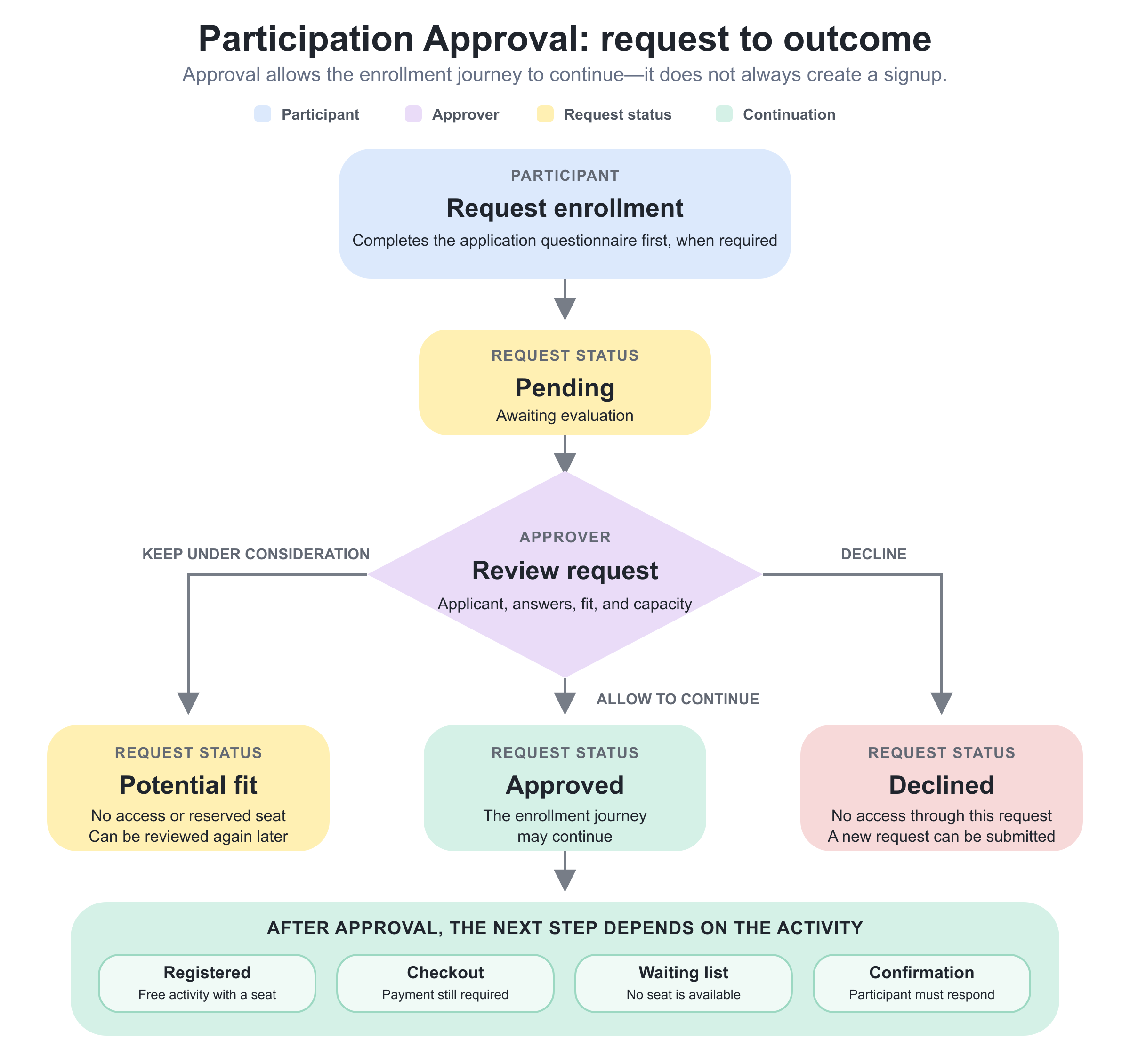
If a participation-confirmation questionnaire is required after approval, the Approved path contains another step:
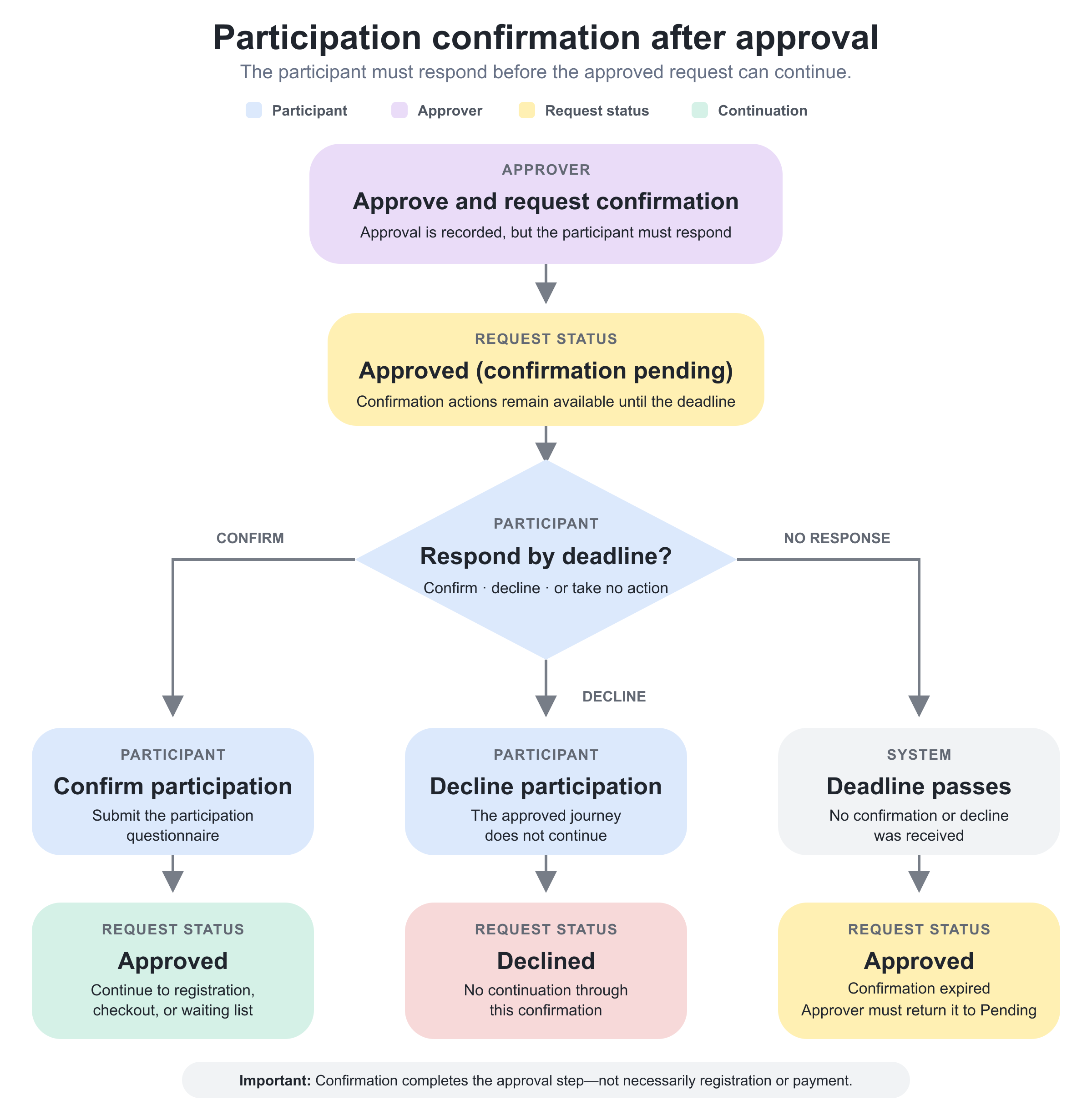
If the participant does nothing before the configured confirmation deadline, the request becomes Approved (confirmation expired) and requires administrator or approver intervention.
Configure Participation Approval
- Open Course Administration → Activities.
- Open the intended Training Activity and edit it.
- Add or enable the activity-level Self enrollment feature.
- Enable Participation approval.
- Select Who approves.
- Decide whether unresolved requests should generate approver reminders.
- Decide whether an application questionnaire is required before the request is sent.
- Decide whether an approved applicant must complete a participation-confirmation questionnaire.
- If confirmation is required, configure its deadline.
- Save and test the flow with the intended approver type and participant audience.
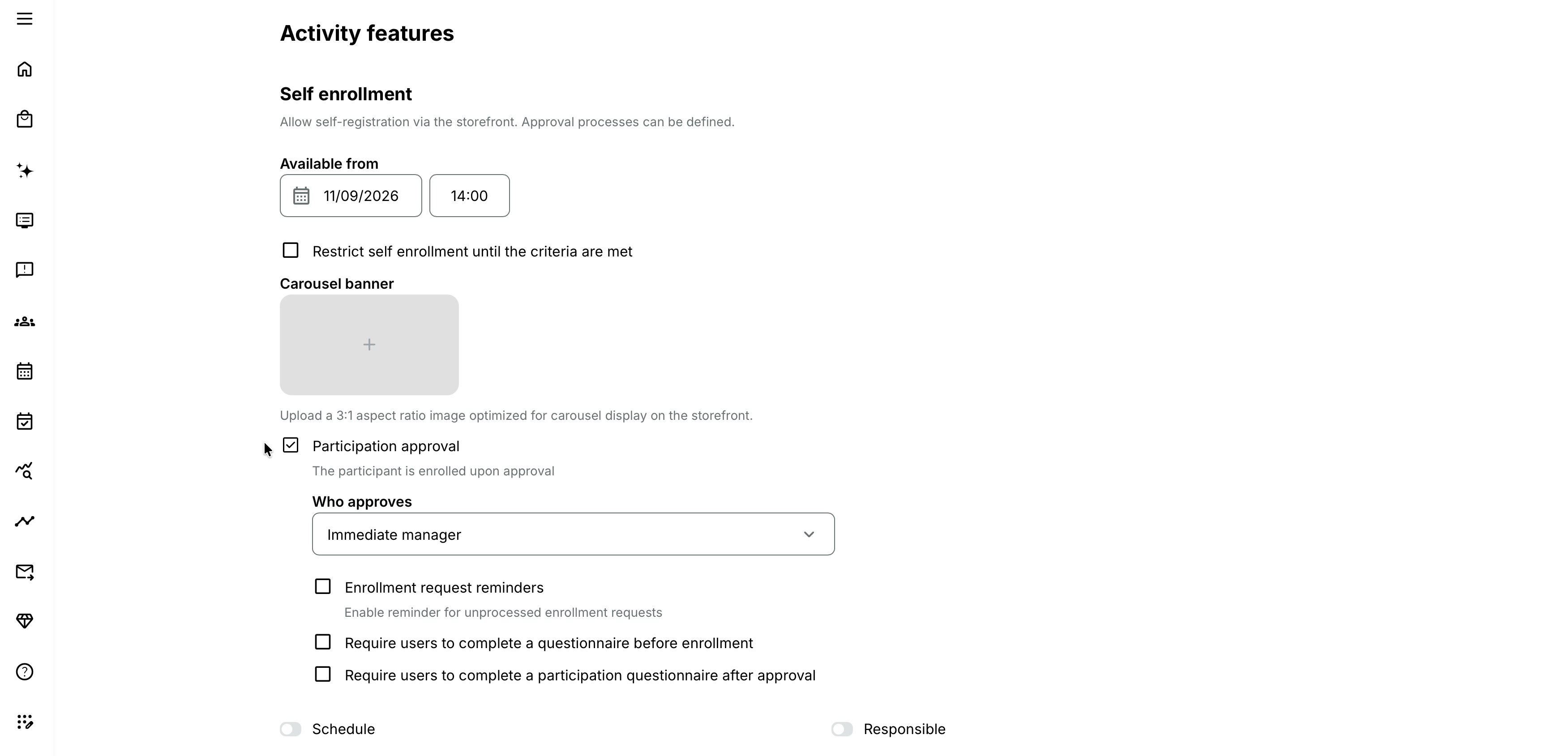
Participation Approval depends on Self enrollment. If Self enrollment is disabled, participants do not receive the normal Request enrollment path through the Storefront.
Choose who approves
The Who approves field can provide:
- Immediate manager
- Organization manager
- Course administrator
- Specific person
If Specific person is selected, the email-address field supports multiple selections. The selected people receive and manage the requests and can make evaluations as a team.
Choose an approver that exists for the complete intended audience.
| Approver | Suitable when | Main dependency |
|---|---|---|
| Immediate manager | Approval belongs to the participant's direct reporting line | Every applicant who should use the process has the correct Immediate Manager relation |
| Organization manager | A customer, department, or partner manager owns the decision | Organization membership and manager scope are correct |
| Course administrator | Admission is controlled by the training owner | Responsible Course Administrators and their operational coverage are current |
| Specific person | A named admissions team or specialist decides | Selected users remain active, accessible, and monitored |
When Course administrator is the approver, Course Administrators set as Responsible for the activity receive the applicable request and reminder emails.
Avoid an approver with no valid relationship
A rule can be logically configured but operationally unusable if an applicant has no Immediate Manager, the selected manager cannot see the organization, or every named approver is unavailable. Test representative organization and reporting relationships before launch.
Configure approver reminders
Enable Enrollment request reminders when an unresolved request should prompt the selected approver again.
Configure the reminder as a number of hours or days after the request was submitted. If the request is still unprocessed at that point, Eurekos uses the system email: Settings → Email Sending → Activities → Enrollment request reminder – admin
The original request uses: Settings → Email Sending → Activities → Enrollment request sent – admin
Review both templates, translations, dynamic data, sender configuration, and delivery logs. The interface can tell participants that most requests are reviewed within 24 hours; treat this as participant-facing guidance, not a system-enforced service-level agreement.
Define an internal owner and actual review target that match the wording participants see.
Collect an application questionnaire before approval
Enable Require users to complete a questionnaire before enrollment when the approver needs information as part of the admission decision.
The selected questionnaire opens after the participant chooses Request enrollment. The participant must submit it before the request is created.
Suitable questions include:
- Why the participant wants to attend
- Relevant experience or prerequisite knowledge
- Role, organization, region, or customer context
- Consent or acknowledgement
- Preferred delivery option
- Supporting documentation
- Accessibility or logistical information that is appropriate at the application stage
Do not collect information merely because it may be interesting. Restrict questions to the approved decision purpose, define retention and access, and avoid exposing sensitive answers through unnecessary list columns or exports.
Review application answers
When a pre-enrollment questionnaire is connected, the Enrollment requests page provides Edit columns.
Approvers can add questionnaire questions as list columns. Supported filterable answer types include:
- Single choice
- Multiple choice
- Dropdown
- Linear scale
- Rating scale
- Consent
- NPS
Upload-file questions can also be selected as columns, and authorized users can download the submitted file from the answer.
The selected column arrangement is stored for the user's session. The default number of columns is controlled by the activity platform configuration.
Approvers can also preview the request and its questionnaire information before approving or declining it.
Repeated requests retain earlier answers
If a request with a completed questionnaire is declined and the participant requests the activity again, Eurekos informs them that their previous answers were kept.
Do not assume that a repeat request automatically represents new information. If the decision depends on changed circumstances, define how the applicant should update or supplement the retained response.
Require confirmation after approval
Enable Require users to complete a participation questionnaire after approval when approval should not immediately consume a place or complete the enrollment journey.
This is useful when:
- Seats are scarce and approved applicants must reconfirm attendance.
- Travel, availability, or final consent must be confirmed.
- The approval decision is made well before the activity.
- The participant must provide final information after selection.
- A formal acceptance step is part of the admission process.
Select the participation questionnaire and configure the response deadline as either:
- A number of Days after approval
- At specific date
What the approver does
With post-approval confirmation enabled, the normal Approve action becomes Approve and request confirmation.
When selected:
- The request becomes Approved (confirmation pending).
- The participant receives Enrollment approved with further details on confirmation – user.
- The email contains actions to confirm or decline participation.
- The participant can also take the available action from the Activity Description before the deadline.
No final signup should be assumed at this stage.
What the participant does
If the participant confirms before the deadline:
- The participation questionnaire opens.
- The participant submits the questionnaire.
- The request becomes Approved.
- The Activity Description presents the next applicable action: Go to training, Enroll, or Join waiting list.
- Registration, checkout, or waiting-list processing continues according to price and seat availability.
If the participant declines:
- The request becomes Declined.
- The participant can request enrollment again later.
If the participant takes no action before the deadline:
- An hourly background process moves the request to Approved (confirmation expired).
- Confirm and Decline no longer proceed.
- The participant sees that the deadline to decide has passed.
- The status is a dead end for the participant.
- An approver or administrator must move the request back to Pending to restart the process.
Do not leave expired confirmations without an operational review owner.
Understand request statuses
| Request status | Meaning | Participant access or next step |
|---|---|---|
| Pending | Submitted and awaiting evaluation | No training access; waits for approver |
| Potential fit | Kept under consideration without approval | No training access; remains in the request workflow |
| Approved | Approval decision is complete | May be registered, may continue to checkout, or may join a waiting list depending on configuration |
| Declined | Application was denied or participant declined confirmation | No training access through this request; a new request can be submitted |
| Approved (confirmation pending) | Approver accepted the application but participant confirmation is required | Participant must confirm and submit the post-approval questionnaire or decline |
| Approved (confirmation declined) | Participant declined after approval | No continuation through that confirmation |
| Approved (confirmation expired) | Participant missed the confirmation deadline | Participant cannot restart alone; approver must reset the request |
Request status and signup status are separate. A request can be Approved while the participant still has no Registered signup because payment, confirmation, or waiting-list action remains.
Manage status transitions
The normal individual transitions are:
- Pending → Potential fit, Approved, or Declined
- Potential fit → Pending, Approved, or Declined
- Approved → Declined, which cancels an enrollment created from that approval
- Declined → Approved when the decision is reversed
Bulk actions also support returning selected requests to Pending or Potential fit.
Status changes remain possible after an earlier decision. Before reversing a decision, review:
- Whether a signup already exists
- Whether payment or a Transaction exists
- Whether a seat or organization allocation is occupied
- Whether the participant received an earlier decision email
- Whether a Community, Event, certificate, or nested activity was assigned
- Whether the new state requires participant communication
Changing Approved to Declined cancels the associated enrollment. It does not automatically reverse every connected commercial or external process.
Understand the participant experience
An eligible participant sees Request enrollment instead of Enroll on the Activity Description.
The interface explains that approval is required and that the participant will be notified. After confirmation, Eurekos acknowledges that the request was sent and provides a route back to the Storefront.
While Pending or Potential fit:
- The activity appears in My Overview → Waiting list.
- It has the label Enrollment requested.
- A tooltip explains that access follows approval.
- The activity is not clickable from that waiting-area presentation.
With post-approval confirmation:
- Approved (confirmation pending) appears with Participation confirmation pending.
- The participant is prompted to confirm so enrollment can be processed.
- Declined or expired confirmation removes the activity from that waiting-area presentation.
After ordinary approval:
- A free registered activity moves to the appropriate active area, such as Ongoing or Mandatory.
- A paid activity can disappear from the Waiting list area while checkout remains necessary.
Never use the My Overview section alone to determine whether the participant is registered. Check the request and signup records.
Understand free, paid, and full outcomes
Free activity with seats available
Without post-approval confirmation, approval creates a Registered signup.
With post-approval confirmation, the signup is created after the participant confirms and submits the questionnaire.
Paid activity with seats available
Approval authorizes the participant to continue but does not itself complete checkout. The participant receives the email with further details and uses Continue enrollment or returns to the Activity Description to enroll and pay.
With post-approval confirmation, the participant confirms first and then continues to checkout.
Activity with no available seats
When waiting lists are enabled and Seats are configured, approval checks capacity. If no seat is available, the approver is offered:
- Add to waitlist
- Enroll anyway
- Cancel the action
Adding to the waiting list gives the participant Waiting list signup status. Enroll anyway overrides capacity and creates a Registered signup.
For a paid activity, approval can lead the participant to the paid waiting-list checkout route rather than immediate registration.
If waiting lists are disabled and the activity is full, approval cannot silently create an ordinary place. Process requests individually when an authorized capacity override must be considered.
For more detail, see Registration Details and Capacity, Price Manager, Waiting list, Transactions.
Use Potential fit deliberately
Potential fit is useful when an applicant may be suitable but a final decision depends on:
- Comparative selection across applicants
- A later interview or assessment
- Employer confirmation
- Final cohort composition
- Budget or seat release
- Additional documentation
Potential fit does not enroll the participant or reserve a seat. Define how long requests may remain in this state and who must resolve them.
The applicant's My Overview presentation remains equivalent to a pending request, so do not rely on the status alone as participant communication.
Process requests from the Requests tab
Administrators with access to the Activity list open:
Course Administration → Activities → Requests
Managers, Immediate Managers, instructors, and other users without the complete Activity list can receive an Enrollment requests sidebar item when they are eligible approvers and relevant requests exist.
The Requests tab lists activities using information such as:
- Title
- ID
- Type
- Schedule
- Seats
Search can match:
- Activity title or ID
- Course title or code
- Event title
- Existing Training title
- Assignment title
- Program Number, when enabled
The Start from date filter follows the Activity-list approach: scheduled past and ongoing activities are evaluated against the selected date, while self-paced activities remain available regardless of that date.
Open an activity to reach its Enrollment requests page. The same page is available from the activity's Enrollment requests tab.
Work with the Enrollment requests page
The activity-specific page provides:
- Applicant name and email
- Requested date and time
- Request status
- Other requests indicator
- Search by full name or email
- Filters
- Configurable questionnaire columns when applicable
- Individual request actions
- Bulk actions
- Questionnaire reports when applicable
Available individual actions depend on status and configuration and can include:
- Preview request
- Potential fit
- Back to Pending
- Approve or Approve and request confirmation
- Decline
The Requested timestamp reflects the current request. If an earlier approved signup expired and the participant submitted a new request, the new request time replaces the earlier request time shown for the active request.
Use filters and questionnaire columns
Requests can be filtered by:
- Request status
- Enabled profile fields
- Supported answers from the pre-enrollment questionnaire
Use profile and questionnaire filters to support a defined selection policy—not to introduce hidden or discriminatory decision criteria.
When reviewing several applicants, add only the columns needed for the decision. Wide tables containing sensitive answers increase operational and privacy risk.
Review Other requests
The Other requests indicator can show whether the same person has:
- Pending enrollment requests
- Potential-fit requests
- Declined requests
- Pending confirmation requests
- Approved enrollment requests, including approval date
The detailed pop-up is available to the documented administrative roles. Other approver roles can see that another request exists without necessarily being able to open the complete cross-request detail. A dash appears when there are no other requests.
Use this information to avoid conflicting decisions or overbooking the same person across overlapping programs. Do not infer that another application should automatically disqualify the participant.
Process requests in bulk
Users with access to the Enrollment requests page can select several requests and:
- Approve or approve and request confirmation
- Decline
- Mark as Potential fit
- Return to Pending
Each bulk action asks for confirmation and then displays the result.
Capacity can create mixed outcomes. When waiting lists and Seats are enabled and the activity is full, approved requests beyond capacity can move to Waiting list. When waiting lists are unavailable, requests that cannot be given a seat can remain Pending while eligible requests are processed.
After every bulk operation:
- Review request statuses.
- Review resulting participant signup statuses.
- Check seat and organization allocations.
- Confirm notification outcomes.
- Resolve skipped or exceptional records individually.
Do not assume a successful bulk message means every selected person received the same final enrollment outcome.
Let managers request training for others
Managers, Partners, and roles with the Immediate Manager add-on can request enrollment for people within their permitted staff or organization scope.
From the Activity Description, Request enrollment opens a list of eligible people who are not already enrolled. Depending on relationship and configuration, the list can include the requester.
The page provides:
- Name
- Organization
- Individual Request enrollment action
- Bulk Request enrollment action
- Search by name or email
- Filters such as Organization, Location code, Type, Job function, Country, Language, Extra, and Employment type
Approvers can sometimes enroll directly
When a Manager or Immediate Manager is themselves the configured approver for the relevant people, Eurekos can provide direct Enroll behavior instead of sending a request back to the same decision-maker.
For people outside that approver relationship but still inside the user's permitted management scope, Request enrollment can remain available.
Test the exact combination of:
- Manager role
- Immediate Manager add-on
- Organization relations
- Staff relations
- Selected Who approves option
- Requester included in or excluded from the managed population
Eligibility requirements still apply
If Restrict self enrollment until the criteria are met is enabled:
- The manager sees a warning to check requirements.
- A Requirements column explains why an individual is ineligible.
- Ineligible people are greyed out and have no individual Request enrollment action.
- They can still be included in a bulk selection, but Eurekos skips them and reports the number skipped.
Managers do not override participant-specific prerequisites merely by initiating the request.
Questionnaires submitted on behalf of staff
When the approval process requires the pre-enrollment questionnaire, the manager completes it for the selected person or people.
Each submission is recorded in Questionnaire analytics as a response by the person for whom enrollment was requested—not as the manager's own response.
For bulk requests, the approver email is sent separately for each requested person and appears to come from that person's name.
Ensure managers are authorized and able to answer the questionnaire accurately on another person's behalf.
Understand organization filtering
Request visibility follows role, activity responsibility, selected approver, and the platform's Organization filter.
In general:
- Top-level administrative roles can have complete access.
- Other administrators and approvers see activities and applicants within their permitted organization and responsibility scope.
- A Course Administrator can see requests for activities they are responsible for even when the applicants are outside the Course Administrator's own organization.
The same organization scope affects request lists and downloadable questionnaire reports.
Test with an approver from each relevant organization level. Never assume that seeing the activity means the approver can see every applicant or every other request.
Configure participant decision emails
Participation Approval uses dedicated system emails:
| Event | System email |
|---|---|
| Request submitted | Enrollment request sent – admin |
| Request remains unresolved until reminder time | Enrollment request reminder – admin |
| Participant receives acknowledgement | Enrollment request with questionnaire received – user; used whether or not a questionnaire was required |
| Free request approved | Enrollment approved – user |
| Paid request approved and further enrollment remains | Enrollment approved with further details – user |
| Post-approval confirmation required | Enrollment approved with further details on confirmation – user |
| Request declined | Enrollment declined – user |
| Approved request enters full activity waiting list | Enrollment confirmed, waiting list status – user |
Review the templates under Settings → Email Sending → Activities.
The approved paid-training email should make the remaining checkout action clear. The confirmation email should make both Confirm participation and Decline understandable and display the applicable deadline.
When the activity automatically enrolls participants into scheduled Existing Training, the relevant enrollment confirmation can contain an Add to calendar file so participants receive immediate schedule information.
Add Automated Email Workflows
System approval emails and Automated Email Workflows are separate layers.
An Automated Email Workflow can use audiences such as:
- Participants with approved enrollment request
- Participants with declined enrollment request
Connect the workflow at the level whose schedule and participant population should drive the message.
When post-approval confirmation is enabled, the approved-request workflow is triggered after the participant confirms and submits the questionnaire—not merely when the approver first selects Approve and request confirmation.
The participant or approver can inspect the Notification timeline to see whether a rule was:
- Scheduled
- Sent
- Skipped because the request status was inappropriate
- Skipped because the rule's schedule dependency was unavailable
If a rule depends on activity Start or End and no Schedule is configured, Eurekos can skip the notification. For a request already in the matching Approved or Declined state, an authorized user can use Send notification from the timeline where available.
Changing a request from Approved to Declined—or the reverse—does not unsend the earlier message. The earlier state can remain represented as sent while a later rule is skipped or requires manual sending. Review the timeline before communicating a reversed decision.
Download questionnaire reports
The Get report action is available on the activity's Enrollment requests page when at least one questionnaire is connected to the approval process.
The available report choices are:
- Enrollment request questionnaire
- Participation confirmation questionnaire
The downloaded file follows the standard Questionnaire report format. Report access follows request-page and Organization-filter permissions.
Use reports for governed selection, operational preparation, and audit evidence. Store and share them according to the sensitivity of the answers.
Understand special signup cases
| Case | What happens | Administrator guidance |
|---|---|---|
| Enrollment through another route | If a requester is enrolled through another valid route while the request is Pending, the request is automatically approved. | Review possible duplicate communication. Confirm that the resulting signup has the intended price, approval evidence, and seat allocation. |
| Reservation | A person with a Reserved signup is already treated as approved in the participant-facing process and sees Enroll instead of Request approval. When enrollment is completed, the Reserved signup becomes Cancelledwithout a Renew option, and a new Registeredsignup is created. | Do not interpret the Cancelled reservation as a failed approval. Use the new Registered signup as the person’s active record. |
| New request after expiration | If a signup created from an approved request later becomes Expired, the participant can submit a new request for the same activity. Approving it creates a new Registered signup, while the old Expired signup remains in Participants. | Identify the current signup before changing the participant’s status, completion, or access. Do not modify the historical Expired record by mistake. |
Change a live approval process safely
Before changing Who approves, questionnaire, reminder, confirmation, deadline, price, or seats:
- Count requests in every status.
- Identify requests already approved but not registered.
- Identify pending confirmations and their deadlines.
- Review participant-facing links already sent by email.
- Review questionnaire responses and reporting access.
- Check available seats and waiting-list entries.
- Identify paid participants with incomplete checkout.
- Decide who will complete unresolved decisions.
- Test the new configuration with a fresh request.
- Communicate any process change that affects current applicants.
Do not assume a new questionnaire or approver automatically rewrites requests already in progress.
Practical configuration patterns
| Pattern and requirement | Configuration | Check |
|---|---|---|
| Manager approval for professional development Employees may request external-facing certification training, but their Immediate Manager must approve the time and budget. | Enable Participation Approval, select Immediate manager as the approver, add an application questionnaire for the business justification, and send a reminder after two working days. | Confirm that every employee has a valid Immediate Manager and that the approval email explains any remaining checkout or scheduling action. |
| Selective leadership program An admissions team chooses a limited cohort after comparing applications. | Select Specific people as approvers, require a questionnaire before enrollment, use Potential fit for shortlisted applicants, and enable Seatsand the Waiting list. | Define the selection criteria, who may access the answers, the decision date, and how applicants remaining in Potential fit will be resolved. |
| Attendance reconfirmation Approved participants must confirm their travel and attendance before a classroom program. | Require a participation questionnaire after approval, set a fixed response deadline, and configure the confirmation email. | Assign an owner to monitor Approved (confirmation expired) requests and return only approved exceptions to Pending. |
| Paid specialist training Applicants must be approved before they may purchase a high-cost Course. | Enable Participation Approval on the paid activity, configure the approval email with Continue enrollment, and monitor the resulting Transaction. | Do not report approval as paid registration. Checkout, payment, and final registration remain separate stages. |
| Manager requests for a team A department manager proposes several employees for a development program. | Use the manager request-for-others flow with a questionnaire and participant-specific eligibility requirements. | Confirm that ineligible people are skipped, questionnaire answers are accurate for each employee, and approvers receive one traceable request for each person. |
Verify the configuration
Use representative accounts and the routes enabled for your delivery. Check the relevant outcomes before launch and after a material change; an administrator preview alone does not verify the participant experience.
| Scenario or check | Expected result or evidence |
|---|---|
| Applicant and approver | Each intended audience can submit the request and reach its assigned approver. Test relevant organization scope, manager and bulk routes, questionnaires, skipped ineligible users, and any audience without an available approver. |
| Decision and confirmation | Test Pending, Potential fit, approval, decline, repeat request, participant confirmation or decline, and confirmation expiry. Review request status alongside signup status. |
| Capacity and payment | Test free approval, paid checkout, a full activity, waiting-list entry, and authorized Enroll anyway. Approval is not assumed to reserve a seat or settle a payment. |
| Communication and evidence | Request, reminder, decision, and confirmation messages are timely and coherent, including decision reversals. Questionnaire columns, reports, and timelines provide appropriately scoped evidence. |
| Operational ownership | Owners review pending decisions and confirmations, reconcile bulk results and paid checkouts, document overrides, and store reports securely. Published response-time guidance matches the team’s actual service capacity. |
Troubleshooting
| Problem | What to check |
|---|---|
| Participation Approval is missing | Confirm Self enrollment is enabled on the activity and the administrator can edit activity-level features. |
| Specific person is unavailable | Check the platform configuration that can disable this Who approves option. Use another governed approver model if it is intentionally unavailable. |
| The participant sees Enroll instead of Request enrollment | Check whether Participation Approval is saved, whether the person already has a Reserved or approved relationship, and whether another enrollment path or linked option applies. |
| The participant cannot submit the request | Check self-enrollment availability, eligibility requirements, questionnaire completeness, consent answers, Activity Description configuration, dates, organization visibility, and account state. |
| The approver did not receive the original email | Verify Who approves, manager or organization relationships, Specific person addresses, Responsible Course Administrators, system-email template, sending logs, spam/quarantine, and email quota. |
| The reminder was not sent | Confirm that reminders are enabled, the configured delay elapsed while the request remained unresolved, and the approver is valid. Check Settings → Email Sending → Logs to determine whether the reminder was generated and sent before investigating background processing, sender configuration, or external delivery. |
| The Requests tab is empty for an administrator | Confirm activities actually have Participation Approval enabled, review the Start from filter, search, organization scope, responsibility, and selected approver. |
| A manager cannot see Enrollment requests in the sidebar | The item can be absent when no visible staff request exists. Check approver configuration, staff/organization relationships, organization filtering, and whether a request was submitted. |
| An instructor can see only some activities | Non-administrative roles see activities where they are selected as Specific person and within applicable organization scope. |
| A Course Administrator cannot see an applicant from another organization | Confirm the administrator is Responsible for the activity. Responsible Course Administrators can see its requests beyond their own organization, subject to current platform behavior and permissions. |
| Questionnaire columns are missing | Confirm a pre-enrollment questionnaire is enabled and selected for this activity. Edit columns is unavailable without it. |
| A questionnaire answer column is blank | Check that the applicant submitted the relevant questionnaire version, the question type is supported, the correct request is shown, and organization/privacy permissions allow access. |
| A declined applicant sees old answers | This is expected; previous questionnaire answers are retained. Define how changed information should be collected before reconsideration. |
| The approver sees Approve and request confirmation instead of Approve | A participation questionnaire after approval is enabled. Approval intentionally creates confirmation-pending status first. |
| The participant did not receive confirmation actions | Check the post-approval questionnaire, deadline, system-email template, participant email, request status, sending logs, and whether the approver used the correct action. |
| The participant confirmed but is not registered | Check whether the questionnaire was submitted, whether the activity is paid, whether checkout remains, whether seats are full, and whether the participant entered Waiting list status. |
| The participant cannot confirm after the deadline | This is expected. The request is or will become Approved (confirmation expired). An approver must return it to Pending to restart the process. |
| An expired confirmation still appears pending | The expiration process runs hourly. Confirm the configured date/time and time zone, wait for processing, then investigate background task health if it remains unchanged. |
| An approved applicant was placed on the waiting list | The seat check found no eligible capacity. Review total seats, organization limits, signup statuses, and whether Enroll anyway was authorized. |
| Bulk approval produced different outcomes | Review seats, waiting-list availability, participant eligibility, price, confirmation requirements, and skipped records individually. |
| A paid applicant is Approved but has no signup | Approval permits continuation; the participant still needs to complete checkout. Inspect the approved-with-further-details email and Transaction journey. |
| A pending request changed to Approved unexpectedly | Check whether the person was enrolled through another administrator, import, API, reservation, onboarding, or connected process. Enrollment through another route automatically approves the request. |
| A Reserved record became Cancelled | When the reserved person completes enrollment, the reservation is cancelled and a new Registered signup is created. Review the newer record. |
| The participant has both Expired and Registered records | A new approved request after expiration creates a new Registered signup while retaining the old Expired history. Identify the current signup before taking action. |
| The Other requests icon cannot be opened | Detailed access is limited to the documented administrative roles. Other approvers may see the indicator without permission to open the cross-request detail. |
| An approved or declined workflow email was skipped | Inspect the Notification timeline. The request status may be inappropriate, confirmation may still be pending, or the rule may depend on a missing activity Schedule. |
| A reversed decision sent contradictory messages | Earlier sent notifications cannot be withdrawn. Review the timeline, send a clear correction through the approved channel, and document the status reversal. |
| Get report is missing | At least one approval questionnaire must be connected. Also verify request-page access and organization scope. |
| The report contains fewer applicants than expected | Check organization filtering, role scope, activity responsibility, request dates/statuses, and the selected questionnaire report. |
| Support is unsure whether the request process or email delivery failed | Begin with the request page, participant signup, questionnaire or confirmation state, notification timeline, and Settings → Email Sending → Logs. Use the log only when the visible request and email evidence does not explain the outcome. |
| Support needs evidence for an approval problem | Collect activity and request IDs, participant ID/email, request and signup statuses, request/change timestamps, approver configuration, questionnaire and deadline, seat state, notification timeline, system-email evidence, organization scope, and expected versus actual result. Exclude unnecessary questionnaire content. |
FAQ
-
Is an enrollment request the same as enrollment?
No. It records an application and decision process. A Registered signup may still depend on confirmation, payment, or seat availability.
-
Who can approve requests?
The configured approver can be the participant's Immediate Manager, Organization manager, Course administrator, or one or more Specific people when that option is enabled.
-
Can several specific people approve?
Yes. The Specific person email field supports multiple selections.
-
What is Potential fit?
It is an intermediate decision state for a person who remains under consideration. It does not reserve a seat or enroll the person.
-
Does approval always create a Registered signup?
No. Paid checkout, post-approval confirmation, and waiting-list handling can remain.
-
Does a pending request reserve a seat?
No. Seat availability is checked when approval or the remaining enrollment action is processed.
-
What happens if no seat is available when I approve?
With waiting lists, choose Add to waitlist or Enroll anyway. Without an approved override route, leave the request unresolved until capacity is available or decline it.
-
Can an approver exceed capacity?
The individual approval flow can offer Enroll anyway to an authorized approver when no seat is available. Use it only under the approved capacity policy.
-
What is the questionnaire before enrollment for?
It collects information needed to evaluate the application before approval.
-
What is the questionnaire after approval for?
It asks an approved applicant to confirm participation and provide final information before the enrollment journey continues.
-
What happens when confirmation expires?
The request becomes Approved (confirmation expired). The participant cannot restart it alone; an approver must return it to Pending.
-
Can a declined participant request again?
Yes. If a pre-enrollment questionnaire was used, the earlier answers are retained.
-
Where does a participant see a pending request?
In My Overview under Waiting list with the Enrollment requested label. This presentation does not mean the person has Waiting list signup status.
-
Is Enrollment requested the same as Waiting list?
No. The request is awaiting a decision. A Waiting list signup has already entered the capacity queue.
-
Can managers request for other people?
Yes, within their permitted staff or organization scope. Exact options depend on role, Immediate Manager relations, and the selected approver.
-
Who is shown as the questionnaire respondent when a manager submits it?
The response is recorded for the person whose enrollment is being requested.
-
Can I process requests in bulk?
Yes. Approve, decline, Potential fit, and Back to pending are supported. Review mixed capacity and notification outcomes afterward.
-
Can I download questionnaire reports?
Yes. Get report is available when an application or participation-confirmation questionnaire is connected.
-
Does Participation Approval send every message automatically?
It uses dedicated system emails for the request lifecycle. Optional Automated Email Workflows can add approved- or declined-request communication. Configure and test both layers.
-
What happens when an approved signup is later declined?
Changing the request from Approved to Declined cancels the associated enrollment. Review payment, notifications, Community membership, nested training, and other downstream records separately.
-
What happens if the participant is enrolled through another route?
The request is automatically approved. Verify the resulting signup and communication to avoid contradictory messages.