Waiting list - Article
Summary
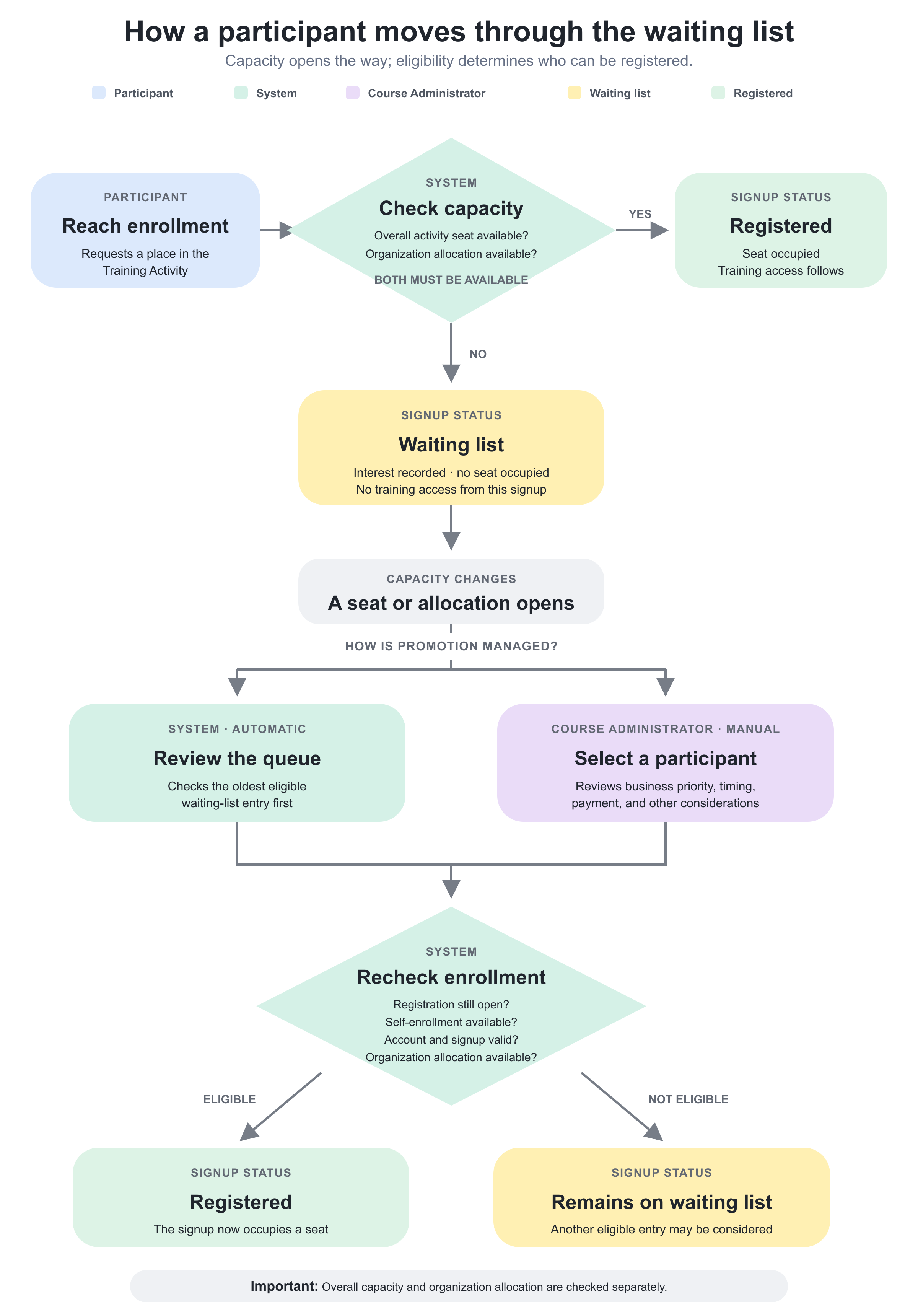
Waiting lists help you manage demand for a Training Activity when more people want to attend than there are places available. People can join the waiting list without becoming registered participants or occupying a seat, and can be admitted later when capacity becomes available. This provides a fair, traceable way to fill released places while preserving the activity’s overall capacity and any places allocated to particular organizations.
In this article you will learn:
- How Registration details and Seats control waiting-list behavior
- How Seats and organization seat allocations determine who is waitlisted
- Which signup statuses occupy capacity
- How self-enrollment, participation approval, administrator enrollment, imports, onboarding, smart links, and nested training interact with the waiting list
- When to use manual or automatic promotion
- How automatic promotion chooses the oldest eligible person
- Why a person may remain waitlisted after a seat appears to open
- How registration deadlines, access rules, commerce, and recurring activities affect the flow
- How to manage communication, reporting, and audit history
- How to troubleshoot capacity and promotion problems
What the waiting list does
A waiting list lets Eurekos retain enrollment demand when a Training Activity cannot accept another registered participant.
The limit can be reached in two ways:
- The activity’s total number of Seats has been filled.
- The user’s organization has filled its allocation under Limit seats per organization, even though the activity may still have seats for other organizations.
When a person is added to the waiting list:
- Their signup status is Waiting list.
- They do not occupy a seat.
- They are not registered and do not receive training access from that signup.
- Course Administrators can find them in the activity’s participant list.
- They remain available for manual or, if configured, automatic promotion.
A waiting-list place is not a seat reservation
A reservation occupies capacity before the participant registers. A waiting-list signup does not. It records demand for a seat that is not currently available to that person.
Waiting lists are useful for workshops, certification sessions, classroom training, cohort-based learning paths, webinars with contractual limits, or any offering where demand may exceed capacity.
They are less useful when the training has no meaningful capacity, when every applicant must be reviewed regardless of seat availability, or when commercial and scheduling decisions require an administrator to contact every applicant before registration.
Understand where waiting-list capacity is configured
Capacity is configured on the Training Activity through Registration details.
Waiting-list behavior is shaped by:
- Seats: the maximum overall activity capacity.
- Limit seats per organization: optional allocations within the overall capacity.
- Automatically enroll waiting list requests: optional promotion when an eligible seat becomes available.
- Latest registration: the registration deadline, which can prevent automatic promotion after it passes.
The activity must have a finite seat limit before it can become full. If Seats is unlimited, the overall capacity does not create a waiting list, although an organization allocation can still impose a relevant limit where configured.
This is an activity-level feature
The waiting list belongs to the Training Activity, not to an individual Course, Event, or Assignment module inside it.
If an Existing Training module contains another Training Activity, that nested activity keeps its own seats and waiting list. A participant can therefore be registered in the parent activity while waiting for a seat in the nested activity.
Likewise, every member of a recurring linked group has its own participant list, capacity, organization allocations, and waiting list. Capacity is not pooled across recurring dates.
Decide between manual and automatic promotion
Both approaches use the same waiting-list status but serve different operating models.
Use manual promotion when
- An administrator must choose the participant based on business priority.
- Travel time or short notice makes a simple first-in-first-out rule unsuitable.
- Customer commitments, certification expiry, geography, prerequisites, or commercial terms influence the decision.
- The administrator wants to confirm availability with the participant before registering them.
- Payment or other external coordination must be completed first.
Manual management gives the Course Administrator control over who receives an available seat.
Use automatic promotion when
- The oldest eligible waiting-list entry should normally receive the next seat.
- The enrollment process is standardized.
- Registration deadlines and self-enrollment rules accurately define when promotion remains appropriate.
- Organization allocations can be enforced automatically.
- The team does not need to contact each person before registration.
Automatic promotion reduces routine administration, but it should not be enabled until eligibility rules and participant communication have been tested.
Configure a waiting list
1. Set the activity capacity
- Open Course Administration → Activities.
- Edit the Training Activity.
- Enable or open Registration details.
- Enter the maximum number in Seats.
- Save the activity.
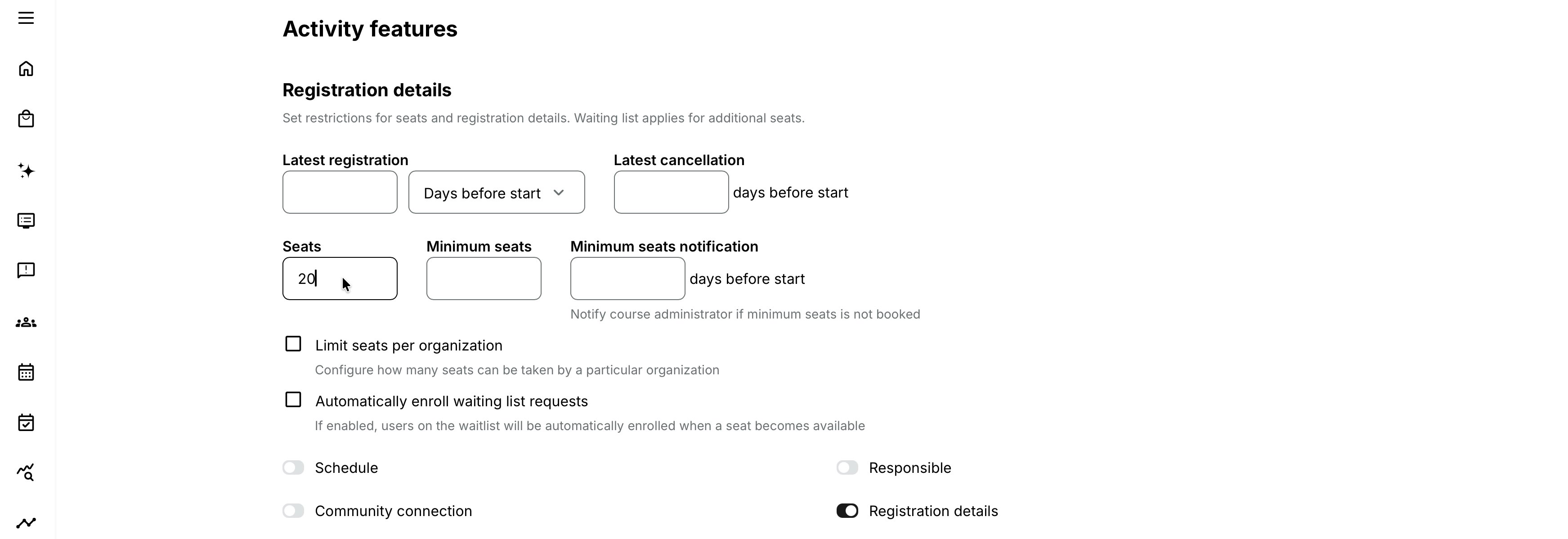
Review the seat counter on the activity and in the Activity list. The display shows occupied capacity relative to the configured maximum.
2. Configure organization allocations when needed
Use Limit seats per organization to prevent one organization from using more than its allocation.
You can:
- Select individual organizations and set a limit for each.
- Use Same seats limit for all organizations to apply the same allocation per organization.
An organization allocation is an additional limit; it does not create extra capacity beyond the activity’s total Seats.
Example: An activity has 30 total seats and a limit of 10 per organization. Organization A can be full at 10 while the activity still has five seats available. Another person from Organization A is waitlisted, while an eligible person from Organization B can still register.
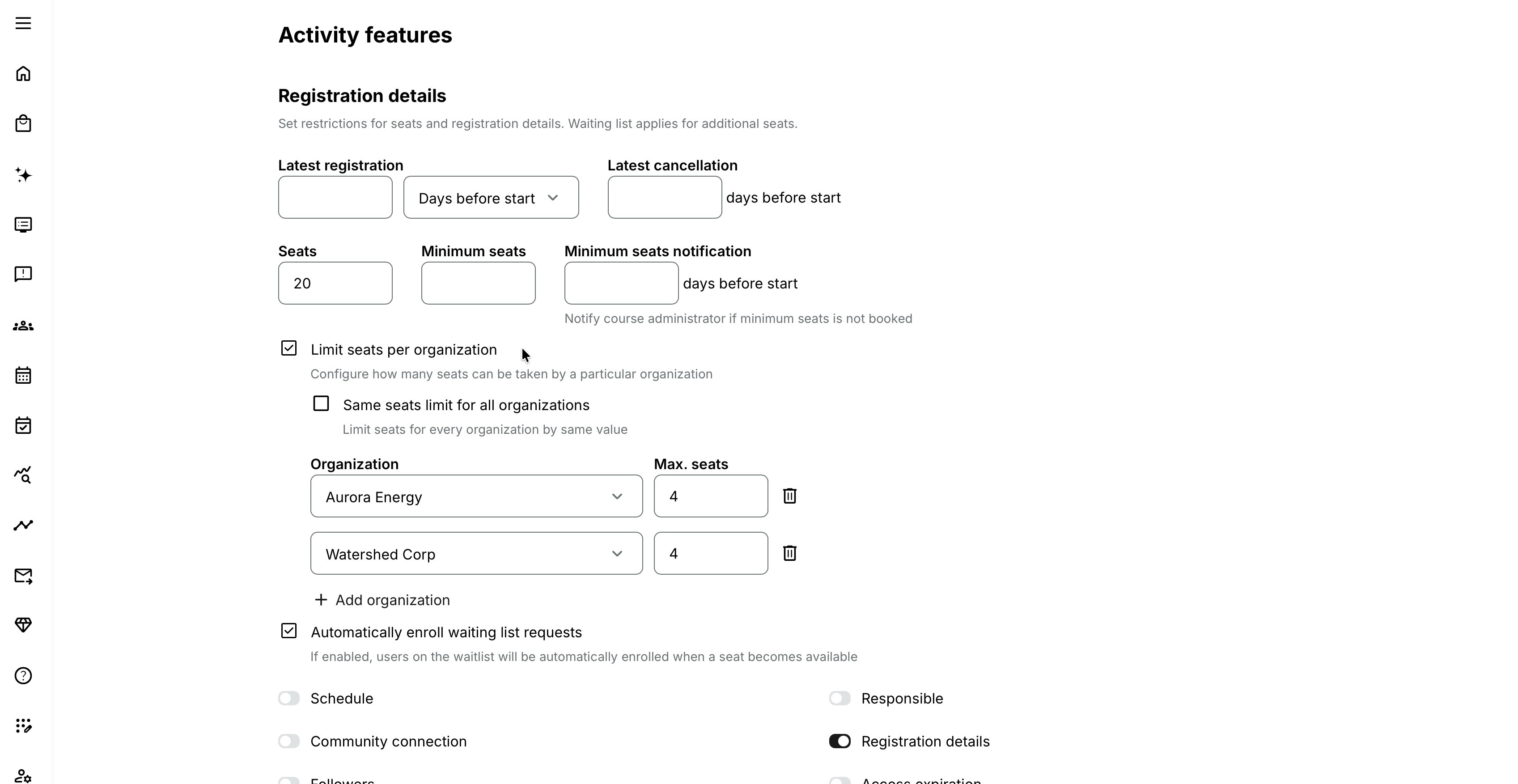
You cannot set an organization’s allocation below the number of seats already occupied by that organization’s participants.
Do not confuse maximum and minimum seats
Seats and Limit seats per organization establish maximum capacity and can trigger waiting-list behavior.
Minimum seats serves a different purpose. It defines the number of occupied places needed for the delivery to be operationally viable. Minimum seats notification can warn a responsible Course Administrator before the scheduled start if that threshold has not been reached. It requires an activity-level Schedule and a Seats value.
Falling below Minimum seats does not place anyone on a waiting list, cancel the activity automatically, or prevent additional registration. It prompts an administrator to decide whether to continue recruitment, run the activity with fewer participants, move participants, or cancel the activity.
3. Choose whether promotion is automatic
Enable Automatically enroll waiting list requests if Eurekos should promote eligible waiting-list entries as seats become available.
If this option is disabled, Course Administrators manage promotion from the activity’s participant list.
4. Review deadlines and availability
Automatic promotion depends on the activity still being available for self-enrollment. Review:
- Latest registration
- Activity and module schedules
- Self-enrollment
- Organization and access restrictions
- Storefront availability and audiences
- Any questionnaire or approval flow
- Price and payment configuration
A seat opening does not override those controls.
5. Test the complete flow
Before publishing, use representative test users to confirm:
- Registration when seats are available
- Joining the waiting list when total capacity is full
- Joining because an organization allocation is full
- Manual or automatic promotion
- The participant’s My overview status
- System emails and automated workflows
- Paid and free enrollment behavior
- The result after Latest registration has passed
Understand which signups occupy seats
The seat counter is based on signup status, not simply on the number of rows in the participant list.
| Signup or request status | Occupies a seat? | What it means for the waiting list |
|---|---|---|
| Registered | Yes | Uses activity capacity and the relevant organization allocation |
| Reserved | Yes | Holds capacity before registration |
| Invitation with a reserved seat | Yes | Capacity is held for the invitee |
| Expired signup | Yes | Remains part of the occupied-seat calculation |
| Waiting list | No | Records demand but does not reserve capacity |
| Pending participation approval | No | Approval is not a reservation; availability is checked when the request is approved |
| Invitation without reservation | No | The invitee does not hold a seat before conversion |
| Cancelled signup | No | Releases occupied capacity when the cancelled status no longer counts as registered or reserved |
This distinction explains why an activity can appear full even when fewer users have Registered status: reserved or expired signups may also occupy seats.
It also explains why several pending requests can exist for one remaining seat. Pending requests do not reserve capacity. Availability is validated when each request is processed.
How people enter the waiting list
The exact interface varies by enrollment route, but the capacity rules remain central.
| Enrollment route | Typical behavior when the applicable limit is reached |
|---|---|
| Participant self-enrollment | The participant can join the waiting list when the applicable capacity limit is reached |
| Participation approval | The approver is offered Add to waitlist; an authorized administrator can also use Enroll anyway |
| Manual administrator enrollment | The person can be added with Waiting list status when capacity or an organization allocation prevents ordinary registration |
| Bulk enrollment or user filters | Users beyond available capacity can be placed on the waiting list |
| User import | Users can be imported with Waiting list status; an organization-limit result may not produce a separate warning for the administrator |
| Onboarding rule | A user can be added to the waiting list when the applicable organization allocation is full |
| Smart link or QR enrollment | Capacity and organization allocations are validated as part of the enrollment route |
| Invitation | An invitation without reservation does not hold a seat; conversion later depends on availability. Organization limits can place the user on the waiting list |
| Existing Training auto-enrollment | A newly enrolled parent participant can join the nested activity’s waiting list when the child activity is full |
| API or integration | Some operations return a no-seats validation instead of creating a waiting-list signup; integrations must handle the response explicitly |
Do not assume that every technical route behaves identically. In particular, imports can create waiting-list records without an administrator-facing capacity warning, while API operations can reject the request instead.
Participant self-enrollment
When self-enrollment is enabled and seats remain, an eligible participant follows the normal enrollment or checkout flow.
When the applicable limit is reached:
- The activity can remain discoverable as an available offering.
- The participant is told that no seat is available.
- The action changes to a waiting-list flow, such as Join waiting list.
- The resulting signup has Waiting list status and does not grant access.
- My overview can show the activity in the Waiting list section with an On waitlist label.
Items shown there as On waitlist or Enrollment requested are status records, not active training-access links.
Commerce considerations
A waiting-list position does not itself represent a completed registration or a reserved seat. Do not treat it as a guaranteed purchase.
Paid enrollment can include checkout, approval, participant confirmation, payment methods, and transaction rules. The exact sequence depends on the configured enrollment route. Test what happens when the participant:
- Joins the list
- Is promoted
- Must complete payment or confirmation
- Does not complete the next step promptly
If payment must be secured before a seat is committed, manual promotion may be more appropriate. A waiting-list record alone should not be used as evidence of payment, revenue, or confirmed attendance.
For more detail, see Enroll and register participants, Price Manager, Transactions.
Participation approval and waiting lists
Participation approval and waiting-list status are separate stages.
- The participant submits an enrollment request.
- The request is Pending and does not occupy a seat.
- An approver reviews the request.
- Eurekos checks capacity when the request is approved.
- If capacity is available, the person can become Registered or continue through any configured confirmation or commerce stage.
- If no applicable seat is available, the approver can add the person to the waiting list.
The no-seats dialog provides actions according to the approver’s permissions:
- Add to waitlist: approves the request but creates a Waiting list signup.
- Enroll anyway: available to sufficiently privileged administrators and registers the participant as an exception, increasing the activity’s seat limit to accommodate the additional enrollment.
- Cancel: closes the dialog without completing the capacity decision.
For approvers without high-level administrative rights, the approval action changes to Add to waitlist when no seats remain. They cannot use the capacity override.
For a free activity, the standard Enrollment confirmed, waiting list status user email supports the approval-to-waitlist result when configured. Other request emails and automated workflows can also be triggered by approval or decline. Review the email configuration instead of assuming that every entry route sends the same message.
Questionnaires and confirmation after approval
If participation approval includes a questionnaire or a confirmation after approval, the request can pass through additional states such as:
- Approved — confirmation pending
- Approved — confirmation declined
- Approved — confirmation expired
These are enrollment-request states, not additional seats. The participant’s My overview section and available action change with the state. Capacity is still validated when the process reaches actual enrollment, and a no-seats result can lead to Waiting list status.
For more detail, see Participation Approval and Enrollment Requests, Enroll and register participants.
Automatic promotion
When Automatically enroll waiting list requests is enabled, Eurekos periodically checks whether waiting-list signups can become registered.
Promotion order
The person who joined the waiting list earliest is considered first, subject to eligibility.
This is best understood as oldest eligible first, not an unconditional queue. Eurekos can skip an earlier entry when:
- The user’s account is blocked.
- The signup has been cancelled.
- The activity’s Latest registration deadline has passed.
- The activity is no longer available for self-enrollment for another reason.
- The user’s organization still has no allocation available.
The skipped person remains on the waiting list unless another action changes their signup.
Example: Anna joined first but her organization’s allocation remains full. Ben joined second and belongs to an organization with capacity. If an overall seat is available, Ben can be promoted while Anna remains waitlisted.
Promotion is not instantaneous
Automatic promotion is processed by a scheduled background task. A cancellation can release a seat before the next eligible waiting-list record changes to Registered.
Allow the process to run before manually promoting someone. Otherwise, two administrators or processes can make conflicting capacity decisions.
What happens when promotion succeeds
- The signup changes from Waiting list to Registered.
- The signup begins to occupy an activity seat and the relevant organization allocation.
- Registration-dependent access, deadlines, nested enrollment, communication, and other downstream rules can apply.
- The participant record is updated rather than shown as a duplicate waiting-list and registered row.
If the activity is Mandatory and uses a relative participant deadline, changing the signup to Registered can cause the participant’s deadline to be calculated or recalculated.
Automatic promotion does not override availability
Automatic promotion will not register a user after Latest registration or while the activity is otherwise unavailable for self-enrollment. The waiting-list status remains unchanged.
If the person should still be admitted, an administrator must first decide whether to reopen or correct the activity’s configuration, use an authorized manual exception, move the person to another delivery, or leave the record on the waiting list.
Manual waiting-list management
Open the Training Activity and use its participant list to find users with Waiting list status.
Before promoting someone, review:
- Actual overall occupied seats
- Reserved and expired signups
- Organization allocations
- The date the person joined the list
- Registration deadline and activity status
- Participant eligibility and account status
- Travel and notice requirements
- Price, payment, or approval obligations
- Alternative dates in a linked group
When the chosen person is converted or enrolled:
- Their status changes to Registered.
- Their training access follows the normal enrollment rules.
- Their signup begins to occupy capacity.
If no seat is available, an authorized manual conversion can extend the configured capacity. Use this only as an intentional overbooking decision. Increasing capacity for one exception can also allow another waiting-list entry to become eligible for automatic promotion.
If the person should no longer wait, cancel the signup rather than leaving an obsolete entry in the queue. A cancelled waiting-list signup is skipped by automatic processing.
Move the participant to another delivery
For recurring or equivalent Training Activities, it can be better to enroll or move the participant to another date with capacity rather than overbook the original activity.
Each linked activity has separate enrollment and commerce records. Before moving, check:
- Whether the target is structurally compatible
- Whether the target is open and within its registration period
- Organization and access restrictions
- Target price and transaction consequences
- Progress and certificate consequences
- Whether to retain or cancel the original signup
For more detail, see Enroll and register participants, Recurring events and activities.
Organization seat allocations
Organization limits help distribute scarce places across customers, departments, regions, or partners.
They create several important special cases:
- A user can be waitlisted while the activity still has overall capacity.
- A user from another organization can register after that user was waitlisted.
- Automatic promotion must find both an overall seat and an available allocation for the user’s organization.
- Releasing an organization seat can promote the oldest eligible person from that organization.
- User import and onboarding can create waiting-list signups without the same on-screen warning used by manual enrollment.
- API requests can return No seats are left instead of adding the user to the waiting list.
- A Manager cannot register organization members when the allocation has been exhausted.
Do not describe the queue as one strictly sequential list when organization allocations are active. It is one set of waiting-list records processed against several simultaneous capacity rules.
Waiting lists in nested and recurring structures
| Structure | How the waiting list works | Administrator guidance |
|---|---|---|
| Existing Training | An Existing Training module connects a parent journey to an independently managed child Training Activity. If automatic enrollment into the child is enabled and the child is full, new parent participants can join the child’s waiting list. The parent and child maintain separate signup statuses. | Registering someone in the parent does not create a seat in the child or override the child’s organization limits. When several linked activities are offered as choices, each option enforces its own Seats, waiting list, schedule, price, and restrictions. |
| Recurring activities | Every activity in a linked recurring group has its own capacity and waiting list. For example, the October session can have 20 of 20 seats occupied and five people waiting while the November session has only 12 of 20 seats occupied. | Available seats in November do not automatically satisfy the October queue. Offer or move eligible participants to November through the appropriate participant or re-enrollment process. |
| Multi-module learning paths | The activity-level waiting list controls entry to the complete learning path. Individual Event modules inside that activity do not have separate Training Activity waiting lists. | If one session needs independent capacity and enrollment, create it as a separate Training Activity and connect it to the learning path through an Existing Training module. |
Communication
Waiting-list communication should make the participant’s status unambiguous:
- They are waiting, not registered.
- A place is not guaranteed.
- They do not yet have training access through this signup.
- Any payment or confirmation step required after promotion should be clear.
- They should know how cancellation or alternative dates are handled.
Relevant communication can include:
- The system email for an approved request placed on the waiting list
- Standard enrollment confirmation when registration succeeds
- Participation approval and decline emails
- Automated Email Workflows attached at activity or module level
- Manual communication from the Course Administrator
System emails are configurable in the platform email settings. Automated workflow rules have their own recipients, timing, and eligibility conditions. A rule for approved or declined requests is not automatically a general waiting-list reminder.
Test communication for each enrollment route you actually use. Self-enrollment, approval, import, onboarding, API, and manual administration do not necessarily create identical messages.
Monitor and report on the waiting list
Use the activity’s participant list as the operational source for individual signup status.
Administrators can also use:
- The Activity list and activity page for occupied-seat counters
- Participant-list filters and status columns
- Signup details export, where Waiting list is included as a signup status
- Enrollment-request views for Pending, Potential fit, Approved, and Declined requests
- The activity change log for changes to Seats and Automatically enroll waiting list requests
- Notification timelines where an applicable Automated Email Workflow is attached
Keep enrollment-request status and signup status separate in reporting. A request can be Approved while the resulting signup is Waiting list.
Common use cases
| Use case | Configuration | Why and what to consider |
|---|---|---|
| First-come-first-served certification exam | Set the exam capacity, enable Automatically enroll waiting list requests, and configure Latest registration early enough to prevent last-minute admission. | When a registered participant cancels, the oldest eligible waiting-list entry can be promoted automatically while operational preparation time remains protected. |
| Customer allocations on a public workshop | Set 30 overall Seats and a maximum allocation of 10 for each organization. | A customer that reaches its allocation can continue generating waiting-list demand without preventing other customers from using the remaining overall capacity. |
| Executive program with curated admission | Keep promotion manual. Review seniority, organization balance, travel feasibility, prior attendance, and commercial commitments before selecting someone. | The team retains control when business considerations are more important than strict waiting-list order. |
| Approval-based training with limited seats | Enable Participation Approval and configure Seats. If the activity is full when a request is approved, use Add to waitlist. Reserve Enroll anyway for authorized exceptions. | Pending applications do not occupy capacity. The current seat count is checked when the approver makes the enrollment decision. |
| Recurring classroom delivery | Maintain separate capacity and waiting-list records for each linked delivery. Offer the next available date to participants who can attend later. | Linked activities do not share seats. Moving participants to another date avoids overbooking the current delivery. |
| Mandatory program with a full nested workshop | Enroll users in the parent program through onboarding. Let the full nested activity hold its own child signups on the waiting list. | The parent and nested activity maintain separate enrollment records. A participant can remain active in the parent while waiting for a place in the workshop. |
Verify the configuration
Use representative accounts and the routes enabled for your delivery. Check the relevant outcomes before launch and after a material change; an administrator preview alone does not verify the participant experience.
| Scenario or check | Expected result or evidence |
|---|---|
| Capacity and queue entry | Test available capacity, full overall Seats, and a full organization allocation. Reserved and Expired signups are accounted for; participants can distinguish waiting from registration. |
| Promotion and deadlines | Test the chosen manual or automatic process before and after Latest registration, including blocked, Cancelled, and organization-limited users. |
| Supported enrollment routes | Test only the routes in use: self-enrollment, manager, import, onboarding, smart link, integration, or approval. Check Add to waitlist and authorized Enroll anyway behavior, required questionnaires, and free or paid processing. |
| Linked and nested deliveries | Verify capacity and promotion for each relevant delivery rather than assuming the parent or linked group shares one seat pool. |
| Operational follow-up | Administrators can filter, promote, cancel, move, export, and audit queue records. Messages do not promise a seat, and an owner closes or resolves the queue when the delivery can no longer accept participants. |
Troubleshooting
| Problem | What to check or do |
|---|---|
| Automatically enroll waiting list requests is missing | Confirm that the Training Activity uses Registration details and has a finite Seatsvalue, then reopen the activity. |
| The activity is full but participants cannot join a waiting list | Check activity Seats, self-enrollment, Latest registration, activity status, Storefront audience, organization restrictions, and other eligibility rules. |
| A participant was waitlisted even though total seats remain | Check Limit seats per organization and the participant’s organization memberships. Their applicable organization allocation may be full. |
| The seat counter is higher than the Registered-user count | Include Reserved signups, invitations with reserved seats, and Expired signups in the calculation. Filter the participant list by status before changing capacity. |
| Cancelling a user did not immediately promote the next person | Confirm that Automatically enroll waiting list requests is enabled and allow the scheduled background process to run. Then check the oldest entries for eligibility, organization allocation, account status, and cancellation state. |
| The first person on the list was skipped | Automatic order is oldest eligible first. Check whether the person’s account is blocked, signup is cancelled, registration has closed, self-enrollment is unavailable, or the person’s organization still has no seat allocation. |
| A free seat opened after Latest registration, but nobody was promoted | This is expected. Automatic enrollment does not operate after the registration deadline or when the activity is otherwise unavailable for self-enrollment. Decide whether to reopen registration or manage an authorized exception manually. |
| A user remains Waiting list after capacity was increased | Allow the background process to run, then confirm automatic promotion is enabled. Also verify that the increased overall capacity did not leave the user’s organization allocation full. |
| More than the configured maximum is registered | Review whether an administrator used Enroll anyway or converted a waiting-list or non-reserved invitation while full. Supported administrator exceptions can increase the activity’s capacity. Check the activity change log for seat changes. |
| An import created waiting-list users without a warning | This can occur when an organization allocation is exceeded. Review the imported users by signup status after the import rather than relying only on the completion message. |
| An API enrollment failed instead of creating a waiting-list entry | Integration routes can validate with No seats are left, particularly when organization limits apply. Handle that response in the integration and decide whether to retry, notify an administrator, or create the required status through a supported route. |
| The approver cannot use Enroll anyway | That override requires appropriate administrative permissions. A manager or named approver with basic permissions receives Add to waitlist when the activity is full. |
| An approved request is shown as Waiting list | This is valid. The approval decision and signup status are separate: the request can be Approved while the participant’s signup is Waiting list because no applicable seat was available. |
| The participant did not receive the expected email | Identify the exact route and status transition first. Check the corresponding system email, any attached Automated Email Workflow, recipient criteria, timing, activity schedule, and notification timeline. Do not assume every waiting-list route uses the approval-specific waiting-list email. |
| The participant appears in the parent activity but is waitlisted in a nested activity | This is expected when an Existing Training child has reached capacity. Parent and child signups are separate. Increase or release child capacity, promote the child signup, or offer an eligible alternative. |
| A recurring date has capacity but the current date’s queue did not move | Linked activities do not share seats or waiting lists. Offer or move participants to the other activity through the relevant enrollment process. |
FAQ
-
Does a waiting-list signup occupy a seat?
No. Waiting list status does not occupy activity capacity or an organization allocation. The signup starts consuming capacity when it becomes Registered.
-
Is waiting list the same as Pending approval?
No. Pending approval means an approver has not completed the decision. Waiting list means the enrollment process reached a no-capacity result and a waiting-list signup was created. Neither status occupies a seat.
-
Is waiting list the same as a reservation?
No. A reservation occupies a seat. A waiting-list entry does not hold capacity and does not guarantee future registration.
-
Why is a user waitlisted when the activity still shows available seats?
Their organization may have reached its allocation. Overall seats can remain available for users from other organizations.
-
Who is promoted first automatically?
The earliest waiting-list entry that is eligible at processing time. An older entry can be skipped because of a blocked account, cancelled signup, expired registration period, unavailable self-enrollment, or an exhausted organization allocation.
-
Is automatic promotion immediate?
No. It is handled by a scheduled background process. A released seat and the resulting status change may not appear at exactly the same moment.
-
Can we choose who receives the next seat?
Yes. Leave automatic promotion disabled and manage the queue manually. This is appropriate when business priority, travel, payment, or other considerations matter more than waiting time.
-
Can an administrator enroll someone when the activity is full?
An appropriately privileged administrator can use an exception such as Enroll anyway in supported flows. This increases the seat limit to accommodate the extra participant. Treat it as intentional overbooking.
-
What happens if registration closes while people are waiting?
Automatic promotion stops for those entries because the activity is no longer available for self-enrollment. Their status remains Waiting list until an administrator changes it or cancels it.
-
Do expired signups occupy seats?
Yes. Expired signups are included in the occupied-seat logic. Check them when the count is higher than the number of visibly Registered users.
-
Does cancelling a participant release a seat?
Yes, when the participant's signup changes from a seat-occupying status to Cancelled. If automatic promotion is enabled, the resulting seat can be used by the oldest eligible waiting-list entry after background processing.
-
Can automatic promotion ignore organization limits?
No. It applies to both overall activity capacity and organization allocations.
-
Will every route add a user to the waiting list when full?
No. Participant, administrator, import, onboarding, manager, and integration routes can differ. For example, an API operation can return a no-seats validation instead of creating a waiting-list signup.
-
Does a paid waiting-list entry mean the participant has purchased the activity?
No. Waiting-list status is not proof of a completed transaction or guaranteed access. Verify the configured checkout, approval, confirmation, and payment flow.
-
Are waiting lists shared between recurring dates?
No. Every linked Training Activity has its own capacity and waiting-list records.
-
Can a nested activity have a different waiting-list status from its parent?
Yes. Parent and nested Training Activities are independent enrollment records. A participant can be Registered in the parent and Waiting list in the child.
-
Are waiting-list users included in exports?
Yes. The Signup details export includes Waiting list as a signup status. They should not be counted as registered attendance unless the status changes.
-
Does approving an enrollment request reserve a seat before the decision?
No. A Pending request does not occupy capacity. Seats are checked when the request is approved or reaches actual enrollment.