Upload, Organize, and Reuse Videos and Playlists - Article
Summary
Videos are reusable content assets that can be uploaded once and used across Courses and other supported content. A playlist organizes several native videos into an ordered sequence presented through one player. It does not merge the source videos: every included video retains its own title, version, usage, and Viewed status.
Choosing between one video, several separate videos, and a playlist is both an instructional-design and presentation decision. Use a playlist when related segments should form one continuous experience. Use separate video objects when each segment needs its own explanation, surrounding content, or visibly distinct place on the page.
Because videos can be reused, replacing or deleting a source video can affect several Courses or playlists. Check its usage and verify the participant experience before making consequential changes.
Use this article to:
- Upload videos and understand background processing
- Choose between a single video, separate video objects, and a playlist
- Create and maintain an ordered playlist
- Use titles, ownership, visibility, search, and versions effectively
- Understand how playlists appear and record progress
- Check usage before replacing or deleting a video
- Verify the result from the participant perspective
Choose how to present video learning
| Presentation | Use it when | Participant experience and maintenance |
|---|---|---|
| One video | One coherent explanation, demonstration, or topic should be presented through one player | The participant sees one video and receives one Viewed status when the configured threshold is reached |
| Several separate videos on one page | Two or three distinct segments need individual topic descriptions, instructions, headings, or supporting content | Each video remains visibly separate and records its own Viewed status; authors can place explanatory content around every segment |
| Playlist | Several related topics should be presented through one player, or one long topic has been divided into shorter ordered videos | Participants move between the included videos using the playlist menu or navigation controls; each source video retains its own title and Viewed status |
For example, a long information-security introduction could be divided into short videos about phishing, data privacy, technical responsibilities, and manager responsibilities. A playlist keeps those topics together in one player while preserving progress for each video.
If the page contains only two or three segments and each needs its own introduction, context, download, or follow-up activity, separate video objects may provide a clearer learning experience. If each segment needs its own access rules, substantial supporting content, or page completion, consider using separate Course pages.
A playlist controls presentation and sequence. It does not turn the videos into an assessment or change the completion rules of the Course.
Understand the Videos library
The Videos area contains individual videos and playlists in one searchable workspace.
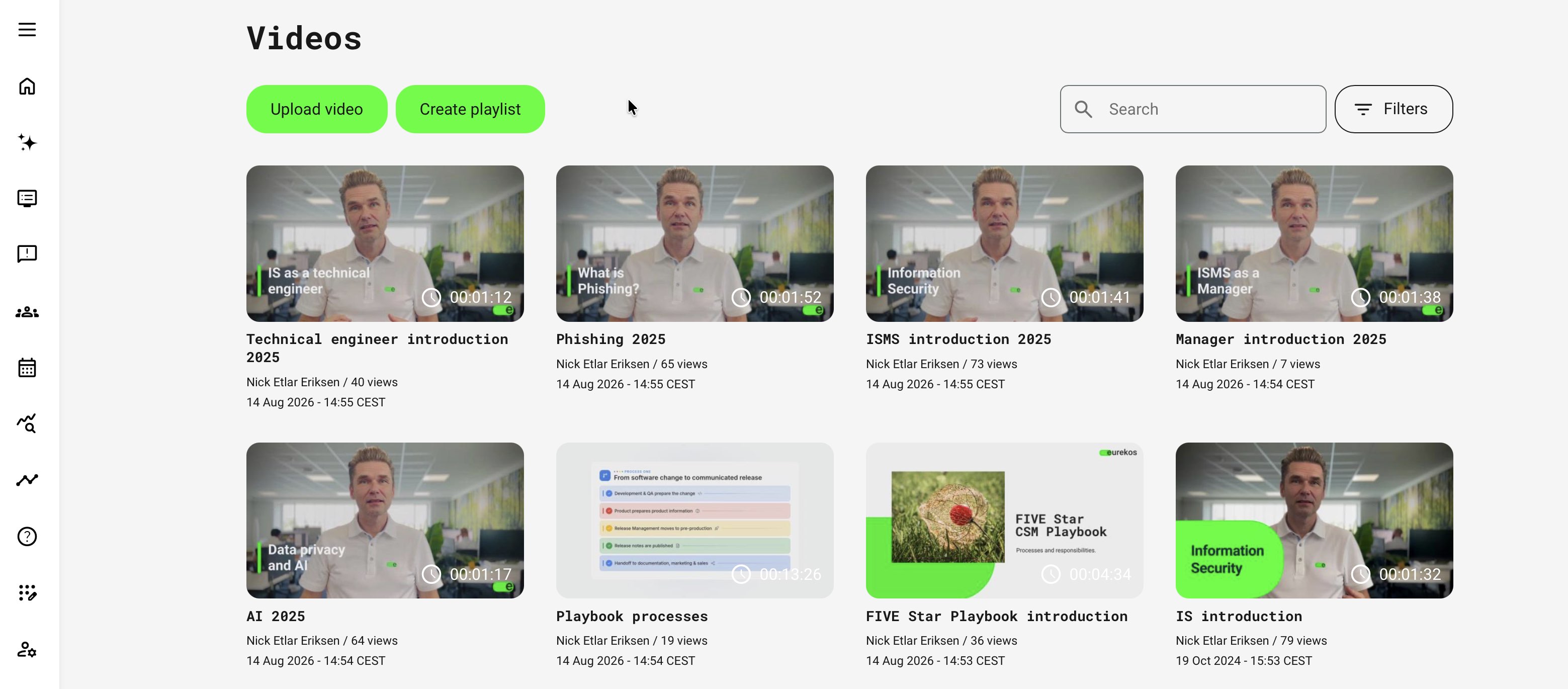
Depending on the asset and your permissions, its card can show:
- Thumbnail
- Duration
- Title
- Author
- Number of views
- Last-changed date
- Version when you point to the card
Use Search to find a video or playlist by its Title or Code. Available filters can narrow the library by configured metadata such as Category, Country, Language, Type, or Job function. Video Keywords serve a different purpose: where enabled, they improve results in the platform’s Global search rather than the Videos library search.
The views counter records platform-wide playback activity. It should not be interpreted as a count of unique participants or Course completions.
Upload and prepare a video
To upload a native video:
- Open Videos.
- Select Upload video.
- Select one or more supported files.
- Complete the available metadata.
- Submit the upload.
- Keep the browser window open until the upload itself has finished.
- Wait for Eurekos to process the video for streaming.
During processing, the video can appear in the library with a temporary clapperboard thumbnail or incomplete playback information. Processing continues in the background after the file has been uploaded. Eurekos sends an email when the video is ready.
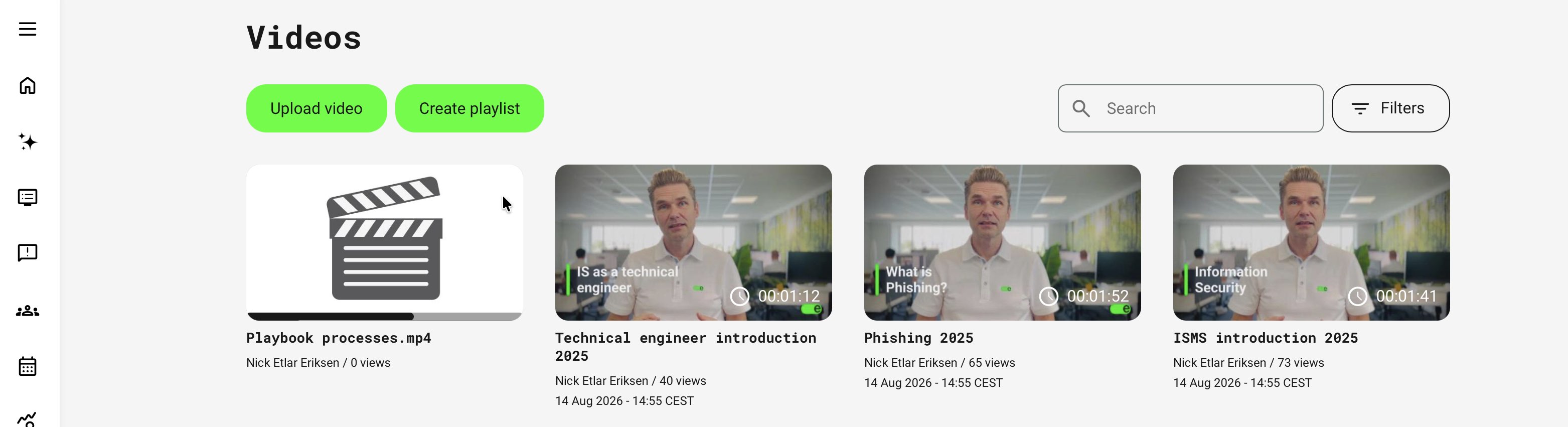
Do not upload the same file again merely because processing is still underway. This creates a separate video record rather than accelerating the original upload.
Supported source formats can include: MP4, MOV, AVI, WMV, MPEG, WebM, M4V, VOB, MKV, FLV, OGV, MXF, GXF, 3GP, LXF. Browser playback depends on the processed streaming version rather than the source file format alone.
Open and edit a video
Use the video editing page to maintain the video’s metadata, thumbnail, availability, media, and playback enhancements.
- Open Videos.
- Find the video by its Title or Code, or use Filters to narrow the list.
- Open the video card’s More actions menu.
- Select Edit.
- Under General, review or update the available fields:
- Title
- Code
- Visibility
- Keywords
- Author
- Copy the Video link or enable Make video available outside the platform when external access is appropriate and the option is available.
- Select one of the generated thumbnails, or use the plus icon to upload a custom thumbnail.
- Scroll further down the page to manage Cue points, Slides, and Subtitles and transcription when required.
- Save the changes.
- Return to Videos and verify the title, author, visibility, thumbnail, and version. Also test the video in a participant-facing context.
The available fields and actions depend on your permissions and platform configuration.
A video is a reusable managed asset. Changes to its title, thumbnail, visibility, media, or other shared properties follow that video into every Course page, playlist, Activity Description, Event, Community, Announcement, or other supported use. Select Used in before making a change that could affect existing content.
For detailed instructions on cue points, timed slides, subtitles, automatic transcription, translation, and transcript view, see Add Video Subtitles, Transcripts, Cue Points, and Slides.
Understand what video metadata changes
Video metadata helps authors find, identify, govern, and reuse an asset. Some fields also affect what participants see, but administrative discovery and participant access are separate concerns.
| Field | Author and administrator impact | Participant or public impact |
|---|---|---|
| Title | Initially uses the uploaded filename and is searchable in the Videos library. The same title identifies the managed asset in selectors, playlists, usage information, and other authoring contexts. Replace technical filenames with a clear topic title. | Appears with the video in participant-facing playback and playlist navigation. Changing the title updates how the shared video is identified wherever it is reused. |
| Code | Provides a unique internal identifier. It is visible in the Videos list and video editing page and can be used in Videos library searches. Use a stable convention when several assets have similar titles or belong to a managed content series. | Is not shown to participants and does not change the video title, access, or progress behavior. |
| Visibility | Public makes the video available for other permitted authors to find and reuse. Private normally limits it to its author, although roles with permission to view private videos can still access it. Visibility can be changed from the Videos list or editing page. | Does not independently control access after the video has been placed in a Course, Activity Description, Event, Community, Announcement, or another supported context. Access to that surrounding content determines whether the participant can watch it. |
| Keywords | Where video keywords are enabled, they improve matching in the platform’s Global search. They do not replace the Title or Code used by the Videos library search. Use relevant terms that may not already appear in the title, such as a product, process, standard, audience, or common synonym. | Keywords are not displayed as labels in the video player and do not grant access. They can help an accessible video or its connected content match a participant’s Global search, depending on the platform’s search configuration. |
| Author | Initially identifies the person who uploaded the video. It also determines ownership and normally controls who can find a Private video or manage their own asset. Changing the author requires the relevant permission. Transfer ownership when another person becomes responsible for maintaining the video. | Does not normally change playback, Viewed status, or access to a video that has already been placed in participant-facing content. |
| Thumbnail | Provides the identifying image used for the video. Eurekos generates possible frames according to the video duration, and an author can select one or upload an approved custom image. | Appears before or around playback and helps participants recognize the video. It does not affect progress or completion. |
| Video link | Provides a direct address for the managed video and is available only to roles with the relevant access. Copy it only when a direct link is appropriate for the intended use. | Possessing the link does not necessarily provide access unless the video is available through accessible platform content or has been made available outside the platform. |
| Make video available outside the platform | Makes the video publicly accessible through its direct URL. This is separate from Public or Private authoring visibility and should be enabled only when access outside Eurekos is intentional. | People with the direct link can watch the video without normal platform access. Treat the URL as publicly shareable and avoid enabling this option for restricted or confidential content. |
| Version | Begins at 1.0. Editing metadata or enhancements creates a minor version increase, while replacing the video media creates a major version increase. Versions help authors confirm that they selected the intended managed asset. | Participants continue using the existing video reference when its media is replaced. The version is primarily an administrative control rather than a participant-facing learning status. |
A video’s authoring visibility, direct-link availability, and placement in participant-facing content are independent controls:
- Public means other permitted authors can find and reuse the asset
- Private limits authoring-library discovery but does not prevent authorized participants from watching the video where it has already been placed
- Make video available outside the platform permits playback through the direct URL without normal platform access
- A video placed in publicly accessible catalog content can be available through that context according to the surrounding content’s access rules
Test both signed-in and signed-out access whenever a video is used in public-facing content.
Create a playlist
A playlist is an ordered collection of existing native videos. The source videos remain independent records in the Videos library.
To create one:
- Open Videos.
- Select Create playlist.
- Enter a descriptive Title.
- Confirm the Author.
- Set Visibility:
- Public makes the playlist available for other authors to use
- Private keeps it hidden and available only to its author
- Add videos:
- Select the plus icon on an existing video
- Use Upload video when a required source video has not yet been uploaded
- Review the selected videos in the playlist section.
- Remove an unintended selection by using its removal control or selecting the checked video again.
- Arrange or confirm the videos in the intended playback order.
- Select Create.
- Find the completed playlist in Videos and verify its title, membership, order, and visibility.
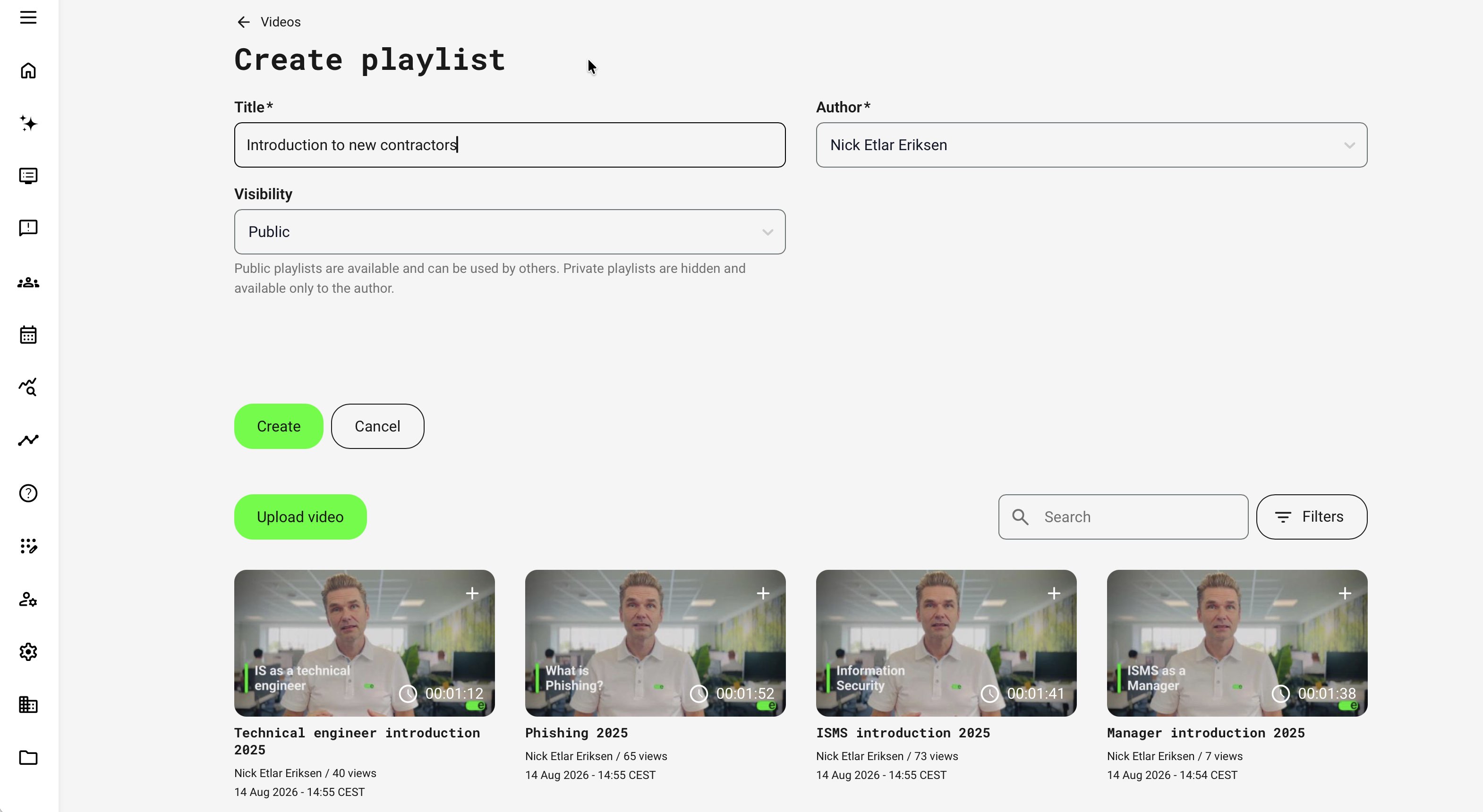
If you upload a video while creating the playlist, allow processing to finish before treating the playlist as ready for participants.
Use clear playlist and video titles
The playlist title identifies the complete collection in the Videos library and authoring selectors. The source-video titles identify the individual topics available through the playlist menu and participant navigation.
Use a meaningful naming relationship, for example:
- Playlist: Information Security Essentials
- Video: Recognize phishing attempts
- Video: Handle personal data safely
- Video: Report a suspected incident
- Video: Manager responsibilities
Avoid relying only on titles such as Part 1, Part 2, and Part 3. Participants may encounter a video title in navigation, progress information, reports, or another Course where the playlist context is absent.
Authoring selectors can display a video or playlist version alongside its title. Use the version to confirm that you have selected the intended managed asset; do not add version numbers manually to participant-facing titles unless they are genuinely part of the content name.
Add a video or playlist to a Course page
To use managed video content:
- Edit the relevant Course page.
- Select Add and choose the video or playlist content option.
- Open Select video.
- Search or filter the library.
- Select either an individual video or the required playlist.
- Upload a new video from the selector when permitted and necessary.
- Save the page.
- Preview the page and test it as a participant.
An individual video appears as one player. A playlist also appears through one player, but provides a playlist menu and Previous and Next navigation between the included videos. Playback follows the saved playlist order.
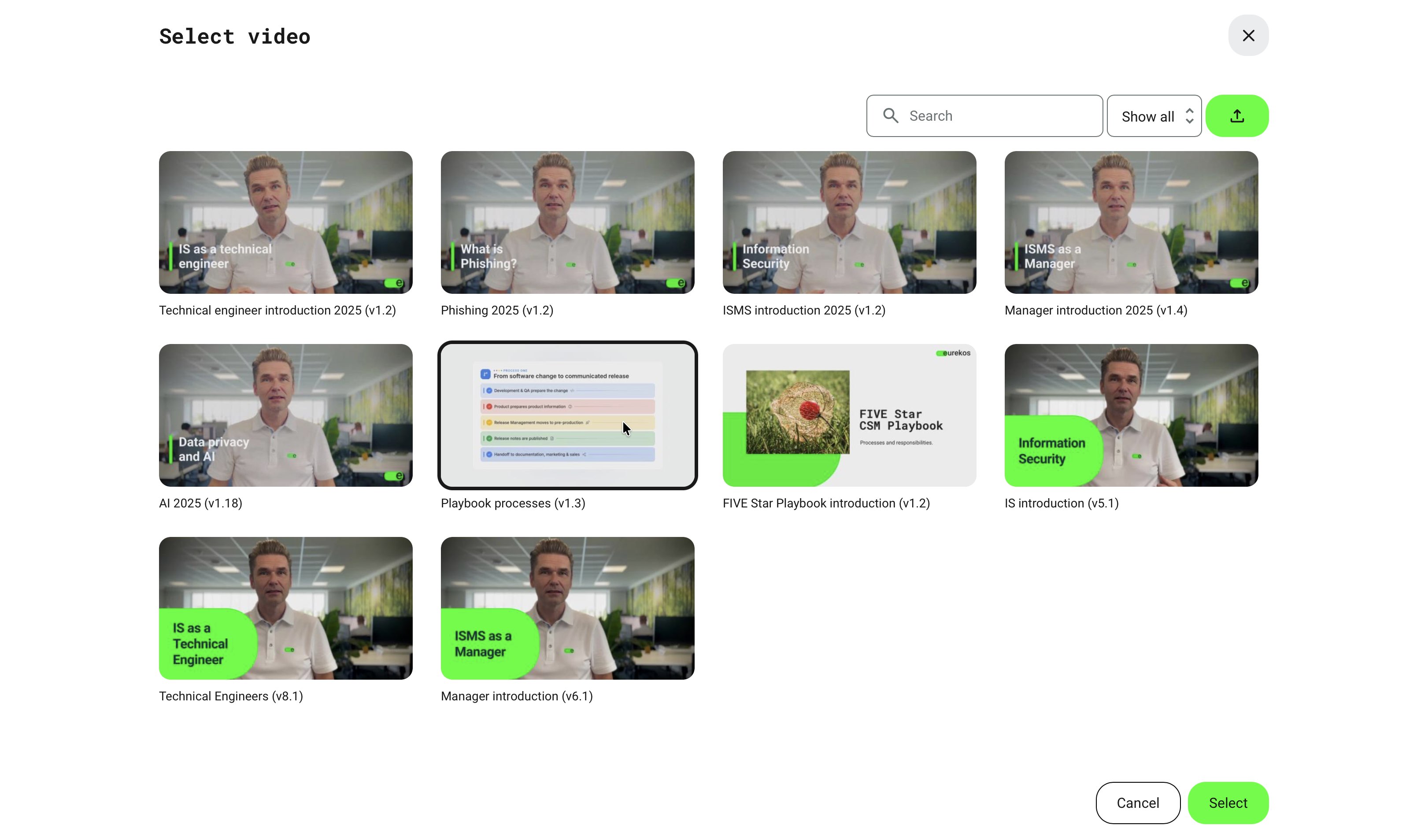
Use the native video or playlist option when Eurekos should manage streaming, Viewed status, reuse, usage, and versioning. Use an embedded-video option only when the media is hosted by an external service and the different tracking behavior is acceptable.
For subtitles, slides, chapters, cue points, and other playback enhancements, see Add Video Subtitles, Transcripts, Cue Points, and Slides.
Understand progress in a playlist
A playlist is presented as one collection, but its included videos retain individual progress.
When video viewing contributes to Course-page progress:
- Each included video records its own Viewed status
- The participant can see which playlist topics have been viewed
- Moving to another video does not automatically complete the preceding one
- Every required video must reach the configured viewing threshold before the related video requirements are satisfied
The platform-wide viewing threshold is configurable and is commonly 50 percent. Seeking forward can contribute to the threshold, so Viewed confirms that the configured portion was played; it does not prove uninterrupted viewing or knowledge retention.
Use an assessment or another appropriate learning activity when proof of understanding is required.
Maintain a playlist
Find the playlist in Videos and open its available actions to edit its title, author, visibility, membership, or order.
Understand the difference between removing and deleting:
- Removing a video from a playlist changes only that playlist. The original video remains in the Videos library and in its other uses.
- Deleting the original video removes it automatically from playlists that contain it. The affected playlists update their membership and do not display a broken video reference.
- Replacing the media inside an existing video record preserves that managed asset. Playlists continue to reference the video and use its updated media.
Automatic playlist cleanup prevents a broken playlist item, but deletion can still affect direct Course-page or other supported uses of the video. Check Used in before deleting or replacing a shared asset.
After changing a playlist:
- Confirm its title and visibility.
- Confirm that every intended video is still present.
- Check the order.
- Open the participant-facing player.
- Test the playlist menu and navigation.
- Confirm that every video starts correctly.
- Verify the individual Viewed behavior.
Check where a video is used
Before replacing or deleting a video:
- Find it in Videos.
- Open its more-actions menu.
- Select Used in.
- Review the listed Course pages, Training Activities, and other displayed uses.
- Open the available links where your permissions allow it.
- Coordinate the change with the responsible content owners.
Usage links respect the viewer's permissions. A link can therefore return an access error even when the listed use is valid.
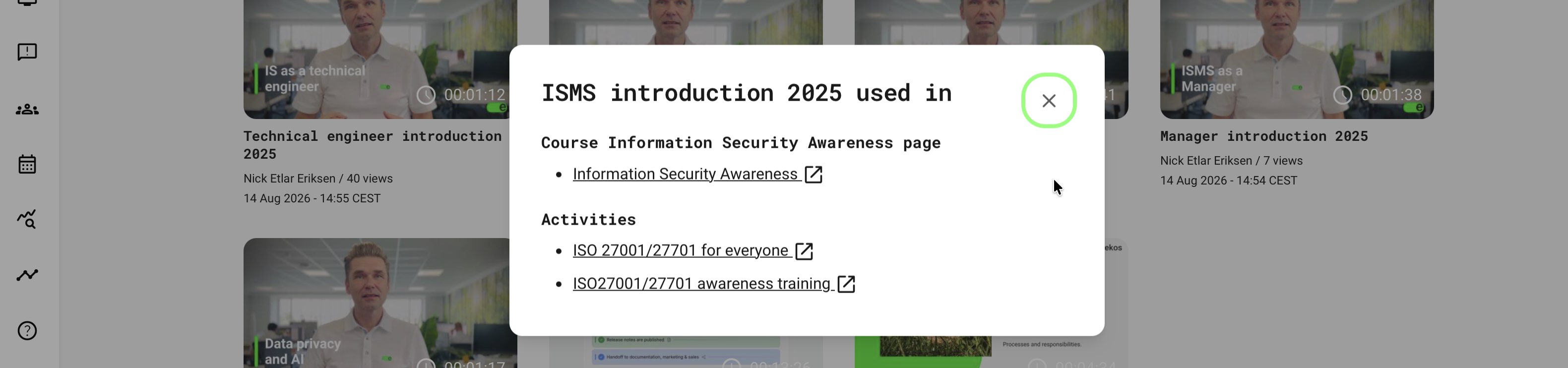
When a referenced Course or page is deleted, its entry is removed from the usage information. If no active references remain, Eurekos reports that the video is currently unused.
Replace a video safely
Use replacement when revised media should continue through the existing video record and references.
Replacing the source media:
- Retains the video record and its existing references
- Increases the major version
- Preserves metadata such as title, code, visibility, author, keywords, and outside-availability settings
- Retains configured subtitles, slides, cue points, and chapters
- Can require timing adjustments when the new media has a different duration
A replacement with a shorter duration can leave subtitles, slides, chapters, or cue points beyond the end of the video. A replacement with changed timing can make otherwise valid enrichments appear at the wrong moment.
A custom thumbnail remains. A thumbnail generated from the previous video can be regenerated from the replacement.
After starting replacement processing, selecting Cancel does not stop the uploaded replacement. Verify the final version and playback before performing another replacement.
For a materially different topic or learning purpose, upload a new video rather than replacing an unrelated shared asset.
Verify the participant experience
| Check | Expected result |
|---|---|
| Uploaded video | The processed video plays in supported participant browsers |
| Titles | The library, selector, playlist menu, and participant view use understandable titles |
| Playlist order | Videos appear in the intended sequence |
| Playlist navigation | The menu and Previous and Next controls open the expected video |
| Playlist progress | Each required video records its own Viewed status |
| Playlist removal | Removing a member leaves the original video available elsewhere |
| Source deletion | The deleted video disappears from affected playlists without leaving a broken item |
| Replacement | The existing Course and playlist references use the revised media |
| Enrichments | Subtitles, chapters, slides, and cue points remain synchronized |
| Visibility | Authors who should reuse the asset can find it, while unintended authors cannot |
| Responsive playback | The player and playlist controls remain usable on the supported screen sizes |
| Search and discovery | Title and Code find the asset in Videos, while configured Keywords support appropriate Global search results without changing access |
Troubleshooting
| Problem | What to check |
|---|---|
| An uploaded video is not playable yet | Confirm that upload completed and processing is still underway; wait for the completion email before uploading again |
| A playlist is missing from the selector | Check its visibility, author, your permissions, search terms, and active filters |
| A video has disappeared from a playlist | Confirm whether it was removed from the playlist or the original video was deleted from the Videos library |
| A playlist shows the wrong order | Edit the playlist, review the selected-video sequence, save it, and test the participant player again |
| Participants cannot distinguish the topics | Replace generic source-video titles with descriptive topic titles and verify them in the playlist menu |
| A video does not become Viewed | Confirm the configured viewing threshold, participant playback, Course-page requirements, and whether the correct source video was selected |
| A replacement has incorrect subtitles or chapters | Recheck every time-based enrichment against the replacement duration and timing |
| An author cannot find a shared video | Check author, Public or Private visibility, permissions, organization scope, search terms, and filters |
| A Used in link returns an access error | Confirm that the viewer has permission to open the referenced Course, page, or Training Activity |
| A playlist is not the clearest presentation | Use separate video objects when the page contains only a few segments that need their own descriptions or supporting material |
FAQ
-
Why is an uploaded video not immediately ready to play?
Uploading and preparing a video for streaming are separate stages. Processing may continue in the background. Wait for completion and check playback before treating the video as ready for learners.
-
Does a video marked Viewed prove the learner watched every second?
No. Viewed status follows a configured threshold, and the documented behavior can be triggered by seeking to that point. Use it as the platform's viewing indicator, not proof of uninterrupted viewing or competence.
-
Can Cancel stop a video replacement after the new file starts uploading?
Do not rely on Cancel to stop it. The documented replacement begins processing after upload starts. Confirm the intended file and review existing usage before initiating a replacement, then verify the resulting video and its related assets.
-
What needs checking when a replacement video is shorter?
Review subtitles, cue points, slides, thumbnail, and every relevant use. Elements beyond the new duration can be removed, while retained elements may no longer match the narration or timing. Successful replacement is not a substitute for editorial review.