Create and Structure a Native Course - Article
Summary
A well-structured Course turns learning material into a clear and reusable journey. Eurekos brings pages, media, interactive content, assessments, and reusable resources together within the same authoring environment, helping organizations maintain consistent learning experiences without depending on separate content-production services.
This article explains how to establish a new Course and organize its pages. It focuses on the Course structure and learner route; Course ownership, classification, and governance are covered separately.
Use this article to:
- Start from a new Course or a complete, purpose-built Course maintained for cloning
- Organize pages and subpages into a meaningful learning route
- Use the Course builder to add, move, copy, and remove pages
- Apply page behavior without losing the intended structure
- Verify the resulting route before the Course is prepared for delivery
Choose how to start
Authors can create a new Course from scratch or clone a complete Course that has been deliberately prepared as a reusable starting point.
A Page template supplies the starting content and presentation for one page. A prepared source Course can provide an entire Course structure, including its page hierarchy, completed page layouts and content, branding, guidance, recommendations, and examples.
Organizations can therefore maintain different starting Courses for particular Course types, audiences, brands, business units, or other recurring needs. For example, a source Course could be named Template – Customer product certification or Template – Internal policy acknowledgement.
A Course maintained for this purpose remains an ordinary Course in the Course list; it is not a separate Page template type. Its title and governance should make clear that authors are expected to clone it rather than develop or deliver it directly.
Clone a prepared starting Course
From the Course list, locate the prepared source Course and use the available cloning action. The cloned Course provides the complete starting structure, allowing the author to adapt an established learning design instead of rebuilding the same pages and hierarchy.
After cloning:
- Give the new Course its intended title and code.
- Confirm its author, co-authors, Organization, language, and other Course settings.
- Review the complete page structure and learner route.
- Replace or remove template guidance, examples, and placeholders.
- Check links, media, assessments, adaptive behavior, restrictions, and other copied configuration.
- Confirm that branding and audience-specific content belong in the new Course.
- Review the result in Participant view.
This approach is particularly useful when the starting Course contains targeted authoring advice or a proven structure for a particular learning purpose. It can combine standardized design with enough variation to support different audiences and brands.
Create and save a Course from scratch
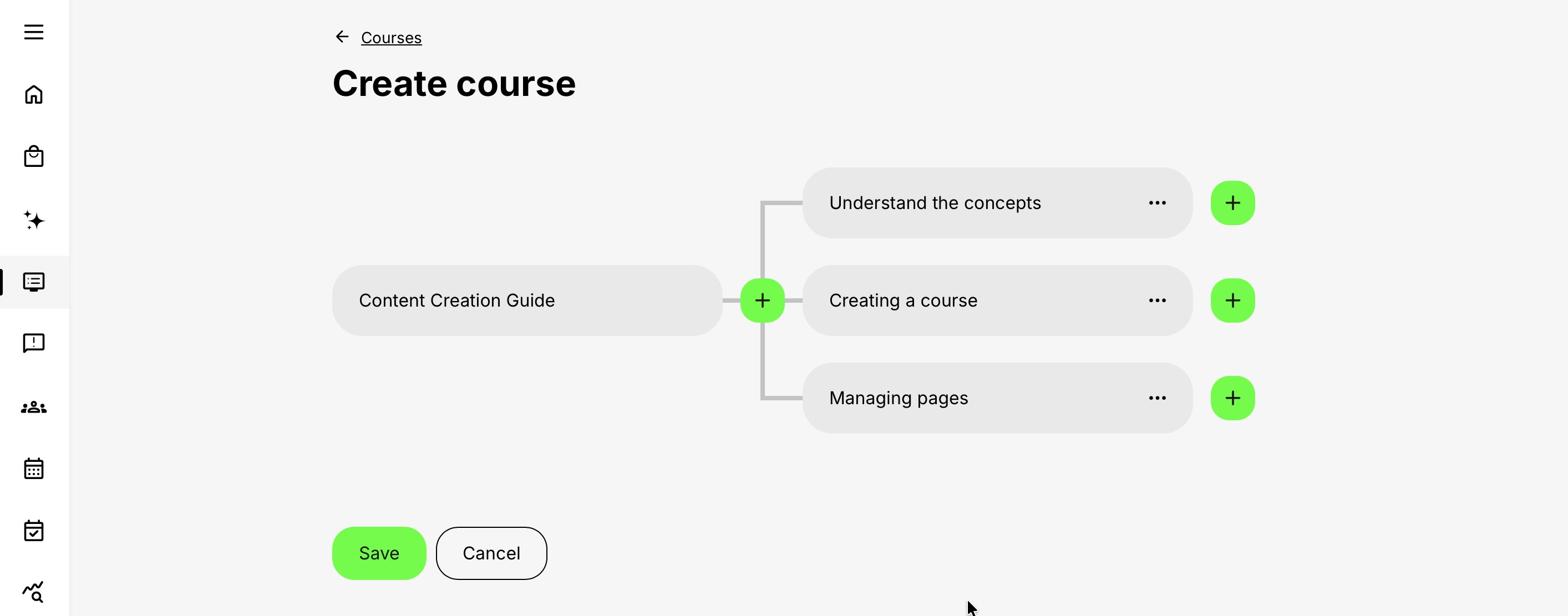
Open Courses and select Create. Eurekos opens the Course builder, where connected page bubbles define the Course structure. The first bubble represents the first Course page, while the remaining bubbles represent pages and subpages. Their connections determine how the pages are organized.
Each new page uses a Page template as its starting point. The template applies only to that page; it does not create the Course structure. Depending on its configuration, a Page template may be empty or include reusable sections, guidance, recommendations, predefined colors, and other starting content.
Every page contains a protected Page title, which identifies the page in Course navigation. The first Course page also contains a protected Course banner. These required objects are present regardless of the Page template selected. Authors can reposition both objects but cannot delete them. The Course banner can also be hidden or configured to display an Image, native Video, or Playlist. See Build Course Pages with Layouts, Text, Images, and Buttons for the complete page and banner procedure.
To establish the Course:
- Open Courses.
- Select Create.
- Create or review the page bubbles that define the first Course page, later pages, and subpages.
- Give each page a descriptive title and choose an appropriate Page template.
- Review any guidance or starting content supplied by the selected templates.
- Arrange the page bubbles into the intended Course structure.
- Select Save.
The first save creates the Course entity and adds it to the Course library. Until this point, you are working with an unsaved Course structure, and the complete Course-level settings are not yet available.
Saving the Course does not publish it in the Storefront, create a Training Activity, invite participants, or enroll anyone. It establishes the reusable authoring resource that can now be identified, classified, governed, and developed.
A Page template is applied to an individual page when that page is created. It supplies the page’s starting content and presentation but does not determine the page’s position or relationships in the Course structure. Later changes to the Page template do not retrospectively update pages already created in a saved Course.
Complete the Course identity and classification
Open Settings to configure the Course-level information that becomes available after the Course entity has been created.
The General area establishes the Course title, Course code, organizational relationship, primary author, co-authors, content language, and permitted cloning model. The Tags area applies the controlled classifications and keywords that help authors and administrators locate, filter, organize, and report on the Course.
Choose the Course code deliberately. It becomes the default name of the automatically created shared Course folder used by the author and co-authors to maintain supporting files and materials. A short, consistent naming convention makes Courses and their shared resources easier to recognize, search, and govern as the library grows.
Save the settings, then confirm that the Course can be found using both its title and code and that the intended authors can open it. For the complete explanation of ownership, organizations, language, classification, shared resources, cloning, and governance, see Manage the Course Library, Ownership, and Settings.
Build a clear outline
The Course outline should make the learning journey understandable before the learner opens the first page. Organize pages around meaningful learning tasks and decisions rather than reproducing the structure of source documents.
Keep the principal route near the top level. Use subpages where grouping genuinely helps learners understand a subject or complete a larger task. Avoid deep nesting that requires learners to open several containers before reaching a short lesson.
| Part of the outline | Useful purpose | Example |
|---|---|---|
| Course overview | Explains the purpose, expected effort, and how to use the Course | What you will be able to do and how the practical assessment is arranged |
| Main page or section | Groups a meaningful stage or subject | Prepare the installation site |
| Subpage | Develops a distinct task within that subject | Identify conditions that require escalation |
| Reference page | Provides information learners may revisit | Approved terminology and a downloadable field guide |
Use descriptive page titles such as “Check the site before installation” rather than “Page 3.” A strong title supports navigation, search, accessibility, and content maintenance and remains understandable outside the author’s original outline.
Keep the outline and page layout separate
The outline answers “Where am I in the Course?” The page layout answers “How do I understand and use this lesson?”
A single page can combine an explanation, image, video, interaction, practice activity, and downloadable resource without each element becoming another entry in the Course outline. Use a consistent page pattern where it supports orientation, but allow procedures, case studies, assessments, and reference pages to use structures appropriate to their purpose.
A single crowded page is not automatically simpler than several focused pages. Divide content when a learner needs a clear change of task, decision, subject, or expected outcome. Continue with Build Course Pages with Layouts, Text, Images, and Buttons when the outline is ready for detailed page authoring.
Practical structure patterns
Different learning purposes call for different structures. Use these patterns as starting points and adapt them to the actual learner journey rather than treating them as mandatory templates.
| Need | Suggested structure | Why it works |
|---|---|---|
| New-starter foundation | Orientation, a small number of task-focused lessons, practice, and next steps | Establishes a usable mental model before adding detail |
| Product procedure | Preparation, demonstration, decisions and exceptions, then a field reference | Mirrors the order in which the learner performs the task |
| Blended program preparation | Short foundation pages and a clear preparation task before the live session | Keeps the Course focused while the Training Activity coordinates the complete program |
| Expert reference | Clearly named, independently understandable pages with appropriate optional treatment | Supports returning users without forcing every reference item into a required sequence |
Choose the simplest structure that preserves the intended sequence and makes important relationships visible. A learner should be able to understand the route from the page titles and hierarchy without opening every page first.
Add and arrange pages
The Course builder presents the structure as connected page bubbles. The first bubble represents the first Course page, while the connecting lines show the relationships between the remaining pages and subpages.
- Open the saved Course in the Course builder.
- Identify the page beneath which the new page belongs.
- Select the Add control at the appropriate position.
- Enter a descriptive page title and add the page.
- Continue from the relevant parent bubble to build the required hierarchy.
- Drag page bubbles to change their order or position.
- Check the connecting lines after every move to confirm the intended parent and sequence.
- Navigate to the page when you are ready to add or edit its learning content.
Moving a page is not purely visual. Its new position can affect navigation and behavior associated with its parent. After restructuring a branch, review both the moved page and the pages beneath it.
Build the structure deliberately rather than adding depth for its own sake. If a page does not represent a meaningful learning task, decision, subject, or reusable reference, consider whether its content belongs inside another page instead.
Copy and remove pages safely
Navigate to the page you want to reuse and open More.
- Copy creates a page copy that can be pasted into another valid location.
- Paste inserts the copied page at the selected destination.
- Remove removes the selected page and its subordinate pages after confirmation.
A page copy includes the complete page layout and content. Review all copied material and settings before relying on it. Reused pages can contain dates, customer-specific wording, links, shared assets, prerequisites, or learning rules that do not belong in the new context.
Removing a parent page can affect the complete branch below it. Review the hierarchy, links, shared resources, and dependent learning routes before confirming the removal.
Copying a page is different from copying or moving an individual learning object in the page editor. Use Cut or Clone, followed by Paste, when only selected content within a page should be moved or duplicated. A page copy is also different from cloning a complete Course: a page copy reuses one page in another valid location, while a Course clone creates an independent Course containing the complete prepared structure and content.
Choose page behavior intentionally
Once a page is positioned correctly, open its More menu and select Settings. The outline establishes where the page belongs, while the Display setting determines how the page participates in the learner route.
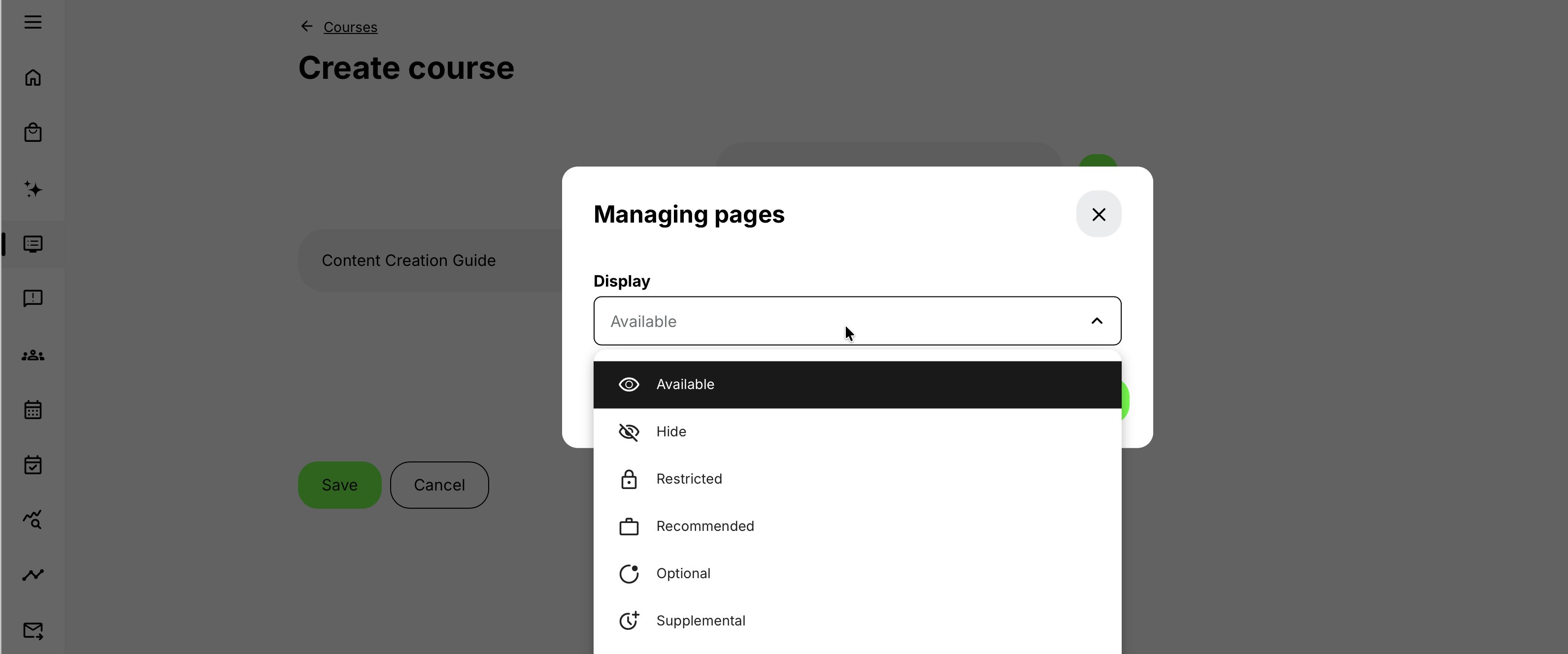
Select the behavior according to the page’s learning purpose rather than using a Display setting simply to remove an inconvenient page from view.
| Behavior | What it is for | Important distinction |
|---|---|---|
| Available | Normal learning content presented as part of the Course | Availability does not replace activity enrollment or access controls |
| Hide | Content that should not be presented as an active part of the Course | Hidden content is excluded from normal Course progress |
| Restricted | Content that opens only when configured conditions are satisfied | A restriction is an access gate rather than a recommendation |
| Recommended | Content highlighted for learners matching configured profile criteria | A learner who does not match can still access the page |
| Optional | Content that should not count toward required progress | Navigation and progress treatment differ from a normal required page |
| Supplemental | Additional learning revealed through a supported assessment condition | Revealed content can become part of required progress unless configured otherwise |
| H5P SCORM/xAPI | A page that launches a supported H5P object through the configured behavior | Attempts and completion depend on the H5P and tracking configuration |
| External link | A route to content or a service outside the native Course page | The external destination has its own availability and access requirements |
The first Course page does not provide page-level Access Restrictions. Its availability follows access to the Course module within the Training Activity. Use Training Activity or Course-module access controls when access to the complete Course must be gated.
Page behavior can interact with parent-child relationships, progress, prerequisites, and adaptive rules. Page restrictions are configured separately for each page after the first Course page; child pages do not inherit a parent page’s restriction. Test every affected page and its surrounding branch in Participant view before relying on the route.
These settings control how a page participates within the Course. They do not replace the enrollment, audience, availability, or access controls applied through a Training Activity.
Apply adaptive and external page behavior
Use Restricted when a learner must satisfy a supported prerequisite or condition before opening a page. Confirm that the condition is based on evidence available to the Course and test both the qualifying and non-qualifying journey. See Control Course Page Access and Prerequisites for the detailed configuration.
Recommended, Optional, and Supplemental pages can support a more adaptive route. Recommended content highlights relevant material without preventing other learners from opening it. Optional content can provide useful depth without contributing to required progress. Supplemental content can be introduced when a supported interaction or assessment identifies an additional learning need. See Design Adaptive and Recommended Course Pages for the complete adaptive model.
Use H5P SCORM/xAPI only when the page is intended to launch a supported H5P object through that behavior. Confirm how attempts, completion, scoring, and any SCORM or xAPI behavior are configured for the object. The detailed interactive-content workflow is covered in Create and Reuse Interactive Learning with H5P.
An External link opens a destination outside the native page flow. Confirm that the intended learners can access the destination and understand that the external service controls its own authentication, availability, privacy, and accessibility. Opening the link does not provide Course progress evidence in the same way as completing native learning content.
Test every conditional branch in Participant view. Where behavior also depends on enrollment, audience, activity settings, or external identity, test the Course through a representative Training Activity before delivery.
Verify the learner route
Verify the complete journey rather than checking only that individual pages were saved.
| Scenario or check | Expected result or evidence |
|---|---|
| First visit | The learner can explain the purpose and identify where to begin |
| Page added or moved | The page has the intended parent, sequence, and navigation position |
| Page copied | Its content, links, assets, and settings are appropriate in the new context |
| Restricted or adaptive parent | The parent and child pages behave correctly for qualifying and non-qualifying learners |
| Optional or supplemental page | Progress and navigation reflect the intended learning requirement |
| External or H5P page | The destination opens correctly and produces only the expected progress evidence |
| Mobile view | Page titles, navigation, and content remain readable and usable |
| Course prepared for delivery | The correct Course and version can be identified and required dependencies are documented |
A successful save confirms that the configuration was accepted. It does not prove that every learner route, conditional branch, external destination, or Training Activity context behaves as intended
FAQ
-
What is the difference between a Course page and a Training Activity module?
A page is part of a native Course's content structure. A module is part of the Training Activity's delivery structure and can represent a Course or another supported learning component. Use pages to organize the learning material and modules to organize the broader delivery.
-
Should I organize a Course by source documents or learning tasks?
Prefer a structure learners can understand from their goals and tasks. Source documents can inform the material, but their departmental or file structure may not be a useful learning sequence. Use clear page titles and manageable sections.
-
Can copying a Course page also preserve shared-asset dependencies?
A copied structure should not be assumed to create independent copies of every referenced asset. Check the resulting references, permissions, prerequisites, and media. If a separate audience needs independent maintenance, verify which assets must also be copied.
-
Does hiding a Course page mean learners still need to complete it?
Hidden pages are excluded from the normal learner progress requirement. Hidden, restricted, optional, and supplemental pages serve different purposes. Select the control that matches the learning design, then verify navigation and progress with representative learner states.