Build Course Pages with Layouts, Text, Images, and Buttons - Article
Summary
Build pages that help learners understand a topic and take the next useful action. Layouts provide structure; text, images, and buttons should each have a clear role within it.
Use a consistent visual approach without forcing every lesson into the same pattern. Check the learner view as you work, especially when combining columns, large images, or external links.
Use this article to:
- Choose a responsive page layout and maintain a logical reading order;
- Configure Text, Image, and Button objects, including behavior, accessibility, and visual settings;
- Reuse managed media, interactions, and files without creating unnecessary duplicates;
- Use object controls such as anchors, Customize, Cut, Clone, Hide, Remove, and Move safely;
- Verify the saved page with learner permissions and different screen sizes.
Navigate between Course pages while editing
When an authorised Course creator opens a Course from the Courses list—or saves a newly created Course and arrives on its first page—the Course structure appears at the top of the main navigation. Its pages and subpages are displayed in their established hierarchy.
Use this navigation to move directly to any existing page or subpage. After opening the required page, select the Edit icon to update its content. This allows an editor to move efficiently between different levels and pages without returning to the Courses list or progressing through the Course one page at a time.
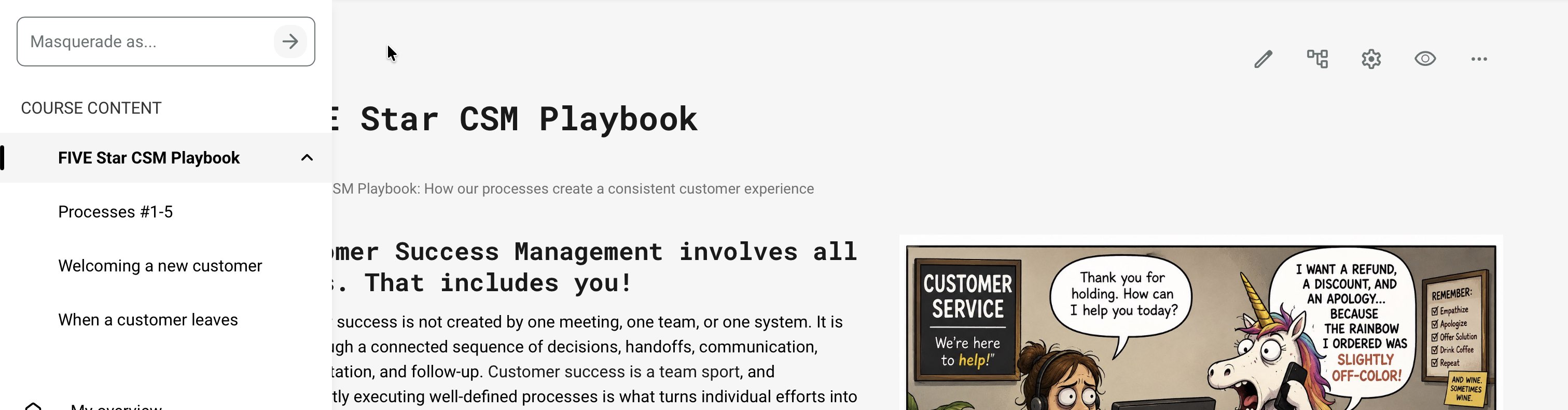
The Course builder is used to create, copy, remove and arrange pages within the Course hierarchy. Pages are not opened for viewing or editing from the Course builder. Once the structure is in place, use the main navigation to open each page and access its editing controls.
Start with a page layout
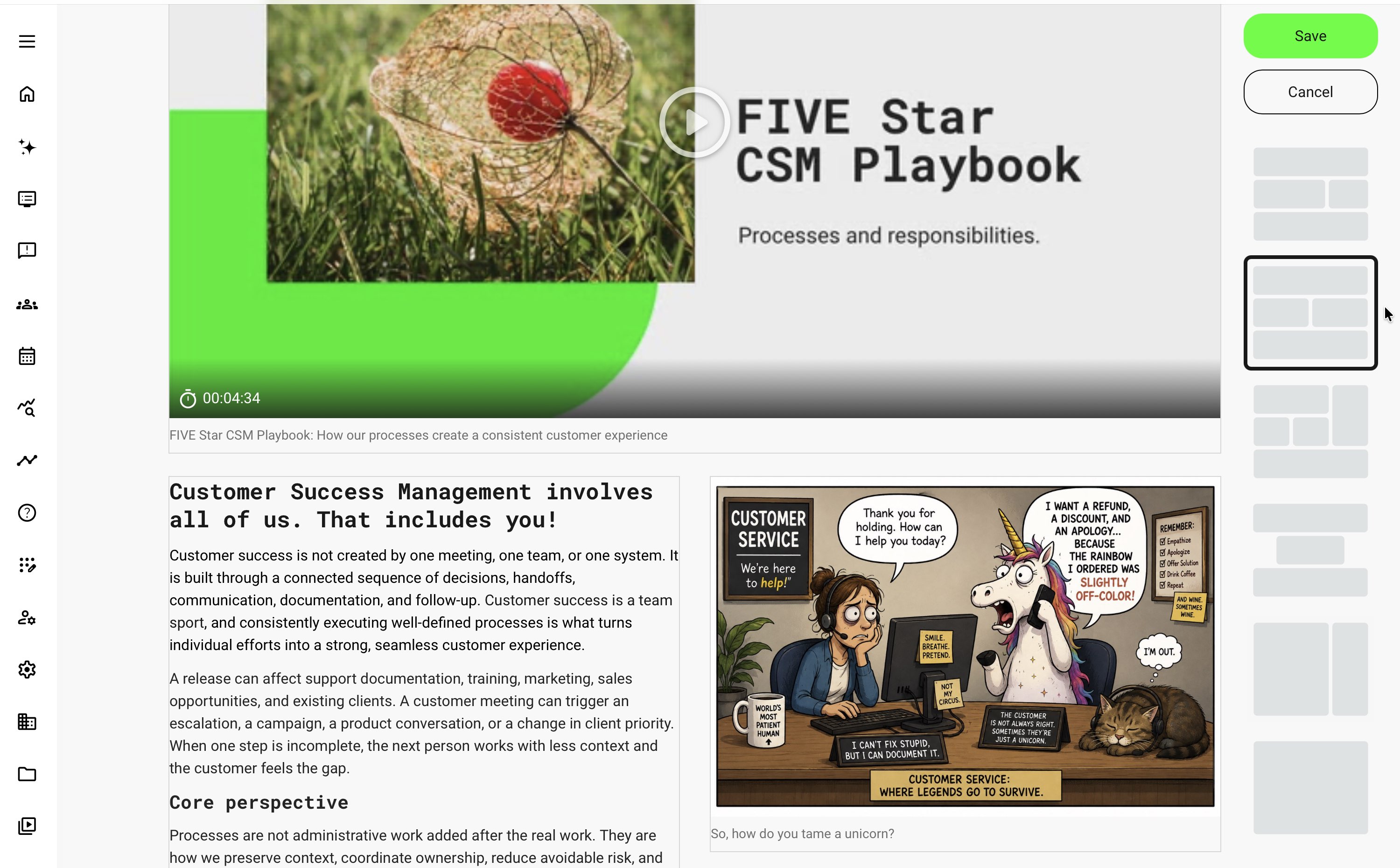
Use the Course structure at the top of the main navigation to open the required page, then select Edit. Choose the layout that supports the intended reading order. Layout is configured independently for each Course page, so one page can use a single content area while another uses several columns.
The layout picker has its own scroll. Scroll within the picker to review all available structures without moving the complete Course page. After choosing a layout, place each learning object in the content area that preserves its intended relationship with the surrounding content.
| Layout choice | Useful application | What to avoid |
|---|---|---|
| One main column | Explanations, procedures, case studies, and mobile-first learning. | Long uninterrupted text without headings or useful examples. |
| Text beside an image or video | A short explanation closely related to the visual. | Narrow text columns or a visual that becomes unreadable on a phone. |
| Several short content areas | Clearly separated concepts or choices. | Using a complex grid for information that would be clearer as a list or table. |
| A repeated lesson pattern | Predictable orientation across a Course. | Decorative repetition that adds no learning value. |
Responsive layouts can rearrange content on smaller screens. Review the resulting reading order; the desktop arrangement alone does not establish that the lesson works on mobile.
Configure the Course banner
The Course banner is a protected object on the first page of every Course. It is present regardless of which Page template is selected. The banner remains part of the Course and cannot be removed, but it does not have to remain visible or stay at the top of the page. Use the banner controls to:
- Select Edit to choose or replace an Image, native Video, or Playlist.
- Select Move, or use Cut and Paste, to place the banner in another valid position on the page.
- Select Hide when the Course should not display a banner, and Unhide to restore it.
Use Edit on the protected Course banner when changing its media. Other Image, Video, and Playlist objects can still be added elsewhere on the page, but they do not replace the protected Course banner.
Choose the banner media according to its purpose:
| Media | Suitable use | Check |
|---|---|---|
| Image | Give the Course a recognizable visual identity without adding another learning step | Use a wide, shallow image, provide appropriate alternative text, and test responsive cropping. Follow the recommendations in Prepare Files: Formats, Limits, and Quality Recommendations |
| Video | Introduce the Course, instructor, context, or expected outcome | Keep it concise and do not place essential instructions only in the video. Manage the source asset as described in Upload, Organize, and Reuse Videos and Playlists, and add accessibility and navigation features through Add Video Subtitles, Transcripts, Cue Points, and Slides |
| Playlist | Present several related short videos through one player, with each video retaining its own title and completion status | Use it when the segments form one coherent introduction. Separate page objects may be clearer when each video needs its own explanation or surrounding content. Create and maintain the sequence as described in Upload, Organize, and Reuse Videos and Playlists |
Depending on special platform configuration, the Course title, tags, progress information, duration, or administrator-facing details can appear with the banner. The banner can therefore look different in edit mode and participant mode.
Preview the Course as a participant after changing the media, position, or visibility. A hidden banner is not a suitable place for required learning content, particularly when it contains a Video or Playlist whose completion is expected.
Write and format text
A Course page provides two related but distinct ways to edit written content.
The headline already shown at the top of the page provides its structural title. Select Edit on the headline to change this short label. It uses a focused editing field rather than the complete rich-text toolbar, so keep the headline concise, descriptive, and useful when the learner navigates the Course.
For the lesson content itself, add a Text object. A Text object is a flexible content area that can combine headings, paragraphs, links, lists, tables, inline images, emphasis, alignment, and code formatting. This makes it suitable for anything from a short explanation to a structured procedure, comparison, or worked example.
Use headings to express the real hierarchy of the lesson rather than making ordinary text larger or bold. Begin with the purpose, question, or decision the learner faces, explain the essential information, and place the relevant action before optional background.
| Content need | Recommended structure |
|---|---|
| Page title | A short structural headline |
| Section within the explanation | The appropriate heading style inside a Text object |
| Steps that must be completed in order | A numbered list with one clear action per step |
| Related points without a required order | A concise bulleted list |
| Options with the same characteristics | A table with clear row and column headings |
| Small supporting illustration within the narrative | An inline image when separate object controls are unnecessary |
| Meaningful visual requiring a caption, enlargement, destination action, or independent object controls | A standalone Image object |
| Short command, field name, or technical expression | Inline code |
| Multiline technical example | A code block |
| Warning or dependency | A visible explanation beside the action it qualifies |
A single Text object can contain several of these elements. However, divide a long explanation into separate Text objects when sections need independent positioning, anchors, styling, visibility, or movement.
Do not use tables to construct the visual layout of a page. Keep tables simple enough to remain understandable on narrow screens. Avoid placing essential text inside an image because image text is harder to translate, search, enlarge, and make accessible.
Add useful images
Images can be placed inside a Text object or added as standalone Image objects. The best choice depends on how the visual should behave.
Use an inline image when it belongs directly within the written explanation. Inside the Text object, an author can upload an image, insert one using an image URL, or select an available image from the Archive. Inline images can include alternative text and can link to a URL.
Use a standalone Image object when the visual needs independent positioning, a caption, enlargement, a file download, an email action, or separate object controls. A standalone object is also useful when the image must be moved, hidden, cloned, or managed independently of the surrounding text.
Crop and size an image for its intended purpose rather than uploading an unnecessarily large file and relying only on visual shrinking. Give meaningful images alternative text that describes the information they convey. A caption can explain the example or its context; alternative text serves someone who cannot see the image. For a complex diagram, explain the essential relationship in the surrounding text as well.
Use only images you are permitted to distribute. Availability in an authoring archive does not establish copyright permission. Avoid screenshots containing unnecessary personal information, credentials, or internal operational data.
Use buttons and links for clear actions
Buttons should have recognizable labels such as “Download the site checklist” or “Open the preparation guide.” A label such as “Click here” does not explain the destination when read in isolation.
| Destination | What to verify |
|---|---|
| Another Course page | The destination is correct and the learner can access it under the intended page rules. |
| A file | The intended edition is available, the link works for the learner, and the file itself is accessible. |
| An external resource | Sign-in, permissions, mobile behavior, and the continued availability of the external service. |
| An action outside the Course | The learner understands what will happen and how to return. |
Do not use a button to imply that an external action automatically supplies Eurekos completion evidence. The destination and the reporting relationship are separate matters.
Open and control the page editor
- Use the Course structure at the top of the main navigation to open the required page, then select Edit.
- Choose the layout that best matches the content. Scroll inside the layout picker to see all available structures. The selection applies to the current Course page and does not change the layouts of other pages.
- Move the pointer above or below an existing object in the required layout column. The Add plus icon appears at the available insertion point. Select it to insert a new learning object before or after that object. In an empty content area, select the available plus icon to add the first object. The selected insertion point determines the object’s position within the column; it does not create another column or change the page layout.
- Create new content or select an existing asset from the relevant archive or library.
- Use the object toolbar to edit, customize, cut, clone, hide, remove or move the object when those actions are available for that type.
- Select Save changes, then inspect the page in learner view. Select Cancel if the editing session must be discarded.
Use Cut or Clone, followed by Paste, when relocating or duplicating an individual object. This does not copy the entire Course page or its children; structural page copying is performed in the Course builder.
Choose the appropriate learning object
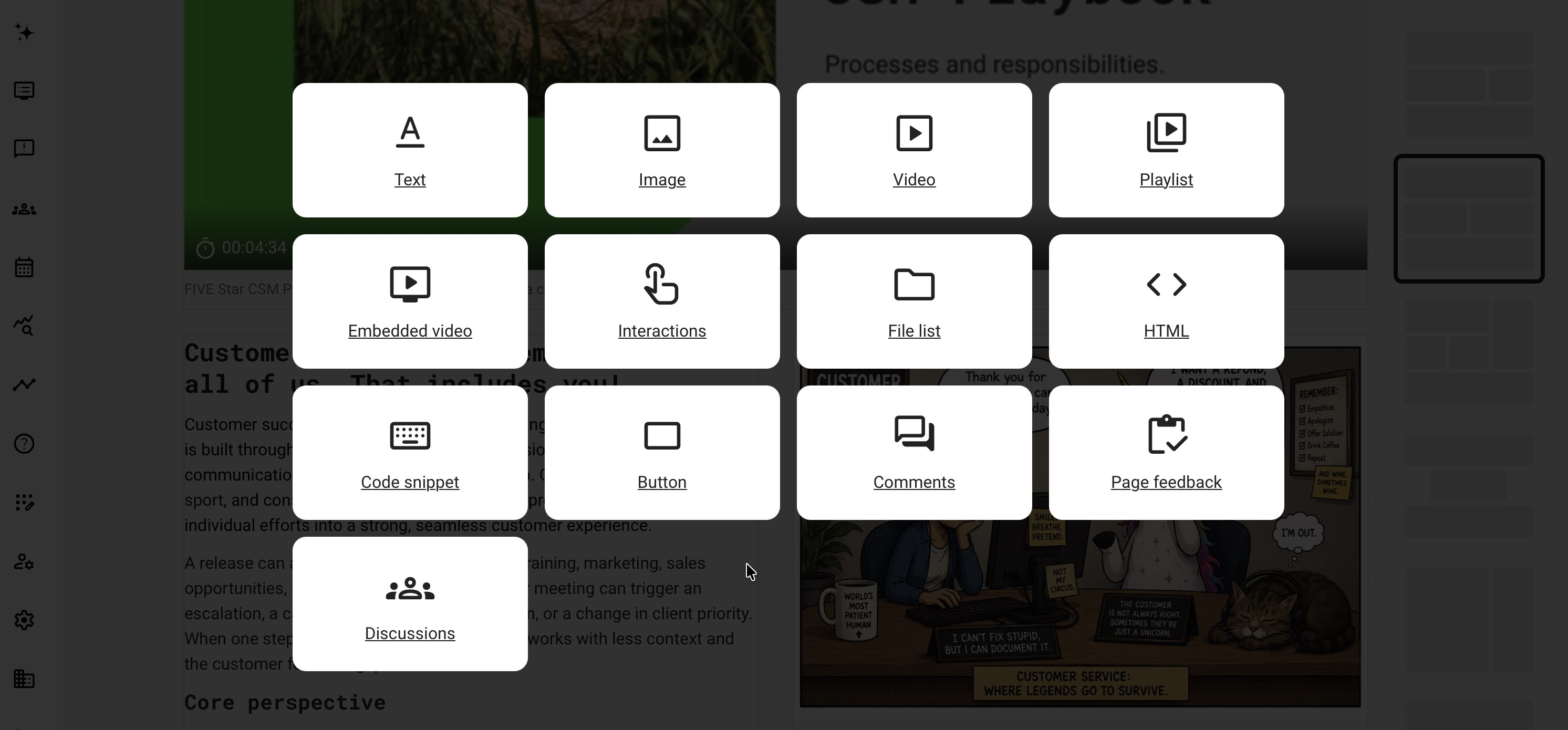
The objects available in Add can depend on platform configuration, permissions and the type of page being edited.
- Text provides a flexible rich-text content area that can combine headings, paragraphs, links, lists, tables, inline images, emphasis, alignment, and code formatting. Use separate objects when content needs independent positioning, styling, behavior, visibility, or reuse.
- Image selects an image from the Archive or uploads a new one. Add alternative text and, where useful, make the image enlarge, open a URL, download a file or create an email action.
- Video selects a video from the native Videos library so streaming, subtitles, cue points, slides and engagement data can remain inside the platform.
- Playlist presents a managed sequence of native videos.
- Embedded video links to a supported external video source. Its availability, privacy, tracking and responsive behavior remain dependent on that service.
- Interactions selects an existing H5P object from the H5P library. Create and maintain the object in the library before placing it on one or more pages.
- File list presents one or more downloadable or viewable resources from the Archive.
- HTML adds supported HTML markup. Script execution is not allowed for security reasons.
- Code snippet displays source code as learning content. Learners can copy the code or view it in full screen; the object does not execute the code.
- Button creates a clear action to a Questionnaire, URL, Archive file or email address. Configure the destination, label, alignment, color and size so the action is unambiguous.
- Comments allows learners to comment in the context of the page.
- Discussions connects the page to a structured discussion where that function is available.
- Math displays mathematical notation using the configured math support.
- Page feedback collects a simple positive or negative response to the page where enabled.
- Quickchannel can connect the page to the configured communication experience where that integration is available.
Do not add an object only because it is available. Choose it because it helps the learner understand, practise, decide or demonstrate something that supports the intended outcome.
Control and style page objects
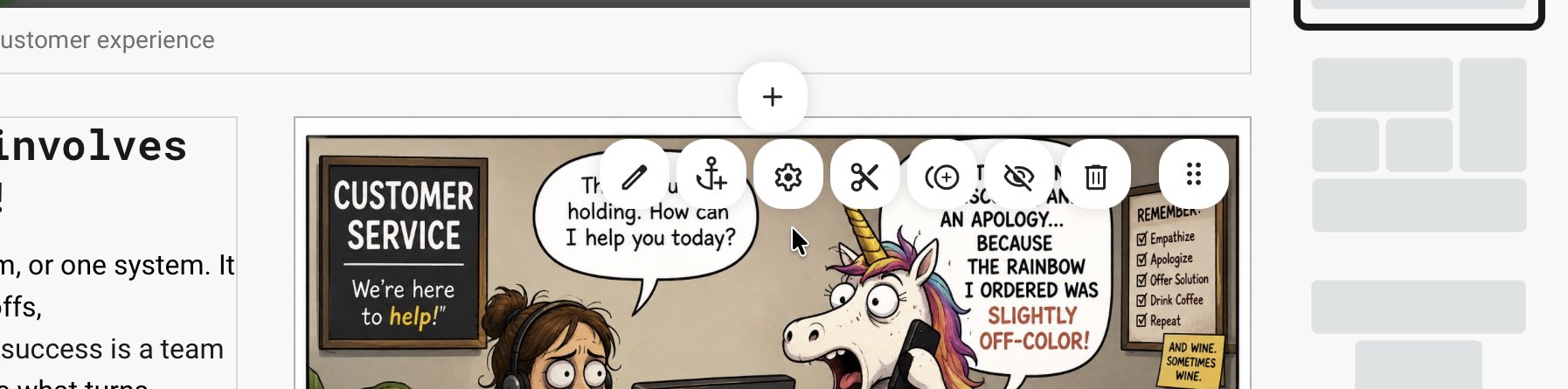
The controls shown on an object depend on its type, your permissions, and the platform configuration. Use the available controls deliberately:
- Edit or Replace changes the object content or selects another managed asset.
- Create/Edit anchor gives the object a reusable destination for a link. Keep anchors stable if other pages or communications already link to them.
- Settings controls object-specific behavior such as an image action. Not every object has a separate Settings icon; some settings are part of Edit.
- Customize opens the appearance controls supported by the selected object. Text objects can provide text and background colors, border size, and roundness, while Buttons provide their own background and text color controls. Brand colors, saved colors, custom color picking, and transparency appear only where the selected object and property support them. Reset restores the inherited or default styling.
- Cut moves the object when followed by Paste. Clone creates a copy that can be pasted elsewhere. Review copied links, captions, access assumptions, and shared-asset relationships.
- Hide keeps the object in the authoring page but removes it from the learner presentation. Hidden objects are not included in learner progress or training statistics. Hiding is not an access-control method. A mandatory object such as the page banner can be hidden even when it cannot be removed.
- Remove deletes the object from the page. It does not necessarily delete a reusable source asset from its library.
- Move repositions the object. Recheck reading order after moving content between layout areas.
A caption can be added below supported visual and media objects. Use it to explain the example or context; do not repeat alternative text word for word.
Use brand and reusable colors consistently
Color controls combine the visual standards with author-level choices. The options displayed depend on the selected object and the property being edited.
- Brand colors are defined in Settings → Appearance and appear as the standard palette in supported color selectors
- Document colors show colors already used in the current Text object, making them easy to reuse consistently
- Saved colors are custom colors retained for reuse when styling other Text objects
- Color picker allows another color outside the standard palette where custom colors are supported
- Reset returns the object to its inherited or default styling
A saved color that is no longer needed can be removed from the reusable palette by dragging it out of the color dropdown.
A Text object has two color layers. Font Color and Font Background Color apply to selected content inside the rich-text editor. The object’s Customize controls apply to the complete Text object and can control its text color, background color, border size, and roundness.
A Button object uses its own appearance controls for button background and text color. An Image object does not provide the same color settings: its configuration primarily controls the image, alternative text, and click behavior. Other objects display only the color and appearance controls relevant to that object.
Use the shared brand palette wherever practical so that courses remain visually consistent with the platform. Custom colors are useful for intentional exceptions, but should not replace the organisation’s established visual language. Always check contrast and avoid using color as the only way to communicate meaning.
Configure a Text object
Select Add → Text in the required content area, or select Edit on an existing Text object. The rich-text editor formats the content inside the object and can combine structured text, links, images, tables, and technical examples in one content area.
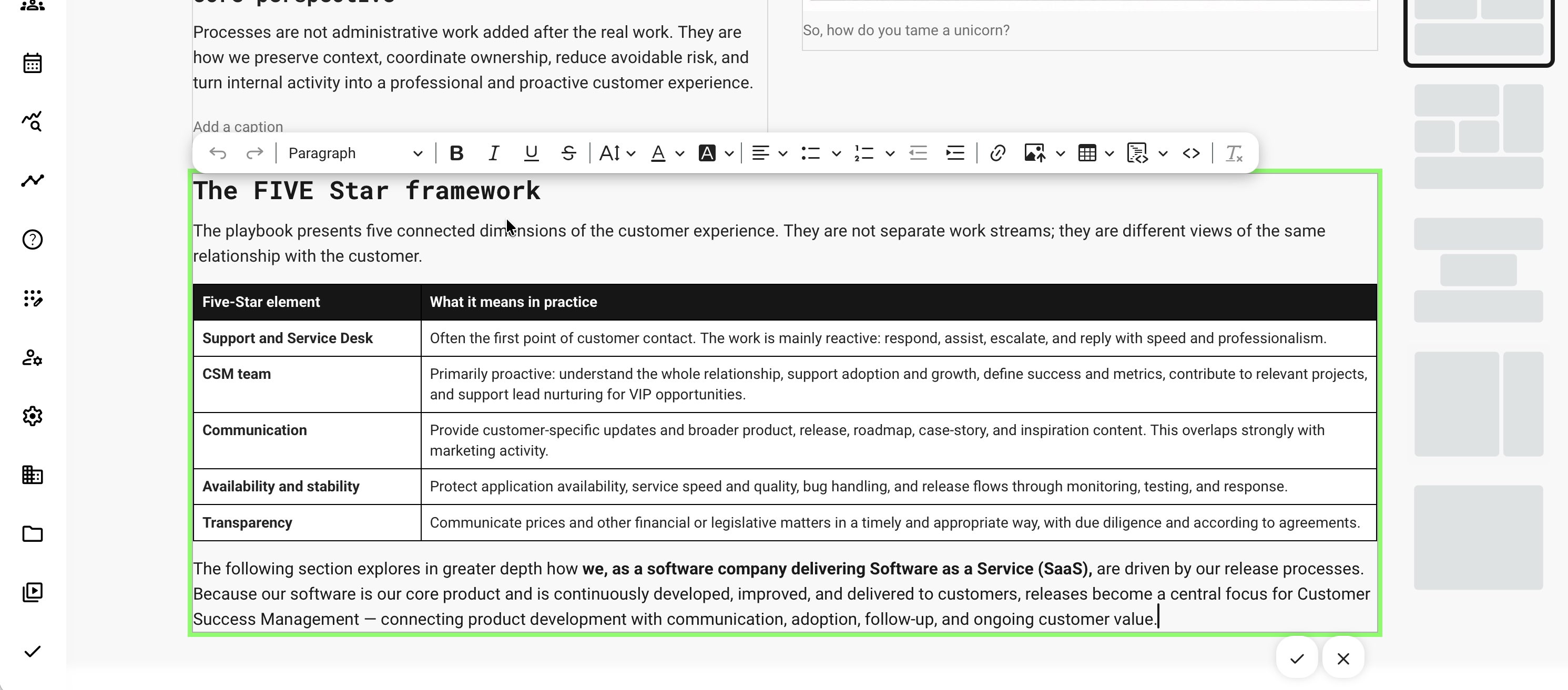
The available controls can vary with platform configuration and permissions.
| Editor control | What it supports |
|---|---|
| Undo and Redo | Reverse or restore recent editing changes |
| Paragraph and Heading styles | Create a meaningful content hierarchy for learners, assistive technology, search, and translation |
| Bold, Italic, Underline, and Strikethrough | Apply limited emphasis without changing the structural meaning |
| Font Size | Change the size of selected headings, paragraphs, words, or characters |
| Font Color and Font Background Color | Apply an approved color and reuse colors already present in the document |
| Text alignment | Align selected paragraphs or content to the left, center, right, or justified position |
| Bulleted List and Numbered List | Present related points or required sequences using the available list styles |
| Decrease indent and Increase indent | Adjust list levels or the indentation of selected content |
| Link | Connect descriptive text to a web destination |
| Upload image and Insert image | Place an uploaded, externally hosted, or archived image inside the Text object |
| Insert table | Create and edit structured comparisons or repeated information |
| Code block | Present a multiline technical example with an optional programming language |
| Inline Code | Distinguish a short command, value, field name, or expression within a sentence |
| Text language | Identify text written in another language for supporting assistive technology where enabled |
| Remove Format | Clear unwanted formatting from selected content |
Apply heading styles according to the page hierarchy. Do not reproduce a heading by changing only the font size or applying bold formatting. Font sizes are relative to the platform typography configured under Settings → Appearance → Font Settings, helping Course content remain consistent with the wider platform design.
The color selectors can show colors already used in the Text object so authors can reuse them consistently. Use the organization’s approved visual language and never make color the only way important meaning is communicated.
Use real lists and tables rather than manually inserting bullets, numbers, spaces, or tab characters.
Create links that explain their destination
Select descriptive text and use Link to enter the destination. The Course editor provides an Open in a new tab option, which is enabled by default. Confirm whether a new tab is appropriate for the destination and for the learner journey.
Depending on the platform configuration, a typed web address may become a link automatically. Replace exposed URLs with meaningful link text where possible so learners understand the destination when the link is read out of context.
Test every link with learner permissions. A working author link does not establish that participants can access the destination.
Insert inline images when they belong to the narrative
An inline image remains part of the Text object and moves with the surrounding content. The editor can provide the following sources:
- Upload from computer supports JPG, JPEG, GIF, and PNG images
- Insert using a URL displays an image from the supplied image address
- Select from the Archive opens the available image files in the managed Archive
Add appropriate alternative text to a meaningful inline image. The image can also link to a URL when it should act as a navigation element.
Use a managed Archive image when long-term ownership, reuse, or availability matters. An image inserted from an external URL remains dependent on that external source.
Choose a standalone Image object when the visual needs a caption, enlargement, file or email behavior, independent placement, or separate object controls.
Build and edit tables
Use Insert table to create an initial table of up to 10 × 10 cells. After insertion, the table tools can provide controls to:
- Designate a header row or header column
- Insert, delete, or select rows and columns
- Merge adjacent cells
- Split cells horizontally or vertically
- Set table borders, background, width, height, and alignment
- Set cell borders, background, width, height, padding, and horizontal or vertical alignment
Use header rows and columns to identify the meaning of the data. Keep cell content concise and avoid unnecessary merged cells, which can make tables harder to navigate with assistive technology.
Do not use a table to imitate a page layout or position unrelated objects. Review the table on a narrow screen. A complex table with many columns or lengthy cells may require several smaller tables or a different presentation.
Distinguish inline code from a code block
Use Inline Code for a short command, value, field name, or expression within a sentence.
Use Code block for a multiline example. Plain text is the default, and an available programming language can be selected so the example is identified and presented appropriately. The code is displayed as learning content; it is not executed by the Text object.
Separate content formatting from object styling
The rich-text toolbar formats selected content inside the Text object. Customize styles the object as a whole and can provide approved text, background, border, and corner treatments where available.
The object toolbar remains responsible for actions such as creating an anchor, cutting, cloning, hiding, removing, or moving the complete Text object.
Pasted content can include unwanted fonts, colors, spacing, empty lines, or other hidden formatting. Use Remove Format where appropriate and inspect the saved page in learner view. Confirm that headings, links, inline images, tables, and code remain readable on both wide and narrow screens.
Configure an Image object
When you add or replace an image, the selector can provide Shared, My files, and Standard Files, depending on permissions. Search the available source before uploading a duplicate. The picker can remember the most recently used tab and folder. Upload is available where you have permission to add files.
Open Settings to add alternative text and select the interaction:
- Image not clickable presents the image without an action
- Enlarge image lets the learner open a larger view
- Open URL requires a destination URL and can open it in a new tab
- Download file connects the image to a file selected from the Archive
- Send email requires a recipient address and opens the learner’s available email application
The platform can define a default image interaction, so confirm the saved setting instead of assuming every new image is non-clickable.
Add concise alternative text for meaningful images. Use empty alternative text only when the image is purely decorative and contributes no information.
The product guidance recommends a 4:3 source of at least 1200 × 900 pixels for general Course image use. The final dimensions and proportion must still suit the actual placement. Do not enlarge a small source or place essential instructions only inside an image. For recommendations covering Course images, banners, Storefront backgrounds, promotional images, formats, compression, and responsive cropping, see Prepare Files: Formats, Limits, and Quality Recommendations.
Configure a Button object
Enter a Button label that clearly describes the result of selecting it. Then choose the appropriate destination type:
- URL requires the destination and provides an Open in a new tab option
- File uses Browse to select a resource from the Archive
- Email requires the recipient address and opens the learner’s available email application
- Questionnaire opens the selected Questionnaire in a popup. Learners can submit multiple responses, Questionnaire rules can run, and submissions become available in the Questionnaire report
If a Button links to an Archive file that is later deleted, the Button can remain on the page but becomes disabled. Treat the file and the Button as connected resources when replacing or retiring downloadable material.
Set alignment to Left, Center, Right, or Justify. Use the default color or select Custom to define the Button background and text colors. Apply the organisation’s shared brand colors wherever practical and confirm that the text remains readable against the selected background.
Select Small, Default, Large, or Custom size. Custom exposes width and height. Values below 64 pixels wide or 24 pixels high revert to those minimums.
These are technical minimums, not accessibility recommendations. Make the Button large enough to recognize and operate comfortably on pointer and touch devices. Test longer translated labels and narrow screens because a fixed custom size can become too small for the displayed text.
Continue with specialist objects
The Add menu can also include native Video and Playlist, Embedded video, Interactions, File list, HTML, Code snippet, Comments, Discussions, Math, Page feedback, and Quickchannel. Their availability depends on configuration and permissions. Use the detailed guidance for files and File lists, native videos and playlists, H5P interactions, external and advanced page tools, and Comments and Discussions. These articles explain the settings, dependencies, and limitations that are specific to each object.
Insert an existing asset instead of uploading a duplicate
When an Image, File list, Video, Playlist or Interaction object opens its selector, search the relevant archive or library before uploading or creating another copy. Depending on permissions and organizational scope, the selector can include shared resources, personal files, standard files and resources available through the organization.
Select the asset, confirm its display or behavior settings, and save the object. Reusing the managed source keeps ownership, updates and usage easier to understand. If a shared source is replaced or deleted later, review every page where it is used.
For file governance and visibility, see Manage Files, Archives, and Downloadable Resources. For native video preparation, see Upload, Organize, and Reuse Videos and Playlists. For interactive content, see Create and Reuse Interactive Learning with H5P.
Maintain reusable page patterns
Every Course page starts from a Page template. The practical choice is therefore not whether to use a template, but how much of the intended learning design has already been prepared.
When an author creates a Course from scratch, each page added in the Course builder uses the selected Page template. A standard template may be almost empty or may contain generic guidance, approved colors, sections, layouts, and reusable content. The author creates and arranges the Course builder pages that form the learning hierarchy.
For a recurring audience, purpose, brand, or Course type, an organization can instead prepare a complete source Course. That Course can contain a purposeful page hierarchy, learning objectives, completed page layouts, instructional guidance, branding, examples, and other starting content. Authors clone the source Course and adapt the resulting copy instead of rebuilding the complete design. See Create and Structure a Native Course for the two starting routes.
If another author has designed a page that should become a reusable standard, open the source Course and navigate to the relevant page. Open More and select Copy. A page copy can be pasted into another valid destination. To use it as a standard, open Settings → Page templates, open the appropriate Page template, and select Paste at the intended position from the More menu. The copy includes the complete page layout and content.
Before adopting a copied page as a standard, review its wording, links, media, branding, restrictions, and audience assumptions. A useful Course page can contain context that should not be inherited by every future Course.
Use the two reuse levels deliberately:
- Use a Page template to provide a repeatable starting point for one type of page.
- Use a prepared source Course when authors should inherit a complete hierarchy and a more targeted instructional starting point.
See Manage the Course Library, Ownership, and Settings for Page template governance and administrative maintenance.
Verify the finished page
| Scenario or check | Expected result or evidence |
|---|---|
| Desktop and narrow mobile screen | Content reflows without unreadable text, clipped controls, or an illogical reading order. |
| Keyboard-only navigation | Links and controls can be reached and used, with visible focus where supported. |
| Image unavailable or not visible | Alternative text and nearby explanation preserve the essential meaning. |
| A learner follows every button | Each destination works with learner permissions, not just author access. |
| Longer translated text | Headings, columns, and buttons remain readable without overlap. |
| Content pasted from another application | The saved page has consistent formatting and no accidental empty areas or unsupported elements. |
Troubleshooting
| Problem | What to check |
|---|---|
| The page looks different after saving | Review the supported formatting, remove unnecessary pasted styling, and test the actual learner view |
| An image is blurry | Check the source resolution and displayed size because enlarging a small image cannot restore missing detail |
| A Button works for the author but not a participant | Check destination permissions, page restrictions, file access, and external sign-in requirements |
| A Button is displayed but disabled | Check whether its linked Archive file was deleted or is no longer available |
| A resource disappears after an Archive change | Check whether the original asset was deleted or replaced and whether the page still references the intended resource |
FAQ
-
Should a Course page use a table for its visual layout?
Use the supported page layouts for arranging content. Reserve tables for actual comparisons or related data. A layout table can become difficult to read on small screens and with assistive technology.
-
How much text should I place inside a Course image?
Avoid embedding essential instructions only in an image. Keep the main explanation as readable text, provide meaningful alternative text, and use images to clarify the concept. Check labels at the size learners will actually see them.
-
What should a Course button label say?
Describe the destination or action, such as Download the installation checklist or Open the practice scenario. Avoid repeated vague labels such as Click here. Check the destination and whether the learner needs access to another system.
-
Why does a Course page look different on a phone?
Columns, text, images, and embedded content must fit a smaller screen. Review the actual learner view for reading order, horizontal overflow, text size, and usable controls. A desktop authoring preview alone is not a mobile-quality check.