Create and Reuse Interactive Learning with H5P - Article
Summary
H5P enables authors to create and reuse interactive learning objects across Courses, from exploratory visuals and practice questions to scored assessments. Its value depends on choosing an interaction for a clear learning purpose and understanding what its completion or score can—and cannot—prove.
H5P objects are maintained separately from the Course pages that display them. Reusing the same object supports consistency, but later changes can affect every Course that references it. Available content types, translation tools, import and export routes, and reported evidence can depend on the H5P libraries enabled for the platform, its configuration, and the author's permissions.
Use this article to:
- Choose an H5P interaction that supports the intended learning outcome
- Create, import, find, insert, and safely reuse H5P objects
- Import supported Question Sets from an XLSX workbook
- Work with Eurekos-specific E-book, PDF Viewer, and 3D Viewer objects
- Separate practice, completion, assessment, adaptive learning, and certification evidence
Choose an interaction by purpose
Start with what the learner needs to do, then choose an interaction that supports that purpose. These commonly used examples are starting points rather than a complete list.
| Learning purpose | Suitable H5P examples | Design consideration |
|---|---|---|
| Explore or inspect a visual | Image Hotspots, Image Slider, or 3D Viewer | Make essential information available without requiring precise pointer control alone |
| Practise recognition or recall | Multiple Choice, Single Choice, Summary, Fill in the Blanks, or Drag the Words | Use plausible alternatives, concise instructions, and feedback that explains the answer |
| Apply a process or judgment | Branching Scenario, Course Presentation, or Interactive Video | Make each decision meaningful and verify which choices and outcomes are recorded |
| Learn through a demonstration | Interactive Video or Course Presentation | Add pauses and questions only where they support understanding without obscuring the sequence |
| Complete a scored knowledge assessment | Quiz (Question Set) containing supported types such as Multiple Choice, Fill in the Blanks, or True/False Question in a single randomized pool of questions | Verify passing, attempts, progress, feedback, and downstream evidence together |
The same H5P type can serve different purposes depending on its content and configuration. For example, an Interactive Video might provide low-stakes practice in one Course and contribute scored questions in another. Do not rely on the content-type name alone when deciding what its result proves.
The available content types and options depend on the H5P libraries installed and enabled for the platform. A content type available on another H5P platform is not necessarily available in Eurekos, and its completion or score is not automatically suitable for page prerequisites, adaptive rules, or certificate criteria.
Create and insert an H5P item
- Open the H5P library and create an available content type, or use the supported import route for a compatible H5P package.
- Give the item a recognizable title and complete the content-type-specific fields.
- Configure behavior and presentation options that serve the learning purpose.
- Save and test the interaction itself.
- Add the H5P widget to the Course page and select the intended item.
- Test it in the Course and intended delivery context, including any result-dependent rules.
Creating an item in the library and inserting it into a Course are separate steps. Reusing an existing item helps consistency, but later edits can affect every place that references it.
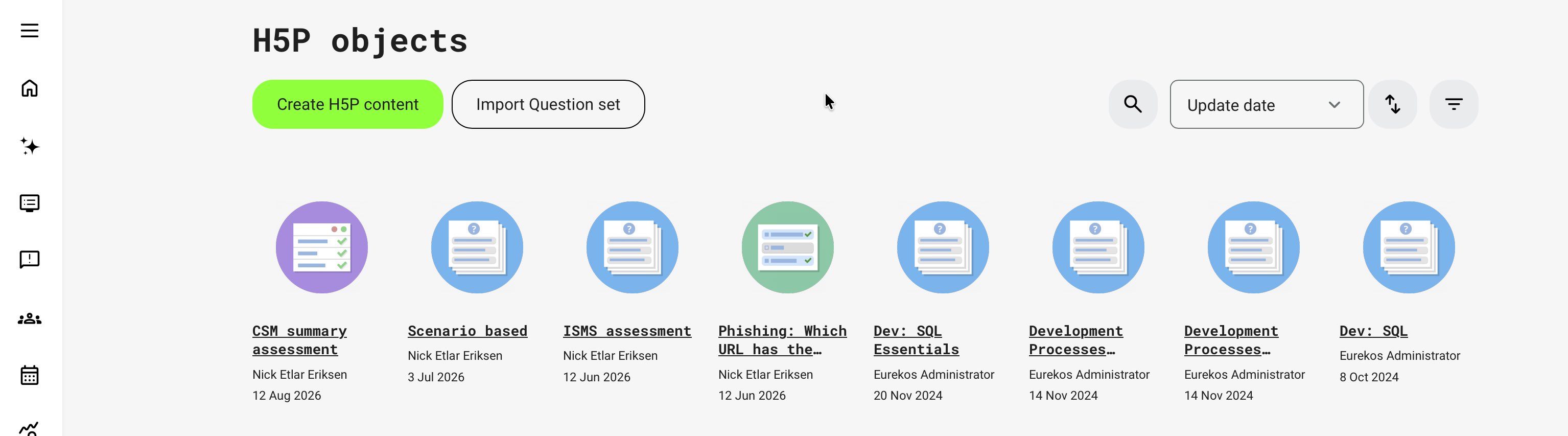
Create or import an H5P object
- Open H5P from the main navigation.
- Select Create H5P content.
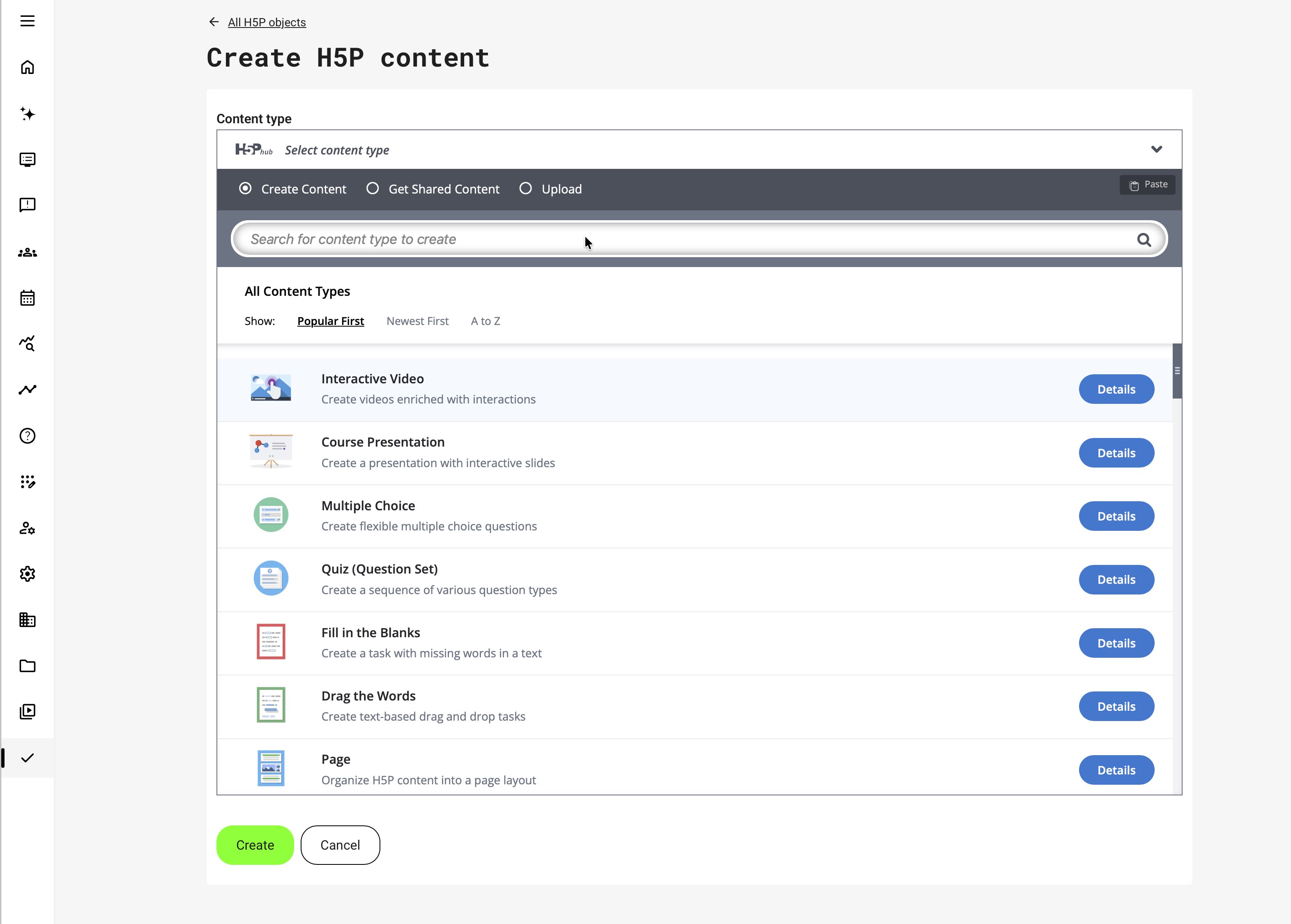
- In the H5P Hub, use Create Content to build a new object, Get Shared Content to reuse available shared content, or Upload to import a compatible .h5p package.
- Choose an enabled content type. Select Example to experience a completed version of the interaction and understand how it works from the learner’s perspective. Select Tutorial for detailed, content-type-specific authoring guidance on H5P.org.
- Complete the interaction’s instructions, content, feedback and behavioural settings.
- Save the object, then preview it and test every answer path, attempt rule and completion condition.
The available content types depend on the H5P libraries enabled for the platform. A Question Set can also be handled through the dedicated import option where that workflow is required. Eurekos by default disables certain libraries known to require additional integrations and broken expectations with our customers.
Work with the H5P library
The H5P objects page is the maintained library for reusable interactions. It is more than a content picker: creating, importing, finding, previewing, copying, translating, exporting, and maintaining an H5P object all begin here.
Each object displays its title, author, and date. Open an object to preview it before placing it in a Course or changing a shared source.
| Control | Use |
|---|---|
| Search | Find objects by title. Search can also return objects associated with a matching Course code. |
| Sort | Sort by Update date, Creation date, Title, or Type, and change between ascending and descending order. |
| Filters | Narrow the list using available classifications such as Category, Language, and Content type. The available fields and values depend on the platform configuration. |
| Types | Find objects associated with your role, such as My, I attend, I instruct, I administer, or Not used, when available to your account. |
| Load more | Display additional objects when the library contains more items than the initial view. |
The objects you can see depend on your permissions and organizational scope. Not finding an object does not necessarily mean that it does not exist. Confirm your scope before recreating content.
Available actions also depend on the content type, platform configuration, and your permissions:
| More action | Effect |
|---|---|
| Edit | Changes the managed source and can affect every Course that references it |
| Clone | Creates an independent object that can be changed without altering the source |
| Export | Exports supported Question Set data to an XLSX workbook |
| Download | Downloads the complete .h5p package when this option is enabled and permitted |
| Translate | Creates or maintains a language edition when translation is configured |
| Delete | Removes the object; confirm where it is used and whether related language editions are still required first |
Export and Download are different operations. Export works with supported Question Set data in a workbook, while Download transfers the complete H5P package.
Import a Question Set from Excel
Use Import Question set to create a managed Quiz (Question Set) from a structured XLSX workbook. This is useful when many questions must be created or when question data is being migrated from another system.
The importer does not accept an arbitrary spreadsheet. Map the source data into the example workbook supplied by Eurekos and use only the supported structure and question-type labels.
To import a Question Set:
- Open H5P.
- Select Import Question set.
- Select Download example.
- Rename the workbook before uploading it. The file name becomes the Question Set title.
- Add one question per row while preserving the supplied columns and structure.
- Enter one of the supported values in Question Type.
- Upload the completed .xlsx file.
- Select Import.
- Open the resulting Question Set and verify every question, answer, feedback message, and assessment setting.
The importer supports these question types:
| Question type | Workbook pattern | Check after import |
|---|---|---|
| Multiple Choice | Enter alternatives in the Option columns. Repeat each correct alternative in the available Correct answer columns. Optional messages can be supplied for selected and unselected alternatives. | Options, correct answers, multiple-correct-answer behavior, and feedback |
| Fill in the Blanks | Enter the answer text using the pattern supplied in the example workbook. Place the accepted word or phrase between asterisks, such as *8*. | Displayed text and accepted response |
| Mark the Words | Place each word that should be marked between asterisks in the answer text. | That only the intended words are treated as correct |
| True/False Question | Enter true or false in Correct answer. | The correct outcome and feedback |
| Essay | Enter the title and task description. | The resulting open-response behavior and any additional settings required in the H5P editor |
If the source system can export question data to Excel, map that data into the Eurekos example workbook before importing it. This can considerably reduce manual migration work, but it remains a structured conversion rather than a generic Excel upload.
If HTML is used to style answers, avoid default H5P class names because they can conflict with the imported interaction. Always test the imported Question Set as a participant before using it for assessed evidence.
Place an existing H5P object on a Course page
- Open the Course page and select Edit.
- Select Add → Interactions.
- Search or filter the H5P library and select the object.
- Save the page and test the object in learner view.
The page object references the managed H5P source. Reuse the same object when the interaction is genuinely shared; clone it when a Course requires an independent version whose questions, feedback or scoring can change without affecting other uses.
Use the H5P authoring interface in context
Each H5P content type provides its own authoring interface and content-specific settings. The built-in Example helps authors experience the completed interaction from the learner’s perspective, while Tutorial opens detailed online instructions for creating that content type.
For example, the Question Set tutorial begins with a working Question Set and then explains its purpose, configuration and creation step by step. Tutorials can also be reached through the examples and content-type guidance available on H5P.org.
This Help Center therefore concentrates on the surrounding Eurekos workflow, governance and learning implications rather than reproducing every field from every H5P editor. Before publishing, confirm accessibility, keyboard behaviour, mobile presentation, attempt limits, time limits, completion evidence, feedback and language behaviour for the selected content type.
For the surrounding native page workflow, see Build Course Pages with Layouts, Text, Images, and Buttons. For adaptive use in a Course route, see Create and Structure a Native Course.
Use Eurekos-specific H5P objects
Eurekos extends the standard H5P collection with content types designed for publications, documents and interactive three-dimensional material. They use the same H5P library and Course page workflow described above, but their authoring options and learner experiences are specific to Eurekos.
Availability depends on the H5P libraries enabled on your platform and your permissions. If an object is not listed when you select Create H5P content, contact your platform administrator.
| Object | Best suited to | Author supplies | Learner experience |
|---|---|---|---|
| E-book | Page-based publications and externally produced material | Compatible HTML5 ZIP package | Search, page navigation, and fullscreen reading |
| PDF Viewer | Manuals, reports, reference documents, and technical literature | PDF file | Search, zoom, rotation, page navigation, and scrolling controls Important boundary: Not a digital rights management system |
| 3D Viewer | Products, equipment, components, and spatial demonstrations | GLB or GLTF models | Rotation, movement, zoom, annotations, and model selection |
These objects are not standard H5P content types. Do not assume that an object exported from Eurekos will work on an external H5P platform unless that platform also contains the required Eurekos library.
Create an E-book
Use E-book when an existing publication has been prepared as a compatible HTML5 ZIP package. Typical examples include digital manuals, catalogues, brochures, presentations and page-based publications created with a compatible publishing tool.
E-book is different from the standard H5P Interactive Book. Interactive Book is authored directly in H5P from chapters and H5P activities. The Eurekos E-book displays an externally produced publication with its existing design and page-turning experience.
When creating an E-book:
- Enter a descriptive Title
- Upload the compatible ZIP package under File
- Select the Aspect ratio that best matches the publication
- Enable the Fullscreen button when learners benefit from a larger reading area
- Save the object and test the complete publication before placing it in a Course
The learner can move between pages, search the publication and open it in fullscreen when that option is enabled.
The accessibility, responsiveness and navigation quality of an E-book depend partly on the uploaded package. Test it on the devices and screen sizes used by the intended audience. Retain the editable source files because Eurekos displays the completed package but does not replace the authoring tool that created it.
Display a PDF in the PDF Viewer
Use PDF Viewer when learners should read a PDF directly within the learning experience instead of opening or immediately downloading it as a separate file. It is especially useful for manuals, procedures, reports, technical documentation and reference material.
When creating a PDF Viewer object:
- Enter a descriptive Title
- Upload the PDF file
- Select an Aspect ratio that provides sufficient reading space
- Enable the Fullscreen button when appropriate
- Save and inspect the document at normal and smaller screen sizes
The viewer provides controls for finding text, moving between pages, entering a page number, zooming, rotating pages and changing the scrolling or page-spread behavior. Learners can also open the viewer in fullscreen when enabled.
The viewer does not expose the original PDF through a normal download action and can make casual copying considerably more difficult. It is not a digital-rights protection mechanism, and it must not be presented as a guarantee that content cannot be extracted or copied.
If learners should be able to retain the document, provide a separate download link using the approach described in Manage Files Archives and Downloadable Resources.
A PDF Viewer does not correct accessibility problems in the source file. Use a properly structured and tagged PDF, and provide an accessible alternative when the document or viewer cannot meet the needs of the intended audience.
Present and explain three-dimensional models
Use 3D Viewer when learners need to explore a product, component, piece of equipment or spatial arrangement from different angles. The viewer supports GLB and GLTF model files and can contain multiple models in one object.
Multiple models are particularly useful when learners need to compare product variants, construction stages, layers, or alternative configurations within the same learning object. For example, equipment can be presented with its cover or hood in place and then with it removed, allowing learners to explore external features and internal components in sequence. Annotations can identify and explain the relevant parts, creating a guided virtual tour similar to the demonstration an instructor would provide in person.
When creating a 3D Viewer object:
- Enter a descriptive Title
- Add one or more models
- Give each model a meaningful title
- Upload the GLB or GLTF file
- Set the starting camera position so the model opens from a useful angle
- Select the Aspect ratio and visual environment
- Decide whether the learner should first see a placeholder that must be selected to load the model
- Add annotations where important components or details require explanation
- Preview the object and test movement on both desktop and touch devices
The authoring interface includes controls for positioning the model, choosing a studio environment and enabling visual depth options. Use these settings to make the model readable without allowing visual effects to distract from the learning purpose.
Learners can rotate or move the model, zoom, centre the view, start automatic rotation, enter fullscreen and switch between uploaded models. Help information explains the available mouse and touch gestures.
Add annotations to a model
Double-click the model while editing to add an annotation. Each annotation requires a title and can include additional formatted information.
Annotations can identify controls, parts, risks, inspection points or steps in a process. They can be opened directly on the model, selected from the annotation list or presented automatically in sequence.
Replacing the underlying model does not automatically remove its annotations. Review every annotation after replacing a model to confirm that it still points to the intended location.
Understand 3D Viewer completion
When a model contains annotations, the object is completed after the learner has viewed all annotations across all included models. An annotation can be viewed through the automatic sequence, the annotation list or its marker on the model.
When no annotations are present, completion is registered after the model has loaded and been viewed.
The object reports incomplete or complete status rather than detailed partial progress. It cannot be used as a test condition for a certificate or Course page restriction. Use a separate assessed interaction when the learner must demonstrate understanding of the model.
Plan for language compatibility and reuse
The Eurekos-specific E-book PDF Viewer and 3D Viewer objects do not expose the normal H5P Language setting. Plan translated editions deliberately and verify each version instead of assuming that changing an H5P language option will localise the uploaded content.
Because these objects depend on Eurekos-specific H5P libraries, keep the original PDF model or publication source alongside the H5P object. The source makes it possible to update the material or recreate it if it must later be used in another delivery environment.
Separate practice from assessed evidence
| Use | What to configure | What not to assume |
|---|---|---|
| Low-stakes practice | Helpful feedback and appropriate opportunities to try again. | A completed interaction proves competence or constitutes a passed assessment. |
| A scored assessment | The available scoring, passing, attempt, and feedback controls. | Every H5P type exposes the same controls or reports the same evidence. |
| A page prerequisite | A supported interaction and the corresponding page rule. | Any interactive widget can automatically unlock another page. |
| Adaptive learning | The supported Question Set evidence and page behavior. | A quiz result affects optional or supplemental pages without an explicit rule. |
| Certification evidence | A supported result connected to the certificate criteria in Course Administration. | The interaction itself replaces the platform's certificate configuration. |
Keep the meaning of the evidence clear in learner instructions. If practice allows unlimited exploration but the final assessment has controlled attempts, explain that difference before the learner starts.
Manage languages and media
Selecting an H5P language is not the same as translating author-written questions, answers, feedback, or media. The selected language can control interface text supplied by the H5P content type, while the authored learning content still requires its own language edition.
When automated translation is configured and more than one platform language is enabled, an authorized user can open More → Translate from the H5P library or select Translate inside a supported H5P item. Select the target language and, where offered, the translation model. Processing continues in the background, and the user receives a success or failure notification.
Only supported H5P types can be translated automatically. Review questions, answers, feedback, scoring, variables or tokens, embedded media, and accessibility in the resulting language item. Translation does not make external media or text embedded in images multilingual. For Course-level translation and the maintenance of complete language editions, see Translate and Localize Courses and Learning Assets.
Some specialized H5P types expose different language and editing controls. Confirm the actual item rather than assuming every editor has the same fields. Use maintained media deliberately and check rights, captions, alternatives, and participant access wherever the media is hosted.
Reuse, export, and update
| Operation | Purpose | Safeguard |
|---|---|---|
| Reuse the same item | Share one maintained interaction across pages or Courses. | Review all uses before changing questions or scoring. |
| Create a separate copy | Adapt an item for another audience, language, or edition. | Give it a distinct identity and maintenance owner. |
| Download an H5P package, where permitted | Transfer the interaction through a supported H5P route. | Confirm compatible destination libraries and external dependencies. |
| Import or export assessment questions | Work with a supported question-data format in a relevant content type. | This is not necessarily the same operation as downloading the complete H5P package. |
Do not treat an interaction or viewer as a digital-rights protection mechanism. Removing a download control does not guarantee that material cannot be copied.
Troubleshooting
| Situation | What to check |
|---|---|
| A desired content type is missing. | Confirm installed/enabled libraries and permissions with the platform administrator or Eurekos support. |
| The interface is translated but questions are not. | Translate the authored content; changing the language field does not perform that work. |
| A result does not unlock a page. | Check the supported type, exact referenced item, passing condition, attempt context, and whether the learner view needs refresh. |
| A change appears in several Courses. | Check whether they reference the same shared H5P item. |
| An imported package behaves differently. | Check library compatibility, media dependencies, and the destination's supported settings. |
| A quiz is visible but the evidence is unsuitable for certification. | Review the assessment type and connect supported results to the actual certificate rules rather than relying on visual completion alone. |
| The Question Set workbook is rejected | Confirm that the file uses the .xlsx format, retains the example workbook structure, and uses an exact supported Question Type value. Remove unsupported columns or conflicting H5P class names from embedded HTML. |
| The imported title, answers, or feedback are incorrect | The workbook file name determines the Question Set title. Review the option, correct-answer, marker, and feedback columns, then open and test the imported object before use. |
FAQ
-
Does every H5P interaction provide a passing result for certification?
No. Different H5P formats support different kinds of interaction and reporting. Choose a supported assessment that supplies the evidence your rule needs, and test the result in the actual Course and Training Activity.
-
Does selecting an H5P language translate the questions?
No. Selecting a language is not the same as translating author-created content. Translate the question text, options, feedback, and relevant media through the supported workflow, then review the learner experience.
-
Can editing a reused H5P item affect more than one Course?
Yes, where those Courses reference the same item. Review usage before changing it. Create an independent copy when the learning content must diverge for a particular audience or version.
-
Should I use an H5P certificate as the main Eurekos credential?
Use the supported Eurekos certificate and delivery rules for managed certification. Do not base a new design on a legacy H5P certificate feature or assume an interaction's display is equivalent to a platform-issued credential.
-
What is the difference between E-book and Interactive Book?
E-book displays a compatible externally produced HTML5 publication. Interactive Book is a standard H5P content type authored directly from chapters and H5P activities.
-
Why can I not find E-book PDF Viewer or 3D Viewer?
The corresponding Eurekos H5P library may not be enabled on the platform or your role may not have access to create it.
-
Does PDF Viewer prevent a PDF from being copied?
No. It avoids presenting a normal download action and can discourage casual copying, but it is not a digital-rights protection system.
-
Which model formats can I use in 3D Viewer?
3D Viewer supports GLB and GLTF model files.
-
When is a 3D Viewer object completed?
When annotations are present, the learner must view all annotations across every model. Without annotations, completion is registered after the model loads and is viewed.