Manage Files, Archives, and Downloadable Resources - Article
Summary
The Archive provides a managed file layer for Course authoring, downloadable resources, and reusable platform content. It gives content creators a structured place to upload, organize, and maintain files, while a File list can also present content from supported connected storage services.
Every Course automatically receives a Shared folder based on its Course code. This provides Course authors and co-authors with a common workspace for the images, documents and other resources used by the Course. Personal and centrally managed Archive areas support different ownership and reuse patterns, while optional integrations can provide additional image sources.
Archive management and learner access are separate. A participant does not normally need permission to browse the Archive to use a file that has been correctly included in an accessible Course.
Use this article to:
- Choose the appropriate Archive area and folder structure
- Upload, find and organize resources efficiently
- Rename, replace, move and version files safely
- Present files through Courses and verify participant access
- Decide whether to retain a Shared folder when deleting a Course
Understand the Archive model
The Archive is available from the main menu when the feature is enabled for your role. The areas shown depend on platform configuration, permissions and enabled integrations.
Choosing the correct area establishes who maintains the resource, where other content creators can find it and how it can be reused.
| Archive area | Recommended use | Important boundary |
|---|---|---|
| Shared | Files belonging to a Course and maintained by its authorized authors or co-authors | Each Course receives a folder based on its Course code |
| My files | Personal working files and resources primarily maintained by one content creator | A file is no longer private in practical terms once it is included in content available to other people |
| Standard Files | Approved files intended for consistent reuse across Courses or platform content | Availability and management rights depend on role and platform settings |
| Unsplash | Stock images provided through an enabled Unsplash integration | This is an image source rather than persistent file storage managed by your organization |
The optional Resource Library is a separate learner-facing document management feature. The Archive primarily supports content creation, file maintenance and delivery through Courses and other configured platform experiences.
Understand Course Shared folders
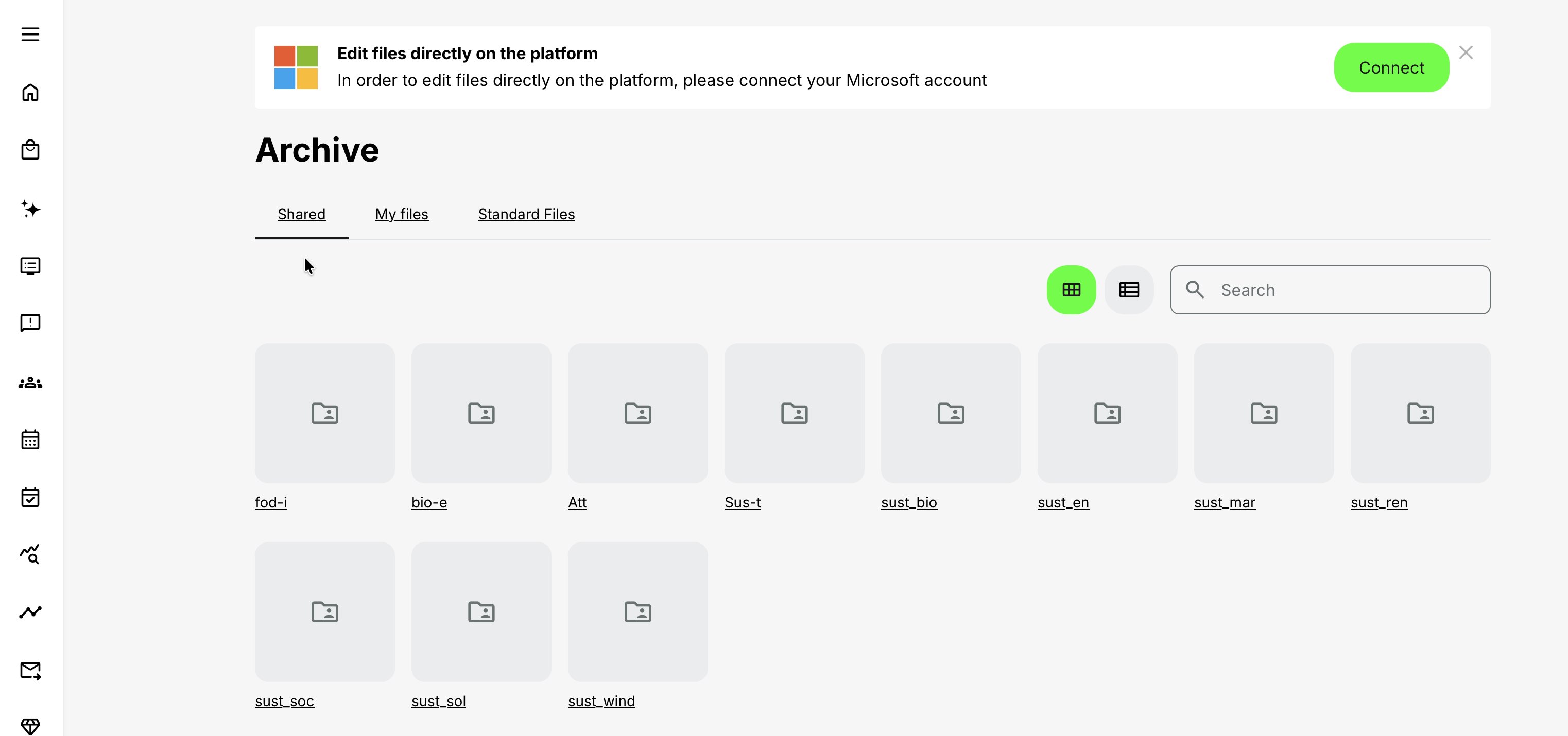
When a Course is created, Eurekos automatically creates an empty folder in Shared. The default folder name comes from the Course code.
This folder becomes the common file workspace for the Course. Authorized authors can use it to maintain resources without keeping every file in one person’s My files area. Co-authors can continue working with the Course resources when their Course and Archive permissions allow it.
Choose the Course code deliberately before extensive authoring begins. The code benefits from a consistent taxonomy because it:
- Establishes the default name of the Course Shared folder
- Helps authors recognize the correct workspace
- Makes folders easier to locate through search
- Supports consistent naming across a large Course portfolio
Use a short, stable code that relates meaningfully to the Course, product, profession or internal classification. The Course settings and ownership guidance explains the wider role of the Course code and other Course settings.
Create folders inside a Course Shared folder
Subfolders make a Course workspace easier to maintain, especially when several authors contribute or the Course contains many resources.
- Open Archive from the main menu
- Select Shared
- Open the folder belonging to the Course
- Select Create folder
- Enter a recognizable folder name
- Save the folder
- Open the new folder before uploading or moving the relevant files into it
A practical structure could separate files into folders such as:
- Banners and thumbnails
- Page images
- Participant documents
- Instructor resources
- Source material
- Translated files
- Previous approved editions
Avoid building a deeply nested structure without a clear purpose. Authors should be able to recognize where a file belongs without opening several levels of folders.
Navigate and find Archive content
The Archive provides folder navigation together with search, filters and alternative display modes. Use the controls together rather than relying only on visual browsing.
| Control | How it helps |
|---|---|
| Search | Finds files and folders by name within the available Archive context |
| Filters | Narrows the view using available classifications such as language, Course tags, ownership or content type |
| Grid view | Presents visual tiles that are useful when identifying images and other visual resources |
| List view | Presents a compact overview that is useful when comparing names and file details |
| Go to folder | Opens the source folder of a nested file returned by search |
| Load more | Displays additional results when the Archive contains more items than the initial view |
| Download all | Downloads the available content from the current folder for local use or review |
The exact filters depend on the current Archive area and platform configuration. Within a Course Shared folder, filters can use Course classifications and tags such as language, category or job function. Type filters may also distinguish files, folders, resources connected to your Courses and unused resources.
If a resource appears to be missing:
- Confirm that you are in the correct Archive area
- Check the current folder
- Remove filters that may exclude it
- Search for a distinctive part of the filename
- Use Go to folder when the result is stored in a nested folder
- Select Load more when it is available
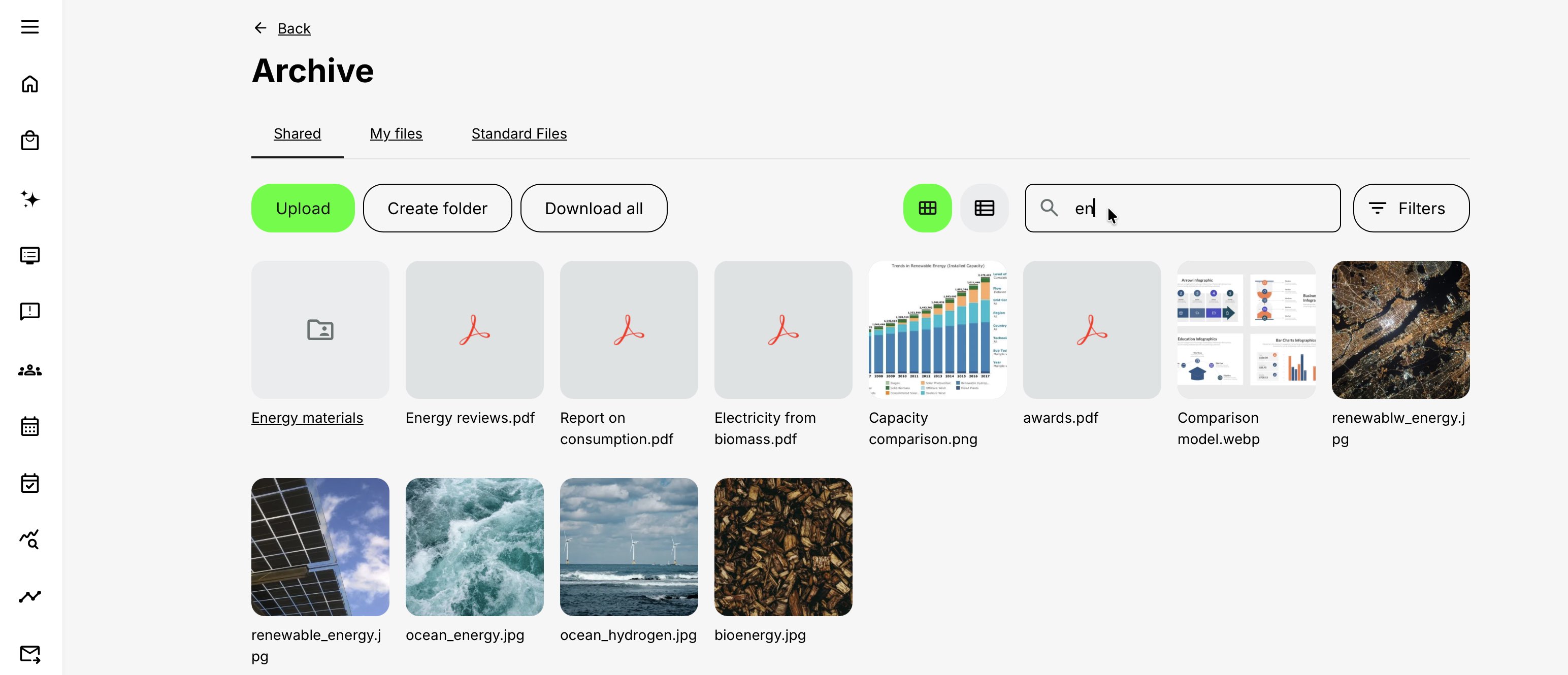
Search and filters make naming discipline important. File names such as image-final-new-2.jpg quickly become difficult to maintain. Use names that identify the subject, language, purpose or edition where these details matter.
Upload files
Upload files into the area and folder that should own them. In a Course context, open the generated Course Shared folder before uploading so the resources remain available to the relevant authors.
- Open Archive
- Choose the appropriate Archive area
- Open the destination folder
- Select Upload
- Select the file or files from your device
- Wait for the upload to finish
- Confirm that each file appears in the intended folder
- Open or preview an important file to verify that the upload completed correctly
Supported extensions and file size limits can be controlled through Eurekos support if special configurations are required. Prepare files for their intended delivery context before uploading them. The file format, quality and image-size recommendations explain how to select suitable formats and dimensions.
Uploading the original source at the largest available size is not always the best choice. Consider:
- Whether the file is intended for download or on-screen viewing
- Whether an image will be displayed as a banner, thumbnail or page illustration
- Whether participants will commonly use mobile connections
- Whether an editable source file should be retained separately from its published output
- Whether the file contains personal, confidential or licensed material
- Whether a language or edition identifier belongs in the filename
Maintain folders and files
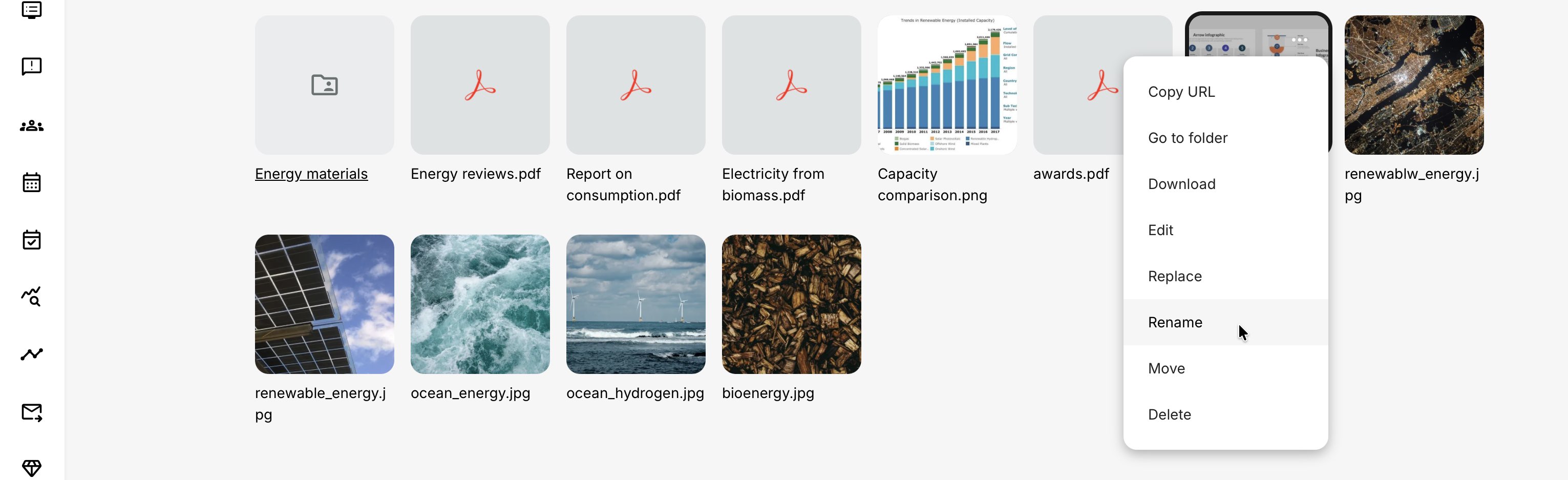
Folder and file actions are available through the relevant item’s action menu. The available options depend on the item type, Archive area, file format, integration settings and your permissions.
Folder actions
Folders can normally be renamed or deleted by an authorized user. A folder itself is not moved through the same file action used for individual resources. When restructuring content, create the required destination folder and move the relevant files into it.
Before deleting a folder, review its contents and consider whether the files are referenced by Courses, templates or other published content.
File actions
| Action | Purpose |
|---|---|
| Copy URL | Copies a reference to the file for use in an appropriate link or supported integration |
| Go to folder | Opens the folder containing a file returned through search |
| Download | Downloads the current file |
| Edit | Opens supported files for editing when the required integration is available |
| Replace | Uploads a new major edition of the existing resource |
| Rename | Changes the filename and records a minor file version |
| Add watermark | Adds a watermark to a supported PDF in an available Archive area |
| Move | Transfers the file to another available destination folder and records a minor version |
| Delete | Removes the file after confirmation |
Direct editing is available only for supported file types and configurations. Office document editing may require a connected Microsoft account. Image and document capabilities can therefore differ between platforms.
Copying a file URL does not automatically make the resource public. The destination experience, the participant’s access and any permissions enforced by an external source still matter.
Move a file to another folder
Use Move when the resource remains valid but belongs in a different part of the Archive structure.
- Find the file
- Open its action menu
- Select Move
- Select an available destination
- Confirm the move
- Open the destination folder
- Verify that the correct file and version are present
- Check any important Course use of the file
Only destinations available through your permissions and the applicable Archive boundaries can be selected. When many files require restructuring, move them in controlled groups and verify the result before continuing.
Understand file versions and safe updates
Archive versioning provides evidence of how a resource has changed. A newly uploaded resource begins at version 1.0. The current version can be shown on the file tile, preview or hover state, depending on the interface.
| Change | Version behavior | Example |
|---|---|---|
| Initial upload | Creates the first file version | Version 1.0 |
| Replace | Creates a new major version and resets the minor number | Version 1.3 becomes 2.0 |
| Edit | Creates a new minor version | Version 1.0 becomes 1.1 |
| Rename | Creates a new minor version | Version 1.1 becomes 1.2 |
| Move | Creates a new minor version | Version 1.2 becomes 1.3 |
Use Replace when the new file is intended to take the place of the existing resource wherever that managed asset is used. Typical examples include correcting an error, publishing an approved new edition or updating a document that should remain the current authoritative resource.
Upload a separate file instead when:
- The previous edition must remain available
- Different Courses require different editions
- A language variant should be selected independently
- The new resource has a different purpose
- The organization must preserve the previous output for audit or historical reference
A file version and a Course version are different records. Archive versioning follows the resource itself, while Course revisions govern the published learning content. See Update Courses Safely: Revisions, Versions, and Shared Assets for the wider Course-change workflow.

Always preview consequential changes in the intended participant context. A successful file replacement does not by itself confirm that the complete Course experience remains correct.
Present files through a Course
Archive files can be used from Course pages, Activity descriptions, templates and other interfaces where a file selector is available. The best delivery method depends on whether the participant should view, download or repeatedly revisit the resource.
| Presentation method | Suitable use | Important behavior |
|---|---|---|
| Text or button link | A specific document, template or downloadable resource | The link should clearly name the resource and expected action |
| Image object | An illustration, diagram, screenshot or banner displayed directly on the page | Alternative text and responsive presentation remain important |
| Image inside a text object | An image that belongs closely to surrounding explanation | The text editor controls alignment, size, linking and alternative text |
| File list object | A maintained collection of files from one Archive folder or, when configured, a connected OneDrive, Google Drive, or Dropbox folder | The File list displays the direct files in the selected folder and can reflect later changes to that folder; nested subfolders are not included automatically |
| Embedded viewer | A supported file that participants should read or inspect without first downloading it | Availability and behavior depend on the selected viewer and file format |
| External connected folder | Files maintained in an approved external storage service | Participants may also need permission in the external service |
Use an Archive folder or connected drive
A File list presents the direct file contents of one selected folder. The source can be a folder available through the Eurekos Archive or, when the relevant third-party integration is configured, a folder from OneDrive, Google Drive, or Dropbox.
The File list remains connected to the selected folder rather than copying a fixed collection of files into the Course page. Files added to or updated in that folder can therefore be reflected in the Course without recreating the File list.
Files inside nested subfolders are not included automatically. Select each required folder separately or reorganize the source so the intended files are stored directly in the selected folder.
When the source is a connected drive:
- The Course author must use an account that is connected to the relevant service and can access the selected folder.
- The external service continues to control the folder’s sharing and file permissions.
- Participants access the files from the Course page, but their ability to open a file depends on the permissions applied by the external service.
- Test the published File list as a representative participant. Successful author access does not confirm participant access.
If OneDrive, Google Drive, or Dropbox is unavailable as a source, confirm that the integration is configured, connect or reconnect the relevant account, and verify that the account can access the intended folder.
Separate author access from participant access
Permission to manage the Archive is different from permission to consume a resource through a Course.
A content creator may need Archive access to upload, replace or organize files. A participant does not normally need to browse the Archive when the file is correctly delivered through a Course they can access.
Keep these boundaries in mind:
- Shared supports collaboration between authorized Course contributors
- My files identifies personal ownership but does not keep a resource private after it is published through accessible content
- Standard Files supports centrally governed reuse
- External storage can apply its own permissions in addition to Eurekos access
- A copied URL does not replace access governance
- Changes to an author’s access should be followed by a review of Courses that use files the author maintained
Platform administrators control which roles can access or manage Archive areas and which file types can be uploaded through the relevant Archive access settings.
Decide what happens to files when deleting a Course
A Course Shared folder can contain resources that are still needed outside the Course being deleted. Before deleting the Course, determine whether its files are used elsewhere or must be retained for operational, historical or compliance purposes.
Before deleting a Course:
- Open its Shared folder
- Review the files and subfolders
- Check whether resources have been reused in other Courses or content
- Identify anything that must be retained for audit, migration or future authoring
- Confirm that an authorized person owns any necessary follow-up
When a Course has an associated Shared folder containing files, the deletion confirmation includes Keep shared folder during deletion. The option is not displayed for an empty Shared folder.
- Select this option when the files remain useful, are shared with other Courses or must be retained
- Leave it unselected only when the Shared folder and its contents can be removed together with the Course

Keeping the Shared folder does not keep the Course itself. The retained folder remains in the Archive so its files can be reviewed, reused or removed later by an authorized user.
If the folder is not retained, it is removed with the Course. Treat this as a consequential decision rather than routine housekeeping.
Verify Archive changes
File maintenance is complete only when the resource works in its intended context.
| Change | Verification |
|---|---|
| Upload | Confirm that the file appears in the intended Archive area and folder |
| New folder | Confirm that contributors can recognize and access the folder |
| Search or filter | Confirm that the expected resource can be found from a normal working view |
| Move | Confirm the file appears in the destination and important Course use remains correct |
| Rename | Confirm that the new name is clear and the intended presentation remains available |
| Replace | Confirm the major version changed and preview every consequential use |
| File list update | Confirm that the participant sees the intended direct contents of the selected folder |
| Permission change | Test with a representative role rather than an unrestricted administrator account |
| Course deletion | Confirm that the Shared folder was retained or removed according to the selected option |
Preview Courses using the correct role, organization and device context. An unrestricted administrator view can hide access problems that affect participants or external collaborators.
Troubleshooting
| Symptom | What to check |
|---|---|
| The Archive is not shown | Confirm that the Archive is enabled and that the current role has access |
| An expected Archive tab is missing | Confirm the platform configuration, enabled integrations and role permissions |
| A Course Shared folder cannot be found | Confirm the Course code, Course ownership, co-author relationship and relevant Archive permissions |
| A file upload is rejected | Check the permitted file extensions, file size, current destination and upload permission |
| A file does not appear in search | Check the Archive area, current folder, spelling, active filters and whether more results must be loaded |
| Search finds a file but its location is unclear | Use Go to folder to open the source folder |
| A file cannot be moved, renamed or deleted | Check ownership, role permissions, Archive boundaries and whether the destination is available |
| Edit is unavailable | Confirm the file type, required Microsoft connection and platform configuration |
| A Files object does not show resources from a subfolder | Select that subfolder separately because the list does not recursively include nested folders |
| A participant cannot open a resource | Check Course access, page publication, object configuration and any external source permissions |
| A replacement changed more Courses than expected | Confirm where the shared resource was reused and restore or publish a separate edition where necessary |
| A file shows a different version than expected | Check whether it was replaced, edited, renamed or moved |
| A Shared folder remains after its Course was deleted | Confirm whether Keep shared folder during deletion was selected and whether the retained files are still required |
FAQ
-
Can adding a file to an archive folder change a Course resource list?
Yes, where the Course uses a file-list widget connected to that folder. Treat the folder as part of the learner-facing content and review changes before adding, replacing, or removing files.
-
Does My files prevent learners from accessing a file inserted into a Course?
My files governs author-side library access. It should not be treated as a promise that an asset inserted into learner-facing content is private from those learners. Verify the actual delivery and use the appropriate sharing and access controls.
-
Should I replace a shared resource or upload a new file?
Replace it when the new file is intended to update every relevant use and those dependencies have been reviewed. Use a separate asset when different audiences or versions must remain independent. Check existing links and the learner-facing file list after either action.
-
Does deleting a Course also delete its Shared folder?
The deletion confirmation lets an authorized user decide whether to keep the Shared folder. Retain it when files are still used elsewhere or must be preserved.
-
Can I create folders inside a Course Shared folder?
Yes. Open the Course folder in Shared, select Create folder, name the folder and upload or move the relevant resources into it.
-
Does a participant need Archive access to download a Course file?
Normally no. Participants use the resource through the accessible Course. Archive management access is intended for authorized content creators and supporting roles.
-
Does a File list include files from its subfolders?
No. It presents the direct contents of the selected folder. Select another folder or add another list when resources are stored in subfolders.
-
Why did a file version change when its content was not replaced?
Editing, renaming and moving a file create minor versions so the Archive retains evidence of maintenance changes.