Review a Course and Prepare It for Delivery - Article
Summary
Course review helps subject-matter experts and stakeholders improve content before it reaches learners. Use it to resolve specific issues, then validate the complete learner experience and hand the approved edition to the people responsible for delivery.
A completed review is not the same as participant enrollment, Storefront publication, or certificate configuration. Readiness requires both accurate content and a tested delivery context.
Use this article to:
- Prepare a Course for structured internal or external review;
- Invite the appropriate reviewers without confusing review access with learner delivery;
- Resolve comments, decisions, and ownership before release;
- Complete a final readiness check across content, access, evidence, and devices.
Choose reviewers with a purpose
| Reviewer | Main contribution |
|---|---|
| Subject-matter expert | Accuracy, approved terminology, current procedure, and meaningful assessment answers. |
| Learning or editorial reviewer | Clarity, sequence, realistic examples, and whether practice supports the outcomes. |
| Accessibility or language reviewer | Usability, alternatives, language quality, and equivalent meaning. |
| Delivery owner | Practical prerequisites, completion expectations, schedules, and handover requirements. |
| Representative learner | Whether instructions and navigation make sense without the author's background knowledge. |
Tell reviewers what you need them to check and by when. A specific request produces more useful feedback than “Please review everything.”
Invite a Course review
Use the Course's available review action to invite the appropriate registered or external reviewers. The supported external route sends a unique review link and does not require the reviewer to have a normal platform account.
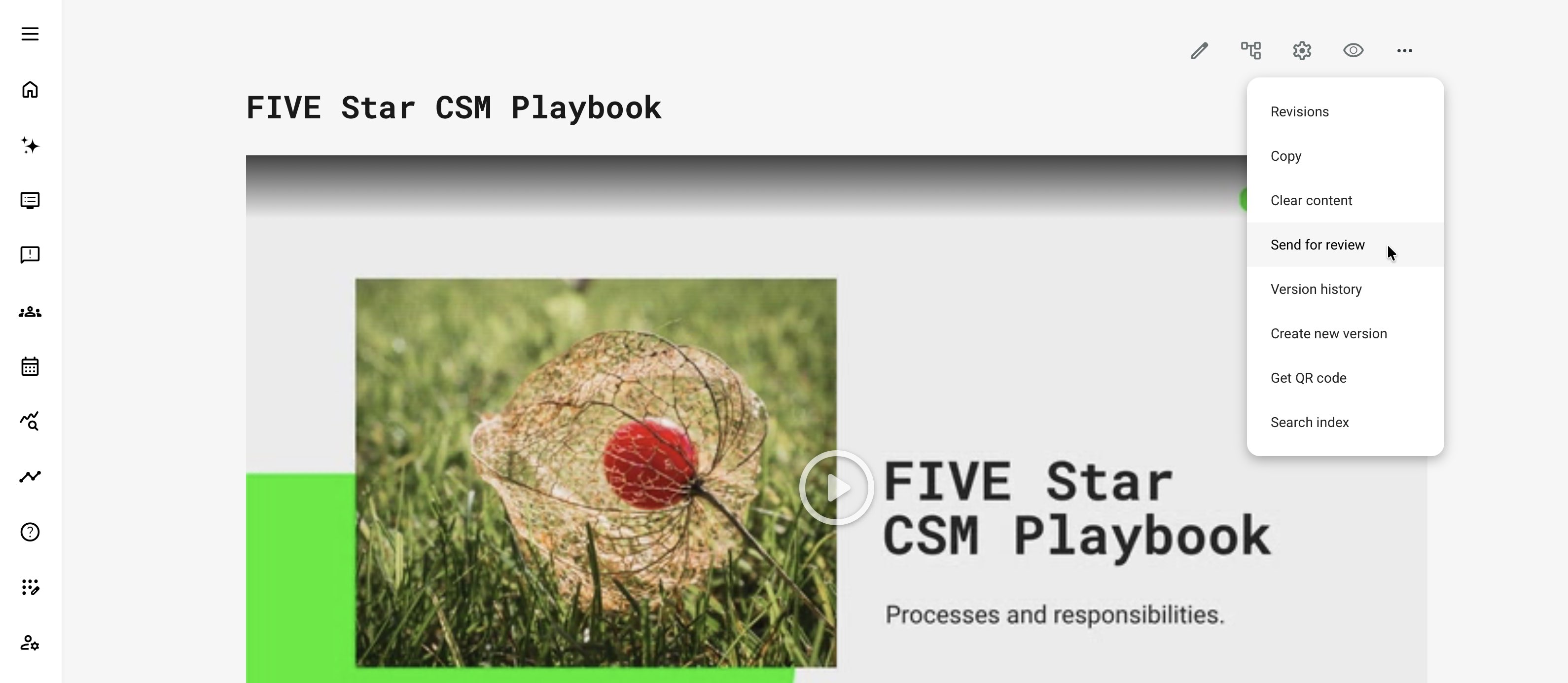
Review access can cover the whole Course and other reviewers' comments. Confirm that the reviewer is authorized to see that material before sending the invitation. Do not treat an external review link as a narrow invitation to one isolated screenshot or paragraph.
The link has a configured validity period. Communicate the deadline and ask reviewers not to forward it. Use the authorized review process to provide renewed access when needed rather than broadly sharing an old link.
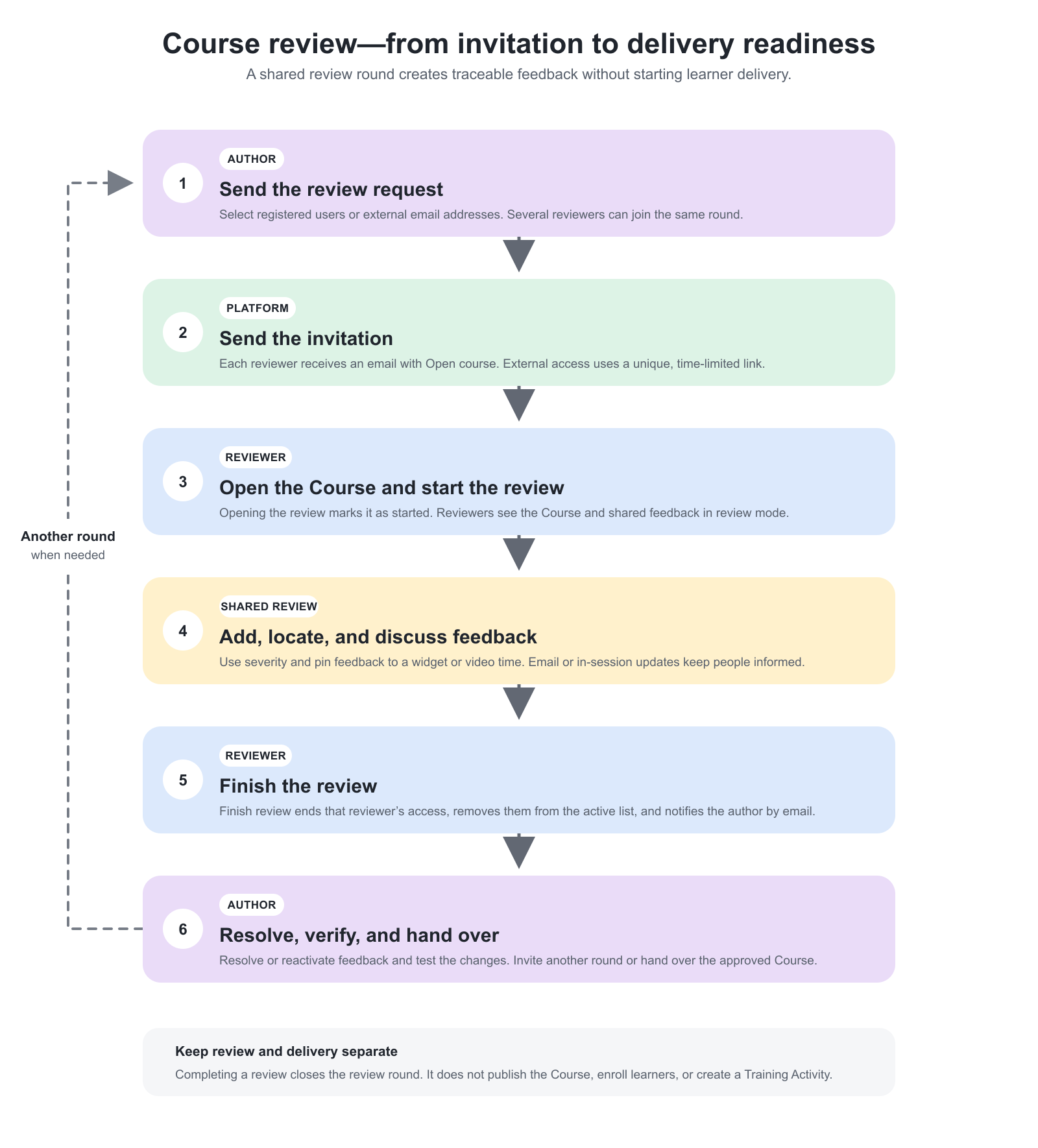
How the review cycle works
| Stage | What happens | Notification or evidence |
|---|---|---|
| Request sent | Where Course review is enabled, the author opens the Course page’s More menu, selects Send for review, and adds registered users or external email addresses. | Each reviewer receives a Request to review the course email with Open course. |
| Review starts | Opening the review link starts the review. Reviewers enter review mode and can see the whole Course and shared feedback. | The reviewer appears in the author’s active Under review by list. |
| Feedback is shared | Reviewers add comments, choose severity, and pin feedback to a widget or video timestamp. | Author and reviewers receive email updates. A reviewer already active in review mode receives an on-screen update when another reviewer creates or deletes a comment. |
| Reviewer finishes | The reviewer selects Finish review and sees the completion screen. | The reviewer leaves the active list, review access ends, and the author receives an email. |
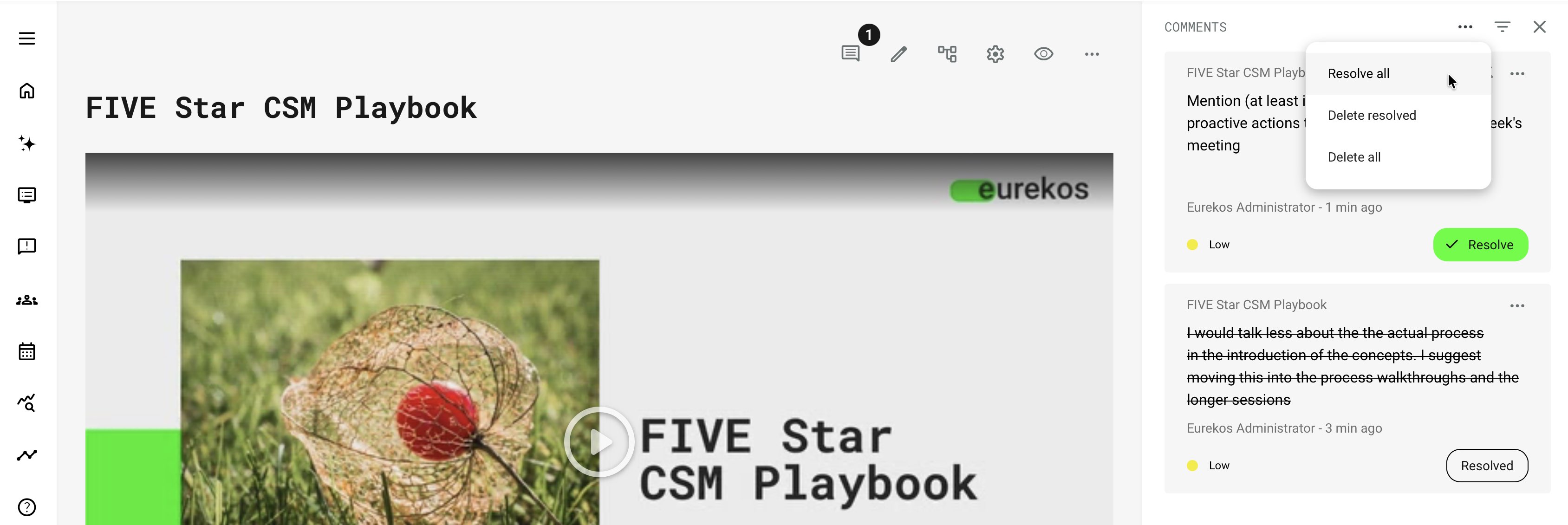
| Author resolves | The author resolves, reactivates, or deletes comments and verifies the change. | Resolved comments move down with strikethrough, counters decrease, and filtered bulk actions affect only the current results. |
| Next decision | The author sends another review request when needed or hands the approved Course to delivery owners. | A Course remains discoverable through the In review filter while it has at least one active comment. |
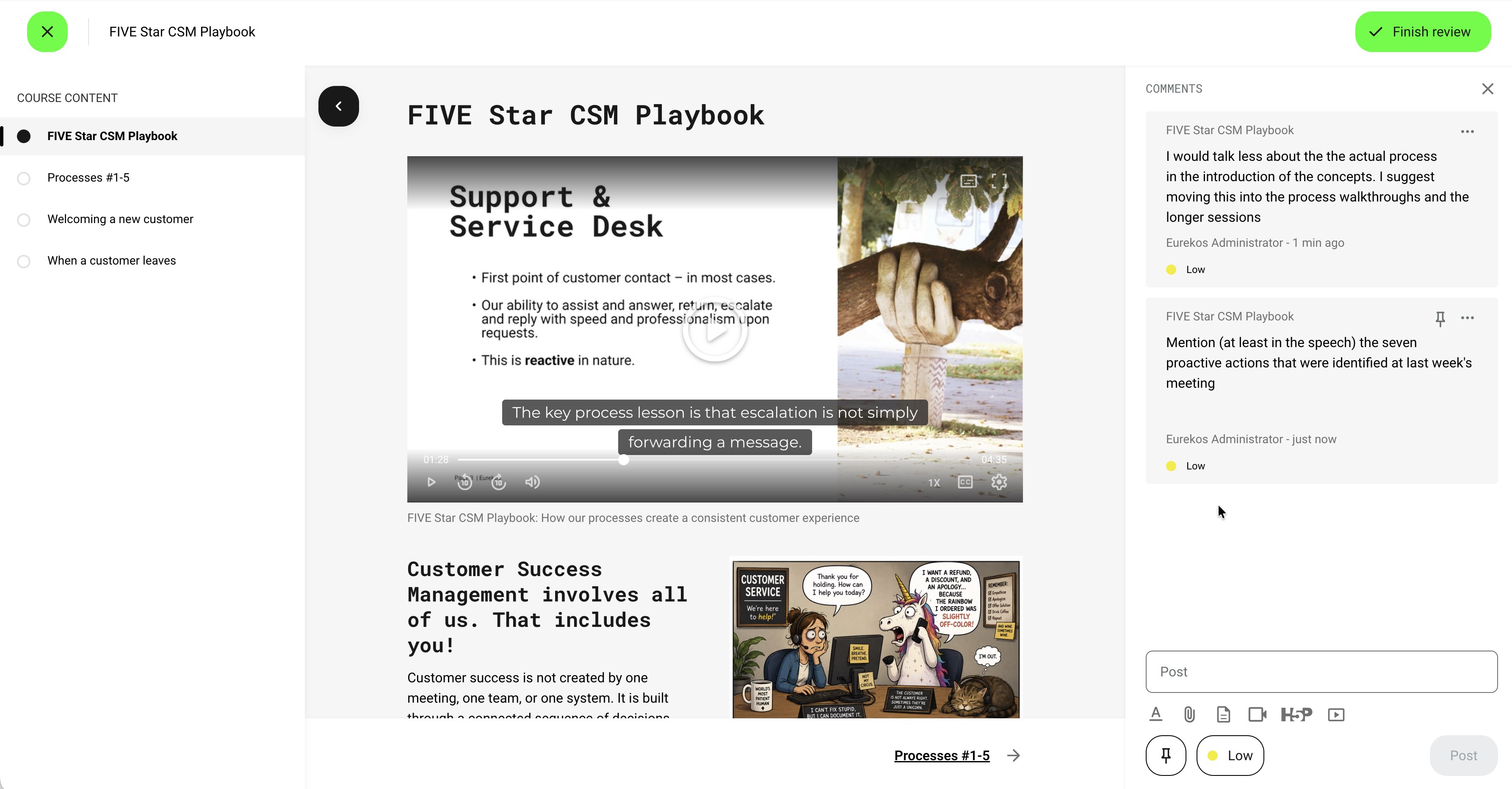
Email delivery depends on the platform’s notification scheme and email-sending configuration. Use the review state, active reviewer list, and comment record to confirm that an action occurred; do not treat a missing email alone as evidence that the review request or update failed.
External reviewers can access the whole Course and shared comments through their authorized review link, but they cannot browse internal Archive, Videos, or H5P sources. Use resources already present in the Course or provide another supported route when the reviewer needs supporting material.
Make feedback actionable
Reviewers can associate feedback with the relevant content, including supported widget or video-position context. Use available severity and resolution controls to distinguish blocking issues from suggestions.
| Feedback | Useful form | Why |
|---|---|---|
| Accuracy issue | Identify the statement, approved correction, and source or owner. | The author can resolve the issue without guessing. |
| Unclear explanation | Explain what a learner may misunderstand and suggest the missing context. | The response improves the learning, not only the wording. |
| Media issue | Refer to the relevant visual or video moment and the expected change. | The production owner can locate the problem. |
| Usability issue | State the device, route, and behavior that prevented the task. | The issue can be reproduced and verified. |
Resolve comments after making and checking the change, not merely after reading them. Where reviewers disagree, the named content owner should decide the approved outcome.
Authors can mark comments as resolved or active and can delete comments where appropriate. Resolved comments use strikethrough, move below active comments, and reduce the active counter. Bulk actions apply only to the current filtered results. The Courses In review filter returns a Course while at least one active comment remains.
Keep review and readiness separate
Finishing a review ends that reviewer’s access under the standard flow; another invitation may be needed for a later review round. It does not publish the Course, create a Training Activity, enroll participants, or make an offer visible in the Storefront.
Where Course moderation is enabled, every new Course begins as Work in progress. This status is shown in the Course library and prevents the Course from being used to create a new Training Activity. A user with permission to edit the Course must change it to Ready for enrollment before it can be selected for a new delivery.
Readiness remains unchanged until someone updates it manually. Editing a Course that is already Ready for enrollmentdoes not automatically return it to Work in progress. When a significant revision requires renewed approval, reopen the review process and change the readiness status deliberately.
Changing the readiness status does not replace the controls of existing Training Activities or automatically withdraw access from participants already using the Course.
Course moderation is an optional governance capability. Contact Eurekos Support if it is required for the platform. For the broader Course-library and settings model, see Manage the Course Library, Ownership, and Settings.
Validate in a controlled delivery
Participant view is useful for reviewing the Course’s layout, navigation, and general content flow from a participant perspective. It is still a preview: it does not reproduce every condition created by a real Training Activity, enrollment, schedule, earlier evidence, access rule, or attempt.
Use an appropriate test delivery and a representative participant account when the intended experience depends on those conditions. Verify the published route rather than assuming that a successful result in Participant view proves that the complete delivery is ready.
| Scenario or check | Expected result or evidence |
|---|---|
| A new participant starts the Course | The participant reaches the first Course page only through the intended Training Activity or Course-module access. The purpose, navigation, and first action are clear |
| Required media and files are opened | Resources work with participant permissions and on the intended devices |
| An unsuccessful and successful assessment are completed | Feedback, retries, passing evidence, and dependent rules behave correctly |
| Optional and supplemental routes are exercised | Visibility, navigation, and progress change according to the adaptive design without unintentionally bypassing required learning |
| Later Course pages use Access Restrictions | Every page that must be gated has its own tested restriction. Pages remain locked or open according to their individual criteria, and child pages are not assumed to inherit a parent restriction |
| A participant has previous evidence or enters a renewal attempt | The route and completion behavior remain appropriate to that context |
| A localized Course is used | Text, media, assessments, links, and rules work together in that language |
| Test the Course with a keyboard, assistive technology, and a narrow viewport | Essential content and controls remain understandable and operable, and usable alternatives are available for images, audio, and video |
| The Course is part of a learning path | Module and activity dates, access, completion, and certificate dependencies are understood |
Use the rows relevant to the Course. A simple reference Course does not need an elaborate assessment test, while a certification program should not skip evidence-dependent or access-dependent scenarios.
For a complete accessibility and device review, see Create Accessible and Mobile-Friendly Learning Content.
Hand over the approved edition
Provide the Course title, code, language, version, content owner, and review decision. Explain the intended audience, prerequisites, expected effort, required assessment evidence, and any external or scheduling dependencies.
Course Administration then configures delivery details such as enrollment, activity and module settings, communications, completion, and certificates. Agree who verifies the final participant journey; avoid a gap in which authors assume administration has tested the content and administrators assume the reverse.
Troubleshooting
| Situation | What to check |
|---|---|
| A reviewer cannot open the link. | Check the invitation, validity period, review state, and whether a new authorized invitation is required. |
| Reviewers see other feedback. | This is part of the documented shared review context; confirm that the selected reviewers are appropriate. |
| A Course is approved but cannot be selected for delivery. | Check readiness/moderation, permissions, organization relationships, and the intended version. |
| A rule works in preview but not for learners. | Test actual activity dates, enrollment, evidence, and attempt context. |
| New content changes arrive after approval. | Assess their significance and reopen the relevant review and validation rather than relying on the old approval. |
FAQ
-
Does setting a Course ready for delivery publish a Storefront offer?
No. Content readiness and participant-facing delivery are separate. Course Administration still configures the Training Activity, audience, availability, enrollment, completion, and certification behavior.
-
Can an external reviewer see the whole Course through a review invitation?
The documented review route provides access to the Course through a unique, time-limited link and can show other review comments. Treat that scope deliberately. Do not include confidential material that the reviewer is not authorized to see.
-
Does marking a Course as work in progress remove existing learner access?
Do not use readiness status as a universal unpublishing or access-revocation control. It affects supported content-selection and workflow behavior. Manage live delivery access through the appropriate Training Activity controls and verify the result.
-
Is Participant view enough to approve a Course for delivery?
No. Participant view is useful for checking layout, navigation, and general content flow, but it does not reproduce every condition created by a real Training Activity, enrollment, schedule, restriction, earlier result, or attempt. Use an appropriate test delivery and a representative participant account for the conditions that matter to the intended journey.