Add Video Subtitles, Transcripts, Cue Points, and Slides - Article
Summary
A native video can provide more than linear playback. Subtitles and synchronized transcripts make the explanation easier to follow and search. Cue points create chapter-style navigation. Timed slides let authors combine a recorded presenter or scenario with separately prepared visual material inside the video player.
Slides are particularly useful when the speaker and presentation were not recorded together. Authors can prepare visuals separately, assign them to points on the video timeline, and let participants move between the recording and slides. The slide can become the primary visual while the presenter remains visible as the secondary visual, or the participant can reverse that emphasis.
These elements remain connected to exact points in the video. Generated text requires editorial review, and subtitles, cue points, and slides must be checked whenever the underlying video is replaced or substantially edited.
Use this article to:
- Choose between subtitles, transcript view, cue points, and timed slides
- Build a synchronized presenter-and-slide experience
- Upload, generate, translate, and edit subtitle tracks
- Help participants navigate video and transcript content
- Revalidate timed material after replacing a video
Choose the right video enhancement
| Element | What it provides | Appropriate use |
|---|---|---|
| Subtitles | Timed text displayed with video playback | Participants cannot rely on audio, need language support, or need clarification of terminology |
| Transcript view | A searchable and synchronized text view alongside the video | Participants need to scan, search, read, or navigate the spoken explanation as text |
| Cue points | Named positions on the timeline with list and Previous or Next navigation | A longer video contains distinct topics, steps, decisions, or demonstrations |
| Slides | Supporting visuals connected to specific points in the video | A presenter explains diagrams, presentation slides, screenshots, or another visual sequence |
These enhancements can be combined. For example, an instructor presentation can use timed slides for the visual explanation, cue points for navigation between topics, and subtitles for accessibility and language support.
They do not turn the video into an assessment. Use an assessment or another appropriate learning activity when evidence of understanding is required.
Enrich a native video
These features belong to native videos managed in the Eurekos Videos library.
To open the available controls:
- Open Videos.
- Find the video.
- Open its more-actions menu.
- Select Edit.
- Scroll to Cue points, Slides, and Subtitles and transcription.
- Configure the required elements.
- Save the video.
- Test it in the Course or other context where participants will use it.
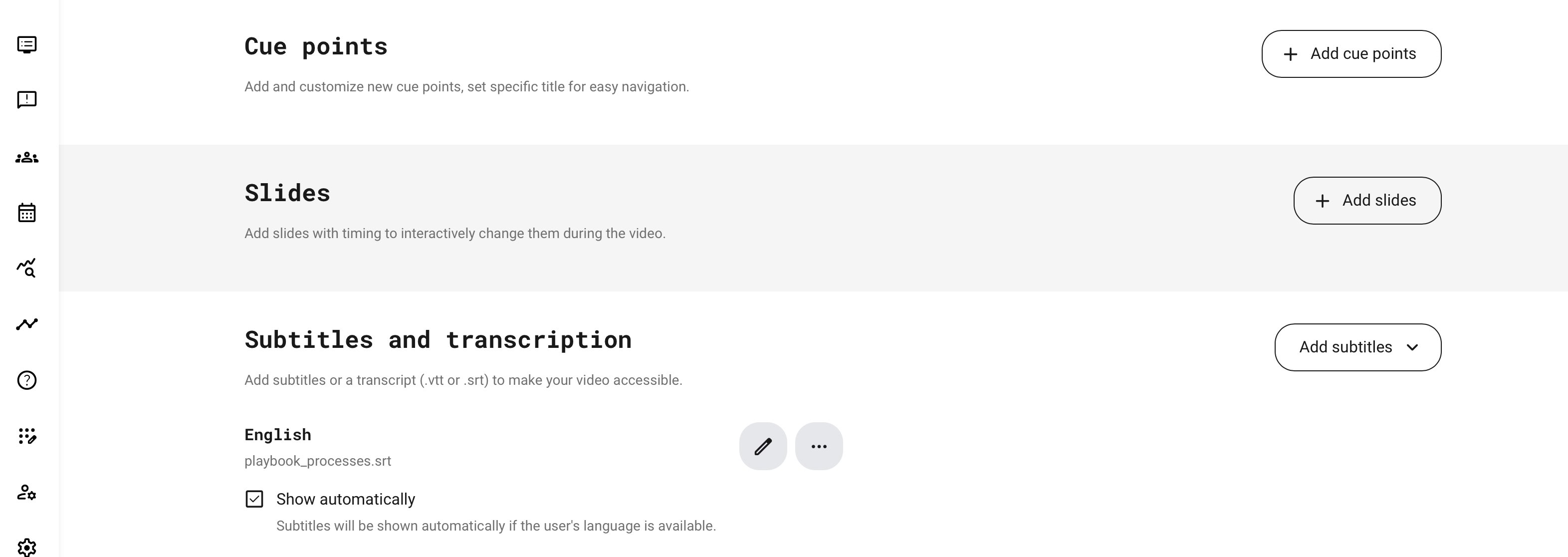
For video upload, ownership, visibility, playlists, usage, and replacement, see Upload, Organize, and Reuse Videos and Playlists.
Add cue points
Cue points divide a video into meaningful, named positions. They function as chapter-style navigation without splitting the video into separate files.
To add them:
- In Cue points, select Add cue points or Edit cue points.
- Create the first cue point at 00:00:00.
- Move to the start of the next subject or enter its timestamp.
- Add a concise title describing what begins there.
- Continue for the important stages of the video.
- Review the timestamps and titles.
- Save the cue points and the video.
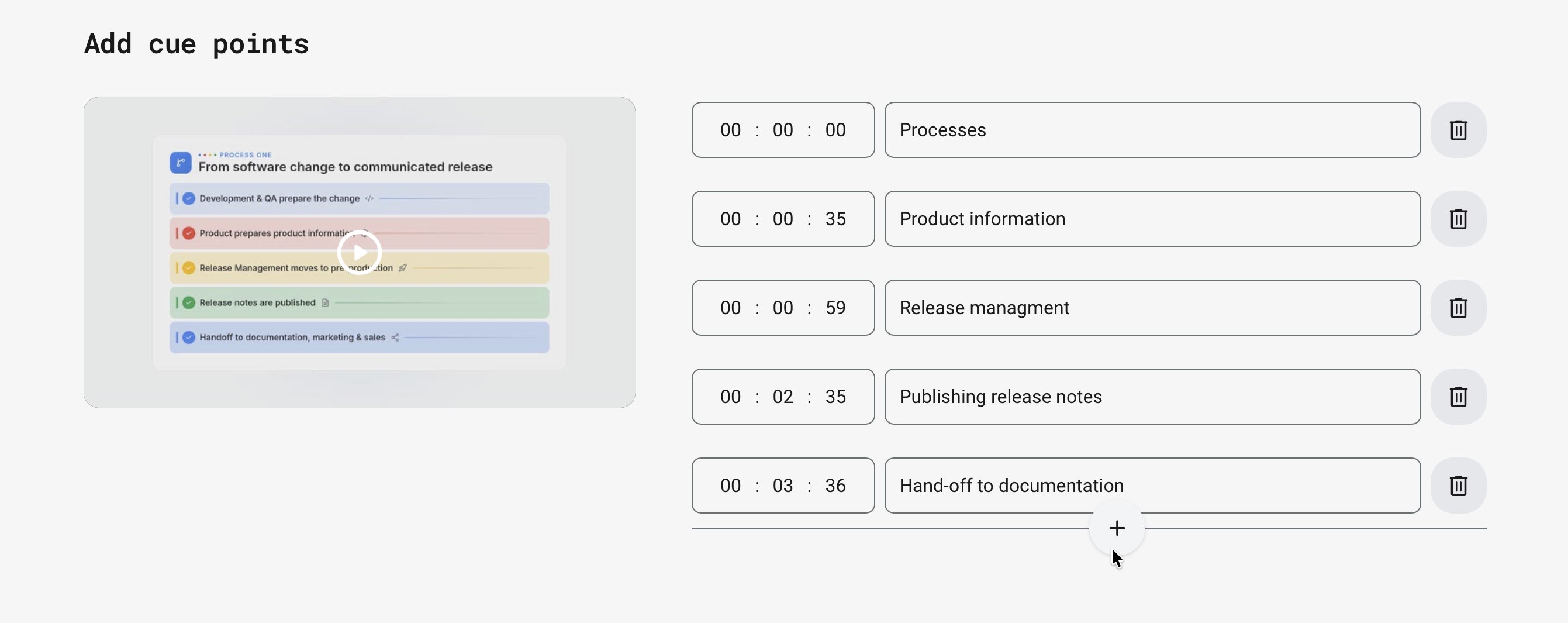
Every timestamp must be within the video duration. Use unique positions and avoid creating a cue point for every sentence. The purpose is to help a participant find a meaningful subject, stage, or action.
Participants can:
- See cue points on the timeline
- Open the cue-point list
- Select a title to move to its timestamp
- Use Previous and Next to move through the structure
Use action-oriented titles such as Prepare the equipment, Connect the sensor, and Verify the reading rather than Section 1, Section 2, and Section 3.
Design a presenter-and-slide experience
Timed slides let you combine a recorded presenter, interview, demonstration, or scenario with visual material prepared separately. Eurekos uses uploaded images as slides; it does not import the original presentation as an editable slide deck.
You can create the visual material in Microsoft PowerPoint, Google Slides, Keynote, Canva, or another presentation tool, export the required slides as images in a supported format, and upload those images to the video. You can also use individually prepared diagrams, screenshots, photographs, or other visual material without first creating a presentation.
A typical workflow is:
- Record the presenter or scenario without displaying the slides in the recording.
- Prepare or update the visual material separately.
- Export each required presentation slide as an individual image.
- Upload the images to the video as slides.
- Assign each image the timestamp at which it should appear.
- Test the timing, navigation, and display arrangement as a participant.
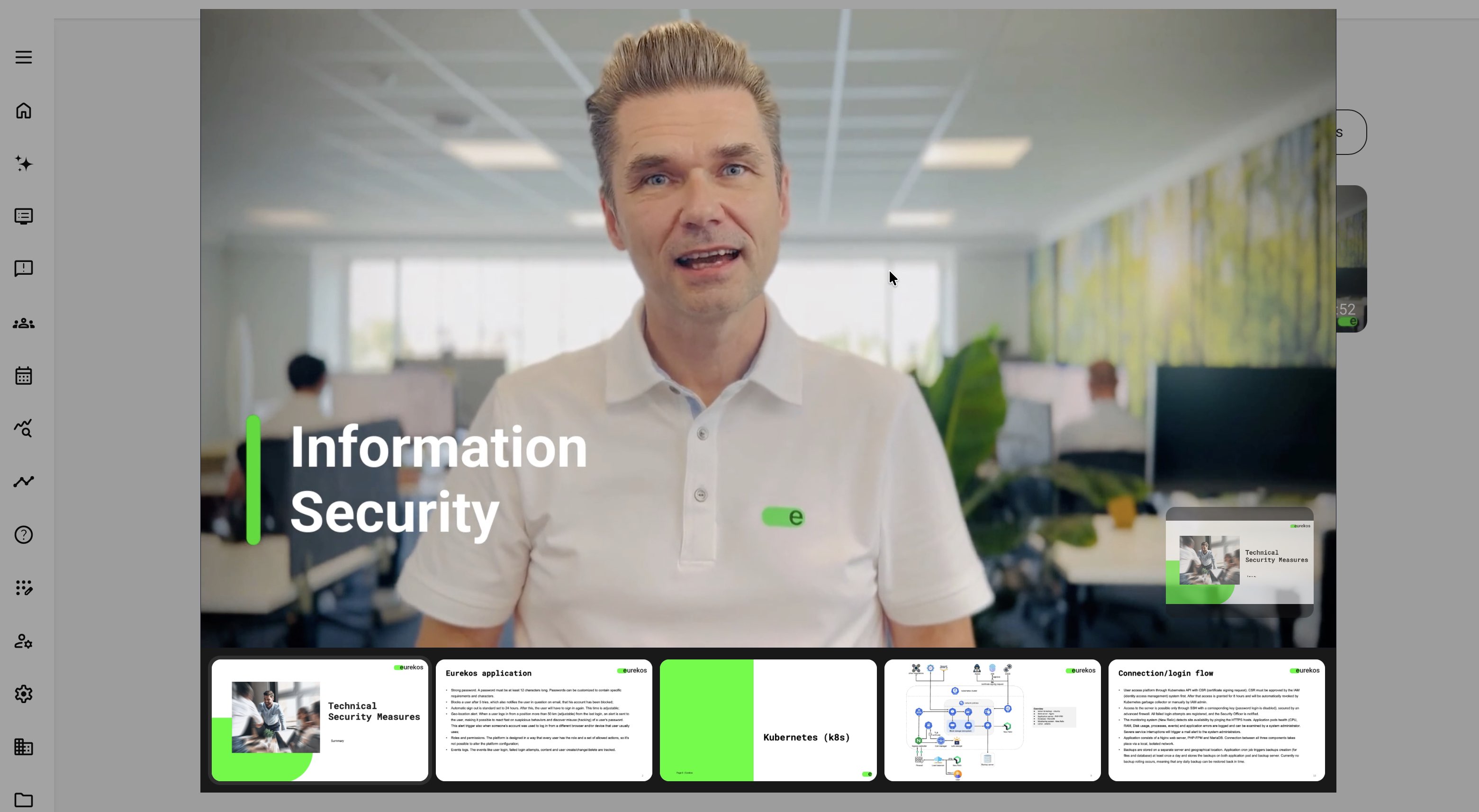
During playback, the active slide changes at its assigned time. Participants can also select a slide to move directly to that part of the video. The slide can appear as the supporting visual while the presenter remains prominent, or the participant can make the slide the primary visual and the presenter secondary.
This creates a picture-in-picture-style presentation without requiring live slide capture, multi-camera production, hardware switching equipment, or a separately rendered composite video. It also allows an author to replace or revise a slide without recording the presenter again.
Because the uploaded slides are images, presentation animations, transitions, speaker notes, and other interactive elements from the original presentation are not retained. Design each slide as a clear static visual, keep text readable in both display positions, and explain essential meaning through the narration, subtitles, surrounding Course content, or another accessible alternative.
Add synchronized slides
To add slides:
- In Slides, select Add slides.
- Export the required presentation pages as individual images where necessary, then upload the prepared images as slides.
- Play or move through the video to identify where each slide should appear.
- Assign every slide a timestamp.
- Confirm the sequence.
- Save the slide configuration and the video.
- Test the presentation as a participant.
Each slide must have a unique timestamp within the video duration.
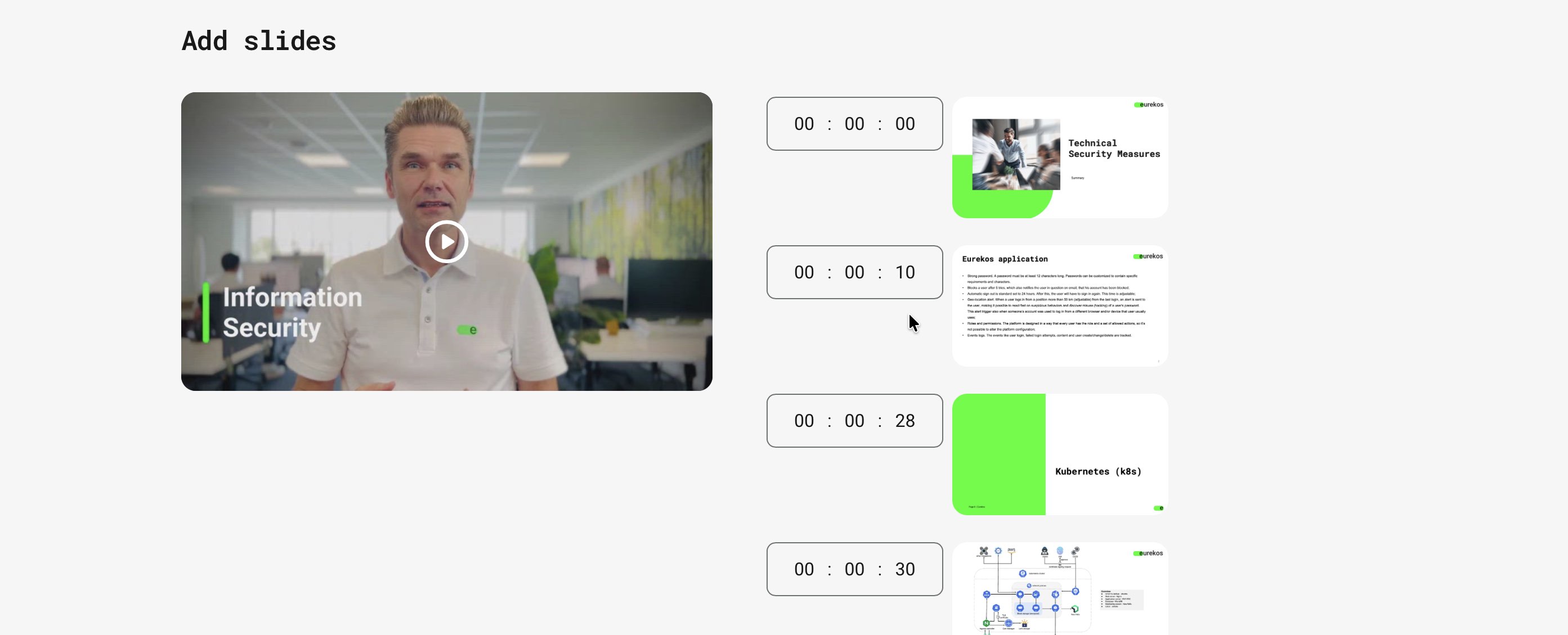
During playback:
- The active slide changes at its configured time
- Selecting a slide moves the video to that timestamp
- The participant can use the slide sequence for navigation
- The presenter and slide can exchange primary and secondary display positions
A slide should not be the only source of essential information. Explain important visual meaning in the spoken content, subtitles, surrounding Course content, or another accessible alternative.
Add and maintain subtitles
Eurekos supports several subtitle routes.
| Route | Appropriate use | What to verify |
|---|---|---|
| Upload SRT or VTT | A production team already has a timed subtitle file | Language, encoding, timing, line breaks, and correspondence with the exact video edition |
| Manual creation or editing | A short video or corrections to an existing track | Complete coverage, accurate start and end times, readable text, and terminology |
| Automatic transcription | A draft text track is needed for a supported video | Correct source language, service availability, processing result, and human review |
| Translation | Additional language tracks are required from approved source text | Source quality, translated meaning, terminology, and synchronization |
To add a subtitle track:
- In Subtitles and transcription, select Add subtitles.
- Choose the available upload, manual, transcription, or translation route.
- Set the correct Language.
- Give the track an understandable title where requested.
- Review the start time, end time, and text for every segment.
- Enable Show automatically when the matching language should open automatically for the participant.
- Save the track and the video.
- Verify it during playback.
When Show automatically is enabled and the participant's language matches an available subtitle track, Eurekos can display that track automatically.
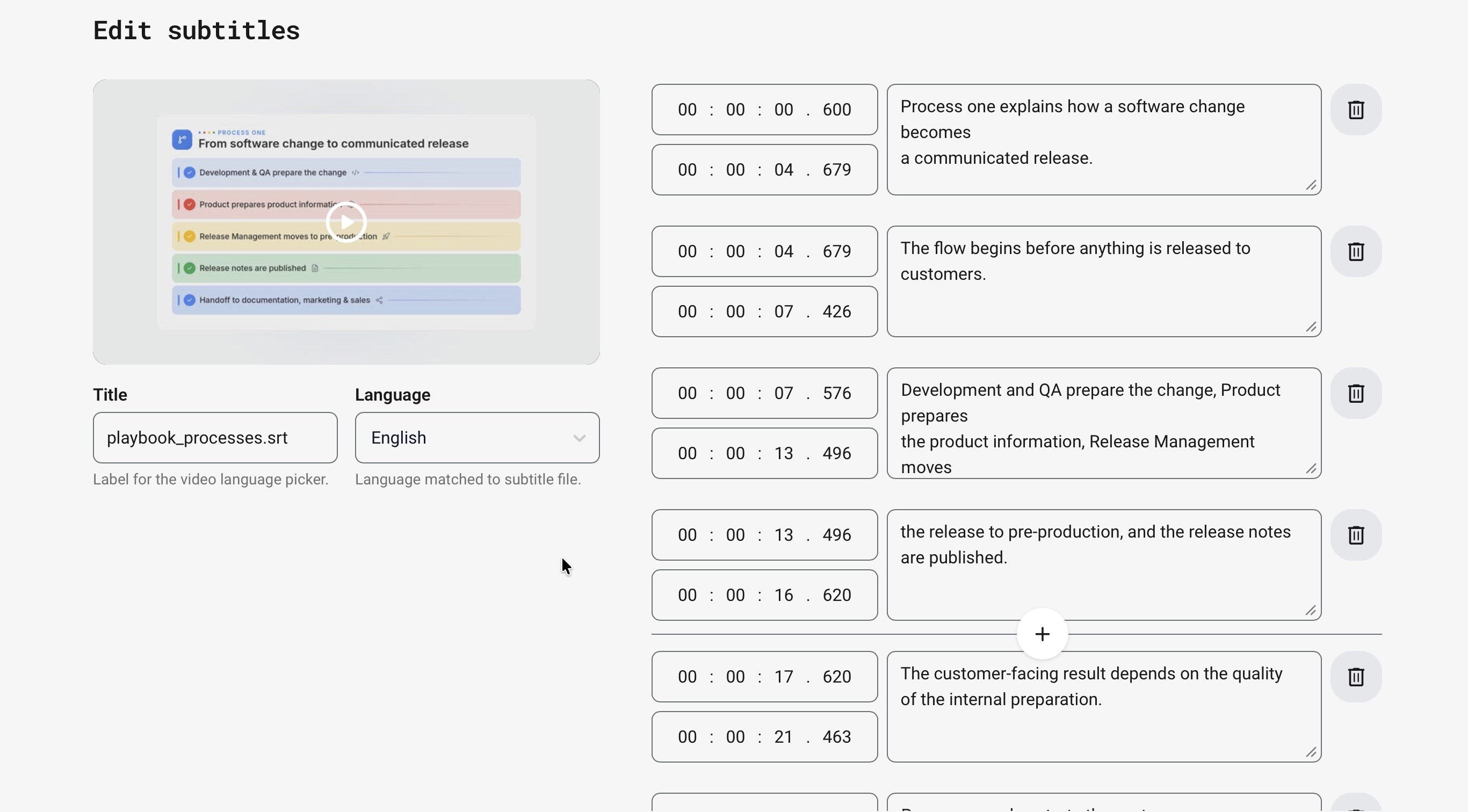
The subtitle title is used as the label in the video language selector. Use a participant-friendly label rather than an internal filename when the interface allows it.
Generate and translate subtitles
Automatic transcription and translation are optional configured services. Their availability depends on the integrations enabled for the platform.
Understand language availability
Automatic transcription and subtitle translation use separate services and have different language coverage.
| Process | Conversion | Language availability |
|---|---|---|
| Automatic transcription | Spoken video audio → source-language text | Uses Amazon Transcribe’s batch transcription service. AWS currently documents support for 100+ languages, with batch availability identified in its supported-languages list. |
| Transcript translation | Source-language text → translated subtitle text | Uses a separate text-to-text translation service with broader language coverage. Its target languages are not limited to the languages supported for audio transcription. |
Eurekos supports the complete Amazon Transcribe catalogue, but a language must also be enabled on the individual Eurekos platform before it can be assigned to a subtitle track. Contact Eurekos Support if a required supported language is not available.
A language can therefore be available as a translation target even when recorded audio in that language cannot be transcribed automatically. When configuring Generate transcription, distinguish between the language spoken in the video and the additional languages selected under Translate transcript to.
Supplier language catalogues can expand over time.

Translation is performed as part of the Generate transcription action:
- Open the video for editing.
- Scroll to Subtitles and transcription.
- Open Add subtitles.
- Select Generate transcription.
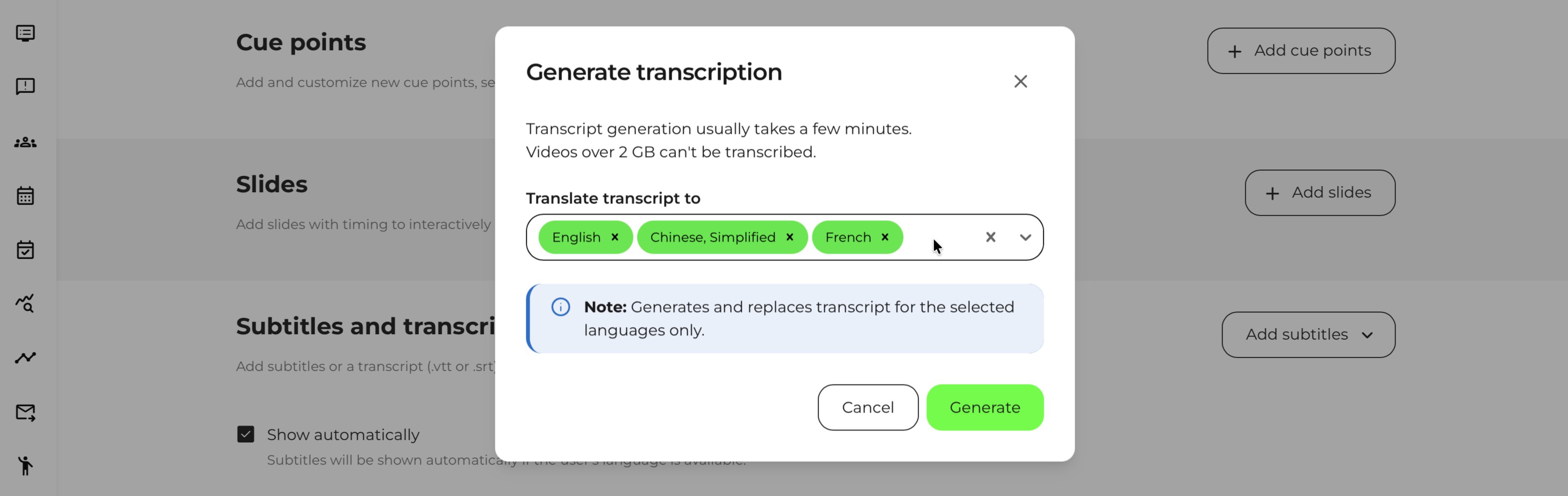
- In the Generate transcription dialog, use Translate transcript to to select the language tracks to create.
- Select Generate.
There is no separate Translate action. Eurekos generates the transcript from the video's original language and creates the selected translated language tracks as part of the same process.
When automatic transcription is available:
- Processing can continue in the background.
- The user receives a completion or failure notification.
- Videos over 2 GB are not supported for automatic transcription.
- Generating text for a selected language replaces the existing generated text for that language.
Preserve approved editorial work before regenerating an existing language track.
Correct the source transcript before translating it. A translation service can reproduce an incorrect name, number, negation, or technical term across every target language.
Automatic text is a starting point, not an approved final result. Review:
- Names and specialist terminology
- Numbers, dates, measurements, and units
- Safety or compliance instructions
- Negation and conditional wording
- Punctuation and line breaks
- Start and end times
- Spoken references to on-screen content
Translation changes the text track. It does not translate the audio, recorded labels, demonstration screens, or text embedded in slides.
Understand transcript view
When a video has subtitles and is used in supported content—such as a Course, Announcement, Community, Event, or Activity Description—the participant can use Open in transcript view from the video player.
Transcript view opens the video and synchronized text together in an overlay.
It includes:
- The video title and a close action
- Standard video playback controls
- A scrollable list of subtitle lines
- The timestamp and text for each line
- Highlighting of the current line
- An Auto Scroll control
- Transcript search
- Previous and next search-result navigation
- A language selector when several subtitle tracks are available
Video playback and the transcript remain synchronized:
- Playing the video highlights the corresponding transcript line
- Seeking in the video updates the highlighted text
- Selecting a transcript line moves the video to its timestamp
- Auto Scroll keeps the current line in view when enabled
- Disabling Auto Scroll lets the participant inspect another part of the transcript without the list moving automatically
Keyword search is supported. A multi-word phrase is found only when the complete phrase occurs within one subtitle line; a phrase divided across two lines is not returned as one match.
Transcript view is not a separate transcript record. It presents the selected subtitle track through a searchable, synchronized reading experience.
Understand the effect on Viewed status
Video Viewed status is based on the configured percentage of the video timeline. The default configuration is commonly 50 percent.
Navigating forward through any of these routes can move the video beyond that threshold:
- The playback timeline
- A cue point
- A slide
- A transcript line
When the participant moves to a position at or beyond the configured threshold, the video can become Viewed. Cue points, slides, and transcript navigation therefore improve navigation but do not prove that the participant watched every preceding part continuously.
Use an assessment or another recorded learning action when more evidence is required.
Review accessibility and learning quality
Subtitles do not automatically describe an important visual action that is never spoken. Where a participant must understand an action, diagram, facial response, or on-screen change, include that meaning in the narration or provide an appropriate textual or audio alternative.
For subtitles:
- Use readable line lengths and natural line breaks
- Keep the text synchronized with the speaker
- Identify speakers where the distinction matters
- Avoid covering essential information in the video
- Review every supported participant language
For slides:
- Keep text large enough for the secondary display position
- Use sufficient contrast
- Avoid dense presentation pages
- Explain the important meaning outside the image
- Test both primary and secondary display modes
- Test keyboard and pointer navigation
- Verify the experience on smaller screens
For cue points:
- Use meaningful titles
- Place them at genuine topic boundaries
- Ensure the first point begins at 00:00:00
- Keep every timestamp within the video duration
Maintain timed material after replacement
Replacing a native video retains its associated slides, cue points, subtitles, and transcriptions. Retention preserves the configuration; it does not prove that the retained timing or content remains correct.
When a shorter replacement is uploaded, Eurekos keeps the timed entries within the new duration:
- Slides beyond the new duration are moved to the final second
- Cue points beyond the new duration are moved to the final second
- Subtitle segments extending beyond the new duration are trimmed
This prevents timestamps from extending beyond the media, but several retained items can now collect at the end or appear in an incorrect sequence.
After every replacement:
- Play the video from the beginning.
- Check each cue-point boundary.
- Check every slide change.
- Test slide selection and primary or secondary display switching.
- Review the complete subtitle track.
- Open transcript view and test synchronization.
- Check the final seconds for automatically adjusted entries.
- Review translated tracks against the replacement.
- Test the video in its participant-facing context.
If the new recording has substantially different content or learning intent, create a new video rather than relying on the previous timed configuration.
Verify the participant experience
| Scenario or check | Expected result or evidence |
|---|---|
| Audio is muted | The participant can follow the essential explanation through subtitles and appropriate non-audio alternatives |
| Cue point is selected | Playback moves to the correct topic and displays its meaningful title |
| Previous or Next is selected | Playback moves through the cue-point sequence in the intended order |
| Slide time is reached | The intended slide becomes active |
| Slide is selected | Playback moves to the corresponding timestamp |
| Display emphasis is swapped | The slide and recorded presenter exchange primary and secondary positions without hiding essential information |
| Transcript view is opened | The video, synchronized lines, search, Auto Scroll, and available language choices work correctly |
| Transcript line is selected | Playback moves to the corresponding time and highlights the active text |
| Participant language is changed | The intended subtitle track is available and automatically selected where configured |
| Video is replaced | Cue points, slides, subtitles, transcript text, and duration match the new edition |
| Smaller screen is used | Player controls, slides, subtitles, and transcript content remain readable and operable |
Troubleshooting
| Problem | What to check |
|---|---|
| The first cue point cannot be saved correctly | Confirm that it begins at 00:00:00 and all later timestamps are within the video duration |
| Selecting a cue point opens the wrong subject | Check its timestamp and title against the current video edition |
| Slides do not change at the intended moment | Review their timestamps, sequence, video duration, and whether the slide configuration and video were saved |
| A slide is unreadable in the secondary position | Reduce text, increase its size and contrast, simplify the visual, and test the available display modes |
| A subtitle track does not open automatically | Check Show automatically, the track language, the participant's language, and whether the matching track is available |
| Transcript view is missing | Confirm that the video has subtitles and is being viewed in a supported content context |
| Transcript search cannot find a phrase | Confirm that the complete phrase occurs within one subtitle line rather than across several lines |
| Generated or translated subtitles are missing | Check whether processing has completed, review notifications, confirm that the service is enabled, and verify the language and 2 GB transcription limit |
| Timed elements are incorrect after replacement | Review the complete timeline and check for slides, cue points, or subtitle segments moved or trimmed near the end |
| The video becomes Viewed after navigation | Check whether a cue point, slide, transcript line, or manual seek moved playback beyond the configured Viewed threshold |
| A required transcription or translation language is not listed | First determine whether the language is needed for the video’s spoken audio or as a translated subtitle target. Audio transcription depends on Amazon Transcribe’s batch-language support; text translation uses a separate, broader catalogue. In both cases, confirm that the language is enabled on the Eurekos platform and contact Eurekos Support if necessary. |
FAQ
-
Are a transcript and subtitles the same thing?
A subtitle track supplies timed text. During normal playback, that text can appear as subtitles over the video. Transcript view presents the same timed track as a searchable, synchronized list beside the video. Participants can select a line to move to its timestamp and can switch languages when several tracks are available.
-
Can automatically generated video text be used without review?
It should be reviewed before learners rely on it. Check names, technical terms, numbers, negation, and safety-related instructions in particular. Automatic generation reduces transcription work; it does not confirm subject-matter accuracy.
-
Do video cue points make a video an assessment?
No. Cue points provide chapter-style navigation and do not test understanding. Selecting a cue point can move playback beyond the configured Viewed threshold and therefore mark the video as Viewed, but that is still playback progress rather than assessment evidence.
-
Will existing subtitles remain accurate after replacing a video?
Not necessarily. Eurekos retains the subtitle tracks and trims segments that exceed a shorter replacement, but it cannot determine whether the words and timing still match the revised recording. Review the complete subtitle and transcript experience after every replacement.
-
What are timed video slides used for?
Timed slides combine separately prepared visual material with a recorded presenter, demonstration, interview, or scenario. The participant can navigate by selecting a slide and can switch whether the slide or recording is the primary visual. This creates a flexible presenter-and-slide experience without permanently combining both sources into one produced video.
-
Are the same languages available for automatic transcription and subtitle translation?
No. Automatic transcription converts spoken audio into text and uses Amazon Transcribe’s batch transcription service, currently documented as supporting 100+ languages. Subtitle translation converts an existing transcript from text into additional text languages and uses a separate service with broader language coverage.
In both cases, the language must be enabled on the individual Eurekos platform before it can be assigned to a subtitle track. Contact Eurekos Support if a required supported language is not available.