Translate and Localize Courses and Learning Assets - Article
Summary
Localization makes a Course usable for another language and context. It includes the explanation, examples, questions, media, links, and learner instructions—not only the language selected in Course settings.
Eurekos supports configured automated translation and an XLIFF workflow for supported native Course content. Treat the translated Course as a maintained learning resource that needs linguistic, subject-matter, and learner review befor
Use this article to:
- Plan Course languages and ownership before translation begins;
- Translate Course structure, text, media, interactions, and supporting assets;
- Manage shared and language-specific resources deliberately;
- Review the complete localized learner experience before release.
Understand the different language controls
| Control or content | What it means | What it does not do |
|---|---|---|
| Platform interface language | The language of available platform interface text. | It does not translate an author's Course. |
| Course content language | Identifies the language of the learning content. | Selecting another value does not rewrite the pages. |
| H5P language | Provides the language setting supported by the interaction type. | It does not automatically translate author-written questions, feedback, or media. |
| Video subtitle language | Identifies an available text track. | It does not dub the audio or translate text embedded in the video image. |
| Localized Course | A translated learning resource with reviewed content and dependencies. | It is not automatically kept synchronized with every later change to the source. |
Translation actions require the appropriate permissions and more than one enabled language. Automated translation also requires its service to be configured and additional costs may be associated. Imported SCORM Courses do not use the native Course translation action; translate them in the source authoring process and import the approved language package.
Choose a translation workflow
| Route | When to use it | Operational consideration |
|---|---|---|
| Automated translation, where enabled | Create a first translation of supported content for qualified review. | Choose source and target languages and an available model. Language-pair and model availability depend on the configured service. |
| XLIFF export and import | A translator or language provider works in a compatible translation tool. | Keep the source Course stable while the exported text is translated, and import the matching file back through that Course. |
| Manual localization work | Adapt examples, visuals, external resources, or unsupported material. | Coordinate this with the translated Course so the final experience is complete. |
Automated translation may offer a default model and an available custom model for the language pair. A model can improve terminology and context, but it does not remove the need for review.
Use automated Course translation
Before starting, confirm that the source Course has the correct content language and that its content is ready for translation.
- In Courses, open More for the source Course and select Translate.
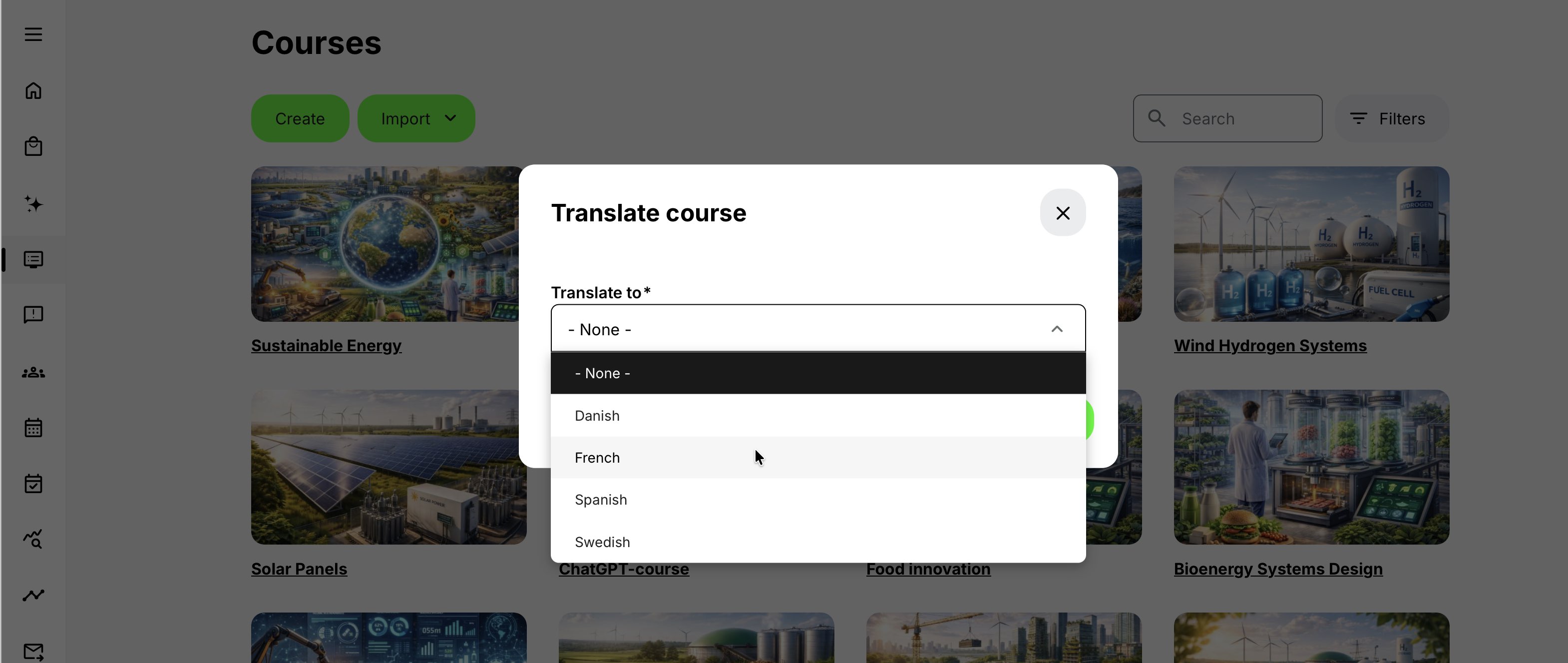
- In Translate course, select an enabled target language under Translate to.
- Select the available Translation model where offered, then start the translation.
- Allow background processing to finish and review the success or failure notification.
- Open the resulting language Course and review its pages and learning assets before delivery.
The Translate action is available to authorized users when more than one language is enabled on the platform and the automated translation service is configured. It is not used for imported SCORM Courses. Translate those in the source authoring tool and import the approved language package.
The source Course is locked against editing while translation runs and is unlocked when processing finishes, including after an unsuccessful result. Do not begin translation while another author expects to make immediate changes.
A successful translation creates a Course in the target language and records the translation in the Course history. This is not the same operation as creating a new major Course version.
Supported H5P content and existing subtitle text can receive corresponding translated assets or tracks as part of Course translation. This does not translate spoken audio, text embedded in videos or images, unsupported H5P types, or externally hosted content. Review these elements separately before publishing the language edition.
Use XLIFF with a translation provider
- Export the source Course using Export → XLIFF.
- Note that the source is locked to prevent changes that would invalidate the translation file.
- Choose the exported XLIFF version supported by the translation tool; the documented export supplies 1.2, 2.0, and 2.1 variants.
- Set the enabled target language and translate the text while preserving identifiers, formatting tags, and special characters.
- Return to the same source Course and use Translate → Import XLIFF with the matching .xliff file.
- Confirm the import result, then review the translated Course and its assets.
XLIFF is a text-translation exchange, not a way to redesign the Course layout or replace its media. A different Course ID, changed source version, missing target language, or unsupported target language can prevent import.
If work must be abandoned or the source unlocked manually, involve an authorized administrator and coordinate the translation handover. Do not unlock and revise the source while expecting the old export to remain valid.
Know what still needs review
| Material | Supported translation scope and follow-up |
|---|---|
| Course text, headings, captions, buttons, and relevant links/anchors | Supported text is included in the available workflow. Review wording, destinations, and formatting. Automated translation also covers supported image alternative text. |
| H5P | Supported H5P types can receive translated language editions with the Course. Examples include Question Set, Multiple Choice, Course Presentation, hotspot interactions, Single Choice Set, True/False, Fill in the Blanks, Accordion, Agamotto, Drag the Words, and 3D Viewer. Review questions, answers, feedback, scoring, embedded media, and H5P tokens or placeholders separately. Not every H5P library supports automated translation. See Create and Reuse Interactive Learning with H5P. |
| Video subtitles | Existing subtitle text can be translated when supported. Spoken audio, demonstrations, and text embedded in the video image require separate work. To generate, translate, edit, and maintain subtitle tracks directly on a video, see Add Video Subtitles, Transcripts, Cue Points, and Slides. |
| Images and documents | Text embedded in artwork or a document require separate editing and replacement. |
| Mathematics, code, comments, and discussions | These are outside the documented automated Course-translation scope. Review the experience manually. |
| External content | The external service or destination must offer the intended language and access. |
For XLIFF subtitle export, the track matching the Course language is used; where several tracks share that language, the first is selected. Reimporting the same translation can add subtitle tracks again. Review the resulting tracks rather than repeatedly importing to solve an unrelated issue.
Maintain language editions
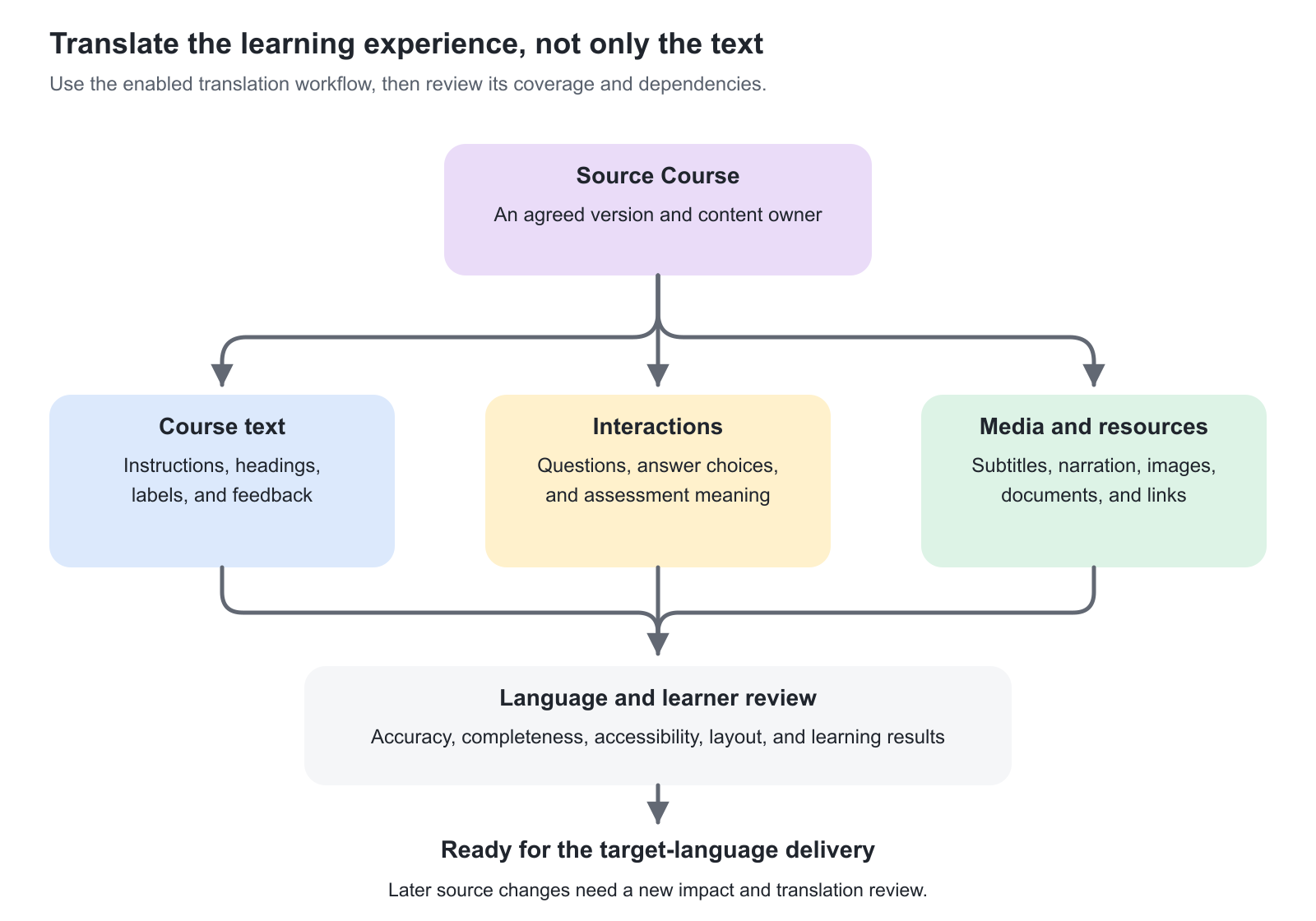
Record the source edition, target language, reviewer, and release decision. When the source changes, identify which text, questions, media, and rules need corresponding updates. Do not assume the localized Course or all shared assets update automatically.
Adapt examples where the business context differs, while preserving the intended learning outcome and assessment standard. A literal translation of a country-specific process may be accurate linguistically but inappropriate operationally.
Verification overview
| Scenario or check | Expected result or evidence |
|---|---|
| Target-language learner opens the Course. | Navigation, instructions, questions, feedback, and relevant media are coherent in the intended language. |
| Longer translated text | Layouts and controls remain readable without clipping or overlap. |
| Assessment and adaptive rules | Correct answers and referenced evidence remain valid in the localized edition. |
| Video or document contains embedded text. | The untranslated material has been adapted or its limitation resolved. |
| XLIFF import fails | Course identity, source version, extension, target language, and preserved formatting/identifiers are checked before retrying. |
| Source changes after translation | A named owner reviews and updates affected language editions. |
FAQ
-
Does translating a Course also translate all of its media?
Not automatically. Review author-written text, supported H5P content, images containing text, narration, subtitles, documents, and external resources separately. The available workflow covers supported elements, not every possible asset.
-
Why is the source Course locked during an XLIFF translation workflow?
The lock helps preserve the source version while translated text is prepared. Import the matching translation through the supported workflow, or use an authorized unlock process when necessary. Changing the source can create a version mismatch that must be resolved.
-
Can Google translation replace a human review of learning content?
No. Where the integration is enabled, it can accelerate the first translation. A competent reviewer should still check terminology, instructions, assessment answers, regulatory meaning, media, and layout before the localized Course is released.
-
Will later source-Course changes automatically update every translation?
Do not assume they will. Maintain an owner and a change record for each language, identify affected text and assets, and repeat the appropriate translation and review steps. A translation is a maintained learning version, not a one-time language label.