Courses overview - Article
Courses represent your combined archive of natively authored and imported courses from 3rd party authoring tools
These are all your course assets, natively authored and imported from other 3rd party authoring tools as SCORM or xAPI. Courses are fundamentally an aggregation of all of your assets - e.g. videos, images, texts, files and interactive objects. Repurposed, referenced and curated in the structure and learning sequence that makes most sense for your audience.
It's asset management on macro level, but still an archive of learning assets you can distribute.
- Courses menu item is only available to users with authoring permissions, such as Instructors and various administrative roles.
- Don't worry! Courses will not automatically be visible to your audience, simply by being present in the courses list. Learning delivery is different and much more than content and course authoring on its own. You decide when you are ready to make it available.
- And yes! Updates to your existing content anywhere (and of any type), will instantly be reflected to everyone who has access to it. Easy maintenance is key.
The course list
The list of courses will show last edited first in the list for your convenience by default. You can also search for the course title or use the filters to show courses by tagged criteria - e.g., category, language, promoted, mine, in review, and many other options.
- Promoted courses are represented by an arrow, that will show when you hover on a course thumbnail. This will put it to the top of the list, still showing the latest edited fist, within the promoted series.
- The course code (ID) also shows on hover, which is an important criteria to identify a specific course.
- Version is shown on hover. Automatic versioning is standard.
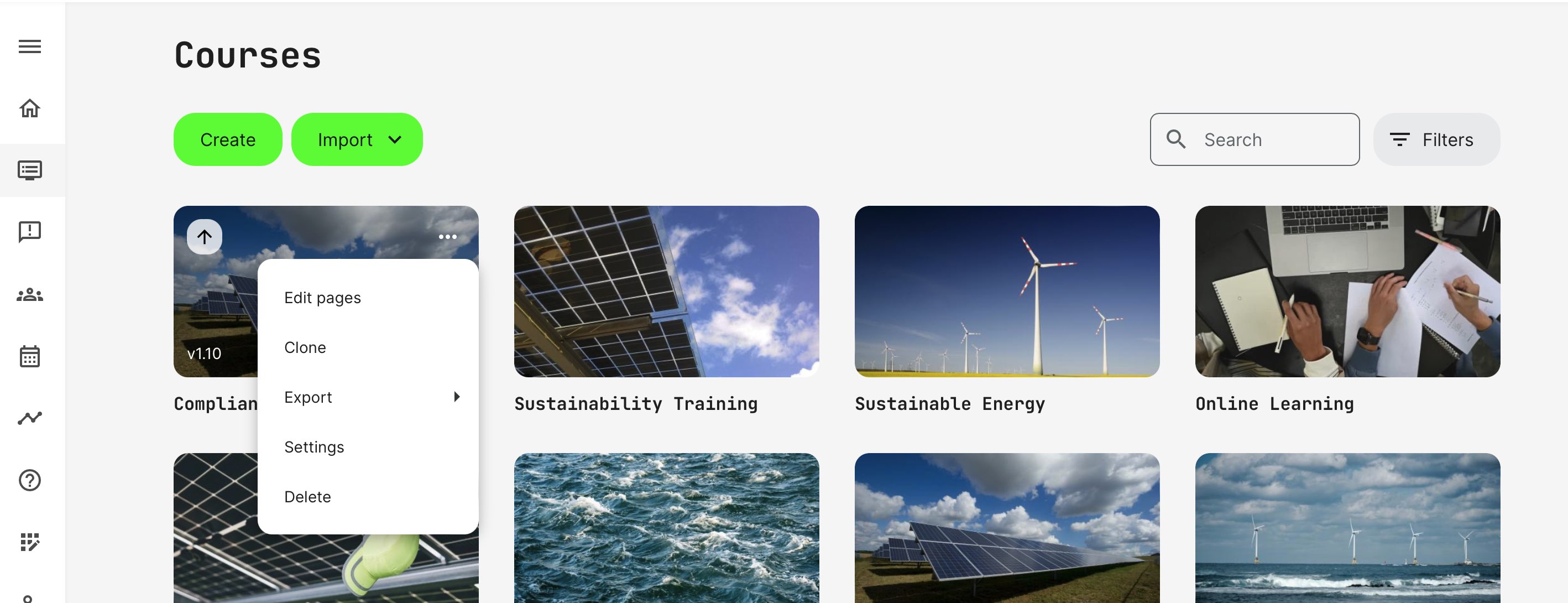
The course list also has a set of context sensitive options upon hovering the course and the more option, represented by the 3 dots.
- Edit page will take you straight to the course structure, allowing you to add and remove pages, etc.
- Clone to make a clone of the course, to make a variant or reuse the course as a starting template to create a new course from.
- Translate via AI or import a XLIFF file, when enabled.
- Export to native Eurekos format, SCORM 1.2, xAPI or export an XLIFF file for a translation agency.
- Settings to access content and course tagging.
- Delete to remove the course. This includes the option of keeping the shared course folder with materials such as images and uploaded files.
Create a course
The native rapid authoring tool lets you create a course using your browser. See more details about course creation and the tools, you have available in the respective sections of the Help Center.
Import a course
Upon import, the courses will show next to each other in the course list. There is no difference in the way this is displayed, regardless of which type of creator tool, you have been using. It's an asset you can manage the accordingly. See more in the section on importing courses.
Localization concept
Courses exist as one language and all related assets are also individual language versions, with few exceptions. If you have an English and a German course, these would be 2 different courses. When they are localized versions of the same training, they can be related to each other through the Course Administration, for purposes of delivery and distribution - e.g., displaying, purchasing and enrolling into the appropriate language version.
- Native authoring will let you create a course and clone it to a new localized version, including automatic translation using AI.
- Each language version remain editable independently of each other. Localization allows changes in content between them. This is not restricted to tranlsation of texts, but really the ability to have different content elements too, as required by legislation or product design differences.
- Video is often (but not always) the same content element and subtitles might be the only difference between languages. Videos can be replaced independently, if desired. It's important to recognize the different behaviors and features between the different types of content and being able to manage this.
- Interactive assets such as the 40+ H5P 3rd party options are likely part of your courses and they exist in separate language versions. Again, they can be customized individually.
- PDF, files, images (and dynamic file folder references) are also different assets that can be included in your courses and they can be replaced or point to the same files.
- Imported courses through 3rd party authoring tools are single packages. These are typically also defined as a package for each language. For imported SCORM/xAPI packages, these are technically related the same way as natively authored courses. The same principles apply.
- Courses produced in 3rd party tools also need to be edited from the original tool. Any updates means the package will be imported replace the previous one. This constitutes a new version.
- A customized design approach inside a 3rd party tool could include a "language selector" or similar. This could be entirely manually hand-crafted or an option. But be careful - there are consequences, which reach into processes and learning delivery.
- How status and progress is calculated is then a part of the individual solution for the tool and also typically limited to a simple "complete/not complete", as a consequence.
- Having one course in multiple languages potentially make some process flows/automations incompatible or sub-optimal for the user experience - e.g., automated emails based on user language, when everyone enrolls into the same "black box" of language choices. Presentation issues and landing pages are similarly less scalable.
Automatic, AI driven and manual translations
Courses can be translated automatically, using the native integrations to AI services with NLM (Natural Language Modelling), to improve quality by training the service on your own materials, translation memories, etc. This is available on courses and course materials created using the native authoring tool.
More details available in the section on Course and Content Translation.
- Automatic AI driven translations are available when you are using the native authoring tool.
- XLIFF file export/import is an option to hand over translation of courses to a translation agency.
- Review and in-screen editing and co-authoring and having local assistance review translations of any kind, OR doing this directly from the authoring tool is also an option.
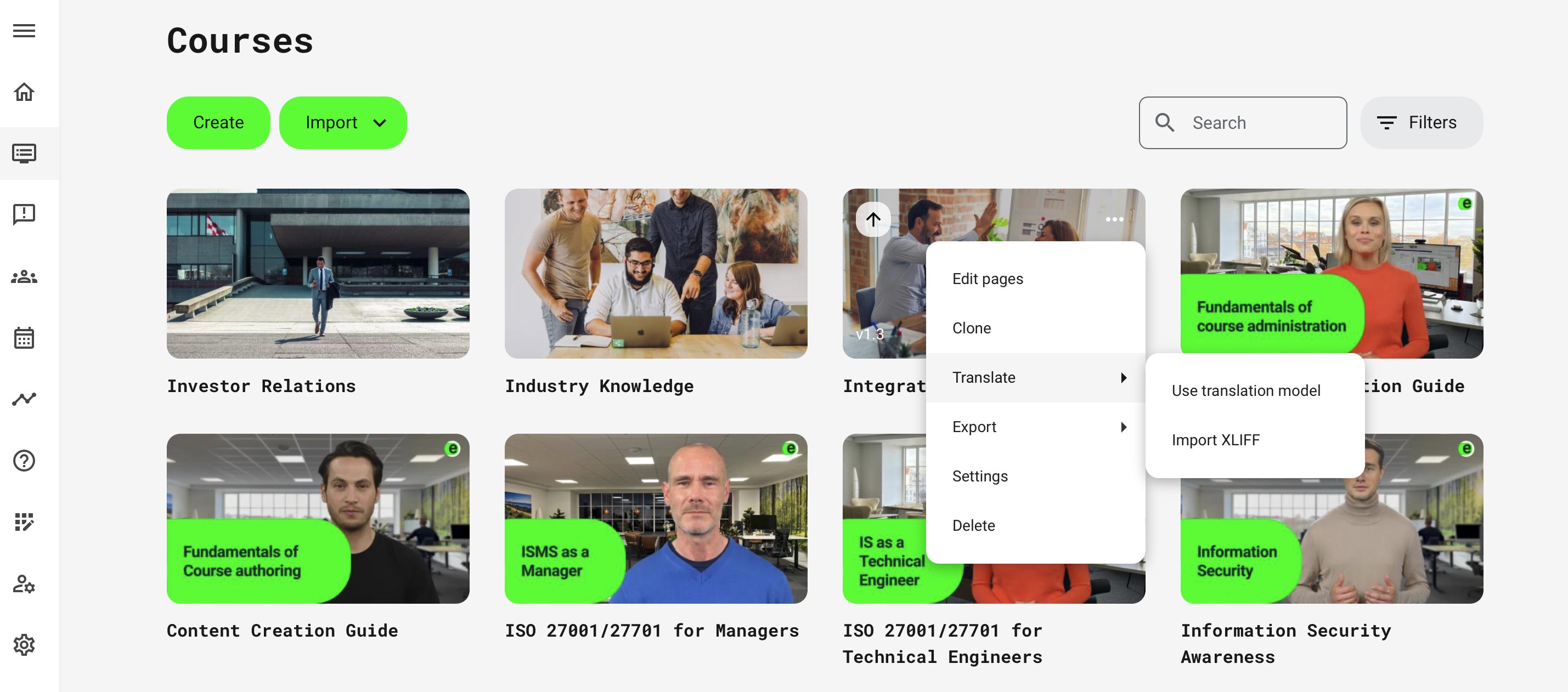
If you use 3rd party tools, the translations and any automatic options, will have to be performed from within the respective tools.
Roles
The Courses menu overview is available for roles that can create content:
- Instructors.
- Course Administrators.
- Platform Administrators,
- Global Administrators.
- Support role.