Images - Article
Images are much more than simple decoration. Use images to engage and provide an even better user experience
Images are important for your visual identity, but they can also serve many other direct and indirect purposes - e.g, an infographic, visualize a process or function as a download action with emphasis.
Once you click the Plus icon in page edit mode, you can choose to insert an Image widget.
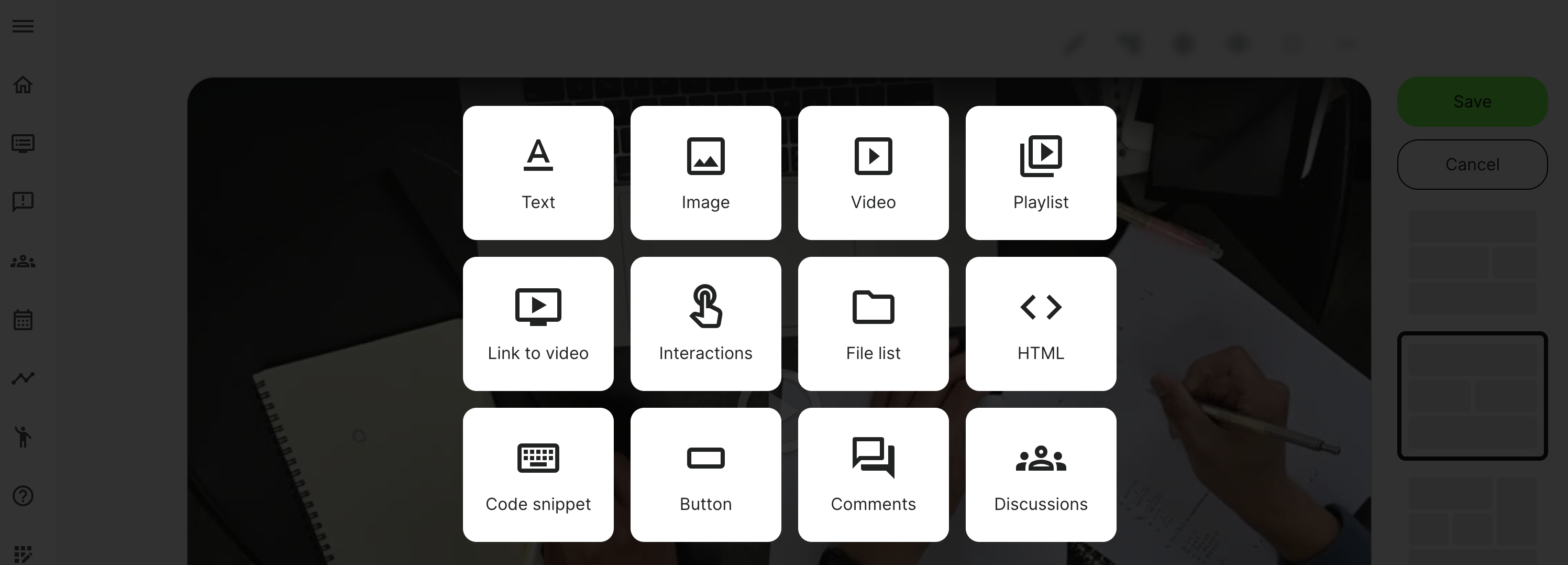
Insert image and upload to archives
The image widget will open up the archives for you to select the image to insert on the page. You can search or navigate through folders and use the home symbol to get back to the root folder of your files archive. It's also possible to insert an image on-the-fly and upload it to the archive, at the same time.
- You can insert and upload images to the archive, preferably in your shared folder, identified by course code (ID). This way you keep everything organized. To the right of the search field, you can upload an image into the folder you are presently in.
- You can insert images from the standard images archive. This is managed by the Platform Administrator and any company regulated images will be available from this archive. You cannot upload to this archive as a regular content creator.
- My files is a private folder. You can still insert images that will be visible in the courses, but no other co-authors will be able be able to see or search for files located in your private folder. This also allows you to upload images on-the-fly.
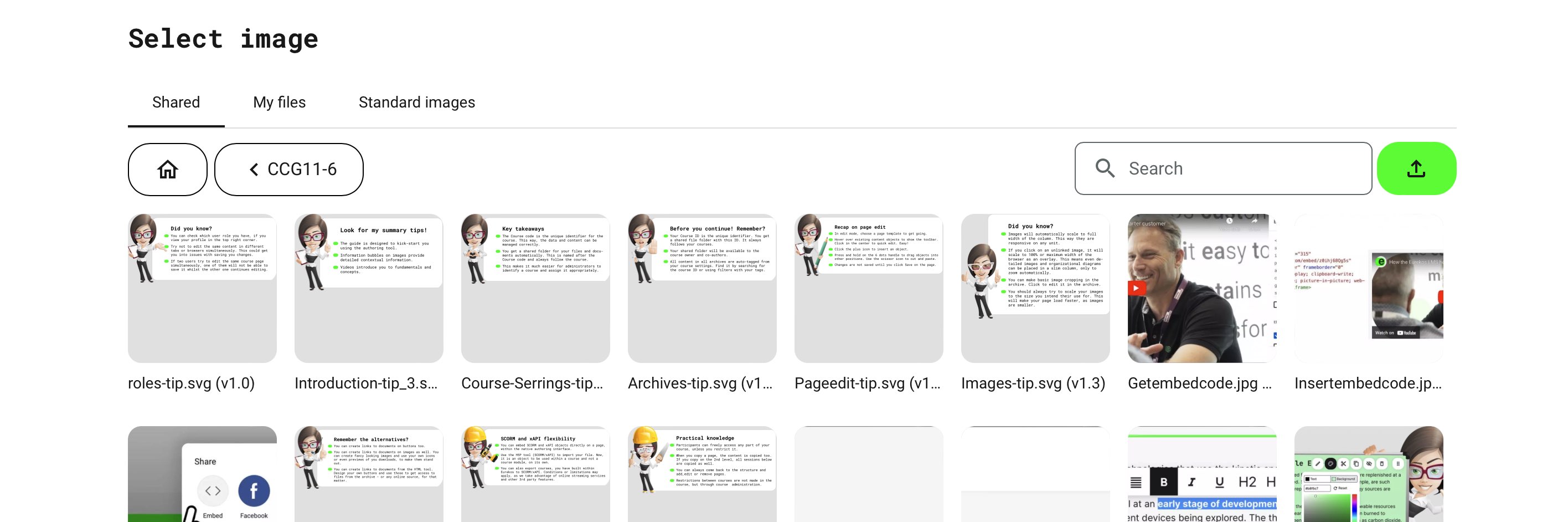
Image settings
Images will always scale to the full width of the column you position them in, but never scale above the original pixel size, nor twist the aspect ratio. This way it remains responsive to different screen sizes.
Images can be an important asset and not decoration on its own. Infographics and clickable for various purposes are common use cases. Use the object toolbar, hovering on an image to access the settings icon and change the behavior of an image.
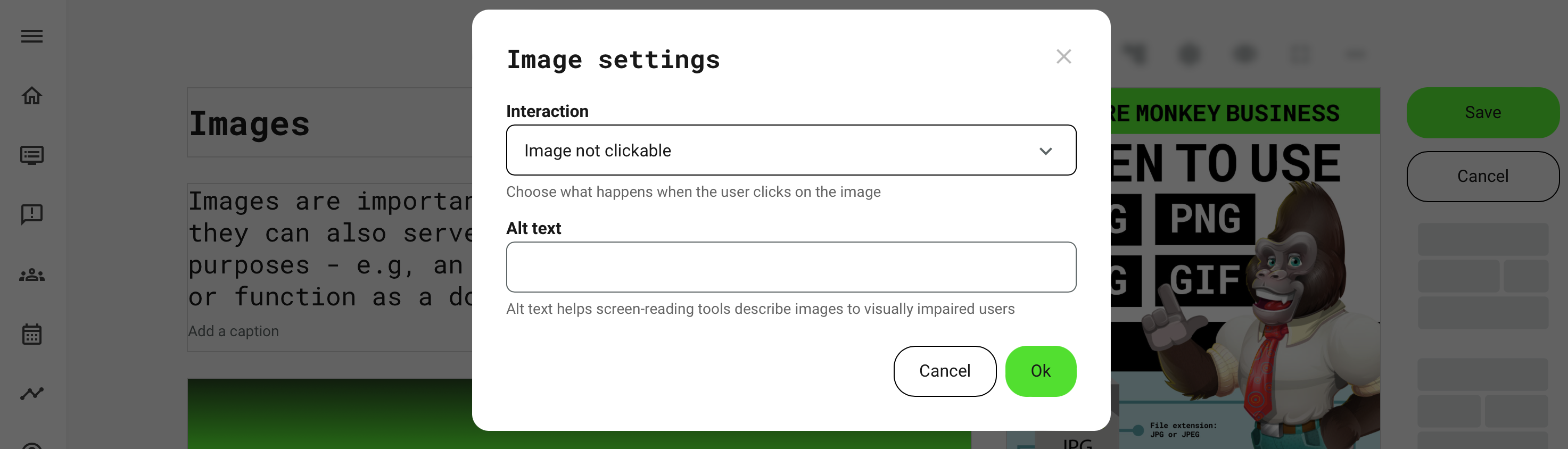
- Image not clickable which means it is a visual asset, with no actions. This is the default setting.
- Open URL will allow you to link to another page by providing a URL. This can be opened in another browser tab.
- Download file will allow you to download a file by clicking on the image. Select a file from the archives.
- Send email will open the primary email client of the user to send an email to your predefined email contact.
- Enlarge image will enlarge the image to maximize the view of the image to either browser width or 100% width of the orginal image. This way you can zoom into complex visuals and make them visible.
- Alternative texts for screen readers can be applied in all cases..
What is JPG, GIF, PNG and SVG?
These file types are suited for typical web use. Image size and type will impact if your pictures are blurred, load slowly and have transparency. Use the following as the rule of thumb.
- JPG for photos like those from your phone with many details, shades and colors.
- GIF for simple animations. Can also be used for simple, flat images with few colors.
- PNG-8 for flat colors and simple images and is your choice if you have the option over GIF.
- PNG-24 for transparency - e.g., a logo or an image with transparent background. Be careful as this could produce large files.
- SVG for vector based artwork - e.g., super crisp logo or if you want text to be crisp at any size. Can be combined with PNG images in one file. Can be a an "experts choice" and would not be your first.
What is the right pixel size for your images?
When you save an image from any ordinary image editor you mostly have the option to save images measured in pixels. Recommendations are pixels horizontally:
- Background image for login screens, etc.: 1920 px.
- Full page width image, course thumbnail: 1280 px.
- Half page width image: 750 px.
What size should your course thumbnails have?
You want to strike the balance between a great looking thumbnail banner and one that doesn't take up your entire screen real estate on a standard 16:9 screen. This is also valid for mobile phones in horizontal position and will have an acceptable trade-off in vertical position (upright).
- Recommendation: 1280 px wide and between 250-400 px high.
- Good practice to use the same size across all your course thumbnails for visual identity.
- Did you know that Administratos can make use of the Standard images and make a set of organization approved images available for course creators. Maybe they have even been sized and cropped already.
Smartphones and image sizes
Cameras on phone allow everyone great creative freedom and images is very often fantastic quality,. Be careful with sizes, though.
- The images will probably need down-scaling. They can be 2-5 MB and thousands of pixels wide. Many people are not aware of this. This will slow down your page load dramatically.
- Some new formats are being released by phone manufacturers. Formats are not supported everywhere and you best make sure to save them in one of the formats mentioned on this page, if you have any issues with this.