Comments - Article
Add comment threads directly to course pages to enable participant discussion within each training activity, with built-in moderation, @mentions, and activity-specific separation of conversations.
Updated: 2 Mar 2026
2 min read
Simple communication on course pages, where you want participants to participate
Comments allows you to create discussion threads similar to your typical "social media style feeds, and place these where you want on the course page. Once you click the Plus icon in page edit mode, you can choose to insert a Comment widget. Additional benefits:
- Facilitate communication easily and with minimum administration.
- Comments and replies are automatically restricted to participants within the same training activity.
- Use comments for easy-to-manage communication; use discussions for more comprehensive collaboration needs supported by the built-in feature, Communities.
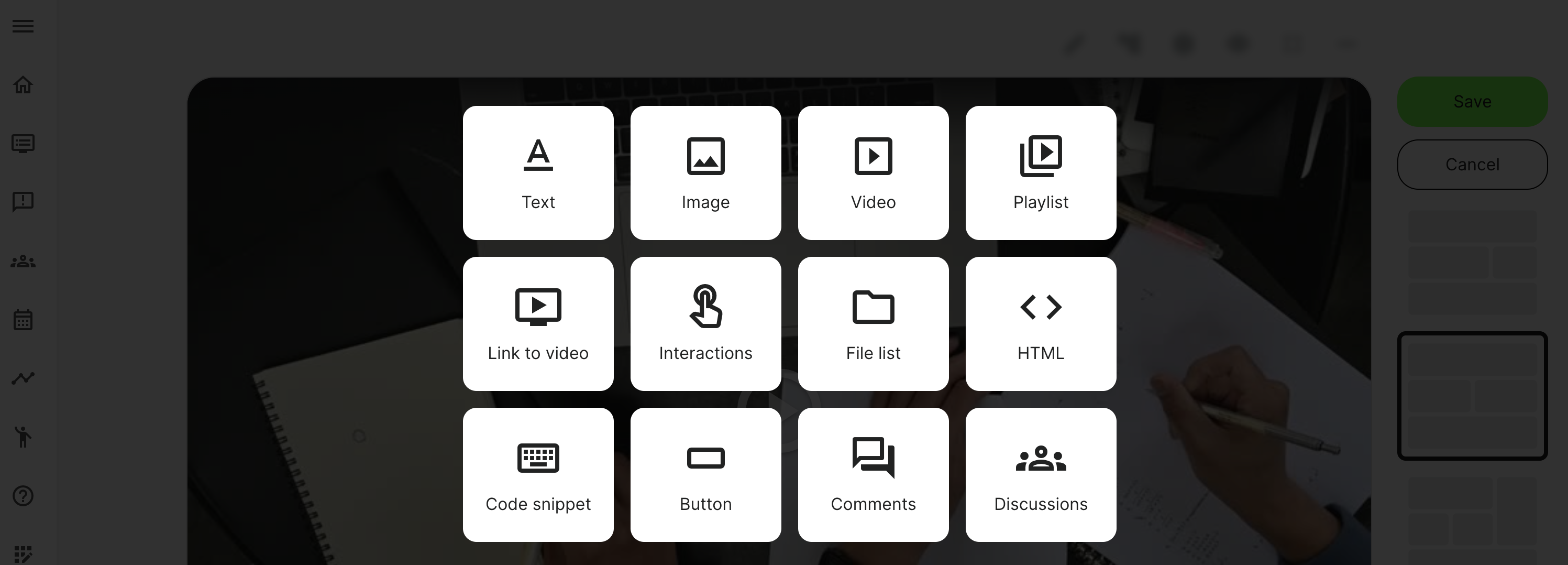
The widget can be added on any course page only once, and placed anywhere within the page. It will adapt to the size of the column you put it in.
- By default, the widget has a white background, with the option for customization.
- Other tool bar options include copy/paste, hide, trash and move.

Who can comment?
Comments are available to any participant in the training activity.
- Once your course is part of a training, the comment section becomes active to the individuals, who participate in that specific training activity.
- No comments are shared between different training activities. Imagine you have 2 co-horts/groups of people who have been given access to the same course materials. You DO NOT have to clone your course and maintain two identical versions of your course material. Each training activity has its own participants and comments are automatically separated between the two.
- Comments can include some rich text editing features, files from the archive, uploaded files as attachments and videos from the archive.
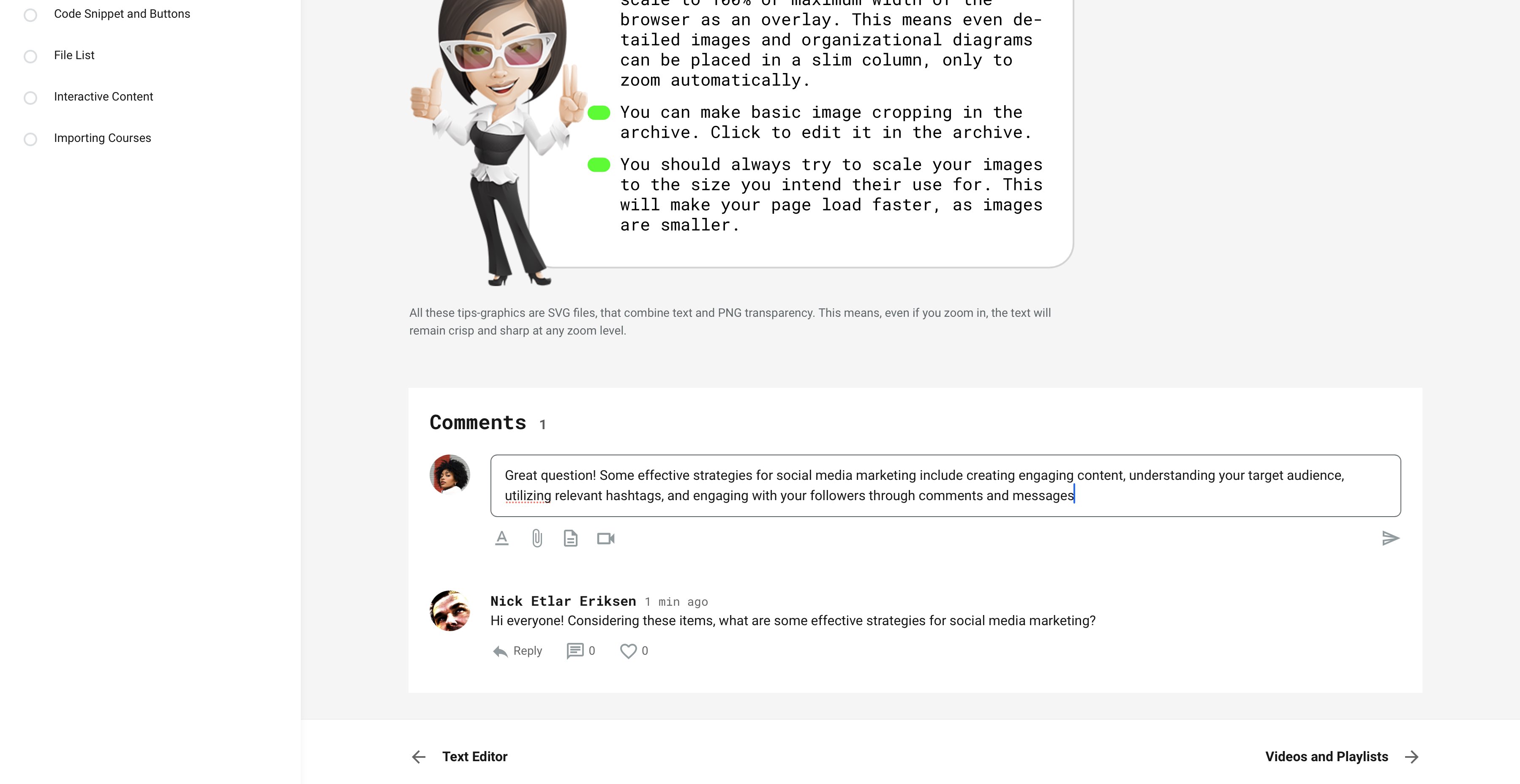
Notifications
Notifications are in general non-intrusive, to avoid spamming.
- Notifications are not sent unless a specific user is mentioned, using the @ symbol, which will allow looking up another user from the training activity to inform.
- At least 2 characters are needed from the name or email.
Permissions and moderation
Any type of communication will also need both actions from the originator of the communication, but also some moderation capabilities.
- The participant who made a comment can edit and delete own comment.
- Responsible instructor of a Training Activity can delete any comments in that particular activity.
- Platform-/Global Administrators can delete and edit any other user's comments.