File list - Article
Insert dynamic file lists from archive folders or connected drives (OneDrive, Google Drive, Dropbox), automatically updating course pages when documents change — without manual re-linking.
Updated: 2 Mar 2026
2 min read
Create automatic lists of documents and files from a folder. Integrations include: Onedrive, Google Drive and Dropbox
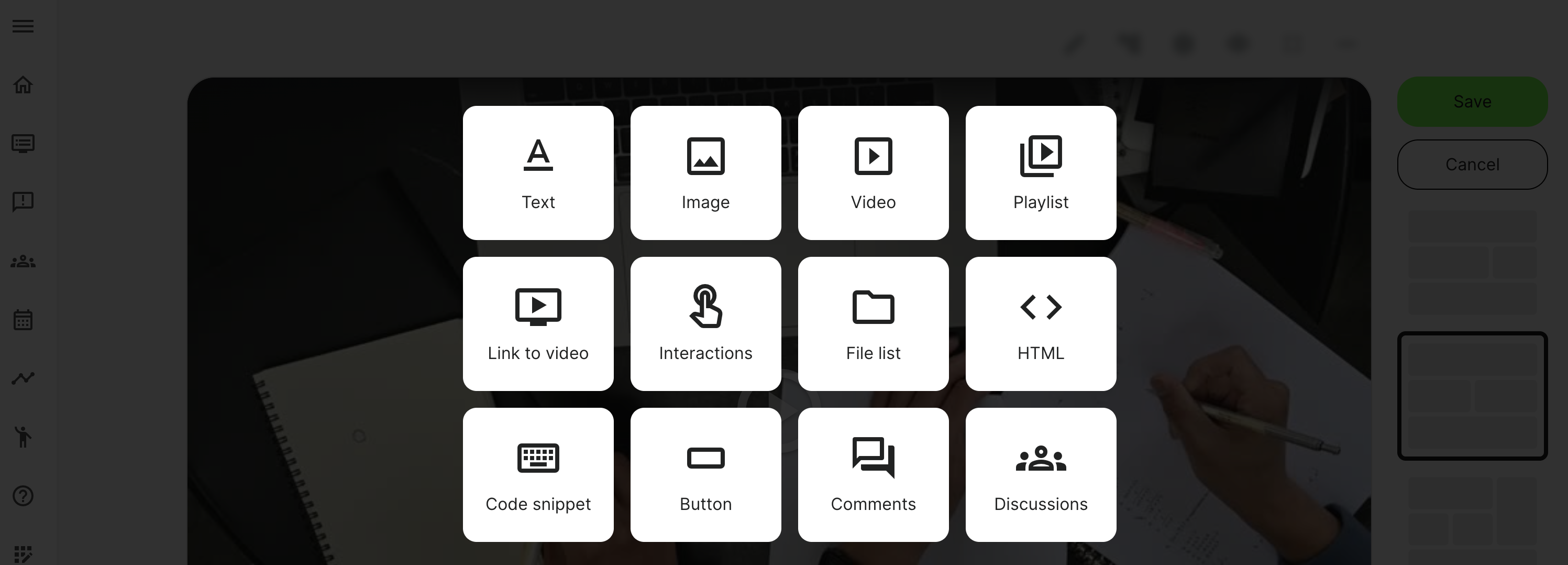
The File list tool is an easy way to insert one or multiple PDFs and documents to the page. It allows you to pick a folder from the standard file Archive, which in turn will be presented for download on the page.
- You can even show files from external sources: Onedrive, Google Drive and Dropbox if they are configured in 3rd party integrations.
- You cannot select a single file, but you select a folder to show its content from.
- When a new file is added to a folder, the list will be automatically updated on the course page.
- Remember that you alternatively can create links to documents in texts, use the HTML tool, design your own buttons to get access to files - or any online source, for that matter.
List documents and files from the archive
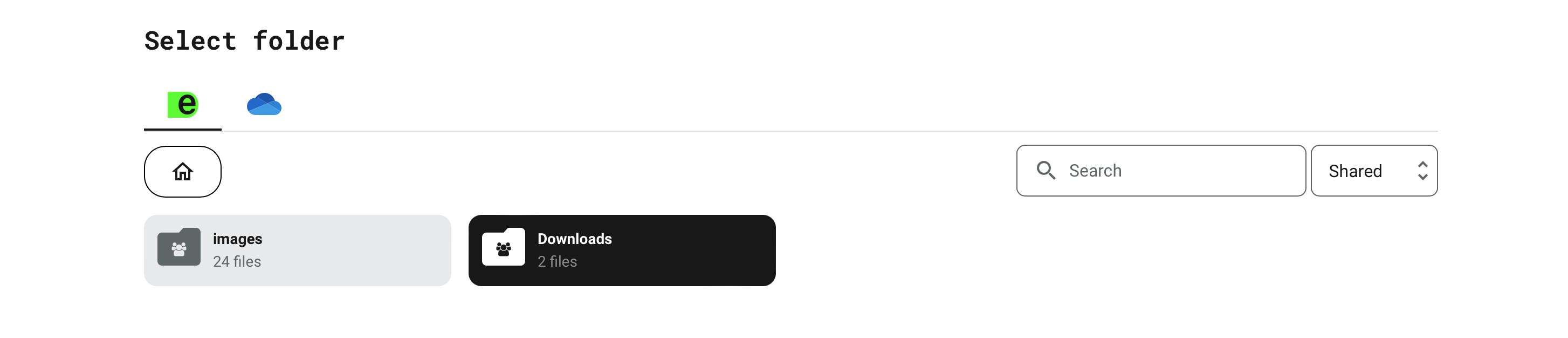
In page edit mode, click on the the File List to enter the shared folders archive you have access to. Adminstrators will have access to the entire list of shared folders.
Remember that the folder name is corresponding to the uniuqe course ID. You can search and use your course ID.
- Each folder will show how many files and subfolders it contains. If it has subfolders, it can be expanded to show the contents.
- The selected folder is highlighted.
- The files of this folder will be shown on the course page. It will not show other "folders", but only the actual files within one folder at a time.
- Now your documents are dynamically updated on your course page. Whenever you add a document or file to this folder, it is instantly reflected on the course page. You will not have to re-insert the file list again.
- You will only see folders, for which you have permission. This would include being co-author on a course, while admins till see all folders.
Listing on the course page
On your course pages, files will be presented with icons, names and file size. Participants will see the files and not where they originate from.
- Your administrator can connect Onedrive, Google Drive and Dropbox. In this case, you will have access to the service offered by your organization. If you are using external archives, make sure your audience has access and the permissions are correct. Otherwise, you might find that people can't access the files.
