Video archive - Article
Upload and manage your videos using the native global video streaming service
Upload and manage your videos in the video archive. This provides instant global video streaming through the native video player with subtitles and features such as playlists and the ability to insert slides with time cues. Videos are available in the main menu.
- Upload single or multiple videos into the video archive. You can upload multiple videos, but they will queue. To have efficient upload, 5 will upload simultaneously and continue from the queued videos. Do not close the window or move away from the tab until they have been uploaded.
- Most common formats are supported. Videos are automatically converted to both a HD and Full HD video quality.
- Create playlists, using other videos.
- Playlists are presented as a list in the video player and will automatically progress to the next video in line.
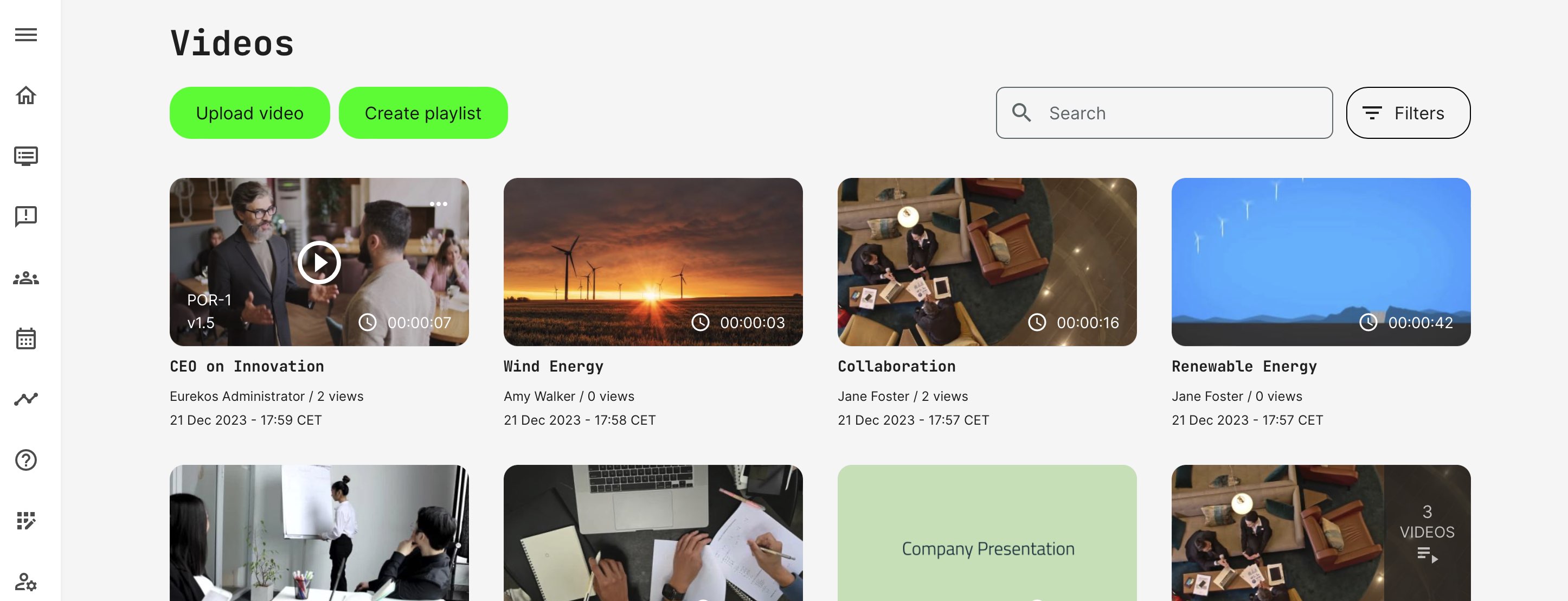
The video archive is based on automatic tagging and search criteria, used for indexing your video files. This includes logic like "mine, not used" and "categorization", etc. The more tags you apply to your courses, the more will also tickle down into your individual learning objects.
- Once you add your videos to courses, the videos inherit all the course tagging and you will be able to find them easily - or other similar videos with same parameters.
- Course code (ID) can also be used as a search criteria to find all videos related to a specific course.
- Keywords can be used as search criteria.
Editing the video
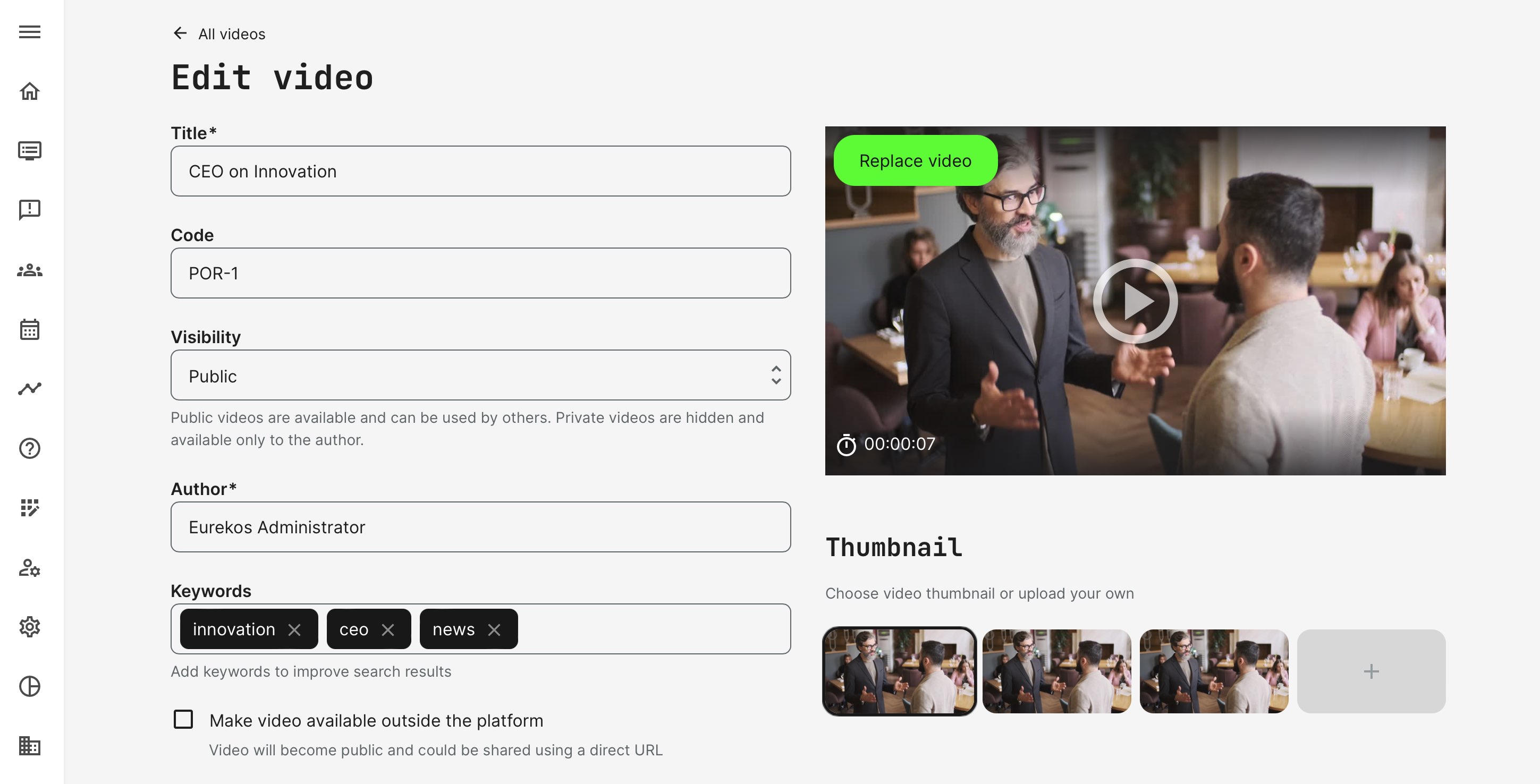
Edit the video to change settings, enable behaviors on subtitles, add slides, add keywords and more.
- Title of the video is shown in the videos overview. The title is shown on playlists, if these are created. This should be a title that makes sense.
- Code is the internal administrative ID, which course creators can use to identify multiple videos from each other, using specific taxonomy.
- Visibility defines whether this video is only visible for me in the video list. It can still be insert in courses, but other users (e.g., other users in my organization) would not know that it is there.
- Author is the person who uploaded the video. This can be changed.
- Keywords will allow adding keywords to help search results for course creators to be better able to locate specific videos. This is not related to participants.
- Make this video available outside the platform will allow a link to be shared and played, even if the user is not registered and logged in.
- Replace video is a strong feature that replace a given video with a new version. Any courses this video is already part of, will just be updated instantly. No other actions needed.
- Thumbnails can also be added in 16:9 format. This is the video poster or splash screen, as it is also referred to sometimes. The thumbnail is shown until the video is played.
Versioning
Versioning is automatically supported on videos and any re-upload or change will also impact the versioning. There are major and minor actions.
- Major is when you replace the video with a new one. This will result in a new major version, e.g., 1.3 → 2.0.
- Minor is when you edit things like title, author, keywords, subtitles, etc. This will result in a new minor version, e.g., 1.0 → 1.1.
Subtitles and translations for videos
Subtitles, also known as closed captions (CC), can be uploaded in VTT or SRT format and related to a language.
- Choose whether subtitles will automatically show to users. Default choice is to show, if subtitles are added.
- If the language matches their profile setting, e.g., Spanish will show if the user has Spanish set as the default language and this is available.
- If the language is not available and the video is configured to show subtitles, the platform default language will be 2nd priority.
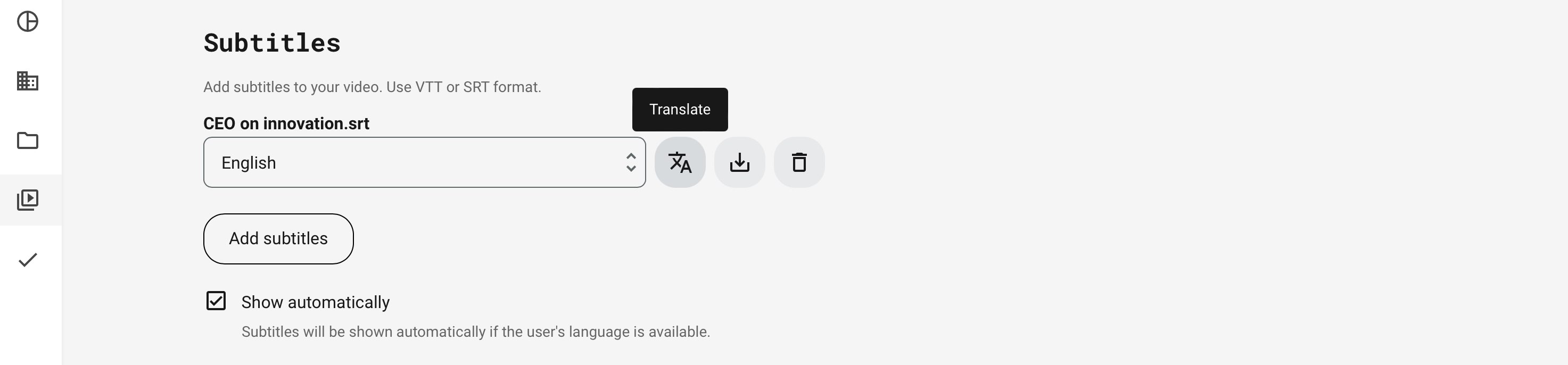
Once AI translations has been enabled, Global Administrators and Platform Administrators start translation to different languages.
- Choose which of the enabled languages to translate to.
- Use any enhanced trained model (NLM) on specific products and services for certain language pairs, will also be an option on video level.
- Note: If a course is translated, this will automatically include videos that were already part of that course, prior to the translation. If you add a new video, subsequently, you will want to go and make the translation to include subtitles for the new video in multiple languages.
Classroom style
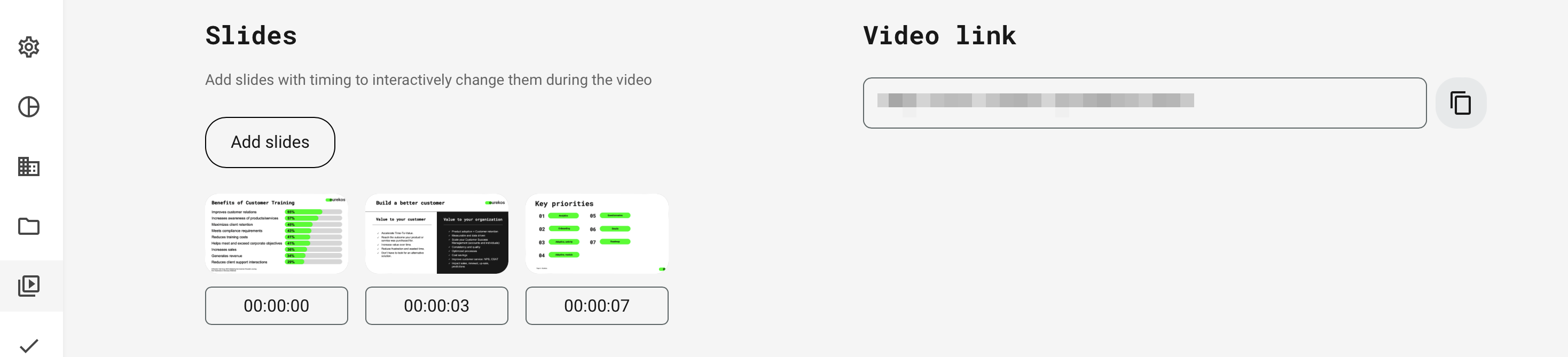
A very handy way of transforming recorded sessions with trainers or instructors into effective video presentations, is to use the slides function. Add your typical PPT slides and "time" them as your scrub through your video. This does not require extensive video editing and saves time.
Your audience can look at the slides or the instructor and navigate the session using the slides.
- You can add slides by e.g.: exporting images from a powerpoint and then add them to the video.
- Time code each slide with minutes and seconds.
- Use the video player to navigate through slides like chapters or bookmarks.
Video download
Roles which have permissions to download the videos:
- Global administrator.
- Administrator.