Course review - Article
Send courses for review with subject matter experts and other stakeholders
The native authoring tool offers a formal course review process to include subject matter experts and other stakeholders in validating and reviewing your content.
- The author of the course can send a review request to both registered users and anyone who does not have an account.
- The reviewer gets an invitation to review the material and can leave comments on the pages.
- When completed, the course author is notified and resolves comments.
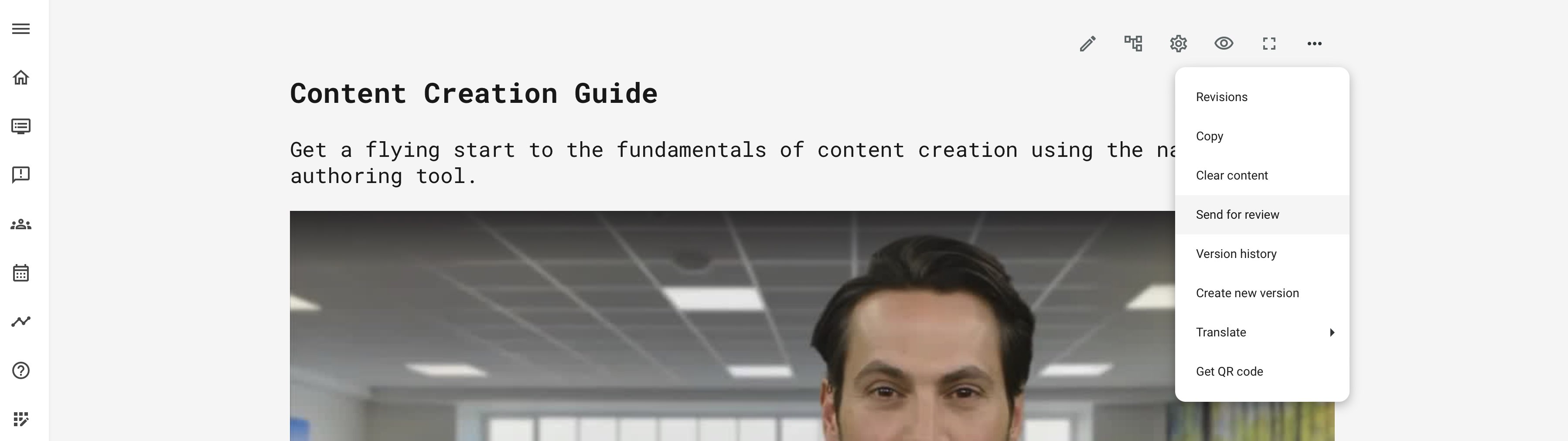
Find the review function on the course by accessing the 3 dots menu. Note the many other advanced features available from this menu.
- The review function can be used by any course author and admin.
- There may be multiple reviewers at the same time. Reviewers can see the whole course in “review mode” and leave comments to the author.
- Reviewers can see each other’s comments and collaborate on providing feedback
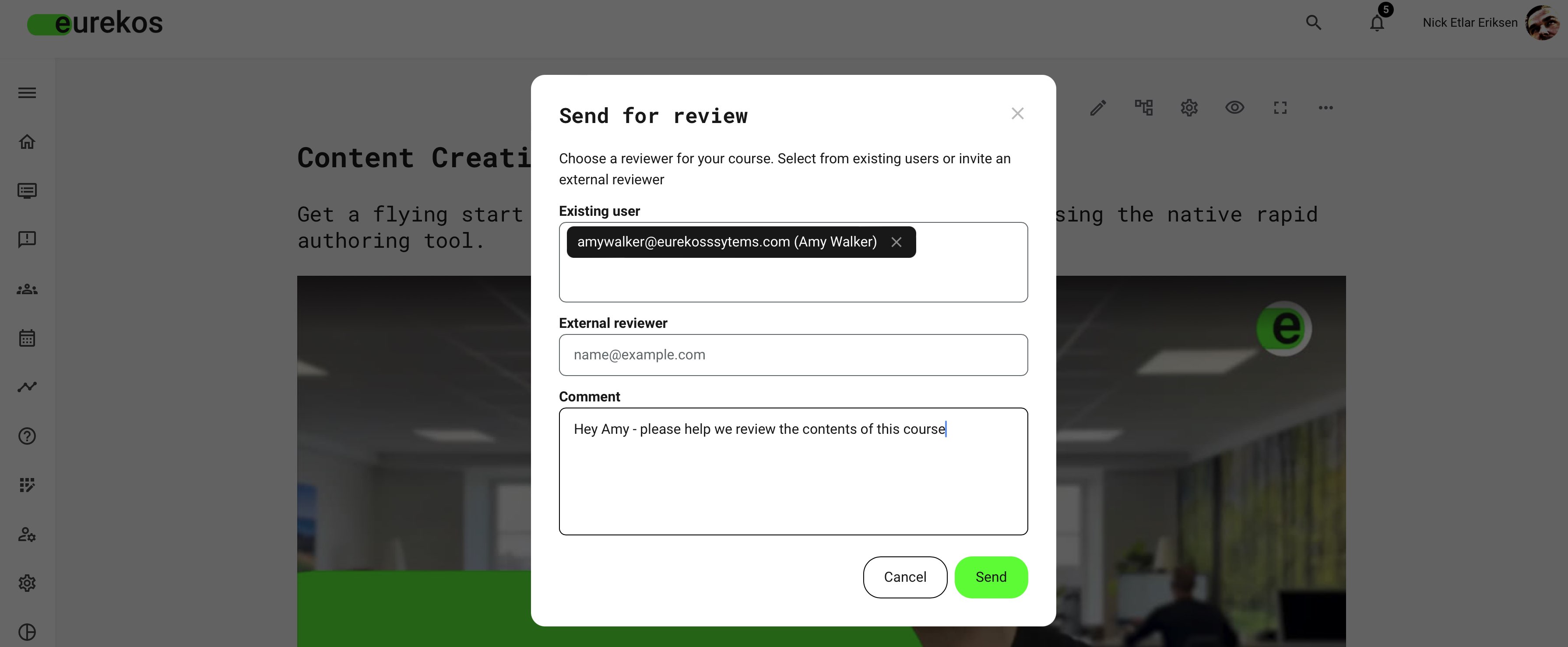
Review request and its features
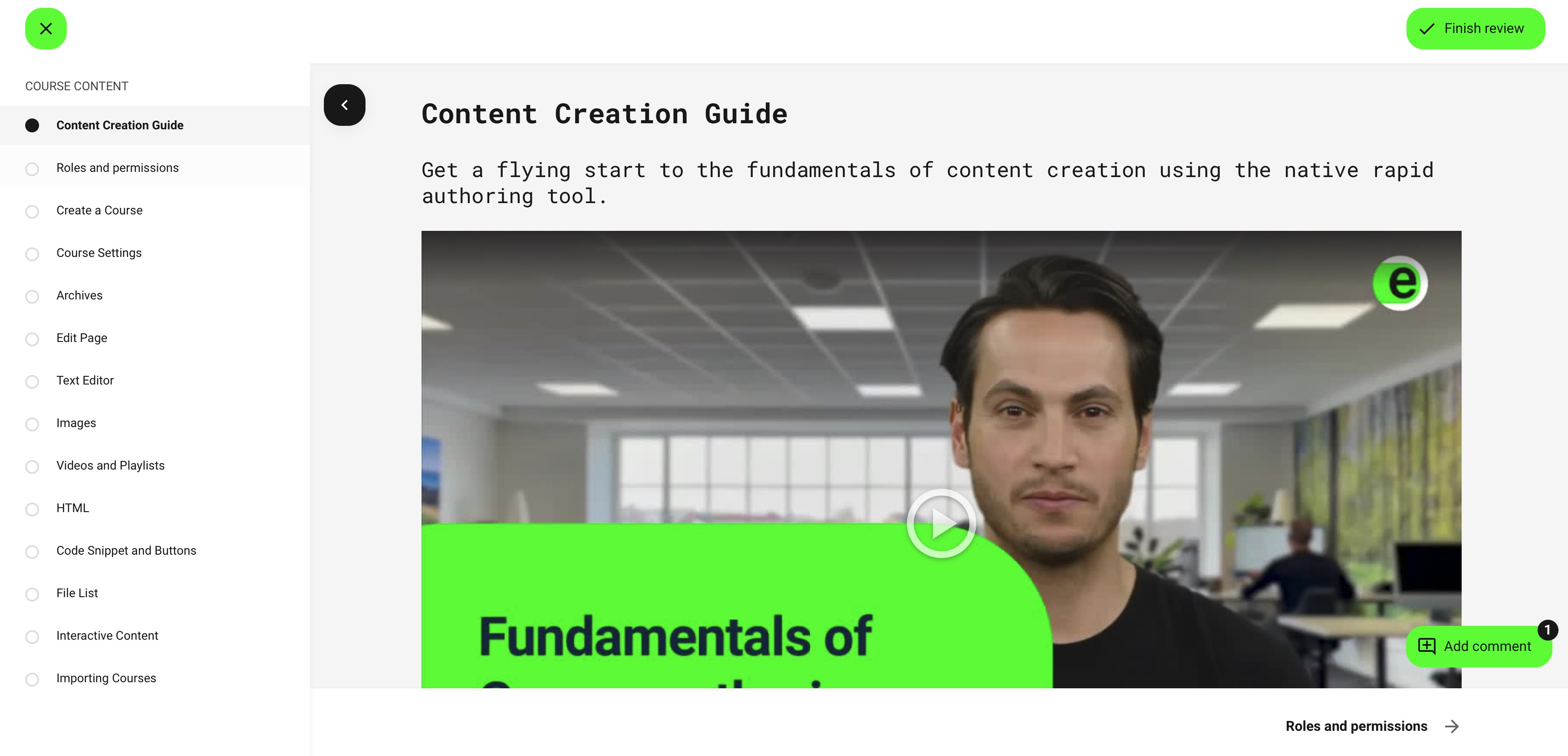
Reviewers view the course in a review mode which is visually similar to viewing the course materials as a participant. When a reviewer opens the course in review mode the review is considered to be started.
- To review, the invitee clicks on the email request.
- To add comments, the reviewer clicks on the add comments button on the page. This is available everywhere in the course.
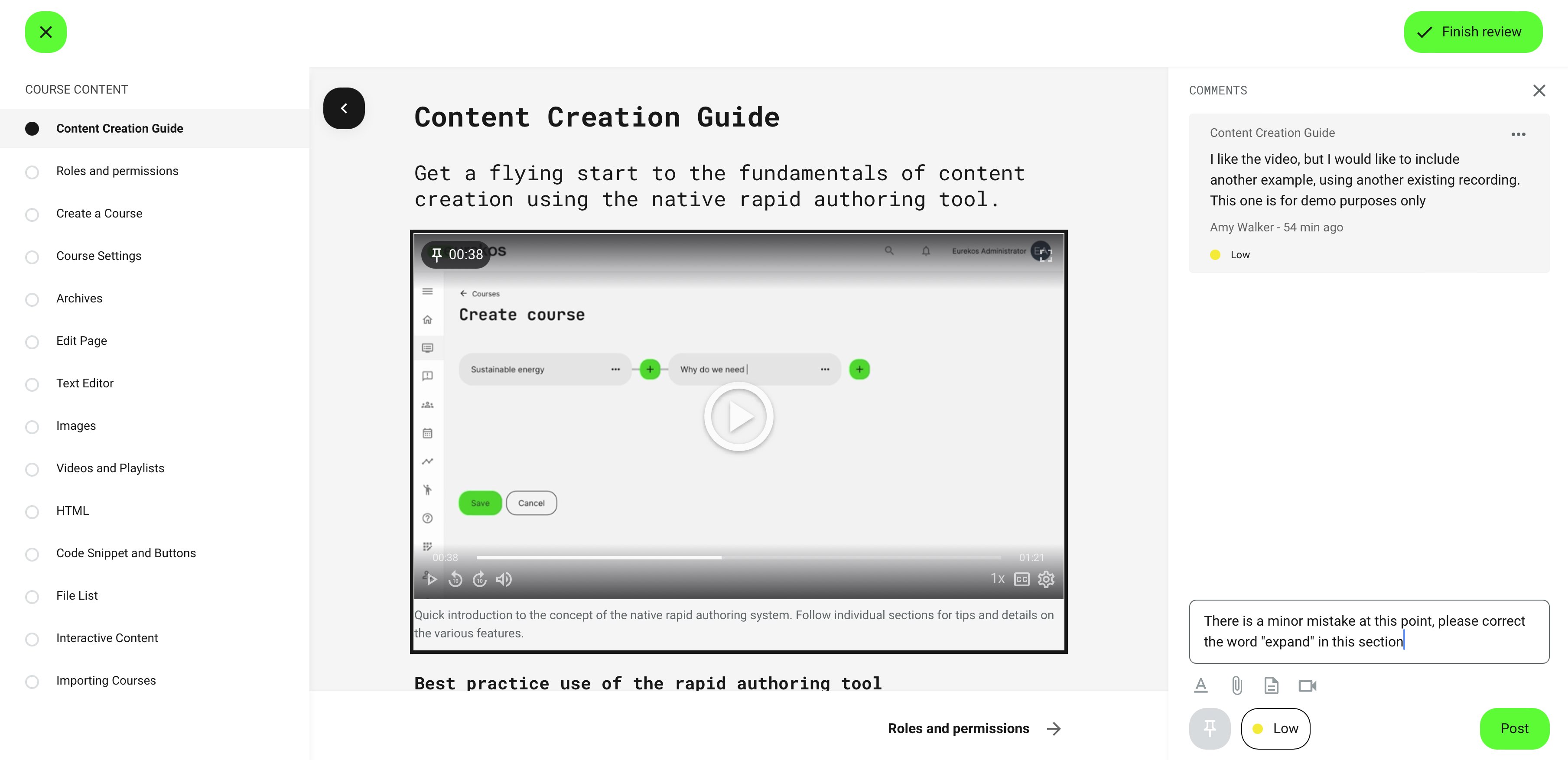
Comments can be pinned to a section (a content widget of any type) on your course pages. This makes it easier to relate and resolve the comment from the reviewer.
- Clicking a Pin icon lets the reviewer select any widget on a page. The comment will refer to the particular widget.
- It is also possible to Pin a timestamp within a video. On the video, click on the Pin icon, while it plays to add a comment with a timestamp. This will provide the author with options to check your comment, at this time cue.
- Severity is an option to provide the author with feedback on "low, medium and high" priority of this comment.
- Once a comment has been made, the author and other reviewers are immediately informed on email, that a comment has been made. Comments can be edited only by the author of the comment.
- Comments are visible to everyone, who is part of the review process.
- Circle marks on the pages, displayed in the left-hand course menu, indicates that there are comments related to this page.
Completing the review
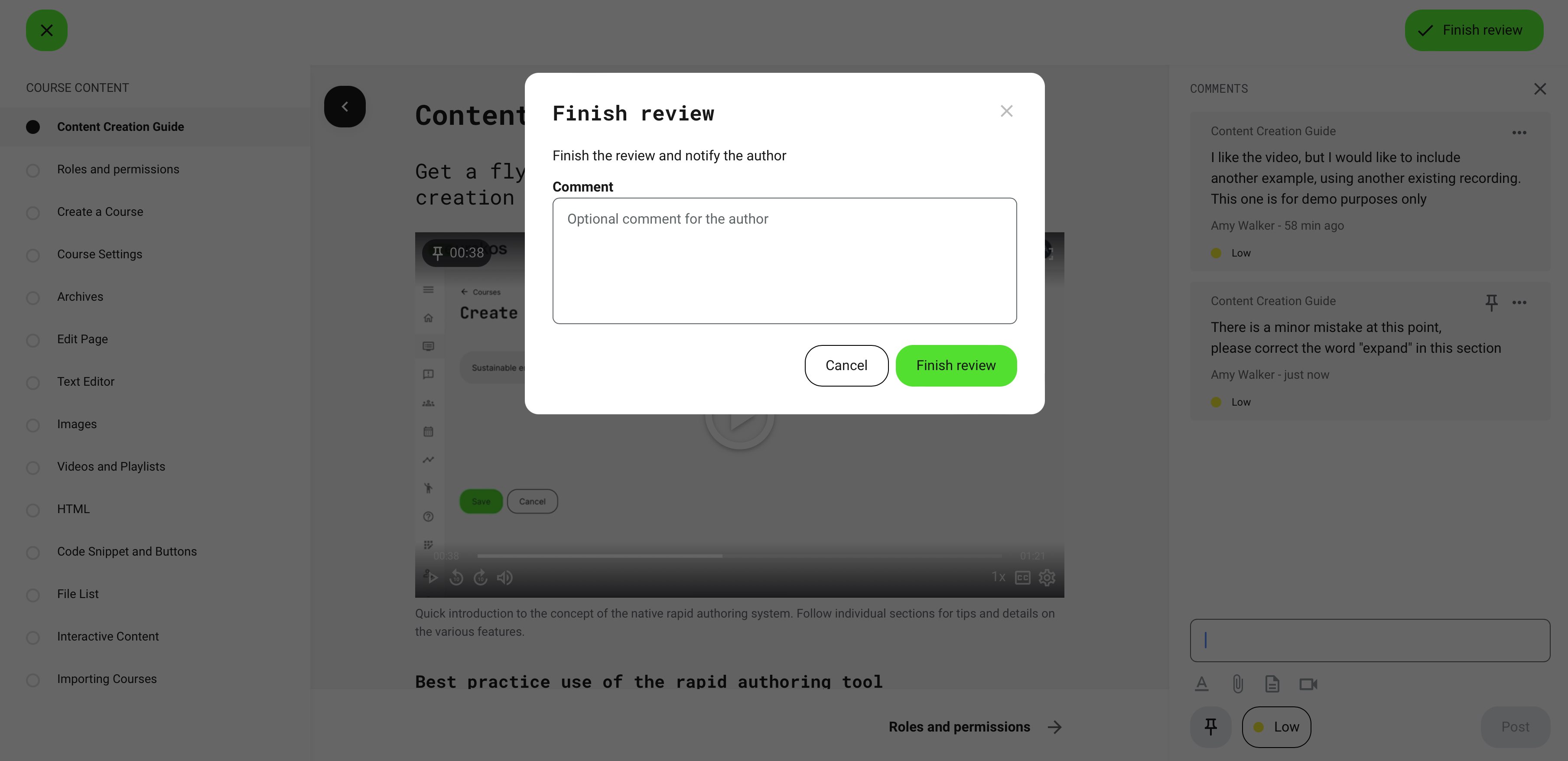
Reviewers finally click the Finish review button at the top of the page. The reviewer can make additional, final comments to the author, who will receive these in an email notification, along with a link to go and resolve the comments.
- The reviewer is now excluded from the list of reviewers "in progress", shown to author.
- The reviewer can no longer access the review mode, until they are invited for a new request.
Viewing and managing comments as the author
All reviewers who have actively started the review, are displayed to the author at the top. This will also contain additional information such as name or email, if this is an anonymous user.
Clicking on the comments icon, will show comments.
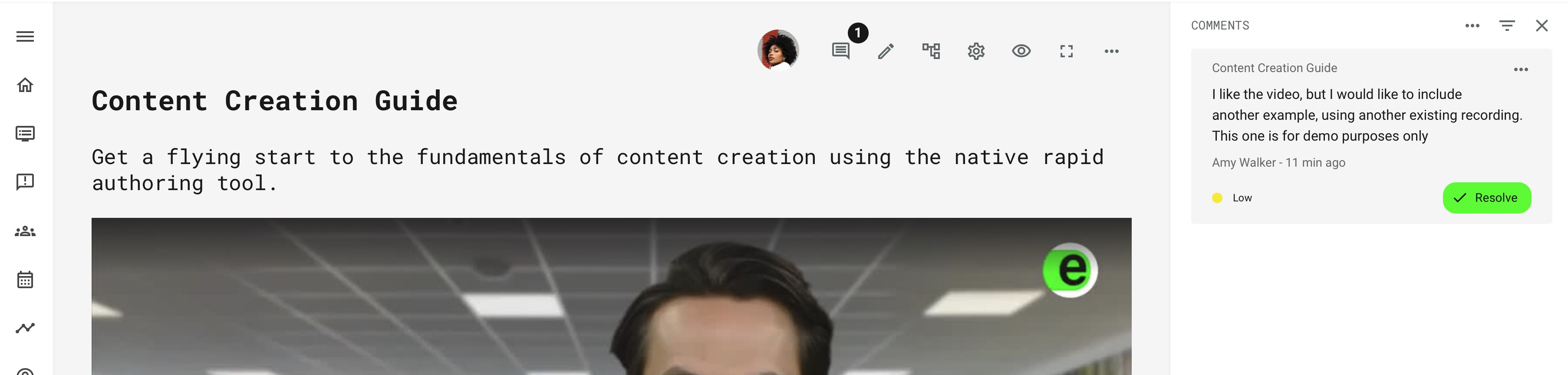
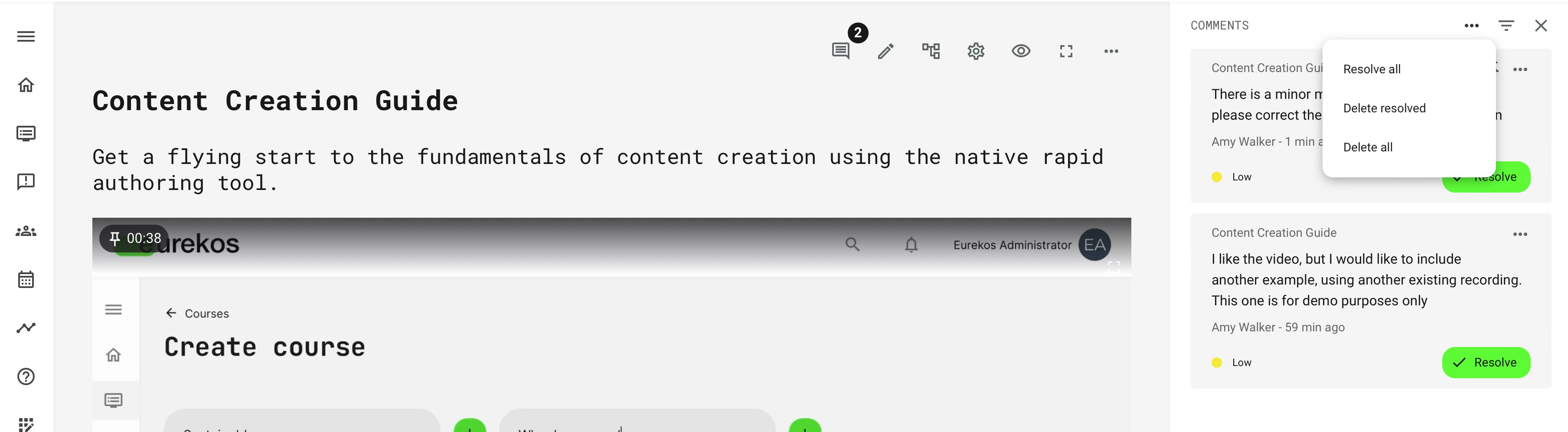
- The author can see all comments, mark them as resolved/active and delete them.
- Text of resolved comments gets a "strikethrough" style and are moved to the bottom and the comments numeric counter reflects the change.
- Bulk operations are available, mark all resolved and delete all resolved, for convenience. Filters allow sorting on priority and will work in combination with options.
- Clicking on pinned comments, will scroll to the area on the page the comment is relevant to, or even to the timestamp (e.g., 01:38) in the video, the pin refers to.
Review by anonymous users
External reviewers who don’t have a registered account on the platform, can access the whole course and see other reviewers' comments.
- An external and unregistered user receives a link to the course, with a unique token.
- The link can have a specific expiration. Contact support@eurekos.com for configuration of custom requirements.
- The anonymous reviewer can't access any other pages, except this course until the review is completed.
- Anonymous reviewers cannot access any assets from any internal archive.