Archive for files and images - Article
Shared folders to upload and organize files such as PDF, Word and images
The files archive is the standard archive to upload your typical files, with a twist for asset management. The Archive is available in the main menu.
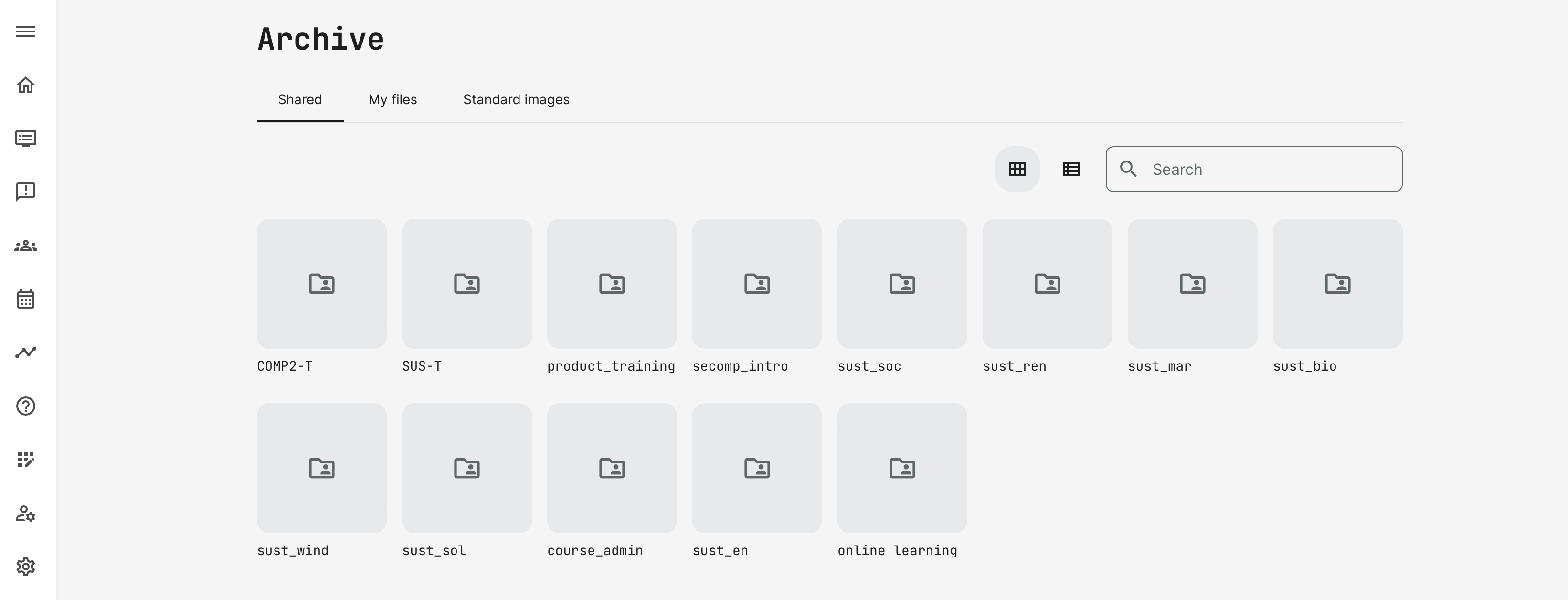
Keep your files structured by course
When you create a course, this provides a shared folder automatically. The folder inherits the name of your course code (ID).
Be sure to add documents such as PDF, PowerPoint and other regular files into the shared folder tied to your course. This way it stays with the course and co-authors will have access to all files.
- Shared folders are automatically created and you can only create new folders within the automatic folder.
- Add multiple files by uploading them your course folder in one operation.
- Rename, move and delete items. You don't have to worry about broken links.
- Create sub folders to organize your documents and files inside the shared folder.
- My files is a private folder for you to upload files that should not be accessible to others, or would just be irrelevant to everyone to see.
- Standard images is a folder structure administrators can manage and upload corporate identity visuals and make them available as a set of strandard options for course creators.
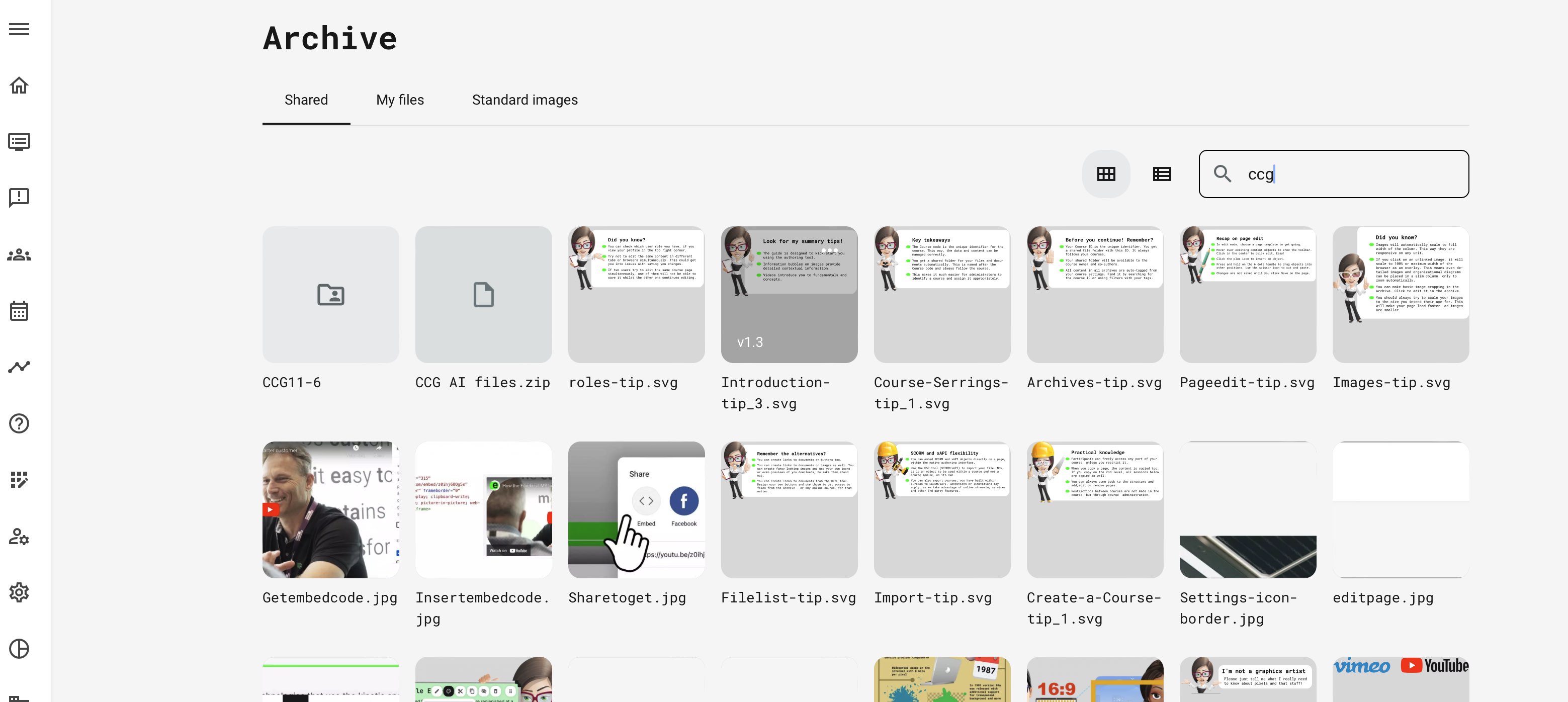
The archive is based on automatic tagging and search criteria, used for indexing your files. This is a powerful option when you have a lot of content. E.g., use the Course code (ID) as a search criteria to find all files related to a specific course.
Shared folders and permissions
Folders are only visible to individuals who have either administrator privileges or have been made co-author of the respective course.
- A Platform administrator will be able access all folders in the system and be able to access the contents of the folders.
- An Instructor role, who has access to create content, will also have access to the folders, but only the ones he is the owner and author of, and the ones he has been given co-author permissions to.
Versioning of files
Versioning is available for every uploaded file or document in the archive.
- The version number is generated for every newly created file and updated automatically every time this document is replaced or updated.
- Major is when you replace file. This will result in a new major version , e.g., 1.3 → 2.0.
- Minor actions, available to some types of objects, (like crop, rotate, rename, move), will result in a new minor version, e.g., 1.0 → 1.1.
- The version number of the object is visible upon hovering the object.
- It is possible to integrate Microsoft Online, which will allow online editing of files in a collaborative manner.