H5P archive - interactive learning tools - Article
Interactive learning tools to engage and enrich your courses
Create interactive content using the integrated H5P tools, which makes it easy to create, share and reuse your content. With this, authors can create, edit and manage interactive learning tools such as interactive videos and presentations. You can easily create small game-like learning experiences through interactive videos, quizzes and other rich experiences.
The H5P archive is based on automatic tagging and search criteria, used for indexing your files. This includes logic like "mine, not used" and "categorization", etc. The more tags you apply to your courses, the more will also tickle down into your individual learning objects.
- Once you add your H5P objects to courses, the objects inherit all the course tagging and you will be able to find them easily - or other similar objects with same parameters.
- Course code (ID) can also be used as a search criteria to find all objects related to a specific course.
- Type can be used as well.
Even though H5P is a 3rd party tool, both creation, management and data is entirely and exclusively on your own platform. Nothing is created shared outside of your own platform. Both for convenience and for security purposes.
H5P is portable. You can export the objects you have created, by downloading them and use them on another supported service - e.g. on your website or on H5P.com, who are providing an online service.
Creating an interactive learning object
You can create and edit an object directly from the H5P archive in the main menu.
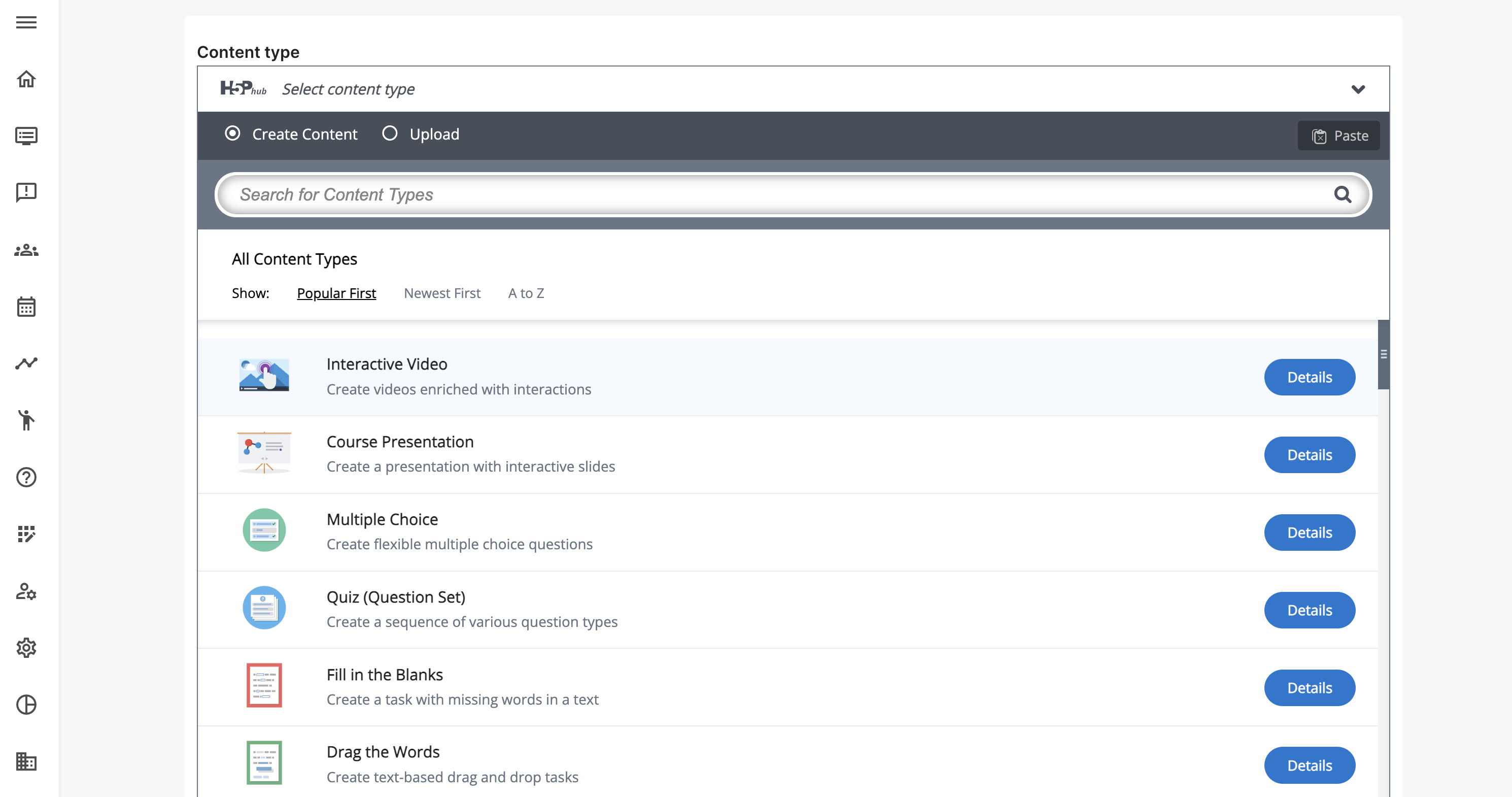
- Create a new H5P interaction. Each has tutorials to help you get started.
- Edit your objects directly from the archive. Any changes you make will instantly update everywhere it has been used.
- Easy edit on the course pages means you can edit a specific H5P object directly from the course page, not having to locate it in this archive, once it has been inserted.
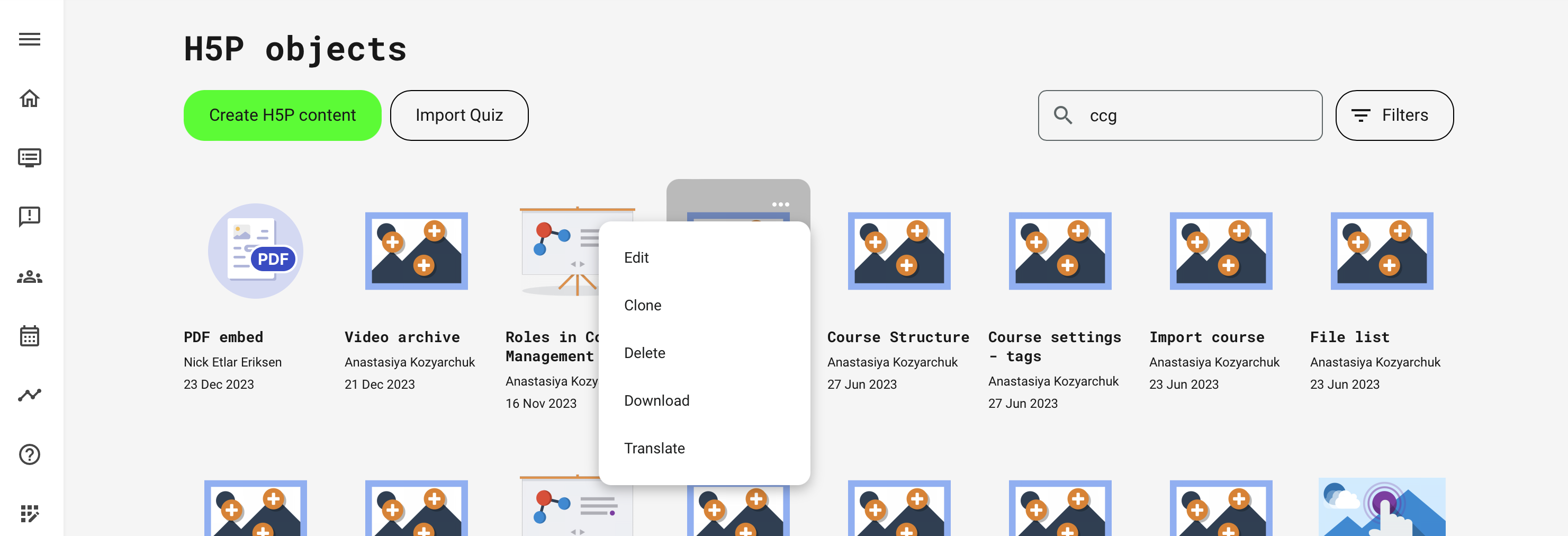
A special option Import Quiz lets you import an excel sheet, which will convert into a H5P Question Set - e.g., a pool of questions within a single learning object. The excel sheet has a strict format to follow.
Which tools should you focus on?
Just jumping into these is very exciting for most. However, with 40+ different options, it can be a bit overwhelming to figure out which ones to focus on. And you shouldn't! We have recommended the most powerful and poplular all-around tools to give you a good start. These offer both presentation and practice.
BONUS: In addition to what is available from the H5P toolset, we have developed some that are only available through Eurekos. This includes a PDF embed tool, an eBook viewer (or any encapsulated HTML object) and a 3D object viewer.
The most popular H5P learning tools includes:
- Question Set - quintessential quiz tool from H5P.
- Course Presentation - aka powerpoint, slide deck presentation with extenstive interaction options.
- Image Hotspots - in-image descriptions for scenes, products and screen captures.
- Interactive Video - very powerful interactive options, easily editable on top of your videos. Branching scenarios are possible.
- Drag and drop - exercise and comprehension checks visually, rather than quizzing.
- Accordion - simple, expandable presentation of options like "People also ask".
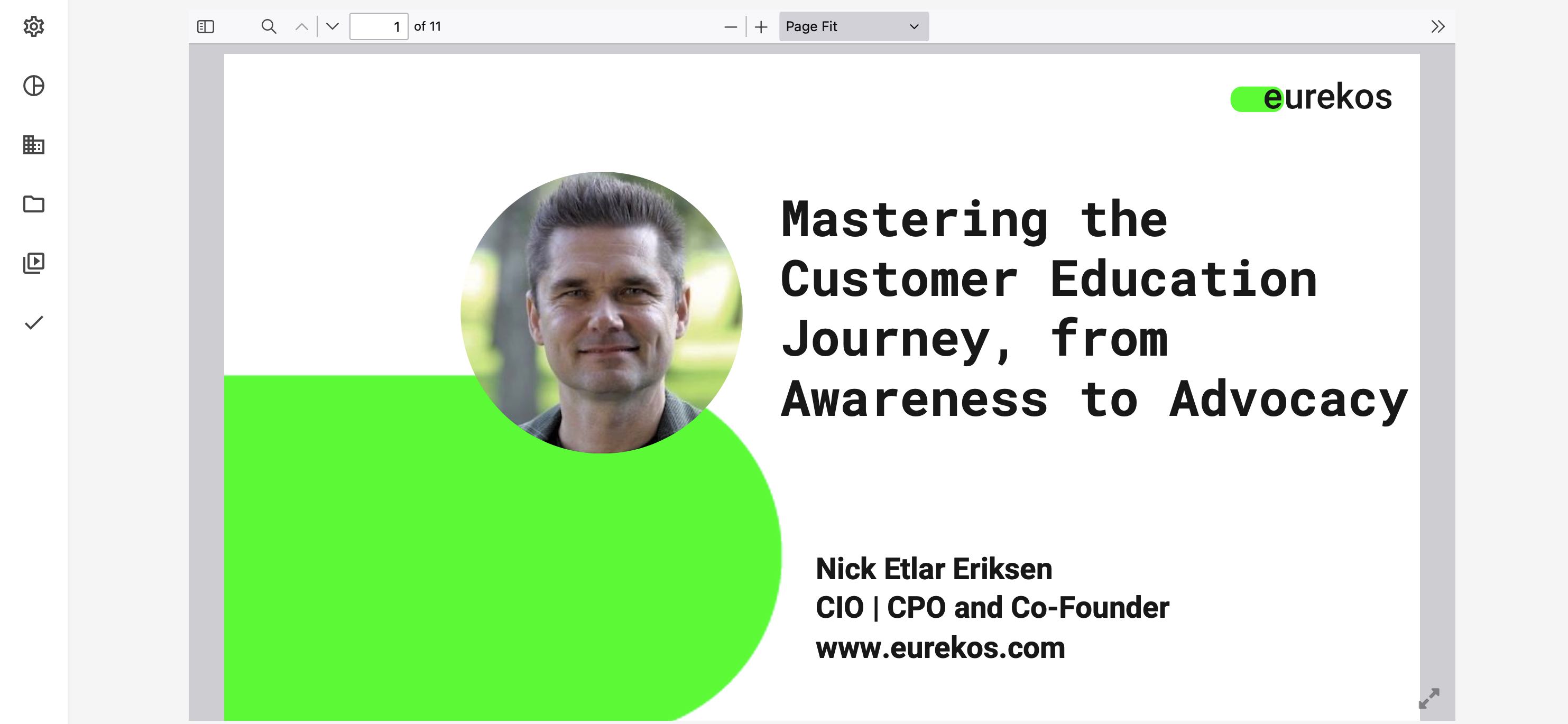
- PDF viewer - a searchable PDF directly on your page, which cannot be downloaded.
Question Set
By far the most commonly used interactive tool. Everyone needs a quiz with randomly selected questions from a pool of available questions. This tool allows images, videos, tips, feedback on answers and provides lots of behavioral settings.

Use the tools creatively - e.g.: The Question Set could simply be used to collect attestation through a single question with multiple options. This is useful for getting compliance answers to verify that certain actions have been completed or is agreed upon.
Important: The Question Set can be used to restrict access to course pages and to issue certificates based on passing a test. Leave management of certification to course administrators, to ensure it is done the right way. Just focus on the actual content in the quiz.
Course presentation
This in some ways similar to your regular Powerpoint, Keynote or Google Slides presentation tool. It doesn't need any application download, which is an advantage on it's own. It can be used to create branching scenarios and anything from presentations to game-like experiences with questions, videos and much more. In this course, this tools was used to create the "Tips" from our teacher, the definition of roles, amongst other things. This allowed layering of content and slides.
Tutorial for Course Presentation.
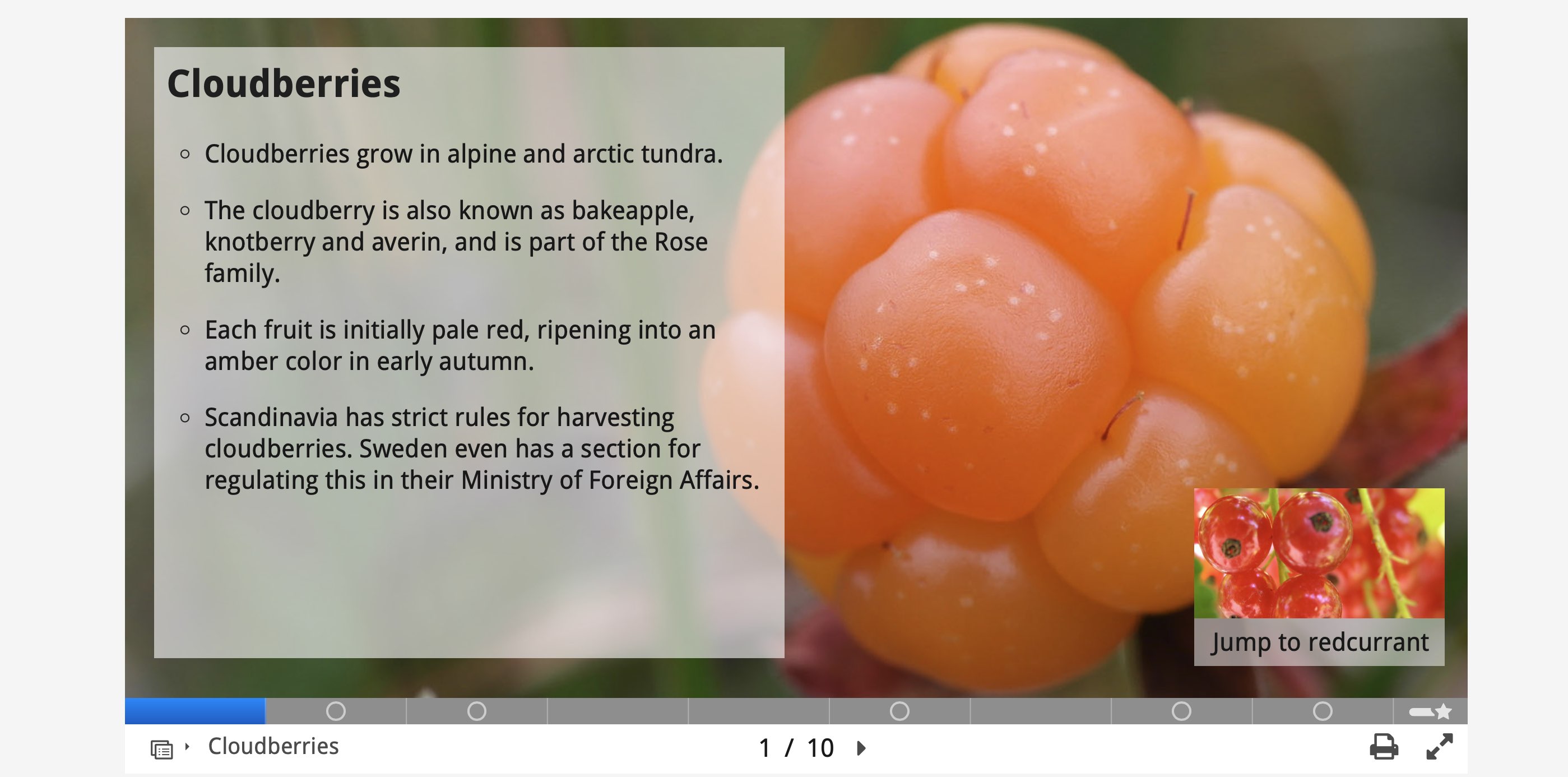
Image hotspots
You have been experiencing this on many occasions in the course. It is a very efficient way of presenting scenes, equipment or screenshots with hotspots for more information. Hotspots may reveal texts, images and videos when clicked.
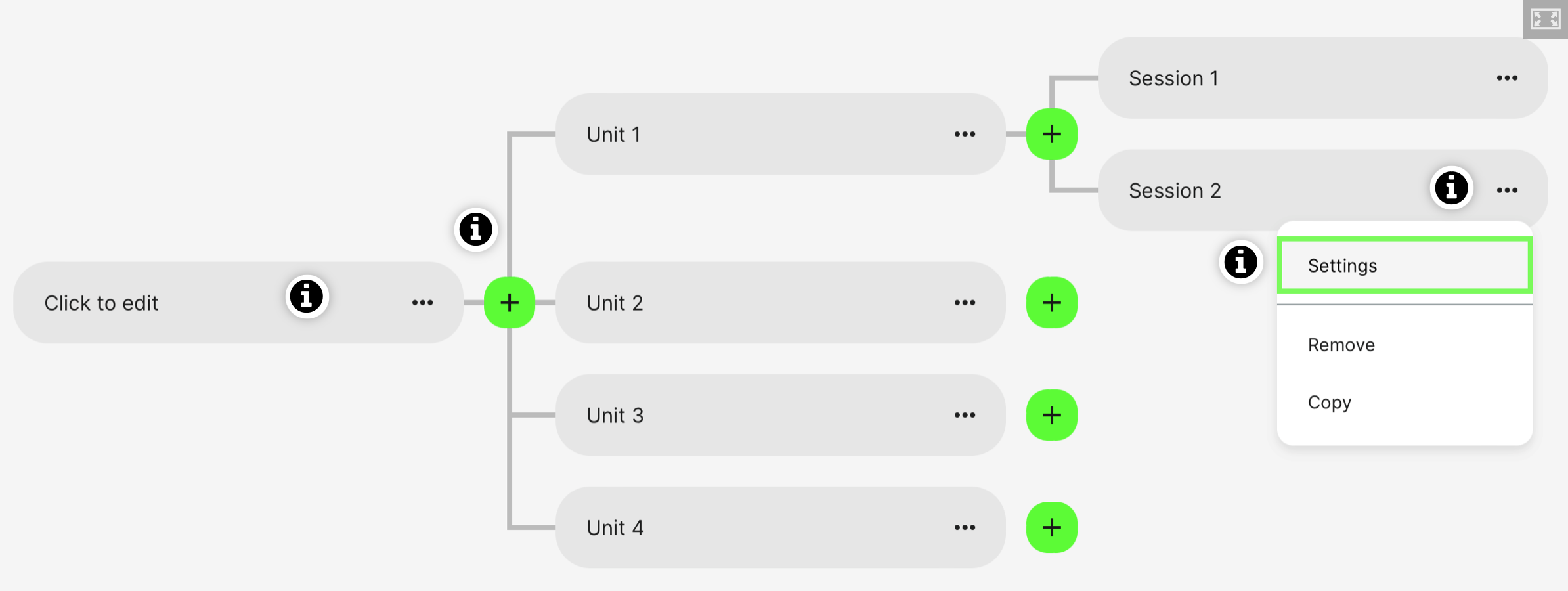
Interactive videos
Interactive videos will allow you to create branching scenarios and gamified content inside a video. You can make this very advanced or you can use it to easily add bookmarks, pop-up boxes with information, directions, links to downloads on top of any regular video. Even Youtube and Vimeo videos. Obviously, you should use the global streaming services, part of the Eurekos service. Use the "Copy URL" feature when editing a video, to get the link when you create an interactive video.
Important: Obviously, you MUST use the global streaming services, part of the Eurekos feature set. Use the "Copy URL" feature when editing a video, to get the link and insert this when you create an interactive video. Uploading a video directly, will decrease performance for your audience.
Tutorial for Interactive Video

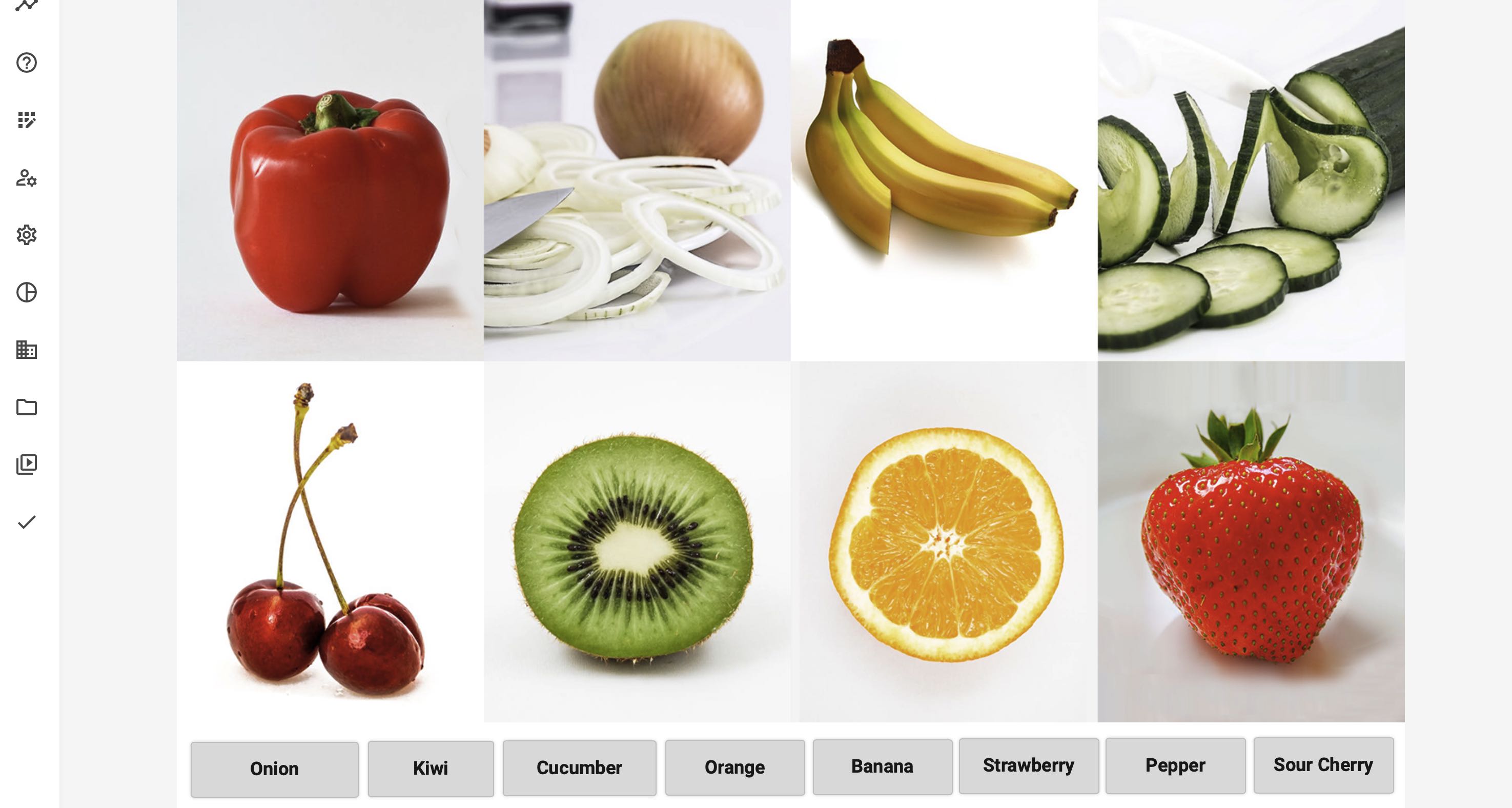
Drag and drop
This is an amazing and powerful tool. You can use this to practice anything from the order of specific processes, roles and hierachies in an organization to product knowledge and workflows. Just sprinke a little creativity with the know-how you possess - and you got it. Basically, you provide a canvas and can drag objects to the right position as text or images.
Accordion
Looking for an FAQ type of tool, then this is the one. You can create simple stacked expandable items, also known as an Accordion. Useful when you have instructions and information that might be too much to present on a page. Expand and see.

PDF Viewer
The PDF Viewer is a very convenient workaround to show a presentation directly a page. It is searchable, has your index automatically and cannot be downloaded. If you want a download link, provide it yourself separately on the page.