Text Editor - Article
Create and format course content with the native rich text editor, apply headings and styling, insert links, and maintain clean, brand-aligned text across your learning pages.
Updated: 2 Mar 2026
2 min read
Create or edit texts with headlines and formatting through the native rich text editor
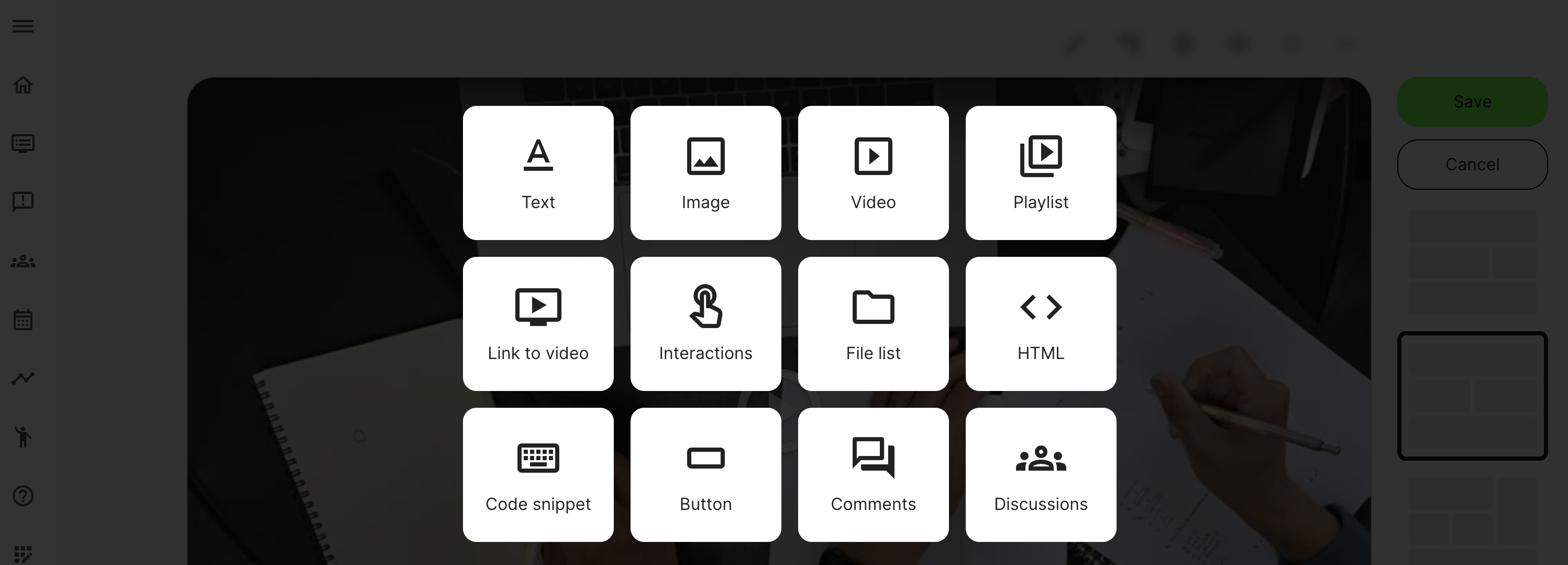
Once you click the Plus icon in page edit mode, you can choose to insert a text widget.
- The Text widget can be added to any course page
- Rich text editing including colors , border and roundness and links to documents, contacts, etc.
Text editing options
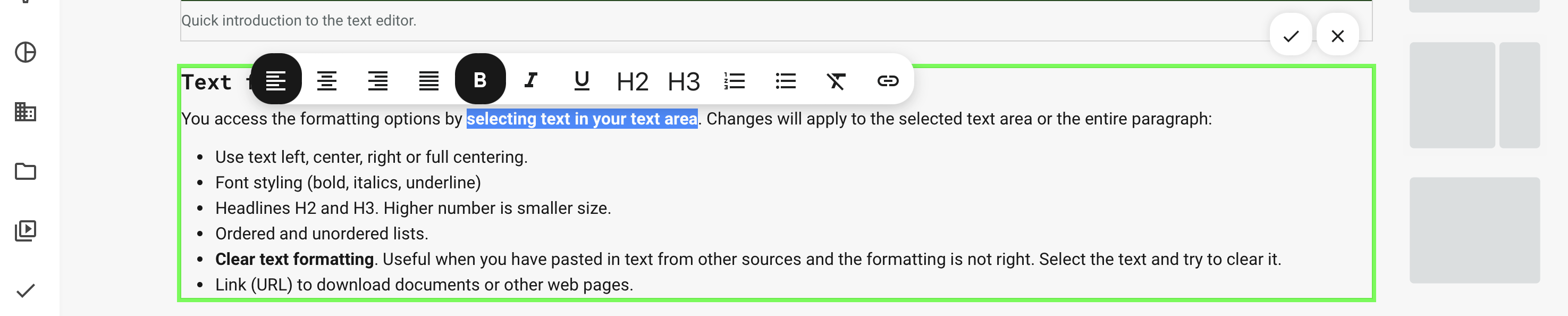
You access the formatting options by selecting text in your text area. Changes will apply to the selected text area or the entire paragraph.
- Align the text using options left, centre, right, full centre.
- Font style using bold, italics, underline.
- Apply headlines using options H2 and H3 to a paragraph. H1 is used as the page headline.
- Ordered and unordered lists.
- Clear text formatting is useful when you have pasted in text from other sources and the formatting has been corrupted, because some "invisible" formatting is part of the copied content. Select the text and try to clear it.
- Use the Link (URL) option on a selected text area to download documents or other web pages. Link to documents from the archive, a link to another website or page and finally, email as a contact option.
Copy/pasting text from other applications like Microsoft Word or websites might carry over some undesired tagging. Use the option "clear text formatting" from the editor to help clean up selected text. Alternatively, use a clean text format.
Text color, border and background
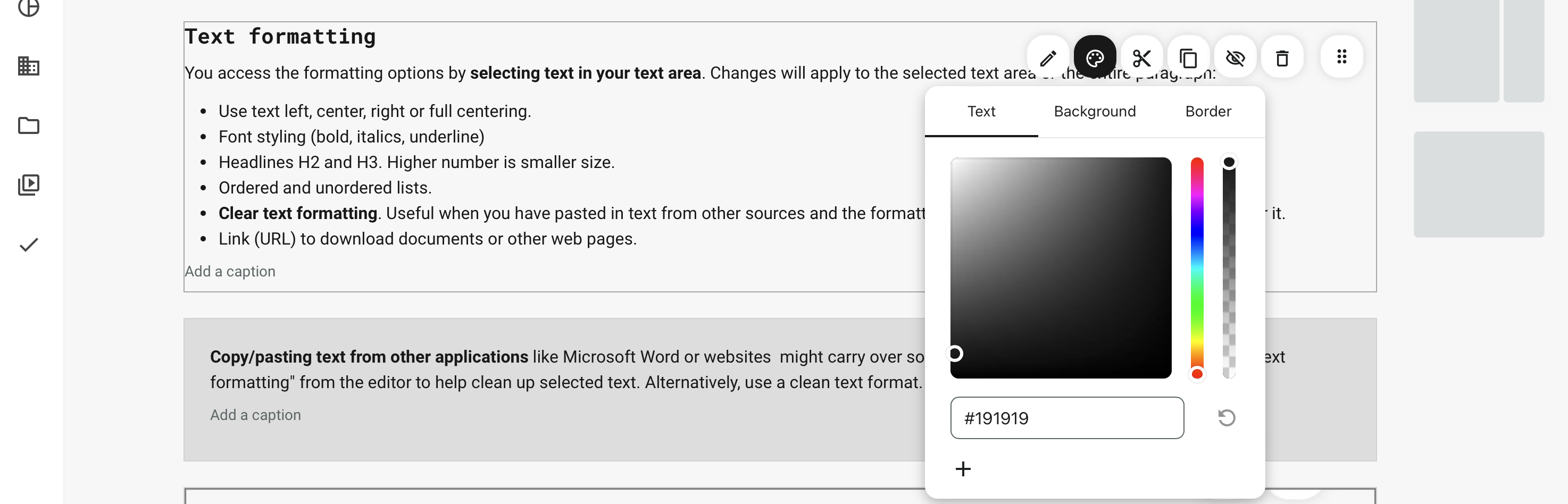
When you need to highlight a text area, your can use the palette icon to set the text color, background color and the border with roundness and thickness.
This is done prior editing text, directly hovering the text area in edit mode.
- Select the color using the color picker. Margins around you text area, when you choose a background are created automatically.
- Use the plus icon to save your color for next time. Drag the color out of the palette area to remove it again.
- Use color codes to match specific brand colors from your brand guide.