Create a Course - Article
Use the native rapid authoring tool to create and manage courses
The rapid authoring tool has been created with efficiency and ease-of-use in mind. This invites a larger part of your organization to be part of the process. To create your course select Courses in the main menu and click Create.

Design your course structure
Think of this like a mind map or table of contents. Each of these sections represents a page, unit, session or topic to form the narrative of your course.
Use the plus icons to add sub-sections. You have a total of 3 levels, counting the first page of your course. Drag a page element around within the same level of the structure, to change the order.
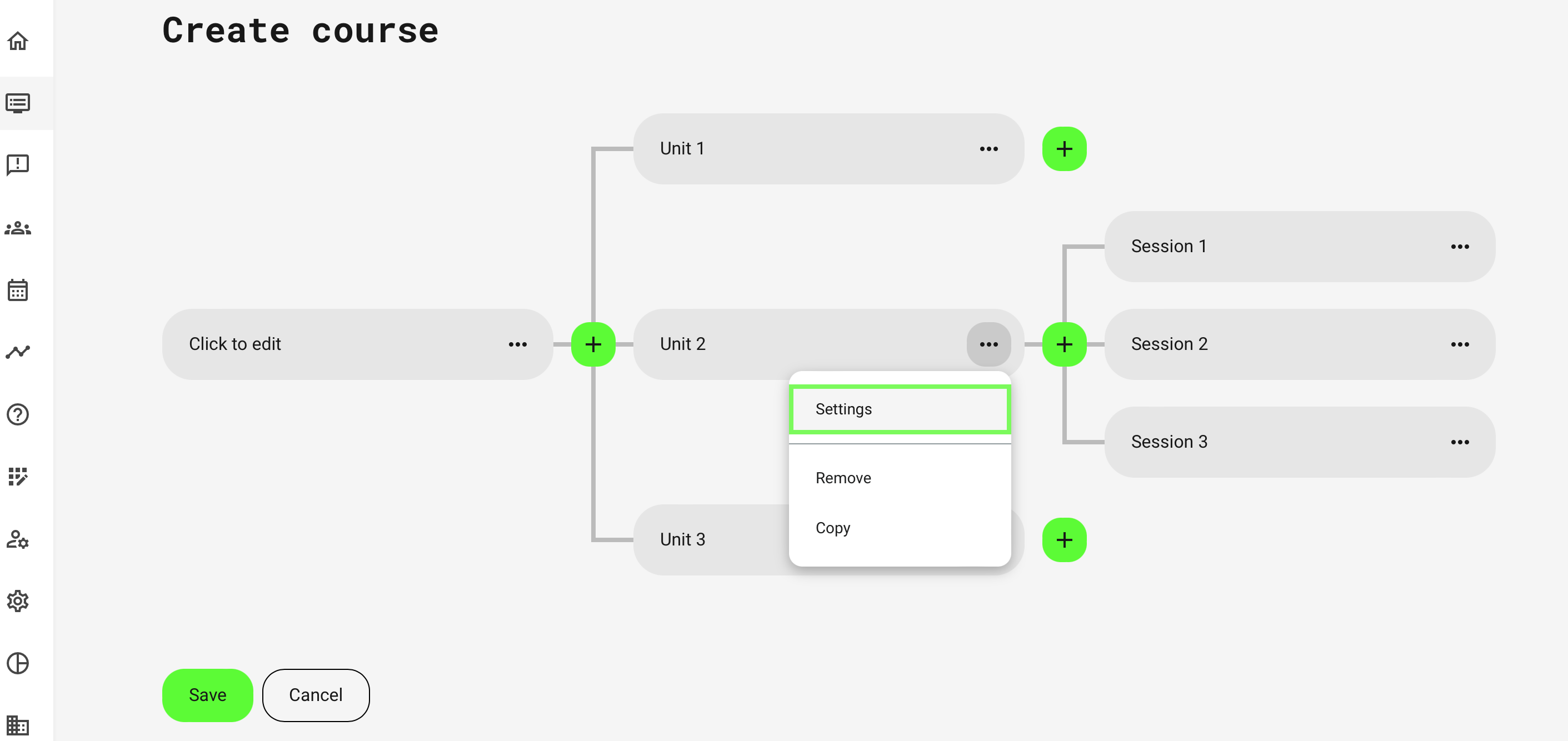
You will be able to add content to each page individually, after saving your structure. Use drag and drop to move your pages around.
- Settings will allow you to set access restrictions on each page.
- Remove will delete the page and any subpages, in the hierarchy.
- Copy is a way to copy the entire set of pages, including their subpages and content on these. This can then be pasted on the parent level.
- Consider this an advanced way of effective content management by replicating the contents across larger sections.
- It is not possible to copy a page to a different level in the structure this way. Single page content copying is managed from the individual course pages directly. As a similar copy/paste operation.
Restrictions
The Settings option on each course page will allow you to restrict access by several different parameters.
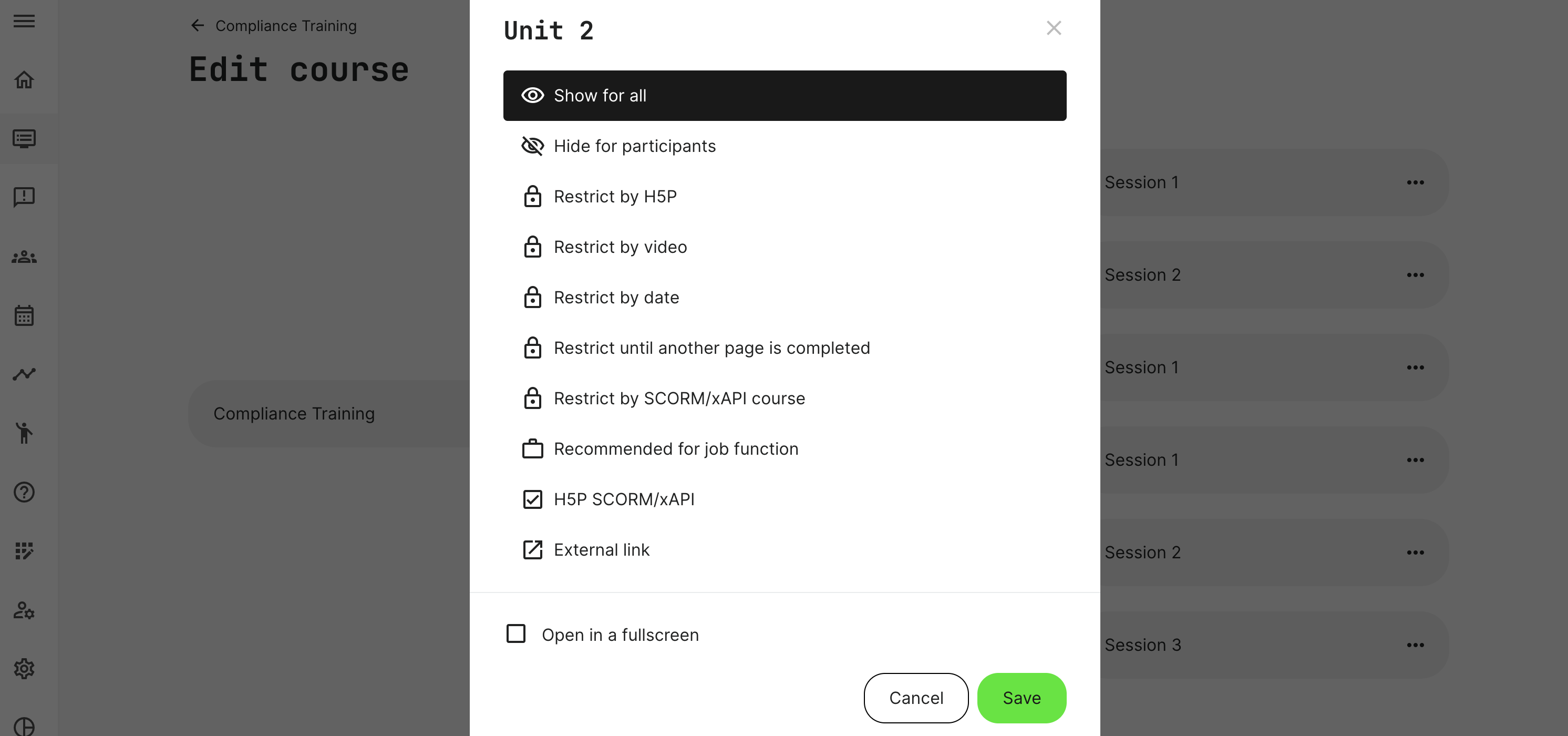
- Show for all is default and will show for everyone.
- Hide for participants hides this page from all participants. It will not be shown in analytics either. Great, if you want to add new content to existing courses and they are live, while working on them. Change the restriction to Show for all, when you have completed your work.
- Restrict by H5P will restrict this page until the participant has passed one or more H5P interactive elements. Only types "Question Set, Multiple Choice, Single Choice Set, H5P SCORM" can be used as restriction.
- Restrict by video will restrict access to this page until one or more specific videos have been watched.
- Restrict by date is a set of variable options to choose from. This is very flexible can be quite complex as schedules are impacted by your learning delivery design - e.g., the course is part of a learning path and how these schedules affect each other. This is managed through your Training Activities.
- Single course module: schedule for the course module is taken into account.
- For a learning path (LP) with multiple course modules, this being just one in a series and with a schedule on activity level, the activity level schedule is taken into account.
- For a learning path (LP) with multiple course modules, with both dates and module level schedules, module level schedules are taking priority and used as restriction parameter.
- The course can be used in several Training Activities without having different version of it, as long as the restriction variables are the same. The restriction is based on schedules in the learning delivery and adjusted to each Training Activity, for each enrolled participant.
- Restrict until another page is completed: will restrict access until one or more specific pages have been completed - e.g., watched the videos on pages, attempted quizzes and more. Every asset that produce analytics would have to have been attempted, but does not need to be passed.
- Restrict by SCORM/xAPI course will restrict access through completion by a course/xAPI course visited outside this course.
- H5P SCORM/xAPI is a restriction based on completion of the selected object. These are created as an interactive object in the H5P toolset, but created in a 3rd party authoring tool. The learning objects can be insert on pages and act as a restriction.
- External link converts the menu item to an item in the main course navigation. It's an option to create a course level link prominent, and does not contain content.
- Recommended for job function will make parts of your course structure more prominent for certain participants.
Course moderation (opt-in)
A configurable option to set Course readiness can be enabled. This establishes a firm control on which courses are in moderation, and should not be available to distribute to participants. Once enabled, course Settings will include the additional state.
Contact support@eurekos.com if you wish this feature option enabled.
- In the General tab of the Settings, the course can be set to Work in progress or Ready for enrollment. This can be set by the course author, co-author and roles who have course editing rights.
- Work in progress will be clearly visible on the course thumbnail, in the courses list.
- It will not be possible to include a "Work in progress" course module in new Training Activities. This is to eliminate the option of accidentally adding non-sanctioned modules to the audience.
- Work in progress will be shown in the modules list, when creating training activities, to show the status for the course administrators.