Assignments - Article
Use Assignments to facilitate formative or summative assessments
Add an assignment to allow submissions and assessments by instructors and facilitators as part of your learning journey. This is different than providing a multiple-choice test at the end of a training which gives a score and potentially is fully automatic.
Formative assessments are great at providing in-process feedback during a learning activity to get insight on what they are learning or not learning so goals and approaches can be aligned.
Depending on the use cases and execution, assignments can also be used as summative assessments with instructor/specialist evaluation at the end of a training to make final judgement.
Any number of submissions can be set up in any sequence in your learning path.
- Participants submits assignments using files they upload with comments.
- Participants can save a draft version, while the final version is being completed.
- Instructors reviews and assess submissions. The instructor(s) should be set as responsible on the activity or assignment feature itself.
Create assignment
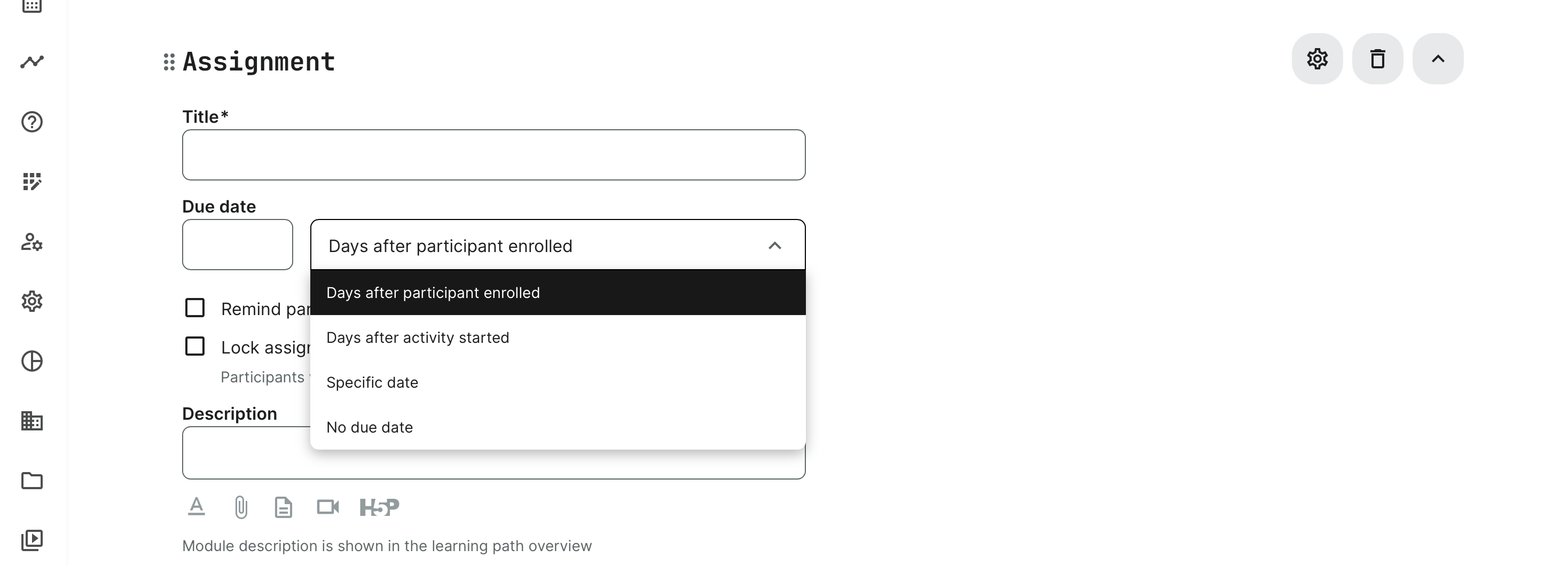
- Provide a title of your assignment. This will be visible to everyone.
- Due date can be a variable or a fixed date. Even without a due date for special use cases.
- An automated reminder for participants can be easily defined within the event itself. The reminder will be sent to the participants at the appointed schedule.
- The description allows inclusion of attachments and the native options, such as accessing the video archive and documents from course materials. PDF, zip, Word and typical standard files are all allowed.
- Lock assignment enables a controlled flow of submissions.
- If the "Lock assignment after due date" checkbox is enabled - upon passing the due date, the assignment is locked and no submissions will be accepted.
- If the "Lock assignment after due date" checkbox is disabled - upon passing the due date, submissions are still accepted.
- Manual Lock/Unlock is also permitted. The Instructor could manually lock submissions from an individual user before the due date. Similarly, the Instructor can manually unlock it after due date passed. This option is only visible if the "Lock assignment after the due date" checkbox is checked.
- Use the gear icon to set the responsible instructor(s), who will have access to submissions and assessment.
Create submission as a participant
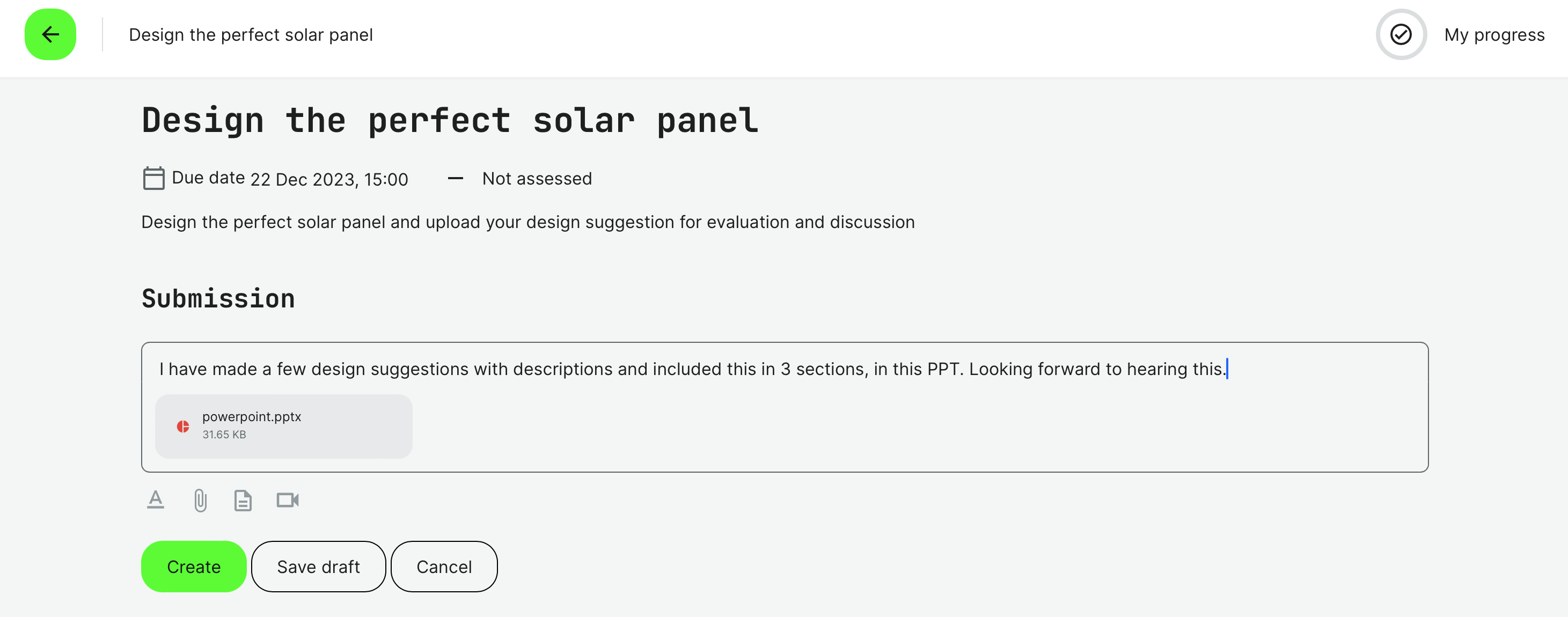
The user has the ability to save his Submission in progress via the “Save draft” option. The drafted submission is not visible to anyone else and no submission has yet been formally made.
- Draft submission can still be updated, deleted and published.
- Additional comments can be made upon submission.
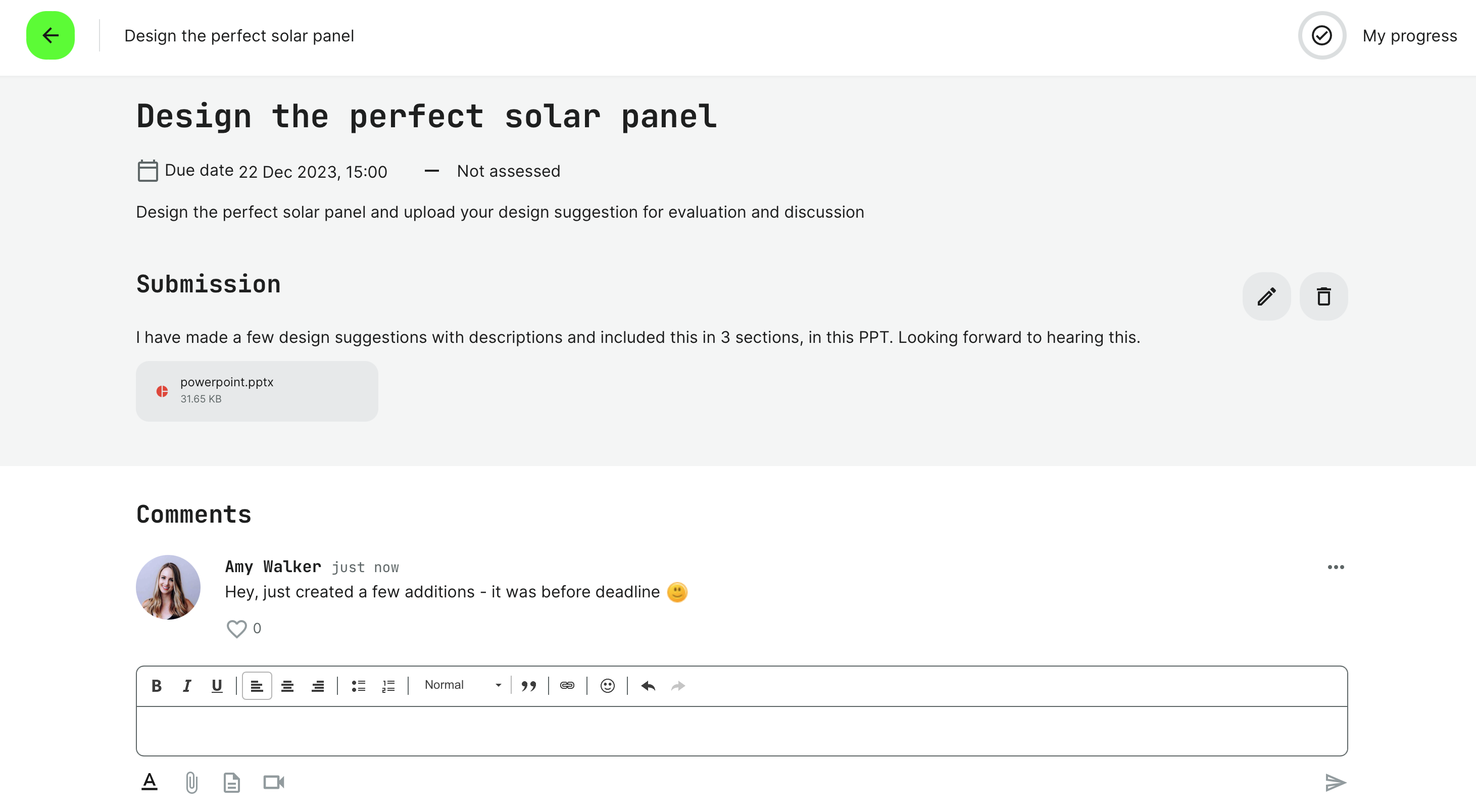
A submission cannot be deleted or edited, if it has already been evaluated. This is to protect the integrity of the assessment. Despite any deadline settings.
If necessary, the Instructor can unlock the submission, should this need arise. This is always possible.
Once a submission has been made, comments can be made and communication is private between the instructor and the participant.
Assessing the assignments as instructor
Submissions can accessed through the statistics in the main menu. The instructor can supervise a list of participants and view individual submissions.
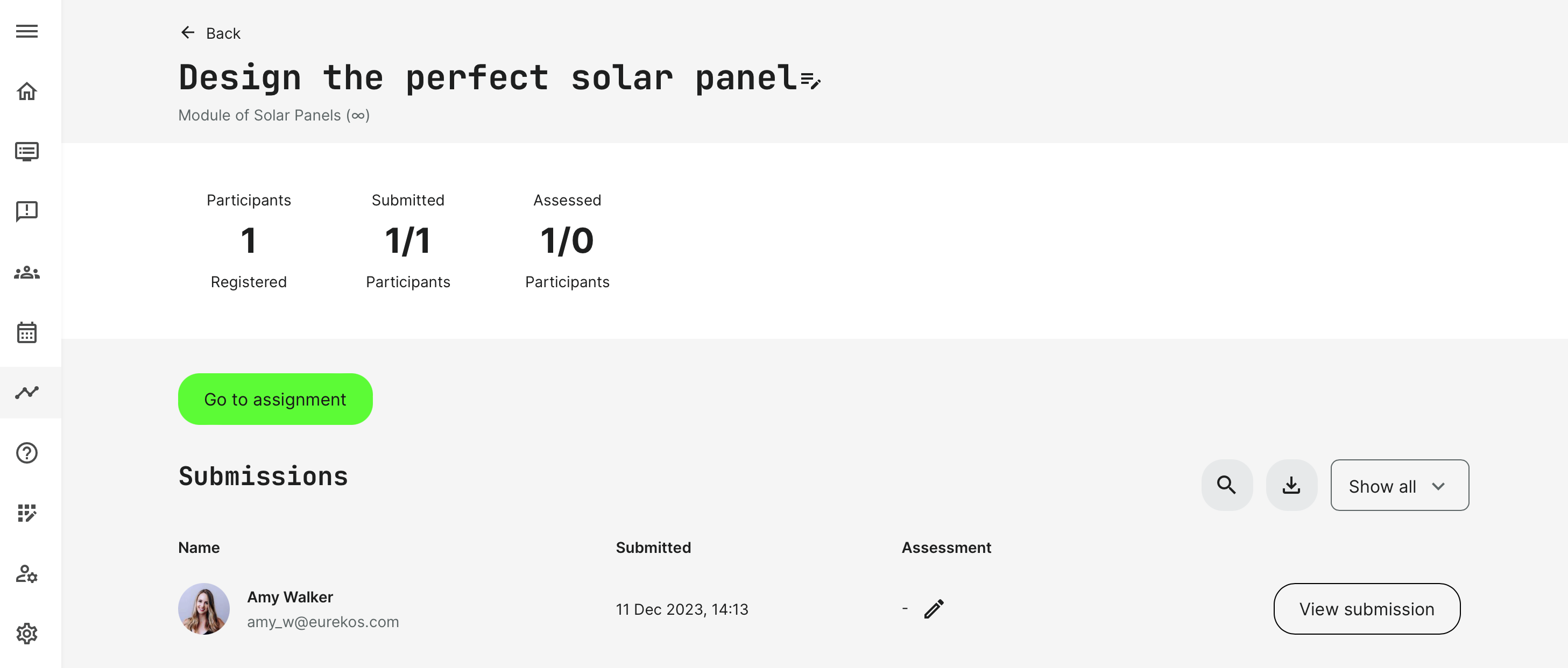
- At the top is the full status of the assignment across the co-hort.
- Go to assignment is a quick entry to revisit the original assignment, make changes and also this way have options for assessments. This includes options for bulk operations across multiple users.
- The Download icon is a one-click operation to download an excel report with a list of all submissions, status on assessment, incl. links to the individual submission.
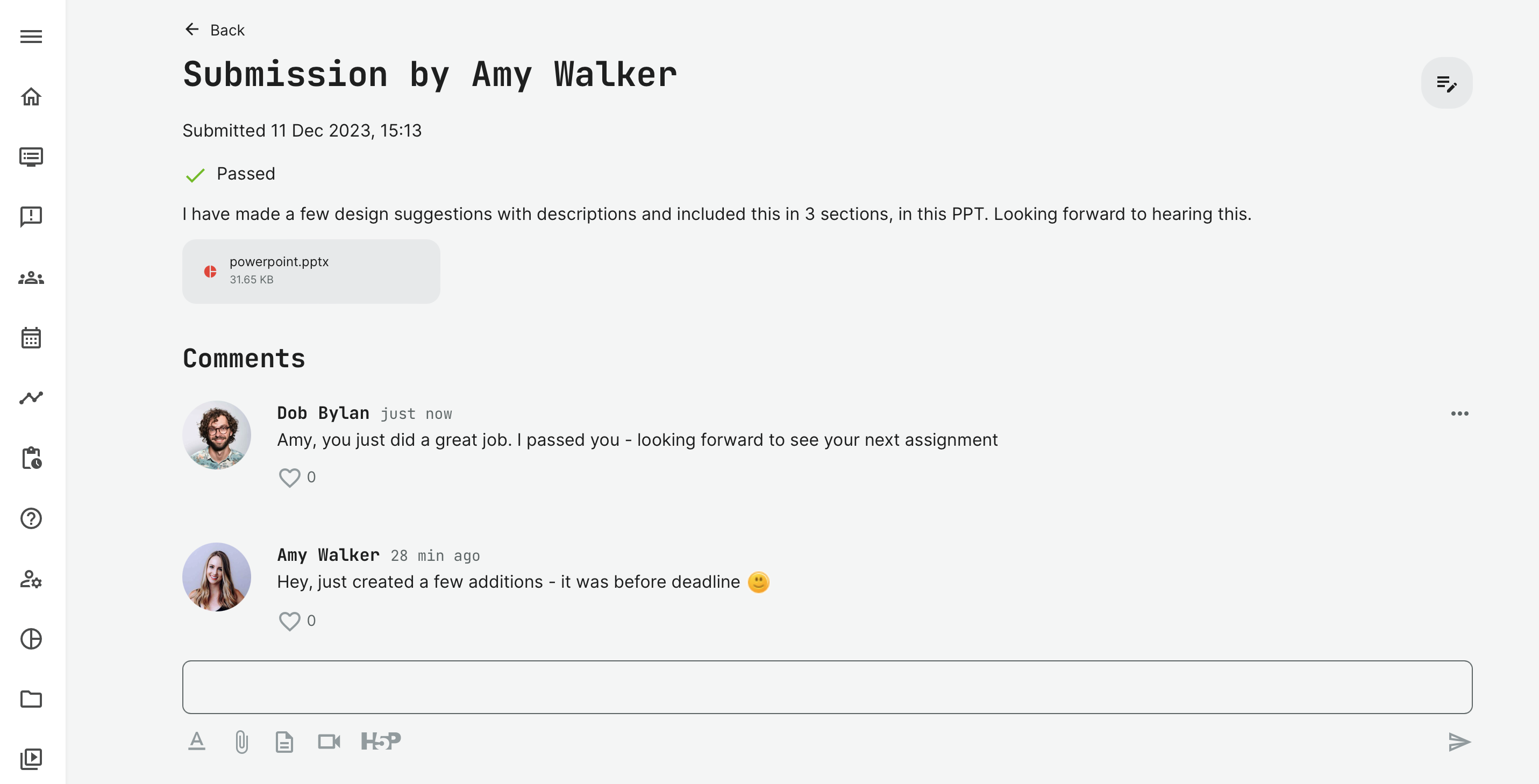
- View submission will take the instructor to the submission itself, allowing addtional commenting between the participant and the instructor.
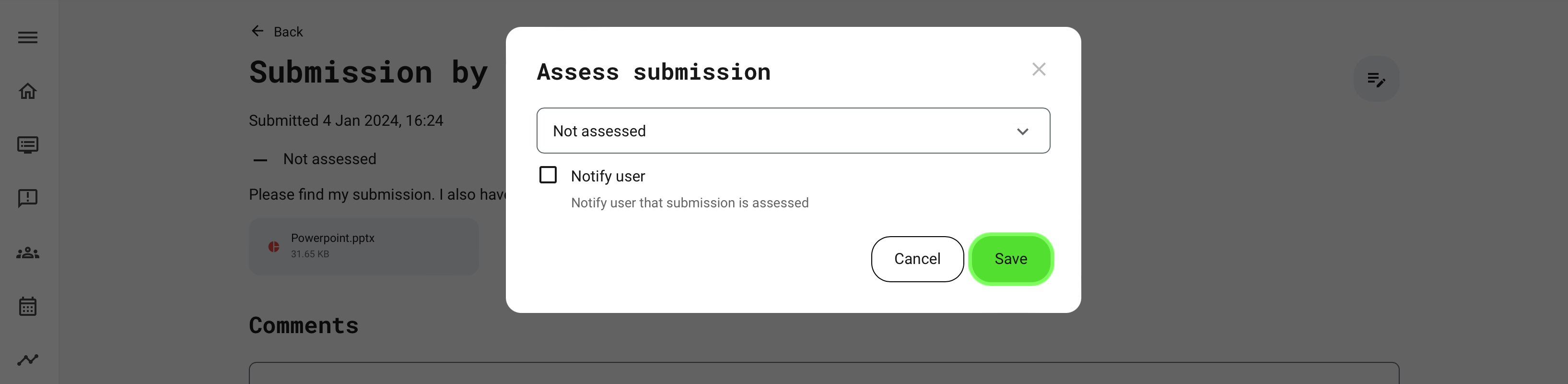
- Not assessed is the default state.
- Passed is the option when passing a participant.
- Failed is the option when a participant does not pass.
- Comments for the instructor are available to provide additional feedback.
Notifications and assignments
Assignments will automatically send a notification message to the responsible instructor once a submission or an update to a submission has been made. Similarly, the responsible instructor assessing the submission can choose to inform the participant, once it has been assessed.
These notifications are based on two standard emails, you can customize.