Training Feedback - Article
Get training feedback from participants and instructors
Use questionnaires to collect training feedback and valuable data upon completion to improve and further develop your training programs.
- Create training feedback surveys in the Course Administration.
- Connect the survey to the training activity
Create your survey
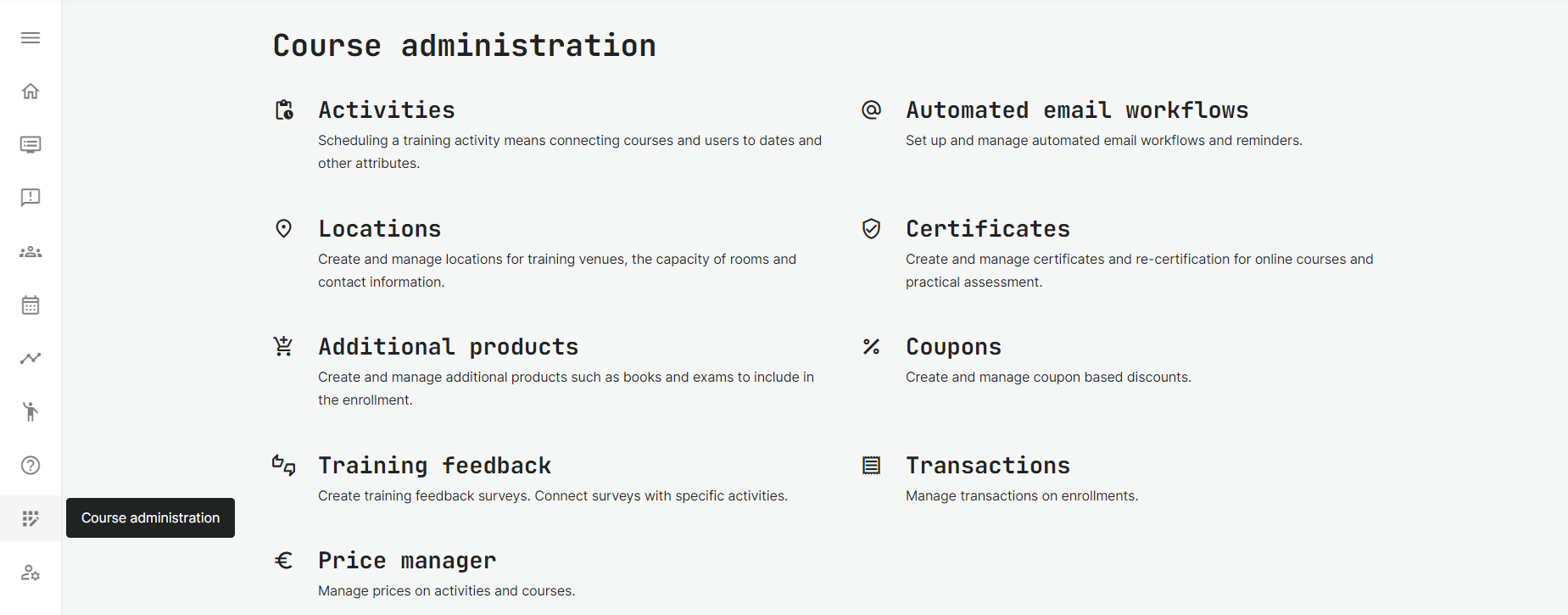
Find the Training Feedback in the course administration, main section. You can create as many as you need. This way you can use the same survey for all your trainings or customize one for each type of educational format or even, each training if you wish.
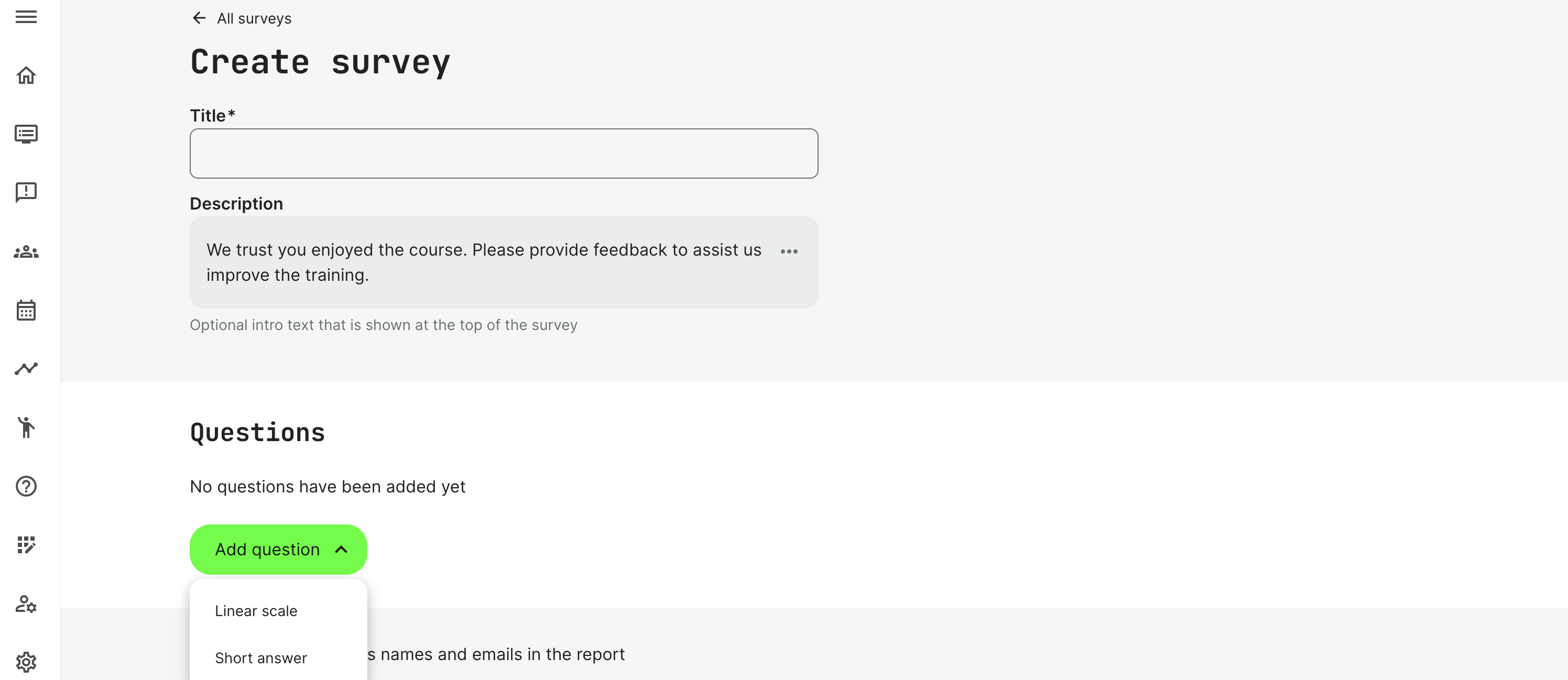
There are 2 types of questions you can create for your survey, and you can create as many questions in a survey, as you like. These are linear scale and short answer question types.
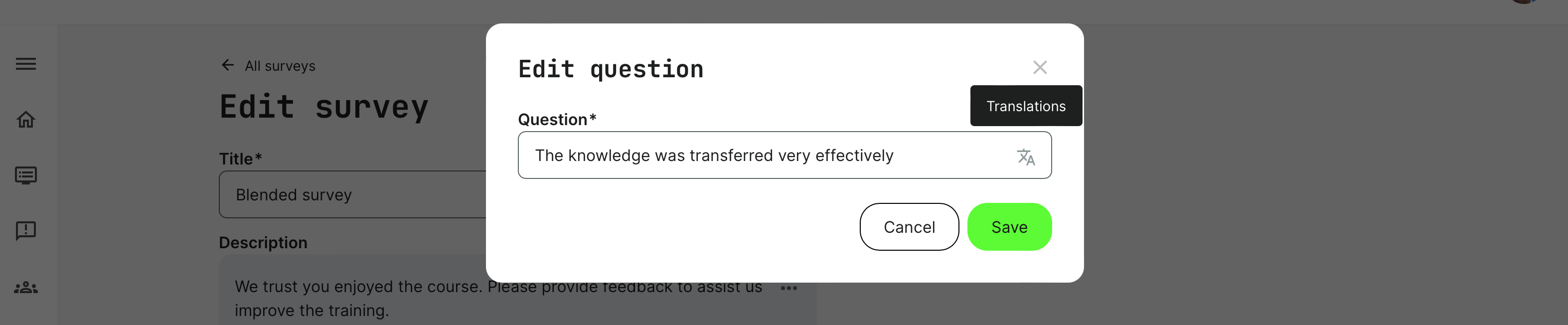
Each can be translated to multiple languages directly on the question. All activated languages will be in the list.
When you save your training feedback survey, you decide whether or not to include the respondents' names and emails or create an anonymous feedback report by unticking this function.
Connect training feedback to your training activity
Once your questions have been completed, go and connect the survey to the respective training activity.
- Edit the activity.
- Enable training feedback on either module or acrivity level. This depends if you have a learning path and if you want feedback at the very end, or upon completion of each training module. This can be performed on both course modules and events, virtual and in-person events on location.
Tip: you can e.g., set up reminders for just the people who didn't complete the feedback review by your own variable settings. This can include asking multiple times at predefined intervals.
Automated training feedback
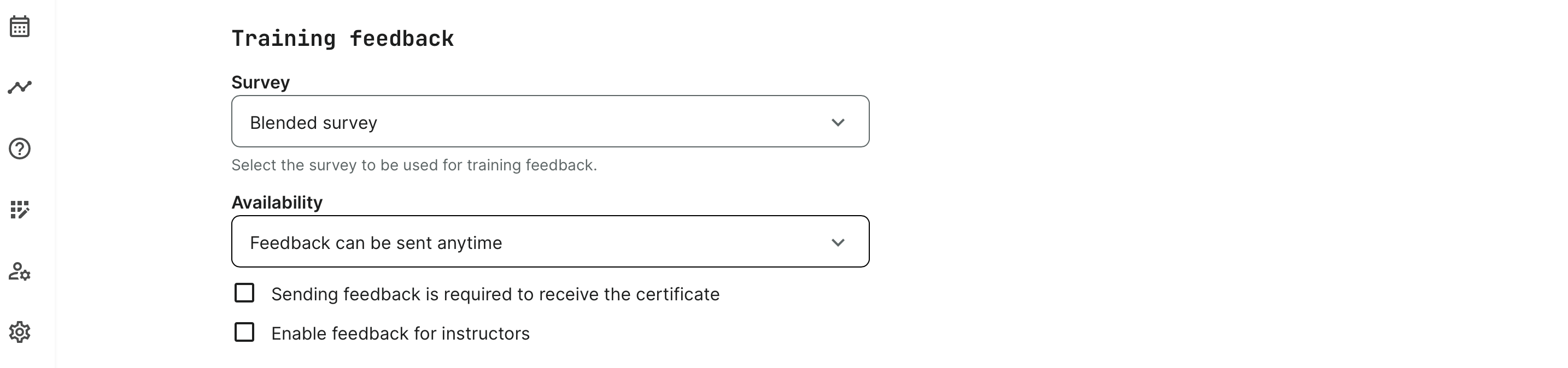
Automated feedback makes the administration of the training feedback much easier. Participants are automatically prompted on-screen based on your preferences on the training activity the training feedback has been connected to.

This way, you decide if feedback can be given anytime or only upon completion. Also, if the training is facilitated, if might make sense to to ask instructors for feedback as well.
Feedback anytime, even prior completion will be an option on the course module, at the top of the page. If, you opt for feedback, only upon completion, this is triggered by either of the following scenarios, whichever comes first:
- When the end date and time has been met of the course schedule or calendar event.
- When a certificate has been triggered, by any available certificate circumstance – e.g.: Instructor evaluation, quiz passed, a certain % of the content completed, or video(s) watched.
- When the content has been 100% consumed, in case no certification requirement has been defined.