Waiting list - Article
Managing waiting lists
Waiting lists are managed based on seat restrictions. If a training activity has restriction on number of attendees, it will not be possible to add additional participants.
Waiting lists are manual. The Course Administrator has the task of supervising the list of people on the waiting list, and choose, who to register if someone else withdraws or is cancelled for any reason.
Scenarios and considerations for who to promote from a waiting list are many, ranging from client relationships and other organizational priorities.
In practice, there are also simple pragmatic questions, such as schedules, who have waited longest, realistic notice time compared to location and travel options. In many cases, this is best managed manually.
In general, seat restrictions are useful both when it concerns self-enrollment, but also for course administrators who are managing groups, making reservations and just ensuring there is no overbooking of training activities.
Seat restrictions cover all cases of manual administration, reservations and people enrolling on their own, counting towards the maximum number of seats.
Setting seat restrictions
Seat restrictions are defined in the activity features: Registration details → Seats.
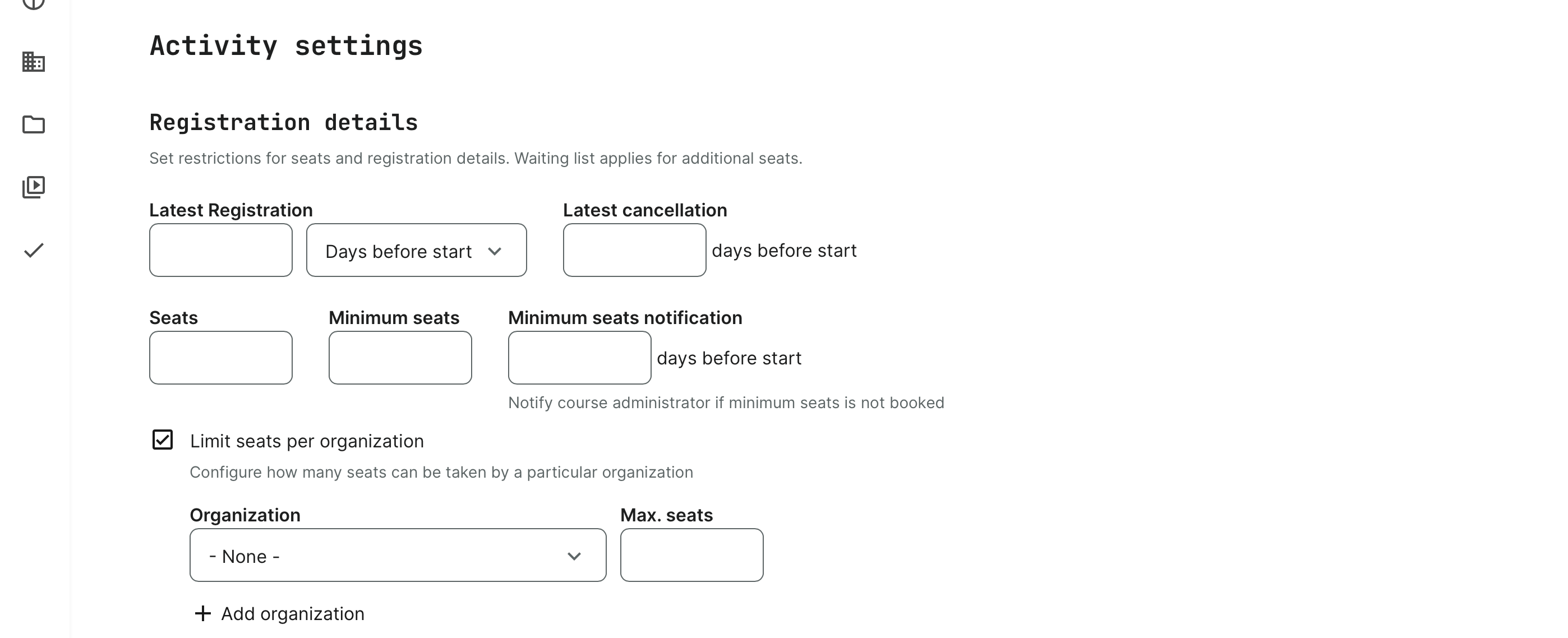
- Seats defines the maximum number of seats that can be registered on this activity. Through any means.
- Minimum number of seats and the notification is assistance to the course aministrator, to take action if there are not enough regisrations to make this a viable training activity.
- The user set as responsible course administrator in the features section, will receive an email if the minimum number or registrations has not been reached n-days before scheduled start of the activity.
- The activity must have a start date for this to happen.
- The course administrator can take any manual action upon this. Accelerate actions to get more people enrolled, conclude that the activity will be executed despite low number of participants or take the hard decision to cancel the event, contact everyone and perhaps move participants to another scheduled training of the same type.
- Limit seats per organization is a granular form of restriction, useful in combination with e.g., having internal people not take up more than a set number of seats on popular activities. Or to ensure a certain level of diversification across certain scenarios and clients.
Getting on the waiting list
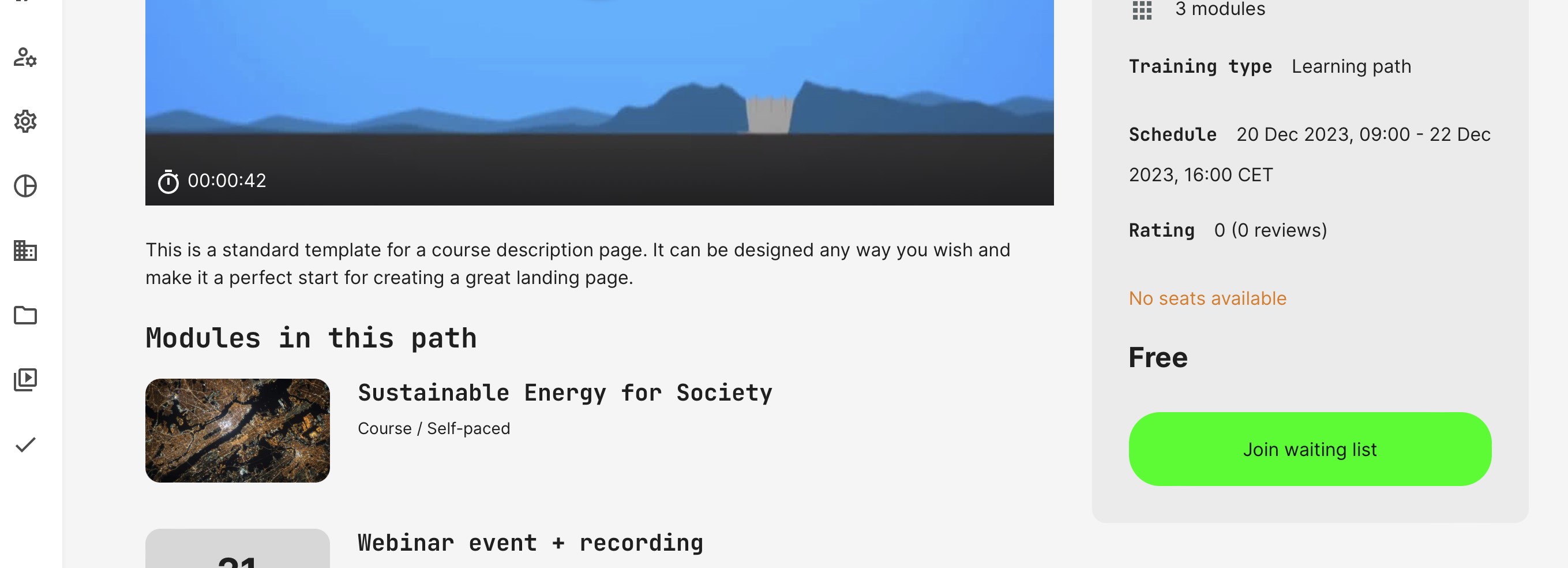
When no seats are left on an activity, notifications will clearly show this.
- Administrators will be informed on-screen and will not be able to add more participants until the seat limit has been increased, or someone else is cancelled.
- Manage the waiting list from the regular participant list on the training activity. Each user has a status, indicating whether this is a person on the waiting list, a registred user or something else.
- Automated emails, customized and scheduled to support regular and pre-planned communication to keep people on the waiting list informed at regular intervals, as part of your course administration.
- Administrators will be notified, once someone has been added to the waiting list.
- Prospects who are enrolling themselves, will not be able to enroll and will have the option of joining the waiting list. They will also be informed on-screen and on email, that they have been added to the waiting list.
- If the training activity requires payment, the checkout page is not shown. The payment process can commence once the prospect has been approved and is registered by the administrator.
- The prospect will receive an email, once the the administrator of the activity approves the participation. If no payments are required, this is an instant approval, while otherwise, the prospect will have to complete payment to gain access to the training can claim the free seat. There is no "timer" to prevent someone else from registering, if this action is not completed by the prospect.
All standard emails can be edited and changed.