Onboarding rules - Article
Enroll your target audience through automated rules based on who they are and what they need
Onboarding rules are designed to automate an otherwise very time consuming process of assigning personalized training activities. Onboarding rules are designed by combining the characteristics of any registered user, defined by their profile. The more data you have on a registered user, the more granular you can define the onboarding rule.
What triggers an onboarding rule?
Onboarding rules kick into effect once there is a change on the user profile. E.g.:
- When a user is created or imported, no matter what that process looks like.
- When a user is updated and has a new role, changed organization or job function, this will trigger the onboarding rule.
Important. Onboarding rules do not remove previous course registrations and accreditations. It simply adds new ones.
It doesn’t matter how the change was introduced, whether manual, through an import sheet, a new sign up, 3rd party authentication synchronization mechanisms or or anything else.
Onboarding rules are currently defined in Settings. Expect these to be moved to Course Administration in a future release.
Creating an Onboarding rule
Create your customized set of enrollment rules for your target audience. Use profile information to define to carefully define the parameteres of your target audience. You can combine them, exclude and make exceptions. The available parameteres as:
- Country
- Language
- Organization
- Job function
- Role
- Hire date
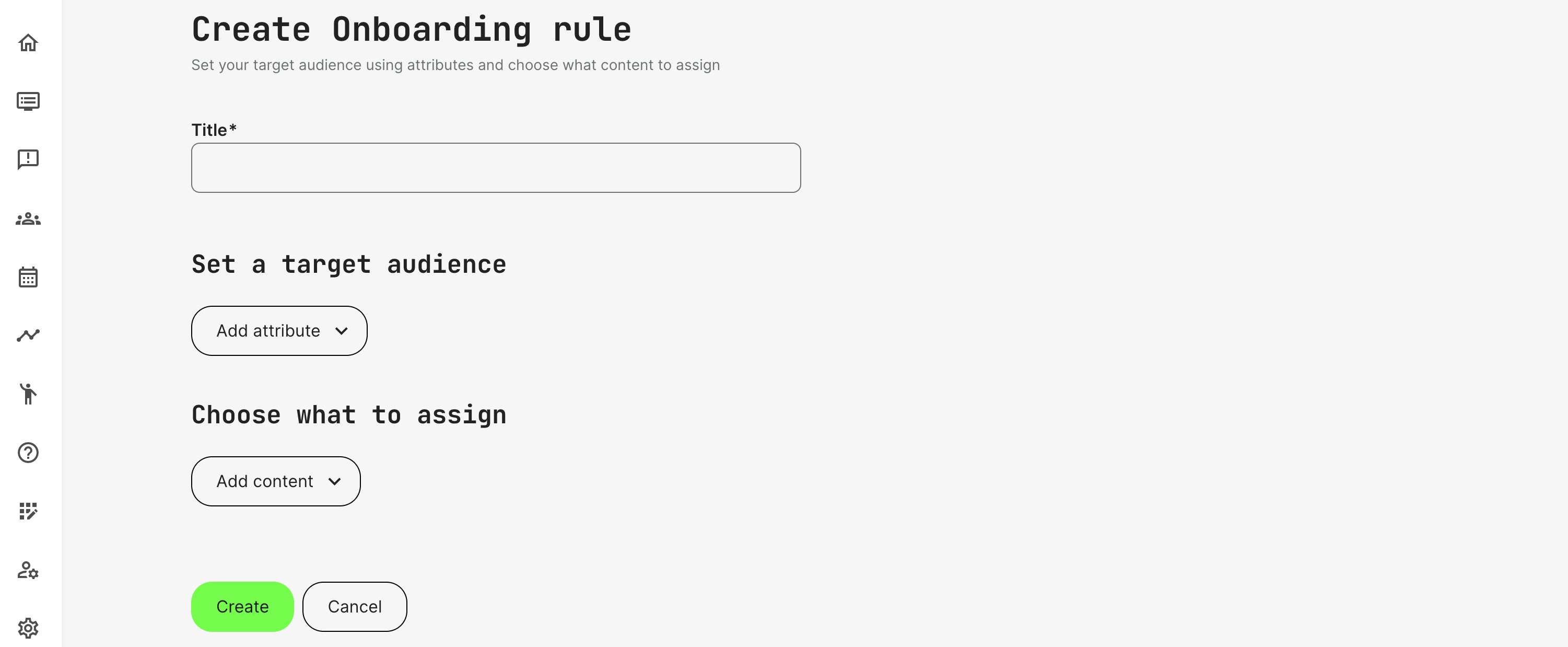
Define what to assign or enroll to the target audience you defined. This goes beyond enrolling individuals into training activities, and could instead assign membership to a Community, or trigger the pop-up of a questionnaire, video or document for the audience:
- Training Activity will enroll the target audience into one or more training activities. They will appear on the home screen of the participant. Notifications will only happen if these are defined in automated email workflows, specific to the individual activity. This prevents spamming the participant with emails.
- Communities will make the target audience a member in the specified Community. Notifications are default sent out, unless this is changed.
The onboarding rules are adaptive in case you assign users to be exposed to a certain content right after login. This means that you can provide personalized learning experiences at scale, tailored to multiple audiences. Add such content types to your onboarding rule:
- Questionnaires: can be used to profile and collect information about your audience by asking open-ended questions.
- Video/Playlist: a video is displayed after a user login.
- Interactive H5P content: Incorporate an existing H5P object, such as an Interactive video, Question Set, Course Presentation, etc. All 40+ types can be presented.
- Text and documents: opens a text or a PDF document that can be uploaded or imported from an Archive.
You can preview the selected content within an onboarding rule by clicking the 'Preview' button.

Two additional features can be applied to facilitate onboarding processes for reinforcement and compliance requirements, for example:
- Show repeatedly: set the frequency of the content popup. Scheduling supports fixed intervals such as daily, weekly, monthly, and even individual variable of days after registration.
- Users cannot skip and must complete to continue: the setting that will make the content mandatory before being able to continue.