Activity Description - Article
Activity Description
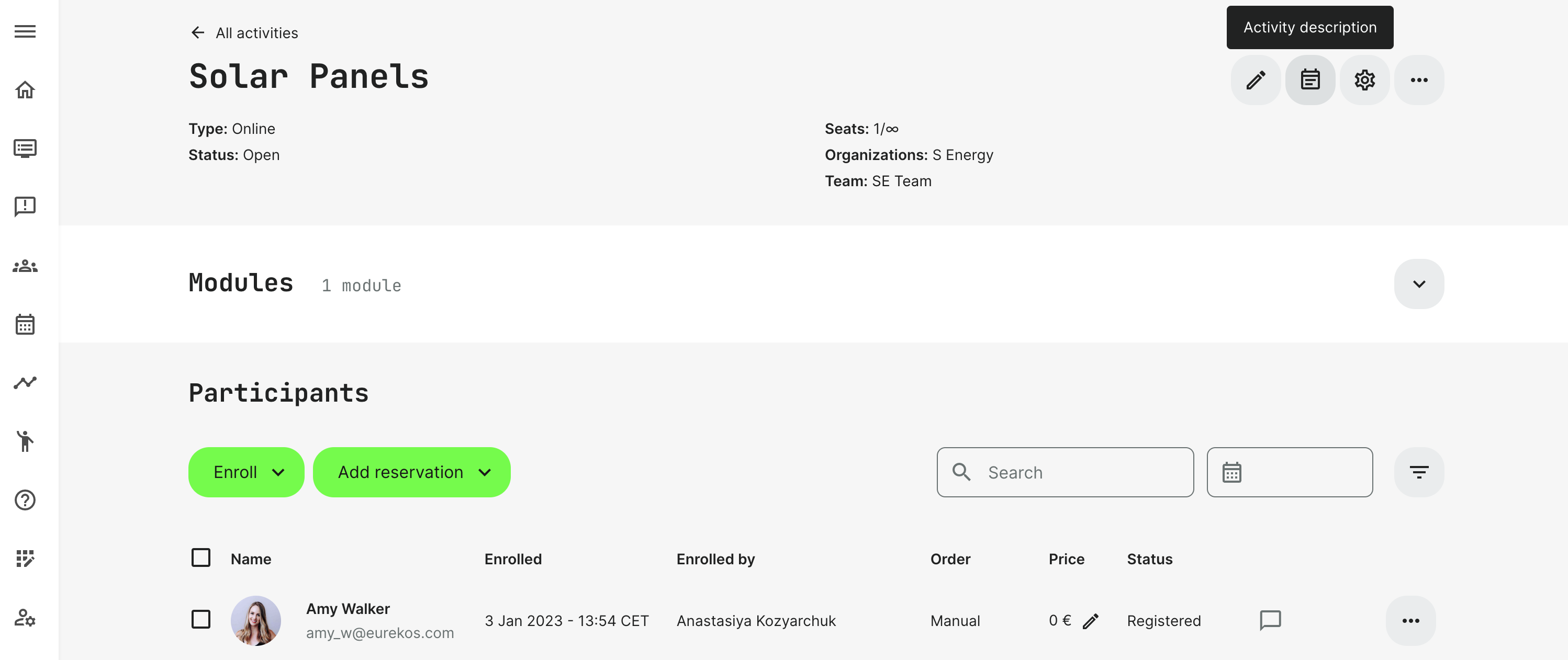
Use the notebook icon to access description of your Activity.
If you expect the course to be available for self-enrollment in the catalog, you will need to create a proper description for potential participants before they enroll. They will want to see what they are signing up for, any cost, scheduling information and much more.
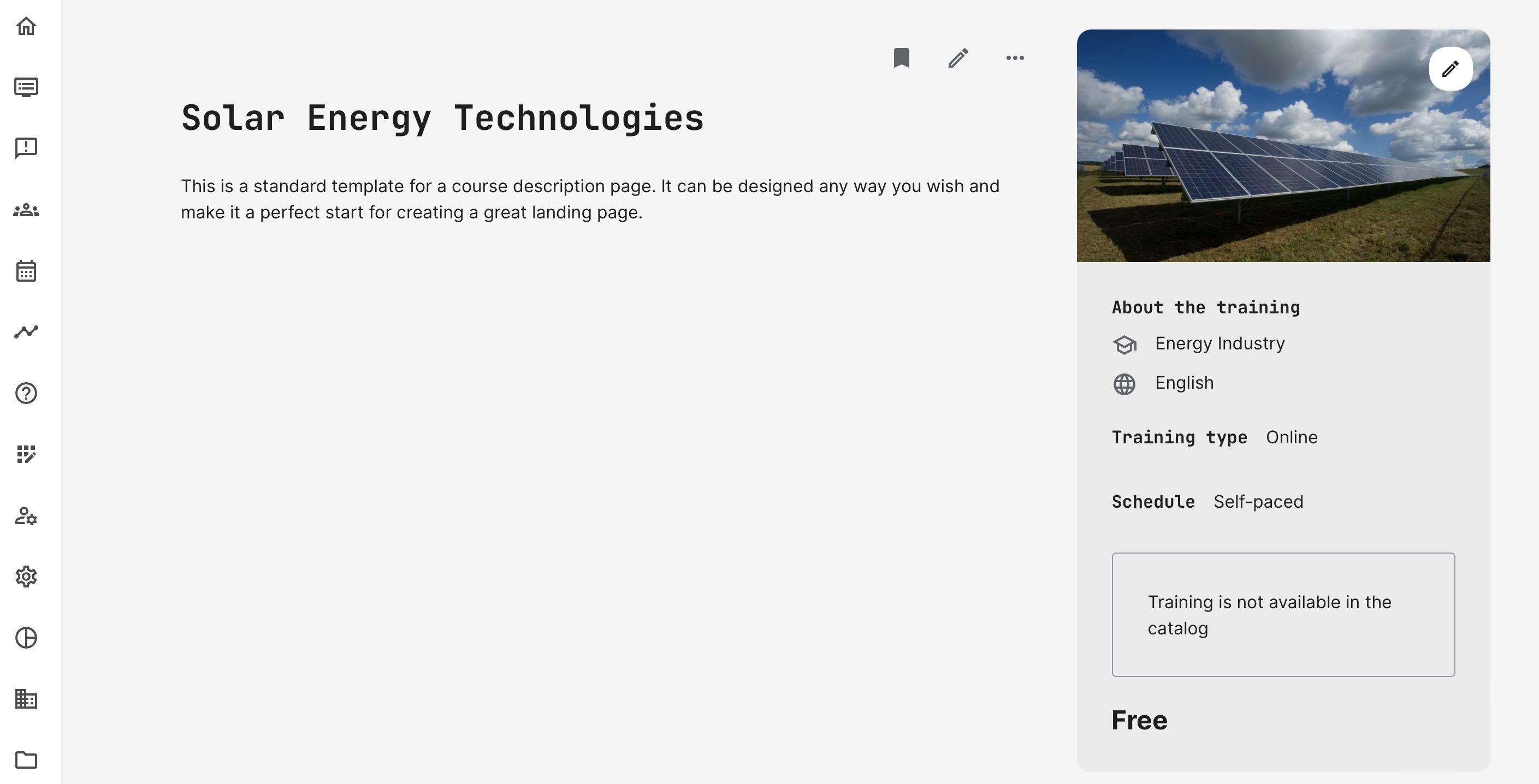
Some information is automatically generated. You can see this on the right side of the page. This comes from your activity tagging and by deriving information from the course and the administration by the course. This includes information such as:
- Categories you have identified your course with.
- Languages the course is available in.
- Price.
- Multi-currency will show the price according to either integration to location services for unregistered users or in the default currency,
- Registered users will show the relevant currency, as defined by configuration.
- Enrollment options (schedules, etc.).
- How much video (hours and minutes) if relevant.
- How many additional resources, addtional products have been included.
- Certification, if applicable.
Description
The description is edited on the pen icon and you have all the ressources available, from your course materials. You can also add new materials, add images, explainer videos, etc. The full functionality of the native authoring tool is at your disposal.
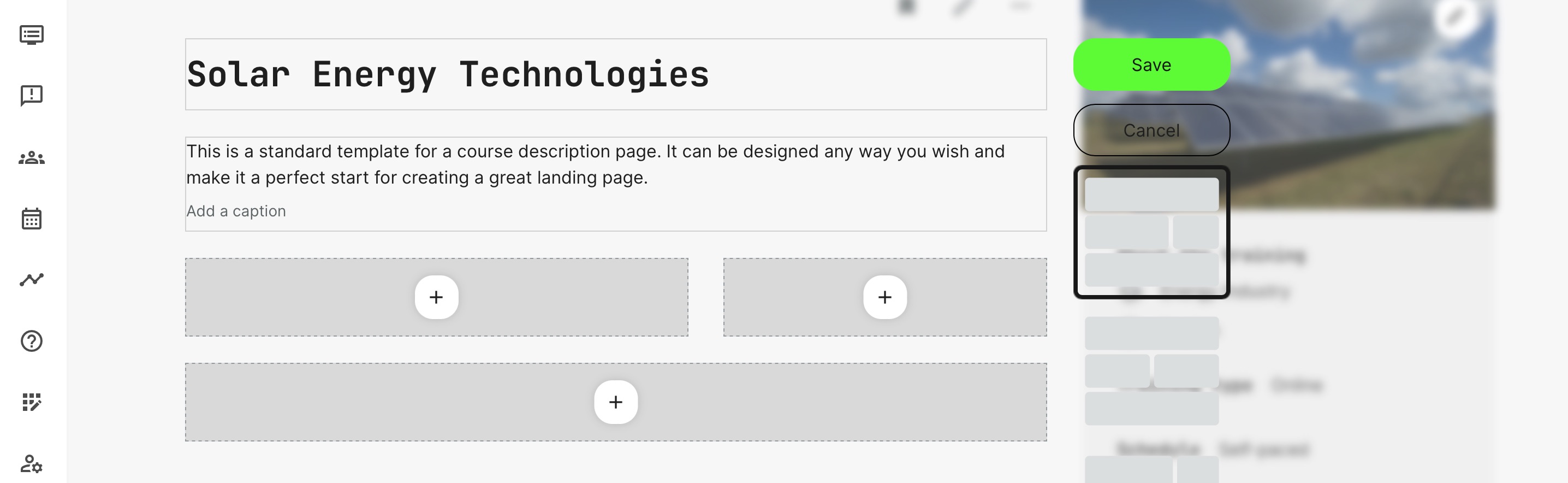
As you create a landing page/description page, make sure you include everything a participant would want to know, before enrolling on your training.
The title of the page will show in the catalog. Make this a title that is short and is focused on your audience.
The banner to the right, is the one that will show in the catalog for your offering. This should be 16:9 in format and can also be a video. The video plays on the home screen without audio.
If your offering is a learning path and incudes multiple course modules and events, these will all automatically show on the description page with information you have already populated. This provides information to the prospects and makes administration lean, as you don't have to do this twice.
FAQ
-
Why does the Storefront show a different title for my activity?
The title from the activity description is displayed in the Storefront. If the activity contains only one module, the course title will be shown instead.
You can edit the activity title on the activity description page, allowing you to keep an internal title while displaying a different title to users.
-
Why does the activity token in emails and certificates display the internal activity title?
The [activity:title] token refers to the internal activity name: it is used as a system identifier, not a user-facing title.
The [activity:description_title] token displays the title shown on the activity description page.
-
What counts as a supplemental resources?
The Supplemental resources section on the Activity description page and in the Enroll widget includes the following content:
- External videos.
- H5P objects added to a course presentation or an interactive video.
The Supplemental resources widget on the course landing page displays the total number of unique supplemental resources in the course.
Each H5P object added to a course presentation or an interactive video counts as one supplemental resource. For example, if a course contains five H5P interactions, the widget displays 5 supplemental resources.
The widget counts only unique resources. If you add the same H5P object or the same external video to multiple course pages, it is counted only once.